
Mac & Windows app by Flavio
Multichannel Stock Checker
Add your shelf count and the listing exports of Shopify, eBay, Etsy, Amazon or any channel. Multichannel Stock Checker shows every SKU your channels promise more of than you have, plans safe quantities per channel, and saves one update file per channel plus an audit report.
Buy Multichannel Stock Checker for Mac · $19Buy Multichannel Stock Checker for Windows · $19Buy once, use forever. Up to 3 computers you own (license). Plus tax where it applies. Mac and Windows versions are sold separately.
macOS 14 or later (Apple silicon and Intel) · Windows 10 and Windows 11 (x64 and ARM64)
Latest Mac version 1.0.0, released November 28, 2026
You have 11 sage stoneware mugs on the shelf. They’re listed 6 on Shopify, 6 on eBay and 6 on Etsy, because each listing was made on a different day and each one got “the full batch”. Nothing goes wrong until a Saturday when all three channels sell well. Order number 12 arrives, and you’re writing an apology and refunding a buyer who did nothing wrong.
Checking this by hand means putting every export in one spreadsheet, looking up each SKU on each channel, adding them up and comparing the total with your stock count. It works for a shop with 15 SKUs and three tidy exports. It stops working when eBay calls the column Custom label (SKU), Amazon calls it seller-sku, a spreadsheet quietly turns 00412 into 412, and one product is listed twice on Shopify.
Multichannel Stock Checker does that comparison for you. Add your shelf count and the listing exports you already download from each channel. You get every SKU with a status (Over by 7, Out of Stock Listed, Unknown SKU, Spare Stock or Safe), each one drawn against your shelf, and a Safe rebalance panel that plans new quantities per channel. Then you save one update file per channel and an audit report.
Watch a 30-second demo of Multichannel Stock Checker:
Who it’s for
- Makers selling the same batch on Etsy and their own Shopify store. You fire 12 mugs and list 12 on both, because changing one quantity every time the other sells is a chore. The app shows the 24 you’re promising against the 12 you have, and splits them.
- Resellers of new stock on eBay and Amazon who just added a third channel. Thirty units of a camp cup need to be shared between three listings without the total ever going past 30, and with 2 kept back for breakage.
- Small brands after a stocktake. The count from the back room says one thing and four channels say another. One check shows every SKU where they disagree, before the holiday rush.
- An assistant taking over the listings. A new helper needs a single list of where the channels and the shelf disagree, and a PDF they can work through and hand back.
- Sellers whose sync tool stopped syncing, because the plan ran out, an app was removed or a channel was disconnected. You need to put every channel’s quantity right from a stock count, today.
How it works
- Export your shelf count as a CSV: a SKU column and units on hand, and a Safety Buffer column if you keep units back. Download the listing export of each channel: Shopify’s products or inventory export, eBay’s active listings, Etsy’s listings, Amazon’s active listings report, WooCommerce’s products, or any CSV with a SKU and a quantity.
- Click Choose Stock Files… and pick them all, or drag them onto the window. The app tells the shelf count from the channels and names each channel.
- Click a SKU to see its channels against your shelf. Click Fit All Within Shelf Stock, or type a new quantity for each channel.
- Click Save Updates for 4 Channels… and choose a folder. Upload each file with its channel’s bulk edit tool.
Want to see it first? Try Example Files on the start screen opens a made-up shop with a shelf count and listings on four channels.
What you get
Every SKU, with what’s wrong in plain words
Each SKU gets one status, most urgent first:
- Out of Stock Listed: nothing on the shelf, still for sale somewhere. These are the orders you’ll have to cancel.
- Over by 7: the channels together list more than you can sell. The headline says it in numbers: “Listed 18 across 3 channels · Only 11 on shelf · Over by 7”.
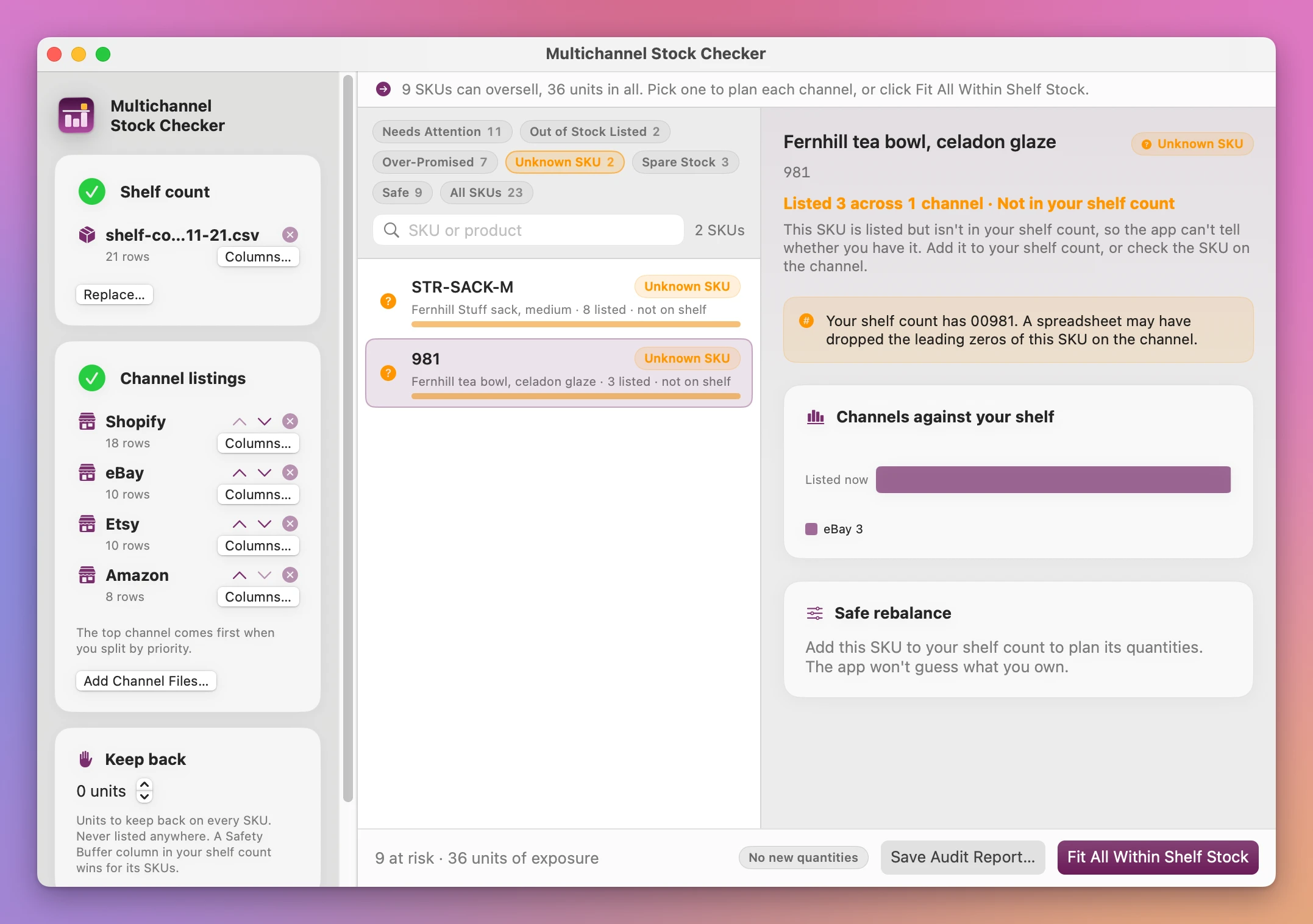
- Unknown SKU: listed on a channel and missing from your shelf count, so the app can’t tell whether you have it.
- Spare Stock: on your shelf and listed nowhere. Units that could be selling.
- Safe: listed no more than your shelf can sell.
The pills above the list filter by status, with a count on each, and the search finds a SKU or a product name.
Your channels drawn against your shelf
For the SKU you pick, a bar stacks what each channel lists, in shades of one colour, and a line marks how many you can sell. Everything past the line is promised and not on your shelf. Under it, the shelf bar shows your stock and the units you keep back. Once you plan new quantities, a third bar shows them fitting under the line.
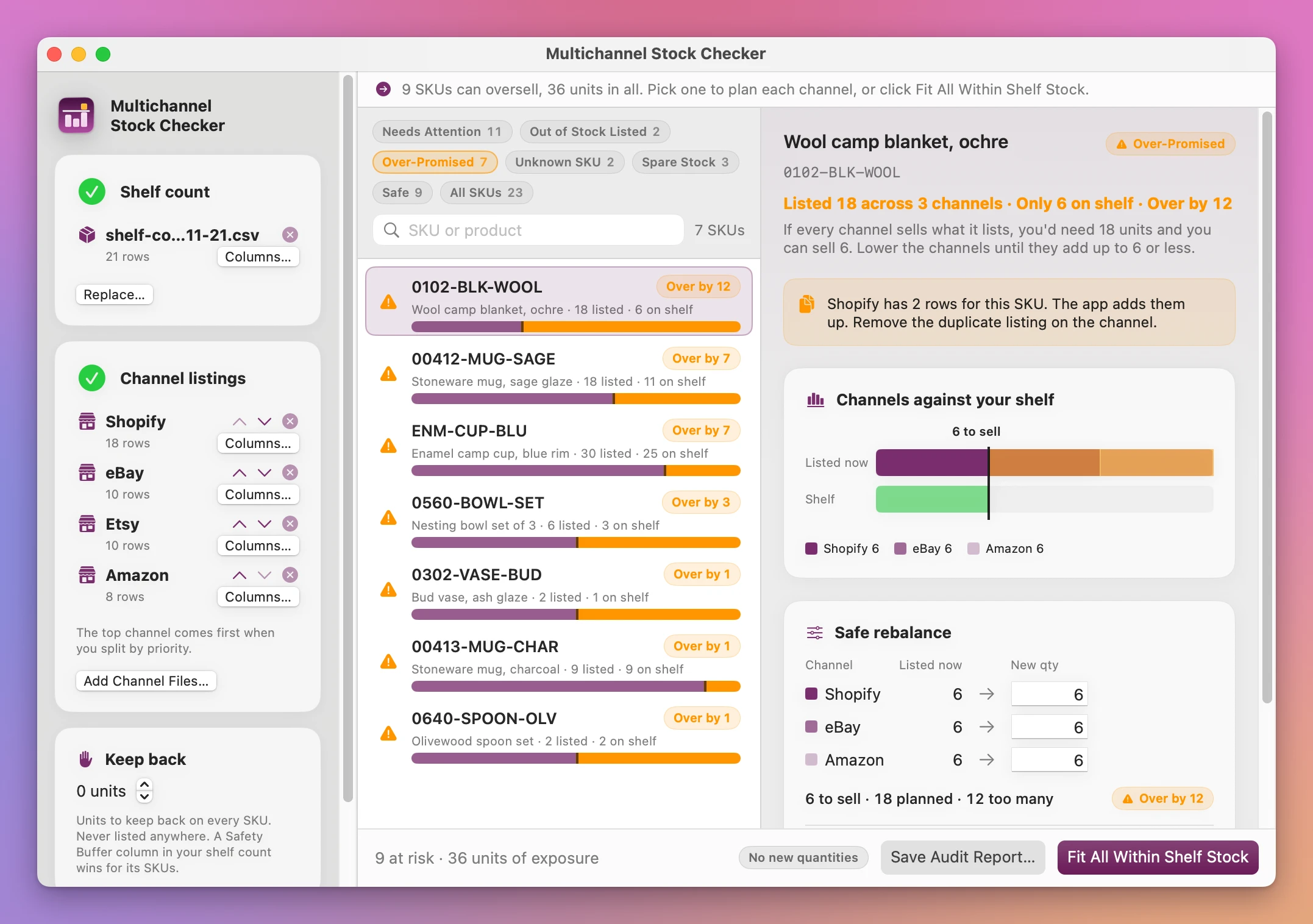
Safe rebalance, in proportion or by priority
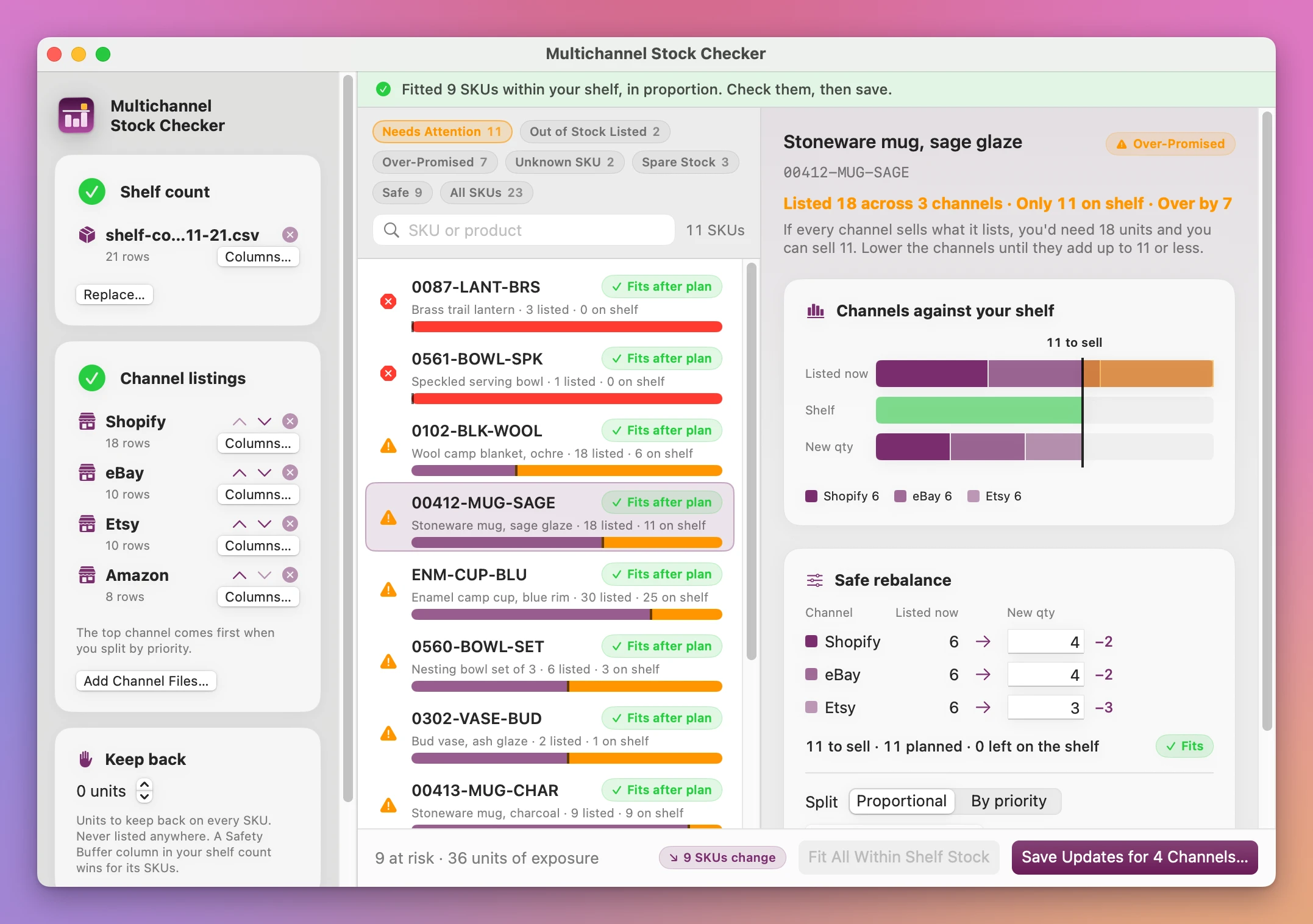
Fit All Within Shelf Stock lowers every SKU that can oversell until the channels add up to what you can sell. Proportional keeps each channel’s share: 6, 6 and 6 into 11 becomes 4, 4 and 3. By priority fills channels in the order of your channel list, so the store you care about keeps its whole listing first. Change the order with the arrows next to each channel.
You can also type a quantity for each channel yourself. The panel shows what’s left as you type: “11 to sell · 11 planned · 0 left on the shelf”, with a green Fits or an orange Over by 2. Fit never raises a channel, and a SKU you already fitted by hand keeps your numbers.
Leading zeros and duplicate rows, caught
SKUs are compared as text, so 00412-MUG-SAGE stays 00412-MUG-SAGE. When a channel lists 981 and your shelf count has 00981, the app says a spreadsheet may have dropped the zeros, instead of matching them behind your back. A SKU listed twice on the same channel is added up and pointed out, so you know to remove the duplicate.
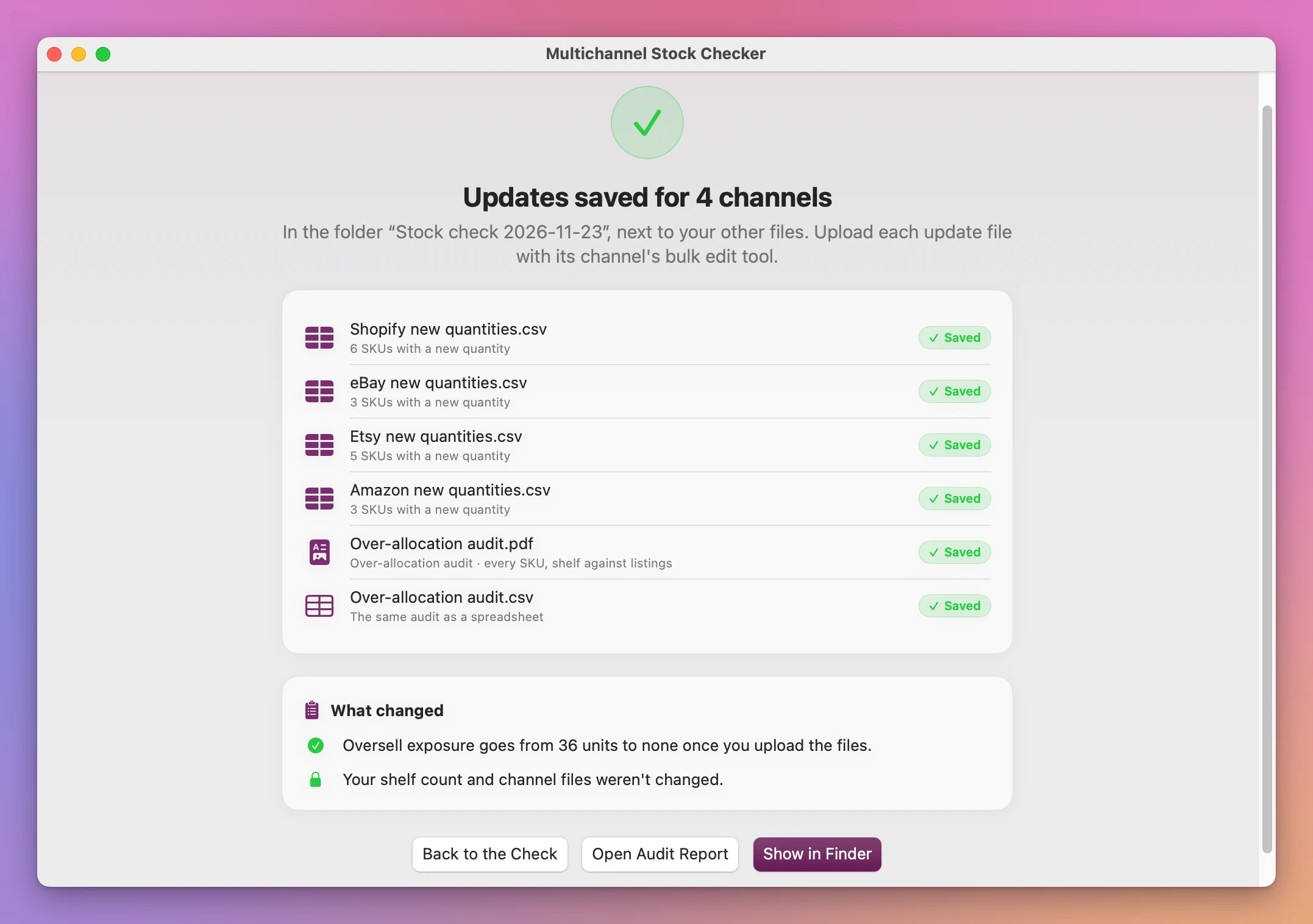
One update file per channel, and an audit report
Save Updates… makes a new folder in the place you choose, with:
- One CSV per channel that changes, with only the SKUs that change. The columns keep the channel’s own names from its export (
Variant SKUandVariant Inventory Qtyfor Shopify,Custom label (SKU)andAvailable quantityfor eBay), so its bulk editor or a spreadsheet lines them up. - An over-allocation audit as a PDF: the headline exposure, the count of each status, and a table of every SKU with the shelf, each channel’s listing as “6 → 4”, the total and how many over.
- The same audit as a CSV, for a spreadsheet.
It reads the exports you already have
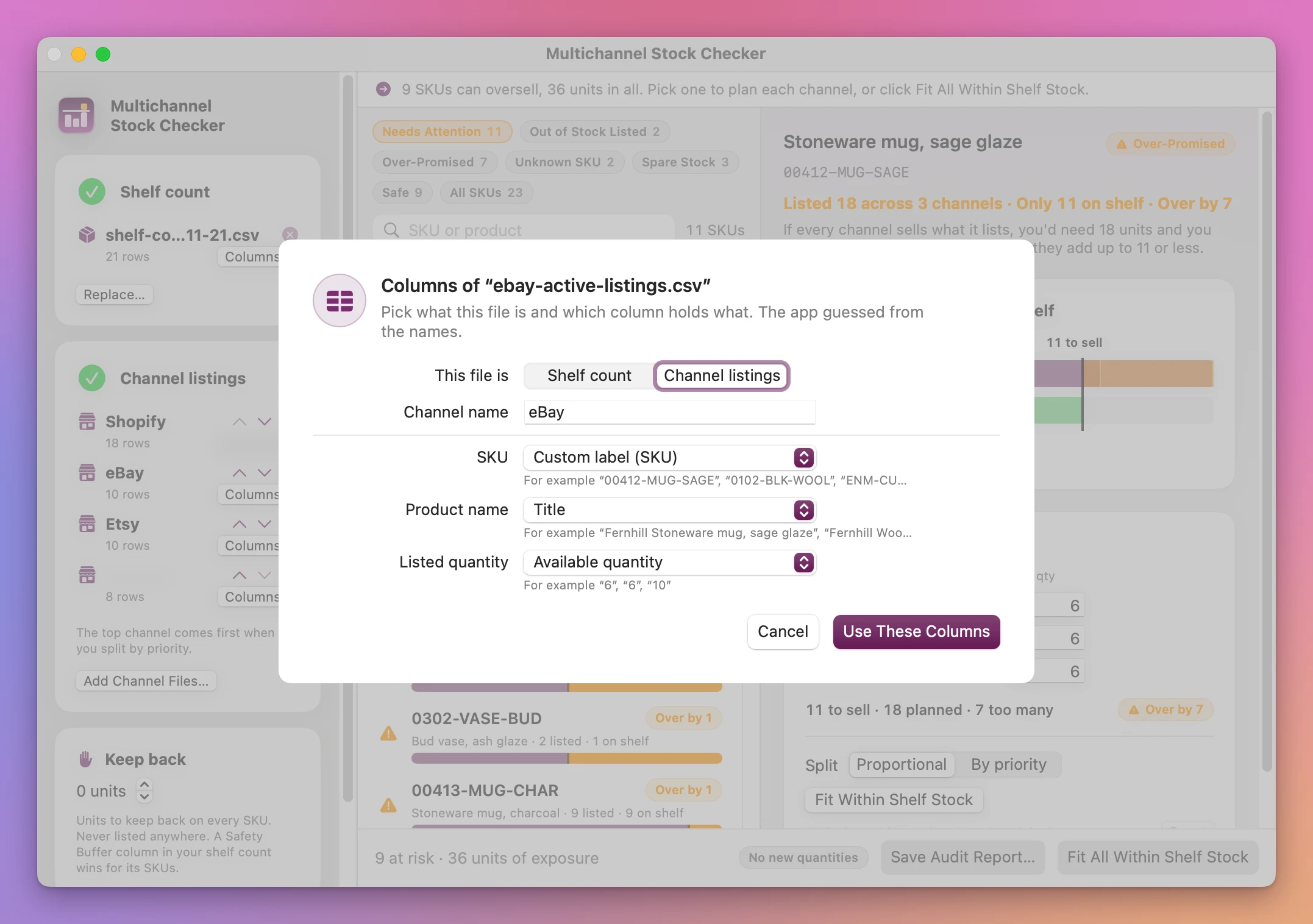
The app knows the column names of Shopify, eBay, Etsy, Amazon, WooCommerce and Walmart exports, finds the header row when a file starts with a title line, and reads comma, semicolon and tab separated files. When it guesses wrong, Columns… lets you pick the SKU, product name and quantity columns, say whether the file is the shelf count or a channel, and rename the channel.
Why not do it by hand
| Numbers or Excel | Multichannel Stock Checker | |
|---|---|---|
| Different column names on each channel | Rename columns, then XLOOKUP | Read from Shopify, eBay, Etsy, Amazon and WooCommerce names |
00412 turned into 412 | Usually unnoticed | Kept as text, and the dropped zeros pointed out |
| A SKU listed twice on one channel | The lookup finds the first row | Added up and shown |
| Total listed against the shelf | A SUM per SKU and a subtraction | A status and “Over by 7” for every SKU |
| Splitting what’s left between channels | Arithmetic per SKU | Proportional or by priority, in one click |
| A file to upload per channel | Copy columns into new sheets | One CSV per channel, only the SKUs that change |
| A record of the check | Save the workbook | A PDF and CSV audit report |
A spreadsheet is the right tool if you sell 20 SKUs on two channels and like formulas. Inventory sync services keep every channel in line all day, on a monthly plan with access to each of your accounts. This app sits in between: it reads files you already download, signs in to nothing, and costs the same once.
What it doesn’t do
- It doesn’t connect to any marketplace. It reads exports you download and writes files you upload. Nothing changes on a channel until you upload a file there.
- It doesn’t keep channels in sync. It’s a check you run when you have fresh exports, like after a stocktake or before a busy weekend.
- It doesn’t count your stock. The shelf count is yours, from your stocktake, your inventory spreadsheet or your warehouse.
- It reads CSV and text exports only. A Numbers or Excel file needs to be exported as CSV first.
- Some channels want their own template. The update files keep the channel’s column names and hold only the SKU, title and quantity. When a channel’s upload tool asks for more columns, paste the new quantities into its template.
- It doesn’t work out kits or bundles, or find one-of-a-kind items that sold on one channel and are still up on another.
- Your files are never changed. Saving always makes a new folder.
Questions
Which channels does it work with?
Any that gives you a CSV with a SKU and a quantity column. The app names Shopify, eBay, Etsy, Amazon, WooCommerce, Walmart and others from the file name or the columns. For anything else, type the channel’s name in Columns….
Does anything get uploaded?
Nothing is uploaded. Your files stay on your Mac, and the app connects to the internet only to check for updates.
What does it need?
macOS 14 Sonoma or later, on Apple silicon and Intel Macs. It asks macOS for no permission: it reads the files you choose or drag onto its window.
Multichannel Stock Checker isn’t made by, affiliated with or endorsed by Shopify, eBay, Etsy, Amazon, WooCommerce, Walmart, Apple or any other marketplace. The shop, the products and the SKUs in the screenshots are made up.
Buy Multichannel Stock Checker
$19 plus tax where it applies, paid once.
Download the app from the order page or your Creem receipt, unzip it and move it to Applications. I sign the app with my Apple Developer ID, and Apple notarizes the download.
The app checks for updates once a day. When a new version is ready, click Install and Relaunch. The first time, it asks for the license key from your Creem receipt, and remembers it. To check anytime, choose Multichannel Stock Checker → Check for Updates….