
Mac & Windows app by Flavio
Noise Gate Checker
Check a podcast dialogue track or finished episode for harsh noise gating: room tone that drops to dead silence between phrases, chopped word endings and gate chatter. Hear each spot with and without the silence, and get the gate settings to change.
Buy Noise Gate Checker for Mac · $19Buy Noise Gate Checker for Windows · $19Buy once, use forever. Up to 3 computers you own (license). Plus tax where it applies. Mac and Windows versions are sold separately.
macOS 14 or later (Apple silicon and Intel) · Windows 10 and Windows 11 (x64 and ARM64)
Latest Mac version 1.0.0, released November 29, 2026
You put a noise gate on the dialogue of episode 14 to hide the hum of the room. On the laptop speakers it sounds clean. Then a listener on headphones writes that the room keeps switching on and off between sentences, and that the host’s “thanks” sounds like “than”.
The gate did that. Between phrases it dropped the room tone from −52 dBFS straight down to digital silence in a millisecond. Twice it closed while a soft “s” was still sounding. And in a few pauses it flickered open and shut on the room tone.
You can hear all of it by listening to the whole episode on good headphones, but a 1 ms cut is easy to miss at minute 31, and a 40-minute episode takes 40 minutes. Noise Gate Checker measures the level every millisecond, finds every hard drop, chopped word and burst of chatter, and plays each one in context, with and without the dead silence.
Watch a 30-second demo of Noise Gate Checker:
Who it’s for
- Podcasters who gate their own dialogue. You set a gate in GarageBand, Audacity or your editor once, months ago, and never checked what it does in the pauses. See whether the floor dips or vanishes, and get the range and release to set.
- Editors who get gated tracks from guests. Remote recordings often come in with noise suppression already applied, and the pauses are dead silence. Know before you mix it whether you need to lay room tone under the guest.
- Audiobook and course narrators. A long chapter with the gate threshold a little too high bites the ends off quiet words. Find the two places it happened instead of re-listening to an hour.
- Producers who deliver to clients. Send the PDF with the episode: room tone −52 dBFS, floor in the pauses −64 dBFS, no hard drops, no chopped words. The client sees the gate was checked.
- Anyone fixing a gate they don’t trust. Change the gate, export again, check again. The second check shows a natural floor in green, or what’s still harsh.
From a recording to the gate settings
- Click Choose a Recording… and pick the dialogue track or the finished episode: WAV, AIFF, M4A, MP3, FLAC or CAF. Or drag it onto the window.
- Read the summary: room tone, gated floor, floor drop, and how many hard floor drops, chopped words and bursts of chatter.
- Pick what to hear with the menu above the list: All Spots, Chopped Word Edges, Hard Floor Drops or Gate Chatter.
- Click a spot, then Play in Context. Tick Soften Preview while it plays to hear the difference.
- Read How to fix it in your editing app, then click Save Review… and pick a folder.
Want to see it first? Click Try Example Recording. The app makes one minute of a made-up dialogue track gated far too hard, on your computer, and checks it.
What you get
The gate naturalness summary
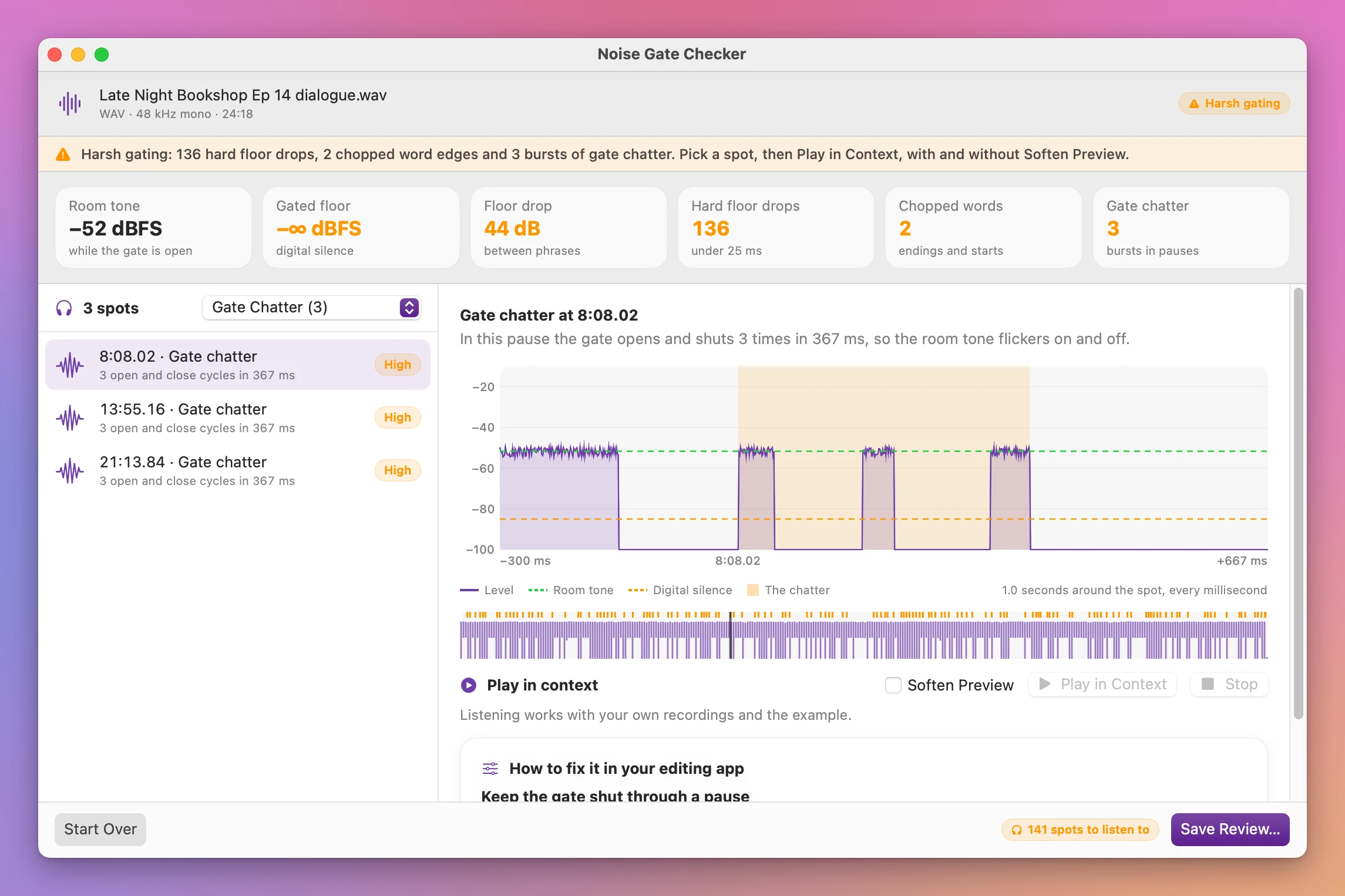
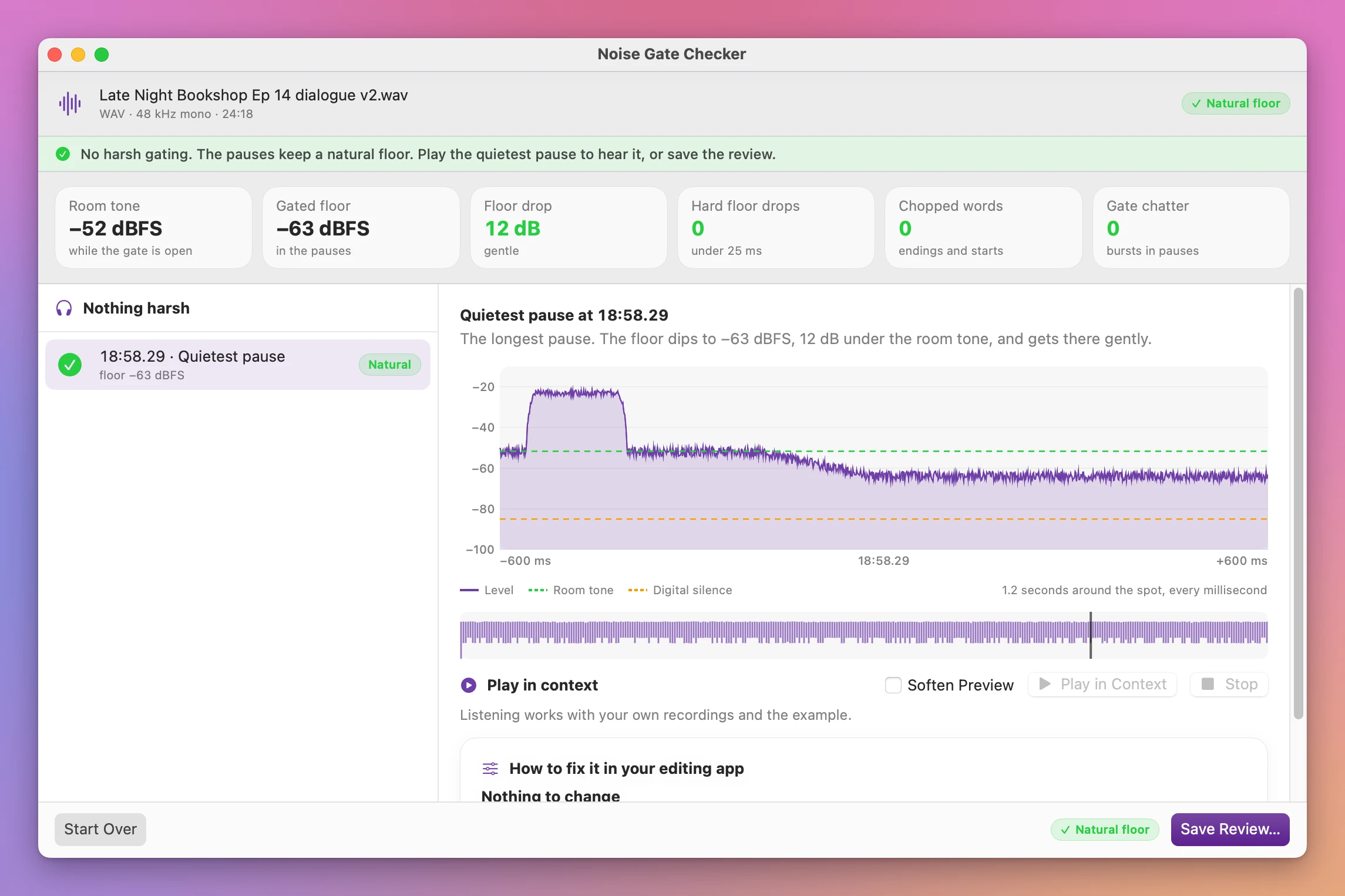
Six numbers at the top. The room tone is the level of the room while the gate is open, in the short gaps between words. The gated floor is the level in the pauses between phrases: −∞ means the gate drops to digital silence. The floor drop is the difference. A gentle gate dips the floor 10 to 15 dB; a harsh one drops 40 dB or more. Then the counts of hard floor drops, chopped words and bursts of gate chatter.
Three kinds of harsh gating
- Hard floor drops: the room tone falls to digital silence (under −85 dBFS) in less than 25 ms. That’s the switching-off you hear on headphones.
- Chopped word edges: a word is still sounding, well over the room tone, in the last few milliseconds before the silence. Its soft ending was cut. The same check catches a word that starts already loud out of silence, when the gate opened late.
- Gate chatter: two or more short openings on room tone in one pause, within a second. The floor flickers.
Each spot gets a severity. Chopped words and chatter are marked High when they’re clearly audible, and drops are at most Medium, so the worst spots are easy to find in a long list.
A graph of every spot
Click a spot and the graph shows a second of the level around it, measured every millisecond, with the room tone and the silence line dashed and the drop shaded. Under it, the whole recording, with a tick for every spot. Click the strip to jump to the nearest spot.
Play in Context, and Soften Preview
Play in Context plays 2 seconds before to 2 seconds after the spot. Tick Soften Preview, even while it plays, and the same moment carries on with the dead silence filled with the recording’s own room tone, faded in and out. You hear what the gap would sound like with a gentler gate before you change anything. It’s only for listening: your file isn’t changed.
Gate settings in plain words
Under each spot, How to fix it in your editing app says what to change for that kind of problem. Hard drops get “lower the gate’s range (also called floor or depth) from −∞ to about −12 dB and raise release to about 180 ms”. Chopped endings get a threshold about 6 dB over the room tone, a number the app works out, and 80–100 ms of hold, while chatter needs more hold and hysteresis if your gate has it.
The Noise Gate Review folder
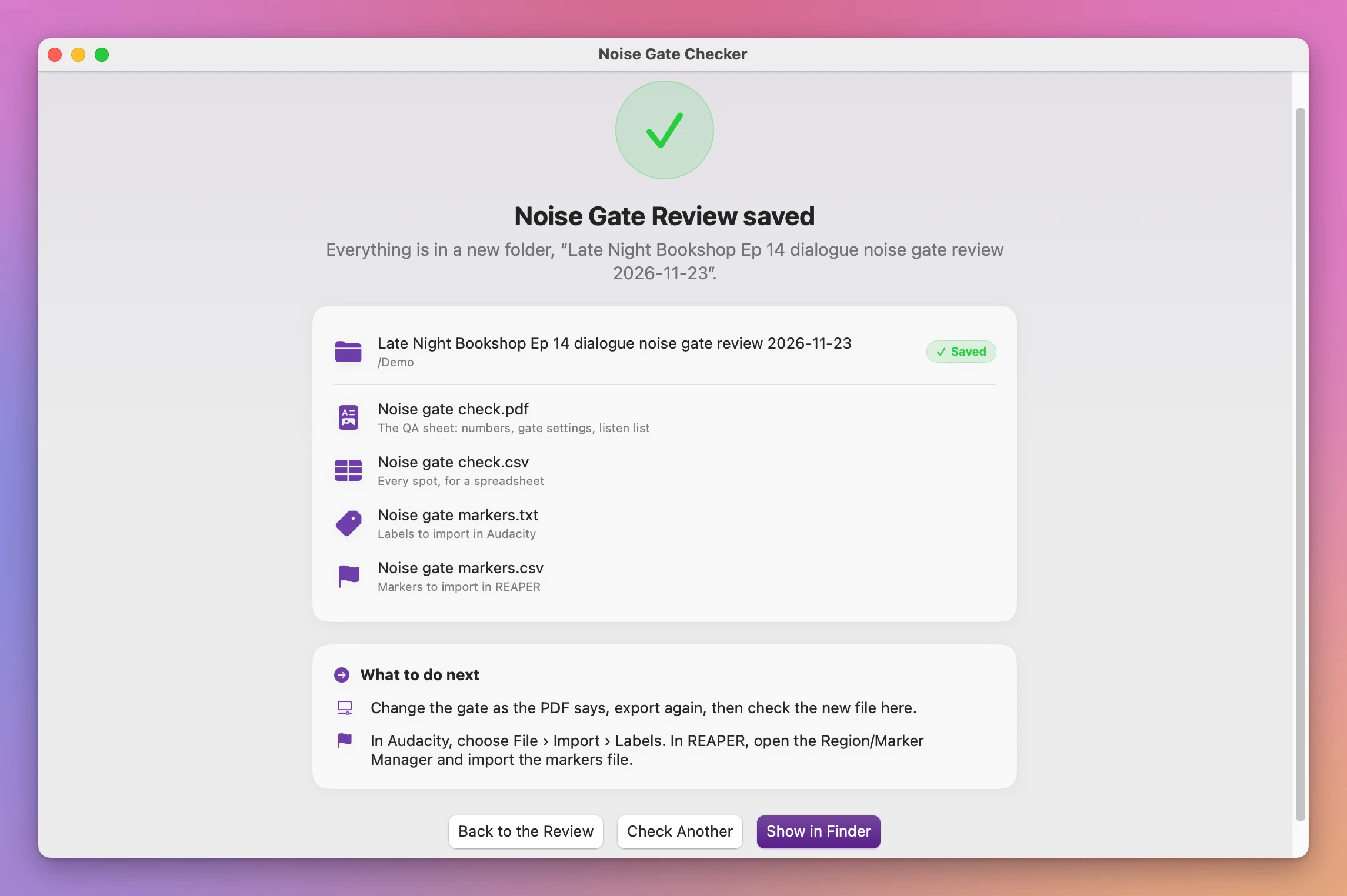
Save Review… makes a new folder where you choose, and never writes over anything:
- Noise gate check.pdf: a printable QA sheet with the summary, the level over time, the gate settings to try and the listen list, most important first.
- Noise gate check.csv: every spot with its timestamp, type, drop in dB, transition in ms and severity.
- Noise gate markers.txt: labels for Audacity, imported with File › Import › Labels.
- Noise gate markers.csv: markers for REAPER, with each burst of chatter as a region, imported in the Region/Marker Manager.
Why not do it by hand
Listening on headphones is how most people find gate pumping, and it’s the final test. But it takes the length of the episode, your attention drifts, and a word ending cut in 1 ms at minute 31 is easy to hear once and hard to find again.
Looking at the waveform in your editor shows long flat stretches where the gate closed. Switch the track to a dB view and the silence is obvious. What you can’t see at that zoom is how fast the floor fell, whether a word was still sounding when it did, or a flicker that lasts 40 ms.
Audacity’s Label Sounds (in the Analyze menu) can label the regions between sounds under a threshold, so you get a list of the silent pauses. It’s free and it works. It doesn’t tell a gentle fade from a 1 ms cliff, and it doesn’t look for chopped words or chatter.
| Listening on headphones | Waveform in your editor | Audacity’s Label Sounds | Noise Gate Checker | |
|---|---|---|---|---|
| Cost | Free | Free | Free | $19 plus tax, paid once |
| Time for a 40-minute episode | 40 minutes or more | Scrolling and zooming | A minute, then reading labels | Seconds |
| Finds pauses that go to dead silence | If you hear them | Yes, by eye | Yes | Yes, with the drop in dB |
| Tells a 1 ms cut from a gentle fade | By ear | At high zoom | No | Yes, in ms |
| Chopped word endings and starts | By ear | No | No | Yes |
| Gate chatter | By ear | At high zoom | Partly | Yes, with the cycles |
| Hear the gap filled with room tone | No | No | No | Soften Preview |
| Gate settings to change | Your judgment | Your judgment | No | Written for each problem |
| Markers for Audacity and REAPER | No | No | Audacity labels | Both |
What it doesn’t do
- It doesn’t change your recording. It reads it and saves a review folder, never a fixed file.
- It doesn’t apply a gate or remove noise. It tells you which gate settings to change in your own editor.
- Soften Preview is for listening only. It doesn’t save a softened file.
- It checks one file at a time: a dialogue track or a finished mix, not a multitrack session.
- It doesn’t judge breaths, mouth clicks or background noise, only what the gate does to the floor.
- Its limits are fixed: under −85 dBFS is silence, a fall faster than 25 ms is a hard drop. A track that fades to digital silence on purpose, like the end of a music bed, can show up as a drop: listen and skip it.
- It doesn’t open video files, editing projects or Ogg and Opus files. Export the audio as WAV first.
Questions
Is anything uploaded?
No. Your audio is checked on your Mac. The only connection the app makes is to check for updates.
Does it work with a long episode?
Yes. The recording is read in chunks and measured every millisecond. A long episode takes longer to read, but the review opens as soon as it’s done; the one-minute example takes about a second.
Does it need any permission?
No. It reads only the file you choose or drop on its window. The example and the listening clips live in the app’s own folders.
Which editors does it work with?
Any. It checks the file you export. The markers open in Audacity and REAPER, and the CSV opens in any spreadsheet.
Noise Gate Checker isn’t made by, affiliated with or endorsed by Apple, Muse Group or Cockos. Audacity and REAPER are named only to say which apps the markers open in.
Buy Noise Gate Checker
$19 plus tax where it applies, paid once. You get the Mac app for macOS 14 Sonoma or later, on Apple silicon and Intel Macs, signed and notarized by Apple. Updates are included: the app checks once a day, and asks for the license key from your receipt the first time it installs one.