
Mac & Windows app by Flavio
Order Pick List Maker
Open today's orders from Shopify, Etsy, eBay, WooCommerce or a spreadsheet, and get one pick list sorted by your shelf bins, with the total to take from each bin and the orders it's for. Print it as a PDF for the clipboard.
Buy Order Pick List Maker for Mac · $19Buy Order Pick List Maker for Windows · $19Buy once, use forever. Up to 3 computers you own (license). Plus tax where it applies. Mac and Windows versions are sold separately.
macOS 14 or later (Apple silicon and Intel) · Windows 10 and Windows 11 (x64 and ARM64)
Latest Mac version 1.0.0, released November 27, 2026
It’s 8 in the morning and there are 14 orders to ship. Seven Sage mugs are spread across four of them, the candles are in three more, and the doormat is at the back of the garage. You print the packing slips and walk the shelves once per order, and you’re at bin B1-1 for the fourth time before the coffee is cold.
A spreadsheet can fix part of it. You paste the orders next to your bin list, look up each SKU’s bin, add up the quantities and sort. Then you find out that sorting puts A1-10 before A1-2, the cancelled order is still in there, and tomorrow you do it all again.
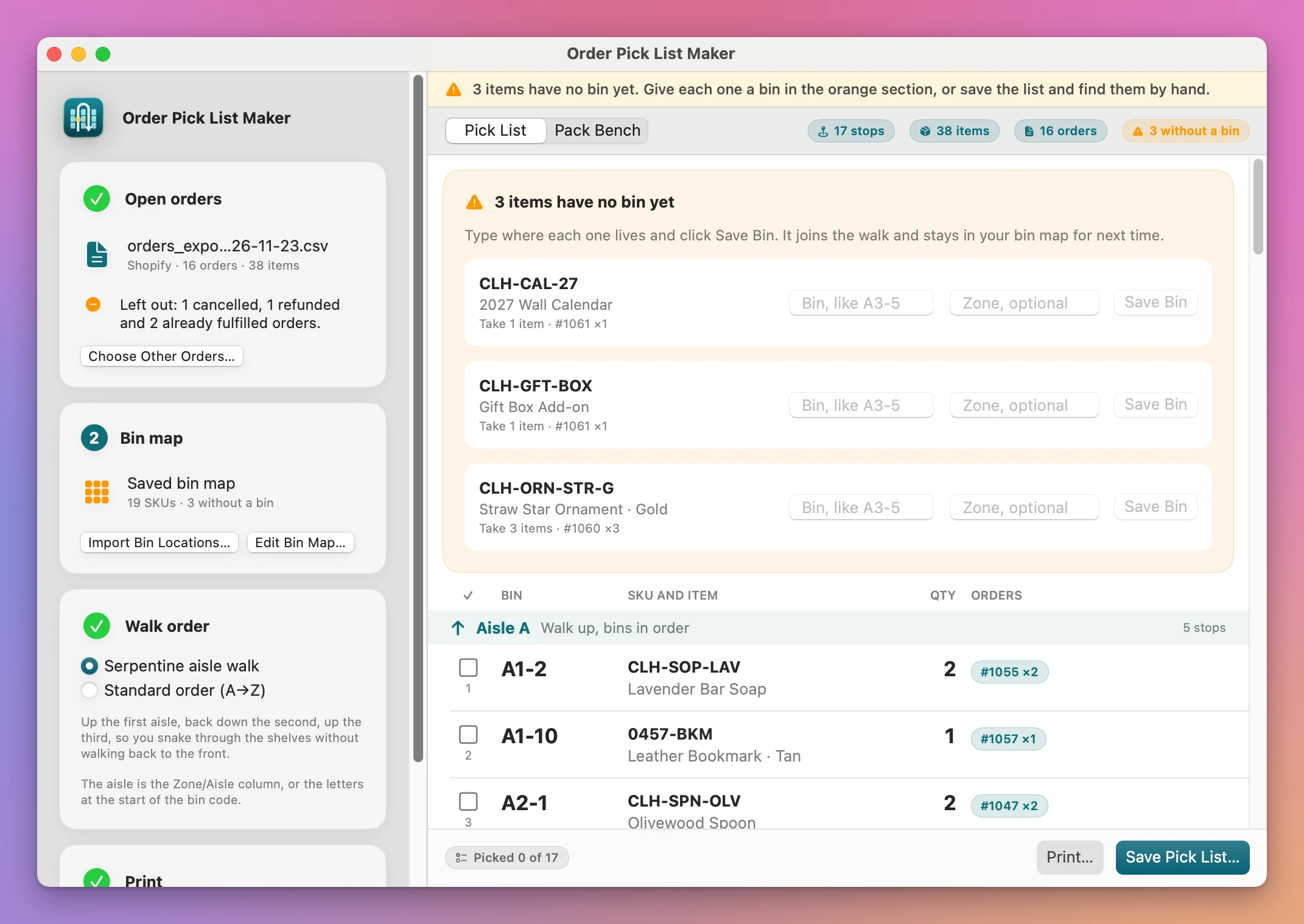
Order Pick List Maker does that every morning in a second. Open the orders file your store exports, and every SKU becomes one stop: its bin in big letters, how many to take, and which orders they’re for, like #1042 ×2, #1048 ×1, #1055 ×2. The stops follow your shelves, aisle by aisle, so you pick everything in one walk.
Watch a 30-second demo of Order Pick List Maker:
Who it’s for
- One-person shops on Etsy or Shopify with products on shelves in a spare room or a garage, 20 to 80 orders a morning, and bins labeled by hand. You stop walking to the same shelf once per order.
- Small brands with a part-time packer. You know where everything is, and your packer doesn’t. A list in bin order, with the count for each bin, lets someone new pick without asking you.
- Sellers on more than one marketplace. You export the open orders from Etsy, then from eBay, then from your own site, and each file gets the same bin map and the same walk.
- Anyone after a sale or a holiday rush. With 200 orders, adding up “how many Sage mugs in total” by hand is where the mistakes come from. The app adds them up and shows every order’s share.
- Craft and vintage sellers with a growing catalog. New SKUs show up every week. The ones that don’t have a shelf yet stand out in orange, and you give them a bin right there.
How it works
- Export today’s open orders from your store as a CSV file, or save your orders spreadsheet as CSV.
- Click Choose Open Orders…, or drag the file onto the window.
- The first time, click Import Bin Locations… and choose a CSV with a SKU column and a Bin column. The app keeps it, so tomorrow you skip this step.
- Give a bin to any new item in the orange section and click Save Bin.
- Walk the list from the top, clicking each stop as you pick it. Then click Save Pick List… to save the PDF and print it.
What you get
One stop per SKU, in the order you walk
Every order line for the same SKU becomes one stop, with the total to take. The orders it’s for are listed next to it, each with its quantity, so you can drop the right number into each tote.
Bins are sorted the way people read them: A1-2 comes before A1-10, and A2-1 before A10-1. Pick Serpentine aisle walk and the app walks up the first aisle, back down the second, up the third, so you never return to the front between aisles. Or pick Standard order (A→Z) for a straight run through every aisle.
The aisle comes from a Zone/Aisle column if your bin file has one. Otherwise it’s the letters at the start of the bin code, so A1-2 is in aisle A.
Cancelled, refunded and shipped orders stay out
The app finds the order number, SKU, item, variant, quantity and buyer columns by their names, in exports from Shopify, Etsy, eBay and WooCommerce, or in your own spreadsheet. When the file has a status column, cancelled, refunded and already fulfilled orders are left out, and the app tells you how many: “Left out: 1 cancelled, 1 refunded and 2 already fulfilled orders.”
New items get a bin on the spot
An item whose SKU isn’t on your bin map goes into an orange section at the top of the list, with how many to take and for which orders. Type its bin, click Save Bin, and it moves into the walk at the right stop. The bin is saved, so tomorrow it’s already there.
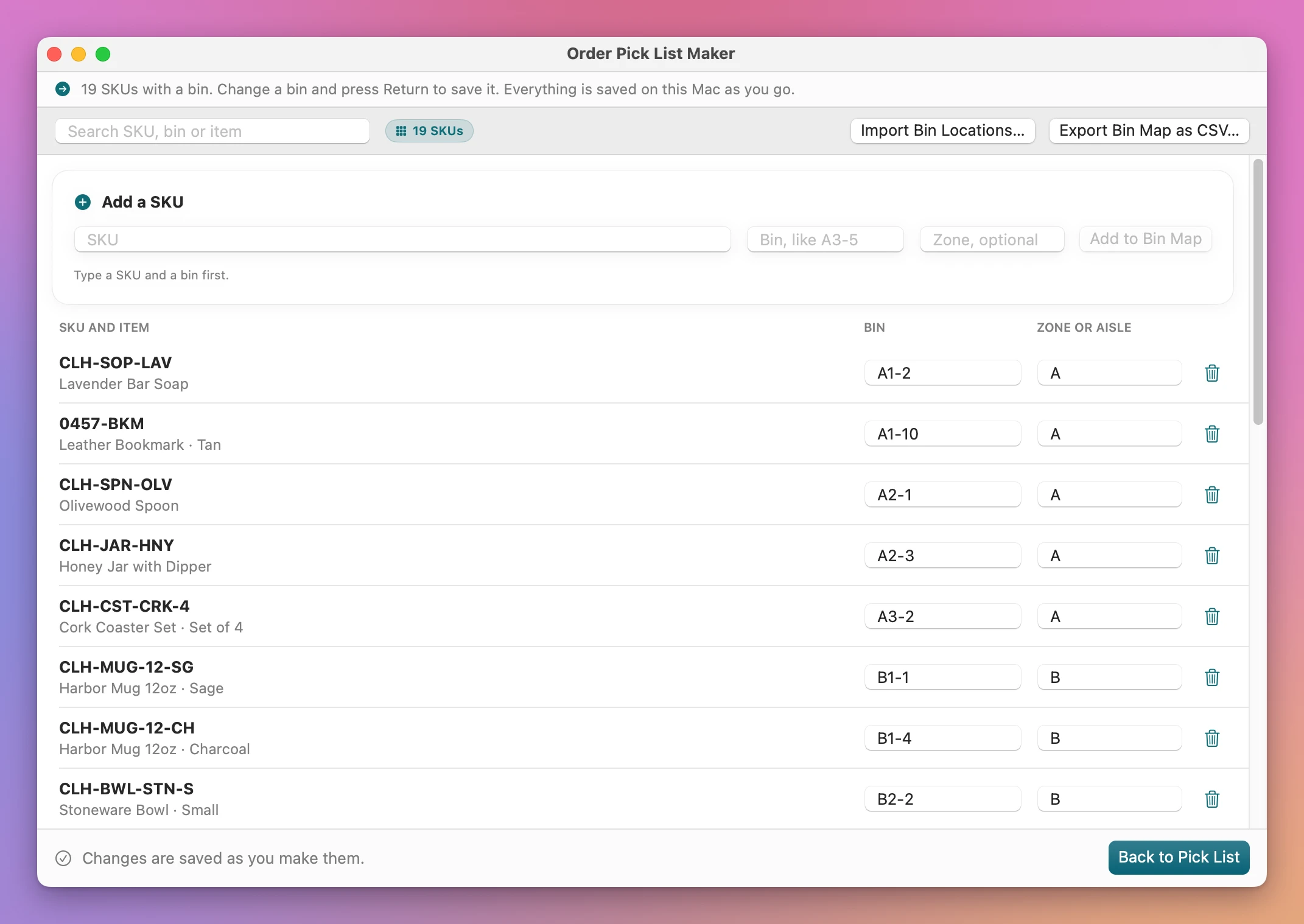
Your bin map, saved on your computer
You import your bin locations once. After that, Edit Bin Map… shows every SKU with its bin and zone. Change a bin and press Return, add a SKU, or take one out. Export Bin Map as CSV… saves the whole map, to keep a copy or to fix many bins at once in a spreadsheet and import them again.
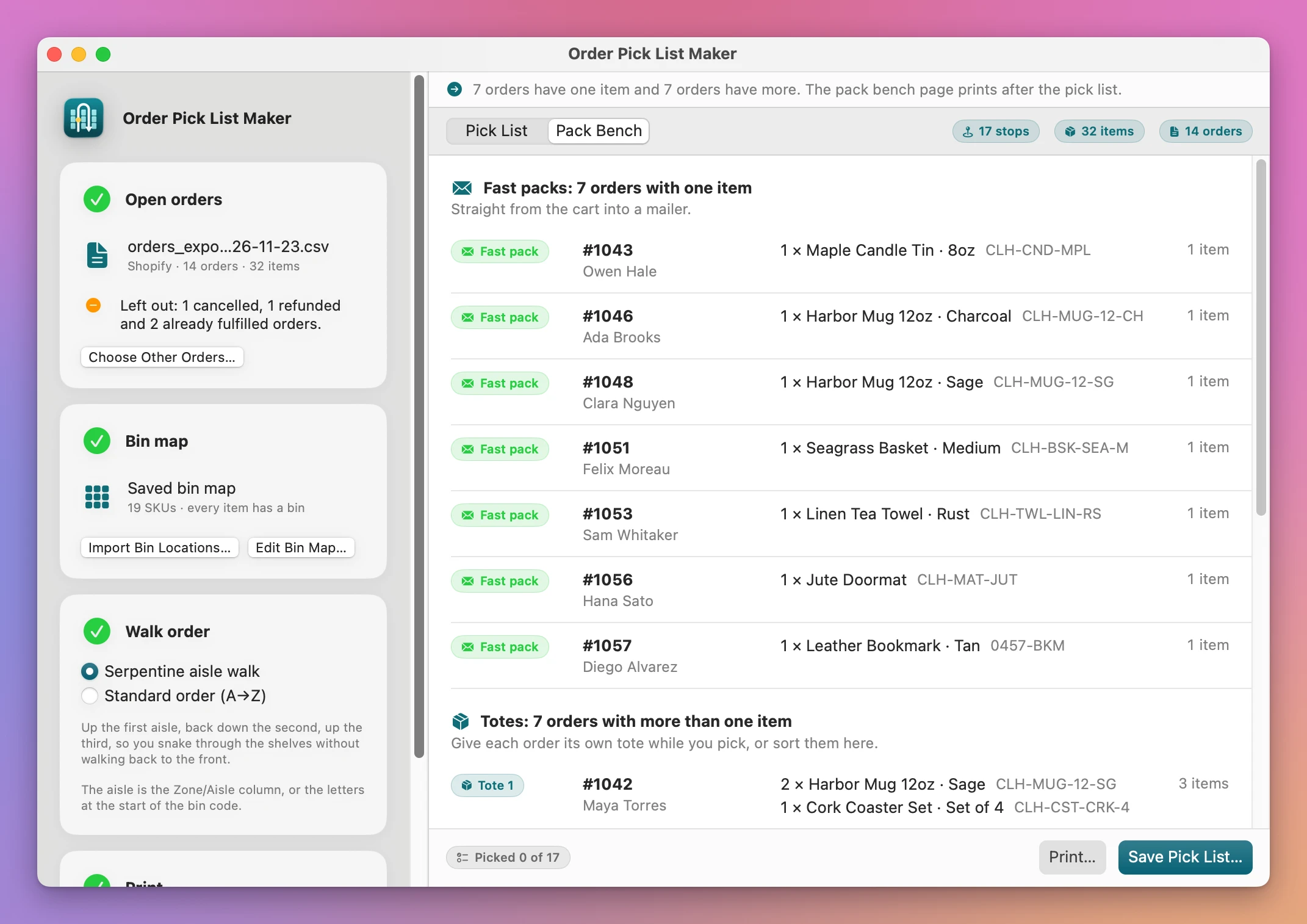
The pack bench
Pack Bench splits the orders into fast packs, with one item that goes straight into a mailer, and totes, numbered, for orders with more than one item. The same page prints after the pick list.
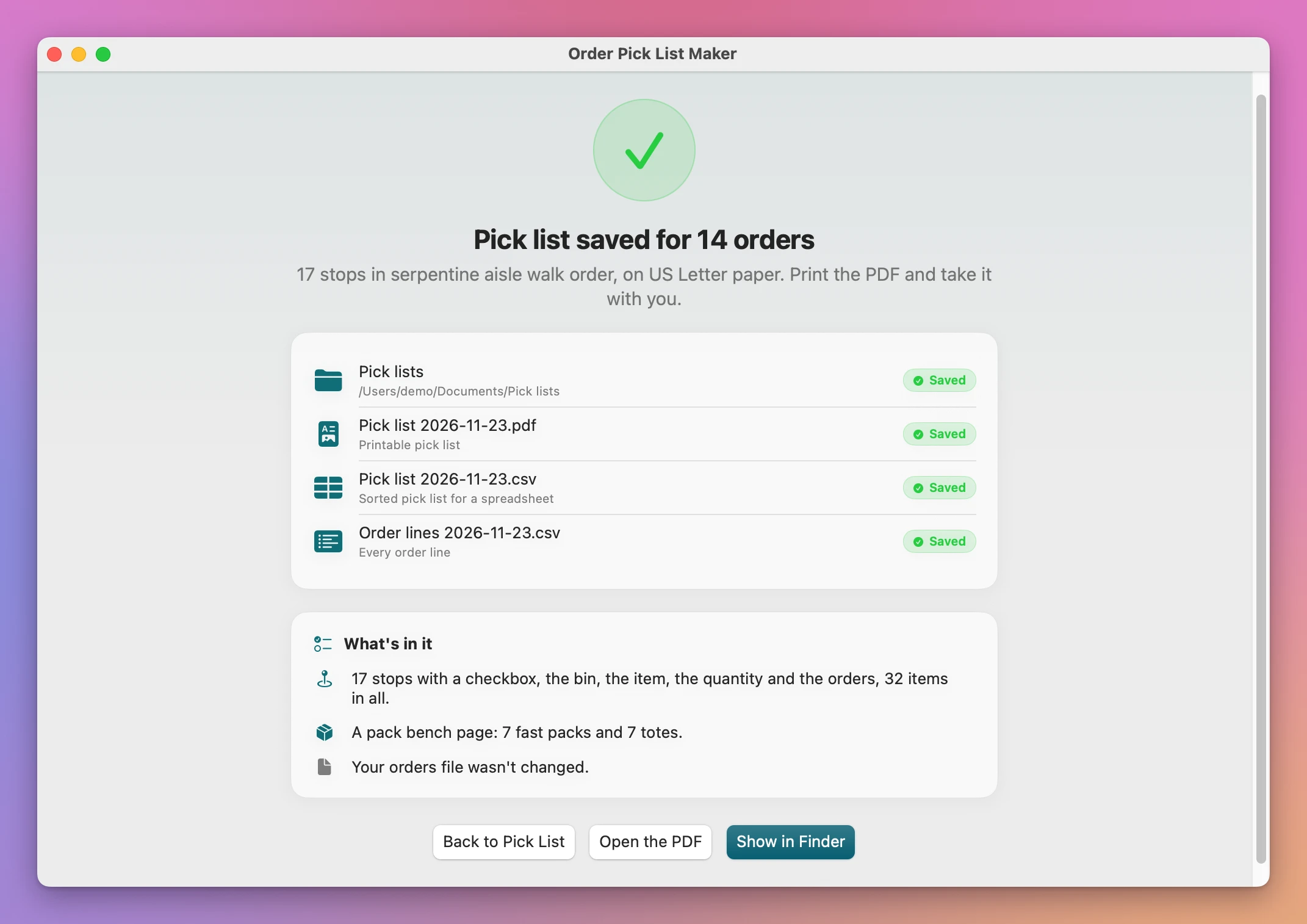
A PDF for the clipboard, and a CSV
Save Pick List… saves a PDF on US Letter or A4 paper: a checkbox for each stop, the bin in bold, the SKU and item, the quantity in bold and the order badges, with a band for each aisle. Items with no bin are listed after the walk, and the pack bench gets its own page. Next to it you get the same list as a CSV, and if you want, a CSV with one row per order line, with the buyer and the tote number.
Why not do it by hand
Your store already prints packing slips, and some stores have a picking list that groups the same product together. Neither knows where things are on your shelves, so you still walk them in the order the products happen to be listed.
A spreadsheet can do it: VLOOKUP each SKU’s bin, a pivot table for the totals, a sort. It works if you build it carefully and redo it every morning. Text sorting puts A1-10 before A1-2, the snake through the aisles needs a helper column, and a new SKU without a bin shows up as an error in a cell you might not notice.
Shipping and warehouse software has bin locations and pick lists, for a monthly fee and with a setup made for a warehouse team.
| Packing slips | A spreadsheet | Order Pick List Maker | |
|---|---|---|---|
| Same SKU across orders | One line per order | A pivot table you build | One stop, with each order’s share |
| Order of the stops | The order of the orders | A text sort, A1-10 before A1-2 | Your shelves, standard or serpentine |
| Cancelled and shipped orders | Depends on the filter | Delete them yourself | Left out, and counted |
| New SKUs with no bin | Nothing tells you | An error in a cell | An orange section to fill in |
| Every morning | Print and walk | Redo the steps | Open the file |
What it doesn’t do
- It doesn’t connect to your store. You export the open orders as a CSV file and open it in the app.
- It doesn’t mark orders as shipped or buy shipping labels. Your store or your shipping app does that.
- It doesn’t track stock. It doesn’t know how many of each item are on the shelf.
- One bin per SKU. If you keep a product in two places, the app uses one bin for it.
- No barcode scanning. You tick stops by clicking them, or on the printed list with a pen.
- The bin map stays on your computer. It doesn’t sync with another Mac. Export Bin Map as CSV… gives you a copy to import elsewhere.
Questions
Which stores’ files does it read?
Exports from Shopify, Etsy, eBay and WooCommerce, and any spreadsheet saved as CSV with columns for the order number, the SKU (or the item’s name) and the quantity. Column names like “Order #”, “Item SKU”, “Qty” or “Custom Label” are found on their own. Semicolon CSV files from a European spreadsheet work too.
What if my bin codes look different?
Any code works: A1-2, B-03-1, 12-4 or SHELF3. Numbers are sorted by value, so B-3 comes before B-10. If your aisles don’t start the code, add a Zone/Aisle column to the bin file.
Does anything get uploaded?
Nothing. Your orders, your buyers’ names and your bins stay on your Mac. The app connects to the internet only to check for updates.
What it needs
macOS 14 Sonoma or later, on Apple silicon and Intel Macs. It asks macOS for no permission: it reads the files you choose or drag onto its window.
Order Pick List Maker isn’t made by, affiliated with or endorsed by Shopify, Etsy, eBay, WooCommerce, ShipStation or Apple. The store, orders and buyers in the screenshots are made up.
Buy Order Pick List Maker
$19 plus tax where it applies, paid once.
Download the app from the order page or your Creem receipt, unzip it and move it to Applications. I sign the app with my Apple Developer ID, and Apple notarizes the download.
The app checks for updates once a day. When a new version is ready, click Install and Relaunch. The first time, it asks for the license key from your Creem receipt, and remembers it. To check anytime, choose Order Pick List Maker → Check for Updates….