
Mac & Windows app by Flavio
Multitrack Format Checker
Drop the folder of raw podcast tracks you received. Multitrack Format Checker shows each file's sample rate, bit depth and channels, finds stereo files that are really mono, and saves matching WAV copies with an intake sheet.
Buy Multitrack Format Checker for Mac · $19Buy Multitrack Format Checker for Windows · $19Buy once, use forever. Up to 3 computers you own (license). Plus tax where it applies. Mac and Windows versions are sold separately.
macOS 14 or later (Apple silicon and Intel) · Windows 10 and Windows 11 (x64 and ARM64)
Latest Mac version 1.0.0, released November 29, 2026
Episode 27 is in, and it’s five files in four formats. Your own track is a 48 kHz, 24-bit WAV, while your co-host sent a “stereo” file with the same voice on both sides. The guest recorded on their laptop and sent a 44.1 kHz M4A, and the walk-and-talk segment came off a field recorder at 96 kHz, 32-bit float.
You could open each one in QuickTime Player, write the formats down, and convert the odd ones out before the edit. Most people skip that and drop everything into the session. Then the editor converts the guest track on import without telling you, or in some setups plays it a little fast and high, and the dual-mono co-host sits in the mix at twice the size it needs.
Multitrack Format Checker reads the whole folder in a few seconds, compares each file with the session format you pick, and tells you in a sentence what doesn’t fit. One click saves a ready-to-edit folder: matching WAV copies, the dual-mono files made mono, and an intake sheet as PDF and CSV. Your recordings are never changed.
Watch a 30-second demo of Multitrack Format Checker:
Who it’s for
- Podcast editors who take on clients. Every client sends tracks from a different setup: a USB mic at 44.1 kHz, a Zoom recorder at 48 kHz, a phone memo. Check the folder before you quote the edit, and keep the intake sheet with the job.
- Hosts of interview shows. Your guest records their side locally and sends an M4A from QuickTime or a voice memo app. You want to know it’s 44.1 kHz before it plays at the wrong pitch in your 48 kHz session.
- Producers who record in the field. A recorder set to 96 kHz 32-bit float sits next to studio tracks at 48 kHz. The app converts it and keeps the recorder’s time stamp, so you can still line it up by time.
- People editing in more than one app. You start in Hindenburg, a colleague finishes in REAPER. One folder in one format means nobody gets a surprise conversion on import.
- Anyone whose co-host records on a two-channel interface. A single mic on input 1 of a stereo recording gives a file with the voice on the left only. The app spots the silent side and makes a mono copy from the side with sound.
How it works
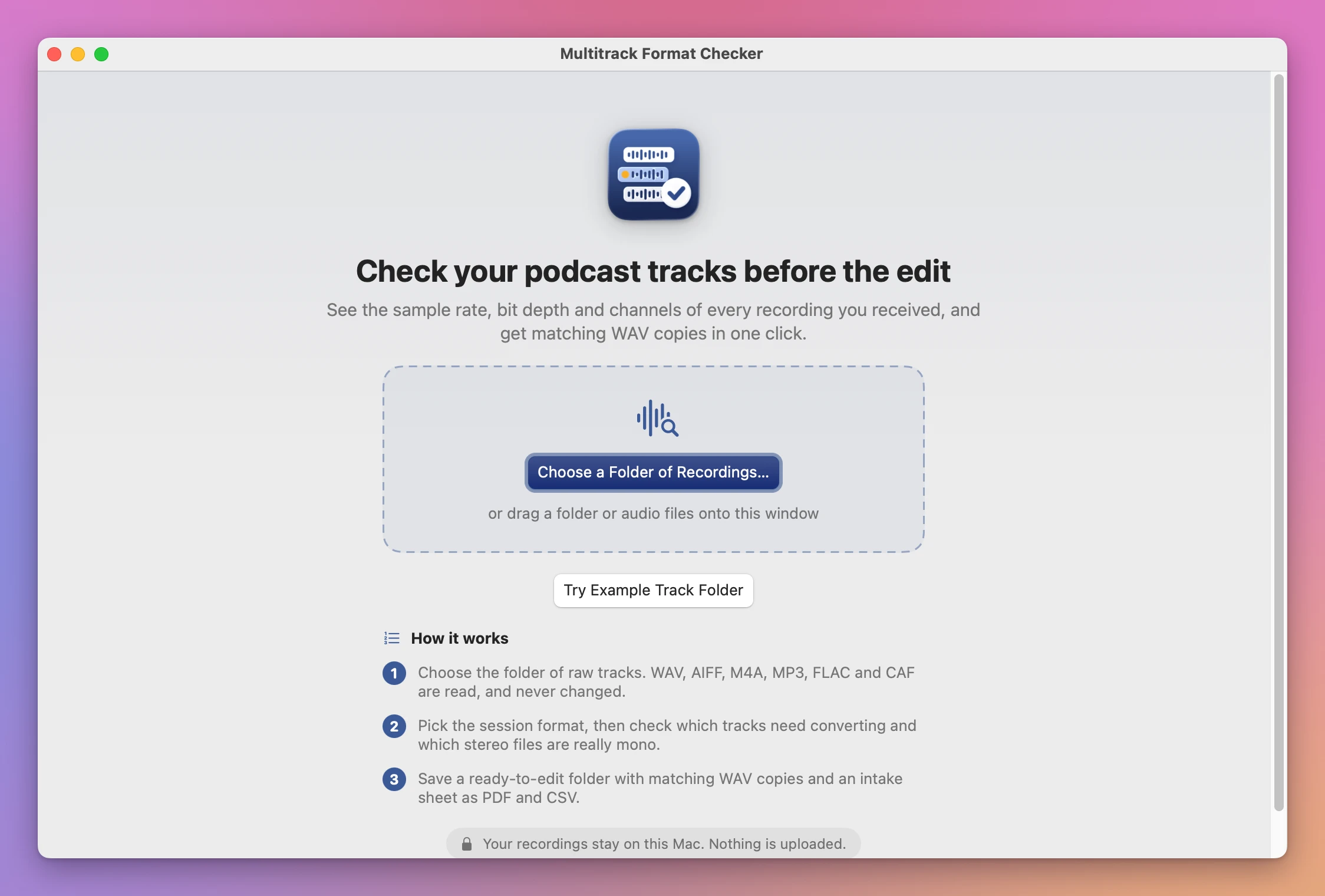
- Click Choose a Folder of Recordings…, or drag the folder onto the window. WAV, AIFF, M4A, MP3, FLAC and CAF files are read.
- Pick the session format: 48 kHz, 24-bit WAV (recommended), 44.1 kHz, 16-bit, 32-bit float, or Match Host Track.
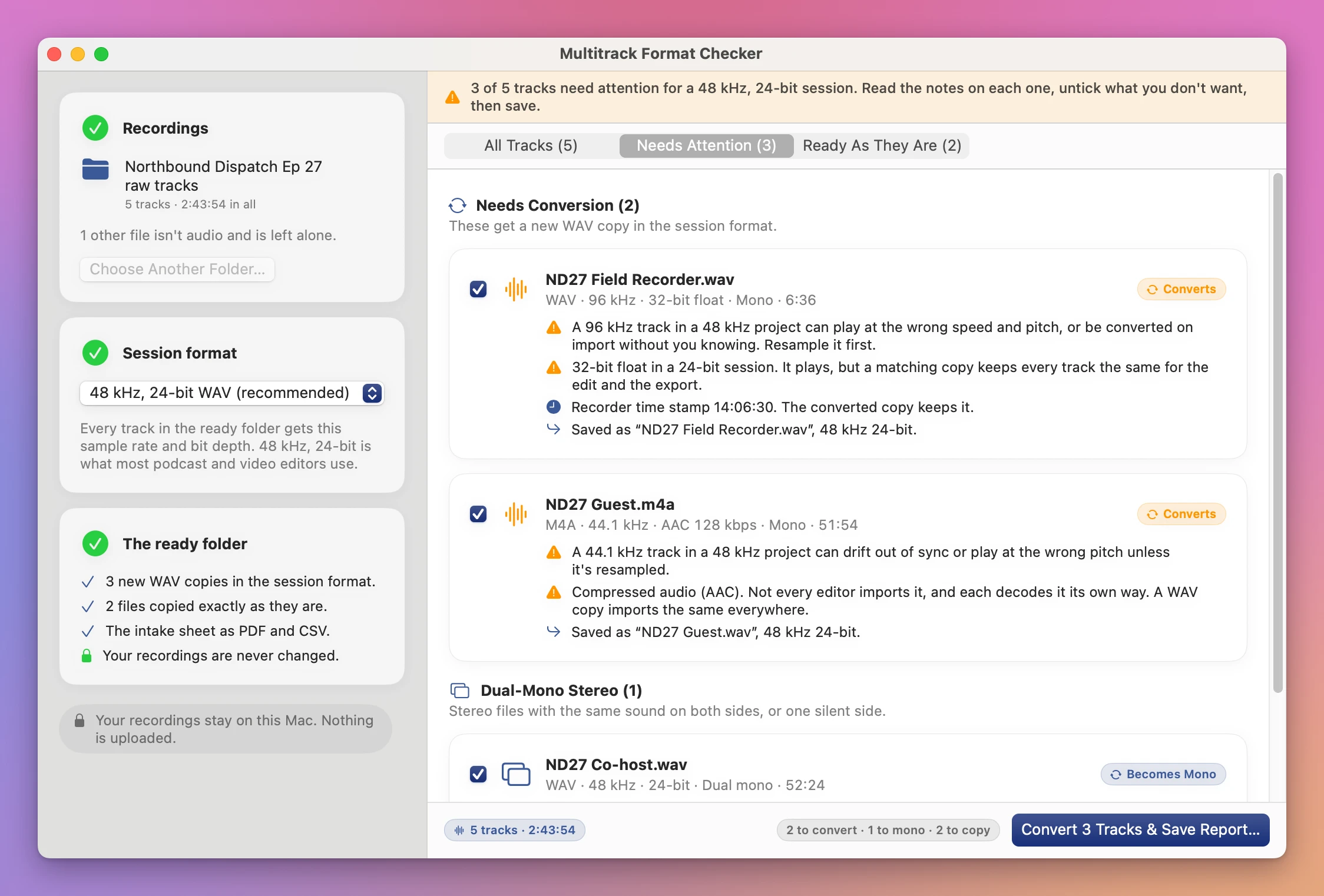
- Read the groups: Needs Conversion, Dual-Mono Stereo, Keep Stereo and Matches Session. Untick a track to leave it out.
- Click Convert 3 Tracks & Save Report…, choose where the new folder goes, then Show in Finder.
Want to see it first? Try Example Track Folder opens five made-up tracks of a podcast episode in five formats, and runs them through the real thing.
What you get
The exact format of every file
Each track shows its container, sample rate, bit depth, channels and length on one line: WAV · 96 kHz · 32-bit float · Mono · 6:36. Compressed files show their codec and bit rate, like AAC 128 kbps. Broadcast WAV files from field recorders show the time of day the recording started.
Stereo files that are really mono
The app compares the two sides of every stereo file at dozens of places along it. Two identical channels are a mono recording stored as stereo: “Both channels are identical. Safe to collapse to mono.” One silent side is a mic plugged into input 1 of a stereo recorder. True stereo music and ambience stay stereo.
Plain warnings, not codes
“A 44.1 kHz track in a 48 kHz project can drift out of sync or play at the wrong pitch unless it’s resampled.” Every note says what can go wrong and what the app will do about it.
A ready-to-edit folder
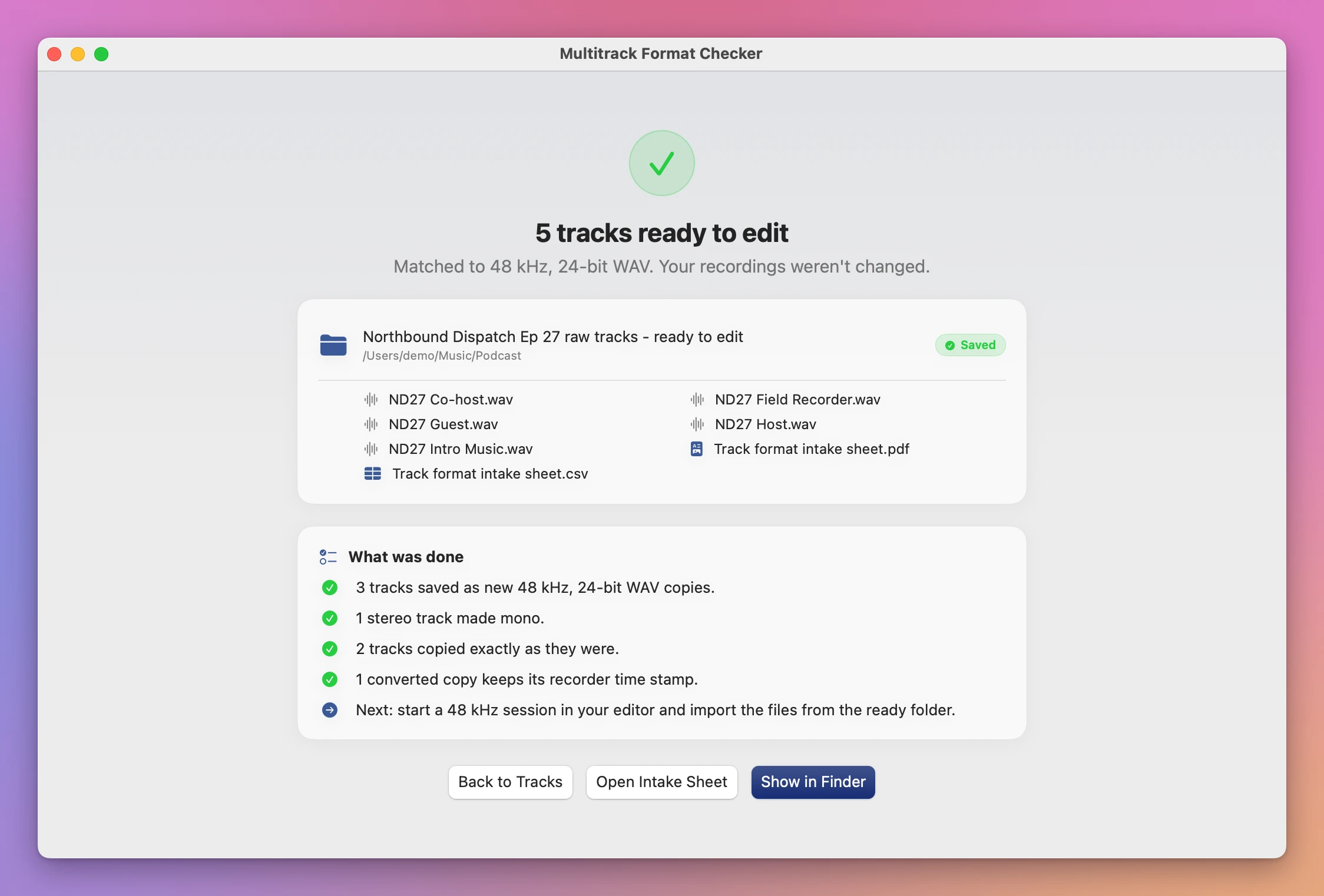
Convert Tracks & Save Report makes a new folder next to where you choose. Tracks that don’t fit get a WAV copy in the session format, resampled with high-quality conversion and dithered when going down to 16-bit. Dual-mono tracks become mono. Tracks that already match are copied byte for byte. Converted Broadcast WAV files keep their recorder time stamp, adjusted to the new sample rate.
An intake sheet
Track format intake sheet.pdf lists every file by group, with its format, the dual-mono check, the time stamp and the action taken. The .csv has the same columns for a spreadsheet. Keep it with the project, or send it back to a client whose files needed converting.
Nothing to fix? It says so
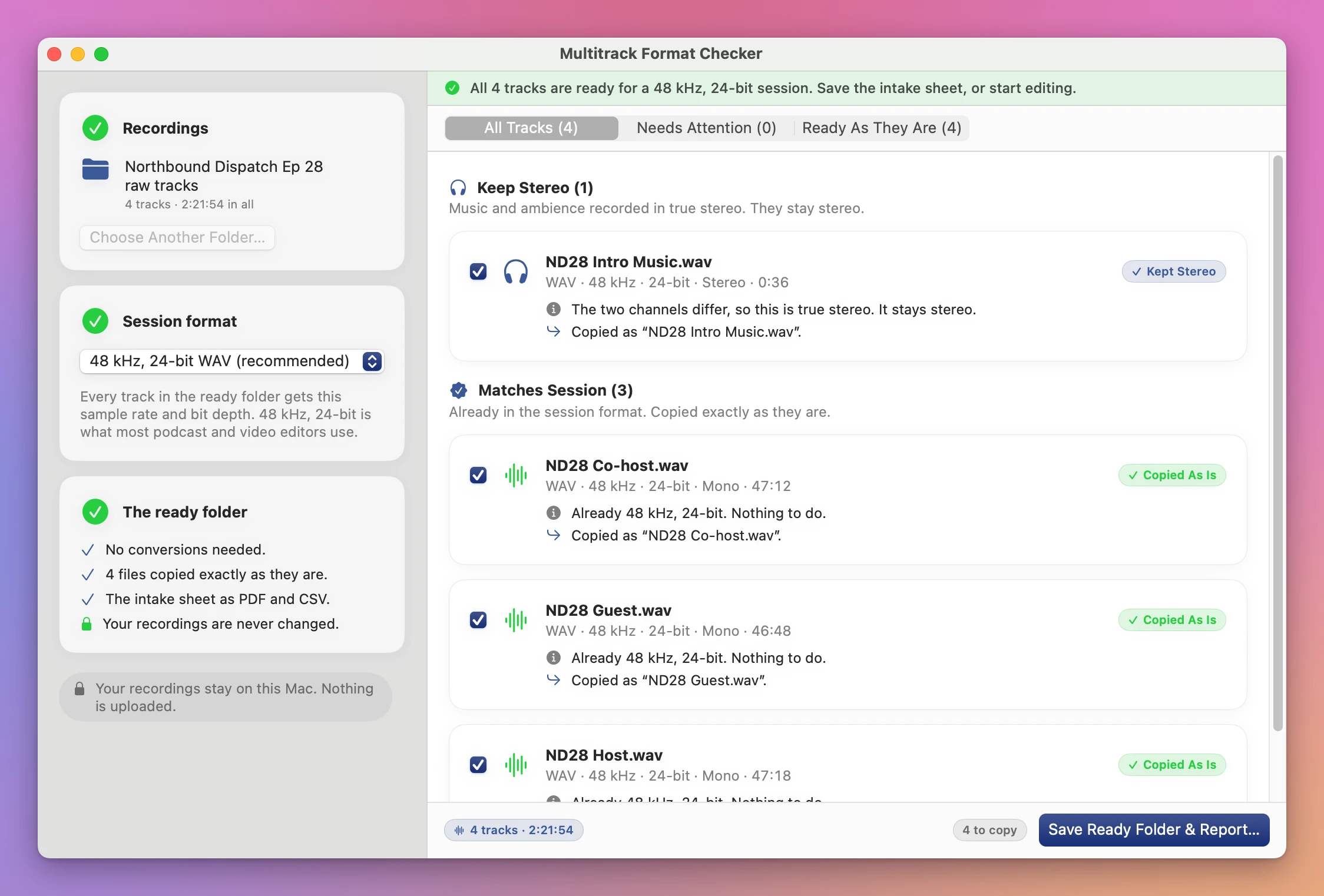
When every track already fits, the window turns green and says so. You can still save the intake sheet.
Why not do it by hand
macOS can show you a file’s format. Open it in QuickTime Player and choose Window › Show Movie Inspector: the Format line says something like “Linear PCM, 24 bit little-endian signed integer, 1 channel, 48000 Hz”. It’s accurate, and it’s one file at a time, with nothing written down.
Your editor can convert too. Audacity, REAPER and Logic Pro all resample on import or export, each with its own settings, and some do it without asking. A dual-mono file is harder: you only find it by listening with headphones, or by splitting the channels, inverting one and checking for silence.
| QuickTime Player and your editor | Multitrack Format Checker | |
|---|---|---|
| See a file’s sample rate and bit depth | One file at a time, in the Movie Inspector | Every file in the folder, in one list |
| Find stereo files that are really mono | Listen, or split, invert and mix by hand | Checked on every stereo file |
| Know what will go wrong | You need to know it already | A sentence on each track |
| Convert to one format | File by file, or on import with the editor’s settings | All the mismatched tracks in one click |
| Keep a field recorder’s time stamp | Depends on the editor and its export settings | Kept, adjusted to the new rate |
| A record of what you received | Notes you write yourself | Intake sheet as PDF and CSV |
If you receive one file a month in the right format, QuickTime Player is enough. When every episode brings four tracks from four setups, the app saves the checking and the converting.
What it doesn’t do
- It doesn’t edit, clean, level or mix audio. It checks formats and makes matching copies.
- It doesn’t fix clock drift between two recorders. A track at the right sample rate can still slip slowly against another one.
- It reads the top of the folder, not subfolders.
- It can’t make compressed audio sound better. A WAV copy of an M4A imports everywhere, and holds the same sound.
- It writes WAV files only.
Questions
Are my recordings uploaded anywhere?
No. Everything happens on your Mac. The app only connects to my update server to check for new versions.
Does it change my files?
Never. Your recordings are only read. Every file in the ready folder is a copy, and the folder is new each time you save.
Which editors is the folder for?
Any editor that imports WAV files, like REAPER, Logic Pro, Audacity and Hindenburg. Start a session at the sample rate you chose, then import the folder. Multitrack Format Checker isn’t made by, affiliated with or endorsed by Apple, Cockos (REAPER), the Audacity project or Hindenburg Systems.
Which session format should I pick?
48 kHz, 24-bit is what most podcast and video editors use, and it’s the default. If your own track is 44.1 kHz and you want to keep it that way, choose Match Host Track.
Will it run on my Mac?
It needs macOS 14 or later, on an Apple silicon or Intel Mac.
Buy Multitrack Format Checker
$19 plus tax where it applies, paid once.
Download the app from the order page or your Creem receipt, unzip it and move it to Applications. I sign the app with my Apple Developer ID, and Apple notarizes the download.
The app checks for updates once a day. When a new version is ready, click Install and Relaunch. The first time, it asks for the license key from your purchase email. To check anytime, choose Multitrack Format Checker → Check for Updates….