
An app by Flavio
Rotating Shift Calendar Maker
Turn a repeating shift pattern like 4 on 4 off, days and nights or Continental into Calendar events. Check every shift on a month grid first, apply only what changed when the rota changes, and undo any run.
Buy Rotating Shift Calendar Maker · $20One-time purchase. Plus tax where it applies.
macOS 14 or later · Apple silicon and Intel
Latest version 1.0.0, released November 20, 2026
You work earlies, lates and nights on a 28-day cycle. Your family wants to know when you’re home, so the rota should be in Calendar, the one on the Mac and the phone. The ward sends next quarter’s dates, you take a week of annual leave in April, and halfway through the year nights start at 21:30 instead of 22:00.
Calendar can repeat an event every few days, but a rota isn’t one event. A 4 on 4 off rota is four repeating events. A Continental rota is ten or more, and the nights end the next morning. Every swap, every day of leave and every change of start time means editing those series by hand.
Rotating Shift Calendar Maker takes the pattern as a row of letters, like D D N N O O, shows every shift on a month grid before anything goes in, and creates one event per shift in a new calendar of its own. When the rota changes, it changes only the shifts that differ. Every run can be undone.
Who it’s for
- Nurses on 12-hour days and nights. Your rota is two days, two nights, two off (
D D N N O O). You want the next six months in the calendar your family shares, with the nights ending at 07:00 the next morning, not at midnight. - Police officers and factory workers on Continental. Earlies, lates and nights over 28 days. When nights move from 22:00 to 21:30 halfway through the year, you want to update the calendar without wiping it and adding everything again.
- Firefighters on 24 on, 48 off. You book annual leave and swap shifts with colleagues. Those days need to be right in Calendar while the rest of the cycle carries on as before.
- Team leads at a café, a care home or a security firm. Each crew works 2-2-3 (Panama). You keep one calendar per crew, and export an
.icsfile for the staff who don’t use Calendar on a Mac. - Anyone starting a new 4 on 4 off job. You aren’t sure which day counts as day 1 of the cycle, and want to see the whole year on a month grid before anything goes into Calendar, with one-click undo if it’s wrong.
From a shift pattern to Calendar events
- Pick a preset, or build your own. The start screen has eight common rotas: 4 on, 4 off, Days, nights, off, 4 on, 4 off, days and nights, 2-2-3 (Panama), Continental, DuPont, 24 on, 48 off and 5 on, 2 off. Click one to load it, or use the Presets menu at the top of the sidebar.
- Set the shift types. Under Shift types, each type has a letter, a name and its start and end times. The name becomes the event title. A night from 10:00 PM to 6:00 AM says “next day, 8 hours”. Tick Off for a day off, which makes no event. Add Shift Type adds another.
- Type the pattern. Under Pattern, type one letter per day of the cycle:
D D N N O O,ddnnooandD,D,N,Nall work. Or click the colored day chips to change a day, insert one or remove it. - Set the dates. Day 1 of the cycle is the first day of the pattern, like your first day shift. Then Create from, Until (or a Length from 1 month to 5 years) and the Time zone. Days before day 1 follow the same cycle backwards.
- Add leave and swaps. Under Changes to the pattern, Swap a Day works a date range as another shift type or a day off, and Add Leave marks a range as leave, with an all-day event titled “Annual leave” or whatever you type.
- Allow Calendar access and name the calendar. Click Allow Calendar Access… the first time. The rota goes into a new calendar with the name you choose, in the account you pick.
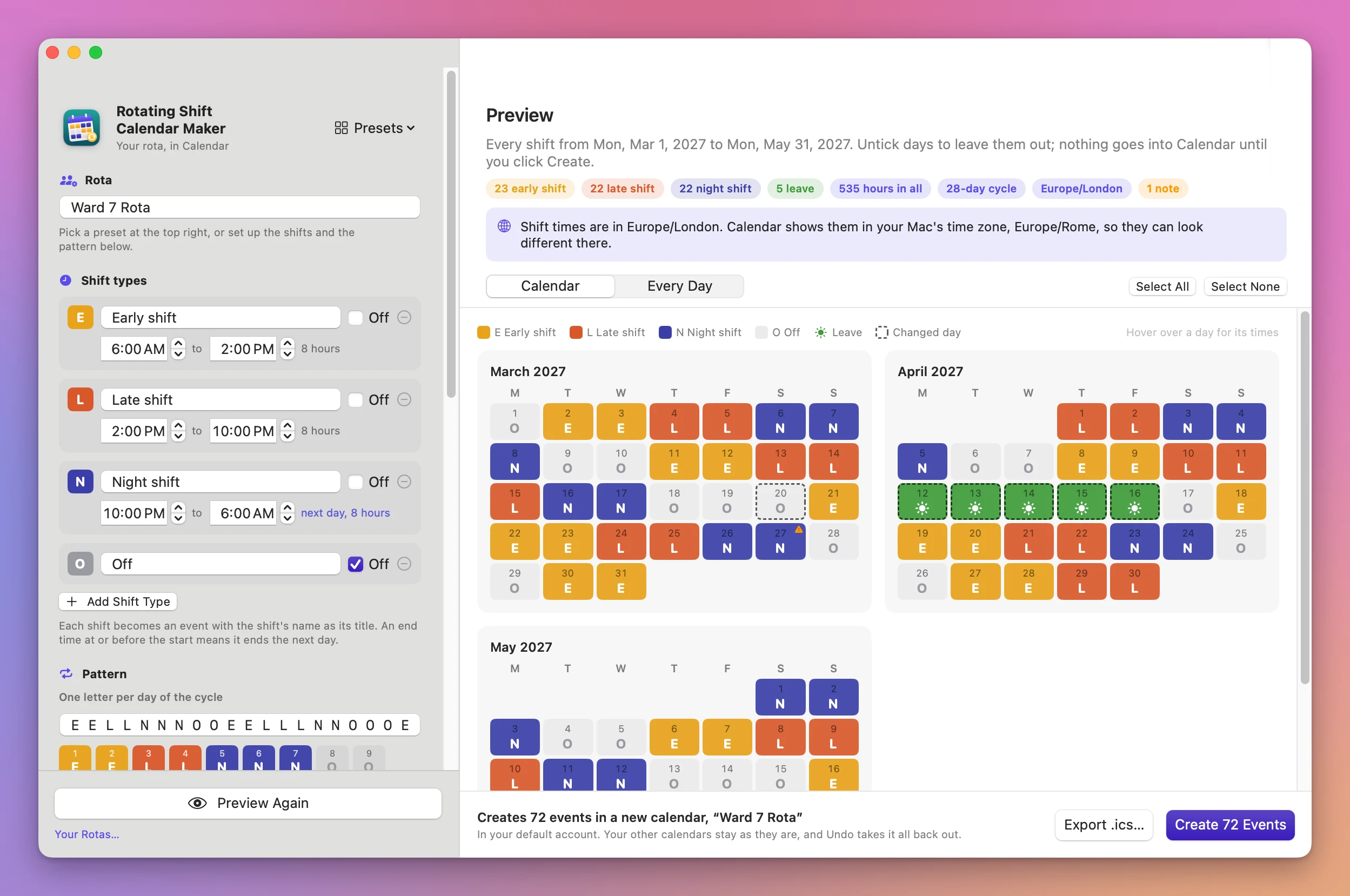
- Preview and create. Click Preview Rota (Command-R). Check the month grid or the Every Day list, untick any day you want left out, then click Create 72 Events (or however many there are).
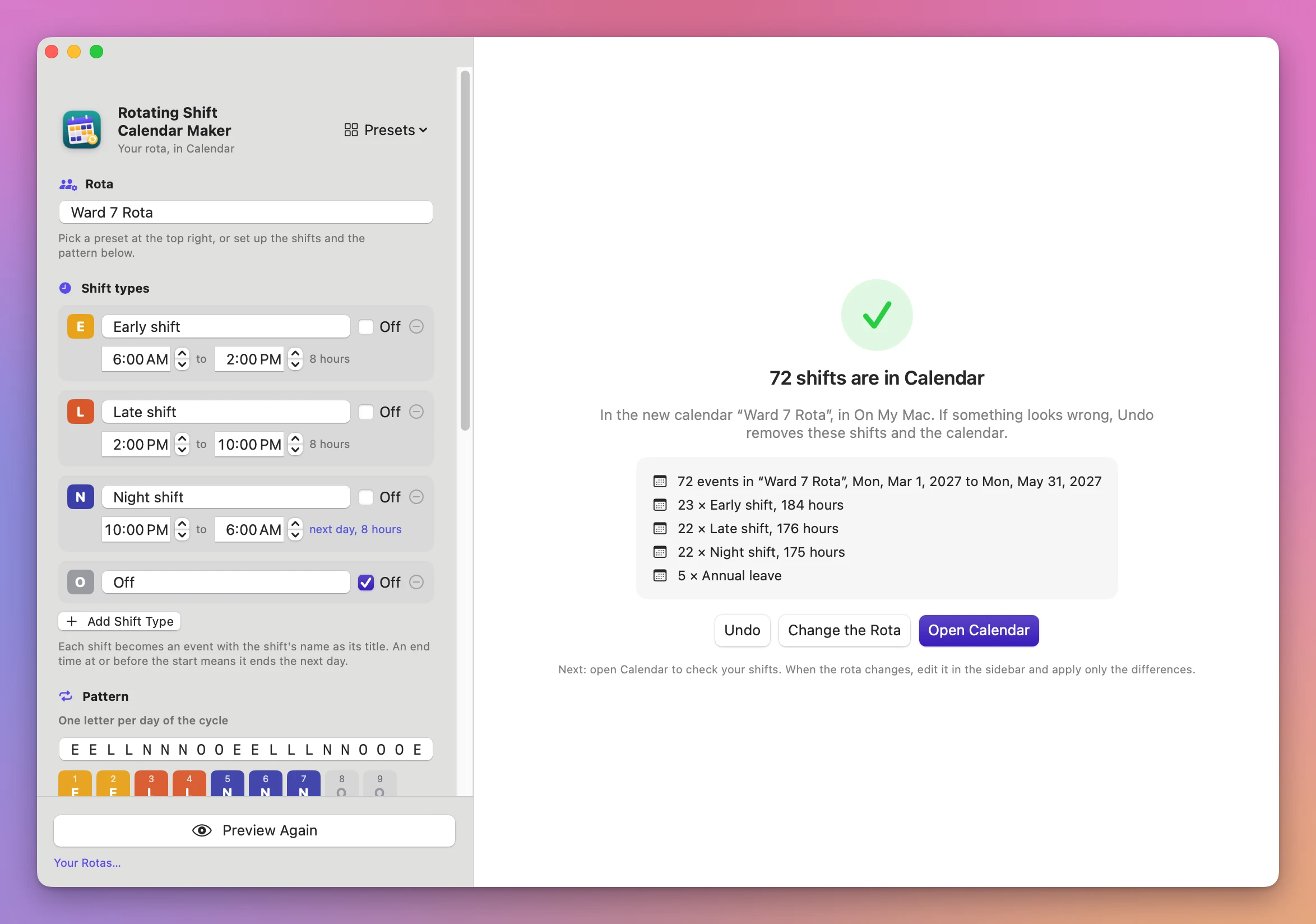
The done screen counts what’s in Calendar now, like “23 × Early shift, 184 hours”, with Undo, Change the Rota and Open Calendar buttons.
When the rota changes
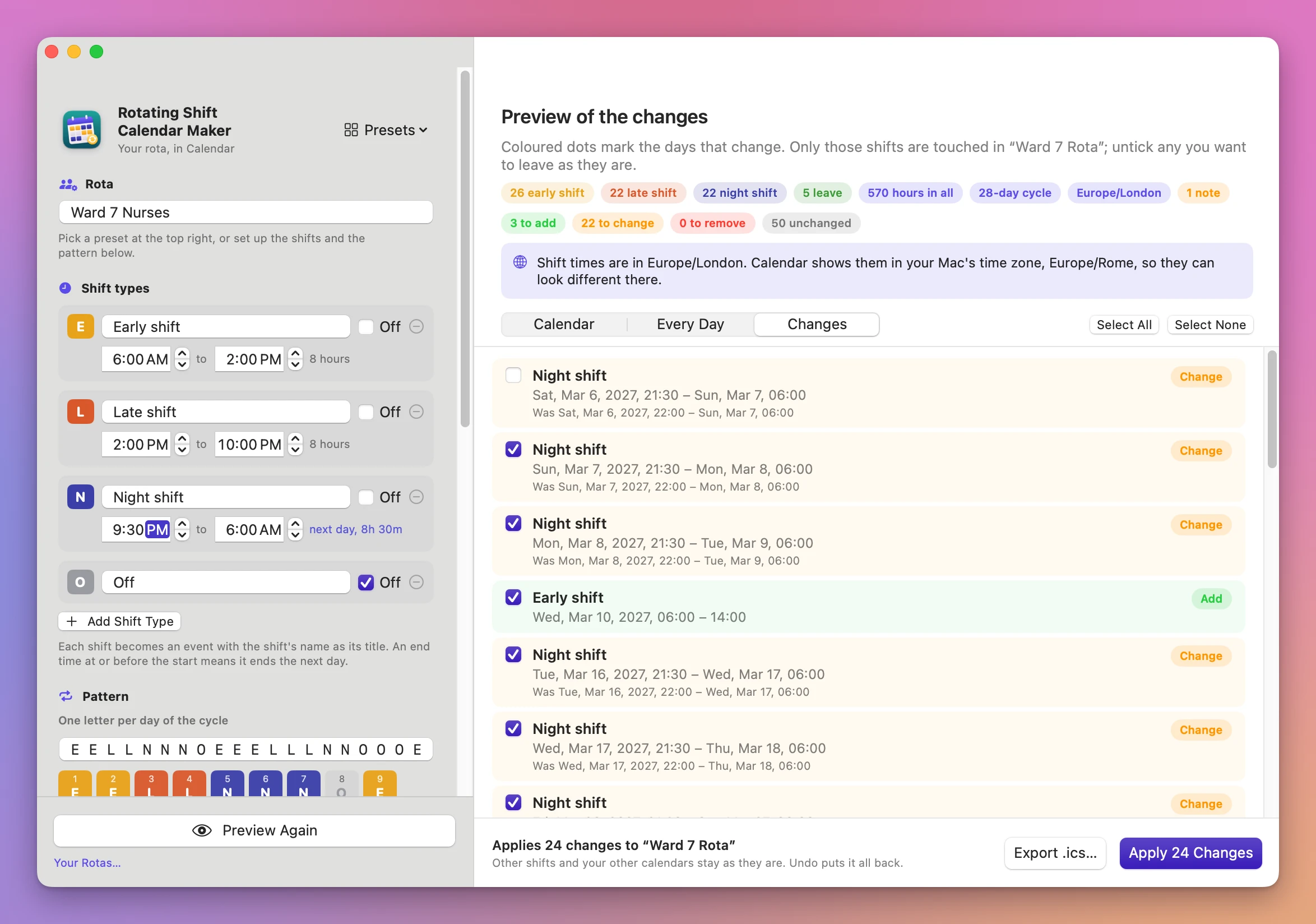
Edit the rota in the sidebar and click Preview Again. The app compares it with what it put in Calendar and shows the difference: “3 to add”, “22 to change”, “0 to remove”, “50 unchanged”. The Changes tab lists each one with the new time and the old one (“Was Sat, Mar 6, 2027, 22:00 – Sun, Mar 7, 06:00”). Untick any change you want to leave as it is, then click Apply N Changes.
Only the shifts that differ are touched. A shift you deleted by hand in Calendar shows up as “Deleted in Calendar since. It’s added back.”
What you get
A preview of every shift
The Calendar tab shows one month grid per month, each day with its letter in the shift’s color. Leave shows as a green sun, a swapped day has a dashed outline, and hovering a day shows its date, cycle day and times. The Every Day tab lists each day as Calendar will have it, like “Sat, Mar 27, 2027, 22:00 – Sun, Mar 28, 06:00”, with a checkbox to leave it out.
Pills at the top count the shifts of each type, the leave days and the total hours. Nothing goes into Calendar until you click Create.
Nights and clock changes done right
A shift whose end time is at or before its start ends the next day. A 24-hour shift ends at the same time the next day. When the clocks change during a shift, the shift keeps its wall-clock times and the preview adds a note, like “7 hours long, not 8 hours: the clocks go forward during this shift.” A start time that doesn’t exist that night moves forward, and the note says so.
Changes on top of the pattern
Swap a Day and Add Leave cover single days or date ranges. Leave with a title becomes one all-day event per day. Leave with no title just removes the shifts. When two changes cover the same day, the later one wins.
A calendar of its own, and undo
Every new rota goes into a new calendar, so your other calendars stay as they are. The app only changes or removes events it created, and only in that calendar. No invitations go out and no alerts are added.
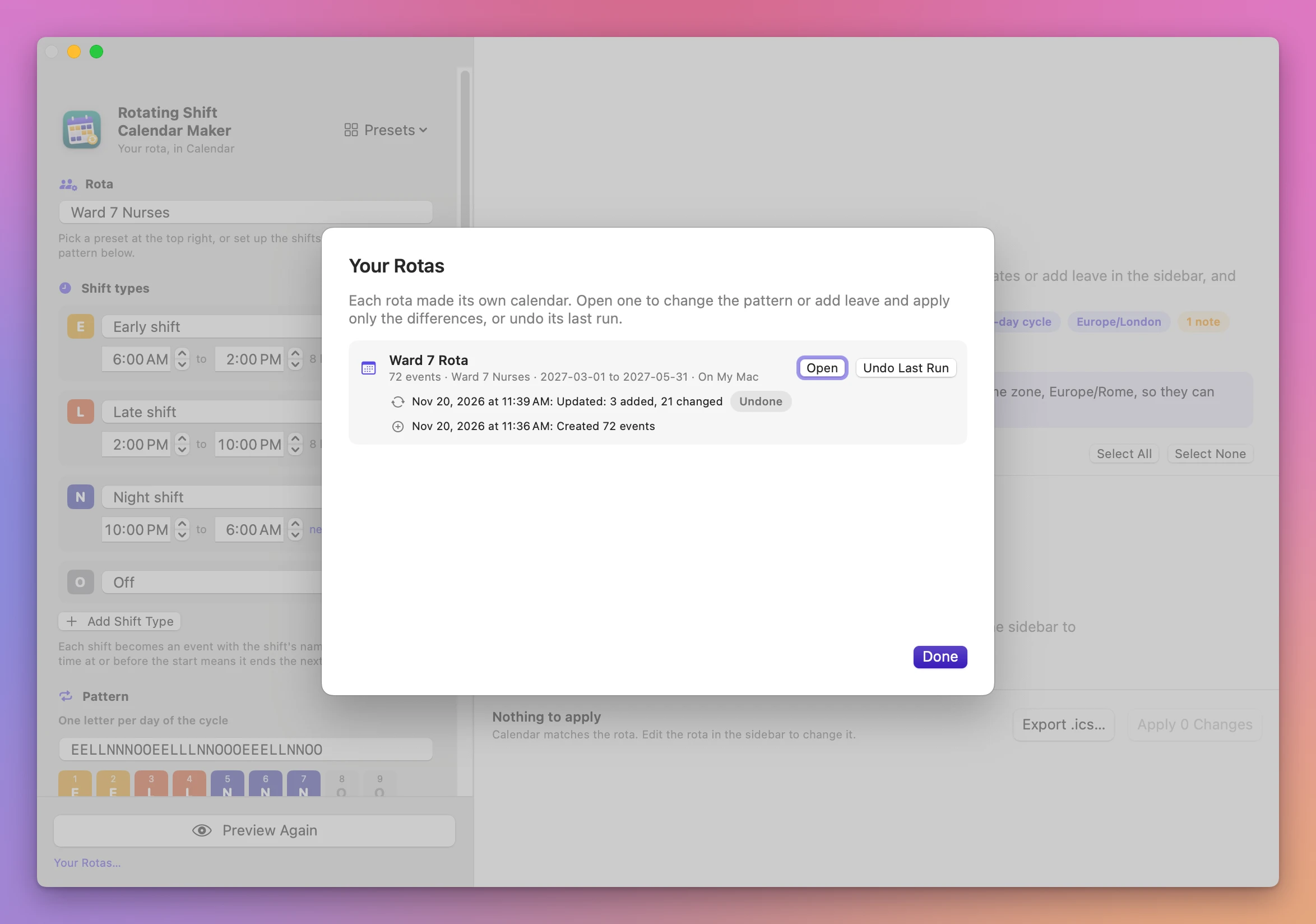
Undo takes back the last run: after the first run it removes the events and the calendar (the calendar stays if you added your own events to it), after an update it puts the old shifts back. File → Your Rotas… (Shift-Command-O) lists every rota with its calendar, its event count and its history, with Open and Undo Last Run.
If Calendar refuses even one event, the whole run is rolled back, so you never end up with half a rota.
An .ics file for everyone else
Export .ics… saves the rota as a calendar file in the folder you choose, named after the rota. It works without Calendar access, so you can send it to a colleague.
Why not use Calendar’s repeat
Calendar’s Repeat menu has Custom…, which repeats an event every so many days, or every so many weeks on the days you pick. For one event that comes back on a fixed schedule, it’s all you need.
A rota is several events in a cycle. A 4 on 4 off rota is four events, each repeating every 8 days, starting on four days in a row. Days, nights, off is four more. A 28-day Continental pattern is ten or more series, and each night ends the next morning. Calendar has no preview of the whole cycle, so a wrong day 1 shows up only after everything is in. A swap or a week of leave means changing “this event only” on each day, and a new start time means changing every series without touching the past.
Shift-work phone apps draw a rota calendar well. Check what they do with Calendar before you subscribe: some keep the rota inside the app, and some export a one-off copy that doesn’t follow later changes.
A spreadsheet plus a CSV or .ics converter works for one rota. You fill in every date yourself, the night when the clocks go forward is easy to get wrong, and every change is a new import on top of the old one.
| Calendar’s repeat | Rotating Shift Calendar Maker | |
|---|---|---|
| Setting up 4 on 4 off | Four repeating events | Pick the preset, or type D D D D O O O O |
| Continental, DuPont | Ten or more series | Pick the preset |
| Checking day 1 | After the events are in | On a month grid, before anything is created |
| Nights | You set the next-day end on each series | End the next day by themselves |
| Clock changes | Not flagged | A note on each shift it affects |
| Leave and swaps | Edit each day by hand | Add Leave, Swap a Day |
| Changing the rota | Edit every series | Preview the changes, apply only those |
| Taking it back out | Delete each series | Undo |
What it doesn’t do
- No payroll or rules checks. It adds up hours in the preview, and that’s all. It doesn’t check working-time rules, plan staffing or cover.
- One shift per day. A day can’t hold two shifts, like a split shift. A shift belongs to the day it starts on.
- No alerts, invitations or event colors. Each shift is its own event with the calendar’s color. Add alerts in Calendar if you want them.
- Always a new calendar. A new rota never goes into a calendar you already have.
- Only the latest run is undone. Undo again to go further back.
- Leave is one event per day. A week of leave is seven all-day events, not one.
Questions
Will it touch my other calendars?
No. It creates its own calendar for each rota and only changes events it created there. An event you move to another calendar is left alone.
Which day is day 1?
The first day of the pattern as you typed it, like your first day shift. If you aren’t sure, set it, click Preview Rota and check the month grid against a week you already know.
Will the shifts show up on my iPhone?
The new calendar goes in the account you pick under Account. A calendar in On My Mac stays on this Mac. Pick an account that syncs to your phone to see the shifts there too.
Does anything get uploaded?
The rota is worked out on your Mac and the events go straight into Calendar. The app uses the internet only to check for updates.
Where do I get help?
Choose Help → Rotating Shift Calendar Maker Support in the app. The Rotating Shift Calendar Maker docs walk through every setting.
What it needs
Rotating Shift Calendar Maker runs on macOS 14 Sonoma or later, on Apple silicon and Intel Macs, and needs full access to Calendar to create the rota’s calendar.
Buy Rotating Shift Calendar Maker
$20 plus tax where it applies, paid once.
Download the app from the order page or your Creem receipt, unzip it and move it to Applications. I sign the app with my Apple Developer ID, and Apple notarizes the download.
The app checks for updates once a day. When a new version is ready, click Install and Relaunch. To check anytime, choose Rotating Shift Calendar Maker → Check for Updates….