
Mac & Windows app by Flavio
Speaker Level Checker
Drop the separate speaker tracks of a podcast recording. See each speaker's loudness while they talk, the spread between the loudest and the quietest, and the exact gain to give each one. Listen to them back to back, then save level-matched WAV copies and a level sheet.
Buy Speaker Level Checker for Mac · $19Buy Speaker Level Checker for Windows · $19Buy once, use forever. Up to 3 computers you own (license). Plus tax where it applies. Mac and Windows versions are sold separately.
macOS 14 or later (Apple silicon and Intel) · Windows 10 and Windows 11 (x64 and ARM64)
Latest Mac version 1.0.0, released November 29, 2026
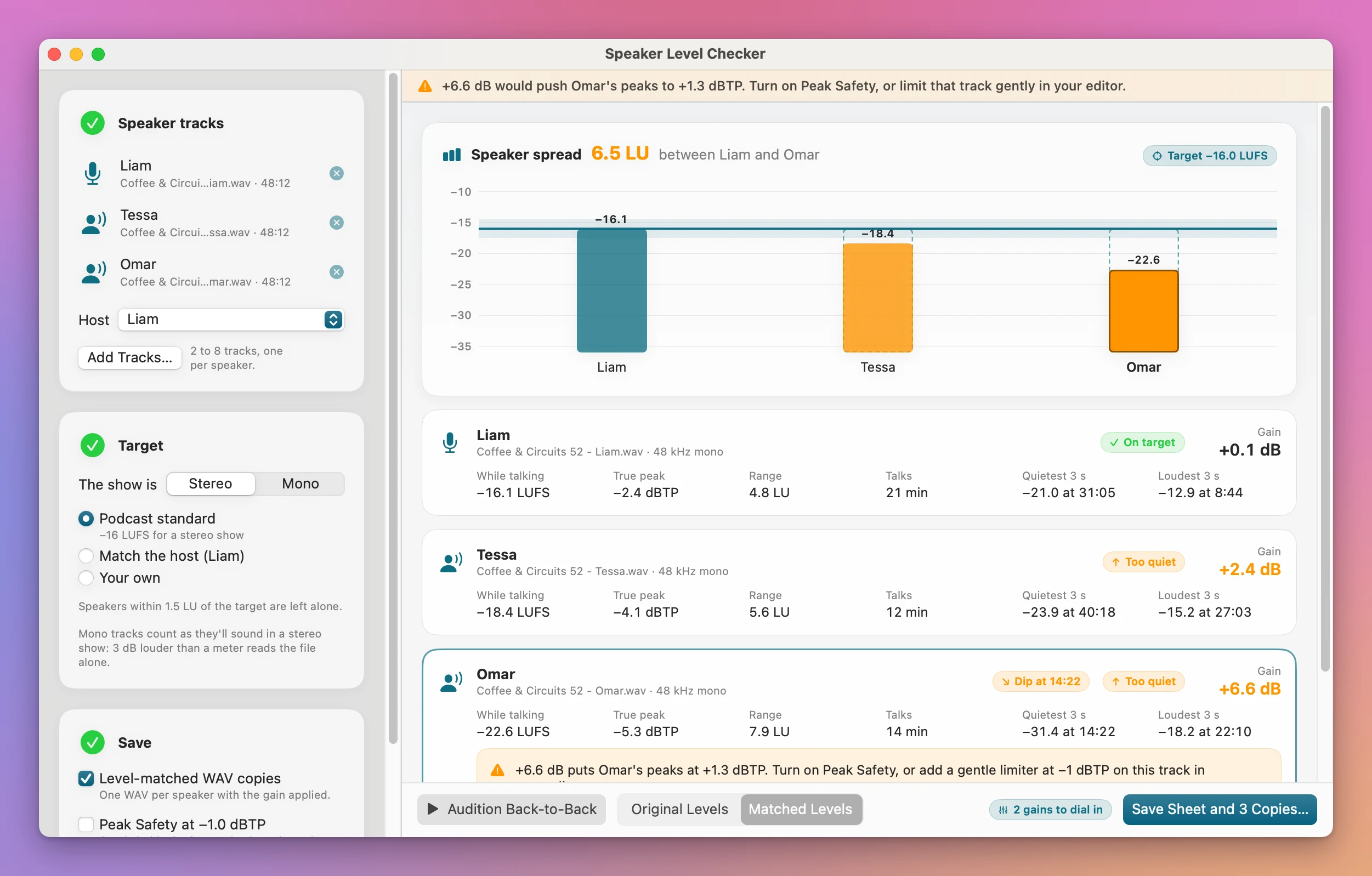
You recorded episode 52 with three mics on three tracks. The host sits close and talks at about −16 LUFS. The co-host is at −18. The guest leans back, speaks softly, and comes in at −22.6. That’s 6.5 LU between the loudest and the quietest voice, and your listeners will reach for the volume every time the guest answers.
By hand, you solo each track, watch a meter while it plays, guess at a number, nudge a fader and listen again. A loudness meter on the whole track doesn’t help much either: a guest who talks for 14 minutes of a 48-minute episode spends the rest of it in near-silence, with the others’ voices bleeding into their mic, and that pulls the number down. You end up raising the wrong amount.
Speaker Level Checker measures each speaker only while they talk. It shows the spread between the loudest and the quietest voice, gives you the exact gain to type into each track, warns you when that gain would push someone’s peaks too far, and lets you listen to all of them back to back before you change anything.
Watch a 30-second demo of Speaker Level Checker:
Who it’s for
- Interview podcasters who edit their own show. You record a remote guest on their own track with a Zoom or a separate recorder, and they always come in quieter than you. You want the number to type in, not another round of guessing with the fader.
- Co-hosted shows with two or three regulars. One of you is always louder. Check each episode in a minute and keep the sheet, so you can see whether the new mic position fixed it.
- Freelance podcast editors. A client sends four tracks for a panel episode. You check the spread before you start, dial in the gains, and send the level sheet as a PDF with the delivery.
- Course and video makers with a multitrack voice recording. A two-person explainer, recorded on two mics, has to sound like one conversation before it goes under the screen recording.
- Producers who want to catch problems early. The app marks the moment a speaker drops far under their own level, like a guest turning away from the mic at 14:22, so you know where to look before the edit.
How it works
- Click Choose Speaker Tracks…, or drag 2 to 8 tracks onto the window: WAV, AIFF, M4A, MP3, FLAC or CAF, one per speaker. To try it first, click Try Example Speaker Tracks.
- Pick the Host, say whether The show is stereo or mono, and choose the target: Podcast standard (−16 LUFS stereo, −19 mono), Match the host, or Your own.
- Read the spread and each speaker’s gain. Speakers within 1.5 LU of the target are left alone.
- Click Audition Back-to-Back and switch between Original Levels and Matched Levels while it plays.
- Click Save Sheet and 3 Copies… and pick a folder.
What you get
Loudness while they talk
Every number is measured to ITU-R BS.1770-4, the standard behind LUFS, the same way a broadcast loudness meter does. The difference is what gets measured. On a separate speaker track, most of the time is somebody else talking, with your speaker’s mic picking them up faintly. The app finds the stretches where this speaker is talking and measures those, so a guest who talks for a third of the episode gets the same fair number as the host who talks all the time.
For each speaker you see the loudness while talking, the true peak, the loudness range, how long they talk, and their quietest and loudest 3 seconds with the time, so you can jump straight there in your editor.
The spread and the gain for each track
The chart shows every speaker as a bar against the target line, with the tolerance band around it. The number at the top is the spread: how far apart the loudest and the quietest voice are. Each speaker gets a gain in decibels, ready to type into the clip gain of REAPER, Logic Pro, Audacity or any other editor.
A mono voice track that will play in the middle of a stereo show sounds 3 dB louder than a meter reads the file alone. The app takes that into account when you say the show is stereo, which is why the podcast standard is −16 LUFS for stereo and −19 for mono.
A warning before the peaks get too hot
Raising a quiet speaker by 6.6 dB also raises their loudest consonant by 6.6 dB. When that would push a peak past −1 dBTP, the speaker’s row says so, with the exact peak, and tells you what to do: add a gentle limiter on that track, or let Peak Safety handle it in the copy.
Listen before you change anything
Audition Back-to-Back plays four seconds of each speaker, one after another, picked from a stretch where they talk at their usual level. Switch between Original Levels and Matched Levels while it plays and you hear the jump disappear.
Level-matched copies and a sheet
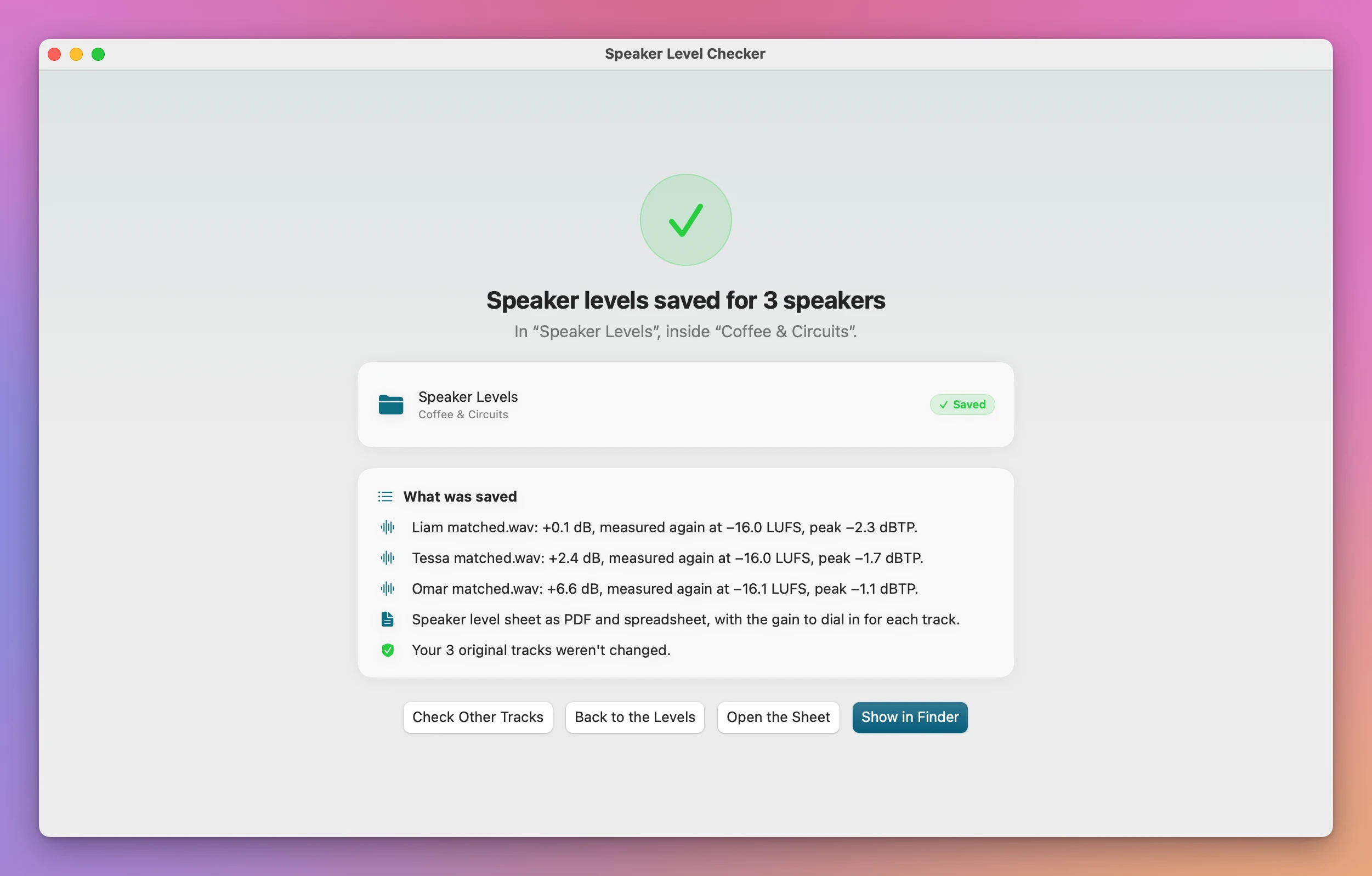
Save makes a new folder called “Speaker Levels” with:
- one WAV per speaker with the gain applied, measured again after it was written so you see what you got. With Peak Safety on, the few peaks over −1 dBTP are held back gently, and the copy is 24-bit. Without it, the copy is 32-bit float, so nothing is cut off.
- Speaker level sheet.pdf, a printable page with the chart, every number and the gain to dial in for each track, plus where to type it in REAPER, Logic Pro and Audacity.
- Speaker level sheet.csv, the same numbers as a spreadsheet.
Your original tracks are only read, never changed.
Why not do it by hand
Your editing app already has what you need to do this the slow way. Audacity has a Loudness Normalization effect, REAPER and Logic Pro have loudness meters, and Video Loudness Checker (my app for a finished mix) measures one file at a time.
The catch is what they measure. They take the whole track, pauses included. On a multitrack recording that means the minutes where the guest is silent and the host’s voice leaks faintly into their mic. A guest who talks less ends up with a lower number than they really have, and normalizing the track to −16 LUFS makes them too loud when they do talk. You also get one track at a time, with no spread, no warning about peaks, and no way to hear the speakers next to each other.
| By hand in your editor | Speaker Level Checker | |
|---|---|---|
| Measures | The whole track, pauses and bleed included | Only the stretches where that speaker talks |
| Several speakers at once | One track at a time, you write the numbers down | 2 to 8 tracks side by side, with the spread |
| Gain for each track | You work it out | Given to a tenth of a dB, against the podcast standard, the host or your own target |
| Mono in a stereo show | Easy to get 3 dB wrong | Taken into account |
| Peaks after the gain | You find out when it clips | Warned before, with the exact peak |
| Compare by ear | Solo, play, unsolo, repeat | Back to back, original or matched |
| Result | Your edited project | Level-matched WAV copies, a PDF sheet and a CSV |
Video Loudness Checker is still the right tool for the finished episode: it checks the mix against a delivery target and lists the loud and quiet passages. Speaker Level Checker comes before that, when the voices are still on separate tracks.
What it doesn’t do
- It doesn’t mix the episode. It gives you the gains and level-matched copies; you still assemble the show in your editor.
- It doesn’t fix a speaker’s level inside a track. A dip where someone turned away from the mic is marked with its time, but the gain is the same for the whole track.
- It doesn’t remove bleed, noise or echo.
- It doesn’t compress. Peak Safety only holds back the few peaks over −1 dBTP, it doesn’t change how the voice sounds.
- It reads 2 to 8 separate tracks, one per speaker. A single mixed file with everyone on it can’t be split into speakers: use Video Loudness Checker for that.
- It doesn’t check the loudness of the finished mix.
Questions
Are my recordings uploaded anywhere?
No. Everything is measured on your computer. The app only connects to my update server, to check for new versions.
Does it change my tracks?
No. Your tracks are only read. The level-matched copies are new files in a new folder, and saving again makes “Speaker Levels 2” instead of replacing anything.
Which files does it read?
WAV, AIFF, M4A, MP3, FLAC and CAF, mono or stereo, at any sample rate macOS can play. Up to 8 tracks at once.
Why a 1.5 LU tolerance?
A difference under about 1.5 LU between two voices is hard to hear in a conversation, so the app leaves those speakers alone instead of nudging every track by a few tenths.
What does it need?
macOS 14 Sonoma or later, on an Apple silicon or Intel Mac. It doesn’t ask for any permission: it reads only the tracks you choose and writes only into the folder you pick.
Speaker Level Checker isn’t made by, affiliated with or endorsed by the ITU, the EBU, Apple, Cockos (REAPER) or the Audacity team. Their names only say what the app measures to and where you dial in the gain.
Buy Speaker Level Checker
$19 plus tax where it applies, paid once. You get the app as a download, signed and notarized by Apple, with free updates: the first time an update comes out, the app asks for the license key from your purchase email, once.