
Mac & Windows app by Flavio
Supplier Feed Compare
Compare last week's supplier CSV with this week's. See the products that vanished from the feed without a word, the ones marked discontinued, the new ones, every cost increase and every item that ran out of stock, then save a Vendor Change Sheet you can print.
Buy Supplier Feed Compare for Mac · $19Buy Supplier Feed Compare for Windows · $19Buy once, use forever. Up to 3 computers you own (license). Plus tax where it applies. Mac and Windows versions are sold separately.
macOS 14 or later (Apple silicon and Intel) · Windows 10 and Windows 11 (x64 and ARM64)
Latest Mac version 1.0.0, released November 28, 2026
Every Monday your supplier sends the new price list, a CSV with 800 rows. You open it, scroll for a while, and it looks like last week’s. So you go back to your orders.
Three weeks later a customer buys the Waxed Canvas Tool Roll, and the supplier says they stopped carrying it. Nobody marked it discontinued. It just wasn’t in the file anymore, and you were still selling it. The same week, the pour-over cone went from 8.40 to 9.80, so the margin on it dropped by a sixth without you noticing.
You can catch this in a spreadsheet with lookup formulas, one column at a time, both ways. Most weeks there’s no time for that.
Supplier Feed Compare puts last week’s file next to this week’s, matches every item by its code, and sorts them: what vanished without a word, what’s discontinued, what’s new, what changed, and what’s the same. Then it saves a Vendor Change Sheet, a PDF grouped by what you need to do, plus CSV files of the changes.
Watch a 30-second demo of Supplier Feed Compare:
Who it’s for
- Dropshippers. Your supplier’s catalog CSV is the only notice you get. A product that drops out of it is an order you can’t fill, and you want to know the day it happens, not when a customer writes.
- Shops that resell a wholesaler’s range on Shopify, WooCommerce, Etsy or eBay. When the wholesale price of 40 items goes up, you want the list of the 40, largest increase first, so you can reprice before the next sale eats your margin.
- Marketplace sellers who keep stock by hand. The supplier’s quantity went from 15 to 0 on the wool blanket and from 0 to 36 on the 8 inch skillet. You pause one listing and turn the other back on.
- Assistants and VAs who update the catalog every week and hand the owner a printed sheet of what changed and what they did about it.
- Buyers at a gift shop or a small chain comparing a distributor’s new price list with the old one before placing an order.
How it works
- Click Choose the Two Supplier Files… and pick last week’s CSV and this week’s, or drag both onto the window. The older one becomes the previous file, and Swap fixes it if the app guessed wrong.
- Look at the five counts at the top, then click a filter: All Changes, Vanished, Discontinued, New, Price Up, Out of Stock, Restocked or Unchanged. Search by item code or name. Click any item to see every value before and after.
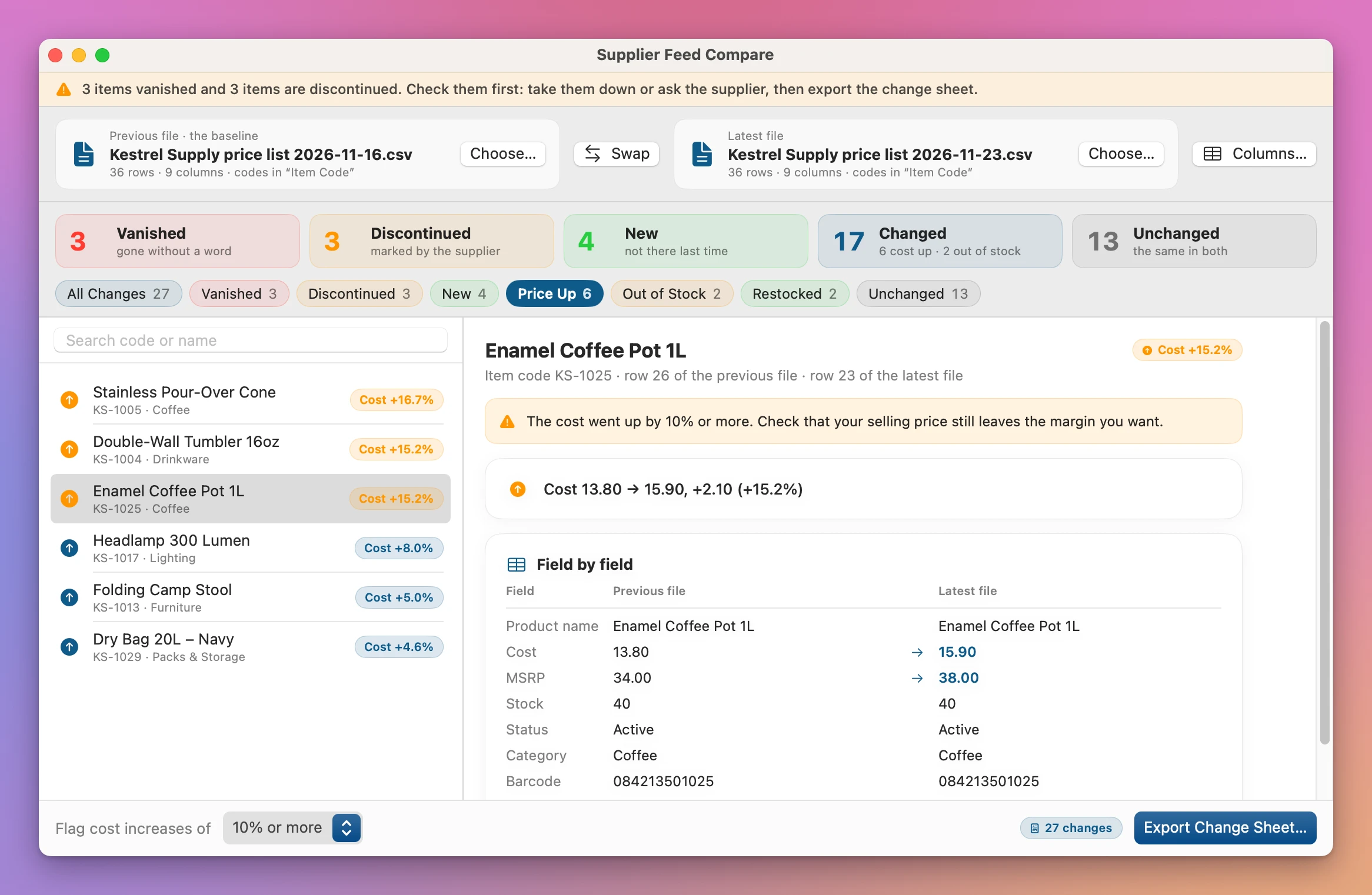
- Pick the cost increase worth a warning in Flag cost increases of (10% or more to start).
- Click Export Change Sheet… and choose a folder.
Want to see it first? Try Example Files opens two made-up weeks of a supplier’s price list, with every kind of change in them.
What you get
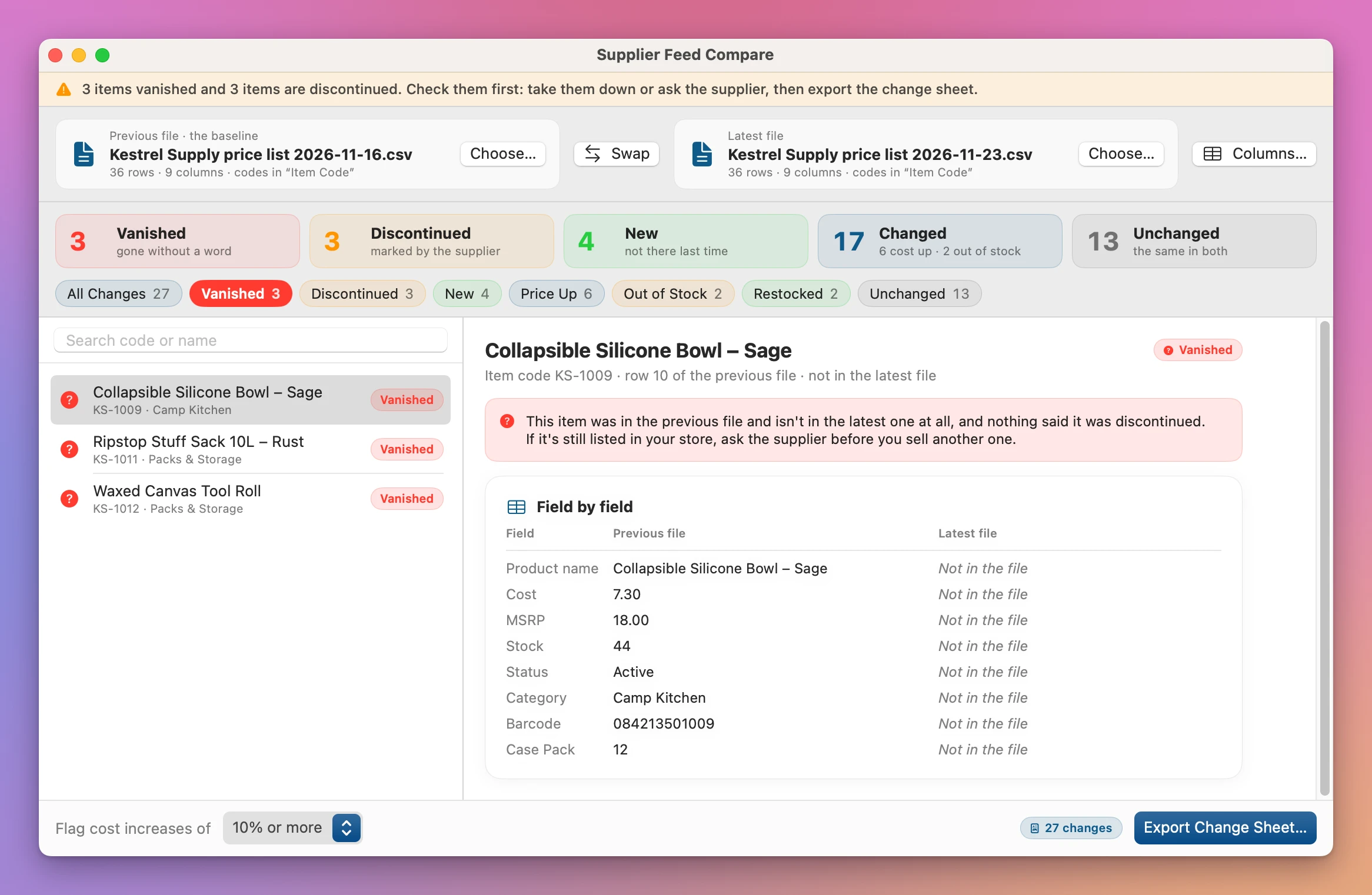
The items that vanished, kept apart from the discontinued ones
A supplier that marks an item “Discontinued” or “Retired” is telling you. A supplier that just drops the row isn’t, and that’s the case that ends with a refund. Supplier Feed Compare keeps the two apart: Vanished is in last week’s file, missing from this week’s, with nothing saying why. Discontinued is marked so in the status column (discontinued, retired, deleted, out of production, D/C, or Yes in a column called Discontinued), or was marked last week and is gone now.
Cost increases, largest first
Price Up lists every item whose wholesale cost went up, sorted by how much. The ones at or above your threshold get an orange pill and a note to check your selling price. When a file has no cost column, the app compares the MSRP.
Stock that ran out or came back
Out of Stock shows what went from some to none, Restocked what came back from zero. Stock counts like “1,200” and “100+” are read as numbers, and words like “Out of stock” or “Sold out” count as zero.
Every value, before and after
Click any item for a field by field table: name, cost, MSRP, stock, status, category, barcode, and any other column both files have, like Case Pack. Changed values are marked. The detail also says which row of each file the item is on, so you can find it in your spreadsheet.
Codes that keep their zeros
Item codes are matched as written. 00412 and 412 are two different items. When a spreadsheet dropped the zeros of a code in one file only, the app still matches the two and tells you, and it does the same for a barcode that lost its leading zero.
Your columns, whatever they’re called
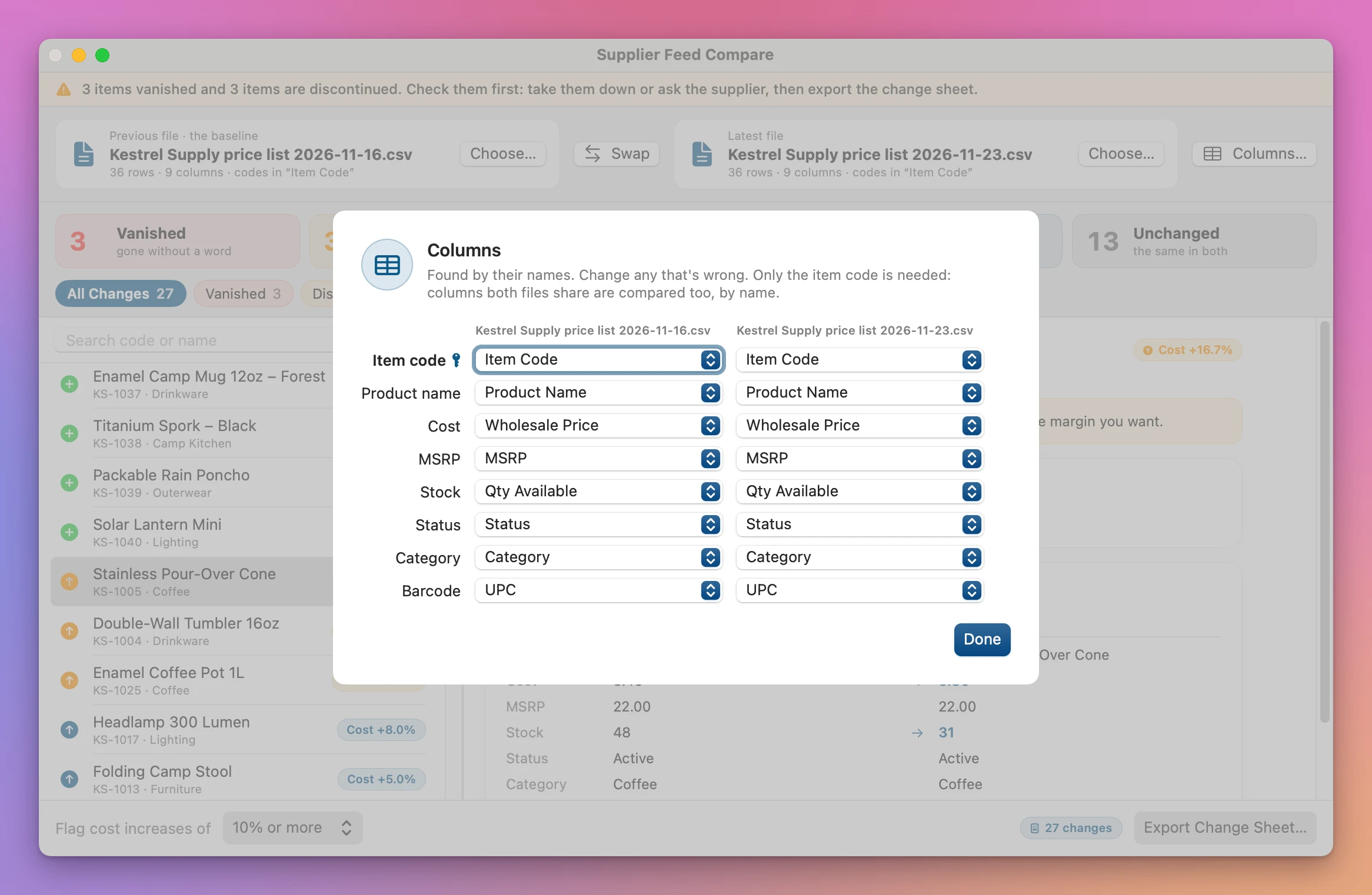
The app finds the columns by their names: Item Code, SKU, Part #, Wholesale Price, Cost, MSRP, RRP, Qty Available, Stock, Status, UPC, EAN and many more. If your supplier calls them something else, click Columns… and pick the right one for each file.
The Vendor Change Sheet
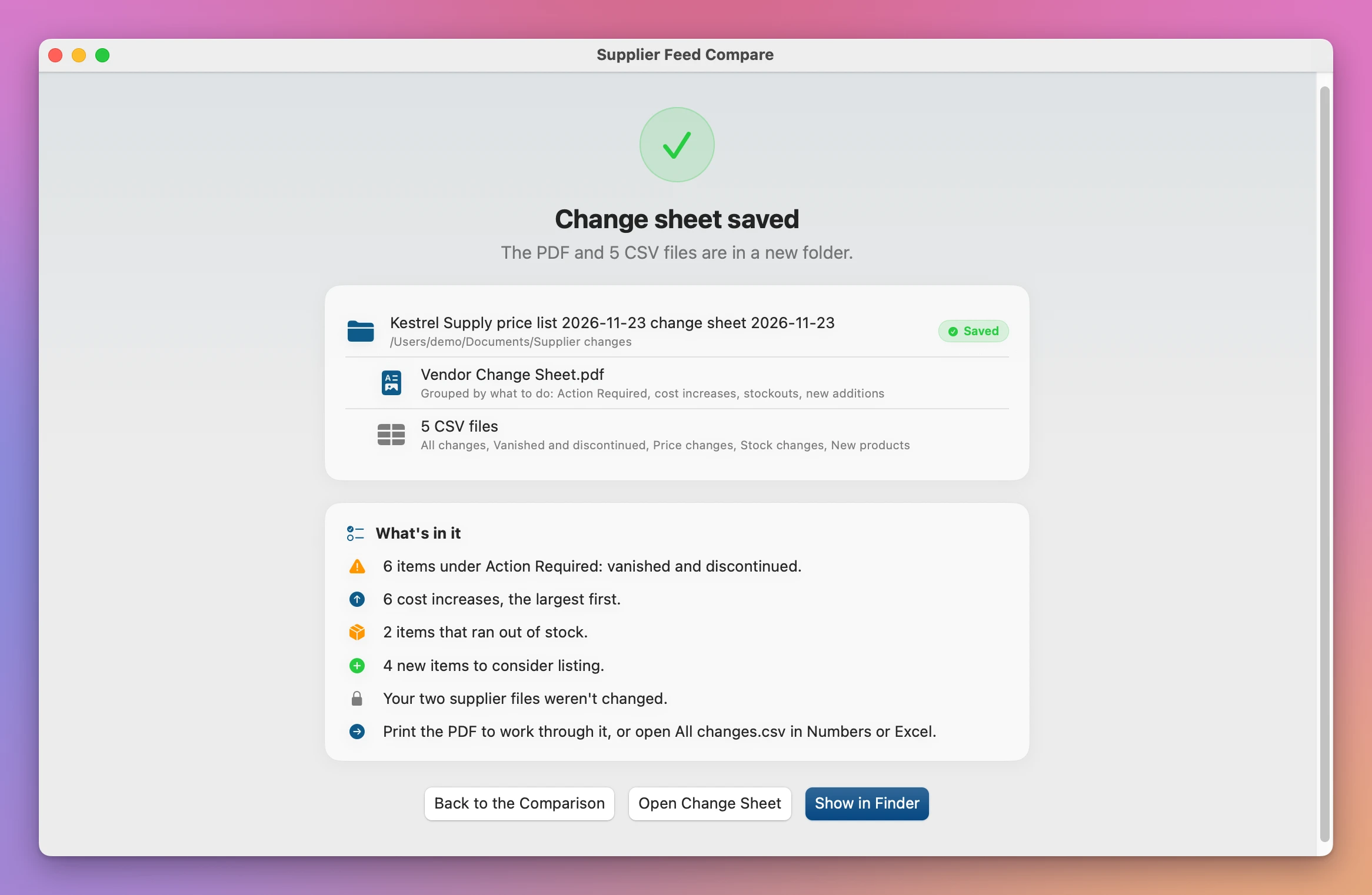
Export Change Sheet… makes a new folder with:
- Vendor Change Sheet.pdf, grouped by what to do: Action Required (vanished and discontinued), Cost Increases, Stockouts, New Additions, then the other changes. Ready to print.
- All changes.csv, one row per item that changed, with old and new cost, the change in percent, old and new stock and status, and what changed in words.
- Vanished and discontinued.csv, Price changes.csv, Stock changes.csv and New products.csv, so you can open just the part you’re working on in Numbers or Excel.
Your two supplier files are never changed.
Why not do it by hand
You can. Open both files in Numbers or Excel, add a column to this week’s sheet with a lookup (XLOOKUP or VLOOKUP) that pulls last week’s cost by item code, subtract, sort. Then do the same the other way round to find the codes missing from this week, and again for stock. It works, and the first time it takes about half an hour.
What makes it slow is that you redo it every week, the formulas break when the supplier renames a column or adds one, and a spreadsheet will happily turn 004417 into 4417 so the lookup misses it. Nothing in the formulas tells a vanished item from a discontinued one either, unless you add a filter for every word your supplier uses.
| By hand in a spreadsheet | Supplier Feed Compare | |
|---|---|---|
| Items missing from the new file | A second lookup the other way | Vanished, listed |
| Vanished vs discontinued | Filters on the status words you know | Kept apart, status words recognized |
| Cost increases, largest first | Formula, subtract, sort | Price Up, with a threshold |
| Out of stock and back in stock | Another lookup and filter | Out of Stock and Restocked |
| Codes that lost their leading zeros | Missed by the lookup | Matched, and noted |
| A renamed column | Fix the formulas | Found by name, or pick it in Columns… |
| A sheet to print | Format it yourself | Vendor Change Sheet PDF |
Inventory sync apps for Shopify and other stores can read supplier feeds too. They run inside your store at a monthly price and change your listings for you. Supplier Feed Compare only shows you what changed, and you decide what to do.
What it doesn’t do
- It doesn’t connect to your store, your supplier’s portal or a marketplace, and it doesn’t change any listing.
- It reads CSV files only. If your supplier sends an Excel file, open it and save it as CSV first (the app tells you how).
- It compares two files at a time: the previous one and the latest one.
- It doesn’t convert currencies. Both files should use the same one.
- It never changes the two files you compare.
Questions
What files does it need?
Two CSV files from the same supplier, a week (or a month) apart, with a column that holds each item’s code. The columns can be in any order and the two files don’t need the same ones. Commas, semicolons or tabs, UTF-8 or the older encoding Excel uses on Windows all work.
Does anything get uploaded?
No. The files are read on your Mac and stay there. The only connection the app makes is to check for updates.
Can I try it without my own files?
Yes. Try Example Files on the start screen opens two made-up weeks of a supplier’s price list, with vanished, discontinued and new items, cost increases and stockouts in them.
What does it need?
A Mac with macOS 14 Sonoma or later, Apple silicon or Intel.
Supplier Feed Compare isn’t made by, affiliated with or endorsed by Shopify, WooCommerce, Amazon, eBay or Apple.
Buy Supplier Feed Compare
$19 plus tax where it applies, paid once.
Download the app from the order page or your Creem receipt, unzip it and move it to Applications. I sign the app with my Apple Developer ID, and Apple notarizes the download.
The app checks for updates once a day. When a new version is ready, click Install and Relaunch. The first time, it asks for the license key from your Creem receipt, and remembers it. To check anytime, choose Supplier Feed Compare → Check for Updates….