
Mac & Windows app by Flavio
Supplier SKU Mapper
Map each supplier's item codes to your store's SKUs once, with case sizes and items you don't carry. Then every new stock or price CSV comes out with your SKUs, and new codes, rows that would overwrite each other and unreadable values are flagged before you import anything.
Buy Supplier SKU Mapper for Mac · $19Buy Supplier SKU Mapper for Windows · $19Buy once, use forever. Up to 3 computers you own (license). Plus tax where it applies. Mac and Windows versions are sold separately.
macOS 14 or later (Apple silicon and Intel) · Windows 10 and Windows 11 (x64 and ARM64)
Latest Mac version 1.0.0, released November 28, 2026
Every Monday Northwind Ceramics emails you a stock file. It has 23 rows with codes like NWC-1042 and NWC-3301-CS6. Your store knows those products as FW-MUG-SAGE-12 and FW-PLATE-CHALK-10, and it sells the plates one at a time while Northwind counts them in cases of 6.
So you open the file next to a lookup sheet, find each code, write your SKU next to it, multiply the cases, divide the case price, and copy the numbers into your store’s import. It works until it doesn’t. A new butter dish shows up as #N/A and someone deletes the row. The mug and the mug seconds both point at the same SKU, and only one of the two quantities ends up in the store. A bowl is on two lines with 14 and 6, and nobody notices which one went in.
Supplier SKU Mapper keeps a crosswalk for each supplier: their code, your SKU, the pack size, or “we don’t carry this”. You build it once, as the files come in. Every new file is then translated row by row, and anything new or doubtful is flagged before it reaches your store.
Watch a 30-second demo of Supplier SKU Mapper:
Who it’s for
- Shops with a handful of suppliers. A homeware or gift shop that restocks from five or ten makers, each sending a weekly CSV with their own codes, column names and spellings.
- Sellers who update stock from supplier files by hand. You have a VLOOKUP sheet that breaks when a supplier adds a product, moves a column or sends a code twice, and you only find out when a customer orders something you don’t have.
- Anyone who buys by the case and sells singles. Plates come in cases of 6, espresso cups in 12, throws in bales of 10. The quantity has to be multiplied and the cost divided, every single time.
- Resellers where two supplier codes are one product for you. Firsts and seconds, an old code and a new one, a single and a 12-pack of the same card. You decide once whether they add up or stay apart.
- Small teams. The person who knows that
00417is the spoon rest goes on holiday. The crosswalk and the exception report say it for them.
How it works
- Click Choose a Supplier CSV…, or drag the file onto the window. The app finds the code, product, quantity, cost, barcode and variant columns, and says which ones it used.
- It picks the supplier from the file name, or from the codes it already knows. A new supplier gets a crosswalk with New Supplier….
- Click a row to sort it out in the panel under the list: type the Store SKU or pick it from your catalog, set the Pack size, and click Save Mapping. Click Ignore Item for things you don’t carry.
- For rows marked Collision or Ambiguous, change a mapping, click Add Them Together, or Leave This Line Out.
- Click Export 16 Store Rows… and choose a folder.
The next file from the same supplier needs only the new codes.
What you get
Every row with a status, and the reason
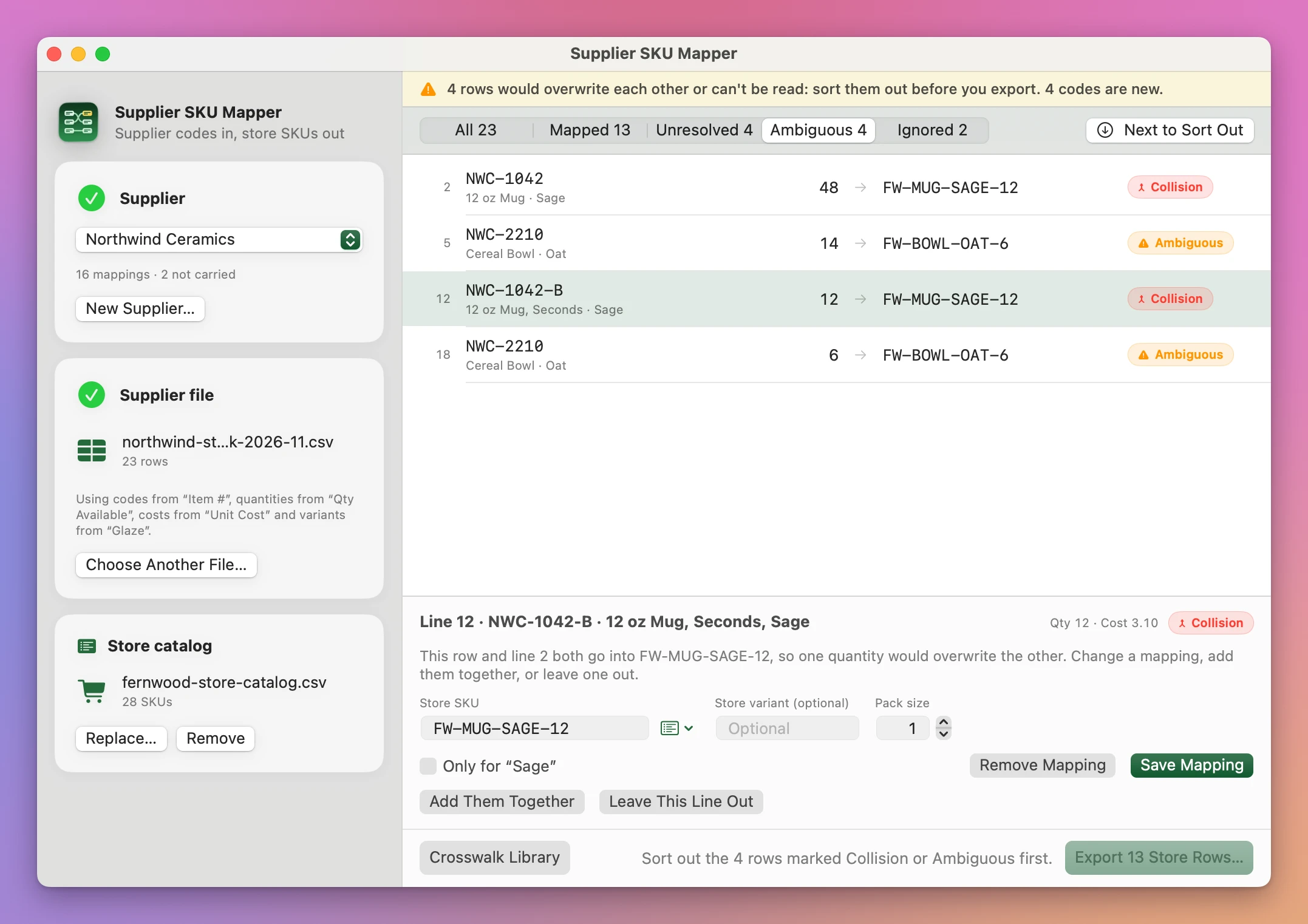
Each row of the supplier’s file gets a pill. Mapped in green goes into the store file. Unresolved in orange is a code the crosswalk doesn’t know yet. Collision in red means two rows go into the same store SKU and one would overwrite the other on import. Ambiguous in orange is the same code twice with different quantities, or a quantity or price the app can’t read. Ignored in grey is something you told it you don’t carry.
The panel under the list says, in a sentence, what the row is and what to do. Next to Sort Out jumps to the next row that needs you.
Collisions are stopped before they reach your store
Two rows for one SKU in a store import can’t both count: you end up with one of the two quantities, and no warning. Supplier SKU Mapper won’t export while that can happen. You can send one of the codes to a different SKU, leave one line out of this file, or click Add Them Together. That last one is saved in the crosswalk, so from then on the quantities are added up into that SKU.
Cases and packs converted
Set Pack size to 6 and a line of 9 cases at 51.00 becomes 54 units at 8.50 in the store file. The row shows the math, 9 × 6 = 54, so you can check it at a glance.
A crosswalk per supplier, kept for every file
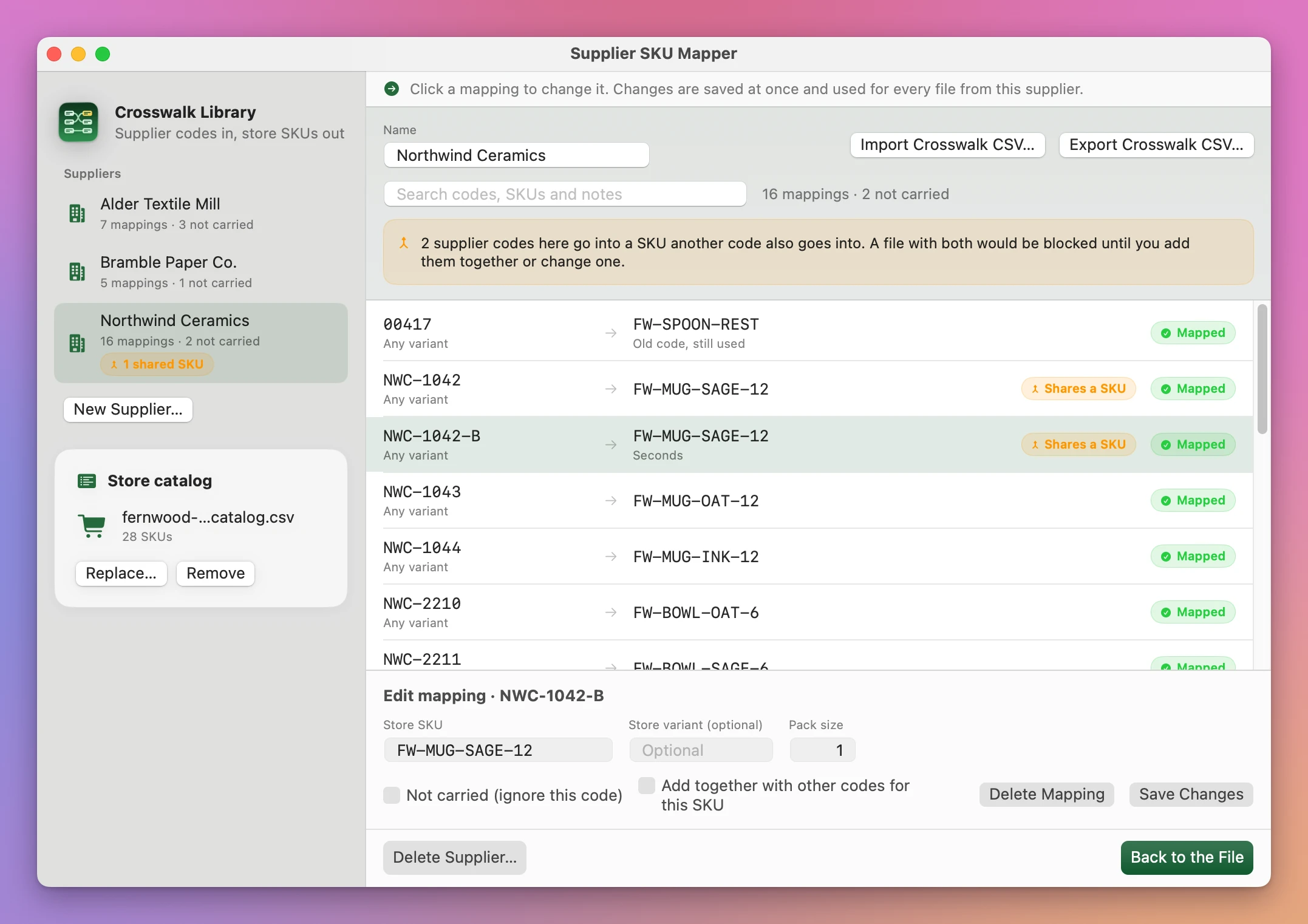
Every mapping you save goes in that supplier’s crosswalk. Crosswalk Library lists every supplier and their mappings. Search them, change a SKU or pack size, mark a code as not carried, and see which codes share a SKU. You can import and export a crosswalk as a CSV with the columns Supplier Code, Vendor Variant, Store SKU, Store Variant, Pack Size, Ignored, Allow Merge and Note, so you can start from a sheet you already have.
Your store catalog, if you want it
Import your store’s product export, or any CSV with a SKU column, with Import Store Catalog…. Then you can pick SKUs from a list instead of typing them. A new supplier code whose barcode matches one of your products is pointed out, and the SKU is filled in for you to confirm. A mapping to a SKU that isn’t in your catalog gets an orange note, so a typo doesn’t become a new product.
The store file and an exception report
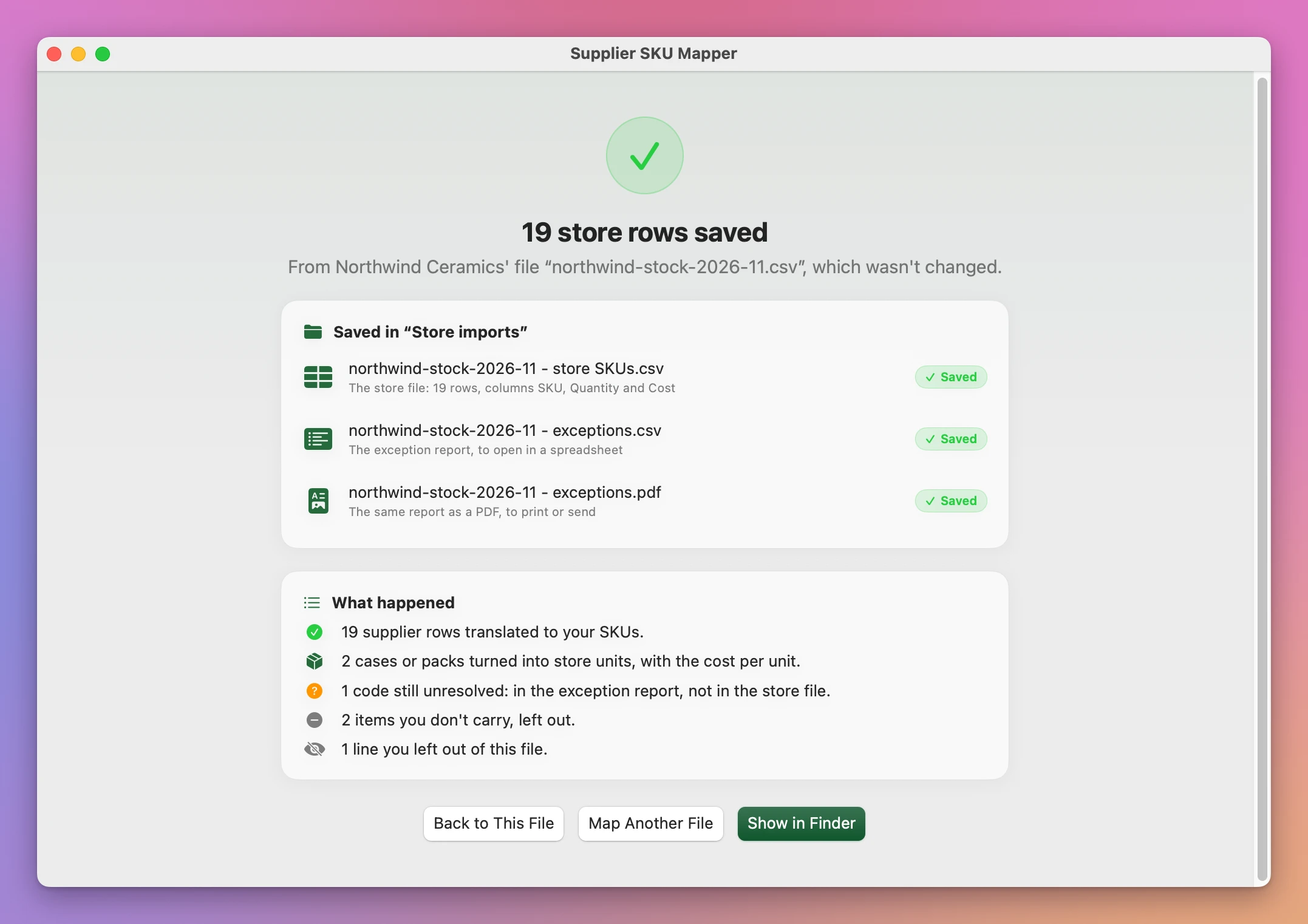
Export saves three files in the folder you choose, named after the supplier’s file:
northwind-stock-2026-11 - store SKUs.csv: SKU, Quantity and Cost (and Variant when you use one), one row per SKU, ready for your store’s inventory or cost import.northwind-stock-2026-11 - exceptions.csv: every row that didn’t go in, with the line, the code, the values, the status and what to do.northwind-stock-2026-11 - exceptions.pdf: the same report as a PDF, to print or send to whoever orders from that supplier.
Unresolved codes go in the report, never the store file. Nothing is ever saved over an existing file, and the supplier’s file is never changed.
Why not do it by hand
Numbers and Excel can hold a lookup table, and an XLOOKUP column next to the supplier’s codes works for one tidy file. It’s also where things go quietly wrong. A missing code is #N/A, which is easy to delete or skip. Two supplier codes looked up to the same SKU both get copied, and the import keeps one. Excel turns 00417 into 417 when it opens the CSV. Case sizes need a second column and a formula you have to remember to drag down.
Your store’s importer expects your own SKUs and has no idea what NWC-1042 is. Inventory platforms that map supplier codes exist, with a monthly subscription and a connection to your store.
| A lookup sheet | Supplier SKU Mapper | |
|---|---|---|
| New supplier codes | #N/A, easy to miss | Unresolved, listed in the exception report |
| Two codes into one SKU | Both copied, one overwrites the other | Collision, export blocked until you decide |
| Same code twice | Whichever row you copied | Ambiguous with both lines, keep one |
| Cases and packs | An extra formula per supplier | Pack size, saved with the mapping |
| Leading zeros | Lost when Excel opens the CSV | Kept as written |
| One sheet per supplier | Copied and edited by hand | A crosswalk per supplier, kept for every file |
What it doesn’t do
- It doesn’t connect to your store or your suppliers. It reads the CSV you give it and saves CSV files. Importing them is still a step you do in your store.
- It doesn’t guess mappings. A barcode match is shown as a suggestion. Nothing is mapped until you save it.
- It doesn’t make a store-specific import template. The store file has SKU, Quantity and Cost columns that your store’s importer can map. If your store needs other columns, add them in your spreadsheet.
- It doesn’t convert units other than whole packs. No fractional quantities, weights or metres.
- It doesn’t read Excel files. Save the supplier’s sheet as CSV first.
- It doesn’t sync crosswalks between Macs. Export a crosswalk as a CSV and import it on the other Mac.
Questions
Where are my crosswalks kept?
In your user Library folder on your computer, in Application Support/Supplier SKU Mapper, so they’re backed up with the rest of your files. Every change is saved as you make it. If the file ever gets damaged, the app opens the version from before your last change and keeps the damaged one aside.
Does anything get uploaded?
No. Your supplier files, crosswalks and catalog stay on your Mac. The app connects to the internet only to check for updates.
What files can it read?
CSV files with commas, semicolons or tabs, from any spreadsheet or supplier system, including European files with decimal commas and prices like € 4,80. It finds the columns by their names (Item #, Vendor Code, Article No, SKU, Qty, Stock, On Hand, Cost, Price, UPC, EAN and many more), and skips a title line above the table. If it can’t find the codes, it says which column names it looks for.
What it needs
macOS 14 Sonoma or later, on Apple silicon and Intel Macs. It asks macOS for no permission: it reads the files you choose, drag onto its window or open with it.
Supplier SKU Mapper isn’t made by, affiliated with or endorsed by Shopify, WooCommerce, Amazon, eBay, BigCommerce or Apple. The shop, suppliers and products in the screenshots are made up.
Buy Supplier SKU Mapper
$19 plus tax where it applies, paid once.
Download the app from the order page or your Creem receipt, unzip it and move it to Applications. I sign the app with my Apple Developer ID, and Apple notarizes the download.
The app checks for updates once a day. When a new version is ready, click Install and Relaunch. The first time, it asks for the license key from your Creem receipt, and remembers it. To check anytime, choose Supplier SKU Mapper → Check for Updates….