
Mac & Windows app by Flavio
Transcript Cut Checker
Choose the transcript you're about to publish and the cut list from your edit. See every cut that's still in the text, line by line, and export a cleaned copy in the same format with an audit.
Buy Transcript Cut Checker for Mac · $19Buy Transcript Cut Checker for Windows · $19Buy once, use forever. Up to 3 computers you own (license). Plus tax where it applies. Mac and Windows versions are sold separately.
macOS 14 or later (Apple silicon and Intel) · Windows 10 and Windows 11 (x64 and ARM64)
Latest Mac version 1.0.0, released November 29, 2026
You record a 50-minute interview and send the raw audio for a transcript. Then you edit. You cut a retaken question, a phone buzz, a stumble, and two minutes where your guest named a client and asked you to leave it out.
The audio is clean. The transcript isn’t, because it was made from the recording before the edit. Those two minutes are still in it, word for word, with the client’s name, and the transcript goes up on your site and in the podcast apps next to the episode.
Checking by hand means opening the cut list in one window and the subtitle file in another, finding each cut’s time among a few hundred lines, and deleting what falls inside it. With five cuts that’s half an hour of squinting at timestamps, and one missed line is enough.
Transcript Cut Checker does the comparison. Choose the transcript and the list of cuts from your editor. Every cut shows up with what the transcript still has of it, line by line, and you export a cleaned copy in the same format, with the lines numbered again.
Watch a 30-second demo of Transcript Cut Checker:
Who it’s for
- Podcasters who publish a transcript with every episode. The transcription service had the raw file, you edited afterwards, and now the text and the audio disagree in five places.
- Interviewers who promise to cut something. A guest says “can we keep that off the record?”. You cut it from the audio, and you want proof it’s gone from the text too, including the one time they said the name again ten minutes later.
- Editors who hand off to a show producer. Send the cleaned transcript with an audit PDF that lists every cut and what happened to each line, instead of “I think I got them all”.
- Video podcasters with captions. The SRT or WebVTT file came from the full recording. Your editor exports an EDL of the cut, and the captions need to match before upload.
- Course creators who trim their lessons. Pauses and false starts come out of the video, and the subtitles still have them.
From two files to a clean transcript
- Click Choose Transcript and Cut List… and pick both files, or drag them onto the window. The transcript can be SRT, WebVTT, timestamped text or JSON. The cut list can be an EDL, a CSV with start and end times, Audacity labels or a REAPER project.
- Read the cuts on the left. Each one says Still in Transcript, Partial Boundary or Already Removed.
- Click a cut to see its lines in the transcript, with two lines before and after for context. Ticked lines go. Untick any line you want to keep.
- Click Export Cleaned Transcript… and pick a folder.
Not ready with your own files? Click Try Example Episode Files on the start screen. It opens a made-up interview with five cuts and an off-record name, through the same steps.
What you get
Every cut, sorted by what’s left of it
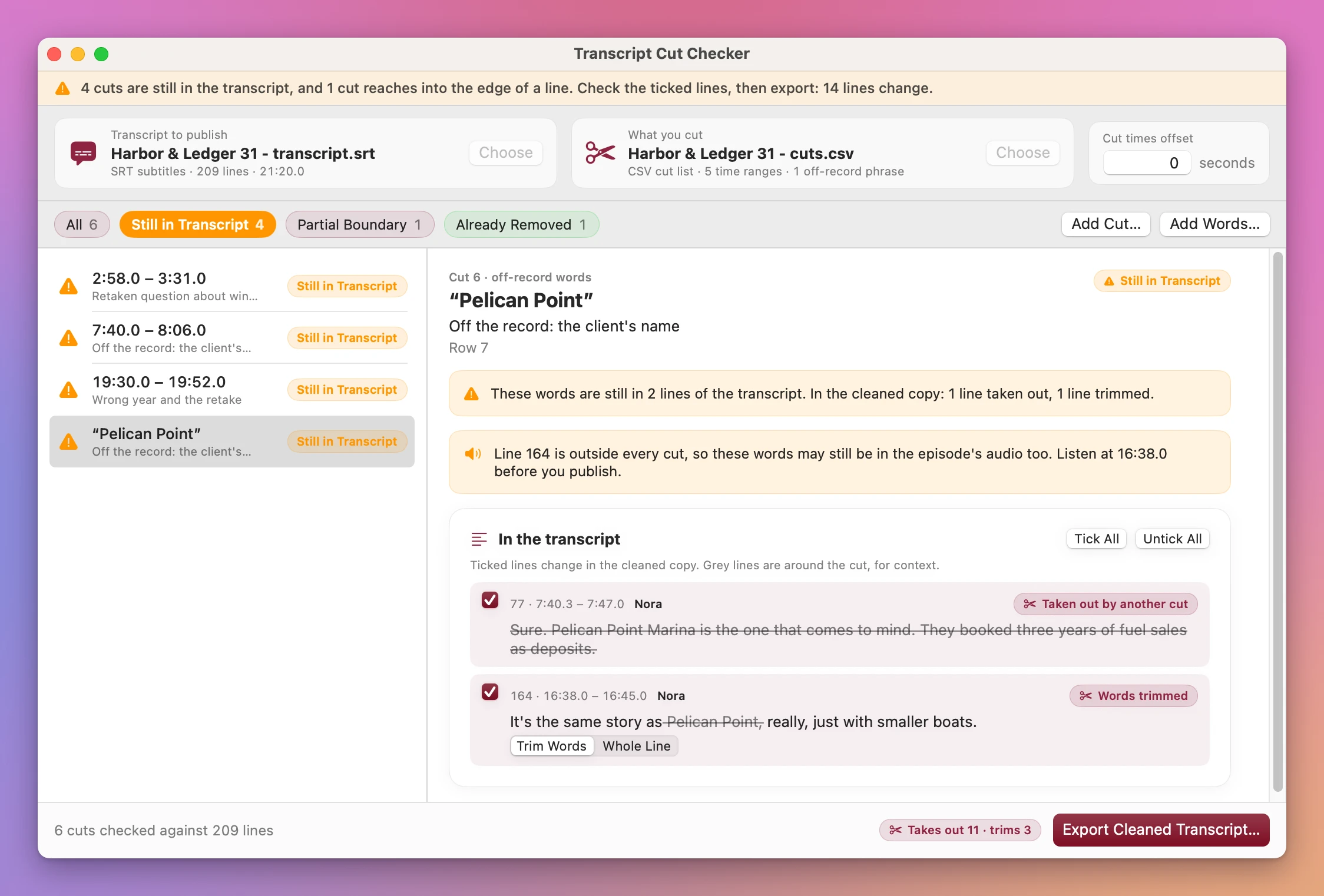
Still in Transcript means whole lines are inside the cut, or the off-record words are there. Partial Boundary means only the edge of a line reaches into the cut, like a stumble at the end of a sentence. Already Removed means no line falls in the cut: the transcript goes straight from the line before it to the line after it, and the app shows you those two lines so you can see the gap.
The pills at the top filter the list, with a count on each.
Lines at the edge are trimmed, not lost
When a cut covers the last two seconds of an eight-second line, taking the whole line out would delete words that are still in the audio. So a line at the edge is trimmed: the words that fall inside the cut are struck through on screen, and the line’s times are shortened to match. If you’d rather drop it, click Whole Line.
Off-record words, found anywhere
Click Add Words… and type a name or a phrase. Every line that has it shows up, without caring about capitals, accents or punctuation. In the cleaned copy the words become ”…”, or you take out the whole line.
When the words are in a line that no cut covers, the app says so: the transcript has them, which means the audio probably does too. That’s a moment to go back to the edit, not only the text.
Cuts from any editor
An EDL lists what was kept, so the cuts are the gaps between its events. A CSV needs a start and an end column, in seconds or as 7:40.5 or 00:07:40,500, and can have a reason. Audacity labels need a start and an end. A REAPER project gives its regions named like cuts (“CUT”, “remove”, “off-record”), or the gaps between the pieces of the recording on the timeline. You can also add a cut by hand with Add Cut….
If the cut list counts from a different start than the transcript, like an EDL that starts at 1:00:00, type the difference in Cut times offset. When every cut starts after the transcript ends, the app suggests the offset.
A cleaned copy and an audit
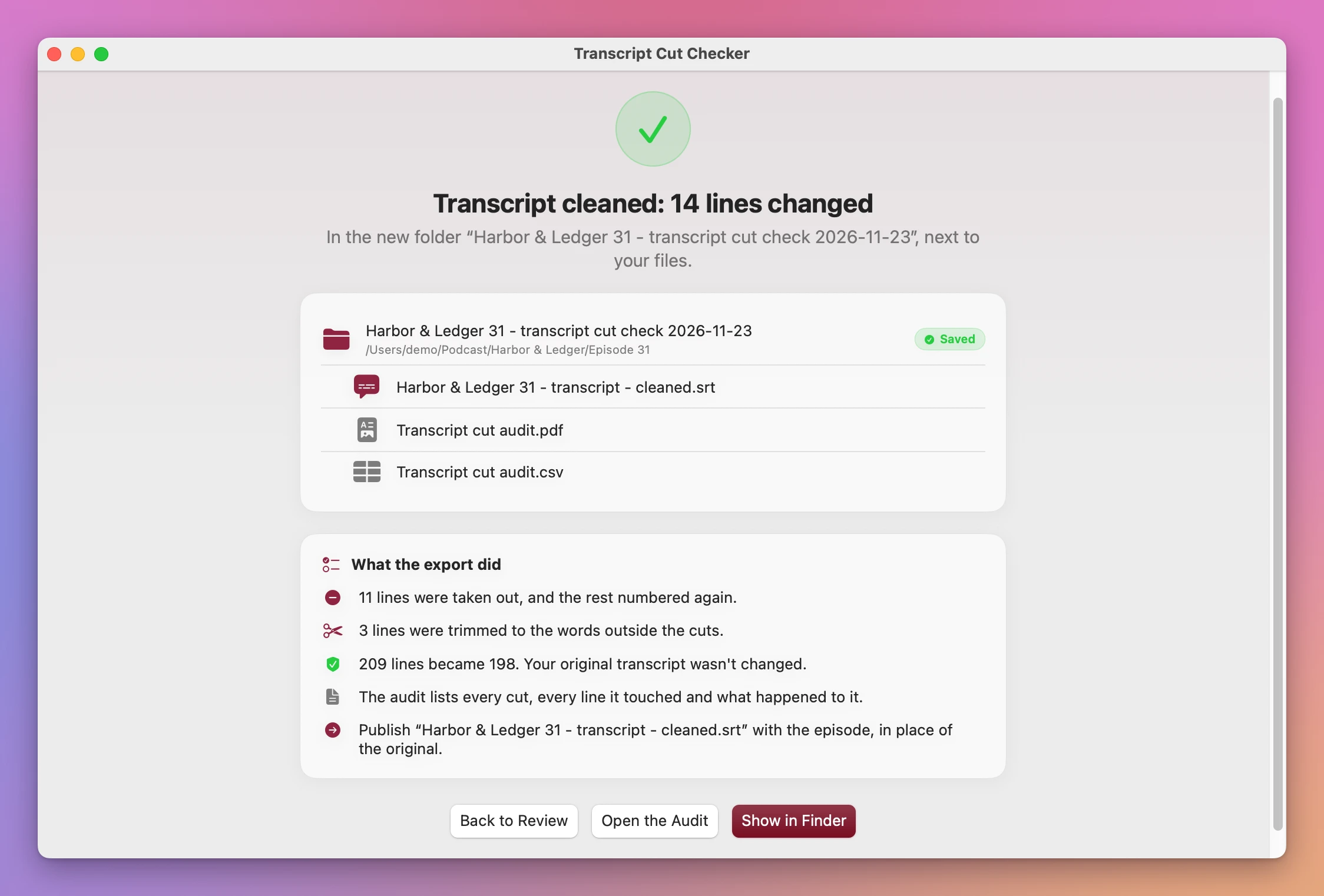
The export makes a new folder next to your files with three things in it:
- ”
- cleaned.srt” (or.vtt,.txt,.json): the same format, the same speaker names and settings, with the lines numbered again. - Transcript cut audit.pdf: every cut, every line it touched, and what happened to it.
- Transcript cut audit.csv: the same, for a spreadsheet.
Your original transcript and cut list are never changed.
Why not do it by hand
The free way is to open the transcript in TextEdit and the cut list in Numbers, side by side. For each cut, you search the transcript for the start time, read down to the end time and delete those lines. TextEdit has Find, so with a CSV of five cuts and a tidy SRT it’s doable. It gets slow when the times don’t match exactly (the cut starts at 7:40.0 and the line at 7:40.3), when a cut ends halfway through a line, and when the cut list is an EDL that lists what you kept, not what you removed. And SRT numbers don’t renumber themselves after you delete lines.
The other free way is to transcribe the edited audio again. If your transcription service is cheap and you never correct its text, that’s the simplest answer. Most people do fix names and spellings in the transcript, and a new transcription throws those fixes away.
| TextEdit and a spreadsheet | Transcribe the edit again | Transcript Cut Checker | |
|---|---|---|---|
| Cost | Free | Another transcription | $19 once |
| Keeps your corrections to the text | Yes | No | Yes |
| Reads EDL, Audacity labels and REAPER | You work out the gaps | Not needed | Yes |
| Lines at the edge of a cut | You decide word by word | Not needed | Trimmed by time, shown struck through |
| Finds an off-record name anywhere | With Find, one name at a time | No | Yes, and says if it’s outside every cut |
| SRT numbers fixed after deleting | By hand | Yes | Yes |
| A record of what was removed | No | No | PDF and CSV audit |
What it doesn’t do
- It doesn’t listen to the audio. It compares times and words. If the cut list is wrong, the result is wrong too.
- It doesn’t transcribe. You need a transcript with times on its lines.
- It trims lines at the edge by time, not by speech. Words are spread evenly across the line, so a trim can be a word early or late. You see the struck words before you export.
- It doesn’t shift the remaining times. The cleaned transcript keeps the times of the raw recording. If you publish it with the edited audio, the times after each cut come later than the words in the audio. Most podcast transcripts are read, not synced, so this only matters for captions on the edited video.
- It doesn’t read editor project files other than REAPER’s. From other editors, export an EDL or a list of markers as CSV.
Questions
Does anything get uploaded?
No. Your files are read on your Mac, and the cleaned copy is saved on your Mac. The app connects to the internet only to check for updates.
Which transcripts can it read?
SRT and WebVTT subtitles, text files with a time at the start of each line or a speaker and time above each paragraph, and JSON files with a list of segments that each have a text and a start time, like the ones many transcription tools export.
What if a line is in two cuts?
If either cut takes the line out, it’s out. The line shows Taken out by another cut under the other one, so you’re not confused about why its words are struck through.
What it needs
Transcript Cut Checker runs on macOS 14 Sonoma or later, on Apple silicon and Intel Macs.
Transcript Cut Checker isn’t made by, affiliated with or endorsed by Apple, Audacity or Cockos (the maker of REAPER). Their names are used only to say which files the app reads.
Buy Transcript Cut Checker
$19 plus tax where it applies, paid once.
Download the app from the order page or your Creem receipt, unzip it and move it to Applications. I sign the app with my Apple Developer ID, and Apple notarizes the download.
The app checks for updates once a day. When a new version is ready, click Install and Relaunch. The first time, it asks for the license key from your receipt. To check anytime, choose Transcript Cut Checker › Check for Updates….