How to check an SRT subtitle file for overlaps and fast lines on a Mac
By Flavio
Before you upload subtitles, check that no subtitle overlaps the next one and none goes by too fast to read. Here's how to do it by hand in TextEdit, and how Subtitle Checker finds and fixes them in a minute.
You’re about to upload a video with its subtitle file, and you want to know the file is right. Two mistakes are easy to make and hard to see: a subtitle that’s still on screen when the next one starts, and a subtitle that goes by too fast to read.
You can find both by hand: open the .srt file in TextEdit and compare the times, subtitle by subtitle. Or open it in Subtitle Checker, which lists the ones with a problem as soon as the file opens.
What counts as a problem?
An SRT file is plain text. Each subtitle has a number, a line with its start and end time, like 00:01:28,100 --> 00:01:36,600, and one or two lines of text, then a blank line before the next one.
These are the checks most subtitle guidelines and upload specs ask for:
- Overlap: a subtitle ends after the next one starts. Some players show both at once, others drop one.
- Line length: most specs allow about 42 characters on a line.
- Number of lines: two at most.
- Reading speed: characters on screen divided by seconds on screen. Somewhere between 15 and 20 characters a second is the usual limit.
The examples here use made-up subtitles for a ten-minute baking video, “Sourdough at Home”: 75 subtitles, with six mistakes put in on purpose.
Can QuickTime Player show the subtitle file?
Not a separate .srt file. Opening Sourdough at Home.srt with it on the test Mac showed “QuickTime Player cannot open files of this type.”
So on a Mac out of the box, checking means reading the file in TextEdit.
How to check by hand in TextEdit
- Control-click the
.srtfile in the Finder and choose Open With › TextEdit. On the test Mac, TextEdit was already the default app for.srtfiles, and it showed the file as plain text, one subtitle after the other.
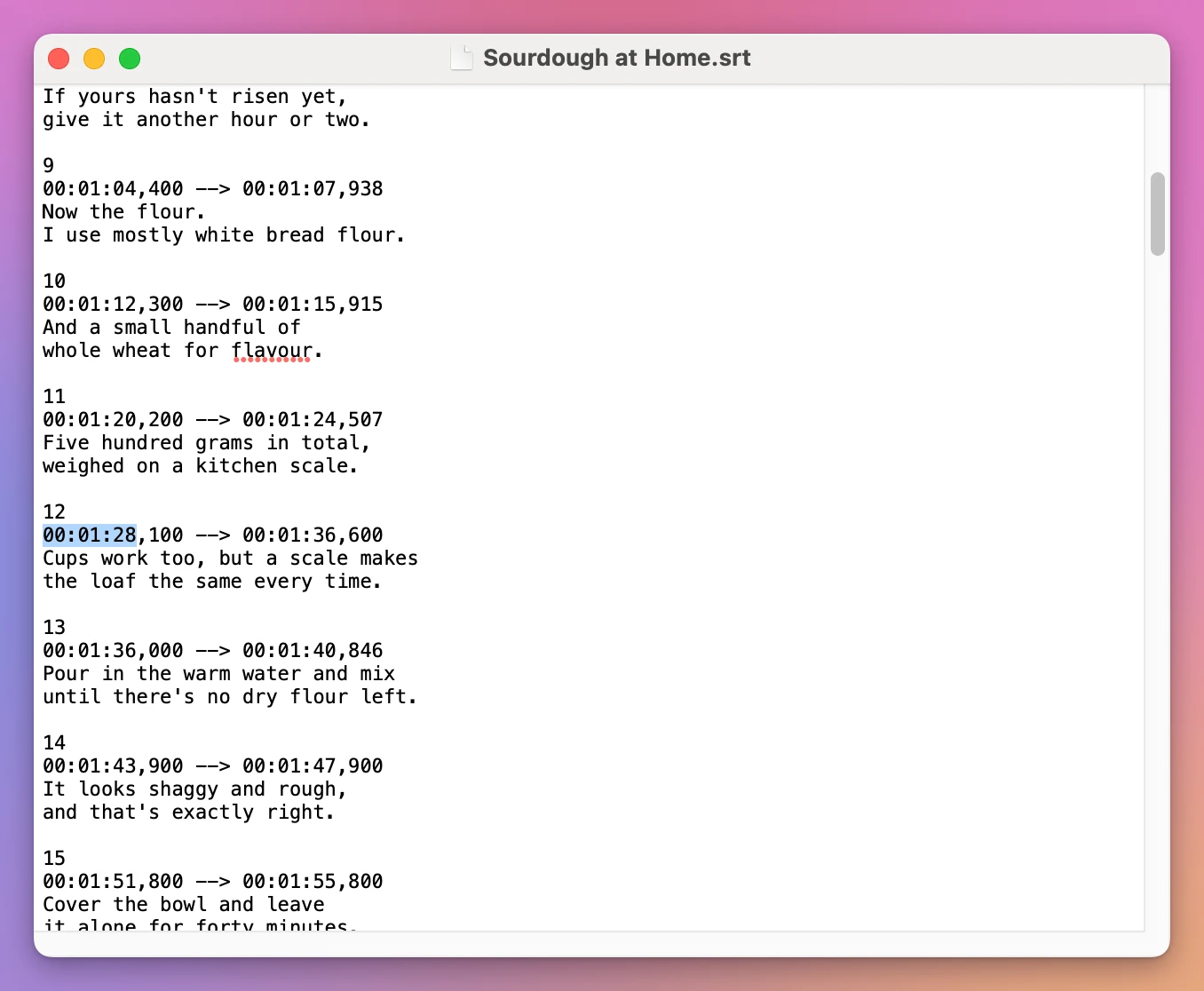
- For each subtitle, compare its end time with the start time of the next one. If the end is later, they overlap. In the file above, subtitle 12 ends at 1:36.600 and subtitle 13 starts at 1:36.000, so they overlap by 0.6 seconds.
- For the reading speed, count the characters on screen, spaces included, and divide by the time on screen. Subtitle 27 in the test file has 50 characters on screen for 1.6 seconds: 31 characters a second, too fast.
- For line length, count the characters of every line that looks long. TextEdit shows the file in a monospaced font, so long lines stand out.
It works, and nothing gets missed if you’re careful. The cost is the arithmetic: 75 subtractions, 75 divisions and a count of every long line for ten minutes of video, and a film has around 1,500 subtitles.
Watching the video with the subtitles on in a free player is the other way. That takes the full ten minutes, and a 0.3-second overlap looks like a flicker.
How Subtitle Checker does it
Subtitle Checker is a Mac app I made for this last check. It costs $19, paid once.
Click Choose a Video and Its Subtitles…, pick the .srt and the video (hold Command to pick both), and click Open. The list on the left shows only the subtitles with a problem, each with a pill that says what’s wrong.
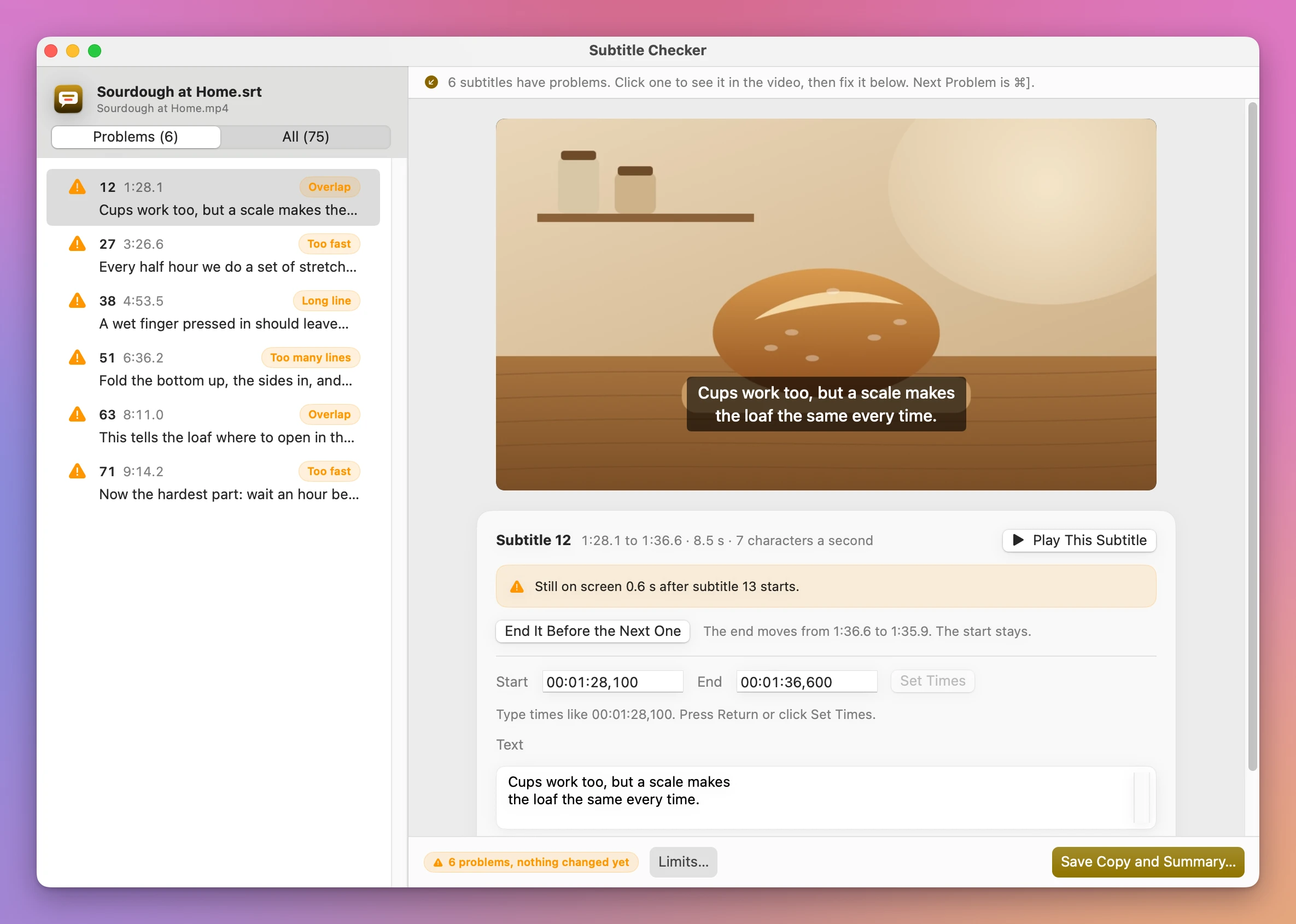
The test file had six problems, and the app found exactly those six, with the same numbers as the hand check: subtitle 12 still on screen 0.6 s after 13 starts, subtitle 27 at 31 characters a second, subtitle 38 with a line of 69 characters, subtitle 51 on three lines, subtitle 63 overlapping by 0.3 s, and subtitle 71 at 23 characters a second.
Click a row and the video jumps to that subtitle, so you see it where it plays. Under the video, each problem is a sentence, and the fix under it says what it will change before you click it:
- End It Before the Next One moves only the end of an overlapping subtitle.
- Keep It On Screen Longer moves the end later until the subtitle can be read at your limit, without running into the next one.
- Rewrap the Lines spreads the words over two lines that fit.
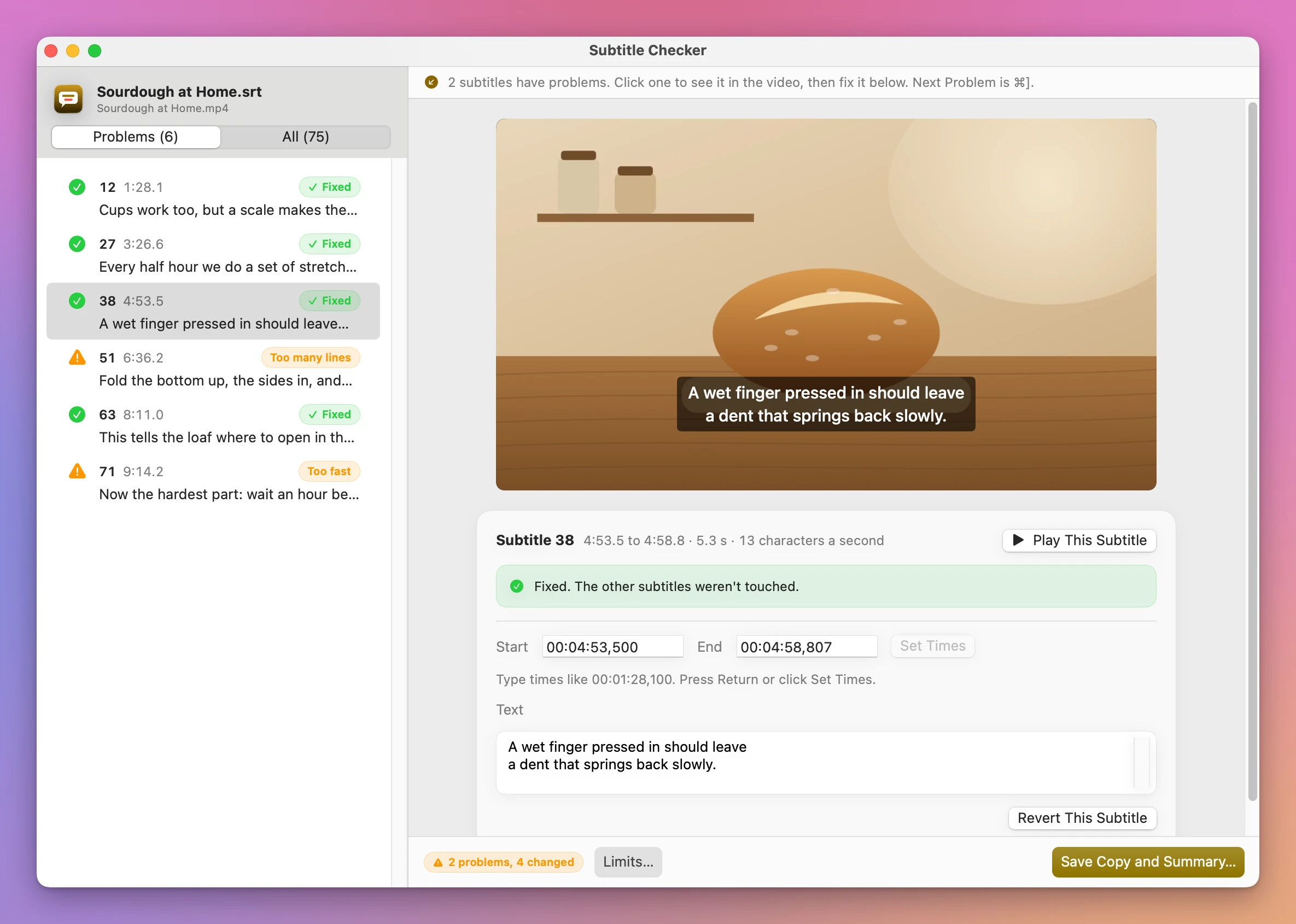
You can also type new times or edit the words by hand. Here, subtitle 51 got its three lines joined into two and its end moved by a second, typed in Text and End.
The limits are 42 characters, 2 lines and 17 characters a second to start with. Limits… changes them to what your platform or client asks for.
Saving the corrected file
Click Save Copy and Summary… and pick a folder. Two new files go there, named after the original: Sourdough at Home (checked).srt and Sourdough at Home (checked) summary.txt. The original isn’t changed.
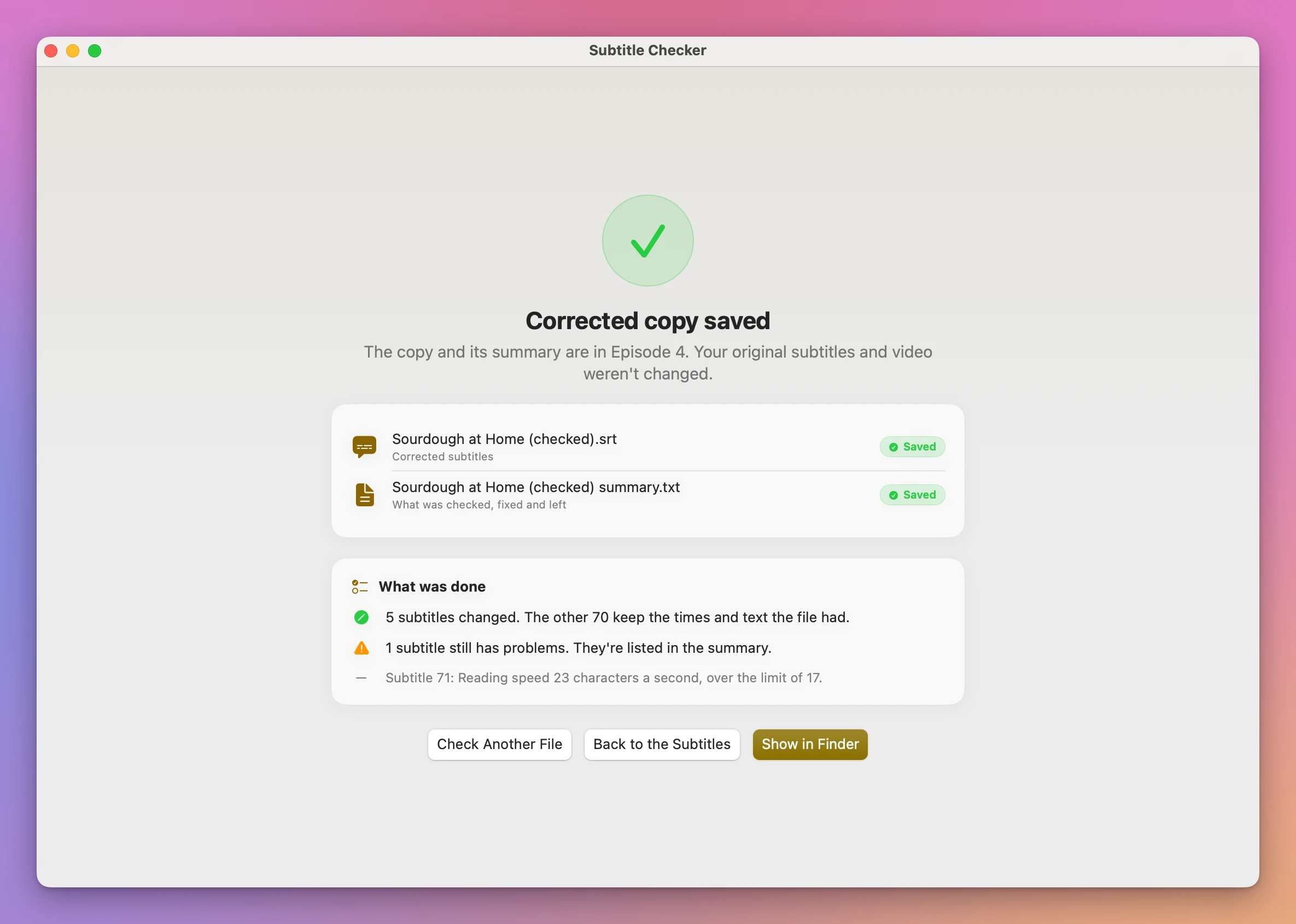
In the copy, the subtitles you didn’t touch keep their times exactly as the file wrote them. On the test file, comparing the copy with the original line by line showed only the fixed subtitles’ times and text as different.
The summary is a plain text file with the limits, every change with its old and new times, and every problem left. If a client asked for the subtitles to meet a spec, you can send it along.
Hand check or the app?
| Hand check in TextEdit | Subtitle Checker | |
|---|---|---|
| Cost | Free | $19 once |
| Finds overlaps | Compare every end with the next start | Listed when the file opens |
| Reading speed | Count and divide for each subtitle | Measured for each subtitle |
| See the subtitle in the video | Find the time in a player yourself | Click the row |
| Fixing | Edit the times and text by hand | One click, or by hand |
| Record of what changed | None | Summary file |
| Work for 75 subtitles | 74 comparisons, 75 divisions, every long line counted | A click on each flagged row and one on its fix |
For a short clip with a dozen subtitles, TextEdit is fine. Past that, the arithmetic is where mistakes slip through.
The subtitles, the video and every name in the screenshots are made up for this tutorial. The screenshots are from macOS 15.
Get Subtitle Checker
Open a video and its SRT or WebVTT subtitles. Every overlap, long line and subtitle too fast to read is flagged, the video jumps to each one, and one click fixes it. Save a corrected copy and a summary, never over the original.
See Subtitle Checker → · Read the docs · $19. See the app page for tax details.
Want me to talk about your product? You can sponsor this site.