Create client project folders from a template on a Mac
By Flavio
Set up a reusable Finder folder with starter documents, then duplicate it by hand or fill in client and job names from a template on Mac.
A new client job starts with the same folders as the last one. You need somewhere for the brief, a production checklist, and a folder for the files you hand over.
Make that structure once in Finder and duplicate it for each project. If the client and job number also appear inside the folder names, Project Folder Kits can fill those values from a template as it makes the copy.
How do I make a reusable project folder in Finder?
Start with an ordinary folder called Project Template. Inside it, make 01 Brief, 02 Production, and 03 Delivery. The numbers keep them in that order when Finder sorts by name. Put your blank brief in the first folder and a clean checklist in the second. Leave Delivery empty so you have a place for finished files.
When you start a job, select the template folder and press Command–D. Select the copy and press Return to rename it. Move the copy to wherever you keep client work. Keep the blank template handy for the next job. Apple’s guide to organizing folders in Finder.
Here are the three subfolders in the copy named Juniper 204. The files and client name in this example are made up, and the screens are from macOS 15.
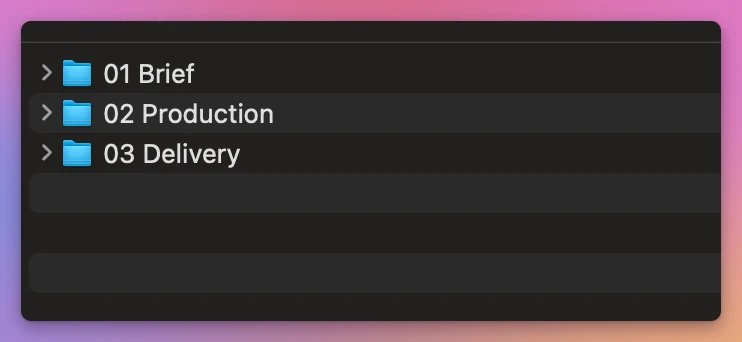
Change the starter documents in the copy as the job gets underway. If you want the next job to start with a better checklist, make that correction in the template too.
When is a plain duplicate enough?
If the new project only needs a name on its top folder, Finder already does the job. The extra work starts when the same client name or job number has to go in several places.
| What changes for each job | Duplicating in Finder | Using a kit |
|---|---|---|
| The label on the outer folder | Rename the copy | Enter a New output folder name |
| A client and a job in the paths | Rename each relevant folder in the copy | Enter a value for each placeholder |
| Blank briefs and checklists | They copy with the template | They copy with the template |
How do I fill in client and job names automatically?
Open Project Folder Kits. First make a template in Finder. Use braces around the parts of the names that change. In the tested template, a folder named {client} contains another named {job}. Put 01 Brief, 02 Production, and 03 Delivery inside the job folder. Put the starter files into their usual places.
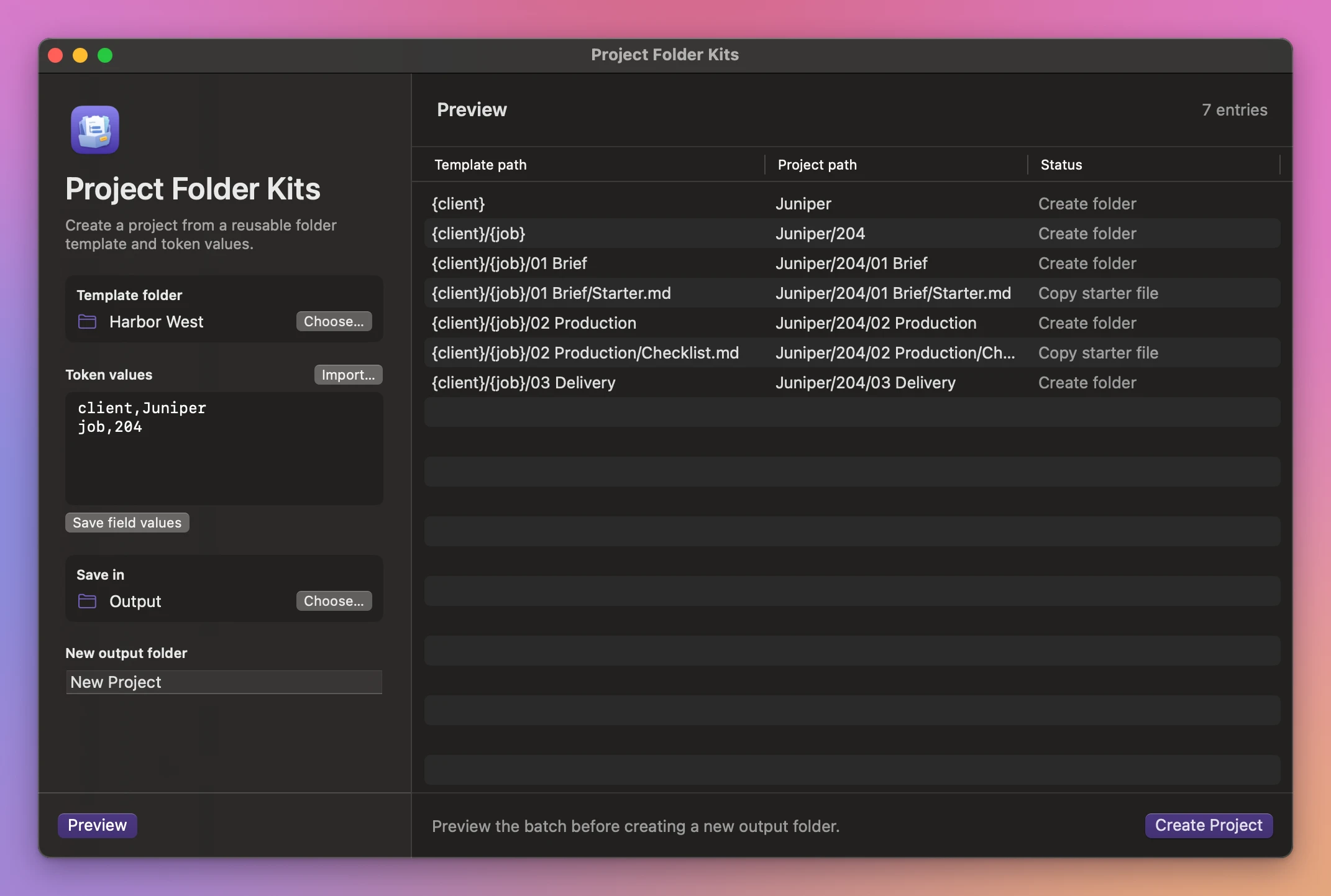
In the app, choose the Template folder. Under Token values, put client,Juniper on one line and job,204 on the next. The word before the comma is the name inside the braces, and what follows is the value you want in the copy.
Choose Save in, enter the name for the new output folder, and click Preview. The preview shows the new project as a tree of folders and files, such as Starter.md inside Juniper/204/01 Brief. Under each name is the template path it comes from, like {client}/{job}/01 Brief/Starter.md. If you see the wrong number or two paths that would have the same name, fix it now and run the preview again.
What gets copied into the new project?
Click Create Project. The result is a fresh folder with the template’s structure and the starter files already inside. The sample project had Starter.md under 01 Brief and Checklist.md under 02 Production.
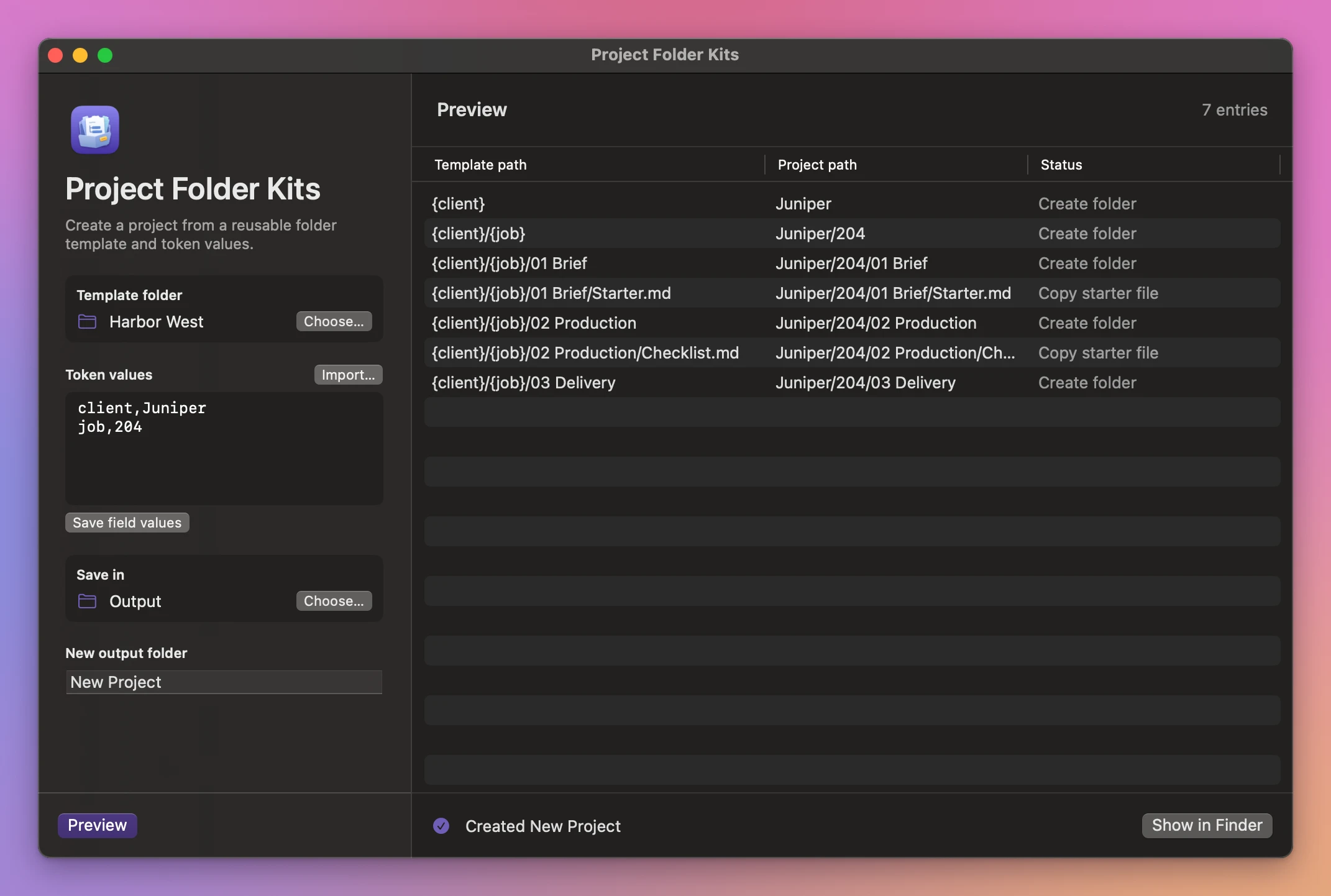
The names in the copy get the new values. Open the brief to fill in details inside the document itself. If you work with someone who starts jobs the same way, share the template as a normal folder. They can enter their own client and job values when they use it. The app costs $19 plus tax where it applies, paid once.
Get Project Folder Kits
Keep your usual folder structure and starter files in a template. Enter the client name, job number or other values to create a project using those names.
See Project Folder Kits → · Read the docs · $19. See the app page for tax details.
Want me to talk about your product? You can sponsor this site.