Two camera cards both have C0001.MP4: how to find clips with the same name on a Mac
By Flavio
Sony cameras, action cameras and sound recorders all start again at the same file names, so two cards can hold different clips called C0001.MP4. Here's how to spot them in the Finder, and how Duplicate Clip Name Finder lists and renames them before you import.
You put two camera cards in a project, and both have a file called C0001.MP4. They’re different clips: one is the A-camera’s first shot of the day, the other is the B-camera’s. Your editing app keeps them both, until you move the project and it relinks by name. Then one of them can come back as the other.
The fix is to find the names that repeat before you import, and give those clips names of their own. You can do it in the Finder, card by card. Or Duplicate Clip Name Finder compares all the cards at once.
Why do two cards have the same file names?
Cameras number their clips from a counter, and the counter starts again on a new card or after a format. Sony cameras write C0001.MP4, C0002.MP4 and so on. Action cameras write names like GX010001.MP4. Field recorders write ZOOM0001.WAV.
So a shoot with two cameras, or one camera over two days, gives you different clips with the same name. Inside one card that’s impossible, so the camera never warns you. The problem only shows up when the cards meet in one project or one folder.
Here’s what happens to those names in each case:
| Where the clips end up | What happens to two clips called C0001.MP4 |
|---|---|
| Each card copied to its own folder | Both kept, the names still clash |
| Both cards copied into one folder | The Finder asks to replace one with the other, or keep both with a number added |
| Both imported into an editing app | Both imported, with the same name in the bin |
| The project moved and relinked by name | The app can pick the wrong one |
How to find repeated names in the Finder
The examples here use a made-up shoot: two Sony-style cards (Card A and Card B), an action camera card (Card C), and a Backup folder with a copy of one clip. On a Sony-style card the clips are in PRIVATE › M4ROOT › CLIP.
- Open the first card in the Finder and go into its clip folder.
- Choose View › as List and click the Name column so the files are sorted by name.
- Open the second card in a new window (File › New Finder Window) and go into its clip folder the same way.
- Put the two windows side by side and compare the names, one by one.
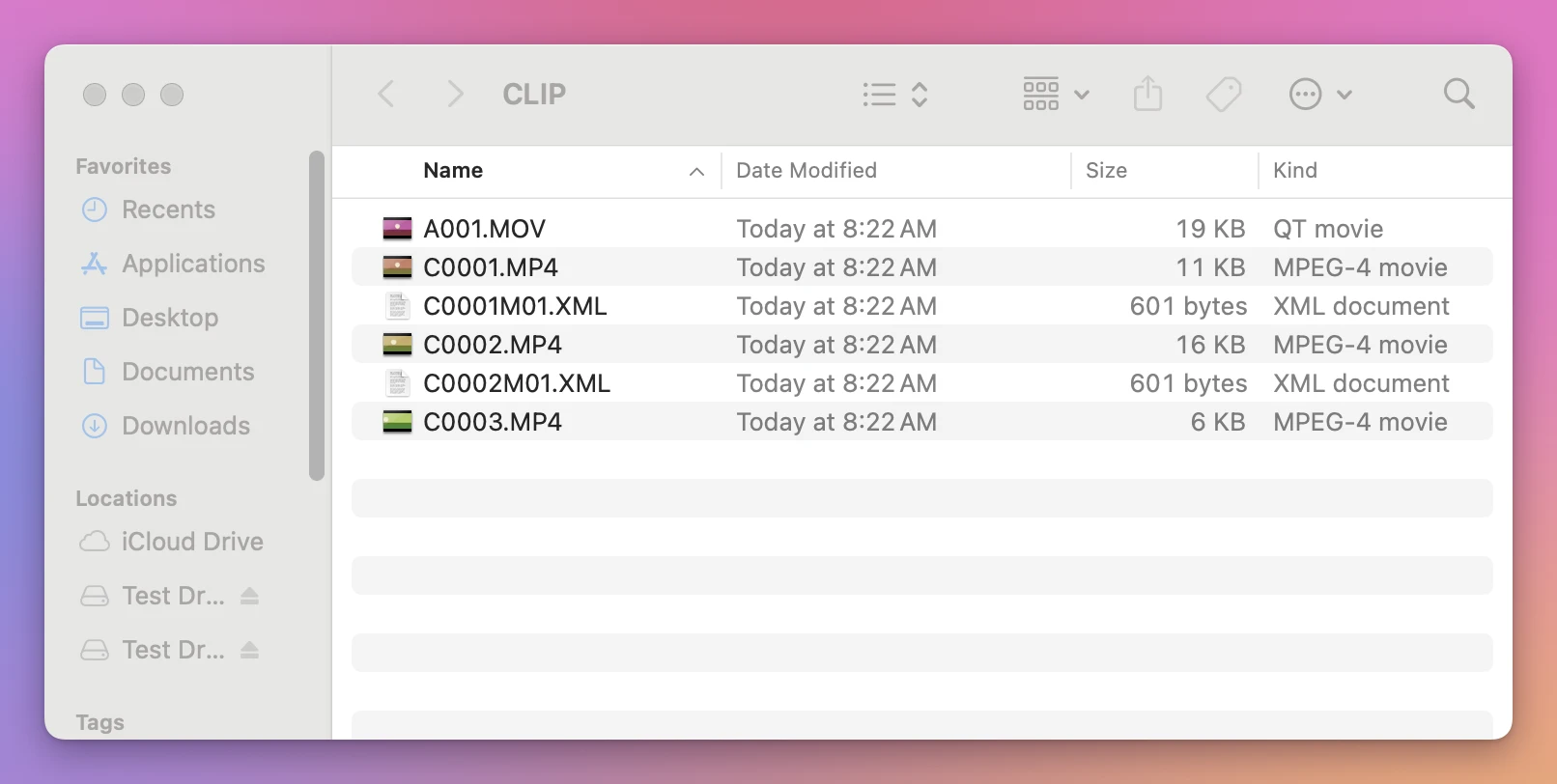
Card A has A001.MOV, C0001.MP4, C0002.MP4 and C0003.MP4. Card B’s folder has A001.MOV, C0001.MP4 and C0002.MP4. So three names clash between these two cards alone, and the sizes are different, so they’re different clips.
That works for two cards. Each extra card is another window and another comparison with every card before it, and the action camera and recorder folders are elsewhere on their cards. Two files of the same size can still be different clips, so to be sure you’d open both and watch them.
To fix a name in the Finder, select the files, Control-click and choose Rename, then Add Text before the name. It works on the files you select, so you do it card by card, and the camera’s XML file next to each clip keeps its old name.
How Duplicate Clip Name Finder does it
Duplicate Clip Name Finder is a Mac app I made for this check, at ingest. It costs $19, paid once.
Click Choose Cards or Folders… and pick the cards, or the footage folder that holds them. Hold Command to pick more than one. A folder with one folder per card is read as separate cards.
The list shows every name used by more than one different clip. On the test shoot it found five: A001.MOV, C0001.MP4, C0002.MP4, GX010001.MP4 and ZOOM0001.WAV, 11 files in all. Each row has a frame, the card and folder, the size, length, recording date, start timecode and camera. The timecodes came from the cameras’ XML files and from the files’ own timecode tracks, so TC 10:08:24:15 on Card A and TC 14:03:45:00 on Card B show they were shot hours apart. The screenshots below are from a bigger made-up shoot, eight cards and folders over two days.
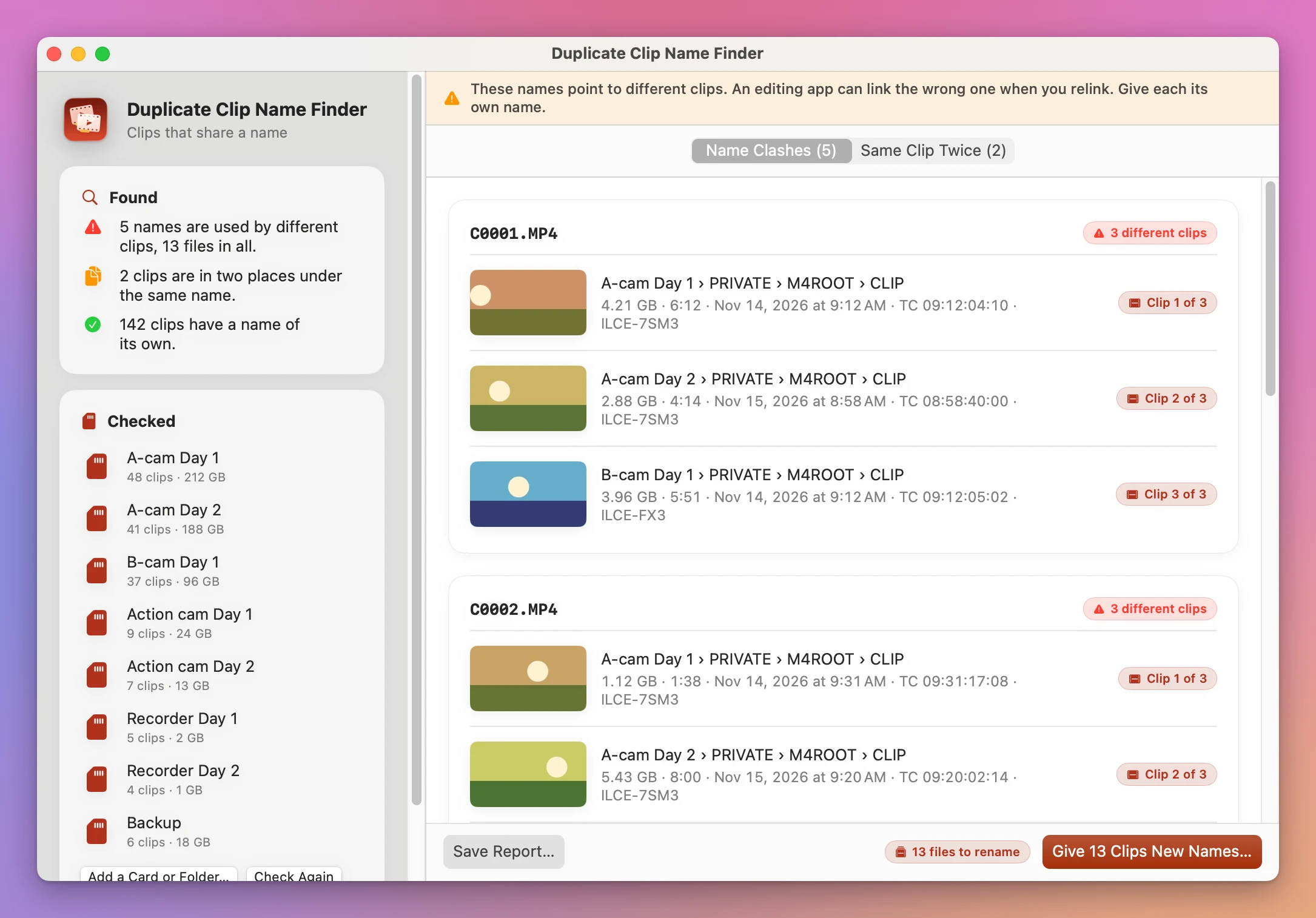
The Backup folder’s C0002.MP4 has the same bytes as Card B’s, so it isn’t a clash. It’s listed under Same Clip Twice instead, because a copy of the same clip links to the same picture either way.
Click Give 11 Clips New Names…. Tick what goes in front of each name: the card or folder name, the recording date, the camera model. The camera’s own name stays at the end, so C0001.MP4 from Card A becomes Card-A_C0001.MP4.
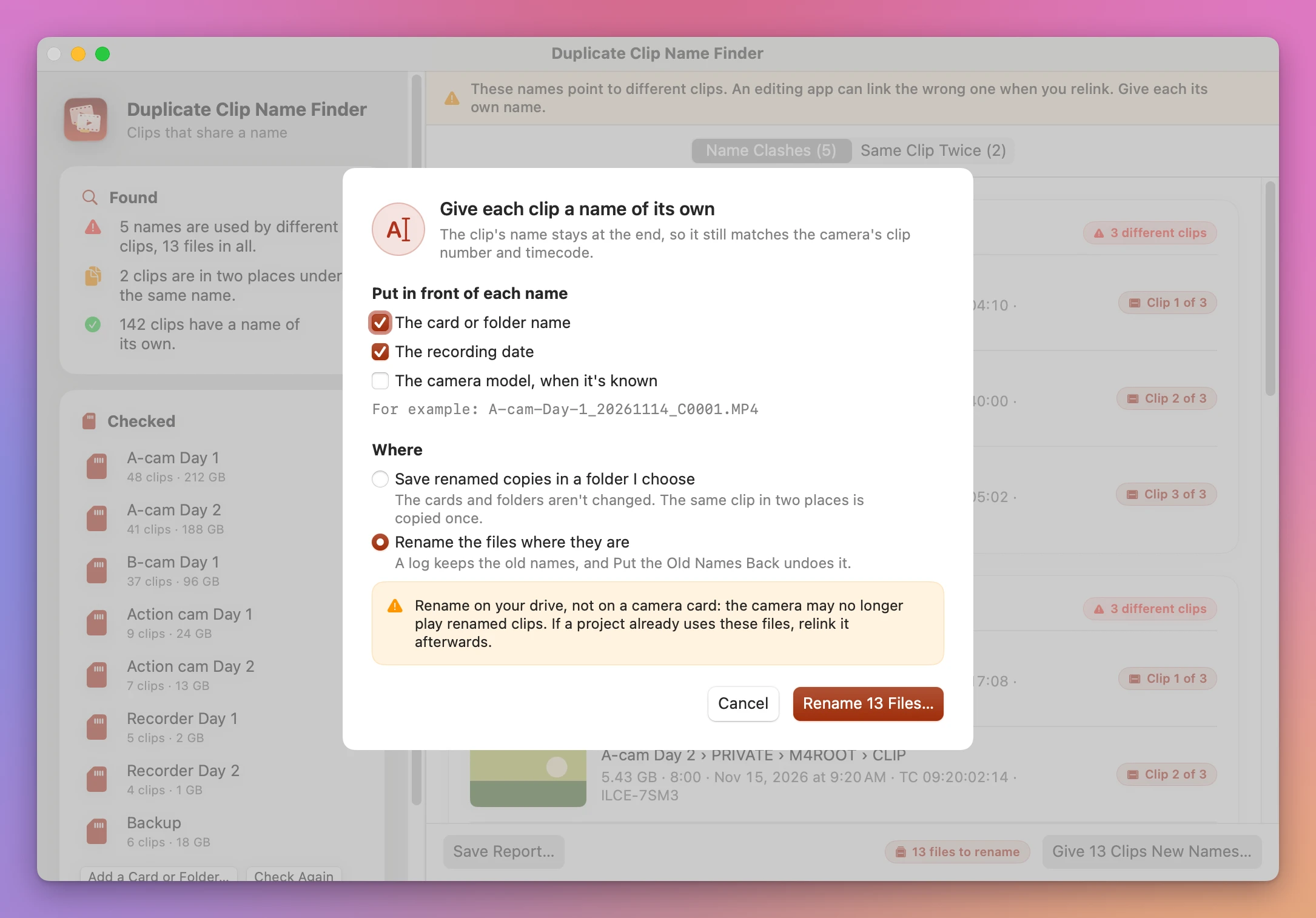
Then pick where the new names go:
- Save renamed copies in a folder I choose copies the clashing clips into one folder with their new names, with a log of each original and its new name. On the test shoot that made 10 copies and copied the 3 XML files with their clips. Backup’s C0002.MP4 was copied once, not twice.
- Rename the files where they are renames them in their folders, with their XML files, after you confirm. On the test shoot it renamed 11 files, and Put the Old Names Back restored all 14 names (the clips and their XML files).
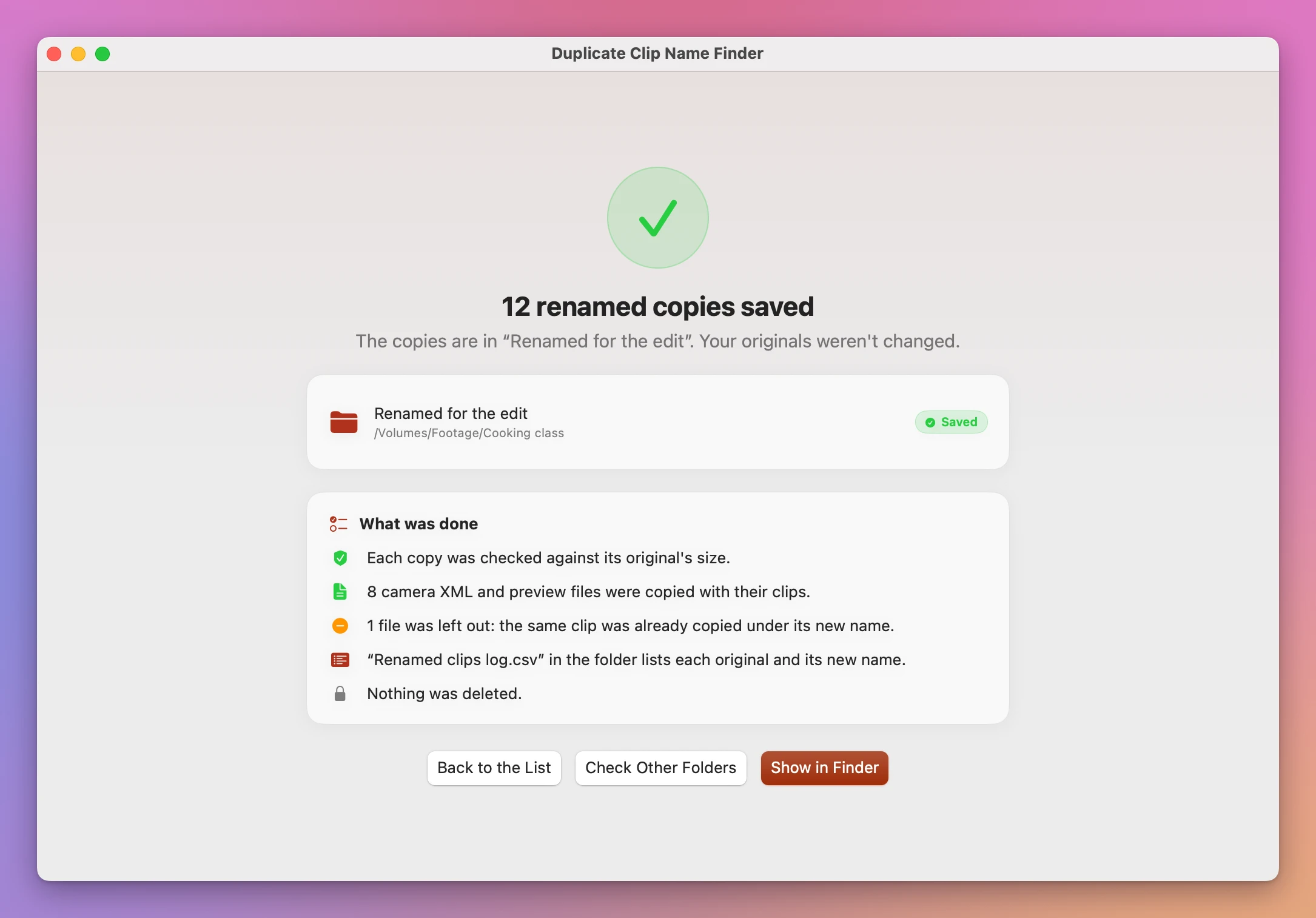
Rename on your drive, not on a camera card you’ll put back in the camera. Then import the renamed clips, and the editing app has one name for each clip.
Get Duplicate Clip Name Finder
Compare your camera cards and footage folders before you import them. See every file name used by two different clips, with the card, timecode, length and a frame of each, then save renamed copies or rename them in place with a way back.
See Duplicate Clip Name Finder → · Read the docs · $19. See the app page for tax details.
Want me to talk about your product? You can sponsor this site.