How to fix broken aliases on a Mac ("The original item can't be found")
By Flavio
A Finder alias breaks when its file comes back from a backup, moves to another disk or is re-created by a sync. Finder's Fix Alias… repairs one alias at a time. To find and relink every broken alias in a folder at once, with a backup, use a batch tool.
You double-click an alias on your desk folder and Finder says the original item can’t be found. It worked last month. Since then, the project folders were archived, or restored from a backup, or copied to a new disk.
For one alias, click Fix Alias… in that message and pick the file. For a folder full of broken aliases, Broken Alias Repair Desk finds them all, shows the file each one most likely meant, and relinks the ones you confirm.
Why did my alias stop working?
An alias is a small file that opens another file or folder. You make one in the Finder with File › Make Alias, or Control-Command-A. It keeps a few details about the original: its path, the disk it was on, its name and when the file was created.
If you only move or rename the original on the same disk, the alias usually keeps working on its own. macOS follows the file itself, not only its path. That’s why some of your aliases still open after a reorganization and others don’t.
An alias breaks when the file it knew is gone and a different file sits in its place:
- you restored a folder from a backup, so the files are copies
- you copied the folders to a new disk, so the aliases still point to the old one
- a sync service like Dropbox or iCloud re-created the files
- the file was deleted and replaced, or is in the Trash
The file you want is often right there, with the same name, in a different folder. The alias doesn’t know that.
How do I fix one broken alias?
Open the alias. When Finder says the original item can’t be found, click Fix Alias…. A file picker opens. Find the file the alias should open, select it, and confirm. The alias now opens that file.
This is free and fine for one or two aliases. For more, it gets slow:
- You have to find each file yourself. Finder shows the alias’s name, not where the file was or when it was created.
- You only find out by opening each alias. There’s no list of which aliases in a folder are broken.
- Two files with the same name look the same. If
Contract.pdfis in a folder and in its copy, you guess. - There’s no undo. Once you pick a file, the old link is gone.
How do I fix all the broken aliases in a folder at once?
Broken Alias Repair Desk is a Mac app I built for this. It costs $19, paid once.
The example here is made up. A Studio folder has a Desk folder full of aliases into client folders, made in the Finder with Make Alias. Then the client folders were “restored” into Archive/2021: one file was renamed, one duplicated into a copy of its folder, one edited, one deleted and one moved to the Trash.
- Click Add Folders with Aliases… and pick
Desk. Include subfolders is on, so the client folders inside are scanned too. - Click Add Where to Look… and pick
Archive, where the files went. - Under Backups and report, click Choose… and pick a folder for the backups. Here it’s
Studio Backups. - Click Scan for Broken Aliases.
The scan found 10 aliases. One still worked, 9 were broken, and 2 symbolic links (a different kind of link the app lists but never changes). Of the 9 broken ones, 5 were Ready, 2 needed a choice, and 2 had no match: the deleted file and the one in the Trash.
Each alias shows what it remembers and the file that could be its own, with the reasons:
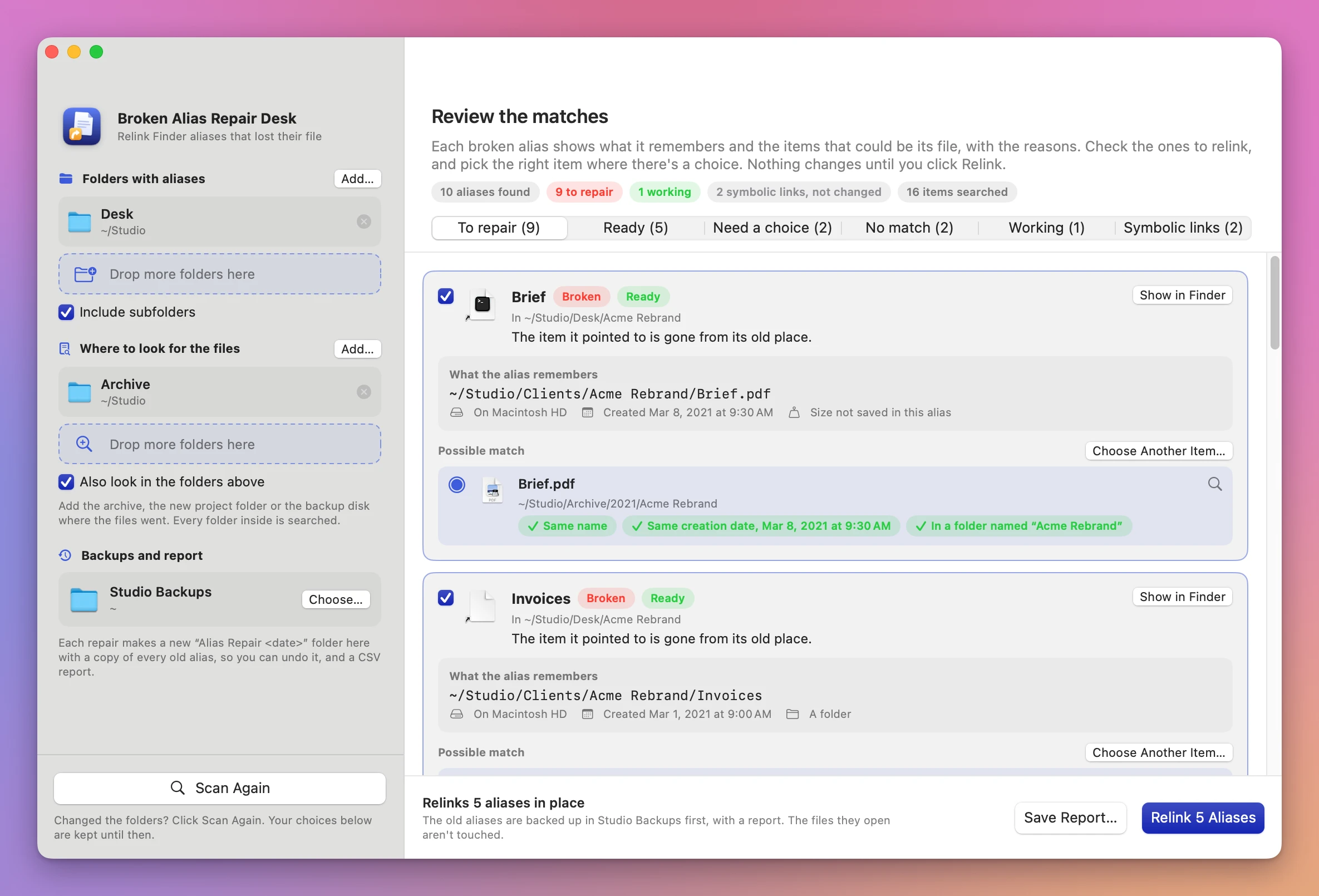
Only the Ready ones are checked to start with. The other two waited in Need a choice. Moodboard.key had been renamed Moodboard v2.key, so only the creation date, the folder and the kind of file matched, and the row asked to check it. Contract.pdf was in two folders with the same date, so the row was marked Ambiguous and nothing was picked until one was clicked:
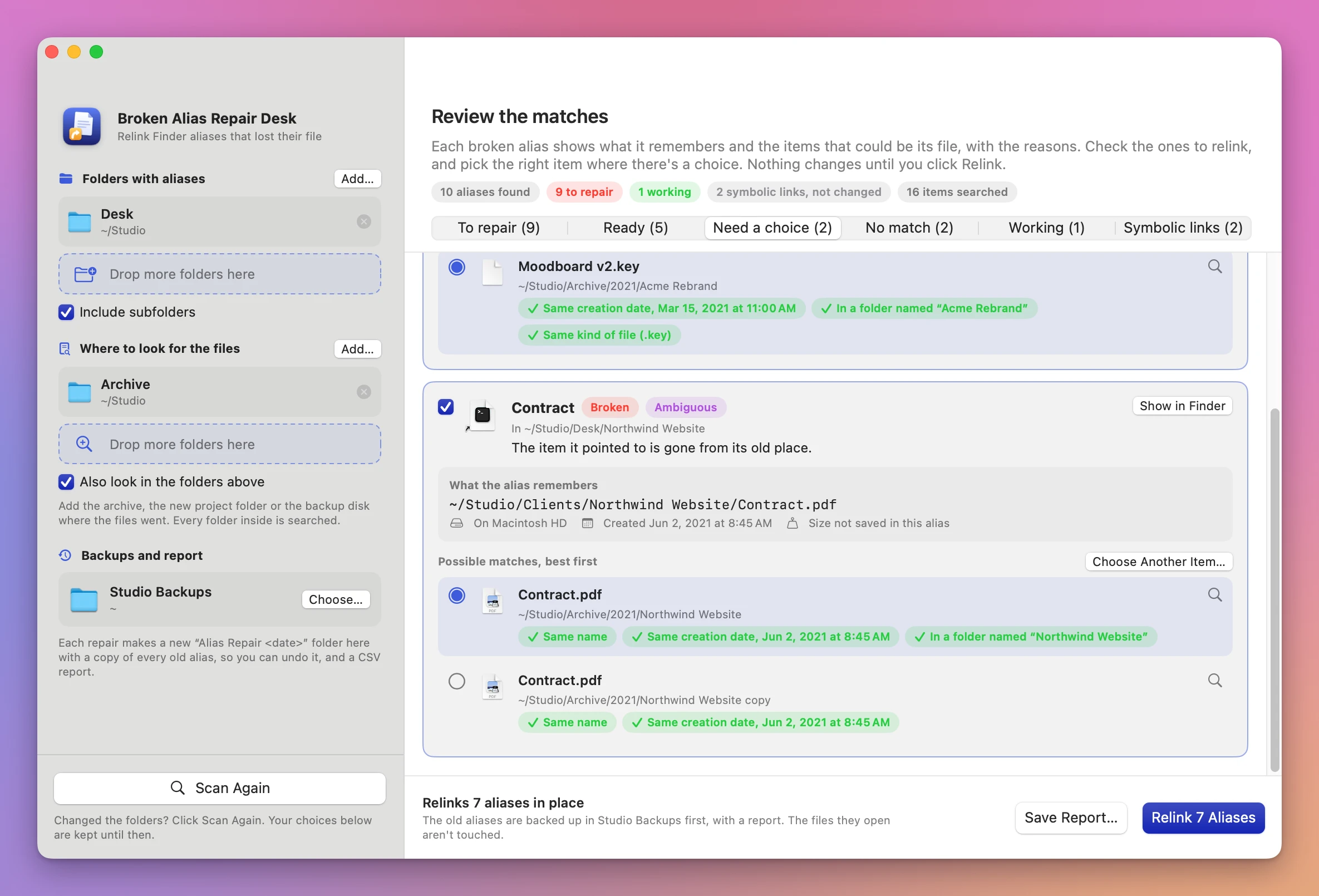
- Click Relink 7 Aliases.
The app copies every old alias into the backup folder, writes the new ones in their place, and opens each new alias to check it leads to the right item. Opening the repaired Brief alias from the Finder opened Brief.pdf in Preview, and Invoices opened its folder.
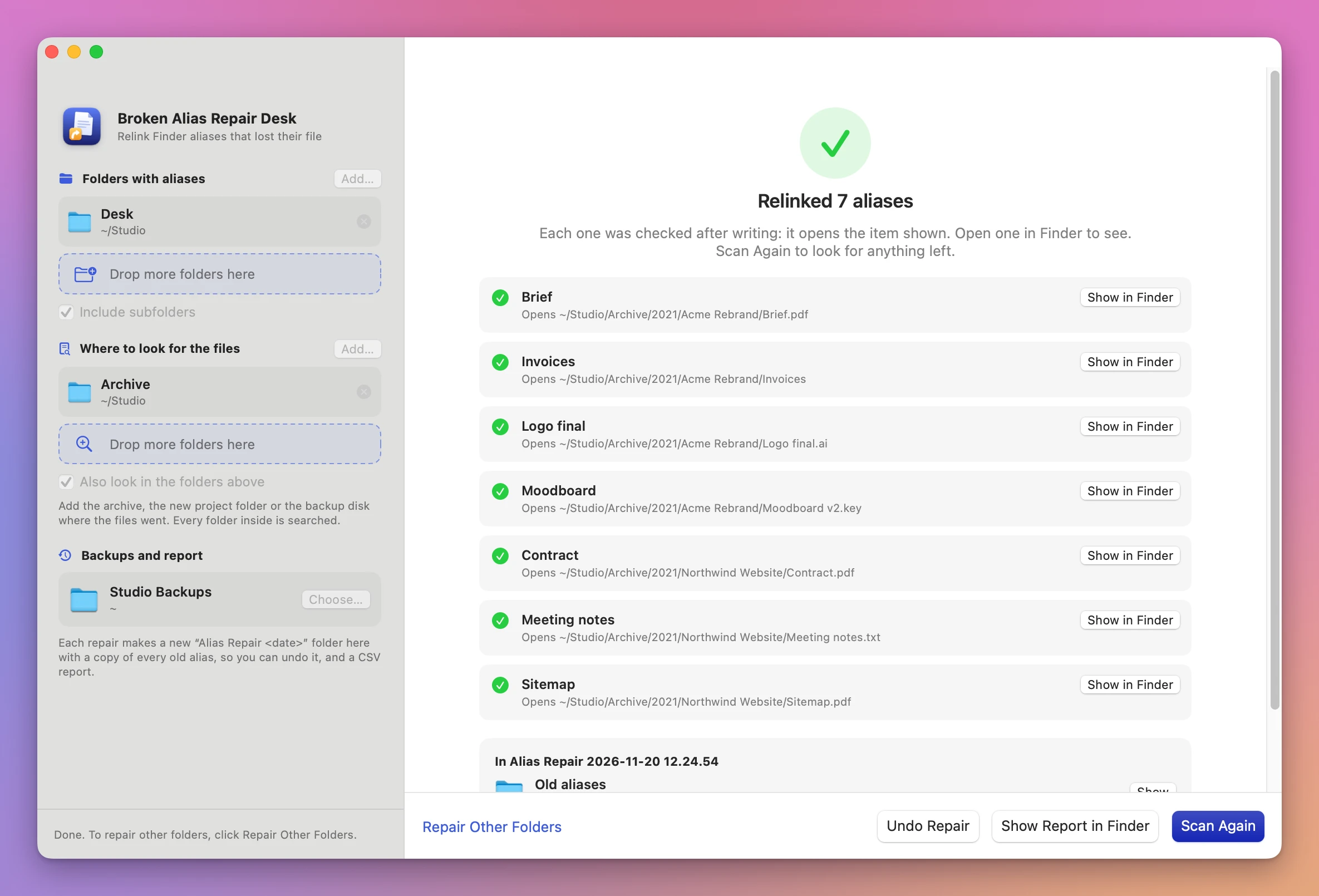
Undo Repair puts all 7 old aliases back as they were. The backup folder also gets a CSV report with a row per alias: where it pointed, what was decided, and why the match was picked.
Which way should I use?
| Finder’s Fix Alias… | Broken Alias Repair Desk | |
|---|---|---|
| Find which aliases are broken | Open each one | Scans the whole folder |
| What you see about the original | Its name | Path, disk and creation date |
| Find the file | Browse to it yourself | Searched for you, best match first, with reasons |
| Same name in two folders | You guess | Marked Ambiguous, you pick |
| 9 broken aliases | 9 rounds | One review, one click |
| Undo | None | Every old alias backed up |
| Cost | Free | $19, paid once |
My advice: use Fix Alias… for the odd alias. After a restore, a move to a new disk or a sync mess, when a whole desk of aliases broke at once, use Broken Alias Repair Desk.
One thing to know: aliases made by the Finder don’t save the file’s size. A file edited after the restore, with the same name and creation date, still comes out Ready, and that was the case for one file here. That’s usually the newer version of the file you want, and the reasons show what matched.
Get Broken Alias Repair Desk
Find broken Finder aliases in a folder tree, see the likely file for each with its reasons, and relink only the ones you confirm, with a backup and undo.
See Broken Alias Repair Desk → · Read the docs · $19. See the app page for tax details.
Want me to talk about your product? You can sponsor this site.