
How to take full-page screenshots of a list of web pages at several widths
By Flavio
Chrome and Safari can capture one whole page at one width. Here's that free way, and how to capture a whole list of pages at phone, tablet and desktop widths in one go, with a list of the pages that failed.
You need to show how a website looks on a phone, a tablet and a desktop. Every page, from top to bottom, not only the part that fits on the screen. Maybe it’s for a client review, or a record of the site before a redesign.
For one or two pages, the browser does it for free. Chrome’s developer tools can set the width and save the whole page as one image. For a list of pages at several widths, that’s one round per page per width, and an app that runs the whole list is quicker.
Why doesn’t a normal screenshot work?
The Mac’s screenshot tool (Shift-Command-5) captures what’s on the screen. A web page is usually much taller than the window, so you get the top of it and nothing below.
The width is the other problem. A site lays itself out differently at 390 pixels, the width of a phone, than at 1440, a desktop window. To see the phone layout you need the page to think it’s 390 pixels wide, and dragging the window narrower only gets you so far.
The free way: Chrome’s device toolbar
Chrome has both pieces built in, one page at a time:
- Open the page and press Option-Command-I to open the developer tools.
- Click the phone and tablet icon at the top left of the tools to turn on the device toolbar.
- Type the width in the box at the top of the page, like 390.
- Open the device toolbar’s menu (the three dots on its right) and choose Capture full size screenshot.
Chrome saves a PNG of the whole page to your Downloads folder, with a name like localhost_8123-(390).png. Then type the next width and capture again. Then open the next page.
Firefox can save a full page too: right-click the page, choose Take Screenshot, then Save full page. It captures the page at the window’s width, so you resize the window for each width. Safari can capture a whole page from its Web Inspector, also at the window’s width.
That’s fine for a page or two. Ten pages at four widths is forty captures, forty file names to fix, and nothing remembers the list for next month.
Capture the whole list at once
Website Screenshot Runner is a Mac app I built for this. You paste the list of pages, turn on the widths, and it saves a full-page PNG of every page at every width, named after the page and the width. It costs $19, paid once.
The screenshots below come from a made-up bakery site running on a test Mac, so the addresses start with localhost:8123. Real addresses work the same way.
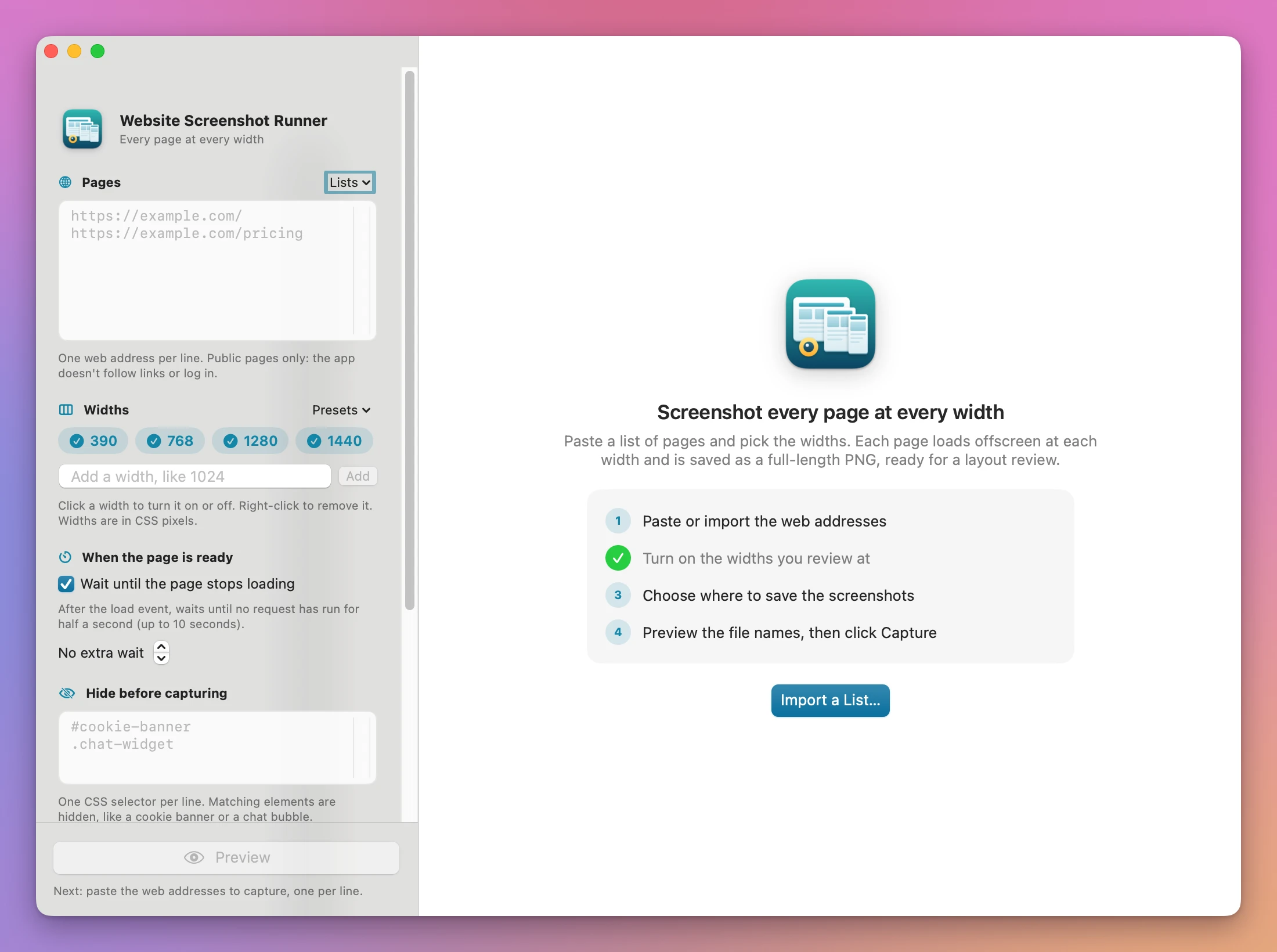
The start screen lists four steps and ticks them off as you go:
- Paste the addresses in the Pages box, one per line. You can leave out
https://. Or choose Lists → Import List… to read a text file, or the first column of a spreadsheet saved as CSV. - Turn on the widths. 390, 768, 1280 and 1440 are on to start with. Click a width to turn it off, or type another one under them and click Add. The Presets menu has sets for phones, tablets and desktops.
- Choose where to save under Save in. Each run makes its own new folder there, named with the date and time.
- Click Preview. Nothing loads yet.
Check the file names before anything loads
The preview lists every page with the file name it gets at each width, like localhost-8123-menu-390.png. Lines that can’t be captured come first in orange, with the reason.
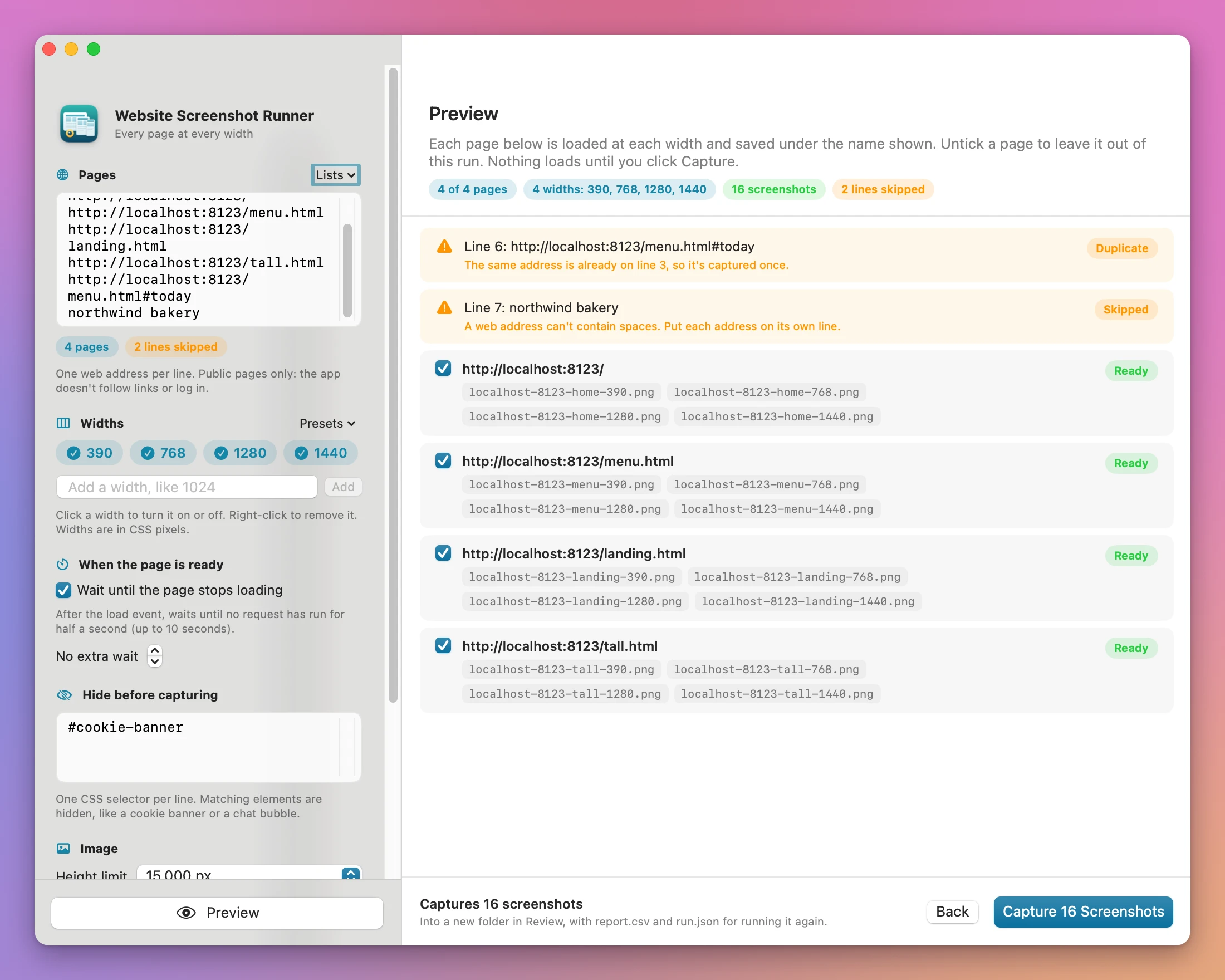
Here the list had a page twice (menu.html and menu.html#today), and a line with the site’s name instead of an address. Both are skipped, and the preview says so. Untick a page to leave it out of this run. Then click Capture 16 Screenshots.
If the pages have a cookie banner or a chat bubble, write what to hide under Hide before capturing first. It takes the names a web designer uses for those elements, like #cookie-banner. Ask whoever built the site if you don’t know them.
Watch it run
Each page loads at each width in turn, out of sight. The app waits until the page stops loading, scrolls through it once so pictures further down show up, and saves the whole page as one image.
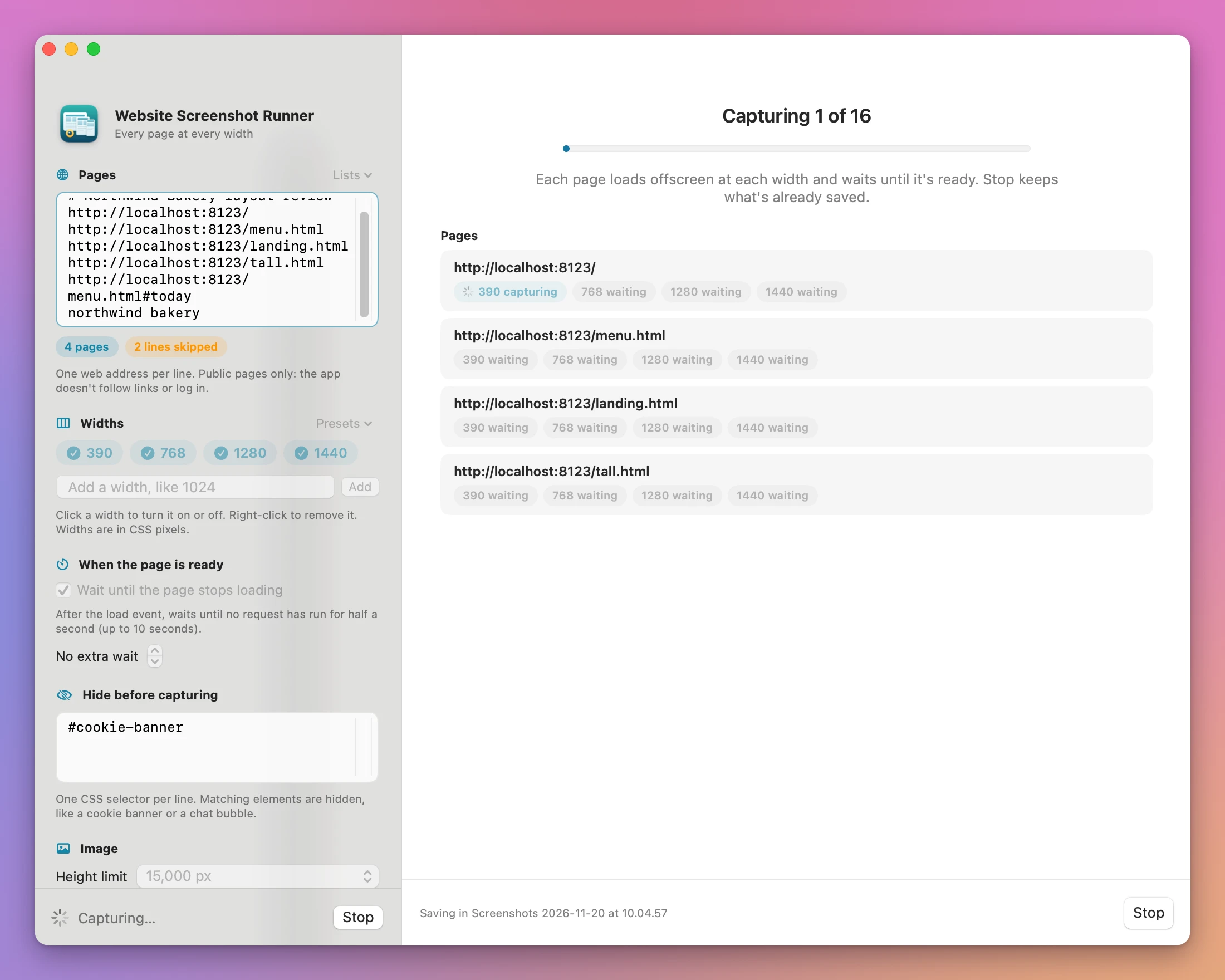
Stop ends the run and keeps what’s already saved. When it’s done, the window lists the pages that couldn’t be captured with a sentence for each, like “The server answered 404 Not Found, so there’s no page to capture.” Retry Failed tries only those again, and Run Again repeats the whole list into a new folder.
What you get
One run of this bakery list at four widths saved 24 screenshots. Two pages failed, one with a server error and one that no longer exists, and each got its sentence. One very long page was cut at the app’s 15,000 pixel height limit, with a note saying so.
Here is the home page at 390 and 1440 pixels wide, from that run:

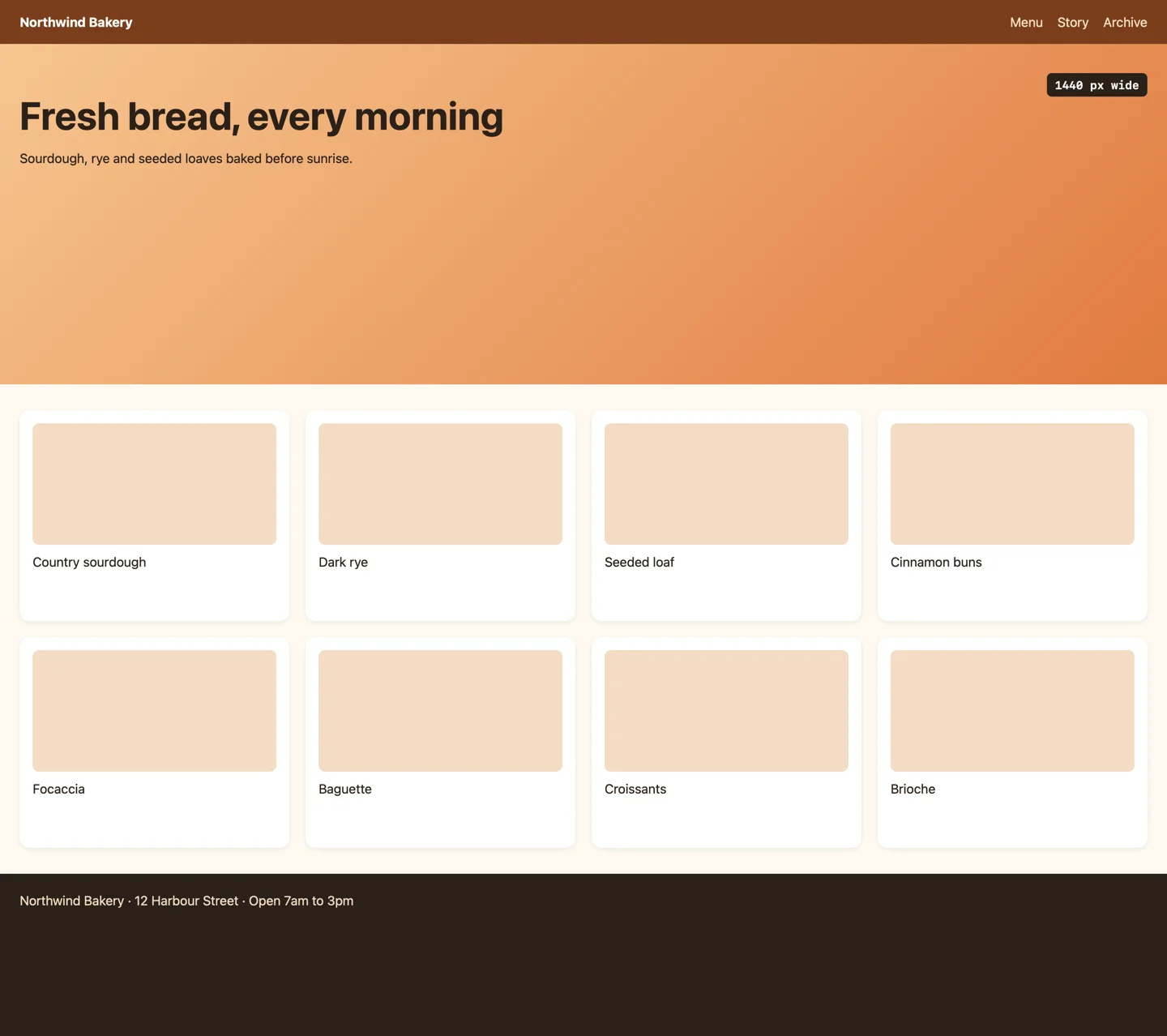
The run folder also has report.csv, a spreadsheet with one row per page and width: the address, the file, saved or failed, the page’s height and the reason for any failure.
| Chrome’s device toolbar | Website Screenshot Runner | |
|---|---|---|
| One page at one width | A few clicks | Paste it, click Preview, then Capture |
| Ten pages at four widths | Forty rounds of type, wait, capture | One run |
| File names | localhost_8123-(390).png | localhost-8123-home-390.png |
| Pages that fail | You notice when you look | A sentence for each, and a report |
| Next month | Start again | Run Again into a new folder |
| Browser engine | Chrome | WebKit, the engine Safari uses |
| Cost | Free | $19, paid once |
What it can’t do
The app captures public pages from your list. It doesn’t log in, follow links or keep cookies, so a page behind a password shows up as a failure or as its login form.
The screenshots show the layout as Safari’s engine draws it. They aren’t a test of whether the buttons and forms work, and they don’t show how Chrome or Firefox draw the page.
To keep a copy of a page to read later, search, or watch for changes, that’s a different job. Page Saver saves pages as files you can open and read, and Website Screenshot Runner makes pictures of how they look.
Get Website Screenshot Runner
Paste a list of web pages, pick your widths, and get a full-page PNG of every page at every width, named so you can find them, with a list of what failed and why.
See Website Screenshot Runner → · Read the docs · $19. See the app page for tax details.