
An app by Flavio
Website Screenshot Runner
Paste a list of web pages, pick your widths, and get a full-page PNG of every page at every width, named so you can find them, with a list of what failed and why.
Buy Website Screenshot Runner · $20One-time purchase. Plus tax where it applies.
macOS 14 or later · Apple silicon and Intel
Latest version 1.0.1, released November 20, 2026
The redesign is done and the client wants to see it. Every template, at phone, tablet, laptop and desktop width, in one folder they can scroll through before the call.
That’s ten pages at four widths. In a browser you resize the window or open the device toolbar, wait for the page, take a full-page screenshot, rename the file, and do it again. Forty times. Next sprint, forty more.
Website Screenshot Runner does the whole list in one go. Paste the addresses, turn on the widths, and click Capture. Each page loads at each width and is saved as one tall PNG of the whole page, named like www.example.com-pricing-768.png. Pages that couldn’t be captured get a plain sentence that says why.
Who it’s for
- Web designers handing off a redesign. The client deck needs every template at 390, 768, 1280 and 1440, named so the client can find “pricing at tablet width” without asking you.
- QA testers. You check the same twenty pages before every release. Save the list once, click Run Again, and each release gets its own dated folder to compare with the last one.
- Freelancers starting on an existing site. Before you touch anything, capture how every page looked on day one, including the ones that already answer 404. The report lists those too.
- Developers checking a local build. Your site runs at
localhost:3000and you want to see it at every breakpoint. Nothing is uploaded, so local addresses and staging servers work. - Agencies sending a monthly layout report. Hide the cookie banner and the chat bubble with a selector, so the screenshots show the page and not the pop-ups.
From a list of addresses to a folder of screenshots
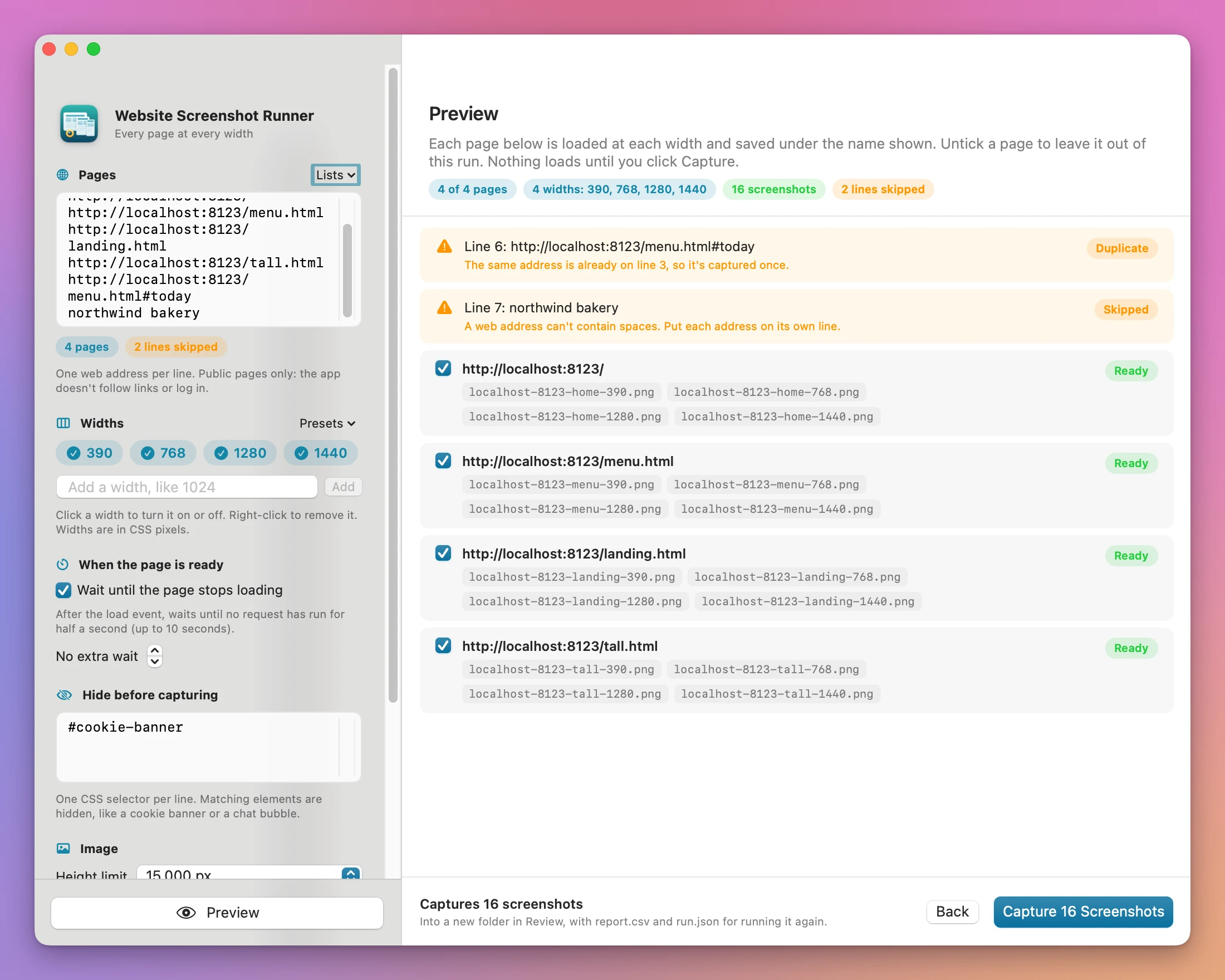
- Paste the pages. Type or paste the web addresses in the Pages box, one per line. Lines that start with
#are notes. An address withouthttps://gets it. To bring in a list from a file, choose Lists → Import List…. It reads a text file, or the first column of a CSV. - Turn on the widths. The chips start at 390, 768, 1280 and 1440. Click one to turn it off, right-click to remove it, or type in Add a width, like 1024 to add one (
375, 414adds two). The Presets menu has Phone, tablet, laptop, desktop, Phones (360, 390, 430), Tablets (768, 820, 1024) and Desktops (1280, 1440, 1920). - Choose where to save. Pick the folder under Save in. Every run makes a new folder inside it, like
Screenshots 2026-11-20 at 10.07.24. - Click Preview (Command-R). Before anything loads, you see every page with the exact file name it gets at each width. Lines that can’t be captured come first in orange, with the reason: a duplicate of another line, an address with spaces, a user name and password in the address. Untick a page to leave it out of this run.
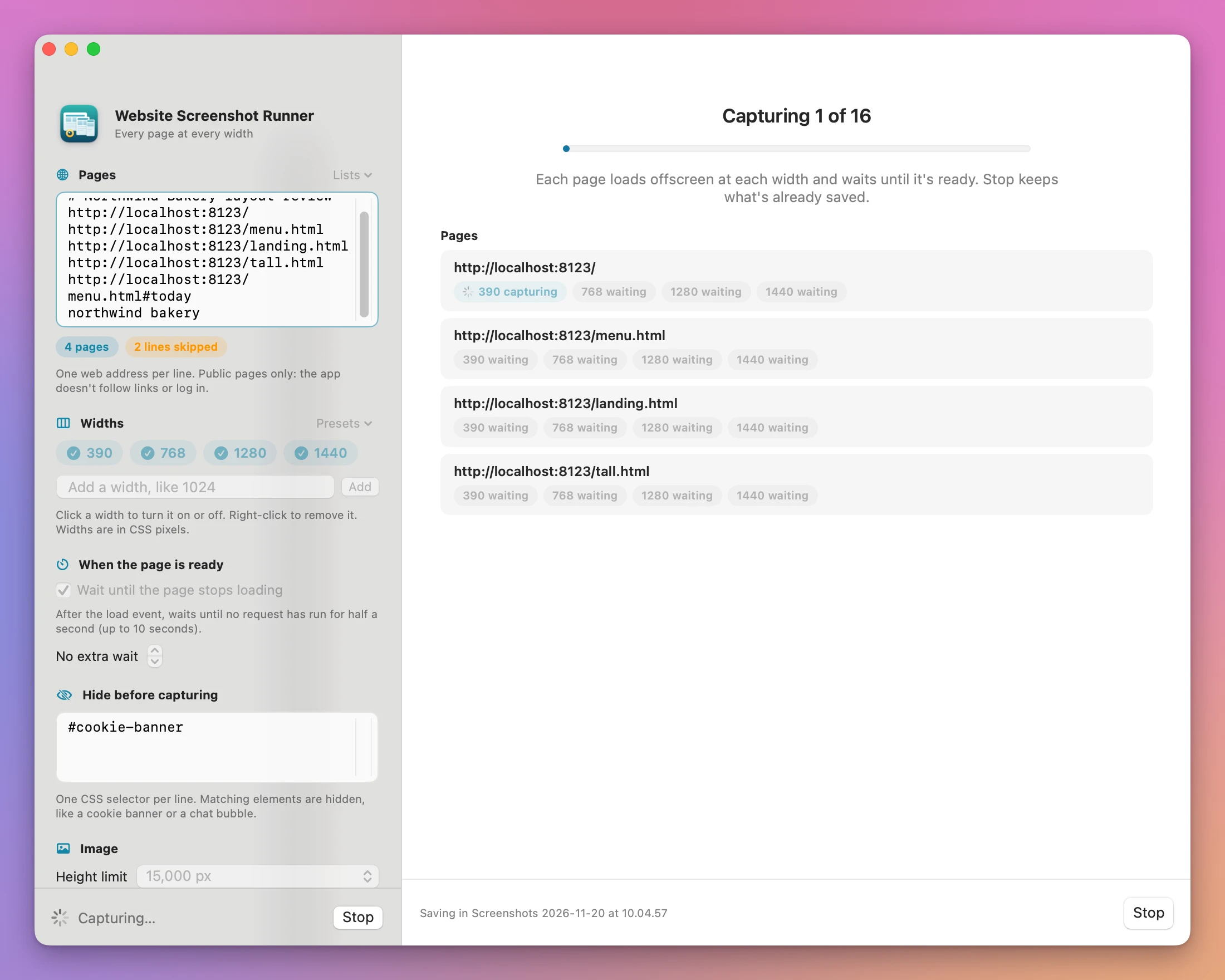
- Click Capture. The button says how many screenshots you’ll get, like Capture 16 Screenshots. Each page shows a pill per width: waiting, capturing, then its size, like “390 · 2,912 px tall”. Stop keeps what’s already saved.
- Look at the results. The done screen says how many screenshots were saved. Under Couldn’t capture, each failed page and width has its sentence. Click a saved pill to open the PNG, or Show in Finder to open the folder.
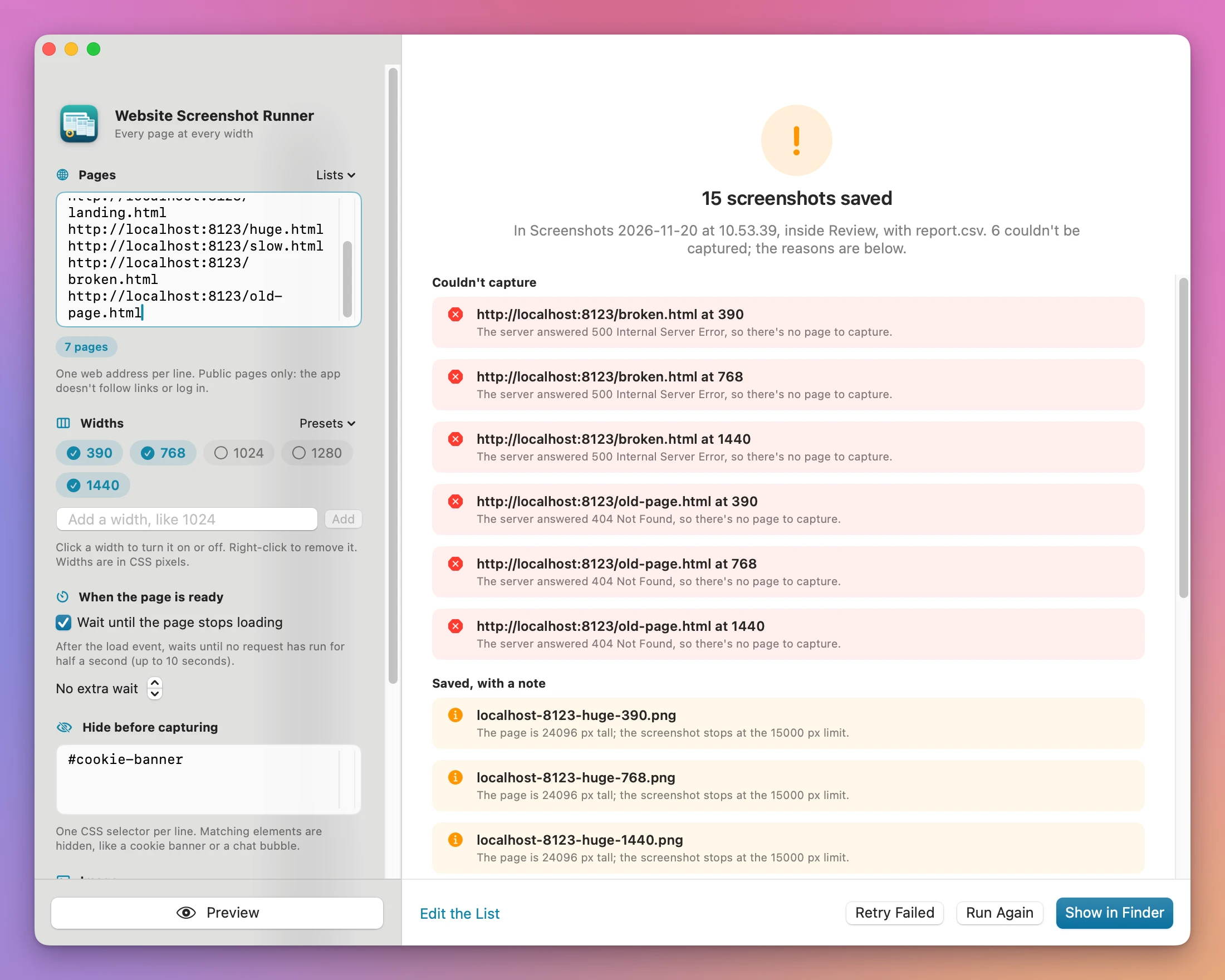
From the done screen, Retry Failed captures only the failed pages at the failed widths, Run Again repeats the same list and settings into a new folder, and Edit the List takes you back to the sidebar.
What you get
One PNG per page and width, with names you can read
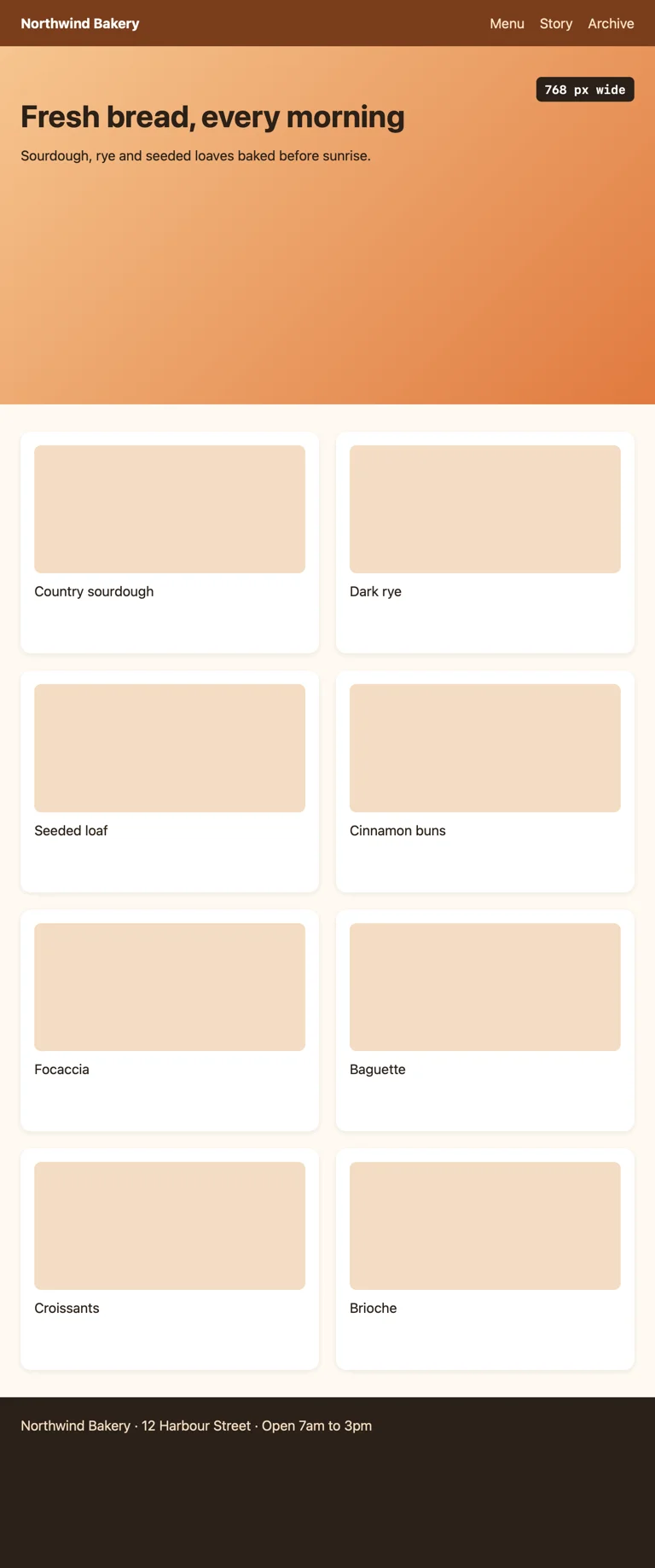
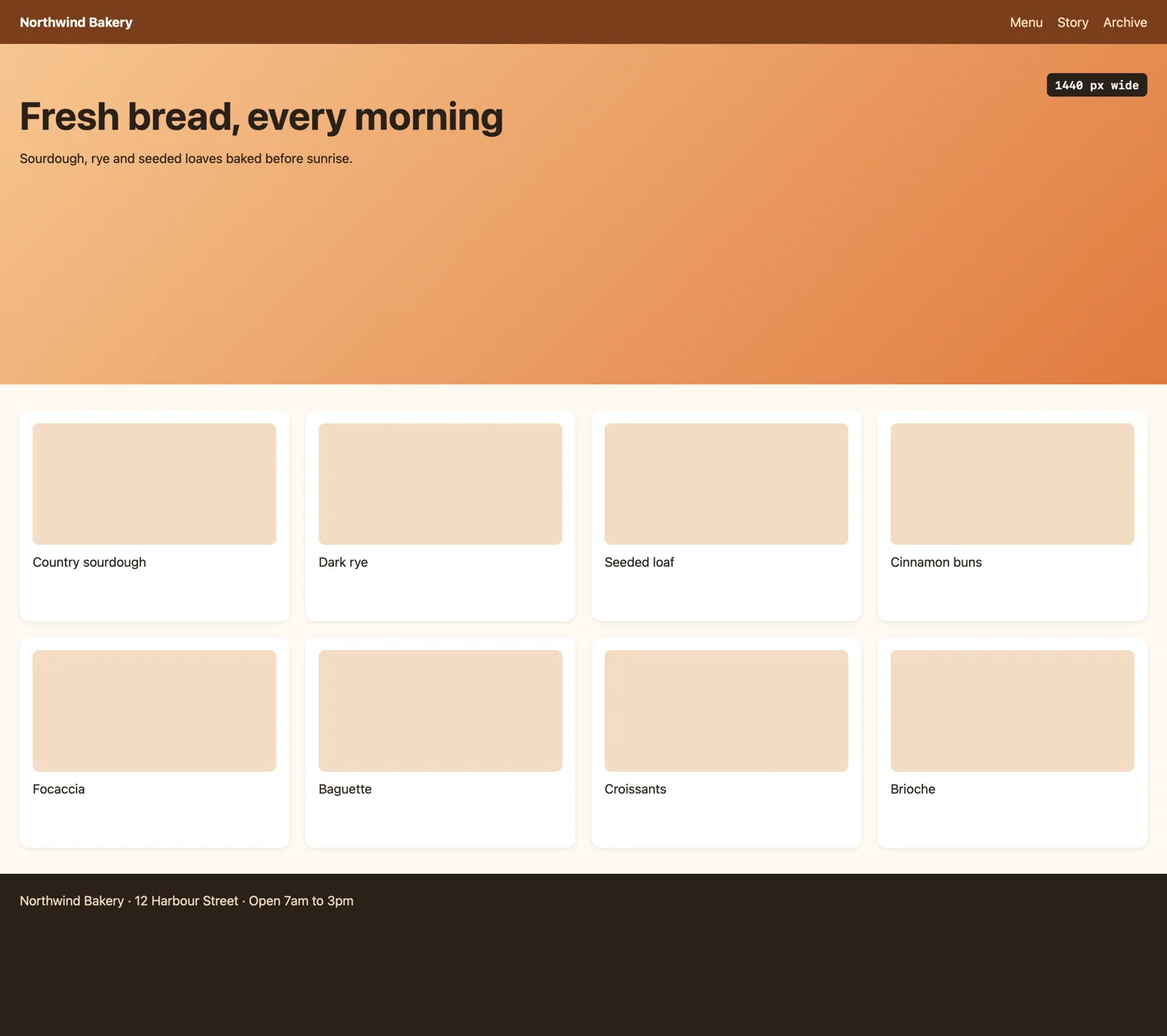
Each file is named after the address and the width: www.example.com-home-1440.png for the home page, localhost-8123-menu-390.png for a local menu page. A query string stays in the name, .html is dropped, and two pages that would get the same name get -2. The PNG is exactly as wide as the width you picked, or twice as wide at 2×.
Here are the home page of a made-up bakery site at 390, 768 and 1440, from one run:

A report of the whole run
Every run folder has a report.csv with one row per page and width: the address, the width, the file, saved or failed, the page’s height, the captured height, and a note. It opens in Numbers or Excel. A run.json keeps the list and the settings, so Lists → Open Past Run… can load them again months later.
Nothing is ever replaced. A second run goes into a new folder, and a folder that already exists gets ” (2)”.
Failures in plain sentences
A page that can’t be captured doesn’t stop the run. It gets a sentence like “The server answered 404 Not Found, so there’s no page to capture.”, “No website answers at this name. Check the address for typos.” or “The server answered 403: this page needs a login or isn’t public. The app captures public pages only.”
Pages that were saved with something to know get a note under Saved, with a note: the page was taller than the height limit and was cut, a selector to hide wasn’t valid CSS, or the page was still busy after 10 seconds.
Pages captured when they’re ready
By default the app waits until the page stops loading: after the load event, until nothing has been fetched for half a second, at most 10 seconds. Then it scrolls through the page once so images that load on scroll show up, and waits again. If a page animates in, add an extra wait of up to 30 seconds.
A header that stays at the top while you scroll appears once, at the top of the image, instead of on every screen. Selectors under Hide before capturing, like #cookie-banner or .chat-widget, hide those elements before the capture.
Your lists and widths are remembered
Lists → Save This List… keeps a list under a name. Presets → Save These Widths as a Preset… does the same for a set of widths. The sidebar keeps everything between launches.
A command line tool
The app includes website-screenshot-runner, a command line tool with the same captures, for a build script or a coding agent. The docs show how to use it.
Why not use the browser
Chrome can do it for one page. Open DevTools, turn on the device toolbar, type a width, then choose Capture full size screenshot from its menu. You get one PNG with a name like localhost_8123-(390).png. Ten pages at four widths is forty rounds of type, wait, capture and rename, and Chrome doesn’t remember your list.
Safari can capture a whole page from its Web Inspector, one page at a time, at whatever width the window has. The Mac’s own screenshot tool (Shift-Command-5) captures only what’s on the screen, not the part of the page below it.
Free command line tools like Playwright, Puppeteer and shot-scraper do this job well, if you install Node or Python and write the script. Online screenshot services do it too, for a fee per capture or a subscription, and your pages go to their servers. They can’t reach localhost or a staging server on your network.
| By hand in a browser | Website Screenshot Runner | |
|---|---|---|
| Ten pages at four widths | Forty rounds of resize, wait, capture, rename | Paste the list, click Capture |
| File names | localhost_8123-(390).png, renamed by hand | localhost-8123-menu-390.png |
| Next release | Start again | Run Again into a new folder |
| Pages that fail | You notice, or you don’t | A sentence for each page and width, and report.csv |
| Cookie banners and chat bubbles | Close them on every page | Hidden by a selector you set once |
| Local and staging addresses | Work in the browser | Work, and nothing leaves your Mac |
What it doesn’t do
- It captures public pages only. No logins, no cookies kept between pages, no pages behind a password.
- It doesn’t crawl. It captures the addresses on your list and doesn’t follow links. To save whole sites as pages you can read offline, Page Saver is the app for that.
- It’s WebKit only, the engine Safari uses. A screenshot shows the layout as Safari draws it, not as Chrome or Firefox do. It isn’t a cross-browser test or a functional test.
- It doesn’t compare runs. There’s no pixel-by-pixel diff between two runs. You get two folders to look at side by side.
- Very tall pages are cut at the height limit, 15,000 px by default and 30,000 px at most. The report says which ones.
- Pages that scroll an inner box instead of the window are captured at the height of the viewport only.
- Animations and carousels are captured wherever they are at that moment.
- It works one capture at a time. A 15,000 px page takes a few seconds per width.
Questions
Is this the same as Page Saver?
No. Page Saver saves web pages as HTML files you can read, search and compare later, and watches them for changes. Website Screenshot Runner makes images: what each page looks like at each width, for a layout review.
Does anything get uploaded?
The pages load on your Mac, in WebKit, and the PNGs are written to the folder you chose. The app uses the internet to load the pages on your list and to check for updates.
Can it capture pages behind a login?
It can’t. Each capture starts with no cookies and no saved logins. A page that needs one usually answers 403 or shows the login form, and that’s what you get.
Can it capture my local development site?
Yes. Addresses like localhost:3000, *.test names and IP addresses get http:// when you leave it out.
Why is my phone screenshot 390 px wide on a Retina Mac?
The width is in CSS pixels, so at 1× a 390 width gives a 390 px image. Set Pixels to 2× Retina in the Image section for a sharper image twice as wide.
What it needs
Website Screenshot Runner runs on macOS 14 Sonoma or later, on Apple silicon and Intel Macs.
The Website Screenshot Runner docs walk through each setting.
Buy Website Screenshot Runner
$20 plus tax where it applies, paid once.
Download the app from the order page or your Creem receipt, unzip it and move it to Applications. I sign the app with my Apple Developer ID, and Apple notarizes the download.
The app checks for updates once a day. When a new version is ready, click Install and Relaunch. To check anytime, choose Website Screenshot Runner → Check for Updates….