How to share your available meeting times by email, in the other person's time zone
By Flavio
Calendar on the Mac can't list your free times as text. Here's how to find them, convert them to the other person's time zone and paste them into an email, by hand or in one click.
Someone in another country asks “when are you free for a call next week?”. You want to answer with four or five times in the email, in their time zone, so they can reply with the one that suits them.
Calendar on your Mac can show you your week, but it can’t write your free times as text. You either find the gaps and convert each time yourself, send a booking link, or use an app that writes the list for you, like Availability Text Copier.
Can Calendar on the Mac list my free times?
No. Calendar shows your events, and the gaps between them are your free time, but there’s no command that lists those gaps or copies them as text.
It doesn’t convert your free times either. Calendar → Settings → Advanced has Turn on time zone support, which lets you give an event its own time zone, but the conversion for the other person is still yours to do, one time at a time, with a world clock website or in your head.
Sharing or publishing a calendar isn’t a good answer either. The other person sees your events, and they still have to find the gaps themselves.
How do I do it by hand?
- Open Calendar in Week view and look for gaps inside your working hours.
- Leave some room around the calls you already have, and skip anything too soon to prepare for.
- Convert each time to their zone. Rome is 6 hours ahead of New York most of the year, but 5 hours ahead in the weeks when Europe and the US change their clocks on different dates.
- Check each converted time is inside their working day.
- Type the days, dates and times into the email.
For one email it’s a few minutes of work. The risky step is the conversion: a wrong hour looks right in the email, and you find out when nobody joins the call.
What about booking links?
Calendly, Cal.com and Google Calendar’s appointment pages give you a link where the other person picks a time. They do more than a list in an email: they create the event, send the invitations and stop two people from taking the same slot.
They also need an account, most of their features need a subscription, and the other person has to click a link to a booking page. For a new client or a personal email, a few times written in the message can feel more natural.
| By hand | Booking link | Availability Text Copier | |
|---|---|---|---|
| Finds your free times | You look in Calendar | Yes | Yes |
| Converts to their time zone | You do it per time | On the booking page | In the text |
| Room around your calls | You remember it | Yes | Yes |
| What they get | Your text | A link | Plain text in the email |
| Account needed | No | Yes | No |
| Books the meeting | No | Yes | No |
How do I copy my free times with Availability Text Copier?
Here’s the example: a made-up week in Rome, with a call and a workshop on Monday, a morning meeting, a tentative coffee and an all-day conference marked Free on Tuesday, two meetings on Wednesday and a full day onsite on Thursday. The recipient is in New York. The screenshots show a test calendar with that week, on macOS 15.
- Open the app and click Allow Calendar Access…, then Allow Full Access in the dialog macOS shows. The app reads when your events start and end, never their names, and doesn’t change your calendars.
- Under Calendars with your busy times, keep the calendars that hold your meetings and untick the rest, like Birthdays or a holidays calendar.
- Under Recipient’s time zone, type “New York” in Search a city, like New York or Tokyo and press Return.
- Under Meeting, set the Length, the room you want before and after each event, and the Minimum notice. Here it’s 30 minutes, 10 minutes on each side, and 12 hours of notice.
The preview shows the next seven days in your time, starting today, Friday November 20. Busy events are gray blocks labeled only “Busy”, and the all-day conference is a dashed outline because events marked Free don’t block time. Today says Too soon (12 hours of notice), the weekend says Day off, Thursday says Fully booked, and Monday to Wednesday have the offered times in green.
Notice that Monday’s times are at 4:00 and 4:30 PM in Rome. The morning is free too, but 10 AM in Rome is 4 AM in New York, outside the 8:00 to 19:00 that Only offer times inside their hours keeps.
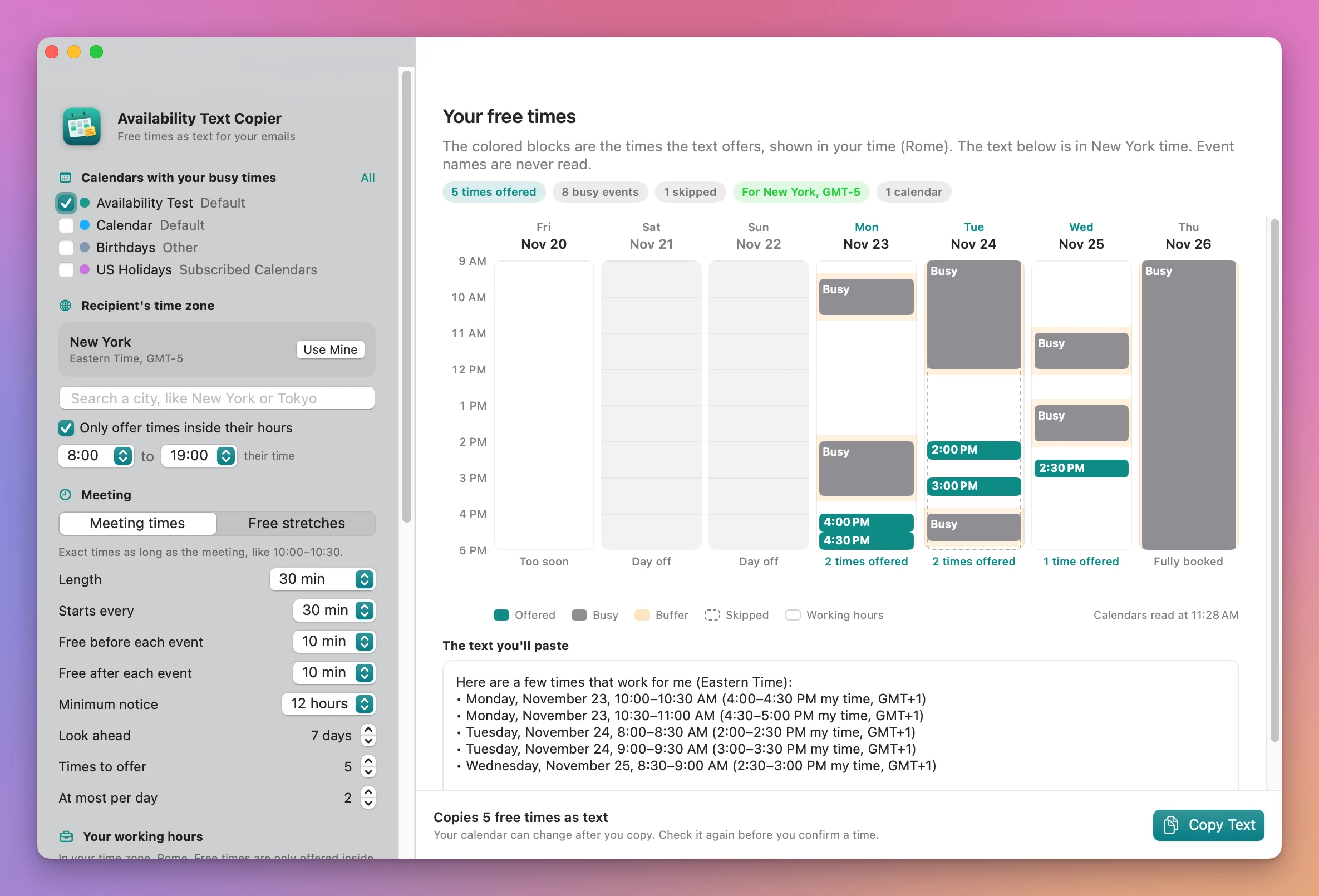
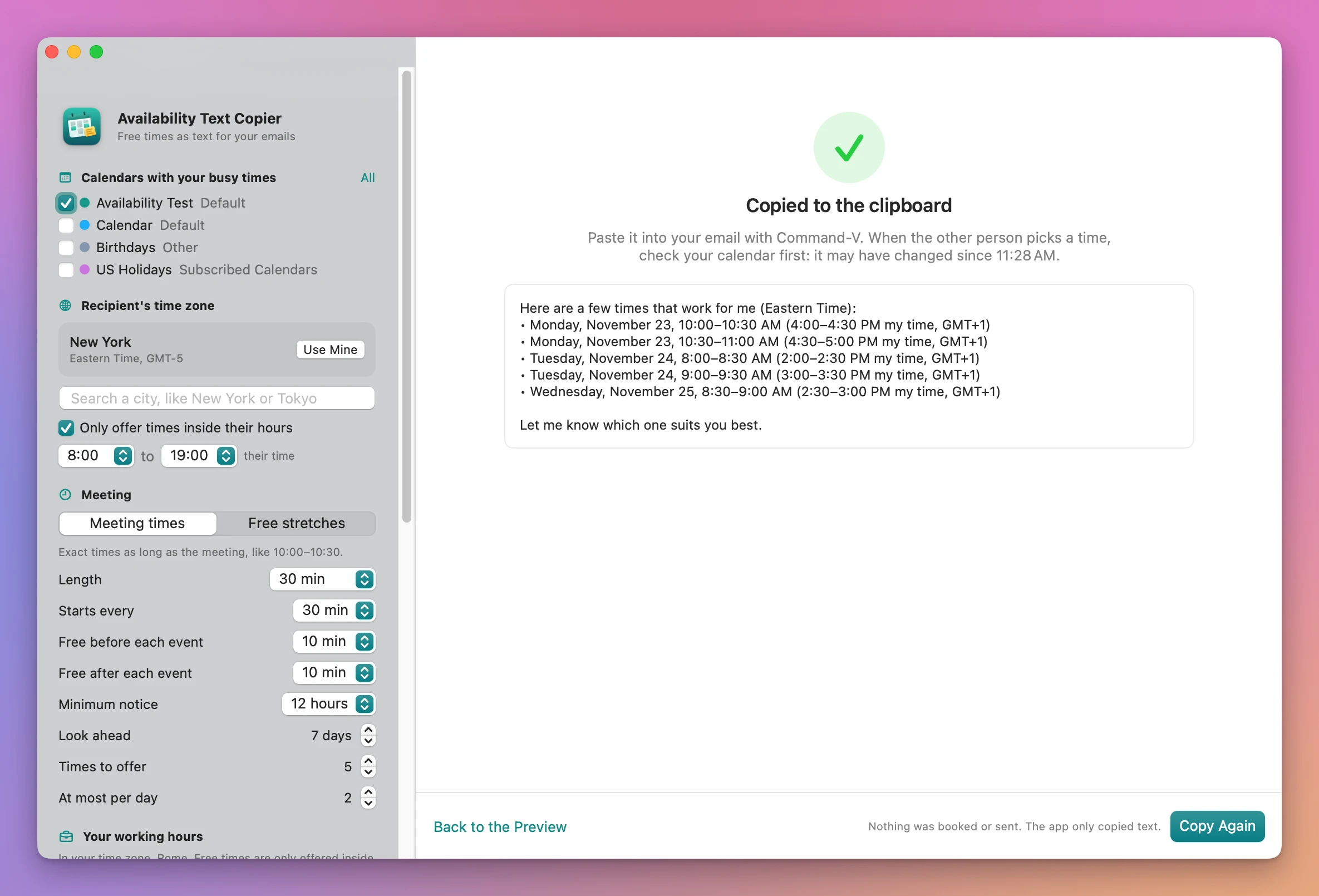
Click Copy Text and paste it into your email with Command-V. This is the text for that week:
Here are a few times that work for me (Eastern Time):
• Monday, November 23, 10:00–10:30 AM (4:00–4:30 PM my time, GMT+1)
• Monday, November 23, 10:30–11:00 AM (4:30–5:00 PM my time, GMT+1)
• Tuesday, November 24, 8:00–8:30 AM (2:00–2:30 PM my time, GMT+1)
• Tuesday, November 24, 9:00–9:30 AM (3:00–3:30 PM my time, GMT+1)
• Wednesday, November 25, 8:30–9:00 AM (2:30–3:00 PM my time, GMT+1)

Let me know which one suits you best.
Your own time in brackets is there so you can read their reply without converting it back.
Can I send the times in another language?
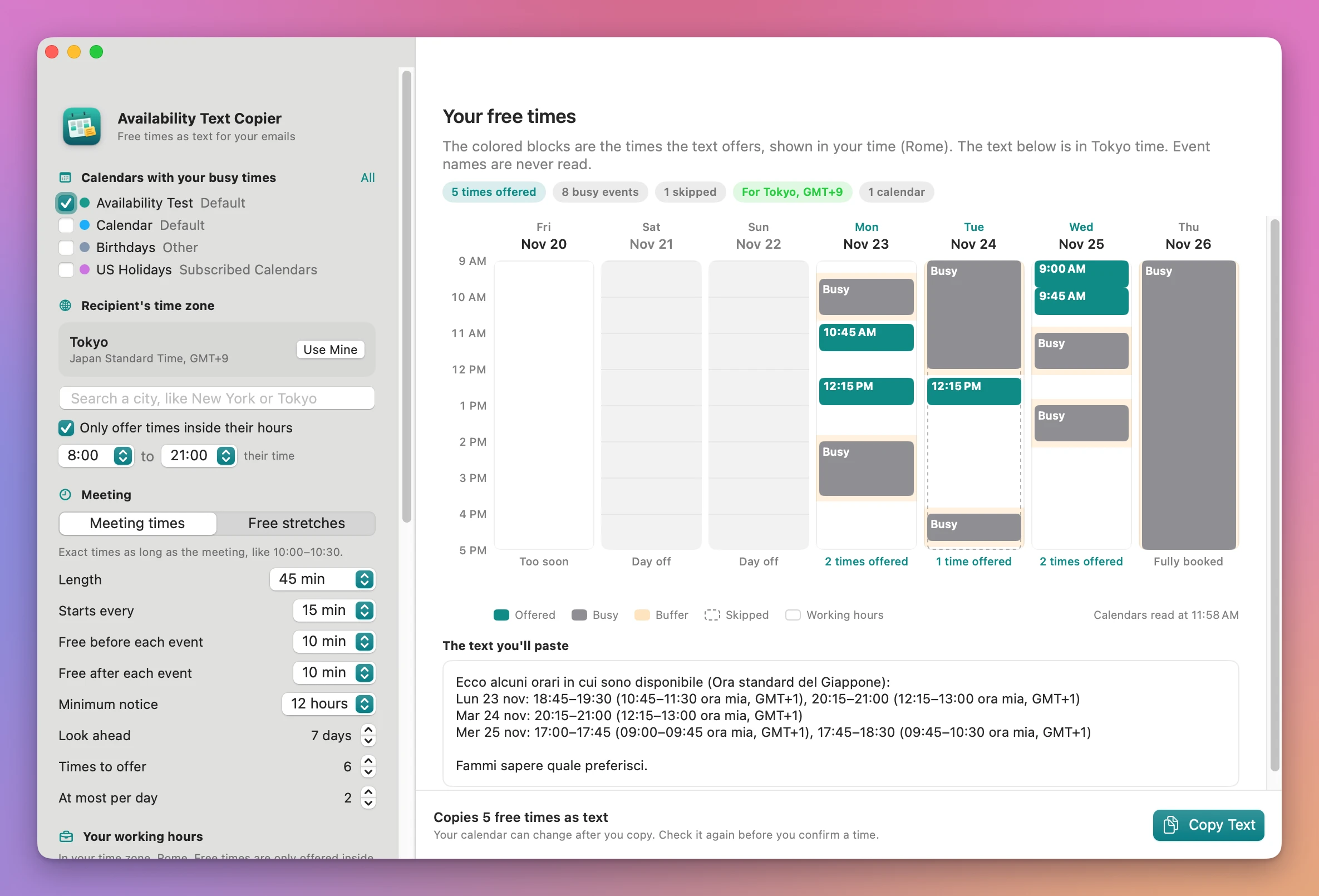
Yes. Under Text, Language has English, Italiano, Español, Français and Deutsch, and Style can be a bulleted list, one line per day or a single line. Days and months come from macOS. The opening and closing sentences were written for each language but not checked by native speakers, so read them before you send, or turn off Opening and closing sentence and write those lines yourself.
Here’s the same week for someone in Tokyo, in Italian, one line per day, with 45-minute meetings inside their 8:00 to 21:00:
What should I check before I confirm?
The text is a snapshot. The app reads your calendars again right before it copies, but nothing is booked or held, so a time can be taken by someone else after you send the email. When the other person picks one, look at your calendar before you confirm, then add the event yourself.
The test calendar here was stored On My Mac. The app reads iCloud, Google or work calendars that show up in Calendar the same way, but they weren’t part of this test.
Availability Text Copier costs $19, paid once, and runs on macOS 14 or later.
Get Availability Text Copier
Copy a few free times from your Mac calendars as text, in the other person's time zone, with your working hours, buffers and minimum notice applied, ready to paste into an email.
See Availability Text Copier → · Read the docs · $19. See the app page for tax details.
Want me to talk about your product? You can sponsor this site.