
An app by Flavio
Word Batch Text Replacer
Replace the same text in a folder of .docx files in one go. Preview every match with the text around it, keep the originals, and get a report of what was left alone.
Buy Word Batch Text Replacer · $20One-time purchase. Plus tax where it applies.
macOS 14 or later · Apple silicon and Intel
Latest version 1.0.1, released November 20, 2026
Your client changed its name. “Acme Corporation” is now “Globex Ltd”, and it’s in 60 template agreements: in the body, in the header of every page, in a footnote, in a text box on the cover.
Word’s Find and Replace works on the document you have open. So it’s open, replace, check, save, close, sixty times, and then again for the new address. Somewhere around document 35 you’ll skip one.
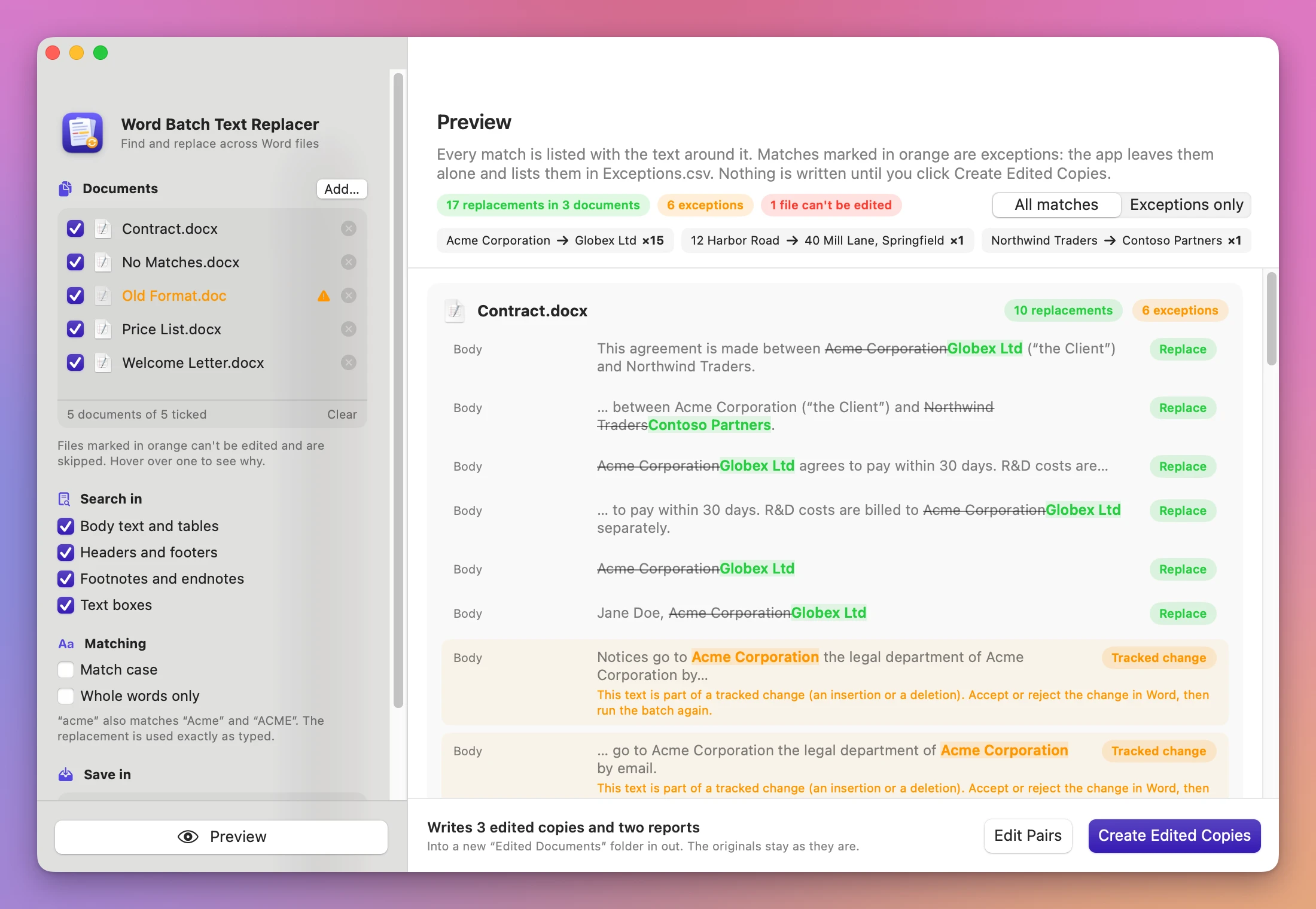
Word Batch Text Replacer takes a list of find and replace pairs and applies all of them to every document you add. Before it writes anything, it shows you every match, in every document, with the text around it. Then it saves edited copies in a new folder. Your original documents stay as they were.
Who it’s for
- Law offices. A client was renamed, and “Acme Corporation” has to become “Globex Ltd” in 60 template agreements, including the headers, the footers and the footnotes.
- HR teams. The office moved and the head of department changed. Every offer letter and policy template has the old address and the old name in it.
- Property managers. The landlord’s company has a new name and new contact details, and they’re in a folder of lease templates, often in the header of every page.
- School offices. Before the new year, last year’s dates and term names have to change in a whole set of handouts and letters to parents.
- Consultancies. A product was rebranded. You want the new name in every proposal, and you want to know which mentions sit in tracked changes or mail-merge fields, so a person can look at those.
From a folder of documents to edited copies
Say you have the client’s agreements in one folder.
- Add the documents. Drag the files or the whole folder onto the Documents box, or click Add…. A folder is searched with all its subfolders. Each document has a checkbox, so you can leave one out of this batch. A file the app can’t edit, like an old
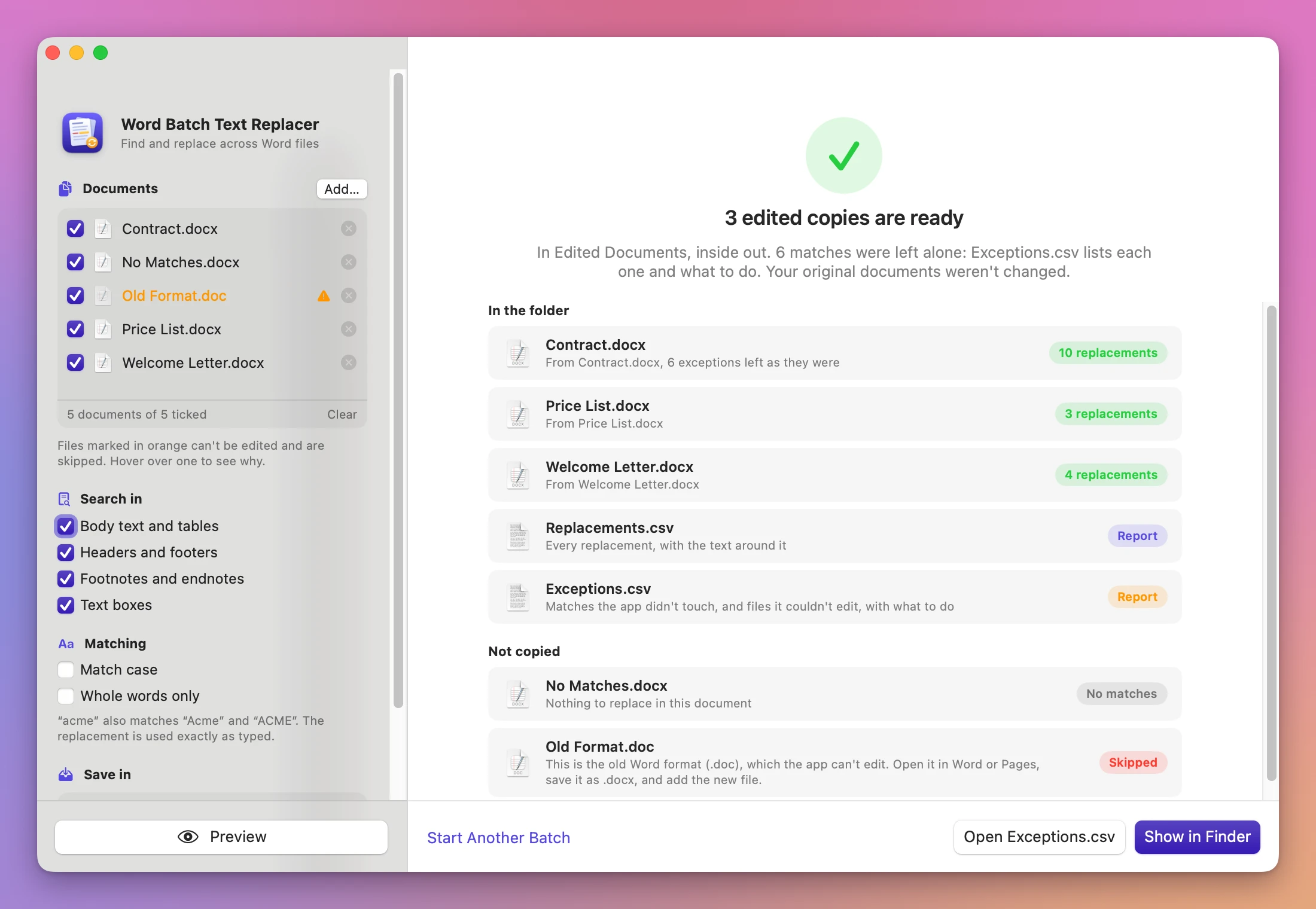
.doc, shows in orange, and hovering it says why. - Add the pairs. Click Add Pair, type the text to find and what replaces it. Leave Replace with empty to delete the text. If you already have the list in a spreadsheet, click Import CSV…: the first column is the text to find, the second the replacement.
- Choose where to search. Under Search in, Body text and tables, Headers and footers, Footnotes and endnotes and Text boxes are all on. Under Matching, turn on Match case or Whole words only if you need them.
- Choose where to save. Click Choose… under Save in. The copies go into a new “Edited Documents” folder there.
- Click Preview. Each document gets a card with every match, where it is (Body, Header, Footer, Footnotes, Text box) and the sentence around it, with the old text struck through and the new text in green. The strip at the top says how many times each pair is replaced.
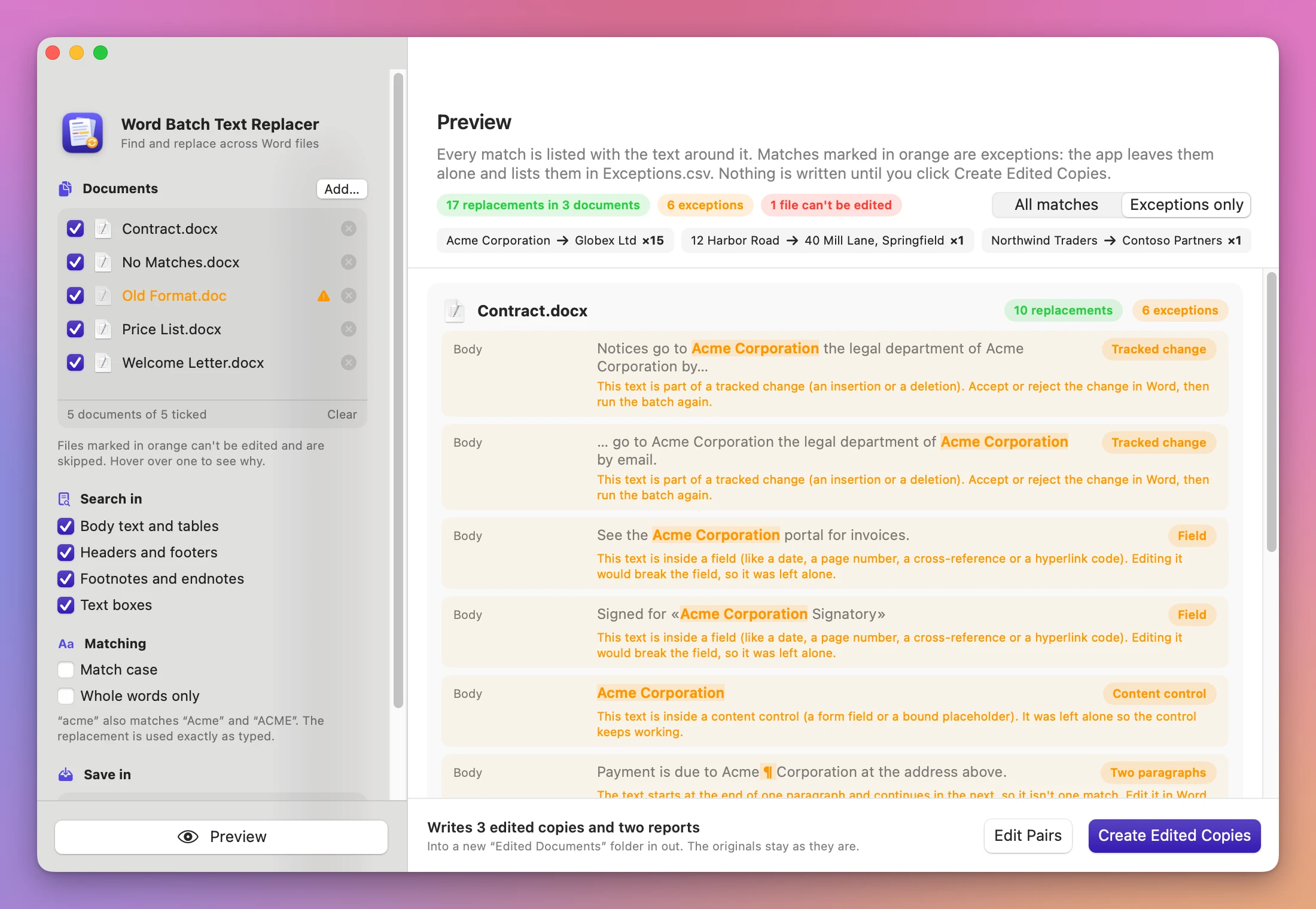
- Click Create Edited Copies. The done screen lists the copies with their number of replacements, the two reports, and the documents it didn’t copy, with the reason. Show in Finder opens the folder.
The bottom bar always says what’s missing, and the main button changes to match: Add Documents…, Add a Pair, Choose Where to Save…, then Preview. The pairs, the options and the save folder are remembered for next time.
What it leaves alone, and tells you about
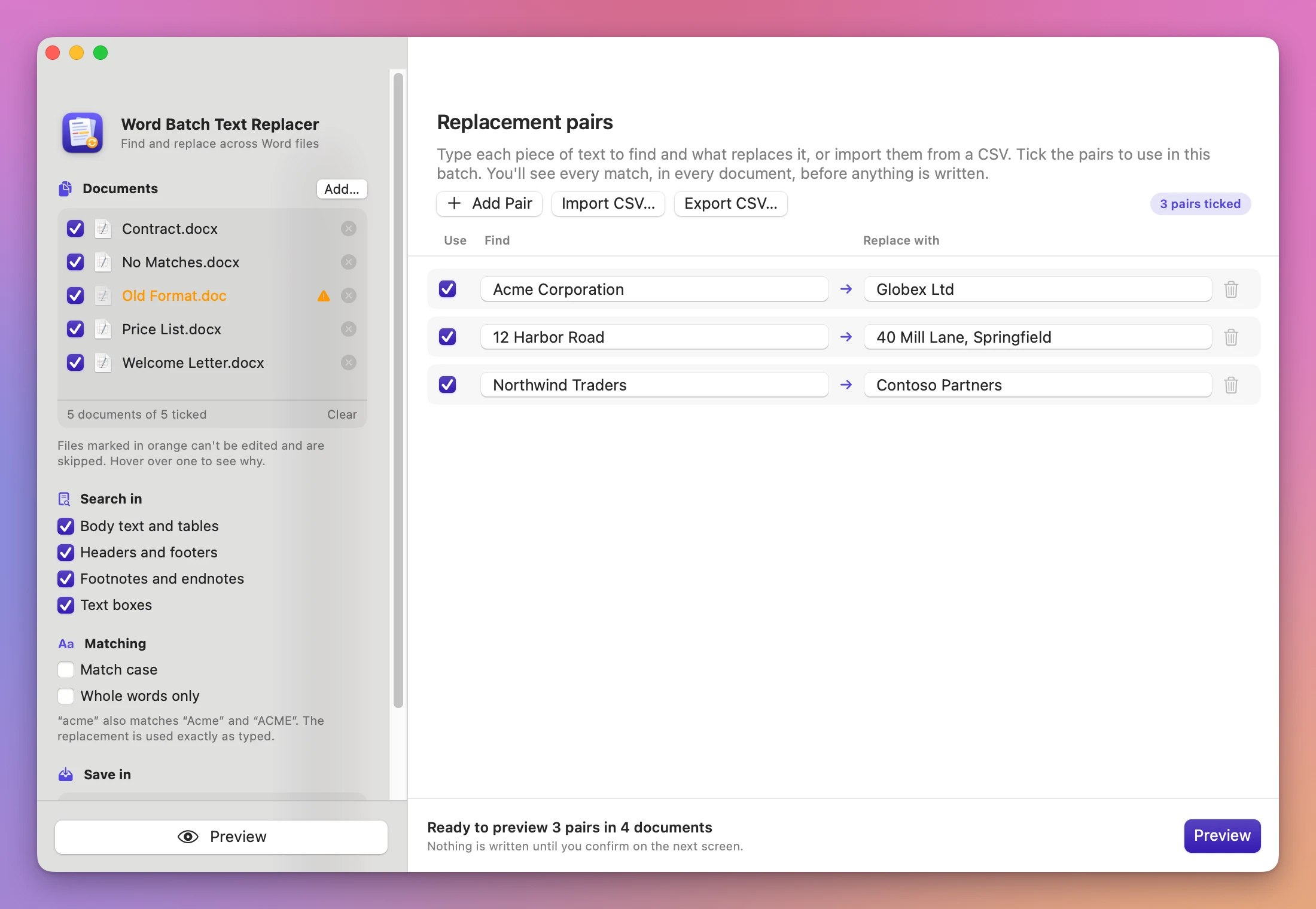
Some text in a Word document isn’t plain text. Changing it blindly can break the document or hide a change from the people reviewing it. The app finds these matches, doesn’t touch them, and marks them in orange with a sentence on what to do:
- Tracked change. The text is part of an insertion or a deletion that nobody accepted yet. Accept or reject the change in Word, then run the batch again.
- Field. The text is inside a field, like a cross-reference, a mail-merge field or a hyperlink. Editing it would break the field.
- Content control. The text is inside a form field or a placeholder. It stays as it is so the control keeps working.
- Two paragraphs. The text starts at the end of one paragraph and continues in the next.
- Overlap. Two of your pairs match the same characters.
Click Exceptions only to see just these. They also go in Exceptions.csv, so you have a list to work through.
What you get
A new Edited Documents folder in the place you chose (or Edited Documents 2 if one is already there), with:
- One edited copy per document that had at least one replacement, with the same file name. A document with no matches isn’t copied.
- Replacements.csv, with every replacement: the document, where it was, the pair, and the text before and after it.
- Exceptions.csv, with every match the app left alone and every file it skipped, and what to do about each one.
The app edits only the text it replaces. Everything else in the file, the images, the styles, the parts of the document it didn’t touch, is copied as it was. When a match spans a few differently formatted pieces of text (Word often splits a name like “Acme Corporation” into several), the replacement takes the formatting of the first piece, and the text around it keeps its own.
The folder appears in one step, when every copy is finished, so you never get half a batch.
Why not use Word’s Find and Replace
Word’s Find and Replace is the right tool for one document. For a folder of documents, though, it’s one document at a time: open, replace each pair, look at what changed, save, close. Sixty agreements and three pairs is 180 rounds of Replace All, and you see a count, not the sentences it changed.
With Track Changes on, each replacement is recorded as a change for someone to review. Text inside a field is produced by the field, so a change there can be lost the next time the field updates.
A Word macro can loop over a folder, if you write one and trust it. It edits the originals unless you write the copy part too, and it doesn’t tell you what it skipped. Pages and TextEdit have Find & Replace per document as well, but Pages converts a Word document to its own format, and TextEdit has no headers, footers or footnotes.
| Word, one document at a time | Word Batch Text Replacer | |
|---|---|---|
| 60 documents, 3 pairs | 60 rounds of open, replace, save, close | Add the folder, one preview, one click |
| What changes | A count per Replace All | Every match with the sentence around it |
| Tracked changes and fields | You spot them yourself | Left alone and listed in Exceptions.csv |
| Your originals | Edited and saved over | Unchanged, the edits are on copies |
| A record | None | Replacements.csv and Exceptions.csv |
| Needs Word | Yes | No |
What it doesn’t do
- It only edits .docx. Old
.docfiles,.docm,.dotxtemplates, password-protected and damaged files are skipped, with a sentence in the report. Save a.docas.docxin Word or Pages first. - It doesn’t edit in place. It always writes copies into a new folder.
- It doesn’t search everything. Comments, link addresses, the document’s title and author, charts, SmartArt and embedded objects are left out.
- It doesn’t copy the case. With Match case off, “ACME CORPORATION” is found too, and becomes “Globex Ltd” exactly as you typed it.
- It doesn’t match across a line break or a tab inside a paragraph, and text across two paragraphs is reported, not replaced.
- It doesn’t use patterns. Each pair is plain text. No wildcards and no regular expressions.
Questions
Are my original documents changed?
No. The app only reads them, and writes edited copies into a new folder.
Do I need Microsoft Word?
No. The app reads and writes the .docx files itself. It writes standard .docx files and only rewrites the text it changes. The edited copies were checked in LibreOffice and with macOS’s own text tools. They haven’t been opened in Microsoft Word or Pages yet.
Do the pairs run one after the other?
They all run at the same time on the original text. If one pair turns “Acme” into “Globex” and another turns “Globex” into “Initech”, an “Acme” becomes “Globex”, not “Initech”.
What does the CSV look like?
Two columns: the text to find, then the replacement. A first row that says Find,Replace is read as column names. A cell with a comma goes in quotes. Files saved with semicolons, as Excel does in many European countries, work too.
Find,Replace
Acme Corporation,Globex Ltd
12 Harbor Road,"40 Mill Lane, Springfield"
Northwind Traders,Contoso Partners
Export CSV… saves the pairs you typed, to reuse them next time.
Does anything get uploaded?
No. Everything happens on your Mac. The app goes online only to check for updates.
The Word Batch Text Replacer docs go through each option.
Buy Word Batch Text Replacer
$20 plus tax where it applies, paid once. Download the app from the order page or your Creem receipt.
Unzip it and move it to Applications. It runs on macOS 14 Sonoma or later, on Apple silicon and Intel Macs. I sign the app with my Apple Developer ID, and Apple notarizes the download.
The app checks for updates once a day. When a new version is ready, click Install and Relaunch. To check anytime, choose Word Batch Text Replacer → Check for Updates….