
An app by Flavio
Batch URL Download Queue
Paste a list of links, or import a .txt or .csv, and get every file in one folder. Preview the list first, retry errors, resume after a quit, and get a CSV of the links that failed and why.
Buy Batch URL Download Queue · $20One-time purchase. Plus tax where it applies.
macOS 14 or later · Apple silicon and Intel
Latest version 1.0.1, released November 20, 2026
Your supervisor emails you 60 links before a literature review. Papers, appendices, a couple of datasets. You want them all in one folder by tonight.
So you click the first link, wait for the PDF, click the second. Around link 30 one of them shows an error page, another downloads as download.pdf, and you’re no longer sure which ones you already have.
Batch URL Download Queue takes the whole list at once. Paste the links, or import the .txt or .csv they came in, choose a folder and click Preview List. You see which lines are usable before anything downloads. Then one click downloads every file, a couple at a time from each site, and at the end you get Unresolved links.csv with the links that failed and the reason for each.
Who it’s for
- Grad students. Your supervisor sends 60 links to papers and datasets. Paste them, download into a “Lit review” folder, and forward the CSV of the 4 broken links back with one email.
- Grants and compliance officers. A submissions portal exports a spreadsheet with a column of attachment URLs. The audit needs every PDF in one folder, and a list of the ones the portal no longer serves.
- Journalists and researchers. You’re archiving public reports from a government site that slows down when you hit it too hard. Download one file at a time from that site, let the app retry when it answers 503, and see what didn’t come through.
- Office managers. You’re moving documents off an old intranet. The export is a CSV of document links. Start it in the evening, and if the laptop goes to sleep or you quit the app, run the same list into the same folder in the morning and it picks up where it stopped.
- Teachers. A publisher lists the term’s worksheet PDFs as a page of links. Copy the links as text, paste them in, and get every worksheet in one folder.
From a list of links to a folder of files
- Add the links. Paste them into the Links box, one per line, or click Import… to open a
.txtor.csvfile. You can also drop the file on the box. The app finds the link on each line, so a CSV with a title column and a notes column works as it is. Pills under the box count the links, the repeats and the lines that aren’t links. - Choose the folder. Click Choose… under Save in. The app remembers it for next time.
- Set how polite to be. Under Be kind to servers, pick how many files to download At once from each site (1 to 4, 2 by default) and the Retries after an error (None, 1, 3 or 5, 3 by default).
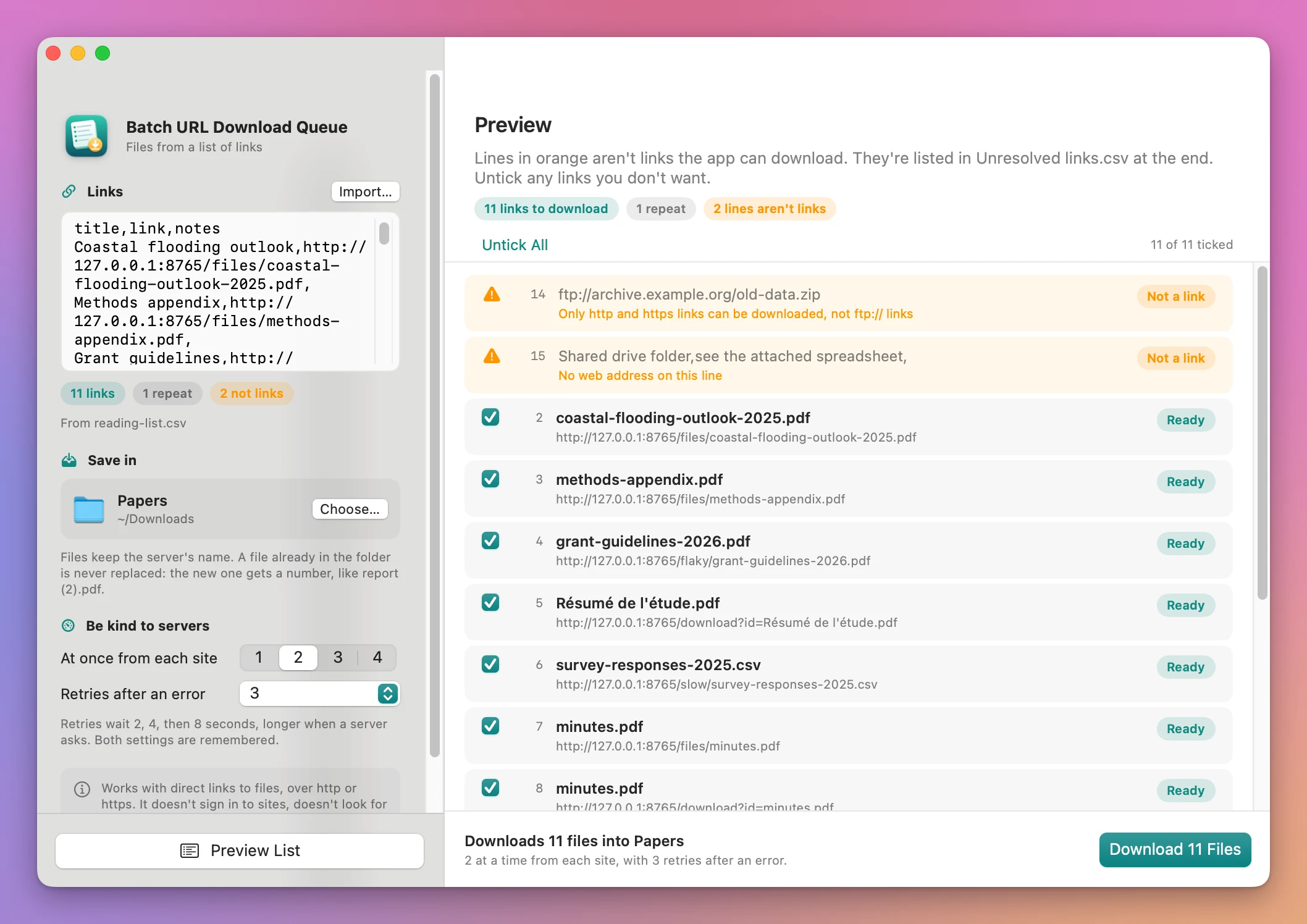
- Click Preview List (Command-R). Lines that aren’t links come first, in orange, with the reason. Every link has a checkbox, its line number, the file name it points to and the link. Untick the ones you don’t want.
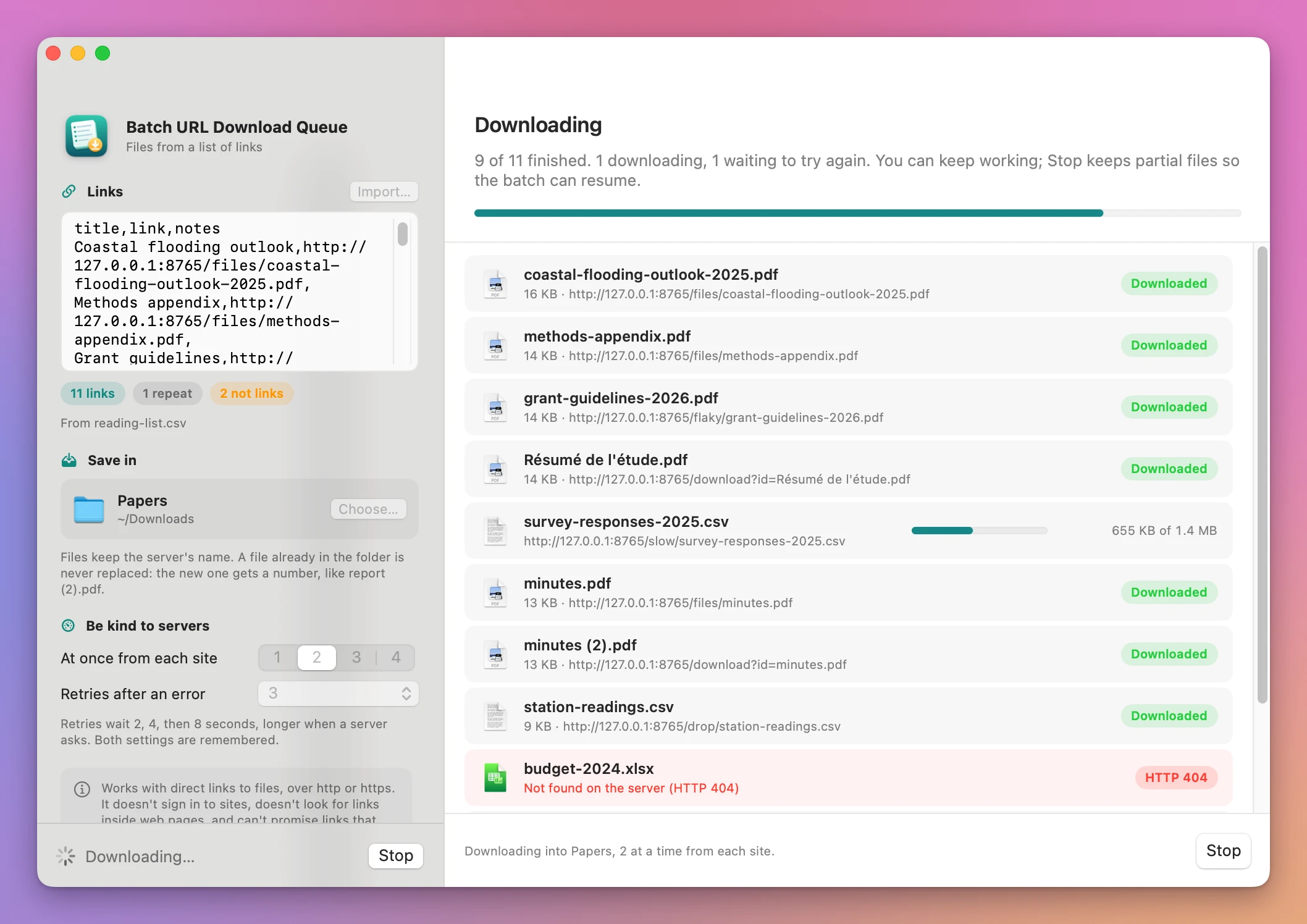
- Click Download 11 Files (the number is yours). Each row shows a progress bar, a retry countdown, Downloaded, or why it failed. Stop (Esc) keeps the partial files.
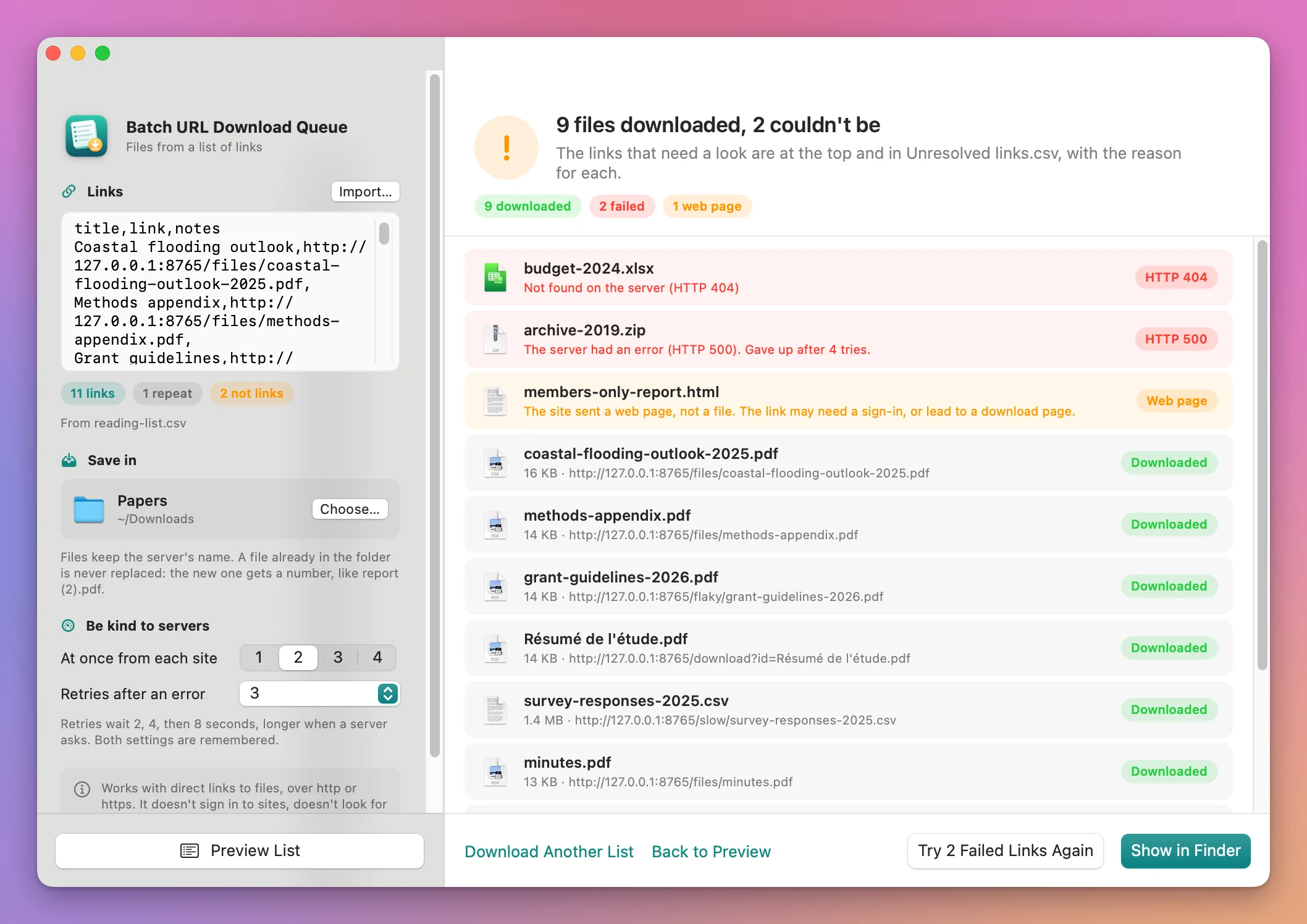
- Read the result. The links that need a look are at the top. Click Try 2 Failed Links Again to retry them, or Show in Finder to open the folder with Unresolved links.csv selected.
What you get
A preview before anything downloads
The preview catches the bad lines first: an ftp:// link, an email address, a line with no web address at all. A link that appears twice shows “Same link as line 3. It’s downloaded once.” You fix the list, or untick what you don’t need, before a single request goes out.
Files that keep their names and never overwrite
Each file gets the name the server gives it, or the last part of the link. When a link like download?id=minutes.pdf and another link both lead to minutes.pdf, the second one is saved as minutes (2).pdf. A file already in the folder is never replaced.
Retries, and a stop that doesn’t lose work
When a server has a hiccup (a dropped connection, a “too many requests”, a 500 or 503 error), the app waits 2, 4, then 8 seconds and tries again, or longer when the server asks for that. A link that’s gone (404) or forbidden (403) fails at once, with a sentence that says so.
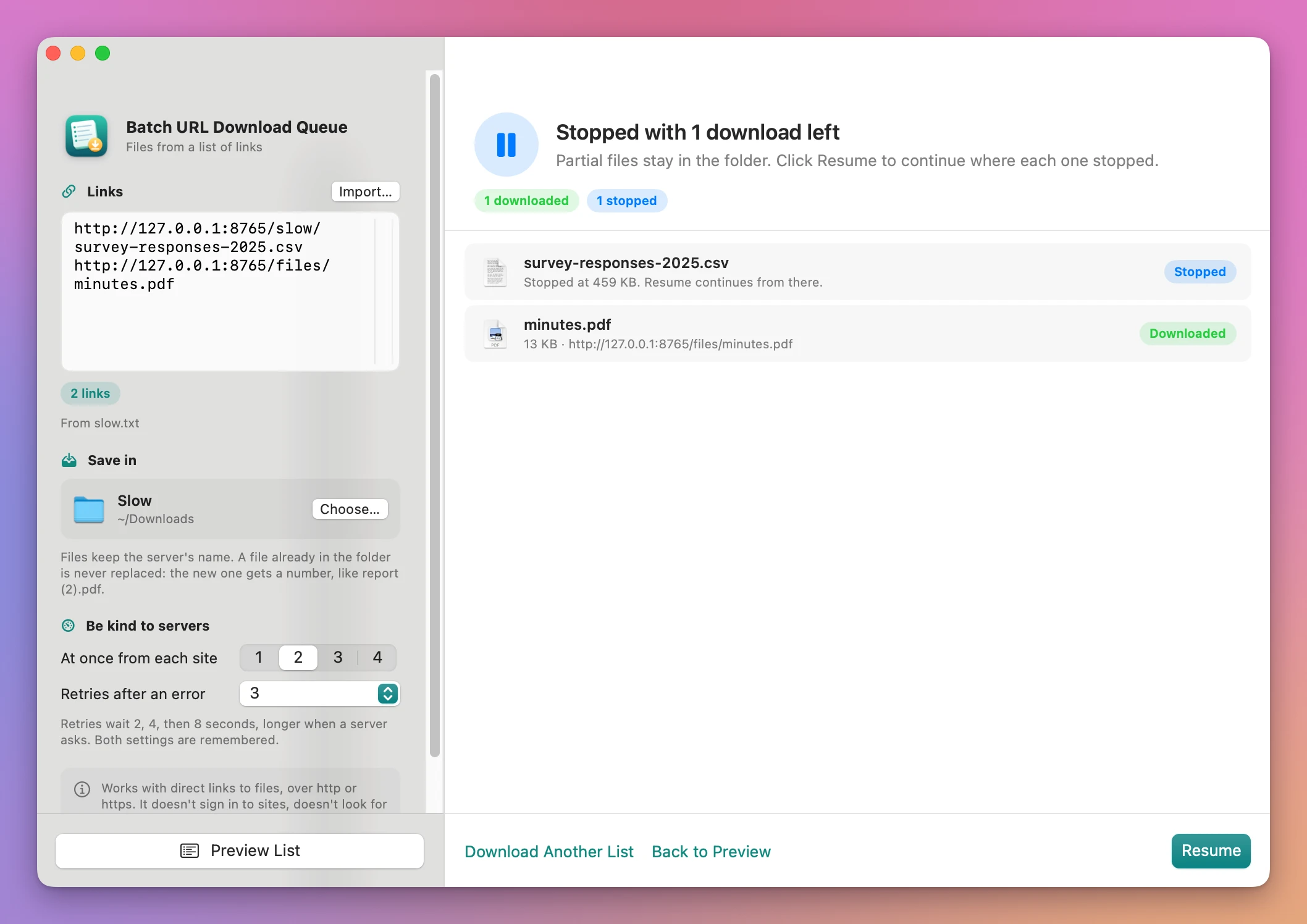
Click Stop and the partial files stay in the folder. Click Resume, or quit, reopen the app later and run the same list into the same folder: finished files are skipped, and partial ones continue from where they stopped when the server allows it. If the file on the server changed in the meantime, the app downloads it again from the start instead of mixing two versions.
A list of what still needs doing
Unresolved links.csv has one row per problem, with the line number, the link, the result, the HTTP status, the reason and the number of attempts. It lists failed downloads, links that sent a web page instead of a file (the page is saved as .html so you can look at it), and lines that weren’t links. Open it in Numbers or Excel, or send it back to whoever sent you the list.
Why not do it by hand
Safari and Chrome download one link at a time. You click each one, or Control-click and choose to download the linked file. That’s fine for five links. For 60, you lose track of which ones failed, and names collide as report (1).pdf without telling you which link each came from. Opening everything in tabs at once hits a site with dozens of requests at the same time.
Terminal has free tools that download a list (curl, and wget if you install it). They’re powerful, but you need to know the options for retries, resuming, file names and limits per site, and you get a log instead of a list of failures.
Automator and Shortcuts have a “Download URLs” action. It has no preview, no retries, no resume, no limit per site, and no report of what failed.
Download managers are built for big single downloads and video sites, with browser integrations and accounts. They’re heavier than “this list, into this folder, and tell me what failed”.
| By hand in a browser | Batch URL Download Queue | |
|---|---|---|
| 60 links | 60 clicks, and you keep track | Paste the list, one click |
| Bad lines in the list | Found when you click them | Shown in the preview, with the reason |
| A server error | You notice, maybe, and click again | Retried after 2, 4, 8 seconds |
| Two files with the same name | report (1).pdf, from who knows which link | minutes (2).pdf, with its link in the list |
| Quitting halfway | Start over | Same list, same folder: it continues |
| What failed | Your memory | Unresolved links.csv with the reason |
What it doesn’t do
- It downloads direct links to files, over http or https. No FTP, and no pages where a script starts the download.
- It doesn’t sign in. No cookies, no passwords. A link behind a sign-in usually sends back a web page, which the app saves as
.htmland flags. - It doesn’t look for links inside web pages. You give it the list. To save web pages themselves, to read later, that’s Page Saver.
- It can’t keep expiring links alive. A signed link that expires works while it’s valid. A resume after it expired fails with 403, and the report says so.
- Resuming a half-downloaded file needs the server’s help. If the server doesn’t support it, a retry starts that file over.
- No custom names per link, no subfolders, no speed limit and no scheduling.
Questions
What kind of list can I use?
Plain text with one link per line, or a CSV exported from a spreadsheet. The app finds the web address on each line, so other columns like a title or notes don’t get in the way. You can also paste the links straight into the window.
Where do the files go, and what are they called?
Into the folder you chose, with the name the server sends, or the last part of the link. A name that’s taken gets a number, like minutes (2).pdf. Nothing already in the folder is replaced.
What happens when I quit in the middle?
Partial files stay in the folder as hidden files, and the folder keeps a small hidden note of what’s done. Open the app, use the same list and the same folder, and click Preview List. The preview says how many files are already there and how many to resume, and the button reads Resume Download.
Why does one file show “Web page”?
The site sent a web page where a file was expected. That usually means the link needs a sign-in, or leads to a page with a download button rather than to the file. The page is saved as .html, and the link is in Unresolved links.csv.
Can I go easy on a slow site?
Set At once from each site to 1. The app never runs more than 6 downloads at once in total.
What it needs
Batch URL Download Queue runs on macOS 14 Sonoma or later, on Apple silicon and Intel Macs. It connects only to the links in your list and, to check for updates, to my update server.
The Batch URL Download Queue docs walk through each screen.
Buy Batch URL Download Queue
$20 plus tax where it applies, paid once.
Download the app from the order page or your Creem receipt, unzip it and move it to Applications. I sign the app with my Apple Developer ID, and Apple notarizes the download.
The app checks for updates once a day. When a new version is ready, click Install and Relaunch. To check anytime, choose Batch URL Download Queue → Check for Updates….