
A developer tool by Flavio
CLI Tools Cabinet
Catalog tools from Homebrew, npm, Cargo, and your PATH, with examples, shell history, and a JSON CLI for coding agents.
Buy CLI Tools Cabinet · $20One-time purchase. Tax included. Source code included.
macOS 14 or later · Apple silicon and Intel
Latest version 1.8.0, released November 20, 2026
You installed a tool for that. What was it called?
I install a lot of tools. Some with Homebrew, some with npm, some with Cargo, plus scripts I dropped into ~/.local/bin months ago and never thought about again.
After a while I lose track. I know I installed something to render Markdown in the terminal, but I can’t remember its name, let alone how to call it. So I search the web, find a tool, and install a second one that does the same job.
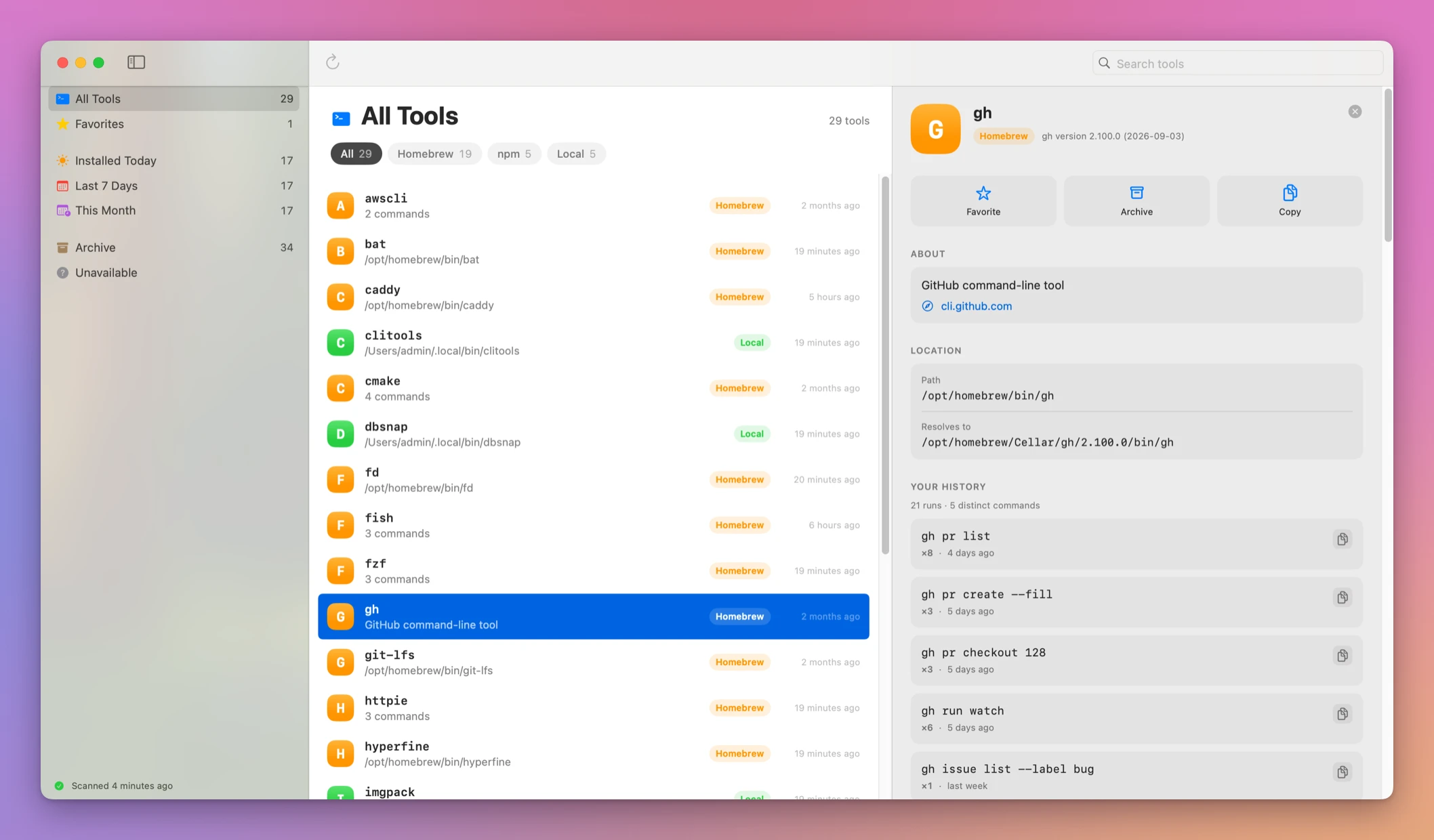
CLI Tools Cabinet is a small macOS app that keeps one catalog of every command-line tool installed on your Mac. Search it by name or by what the tool does. Select a tool and you see its help, ready-made examples, and the commands you already ran with it.
Here’s the app in 80 seconds, running on a test Mac. The tools, scripts and shell history in the video are made up for it:
Who it’s for
- Developers with years of
brew installbehind them. Your Homebrew list has 150 packages and you remember 30. You want to know what’s there before you install another JSON tool. - People who use a tool twice a year. You ran the right
ffmpegorgh releasecommand last spring. The tool’s history in the app shows that exact line, with a copy button. - Anyone with a
~/binfull of scripts. You wroteresize-screenshotsandbackup-notesonce and forgot them. They show up as local tools, next to the packages. - People working with coding agents. Your agent writes a Python script for a job that a tool on your Mac already does.
clitools list --jsontells it what’s installed, and Find agent runs shows how Cursor, Codex and Claude Code already called a tool. - Developers who build their own CLIs. Give each one a
capabilitiescommand, andclitools capabilities --all --jsonhands an agent all of them in one call.
What it finds
The app scans the packages you explicitly installed with Homebrew, npm, and Cargo. It also looks in ~/bin, ~/.local/bin, and every folder your shell adds to your PATH, like ~/.bun/bin and ~/.deno/bin, so the scripts you dropped there by hand show up too. It asks your login shell for its PATH, so it finds the same tools you see in Terminal.
Package commands stay grouped, so an npm package that ships five helper executables shows up as one entry, not five. Searching for psql can find the PostgreSQL package.
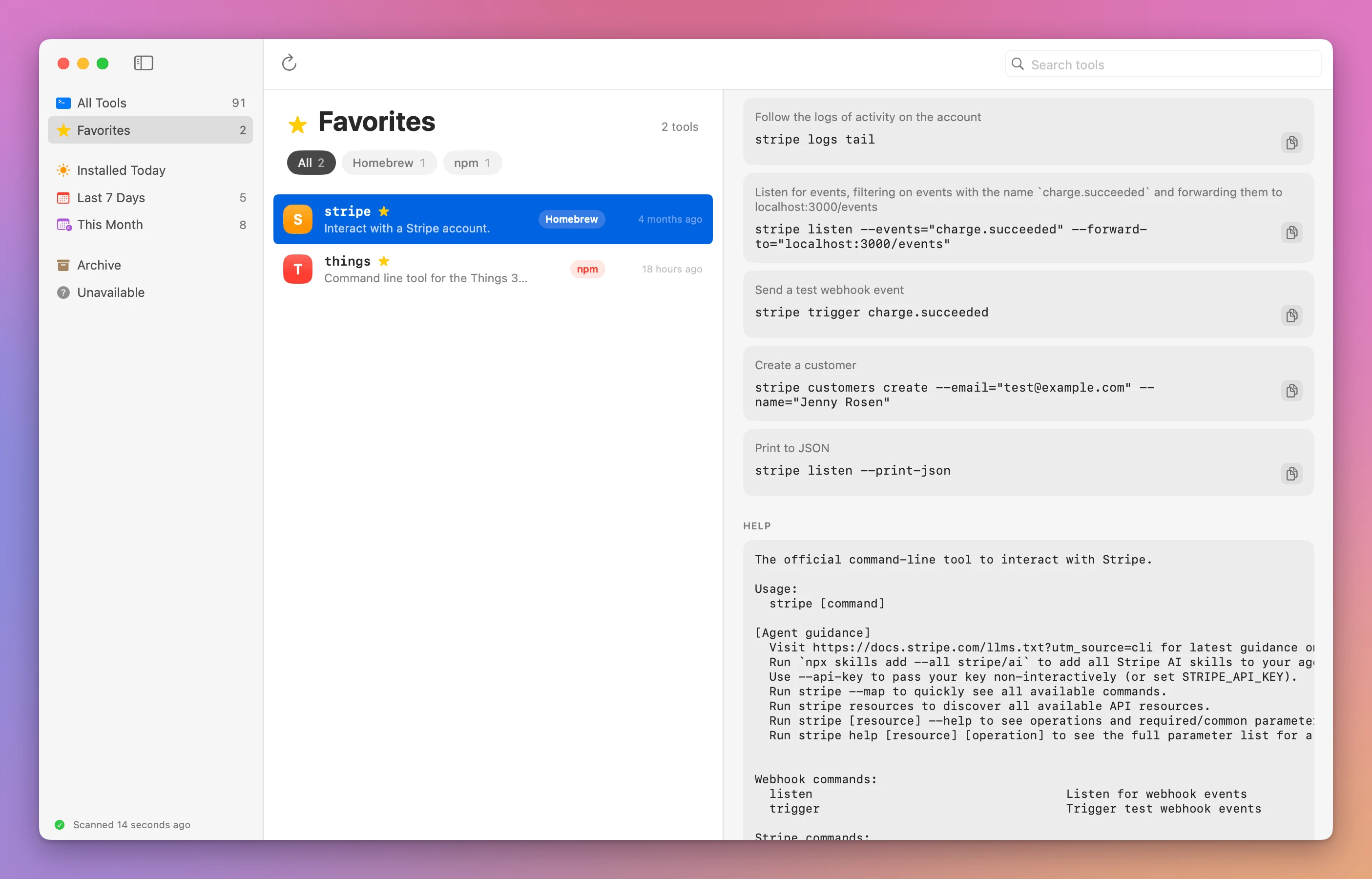
Each tool gets a row with its source, its path, and when you installed it. From the sidebar you can filter to what you installed today, in the last 7 days, or this month. You can mark favorites, and archive the tools you no longer care about. Archiving hides a tool from the list. It doesn’t uninstall anything.
Find a forgotten tool in a minute
Here’s the job the app was built for.
- Open CLI Tools Cabinet. It scans your Mac and lists every tool, with Homebrew, npm, Cargo and local filters at the top.
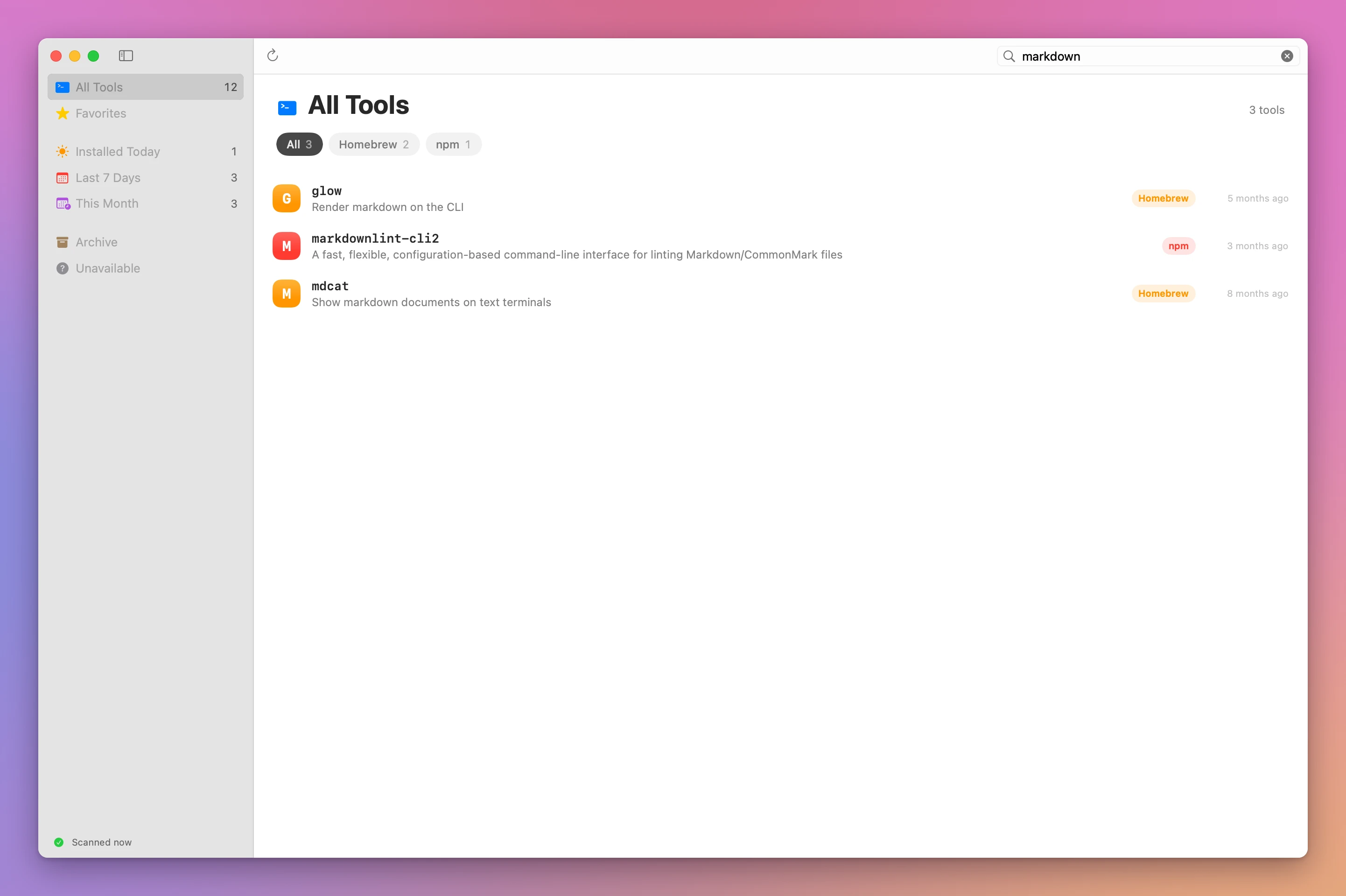
- Type what the tool does in the search field, like
markdown. Search matches names and descriptions, soglow,mdcatandmarkdownlint-cli2show up even if you forgot all three names. - Select one. The app runs it with
--versionand--helpand shows the output, plus the description and homepage for Homebrew packages. - Read the ready-made examples. Click the copy button next to the one you need.
- Scroll to Your History to see the commands you already ran with it, how many times, and when.
- Click Favorite if you’ll need it again.
Without it, you’d search the web and guess at the flags, or install a tool you already have.
Examples and your own history
Select a tool and the detail pane shows its version and its help output. Inspection only runs for the tool you select, never during a scan, so inspect only tools you trust.
Then come the ready-made examples. When the tool has a tldr page, the app downloads it. It also pulls the examples section out of the tool’s own --help output. Every example has a copy button.
Below that is your own history. The app reads your shell history (zsh, bash, and fish) and groups the commands that ran that tool, with how many times you ran each one and when you last ran it.
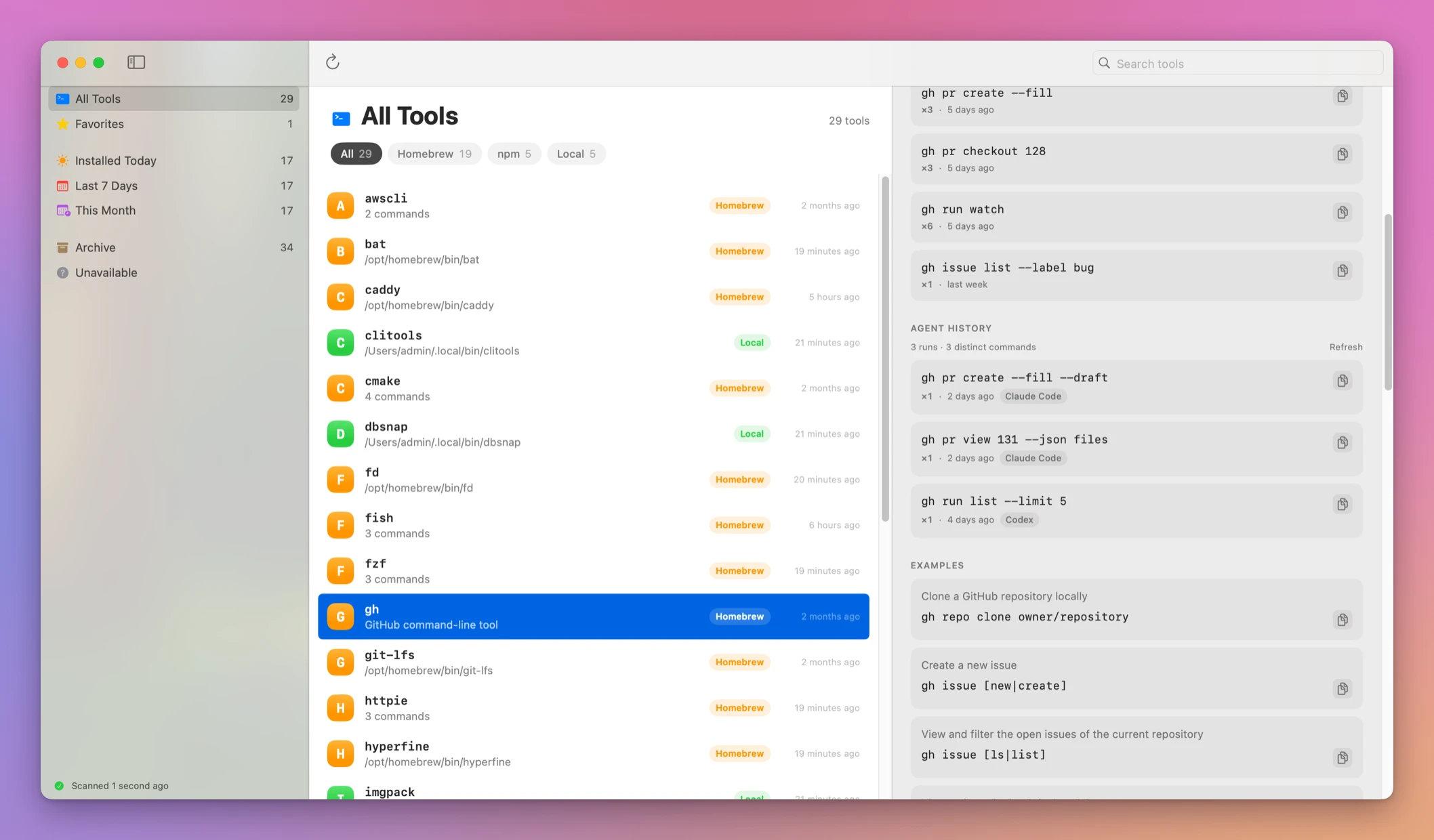
This is the part I wanted most. The command I already typed once is usually the best example of how I use a tool.
Click Find agent runs to add the commands Cursor, Codex and Claude Code ran with the tool, from their local transcripts. That scan runs only when you ask, because transcripts can be large.
Nothing from your history is written to the catalog. The app reads the history files and keeps the result in memory.
The CLI
There is also a companion CLI that reads the same catalog:
clitools scan
clitools list --json
clitools inspect gh
clitools history gh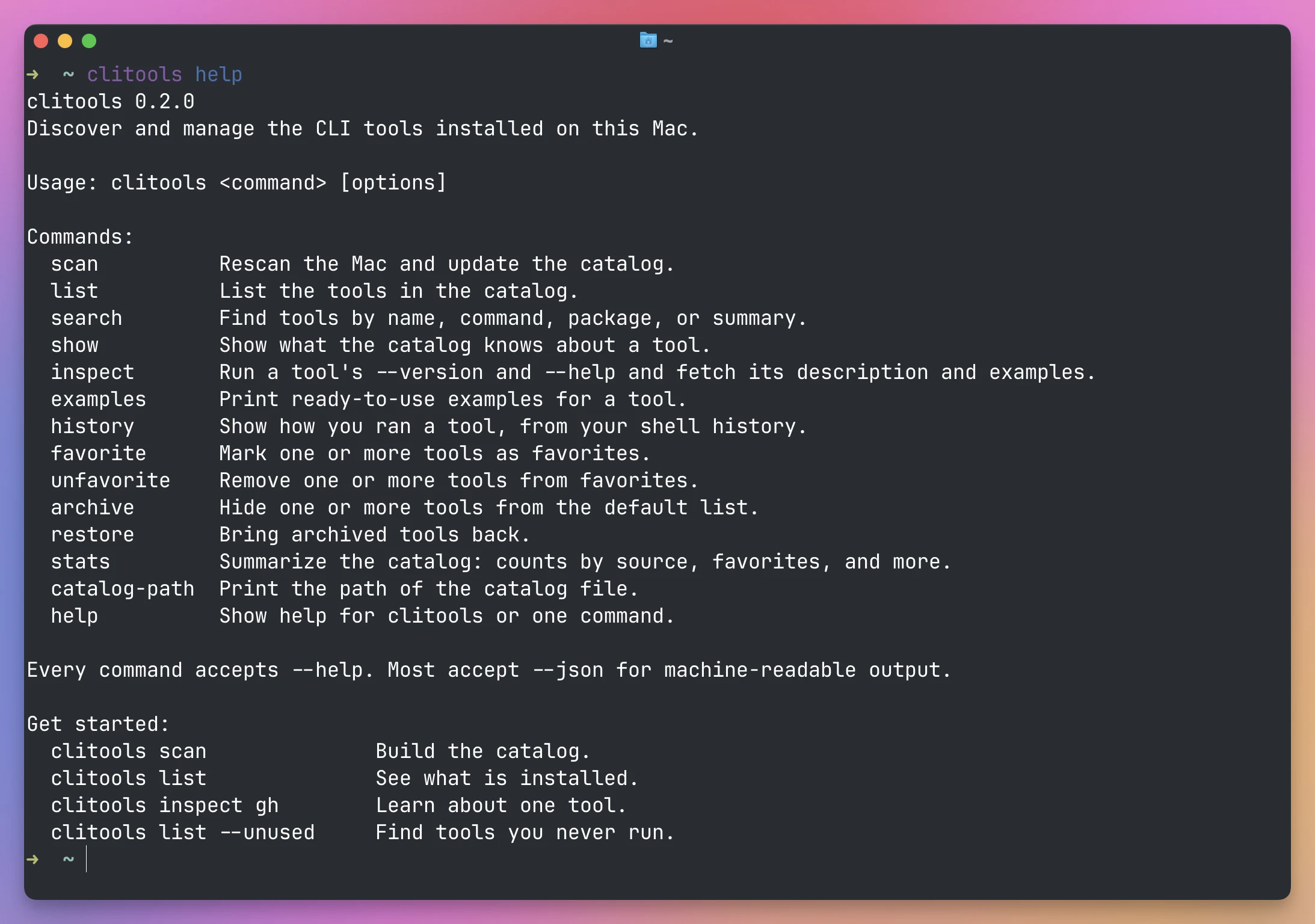
The CLI exists for the JSON output. A coding agent working on my machine can ask which tools are installed and how to call them, instead of guessing or installing something I already have.
Filters help with a big catalog: --favorites, --source homebrew, --sort usage, and --unused for tools that never appear in the shell history the app can read.
The app and the CLI share one file:
~/Library/Application Support/CliTools/catalog.jsonAsk your tools what they can do
Since version 1.2, clitools can also ask a tool what it can do.
I build a lot of small CLIs for my own apps, like noterepo for my daily notes, postdeck for slideshows and blueprint for architecture maps. Each of them answers a capabilities command with a short summary, the tasks it can do with a command for each, and what changed in every version.
clitools collects those answers, so an agent gets all of them in one call:
clitools capabilities --all --jsonMy AGENTS.md tells agents to run it before they write a script or ask me. If a tool on my Mac already does the job, they find it there.
Here’s part of what postdeck answers:
{
  "name": "postdeck",
  "version": "1.0.0",
  "summary": "Builds slideshows in the Post Slide Deck app from posts on X, text slides and images.",
  "capabilities": [
    { "description": "Add a post from X as a slide", "command": "postdeck add-post \"This week's apps\" post.json" }
  ],
  "changelog": [
    { "version": "1.0.0", "date": "2026-10-03", "changes": ["First release: Post Slide Deck app and Chrome extension turn X posts into slideshow slides."] }
  ]
}
clitools only asks the tools whose --help lists a capabilities command, because running it on any tool isn’t safe. claude capabilities would start an agent session with that word as the prompt.
If you write your own CLIs, add the command and they show up too. clitools search also matches what tools say they can do, so clitools search slideshow finds postdeck.
Why not use brew list and your shell history
You can get part of this for free. brew list shows your Homebrew packages, npm ls -g your global npm ones, and cargo install --list your Cargo ones. history | grep gh finds commands you ran. tldr gives you examples.
That’s four package managers’ worth of commands, plus a look through your PATH folders, every time you want an overview. None of them searches by what a tool does. And a shell history grep doesn’t group repeated commands or include what your agents ran.
| By hand | CLI Tools Cabinet | |
|---|---|---|
| Everything installed | brew list, npm ls -g, cargo install --list, ls your PATH | One list, with source and install date |
| Search by purpose | Not possible | Matches descriptions and capabilities |
| How you used a tool | Grep your history, one shell at a time | zsh, bash and fish, grouped with counts |
| What your agents ran | Read transcripts | Find agent runs |
| Examples | Install tldr, read --help | Both, with copy buttons |
| For agents | Several commands, text output | clitools list --json |
What it doesn’t do
- It doesn’t install, update or uninstall tools. Archive only hides a tool in the catalog. Use Homebrew, npm or Cargo for the rest.
- It only scans three package managers. Homebrew, npm and Cargo packages, plus whatever is in your
PATHfolders,~/binand~/.local/bin. - It doesn’t prove a tool is unused.
--unusedmeans the tool isn’t in the shell history the app can read. That’s a hint for cleaning up. - Agent runs depend on transcript formats. If an agent changes how it stores chats, a run can go missing.
- It doesn’t sync between Macs. The catalog is one JSON file on this Mac.
Questions
Does it run every tool on my Mac?
No. A scan only finds tools. The app runs a tool with --help and --version only when you select it for inspection.
Is my shell history stored anywhere?
No. The app reads your history files and keeps the result in memory. The catalog holds favorites, archived status and inspected details, not your history or transcripts.
A tool I installed is missing. Why?
Check that your login shell can find it, then scan again. If its description is missing, inspect it.
Does it work on Intel Macs?
Yes. It runs on macOS 14 or later, on Apple silicon and Intel.
Is the source code included?
Yes. The purchase page delivers a source ZIP with the app.
The documentation covers every command. Its sibling Skill Cabinet does the same for the agent skills your coding agents load, and Tranquillity Maker is another Mac app of mine. If you want the short list I actually reach for, I wrote The CLI tools I use every day.
What you get
CLI Tools Cabinet costs $20 including tax, paid once. The purchase includes the signed Mac app and automatic updates.
Download and install
After purchase, download the signed and notarized Mac app ZIP from your purchase page.
Unzip the Mac app and drag CLI Tools Cabinet to your Applications folder. It runs on macOS 14 or later · Apple silicon and Intel.
CLI Tools Cabinet is signed with my Apple Developer ID and notarized by Apple.
CLI Tools Cabinet checks for updates once a day. Choose CLI Tools Cabinet → Check for Updates… to check now and Install and Relaunch to install.
The clitools command is inside the signed app. After moving the app to Applications, run:
mkdir -p ~/.local/bin
ln -s "/Applications/CLI Tools Cabinet.app/Contents/Helpers/clitools" ~/.local/bin/clitools
Add ~/.local/bin to your shell’s PATH if it cannot find the command.