Find a command-line tool you installed months ago and forgot
By Flavio
Updated
Search shell history and Homebrew for a forgotten command, then find it in CLI Tools Cabinet by what it does and when you installed it.
You installed a command-line tool for one job, months ago. You remember the job. You don’t remember the name, and which can’t search for a feeling.
Homebrew, your shell history, and the folders on your PATH each hold a piece of that. CLI Tools Cabinet puts the installed tools in one catalog and lets you search by what they do, then filter by when they landed on the Mac.
List every command-line tool you installed with Homebrew, npm and Cargo is the full printout of those three managers. Help your coding agent find the CLI tools you already installed is the step where an agent reads that catalog. The CLI tools I use every day is the short list, not the forgotten one. This walkthrough is the search.
What you need
CLI Tools Cabinet runs on macOS 14 or later, on Apple silicon and on Intel.
After purchasing, download the ZIP from your Polar receipt, unzip it, and drag CLI Tools Cabinet to Applications. It’s signed and notarized. Confirm Open at the normal first-launch prompt. Later versions come from the same receipt. Replace the installed app.
The clitools command isn’t in the app zip. Your receipt also has the source zip. With Xcode 26 or a Swift 6.2 toolchain installed, unzip that and run the installer from the unzipped folder:
./Scripts/install-cli.shIt builds clitools and links it into ~/.local/bin. If the shell can’t find the command, add that directory to your PATH and open a new window. The app’s own search works before this installer. The terminal filters below need the command.
Homebrew only has to be installed if you want the manual brew steps, or Homebrew rows in the catalog. npm and Cargo are the same. A script you dropped in ~/bin or ~/.local/bin shows up even when you never used those package managers.
Apps opened from the Finder get a short system PATH. CLI Tools Cabinet asks your login shell for its PATH when it starts, so it can see the folders .zshrc, .bash_profile or config.fish added. A Mac app that launches a tool itself still has the Finder problem. That’s Find command-line tools from a macOS app.
Run clitools --help once the link is in place. It prints the command list for the version you built.
clitools --helpSearch history and Homebrew yourself
The name is what you forgot, so the package manager’s list of names is a weak first step. The command you typed, and a description that mentions the job, are closer.
In zsh or bash, history prints what you typed. grep keeps the lines that mention the job. This doesn’t see fish. The app reads fish history later. It also doesn’t see a command you ran in a way that never landed in the history file.
history | grep -i markdownThe shape is the history line, a number and the command. This one is an example of that shape, not a session from a particular Mac:
482 pandoc weekend-notes.md -o weekend-notes.htmlIf that line is there, you didn’t forget the tool. You forgot that you had already typed it. pandoc in the example is the kind of hit this search returns. Yours will be whatever you ran.
brew leaves is the other manual list. It prints the formulae you installed yourself, not the libraries Homebrew pulled in as dependencies. One name per line. Compare it with a description search when the history is empty.
brew leavesbrew desc --search looks through Homebrew’s names and descriptions, including formulae you have not installed. A hit is a candidate, not proof it’s on this Mac. If the name is also in brew leaves, you installed it.
brew desc --search markdownScripts you copied by hand never appear in brew leaves. ls -lt sorts by time, newest first, in the two folders the app always treats as yours. ~/bin is scanned even when it isn’t on your PATH.
ls -lt ~/.local/binls -lt ~/binA second history | grep doesn’t change anything. It prints the file again. If you just ran the tool in this window, the new line is at the end of zsh and bash history after the shell writes it. An empty grep means this shell’s history doesn’t contain that word. It doesn’t mean you never installed the tool.
Scan, then search by what it does
The manual commands are three formats and two directories. They go stale the moment you install something else, and none of them search npm, Cargo and PATH together. The catalog does. Search reads that catalog. If you skip the scan, a tool you installed this morning isn’t in the file yet, and the search looks like the tool was never there.
clitools scanThe scan finds packages you explicitly installed with Homebrew, npm and Cargo, plus commands on your shell’s PATH, in ~/bin and in ~/.local/bin. It doesn’t run those tools. Inspection is the step that runs --version and --help, and only for the tool you select. Inspect tools you trust.
Commands that belong to one package stay in one entry. Searching for psql can find the PostgreSQL package for that reason.
Example 1: you remember the job, not the name
The docs’ search word is markdown. The app’s search field matches descriptions too, the way clitools search already did. The changelog’s example is zones, which finds a Cloudflare DNS tool even when “zones” isn’t in the command’s name. Use the word you remember.
clitools search markdownIf you’d rather click, type the same word in the app’s search field. It uses the same matching as clitools search: the word can be in the tool’s name, or start a word of its description. Here markdown finds three tools, and two of them don’t have the word in their name:
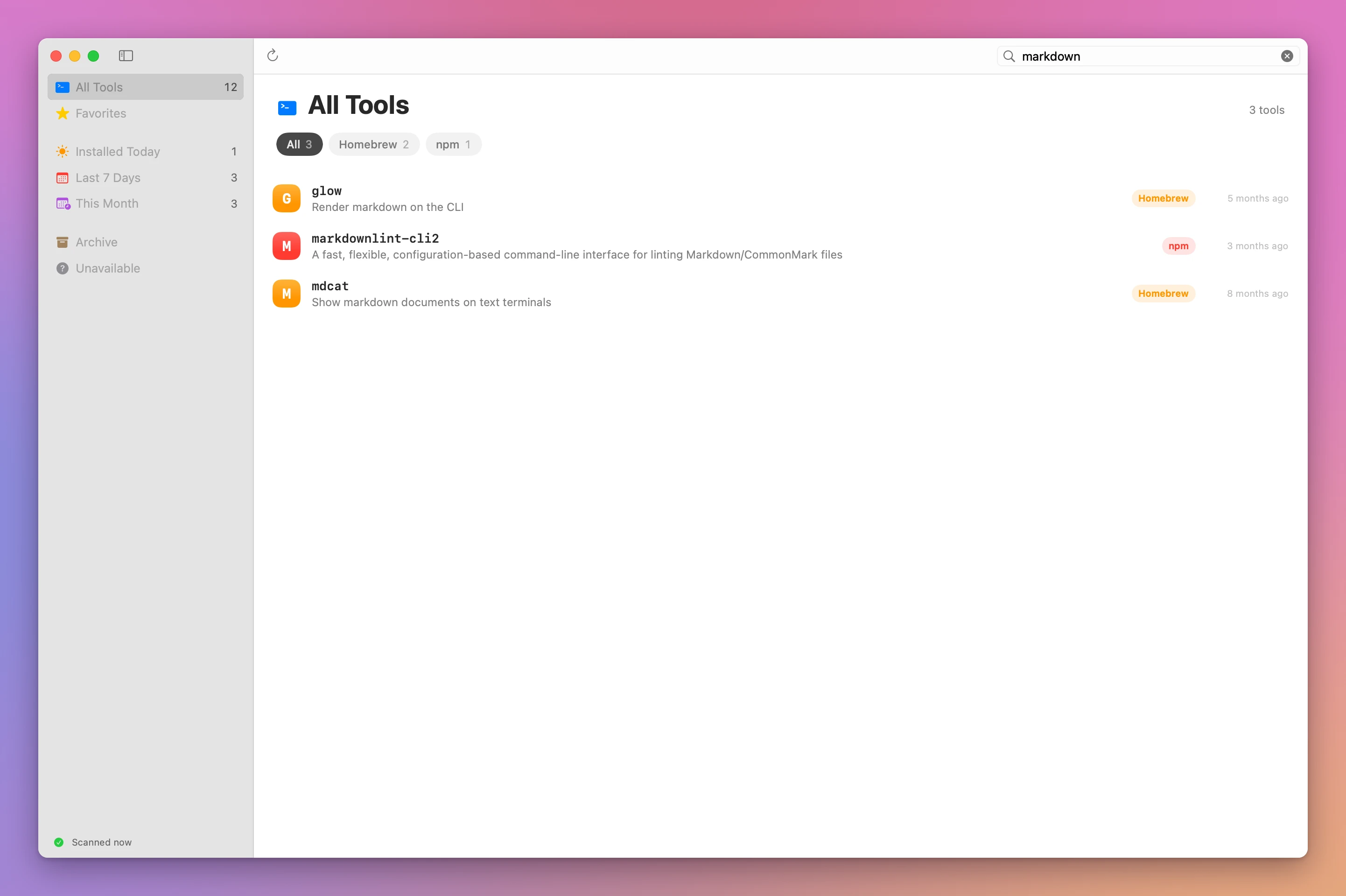
A second kind of match is what a tool says it can do. clitools search slideshow also matches capabilities a tool lists, not only its name and description. The app page uses that to find postdeck. clitools only asks for capabilities when the tool’s own --help lists that command. A tool that would treat the word as a prompt never sees it. The agent tutorial covers that call. Here, search is enough.
Run clitools scan again after you install or delete something. A second scan is how a missing tool gets into the catalog. The docs’ symptom is an installed tool that still doesn’t appear: check that your login shell can find it, then scan again.
The catalog file, shared by the app and the command, is:
~/Library/Application Support/CliTools/catalog.jsonclitools catalog-path prints that location. Favorites, archived rows and inspected details live in the file. Shell history and agent transcripts do not.
clitools catalog-pathNarrow it by when you installed it
A search for markdown can return a handful of hits. The one from months ago is often the one you meant, and the one from this morning is a different install. Each row has its source, its path, and when you installed it. The sidebar filters that date: today, the last 7 days, and this month. The changelog names the today section Installed Today.
Example 2: a date filter, not a word
Example 1 searched by text. This path ignores the word. The sidebar filters by install date: today, the last 7 days, and this month. The changelog names the today section Installed Today. Open that when you’re sure the install was recent, or the month section when “months ago” is as close as you can get. A tool that isn’t in the month section was installed earlier, which is a result. Switch back to the full list before you decide it isn’t on the machine.
today, the last 7 days, or this month
The today section is titled Installed Today.
The CLI filter the docs show for a source, rather than a date, is --source homebrew. There isn’t a documented flag for “last 7 days”. The sidebar is that filter. --json is the whole catalog for a script. The docs don’t print a sample row, so read the keys from your own run before you script them.
clitools list --source homebrewclitools list --jsonclitools list --favorites and clitools list --sort usage are the other documented list filters. Favorites are the ones you starred. Usage sort follows the shell history the app can read. Archive hides a tool from the ordinary list. Archiving does not uninstall the package or remove the executable. You can restore the row later. A second archive of the same tool doesn’t remove it from disk either. The first one already only hid the row.
Read the commands you already typed
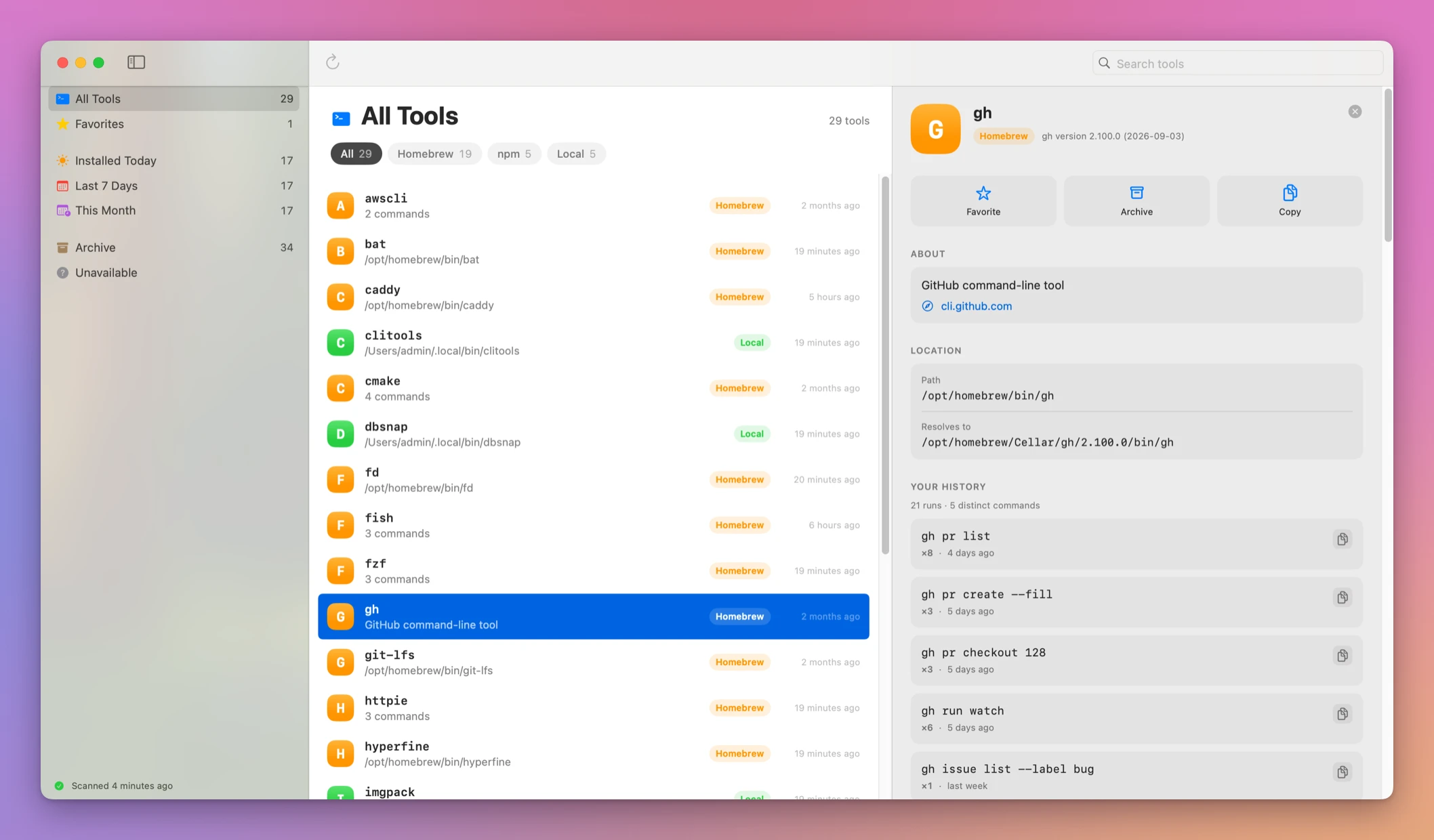
The best example of a forgotten tool is the line you typed the last time it worked. Select the tool. Your History reads local zsh, bash and fish history and groups repeated commands, with how many times you ran each one and when you last ran it. The app keeps that in memory. It doesn’t write it into catalog.json.
The docs’ example tool is gh, with a limit of 10 lines. Put your tool’s name in that spot once search has given you a name.
clitools history gh --limit 10In the app, select the tool and the same list is under Your History, each command with how many times you ran it, when, and a button to copy it:
Find agent runs scans local Cursor, Codex and Claude Code transcripts. It runs when you click, because transcripts can be large. The results stay in memory while the app is open. Refresh picks up newer sessions. The command is the same history with --agents.
clitools history gh --agentsIn the window, the agent runs land in Agent History, under your own history, with the agent that ran each command:
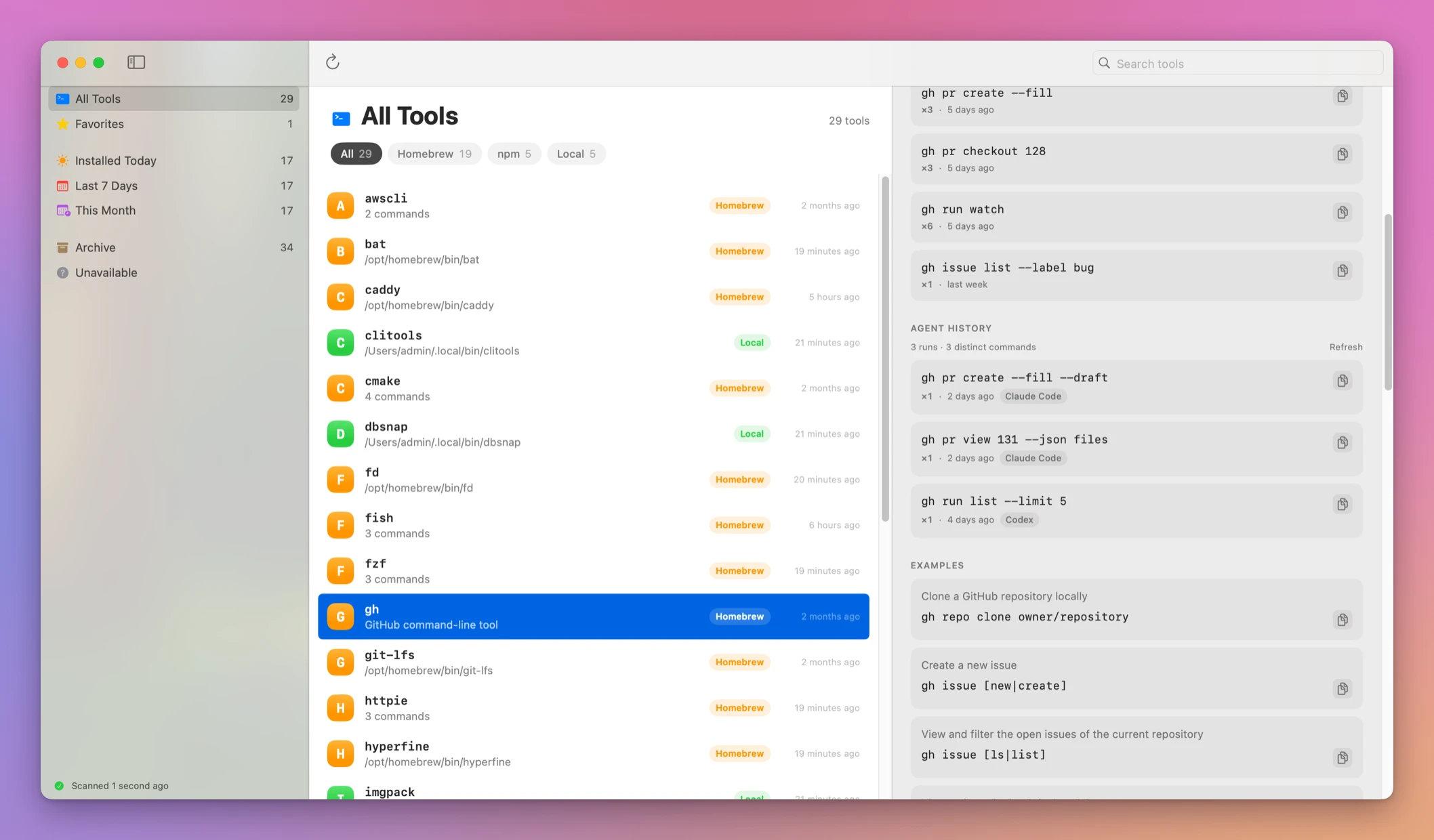
A second click of Find agent runs, or another --agents run, reads the transcripts again. Agent transcript formats can change, so a missing run doesn’t mean the agent never used the command. Quit the app and the in-memory history view is gone. The history files on disk are still there. The catalog file never had them.
Treat a missing history hit as a clue
Example 3: “not in shell history” is not “never used”
--unused means the tool doesn’t appear in the shell history the app can read. The docs call that a clue when you’re cleaning up, not proof you never use it. Starred tools and archived tools are a different list. This flag is only about history.
clitools list --unusedA tool lands there when you run it from somewhere other than zsh, bash or fish, when the history file doesn’t contain it, or when an agent ran it and you haven’t clicked Find agent runs. It also lands there when you installed it and never typed it. Those are different stories. --unused doesn’t say which one you have.
Don’t uninstall from this list. Archive, if you want the row out of the way, leaves the executable in place. The package manager that installed it is what removes it, and the other tutorial is the one that prints those package lists.
Select the row and read the path before you delete anything by hand. Two copies of one command can exist. The catalog’s path is the one this scan recorded. A later scan picks up a tool your login shell can see. A copy in a directory the login shell never adds stays out.
If something looks wrong
If the shell says clitools: command not found, look in ~/.local/bin and check PATH. The installer links the command there. A terminal that was already open doesn’t see a PATH change until you open a new one. The app window still searches.
If a tool you installed this morning is missing, run clitools scan again. If it’s still missing, check that your login shell can find it. The scan uses that shell’s PATH, not the short PATH a Finder-launched app would see on its own.
If the row has no description, it hasn’t been inspected. Select it, or run clitools inspect with its name. Inspection runs the executable with help and version arguments. Skip that for a tool you don’t trust. A scan never does it for you.
If search finds nothing for a word you can see in the tool’s homepage, inspect it so the description is in the catalog, or search a word from the name. Description search matches what the catalog stored. The zones example works when that word is in the description.
If Installed Today is empty, the install date on the row isn’t today. Check the month section, then the full list. A copied executable can show a date that follows the file, which the list tutorial goes into. The sidebar is still filtering the date the catalog stored.
If --unused includes gh and you use gh every day, the history the app read doesn’t contain it. Fish, bash and zsh are the three it reads. A command typed over SSH on another machine, or only inside an agent transcript, won’t be in that shell history. Run clitools history gh --agents or click Find agent runs before you treat the flag as a reason to remove it.
If Find agent runs shows nothing for a session you remember, transcript formats change. A missing run is not proof. Refresh after a newer session. Quitting the app drops the in-memory copy, so look again after you reopen.
If favorites vanished after you moved Macs, they’re in catalog.json, not in the shell history. clitools catalog-path prints the file to copy. Copying it doesn’t copy the tools themselves.
Get CLI Tools Cabinet
Catalog tools from Homebrew, npm, Cargo, and your PATH, with examples, shell history, and a JSON CLI for coding agents.
See CLI Tools Cabinet → · Read the docs · $20 including tax, with full source code.
Want me to talk about your product? You can sponsor this site.