
Mac & Windows app by Flavio
CSV Dry Run for Shopify
Compare the Shopify product CSV you're about to import with your store's export. See every price, title and stock change, every new product, and every description, price, variant or image the import would blank or delete. Save a safe copy with the blanked values put back, and a report you can print.
Buy CSV Dry Run for Shopify for Mac · $19Buy CSV Dry Run for Shopify for Windows · $19Buy once, use forever. Up to 3 computers you own (license). Plus tax where it applies. Mac and Windows versions are sold separately.
macOS 14 or later (Apple silicon and Intel) · Windows 10 and Windows 11 (x64 and ARM64)
Latest Mac version 1.0.0, released November 27, 2026
You want to raise prices on 40 products in your Shopify store. So you export your products, open the CSV in Numbers or Excel, change the prices, delete a few columns you don’t need and a couple of rows that got in the way, save it as CSV and import it with Overwrite products with matching handles ticked.
Two days later a customer asks why the Maple Candle Tin has no description. The import blanked it, along with its tags. The Clay color of your tea towels is gone because its row was one of the ones you deleted, and the barcode of the spoon set lost its leading zero when the spreadsheet decided it was a number.
Shopify did what the file said. The problem is you can’t see what the file says compared to what your store has now, not across hundreds of rows where each product is spread over several of them.
CSV Dry Run for Shopify compares the file you’re about to import with the export you just downloaded, product by product and variant by variant, and shows you what the import would change, add, and wipe out. Then it saves a safe copy of your file with every blanked value put back from your store, keeping the edits you meant to make.
Watch a 30-second demo of CSV Dry Run for Shopify:
Who it’s for
- Shop owners who update prices in a spreadsheet. A spring sale, a supplier price increase, new compare-at prices on 60 variants. You want to see the 60 price changes, and only those, before the file touches your store.
- Assistants and virtual assistants doing bulk edits. You were asked to fix tags and stock counts on 300 products. A printed report of every change lets the owner approve the upload, and shows nothing else was touched.
- Sellers moving products between two stores. A wholesale and a retail store, or a new store built from an old one. You need to know which products the file adds and which existing ones it would overwrite.
- Freelancers cleaning up a client’s catalog. Before you hand over the CSV, the report proves what changed, value by value.
- Anyone whose last import blanked descriptions or deleted variants. You found out from a customer once. You’d rather find out from a list on your computer.
How it works
- In Shopify, open Products, click Export and save your products as CSV. That’s your store as it is now.
- Open the app, click Choose CSV Files… and pick both files: the export, and the file you’re about to import. Or drag them onto the window.
- Click Risky Clears to see what would be lost, then click any product or variant to see each value before and after.
- Keep Protect Blanked Fields ticked and click Save Safe Copy and Report….
- Import the safe copy in Shopify instead of your file.
What you get
Every change, sorted by what it does
The filters at the top count everything in the file. Risky Clears are values your store has that the import would blank, variants and images it would delete, and barcodes or SKUs a spreadsheet damaged. Changed are the edits you made, like a new price or title. New are products and variants your store doesn’t have yet. Unchanged is everything that stays as it is. Search by handle, title or SKU to find one product.
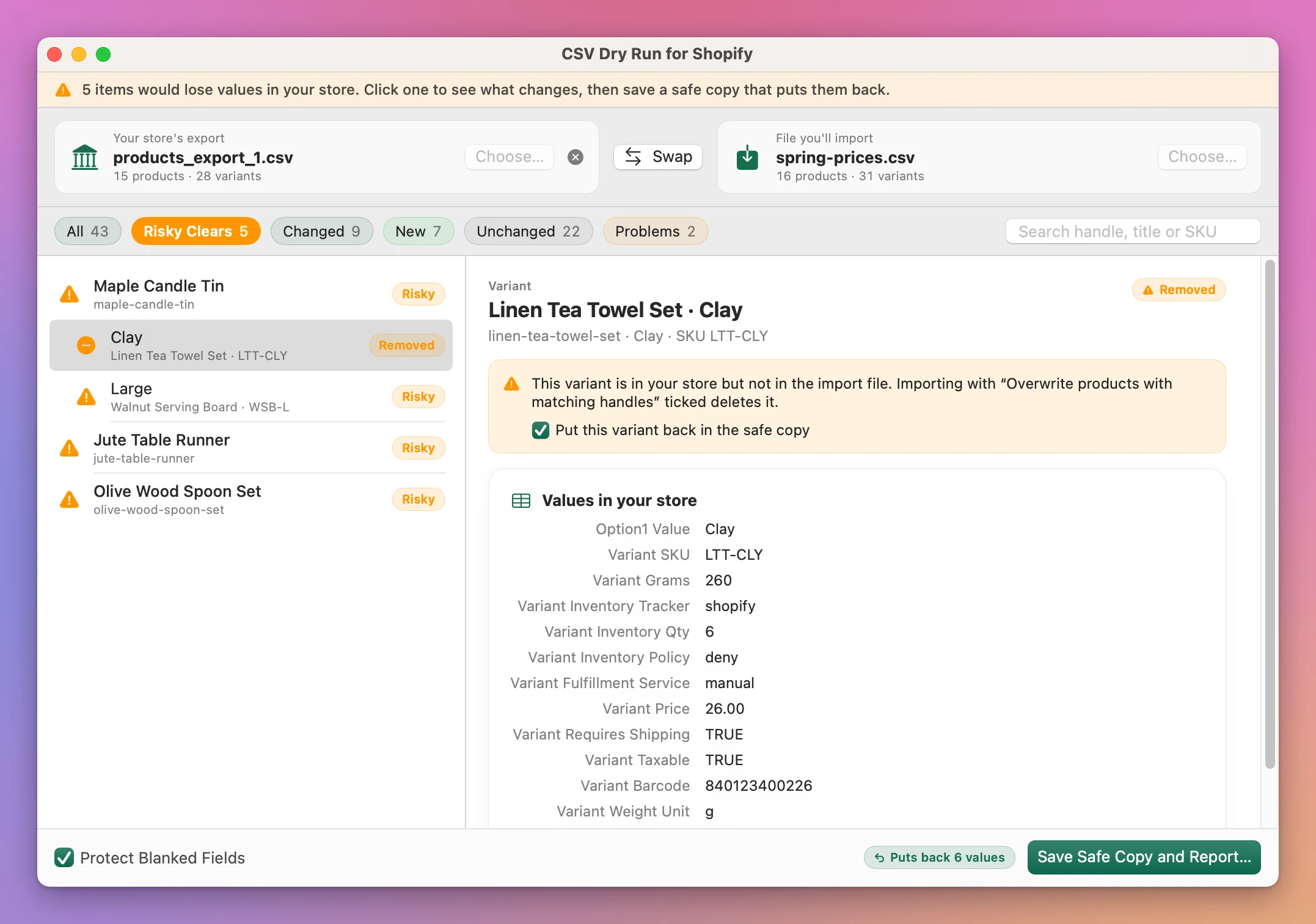
Click an item and you see each value that changes, what your store has now on the left and what it would have after the import on the right. A blank in orange is a value you’re about to lose.
Variants and images that would disappear
A variant that’s in your store but not in your file shows up as Removed, with the values it has in your store. With Overwrite ticked, Shopify can delete it. The same goes for images: a product whose second image isn’t in the file is marked risky, with the image’s address.
Spreadsheet damage, caught
Numbers and Excel like to turn long numbers into numbers. A barcode like 036000291452 becomes 36000291452, and a longer one can become 1.23457E+11. The app compares barcodes and SKUs with your store and flags both. It also reads files saved with semicolons between values or in an older text encoding, which some spreadsheets do, and says so.
New products, checked before they’re created
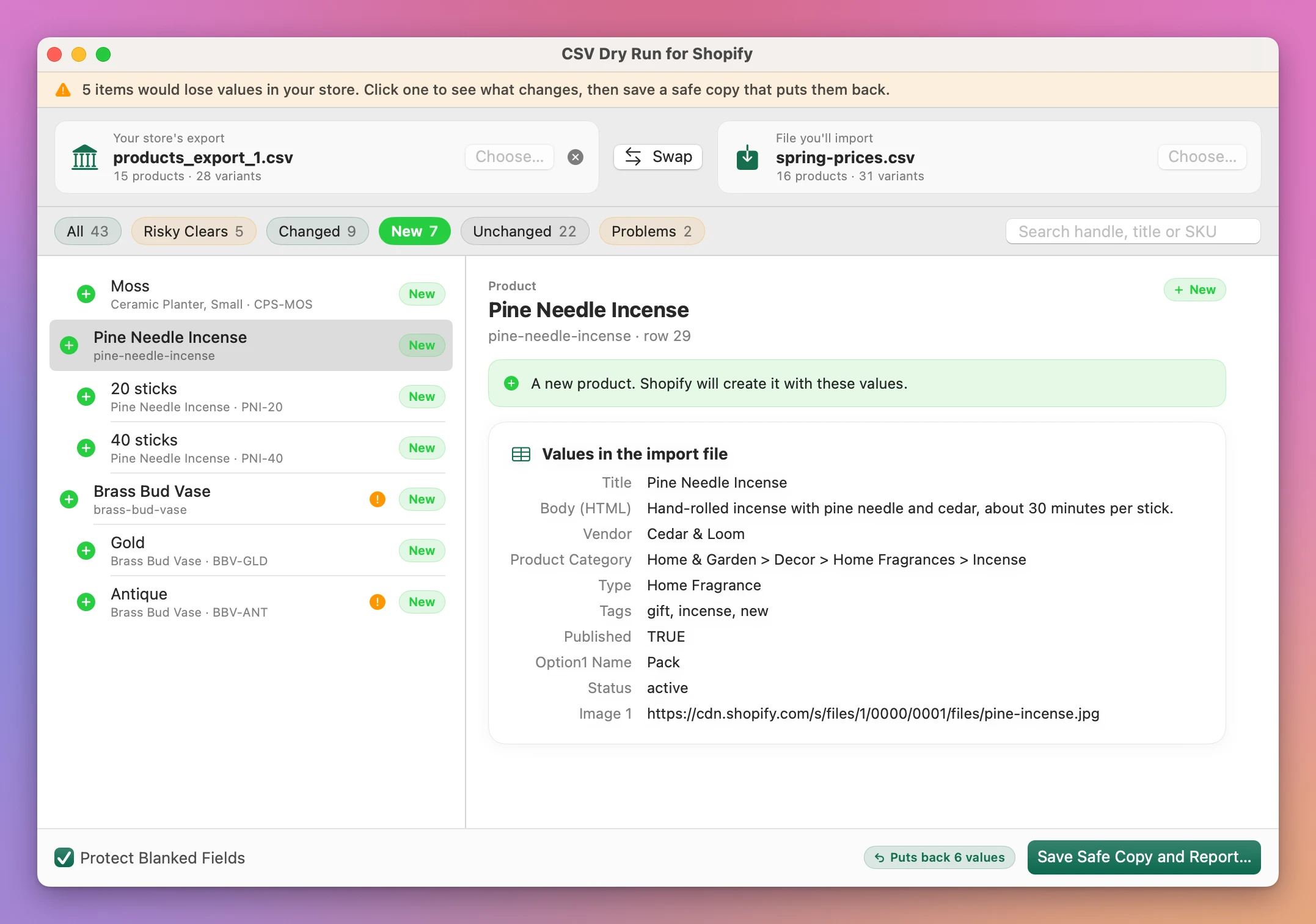
New products and variants are listed with the values they’ll get. The app flags what Shopify would trip on: two variants with the same options, a variant with no price, a new product with no title, a price written as “$19.00”, a handle with spaces or capitals.
A safe copy, and a report
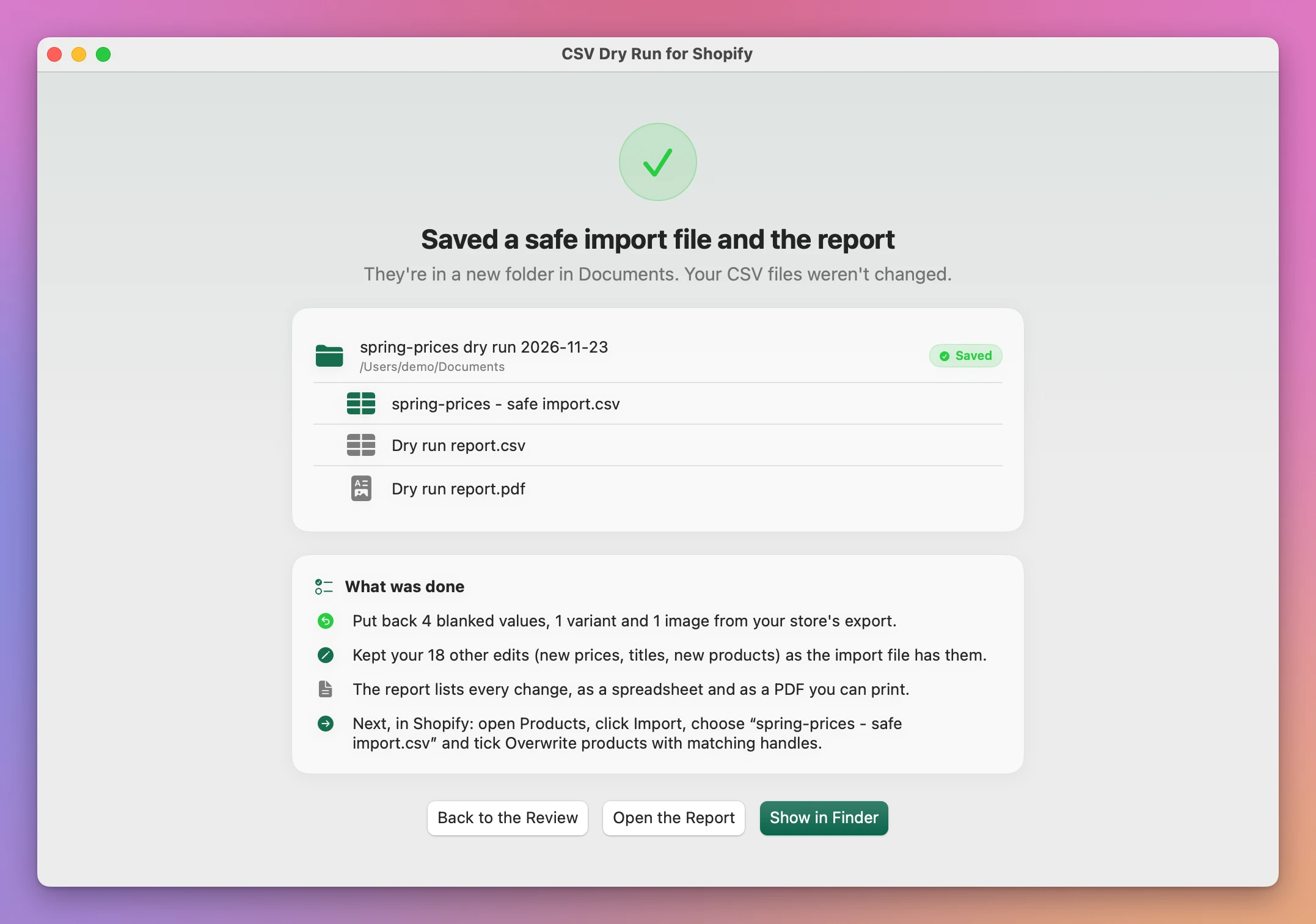
Save Safe Copy and Report… makes a new folder with three files:
spring-prices - safe import.csv: your file, with every blanked value, missing variant and missing image put back from your store’s export. Your new prices, titles and products stay as you made them.Dry run report.pdf: a printable summary of every risky clear, problem, change and new item.Dry run report.csv: the same, one row per value, to sort and filter in a spreadsheet.
If a blank is on purpose (you really do want the Clay color gone), click it and untick Put the store’s values back in the safe copy.
Just the import file, if you don’t have an export
Without an export, the app checks the file on its own and lists the problems to fix before you import: repeated variants, missing prices, handles and titles. Add the export later to see what it changes.
Why not do it by hand
| By hand | CSV Dry Run for Shopify | |
|---|---|---|
| What changes | Two spreadsheets side by side, row by row | Every changed value, before and after |
| Blanked descriptions and prices | A filter for empty cells, then look up each handle in the export | Listed as Risky Clears |
| Deleted variants | Count the rows of every product in both files | Marked Removed, with their values |
| Damaged barcodes | Spot the missing zero yourself | Flagged by comparing with your store |
| Fixing it | Copy values back by hand, hoping you didn’t shift a row | A safe copy with everything put back |
| A record of the import | None | A report as PDF and CSV |
Shopify’s importer shows you a preview of the first product in the file, then imports all of it. Keeping an export as a backup is good advice, but restoring from it means another import. A spreadsheet can compare two sheets with filters and lookups, and if your edit touched one column of ten products, that’s fine. A Shopify product CSV spreads each product over one row per variant plus rows for extra images, so as soon as a row is deleted or added, comparing row by row stops lining up.
What it doesn’t do
- It doesn’t connect to your store. It never signs in to Shopify, and never imports or uploads anything. You import the safe copy yourself.
- It doesn’t change your files. The export and the file you’ll import are only read. Everything it saves goes in a new folder.
- It reads product CSVs only. Not inventory, customer or order CSVs, and not Numbers or Excel files: save as CSV first.
- It can’t promise what Shopify will do. It compares your file with your export following the layout of Shopify’s product CSV. Shopify’s importer has the last word.
- It doesn’t edit your products. To change a value, edit your spreadsheet and check it again.
Questions
Which files does it need?
The product CSV you’re about to import, and a fresh export of your products from Shopify (Products, Export, All products, CSV for Excel, Numbers or other spreadsheet programs). Export right before you check, so the comparison is with your store as it is now.
Does anything get uploaded?
Nothing. Both files are read on your Mac. The app connects to the internet only to check for updates.
Can I try it without my own files?
Click Try Example Store Files on the first screen. It opens an export and an edited file of a made-up shop, with all the problems in this page.
What it needs
macOS 14 Sonoma or later, on Apple silicon and Intel Macs. It asks macOS for no permission: it reads the files you choose or drag onto its window.
CSV Dry Run for Shopify isn’t made by, affiliated with or endorsed by Shopify Inc. or Apple. Shopify is a trademark of Shopify Inc. The shop and products in the screenshots are made up.
Buy CSV Dry Run for Shopify
$19 plus tax where it applies, paid once.
Download the app from the order page or your Creem receipt, unzip it and move it to Applications. I sign the app with my Apple Developer ID, and Apple notarizes the download.
The app checks for updates once a day. When a new version is ready, click Install and Relaunch. The first time, it asks for the license key from your Creem receipt, and remembers it. To check anytime, choose CSV Dry Run for Shopify → Check for Updates….