
Mac & Windows app by Flavio
Episode Tag Checker
Open this week's episode next to last week's and see every title, episode number, guest, comment and chapter title that was carried over, plus missing tags and a file name that disagrees with the title. Fix them in the window and export a clean MP3 copy with a printable receipt.
Buy Episode Tag Checker for Mac · $19Buy Episode Tag Checker for Windows · $19Buy once, use forever. Up to 3 computers you own (license). Plus tax where it applies. Mac and Windows versions are sold separately.
macOS 14 or later (Apple silicon and Intel) · Windows 10 and Windows 11 (x64 and ARM64)
Latest Mac version 1.0.0, released November 29, 2026
You finish episode 48 on Tuesday night and export it from last week’s project. The export dialog already has the tags filled in, so you click through. The MP3 now says “Ep 47” in its title, track 47, last week’s guest in the artist line, last week’s description in the comment, and two chapter titles from last week’s interview.
Your podcast host shows you none of that until the episode is live. Some hosts read the title from the file when you upload, and listeners who download the MP3 see its tags, cover and chapters in their player, sometimes for good.
By hand, you open both files in a tag editor and compare them field by field, and nobody does that at 11 PM. Episode Tag Checker does it in a few seconds: it puts this week’s tags next to last week’s, marks every one that was carried over, lets you fix them in the window, and saves a clean copy of the MP3 with a receipt.
Watch a 30-second demo of Episode Tag Checker:
Who it’s for
- Solo podcasters with a weekly show. You export each episode from a copy of last week’s project in GarageBand, Audacity or REAPER, and the export’s tags come along with it. You want one look before Wednesday’s upload.
- Freelance podcast editors. You deliver MP3s for four clients. The receipt PDF goes in the delivery folder next to the file, and it says what each tag was, what it is now and what you changed.
- Daily and news shows. Five episodes a week from one template, where the date and the episode number are the first things to go stale. The app flags a date that’s the same as yesterday’s.
- Shows with chapters. Players that read MP3 chapters show their titles in the episode. When the chapter list is copied from last week’s project, last week’s interview is still listed. The app shows each chapter next to last week’s, and you rename them right there.
- Podcast network assistants. You upload episodes someone else edited. You open the file next to the previous episode and catch “Ep 47” inside episode 48 before it goes live.
How it works
- Click Choose Episodes… and pick this week’s episode and last week’s, or drag both onto the window. To try it first, click Try Example Episodes.
- The list on the left shows every tag with a pill: Carryover, Missing, Changed or Mismatch in orange, Same, Updated or Fixed when it’s fine.
- Click a tag. On the right you see last episode’s value and this file’s. Type the new one under Change to, or click Increment Episode Number or Fill from Filename.
- Click Export Clean Copy… and choose a folder.
- Upload ”
- clean tags.mp3”, not the original.
What you get
Every tag that was carried over
The app knows which tags should change every episode: the title, the episode number, the date, the comment, the transcript and the chapter titles. When one of them is the same as last week’s, it’s a Carryover.
It also looks inside the tags you did change. A new title that still says “Samira Patel”, last week’s guest, or a comment that still says “episode 47” is flagged too. The artist line is flagged when it still names last week’s guest, and left alone when it’s the show’s name every week.
Show defaults that changed by mistake
Some tags should stay the same: the show’s name, the album artist, the genre and the season. When one of them is different from last week’s, it’s marked Changed. In the example, the genre went from “Podcast” to “Blues”, which is what an empty genre number in an old template turns into.
Missing tags and a file name that disagrees
Every episode needs a title, an artist, the show’s name, an episode number, a date, a genre and a cover. An empty one is Missing. And when the file is called “Ep48” but the title or the track says 47, it’s a Mismatch.
You can open one episode on its own too, without last week’s. Then the app checks for missing tags and mismatches.
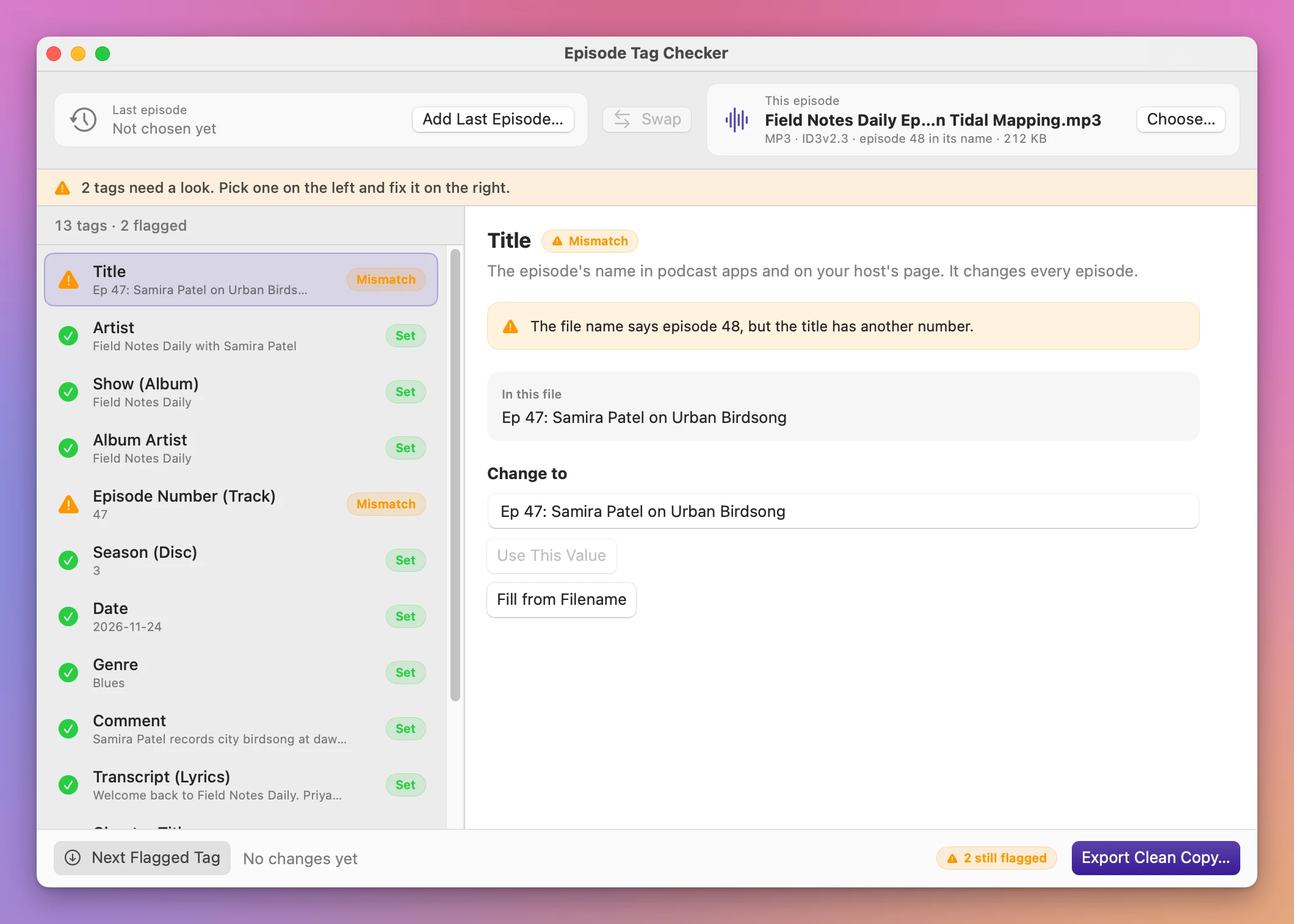
Fix it in the window
Each tag has a Change to field. Increment Episode Number sets the number to last week’s plus one. Fill from Filename takes the title and the number from the file’s name. Chapter titles each get their own field, with last week’s titles marked and segments like “Cold open” that come back every week marked Every episode.
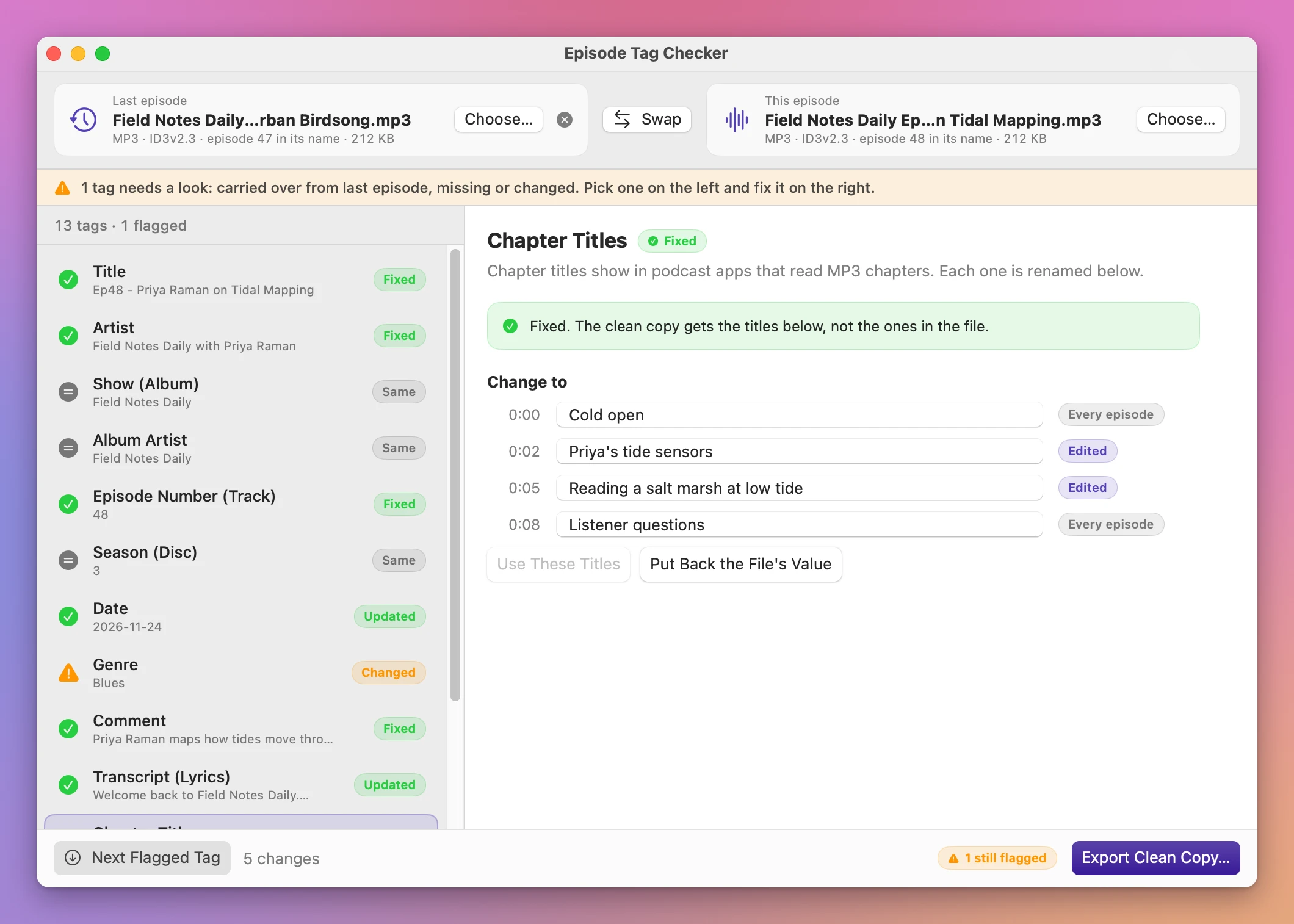
A clean copy and a receipt
Export Clean Copy… makes a new folder with three files:
- ”
- clean tags.mp3” : your episode with a new, clean tag. The audio is copied byte for byte, so nothing is re-encoded. The cover and the chapters are kept. The old ID3v1 tag that many editors leave at the end of the file, still carrying an older title, is left out. The copy is read back after saving, to check the tags and the audio. - Episode tag check.pdf: a receipt to print or send: every tag, last episode’s value, this file’s, what you changed, and a short checklist for the upload.
- Episode tag check.csv: the same as a spreadsheet.
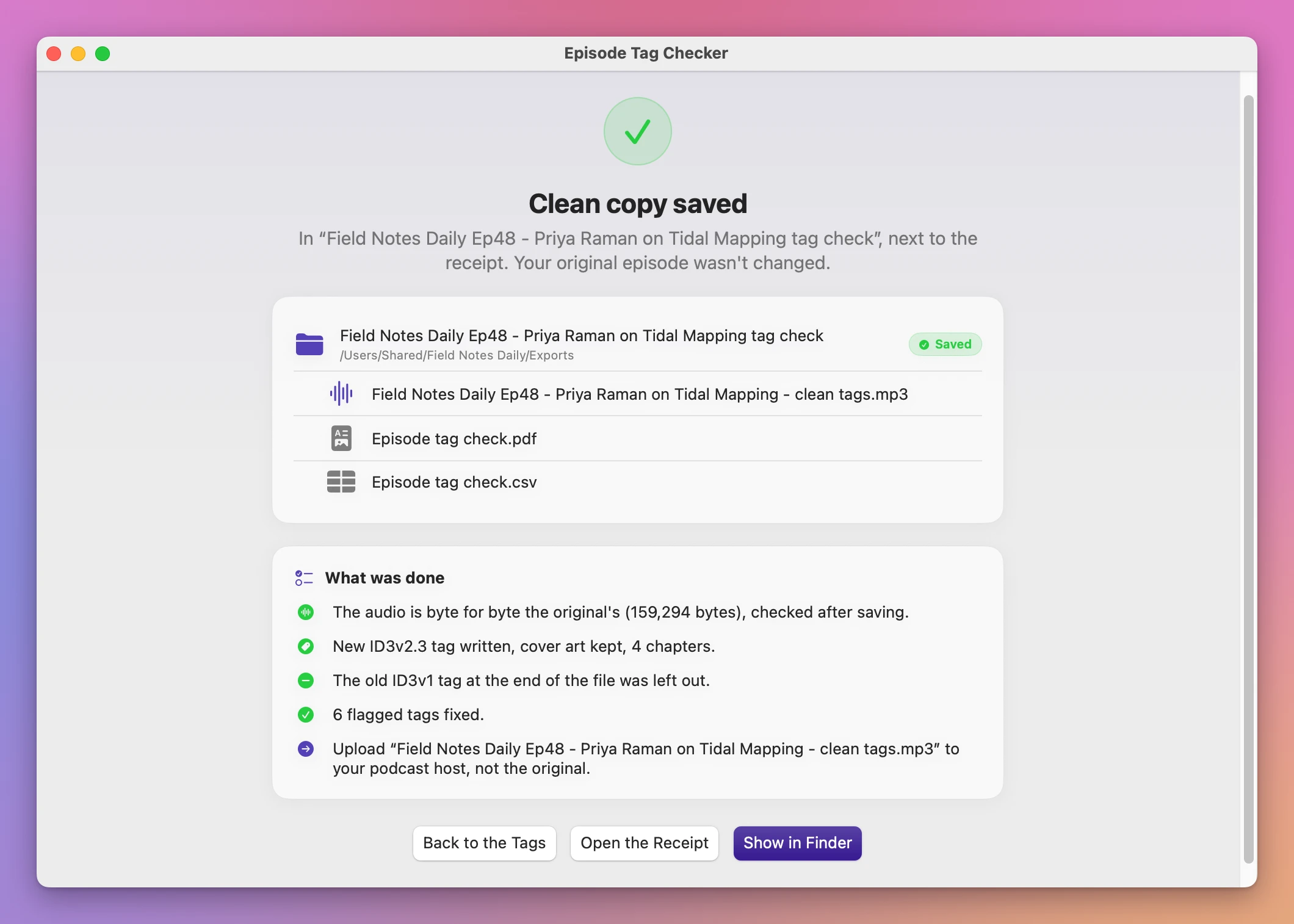
Why not do it by hand
The Music app on your Mac shows an MP3’s tags. Import the file, select it and press Command-I: the Details tab has the title, artist, album, track, disc, year, genre and comments. Do the same with last week’s episode and compare the two windows. For one episode that works.
You see one file at a time, so you compare by memory. Chapters and the ID3v1 tag at the end of the file aren’t shown. Both files go into your music library first, and a tag you change there is written into the file in the library, with no record of what it was.
A free tag editor like Kid3 shows every frame of the tag, chapters included, and edits them. It’s a good tool. It doesn’t know which tags should change every week, so you still compare the two episodes field by field yourself.
| Music app | A free tag editor | Episode Tag Checker | |
|---|---|---|---|
| Shows the title, number, comment | Yes | Yes | Yes |
| Shows chapters and the ID3v1 tag | No | Yes | Yes |
| Compares with last week’s episode | By memory | By eye | Every tag, side by side |
| Knows what should change each week | No | No | Yes, and flags it |
| Leaves the file you opened alone | No | No | Yes, it writes a copy |
| A receipt of what was checked | No | No | PDF and CSV |
What it doesn’t do
- It doesn’t upload anything or connect to your podcast host.
- It rewrites tags in MP3 files only. M4A files are checked the same way, and the export saves the receipt with your changes as a checklist to copy into your editor.
- It doesn’t change the audio: no loudness, trimming or re-encoding.
- It doesn’t edit the cover. It keeps the one in the file.
- It doesn’t open WAV, AIFF, FLAC or Ogg files. Export the episode as MP3 or M4A first.
Questions
Is my episode uploaded anywhere?
No. The app reads your episodes on your computer and writes the export folder where you choose. Nothing leaves the Mac. It connects to my update server only to check for new versions.
Does it change my original file?
No. The app only reads it. The clean copy goes in a new folder, and a second export goes in a second folder.
Will the clean copy work with my podcast host?
The copy is a standard MP3 with an ID3v2.3 tag, the version podcast apps and hosts read most widely. The audio is the same bytes as your original. Episode Tag Checker is not made by, affiliated with or endorsed by Apple or any podcast host or audio editor.
What does it need?
macOS 14 Sonoma or later, on an Apple silicon or Intel Mac.
Buy Episode Tag Checker
$19 plus tax where it applies, paid once. You get the app as a download, signed and notarized by Apple, and a license key for updates. The app opens and works without the key: it asks for it once, the first time it installs an update.