
Mac & Windows app by Flavio
Mic Bleed Checker
Open the mic tracks of an in-person podcast and see whose voice leaks into whose mic, how loud and how late. Hear the worst moments with and without the bleed, and save a report with markers for your editor.
Buy Mic Bleed Checker for Mac · $19Buy Mic Bleed Checker for Windows · $19Buy once, use forever. Up to 3 computers you own (license). Plus tax where it applies. Mac and Windows versions are sold separately.
macOS 14 or later (Apple silicon and Intel) · Windows 10 and Windows 11 (x64 and ARM64)
Latest Mac version 1.0.0, released November 29, 2026
Three people at one table, three mics. You put the episode together, and every time Hannah talks her voice sounds a bit hollow, like she’s in a box. Solo her track and she sounds fine.
The problem is Marco’s mic. It’s a condenser a metre and a half away, and it hears Hannah too, 4 milliseconds after her own mic does. With both tracks up, the two copies of her voice cancel each other at some frequencies, and that’s the hollow sound. The fix is old: turn Marco’s mic down whenever Hannah talks alone. The hard part is knowing which mic, when, and how much, across an hour of talking.
Mic Bleed Checker reads the tracks of one session and finds every moment where only one person talks. It measures that voice in every other mic, how loud and how late, and lists the moments where leaving a quiet mic up adds the most echo. Click one and hear it with every mic up, then with only the person talking, at the same loudness. Then save a report with markers for your editor, and copies with the idle mics turned down if you want them.
Watch a 30-second demo of Mic Bleed Checker:
Who it’s for
- Podcasters who record in one room. Two to four people around a table, each with a mic, recorded to separate tracks. You hear the hollowness but can’t tell which mic causes it.
- Editors who get the tracks from someone else. A client sends six WAV files from a recorder and wants the episode by Friday. Know in a minute which tracks need a gate before you start cutting.
- Hosts setting up a new room. You moved the table, swapped a dynamic mic for a condenser, or added a guest chair. Record ten minutes of talking and see if the bleed got better or worse, in numbers.
- Interviewers with a guest across the table. The guest’s voice is all over your mic. See how much, and get your track back with your mic turned down while they answer.
- Video podcasts with lav and boom mics. The boom above the host hears the guest’s lav. Same problem, same check.
How it works
- Click Choose Mic Tracks… and pick the tracks of one session, 2 to 6 recorded at the same time. WAV, AIFF, M4A, MP3, FLAC and CAF all work. Or click Try Example Room Tracks to see it on a made-up session first.
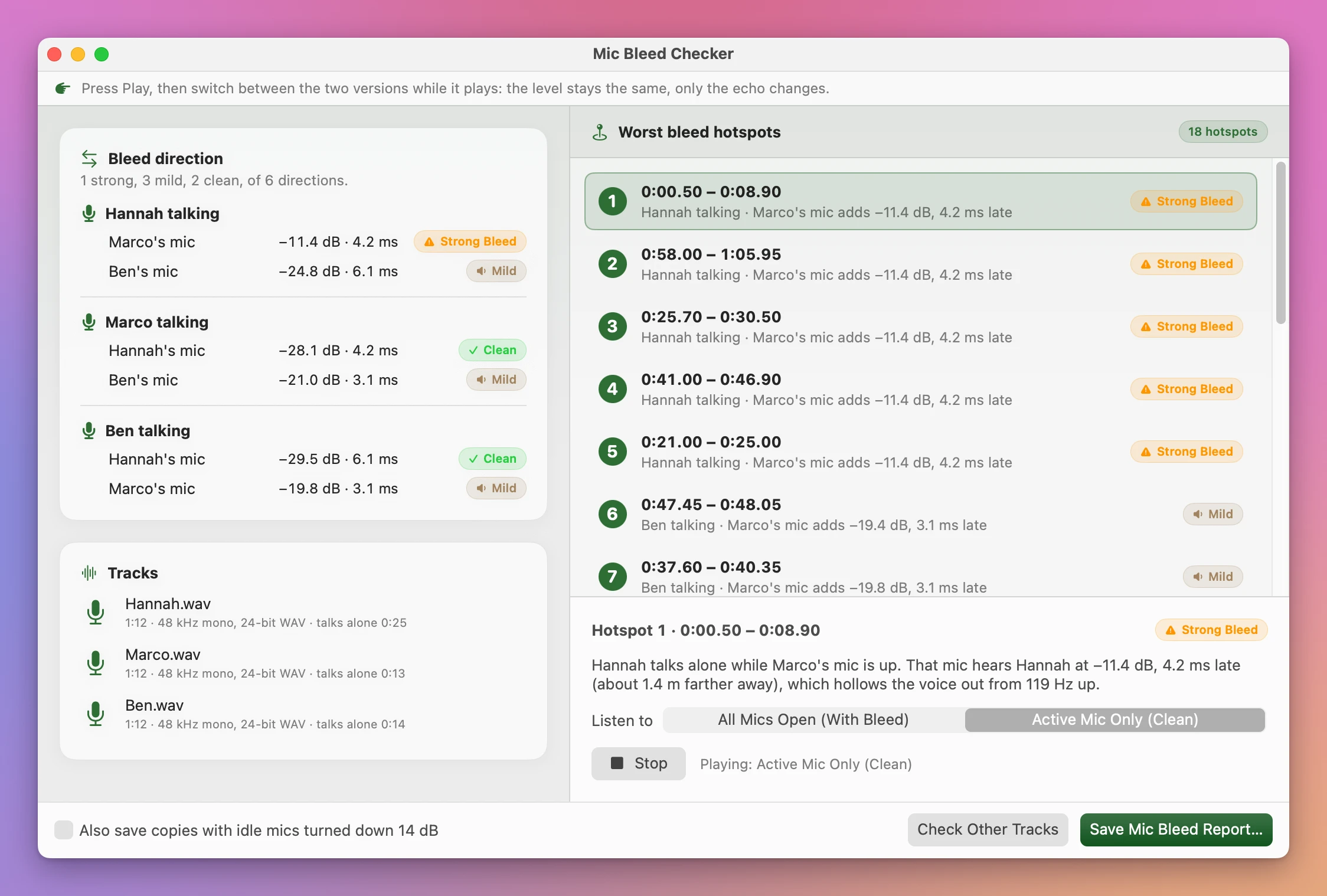
- Read Bleed direction: each talker, each other mic, the level in decibels, the delay in milliseconds, and Strong Bleed, Mild or Clean.
- Click a hotspot in Worst bleed hotspots and press Play. Switch between All Mics Open (With Bleed) and Active Mic Only (Clean) while it plays.
- Tick Also save copies with idle mics turned down 14 dB if you want them, and click Save Mic Bleed Report….
What you get
Who leaks into whose mic
Bleed goes in a direction. Hannah can be all over Marco’s mic while Marco barely reaches hers, because his mic is more sensitive or pointed her way. So the app lists every pair both ways: Hannah into Marco’s mic, Marco into Hannah’s, and so on. For each, how loud the voice is compared with the talker’s own mic, and how late it arrives.
The labels follow the level. Strong Bleed is −18 dB or louder, where the doubling is easy to hear. Mild goes down to −27 dB, where a gentle expander is enough. Below that it’s Clean.
The delay tells you how far apart the mics are from the talker: 4.2 ms is about 1.4 metres. It also tells you where the hollowness sits. With a 4.2 ms delay, the late copy cancels 119 Hz and every 238 Hz above it.
The worst moments, with times
Each hotspot is a stretch where one person talks alone and another mic, left up, adds that person’s voice late. They’re listed worst first, with the start and end time, so you know where to go in your edit.
Hear the difference before you change anything
Click a hotspot and press Play. The app plays it on repeat, and you switch between every mic up and only the person talking while it plays. The clean version is turned up to the same loudness as the full mix, so you’re comparing the echo, not the volume.
A report, markers and cleaned copies
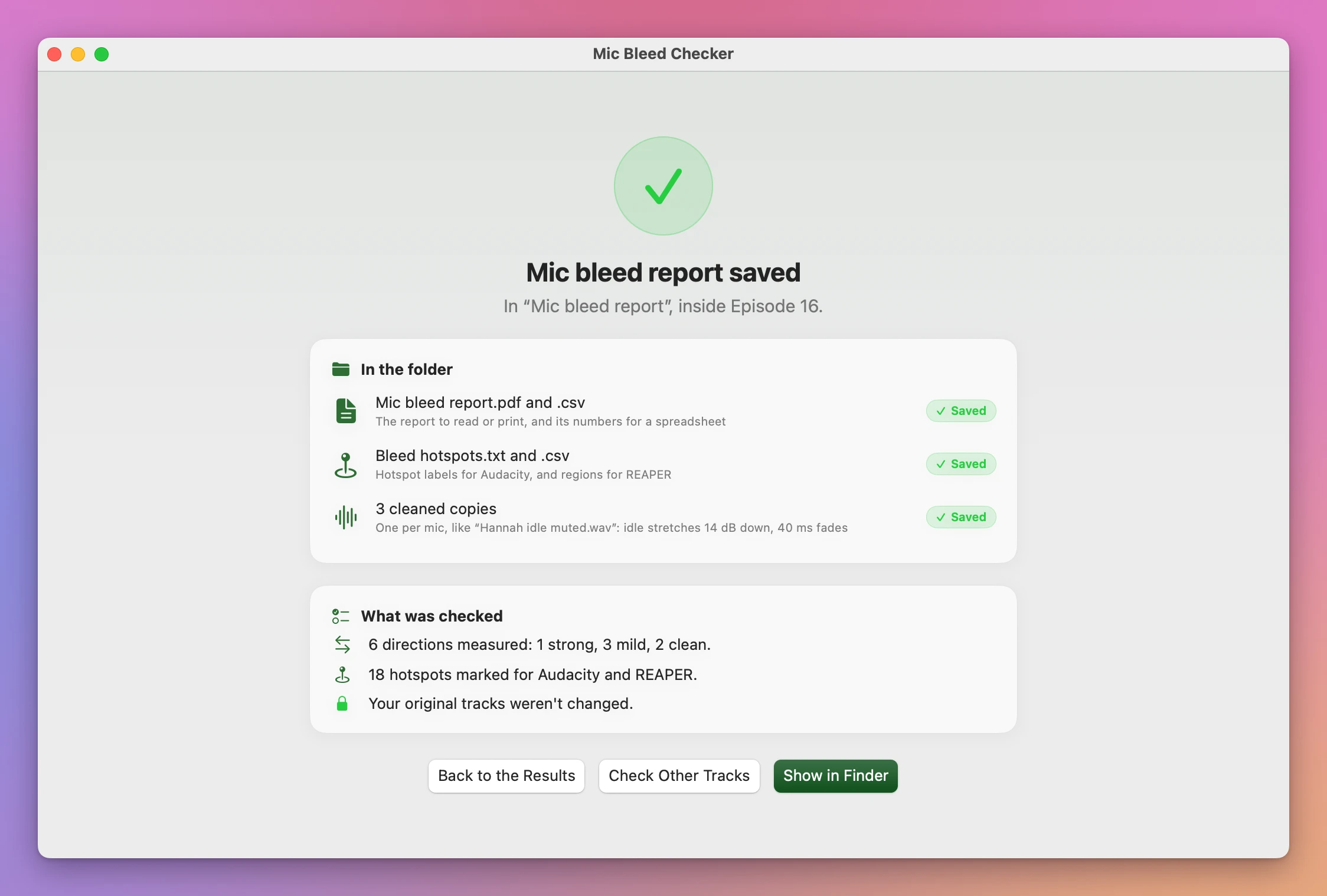
Save Mic Bleed Report… makes a new folder with:
- a PDF with the matrix, what each delay does to the sound, what to do in your editor, and the hotspot list
- a CSV with the same numbers
- Bleed hotspots.txt, a label track for Audacity
- Bleed hotspots.csv, regions for REAPER’s Region/Marker Manager
- if you tick the box, a copy of every track turned down 14 dB while only somebody else talks, with 40 ms fades so nothing clicks
Your original tracks are never changed.
When every mic stays clean, the app says so, and you can leave all the tracks up.
Why not do it by hand
You can find bleed by ear in any editor. Import the tracks, solo one, and listen for the other voices. Mute the quiet mic while someone else talks and listen again. GarageBand, Audacity and REAPER all do that.
What’s slow is everything around it. Your ears tell you there’s bleed, not how much, so you can’t tell a mic that needs a hard gate from one that needs nothing. Finding the delay means zooming into the waveforms until you can count samples between the same peak in two tracks. And an hour-long episode has hundreds of moments where one person talks, which you’d have to find and listen to one by one before deciding where to mute.
| Listening in your editor | Mic Bleed Checker | |
|---|---|---|
| Which mic hears whom | By ear, one pair at a time | Every pair, both ways |
| How loud the bleed is | A guess | Decibels, labelled Strong, Mild or Clean |
| How late it arrives | Count samples zoomed in | Milliseconds, and the distance |
| Where it matters most | Listen through the episode | Hotspots ranked, with times |
| With and without, same loudness | Mute and rebalance by hand | One switch |
| Markers for your edit | Place them yourself | Audacity labels and REAPER regions |
| Idle mics turned down | Gate or cut each stretch | Cleaned copies, optional |
What it doesn’t do
- It doesn’t line up tracks. The tracks must start at the same moment, like the ones a multitrack recorder or your editor exports. Tracks from separate devices need lining up first.
- It doesn’t edit your session. It tells you where and how much. The muting happens in your editor, or in the cleaned copies.
- It doesn’t separate people talking at the same time. Only moments where one person talks alone are measured and turned down, so laughs and answers are never cut.
- It doesn’t remove room echo or noise from a single track.
- Up to 6 tracks, each up to 4 hours long.
Questions
Are my recordings uploaded anywhere?
No. Everything happens on your Mac. The app connects to the internet only to check for updates.
Does it change my tracks?
No. It only reads them. The report and the cleaned copies are new files in a new folder you choose.
Does it work with one track that has everyone on it?
No. Bleed is measured between mics, so it needs one track per mic, recorded at the same time.
Will it run on my Mac?
Mic Bleed Checker runs on macOS 14 Sonoma or later, on Apple silicon and Intel Macs. It asks for no permissions.
Mic Bleed Checker isn’t made by, affiliated with or endorsed by Apple, Audacity, Cockos (REAPER) or any maker of microphones, recorders or audio editors.
Buy Mic Bleed Checker
$19 plus tax where it applies, paid once.
Download the app from the order page or your Creem receipt, unzip it and move it to Applications. I sign the app with my Apple Developer ID, and Apple notarizes the download.
The app checks for updates once a day. When a new version is ready, click Install and Relaunch. The first time, it asks for the license key from your purchase email. To check anytime, choose Mic Bleed Checker → Check for Updates….