
Mac & Windows app by Flavio
Encoded Peak Checker
Compare your master WAV with the MP3 or M4A you upload. See the true peak of both, every spot where encoding pushed a peak over your ceiling, and the limiter ceiling that keeps the upload under −1 dBTP.
Buy Encoded Peak Checker for Mac · $19Buy Encoded Peak Checker for Windows · $19Buy once, use forever. Up to 3 computers you own (license). Plus tax where it applies. Mac and Windows versions are sold separately.
macOS 14 or later (Apple silicon and Intel) · Windows 10 and Windows 11 (x64 and ARM64)
Latest Mac version 1.0.0, released November 29, 2026
You finish episode 63. The limiter is set to −1.0 dBTP, the meter agrees, and you export the WAV. Then you convert it to a 128 kbps MP3 and upload it. A week later the host’s loudness check says the file peaks at +0.4 dBTP, and a listener writes that the laugh at minute 9 crackles.
Nothing was wrong with the master. The MP3 encoder throws away the parts of the sound you’re least likely to hear, and what’s left is a slightly different waveform. Its peaks land in different places, often higher, and the loudest moments of a hard-limited master go over the ceiling.
By hand, you’d open both files in an audio editor, hunt for the loud moments and compare the numbers one at a time. Most free tools show the sample peak, not the true peak between samples, so they read lower than what the host measures.
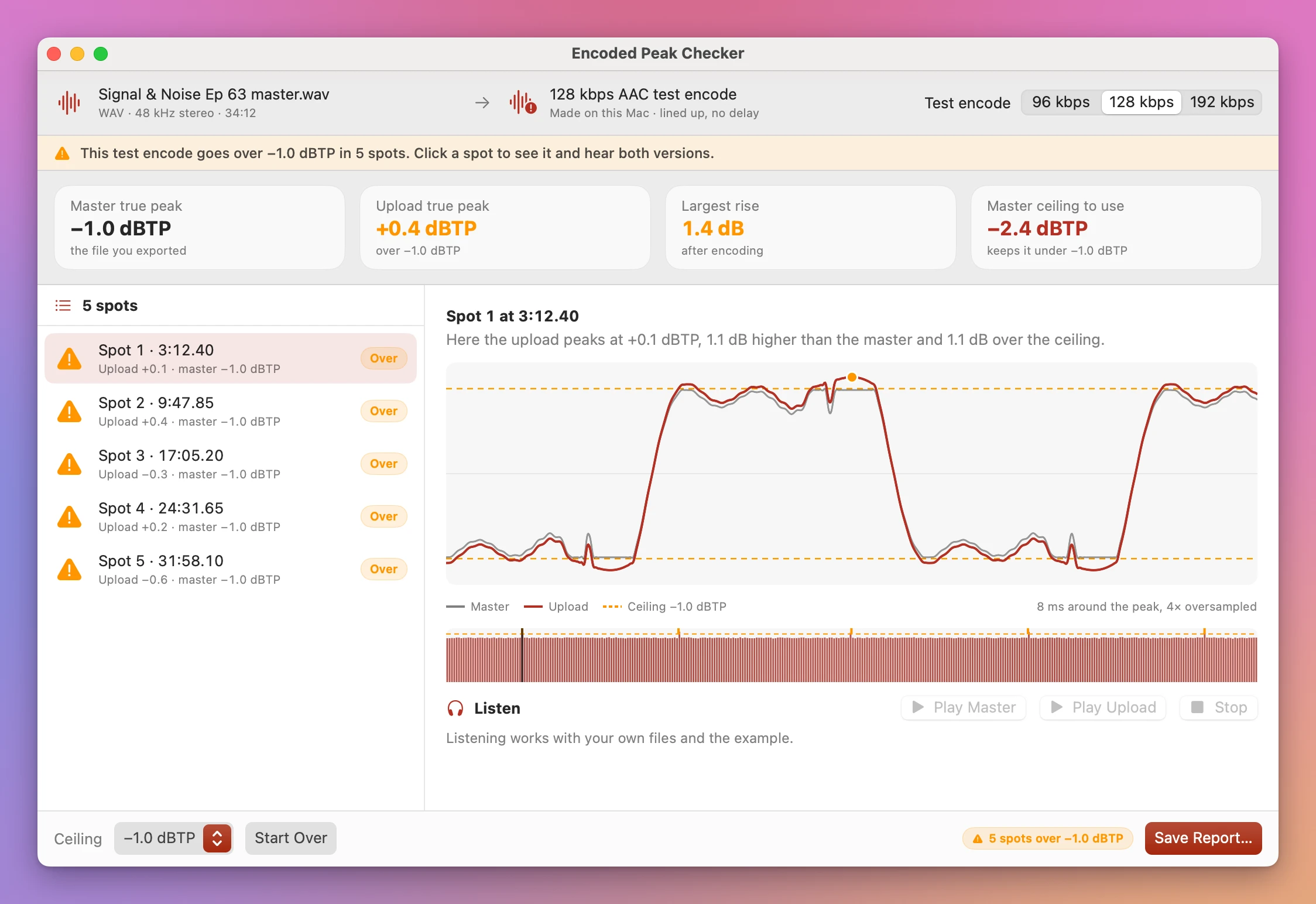
Encoded Peak Checker does the comparison for you. Choose the master and the upload. It measures the true peak of both, lines them up, and lists every spot where the upload went higher, with the limiter ceiling to use so the next upload stays under your target.
Watch a 30-second demo of Encoded Peak Checker:
Who it’s for
- Podcasters who upload MP3s. Your host asks for −1 dBTP, or −2 for some distributors, and the 128 kbps MP3 keeps failing the check by a fraction of a dB. You see exactly which five moments went over and how much lower to set the limiter.
- Audiobook and course narrators. A platform rejects a chapter for its peaks after you’ve exported a clean master. Check the file you actually submitted, not the one in your editor.
- Editors who deliver for clients. Send the PDF report with the episode: master at −1.0 dBTP, upload at −1.1 dBTP, no spots over. It answers the question before the client asks it.
- Musicians posting demos and mixes as MP3. A loud master that looked safe crackles in the 128 kbps version. Listen to both at the same moment and decide whether to lower the ceiling or raise the bit rate.
- Anyone choosing a bit rate. Drop the master alone and the app makes test encodes at 96, 128 and 192 kbps, so you see how much each one rises before you pick.
From two files to a fix
- Click Choose Master & Upload… and pick your master WAV or AIFF and the MP3, M4A or AAC made from it. Hold ⌘ to pick both, or drag them onto the window.
- Read the four numbers at the top: Master true peak, Upload true peak, Largest rise and Master ceiling to use.
- Pick your ceiling at the bottom: −1.0, −1.5 or 0.0 dBTP, or Custom. The spots update at once.
- Click a spot to see both waveforms around it, then Play Master and Play Upload to hear the difference.
- Click Save Report… and pick a folder.
Not ready to try your own files? Click Try Example Master & Upload. The app makes a one-minute example episode on your computer, encodes it at 128 kbps for real, and opens the comparison.
What you get
The true peak of both files
The app measures the true peak with 4× oversampling, the way broadcast and podcast loudness standards (ITU-R BS.1770-4) ask for it. That’s the peak of the actual sound wave between the samples, which is what a host’s check and a listener’s player meet, and it’s higher than the sample peak most editors show.
The two files lined up
MP3 and AAC encoders add a short silence at the start, and some apps keep it when they decode the file. The app finds that offset on its own by comparing the sound of both files, so each spot compares the same moment. If the upload was made from another master, it says so instead of showing numbers that mean nothing.
Every spot, drawn and playable
A spot is a moment where the upload goes over your ceiling, or peaks at least 0.3 dB higher than the master close to it. For each one you see the time, both peaks, and both waveforms over each other, 4× oversampled, with the ceiling as a dashed line. Play Master and Play Upload play 3 seconds around it. Switch while it plays and the other file carries on from the same moment.
The ceiling to use next time
Master ceiling to use is your ceiling minus the largest rise, rounded down. If the upload rose 1.4 dB and your target is −1.0 dBTP, set the limiter to −2.4 dBTP, export, encode again and check the new upload.
Test encodes at three bit rates
Choose only the master and the app makes AAC encodes at 96, 128 and 192 kbps with the encoder built into macOS, then checks each one. Switch between them at the top of the window. Lower bit rates usually rise more.
A report folder
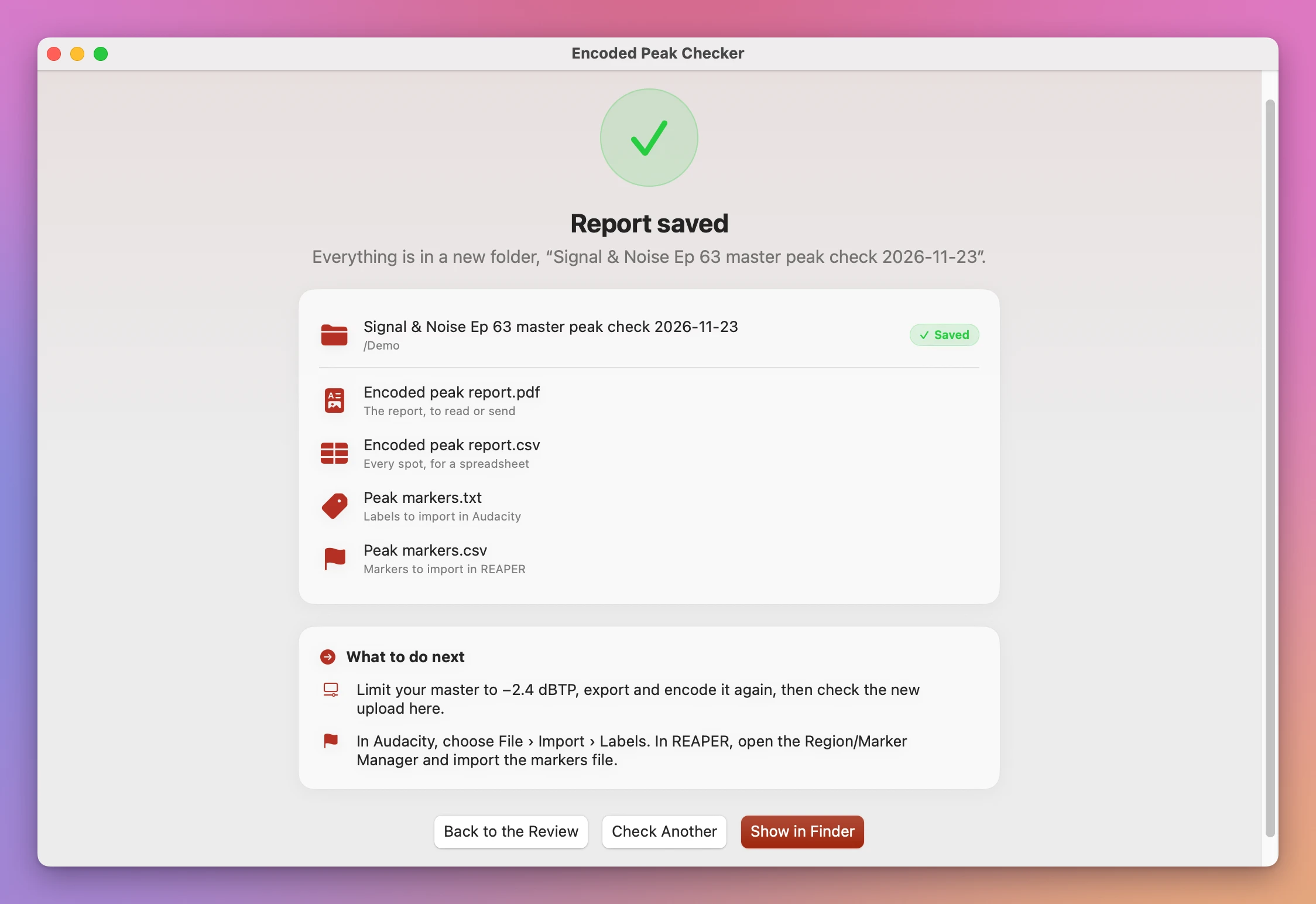
Save Report… makes a new folder next to wherever you choose, and never writes over anything:
- Encoded peak report.pdf: the verdict, the numbers, a strip of the upload’s peaks over time and every spot.
- Encoded peak report.csv: every spot with its time and peaks, for a spreadsheet.
- Peak markers.txt: labels for Audacity, imported with File › Import › Labels.
- Peak markers.csv: markers for REAPER, imported in the Region/Marker Manager.
Why not do it by hand
You can get part of the way with free tools.
An audio editor like Audacity opens both files. Select all, open Effect › Amplify, and the dialog shows how far the peak is from 0 dB. Do it for the master and the upload, and you see whether the upload got louder. But that’s the sample peak of the whole file. It doesn’t tell you the true peak, where the rise happened or how many times, and you compare one number per file.
A free loudness meter plug-in can show the true peak of a file you play through it. You’d still play each file end to end, note the maximum, and you’d still not know where the overs are or how the two files line up.
A rule of thumb, like “leave 2 dB for MP3s”, works until it doesn’t. A hard-limited spoken master with loud laughs can rise more than that at 96 kbps, and a gentle one rises less, so you give away loudness you didn’t need to.
| An editor’s Amplify dialog | A loudness meter plug-in | Encoded Peak Checker | |
|---|---|---|---|
| True peak (4× oversampled) | No, sample peak | Yes | Yes |
| Compares master and upload | One file at a time | One file at a time | Both, lined up |
| Where the overs are | No | While you listen | Every spot, with times |
| Hear both at the same moment | By hand | No | Play Master / Play Upload |
| Ceiling to use next time | Work it out | Work it out | Shown |
| Test encodes at 96, 128, 192 kbps | Export each by hand | No | One click |
| Markers for Audacity and REAPER | No | No | Yes |
What it doesn’t do
- It doesn’t change your files. It reads them and saves a report next to them, never a fixed master.
- It doesn’t limit or re-encode your master for you. It tells you the ceiling to set in your own limiter.
- It doesn’t measure loudness in LUFS. For that, see Video Loudness Checker.
- It compares a master in WAV or AIFF with an upload in MP3, M4A or AAC. Not FLAC, Ogg or Opus, and not video files.
- Test encodes are AAC, made with the encoder in macOS. To test MP3 at a given bit rate, encode it yourself and choose it with the master.
- It checks a file, not what a streaming service does to it after upload.
Questions
Is anything uploaded?
No. Your audio is measured on your Mac. The only connection the app makes is to check for updates.
Does it work with a long episode?
Yes. A two-hour episode is read in chunks, so memory stays low. The time it takes depends on the length and your computer; the one-minute example takes about a second.
What if my upload starts a little later than the master?
That’s normal for MP3 and AAC. The app lines them up by sound before comparing, and shows the offset under the upload’s name, like “lined up, 23 ms later”.
Does it need any permission?
No. It reads only the files you choose or drop on its window. The example lives in the app’s own folder.
Encoded Peak Checker isn’t made by, affiliated with or endorsed by Apple, Muse Group or Cockos. Audacity and REAPER are named only to say which apps the markers open in.
Buy Encoded Peak Checker
$19 plus tax where it applies, paid once. You get the Mac app for macOS 14 Sonoma or later, on Apple silicon and Intel Macs, signed and notarized by Apple. Updates are included: the app checks once a day, and asks for the license key from your receipt the first time it installs one.