
An app by Flavio
Exporter for Apple Photos
Copy your photos and videos out of Photos on your Mac into plain folders, one per album, each file dated the day it was taken. For leaving iCloud, or a USB drive for a relative with a Windows PC.
Buy Exporter for Apple Photos · $20One-time purchase. Tax included.
macOS 14 or later · Apple silicon and Intel
You’re leaving iCloud and want your photos somewhere you control. Or your dad asked for the family photos on a USB stick, and he has a Windows PC.
Photos can export what you select into a folder. But your albums are gone, every file sits in one pile, and the HEIC photos don’t open on his PC. You spend an evening making folders by hand.
$20 including tax, paid once.
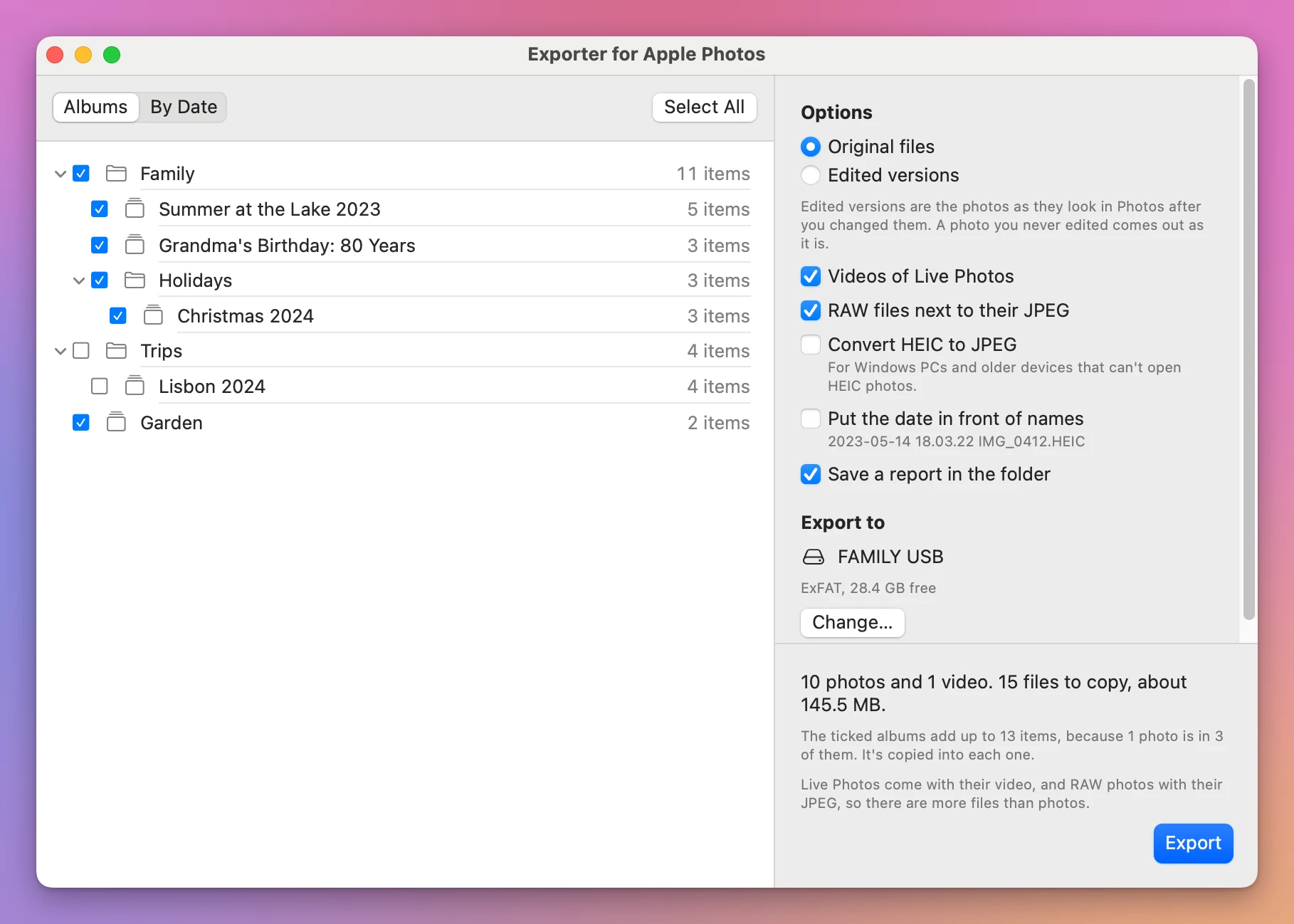
Exporter for Apple Photos is a Mac app that copies your photos and videos out of Photos into ordinary folders. One folder per album, inside folders named like your Photos folders. Each file keeps its original name, and its dates are set to the day the photo was taken, so it sorts right on any computer.
How it works
- Click Choose Albums…. Your Mac asks if the app can see your photos. Click Allow.
- Tick the albums you want. Ticking a folder ticks every album in it.
- Click Choose Folder… and pick a folder, or a USB drive. The window says how much space the export needs and how much the drive has, before anything is copied.
- Click Export.
You get this on the drive:
FAMILY USB
  Family
    Summer at the Lake 2023
      IMG_0412.HEIC
      IMG_0412.MOV
      IMG_0412 (2).HEIC
    Grandma's Birthday- 80 Years
      ...
  Garden
    IMG_3001.JPG
  Export Report 2026-11-14 18.03.22.txt
A photo in three albums is copied into all three folders. Two photos with the same name in one album become IMG_0412.HEIC and IMG_0412 (2).HEIC, and a Live Photo’s video keeps its photo’s number.
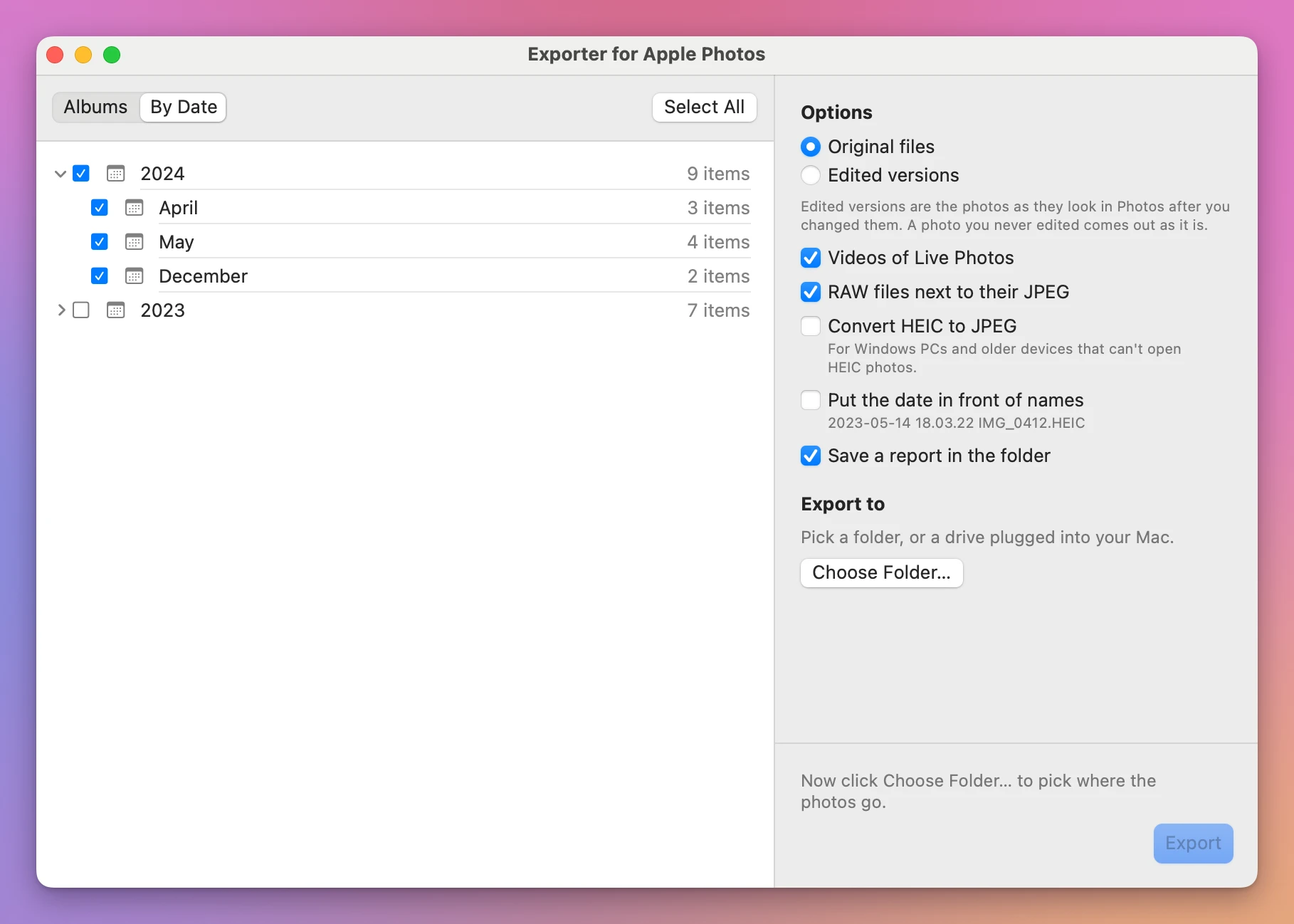
The whole library, by year and month
If you never made albums, click By Date and tick years, or single months. You get a folder per year with a folder per month inside: 2024/05/IMG_2001.HEIC.
For a Windows PC or a USB drive
- Convert HEIC to JPEG saves HEIC photos as JPEG, which every PC opens. The date taken and the camera details inside the photo stay.
- Put the date in front of names turns
IMG_0412.HEICinto2023-05-14 18.03.22 IMG_0412.HEIC, so the files sort by date in any folder. - Names are cleaned so Windows takes them: a
:or a?in an album’s name is replaced, and very long names are shortened. - No hidden
._files next to your photos on the drive, the ones a Mac usually leaves on drives formatted for Windows. - A drive formatted as FAT32 can’t hold a file of 4 GB or more. Those videos are listed before the export starts, and skipped.
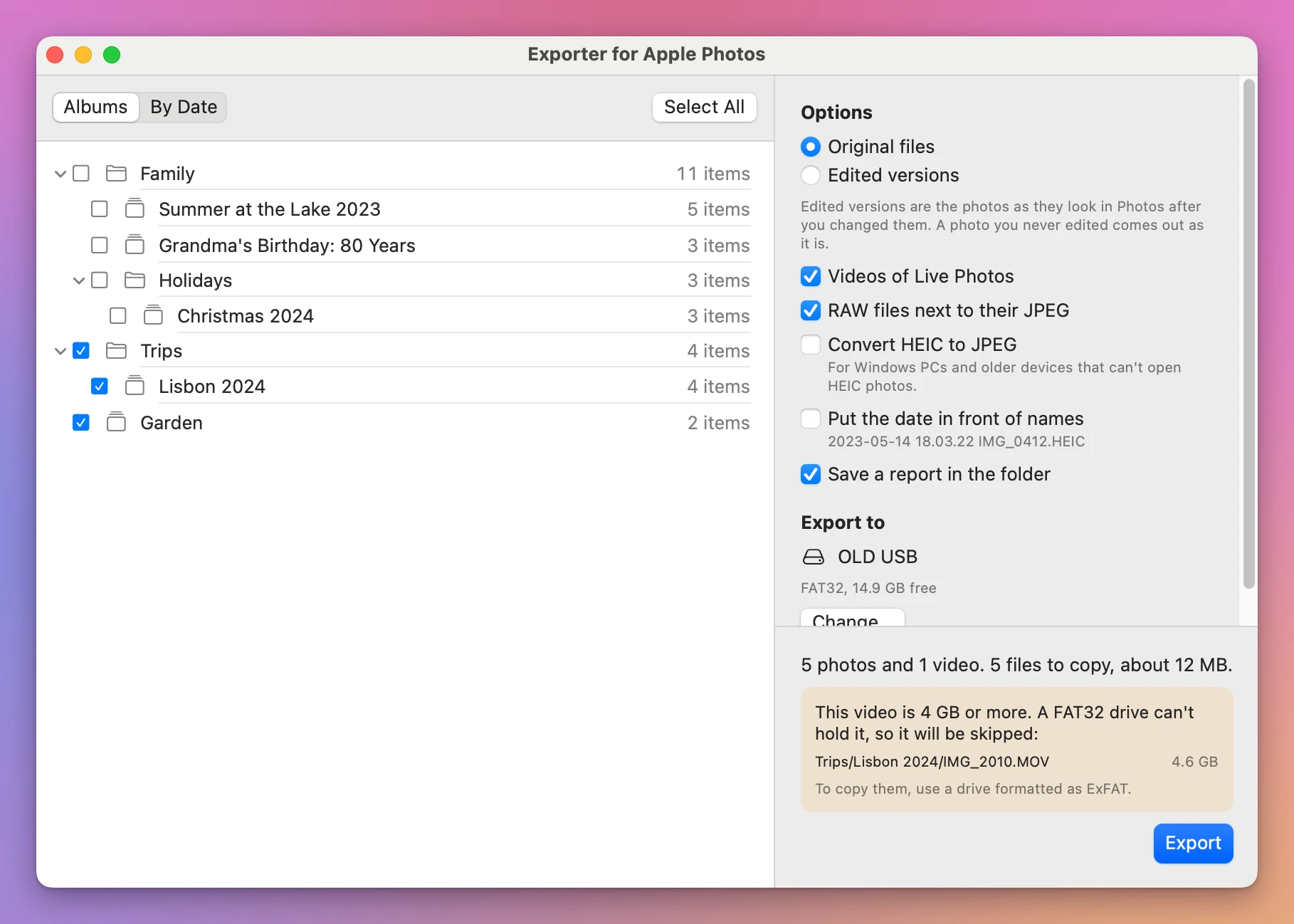
The other options: Original files or Edited versions (the photo as it looks after you edited it in Photos), Videos of Live Photos, and RAW files next to their JPEG.
Run it again, it copies only what’s new
Run the same export a month later and only the new photos are copied. A file counts as there when it has the same name and size. Click Stop in the middle of a big export and run it again later: it goes on where it was.
The app never replaces a file. If a different file already has a photo’s name, the photo is saved next to it with a number.
An honest report
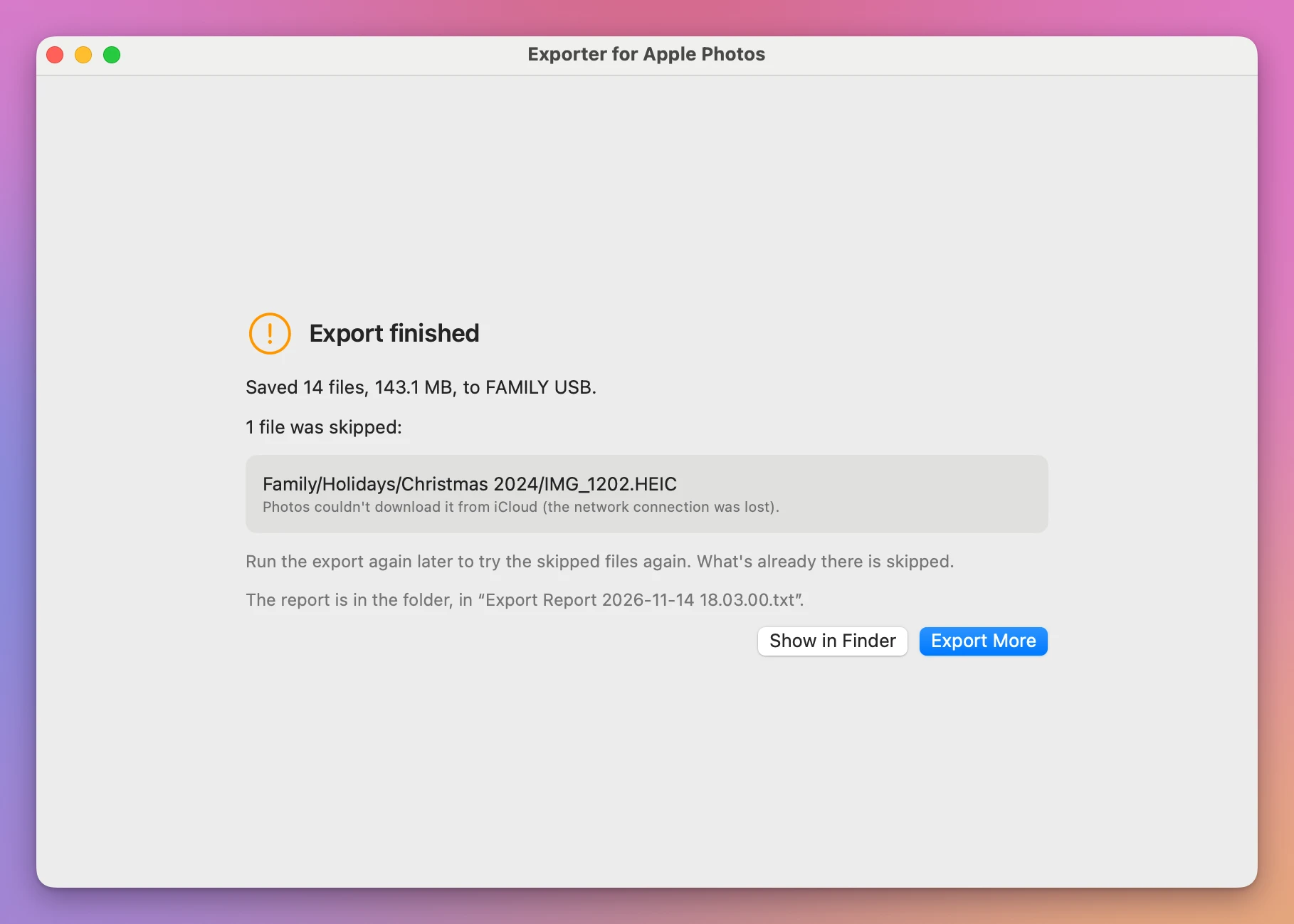
Every export ends with what was saved, what was already there, and what was skipped and why, in plain words. A file counts as saved only once it’s on the drive and was read back. The same report is saved in the folder as a text file, unless you untick Save a report in the folder.
What it doesn’t do
I tested the app on a Photos library of photos and videos I made for the purpose. Live Photos, RAW and JPEG pairs and photos only in iCloud were never run on a real library. Here’s what the app does with each. A Live Photo is saved as its photo plus its short video, with the same name. For a RAW and JPEG pair, both files are saved, side by side. A photo that’s only in iCloud is downloaded through Photos first, and one that can’t be downloaded is skipped and the export goes on. Whatever it couldn’t copy, the report names it and says why.
- Smart albums like Favorites, and shared albums, aren’t listed. Your own albums and folders are, and By Date covers the whole library.
- A FAT32 drive can’t take a file of 4 GB or more. Use a drive formatted as ExFAT for long videos.
- The first HEIC to JPEG conversion can take a moment to start.
- A drive formatted as NTFS can’t be written by a Mac. The window says so before you export.
- It never changes, moves or deletes anything in Photos. It only reads.
Good to know
Exporter for Apple Photos is my own app. It’s not made by, affiliated with or endorsed by Apple.
Nothing leaves your Mac. The app reads the photos you tick and writes them only to the folder you pick. When a photo is in iCloud, Photos itself downloads it.
The first time you click Choose Albums…, macOS asks if the app can access your photo library. It doesn’t ask before that click. If you said no, the window has a button that opens the right place in System Settings.
Buy Exporter for Apple Photos and get started
Exporter for Apple Photos costs $20 including tax, paid once. There’s no subscription.
After buying, your receipt has the app and a license key. Unzip the app and drag Exporter for Apple Photos to your Applications folder. It runs on macOS 14 Sonoma or later, on Apple silicon and Intel Macs. It’s signed with my Apple Developer ID and checked by Apple, so it opens like any other app you download.
Enter the license key in Exporter for Apple Photos → License… to get updates automatically. A key works on 3 Macs. Once a day, the app checks for a new version, shows what’s new, and installs it with Install and Relaunch. Your receipt always has the latest version, too.