
An app by Flavio
Footage Ferry
Import Blackmagic Camera clips from your iPhone to your Windows PC over USB. Preview videos, verify every copy and choose when to delete the originals.
Buy Footage Ferry · $20One-time purchase. Tax included. Full source code.
Windows 10 and Windows 11 · Intel, AMD and Arm PCs
$20 including tax, one-time purchase. Full MIT source included.
Footage Ferry is a Windows app that copies the videos you record with Blackmagic Camera on your iPhone to your PC. Plug in the iPhone with a USB cable, see every clip with a thumbnail, play the ones you’re not sure about, and import all of them or just a few.
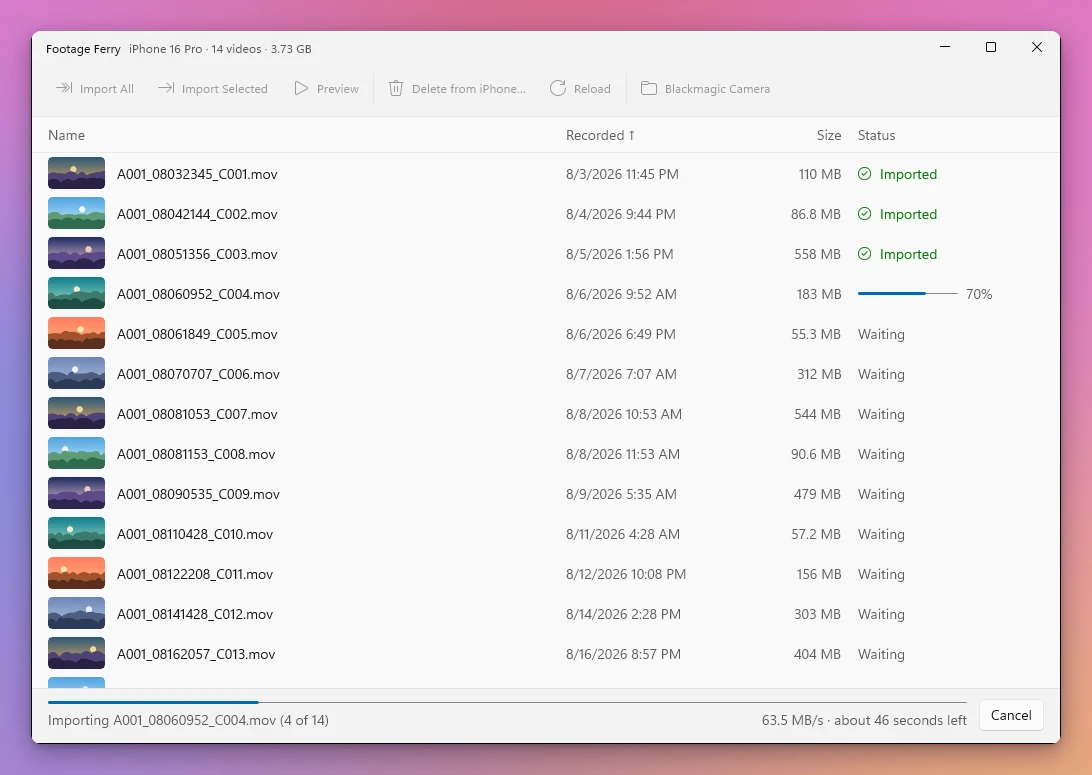
I shoot with Blackmagic Camera on my iPhone 16 Pro. In theory it can save each clip straight to the iPhone’s photo library, but that setting never worked for me, so my clips stayed in Blackmagic Camera’s own library.
The clips are huge, and getting them out of there kept putting me in a weird situation. When I saved them to my photo library by hand or exported them, nothing told me when the export had finished, and the iPhone would lock itself in the middle of it. Then I didn’t know whether the videos had made it or not.
I built Footage Ferry for the Mac first, to know for sure. This is the same app for Windows 10 and Windows 11, written again in C#. It shows every clip and how far along its copy is, and a clip only counts as imported once the copy on the PC matches the one on the iPhone.
Checked byte for byte
Every clip is copied into a temporary file first, and flushed to disk. Then the app reads the file back from the disk, with the cache turned off, and computes its SHA-1 hash.
The iPhone computes a hash too. The file protocol Apple’s own software uses to talk to an iPhone has an operation that asks the iPhone for the SHA-1 of a file, computed from its own storage. It takes about a second per gigabyte, so the check doesn’t need a second download. The copy gets the clip’s real name and its recording date only when the two hashes match. Otherwise it’s thrown away.
When the import is done, the app asks whether to delete the clips from the iPhone. Keep on iPhone is the default button, so pressing Enter never deletes anything. If you click Delete from iPhone, the app runs the whole check again, right before it deletes each clip: the copy has to still be there, have the same size as the iPhone’s file, and the same hash. If anything doesn’t match, that clip stays on the iPhone and a message tells you why.
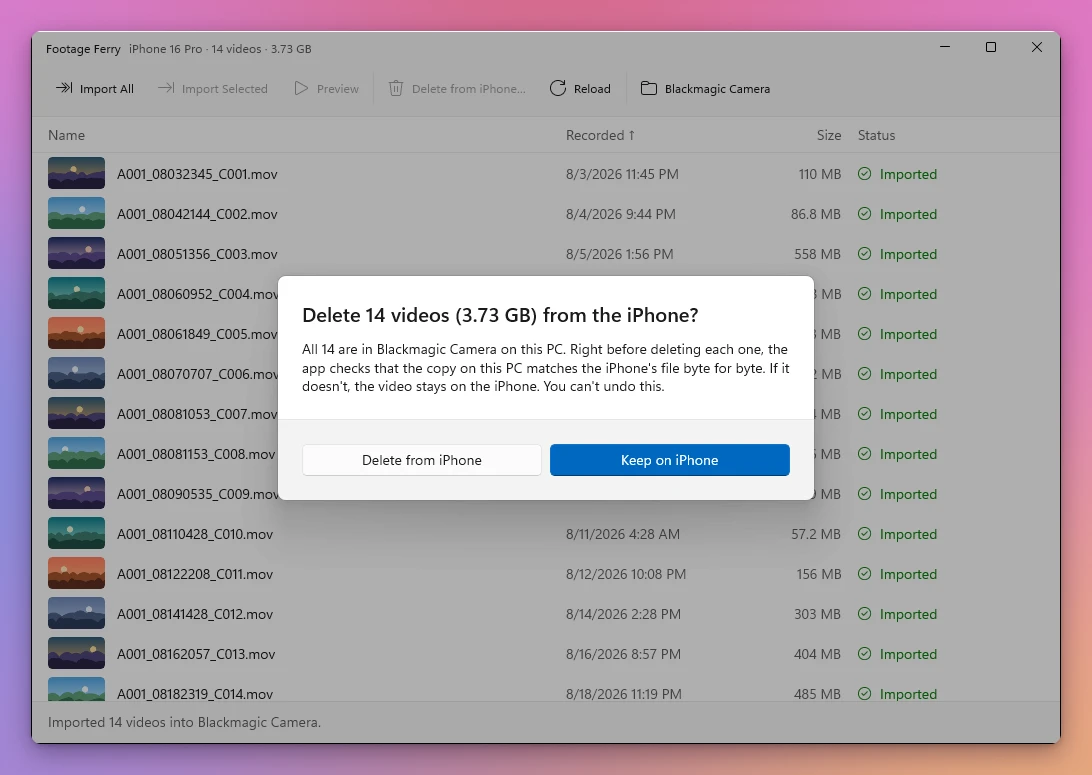
It never overwrites a file either. Clips already in the folder are checked instead of copied again, and if a different file has the same name, the copy gets a new name, like A001_02211024_C001 (2).mov.
Preview before you copy
Click a column to sort by name, recording date or size. Select a clip and press Space, or double-click it, and it plays straight from the iPhone. Nothing is saved to the PC while you watch.
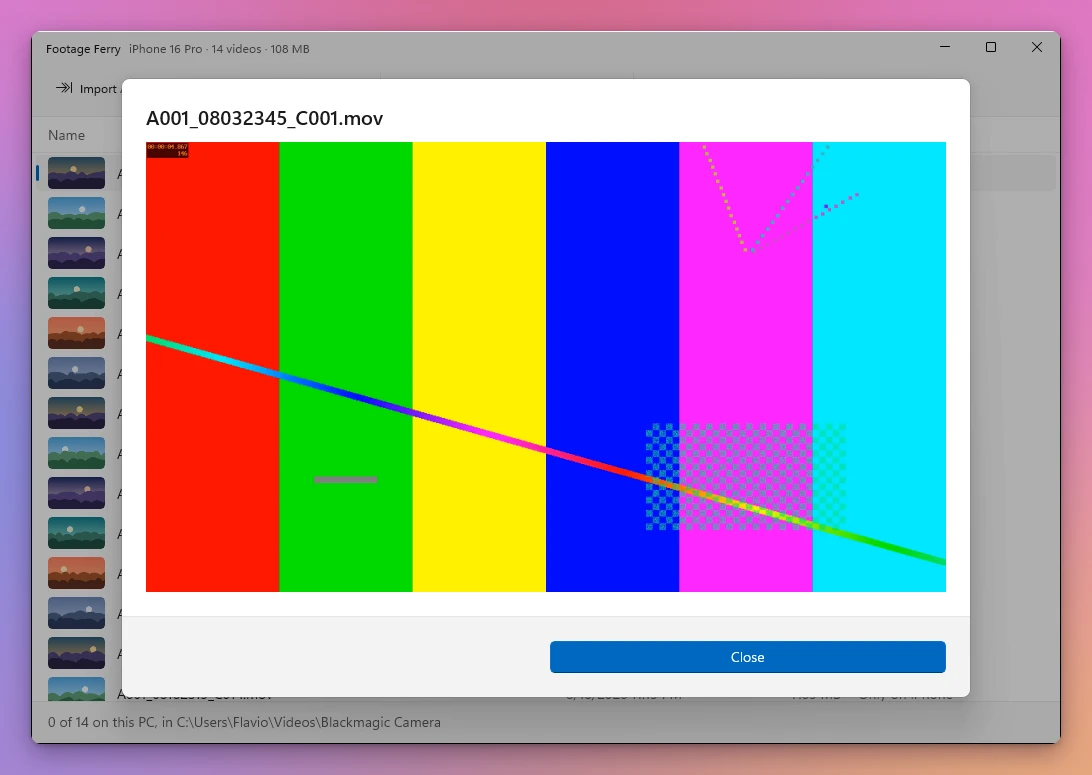
Windows’ video player asks for pieces of a video, a byte range at a time, and the app reads just those ranges from the iPhone. Blackmagic Camera writes each clip’s index at the end of the file, so a thumbnail reads a few megabytes of a clip, not all of it. The thumbnails are cached on the PC, so the list fills in instantly the next time.
Thumbnails and previews use the video decoders Windows has, so they depend on how you record:
| Clips recorded in | Thumbnail and preview | Import and check |
|---|---|---|
| H.264 | Yes | Yes |
| H.265 | With the HEVC Video Extensions from the Microsoft Store | Yes |
| ProRes | No | Yes |
What you need
- A PC with Windows 10 or Windows 11. There’s a build for Intel and AMD PCs, and one for Arm PCs.
- Apple Devices from the Microsoft Store, opened once. iTunes works too.
- An iPhone with Blackmagic Camera, keeping its clips in its own storage. Clips it saved to Photos or to an external drive don’t show up.
- A USB cable. Wi-Fi isn’t used.
If Apple Devices isn’t running, Footage Ferry says so and offers to open it. If it isn’t installed, the button takes you to its page in the Microsoft Store.
How it works
Apple Devices and iTunes install a small program, Apple Mobile Device Service, that finds iPhones on USB and lets other apps talk to them through a local port. Footage Ferry connects to it, starts an encrypted session with the iPhone using the trust your PC already has, and opens Blackmagic Camera’s Documents folder, the same folder the Files app shows under On My iPhone.
From there it talks AFC, the iPhone’s file protocol, on its own. That’s what gives it the hash operation and the byte ranges for previews.
Apple doesn’t document any of this, so an update to iOS or to Apple Devices could break the app.
How it compares to the Mac app
The two apps do the same job, with the same checks. A few things are different:
| Mac | Windows | |
|---|---|---|
| Runs on | macOS 14 or later | Windows 10 and Windows 11 |
| Reaches the iPhone through | macOS | Apple Devices or iTunes |
| Updates | By itself, with a license key | Download the new version from your receipt |
| Signed | Yes, and notarized by Apple | No, Windows asks before the first run |
| ProRes thumbnails and previews | Yes | No |
| Note about a slow USB cable | Yes | Not yet |
| Videos go to | Blackmagic Camera, in Movies | Blackmagic Camera, in Videos |
What I tested
The Windows version is new. I built and tested it on Windows 11 on Arm, in a virtual machine, and both the Arm and the Intel build start there. It listed the clips on my iPhone 16 Pro, imported one and checked it against the iPhone’s hash.
I haven’t run it on Windows 10 or on a real Intel PC yet. So keep your originals on the iPhone until you’ve looked at your copies.
Before you use it
Footage Ferry is my own project. It’s not made by, affiliated with or endorsed by Blackmagic Design.
It’s provided as is, without warranty, under the MIT license. The app checks every copy before it offers to delete anything, but I’m not responsible for lost videos or damage to your devices. Keep a backup of footage you care about, and look at your copies before you delete the originals.
Buy Footage Ferry and get started
Footage Ferry costs $20 including tax, paid once. You get the app and its full source code under the MIT license, so you can read it, change it and build your own version.
After buying, your Polar receipt has three zips: the app for Intel and AMD PCs, the app for Arm PCs, and the full source code of the same version. You also get read-only access to the private Footage Ferry repository on GitHub, if you want to follow the code.
To install it:
- Install Apple Devices from the Microsoft Store, open it and agree to its license.
- Unzip the zip for your PC and put the
Footage Ferryfolder where you keep your apps. Everything the app needs is inside the folder. - Open
FootageFerry.exe. The app isn’t signed, so Windows shows “Windows protected your PC” the first time. Click More info, then Run anyway. - Plug in the iPhone, unlock it and tap Trust if it asks.
There’s no license key, and the app doesn’t update itself. When there’s a new version, download it from the same receipt.
The Mac version is a separate app with its own purchase.