
Mac & Windows app by Flavio
Frame and Mat Preview
Open a photo, pick a size like 8 × 10 in an 11 × 14 frame or A4 in a 30 × 40 cm frame, or type your own, and see the framed print drawn to scale: how much of each edge sits behind the mat, what the opening shows, and what the print crops off the photo. Save a proof as a PDF and a JPEG for the framer or the client.
Buy Frame and Mat Preview for Mac · $19Buy Frame and Mat Preview for Windows · $19Buy once, use forever. Up to 3 computers you own (license). Plus tax where it applies. Mac and Windows versions are sold separately.
macOS 14 or later (Apple silicon and Intel) · Windows 10 and Windows 11 (x64 and ARM64)
Latest Mac version 1.0.0, released November 27, 2026
You have a photo you want on the wall, an 11 × 14 frame and a mat with a 7½ × 9½ opening. The print is 8 × 10. So the mat covers a quarter inch on every side, fine.
Except your camera shoots 3:2, and an 8 × 10 is 4:5. Filling the print cuts 2 inches off the photo’s width before the mat covers anything, and that’s where the person on the left was standing. You find out at the framer’s, or when the print arrives.
The arithmetic is easy: opening minus print, divided by two, for each side. What the arithmetic can’t show is the picture. The usual fix is a mock-up in an image editor, drawing rectangles to scale, and most people skip it.
Frame and Mat Preview draws it for you. Open the photo, pick the sizes, and you see the framed print to scale, with the frame, the mat in the colour you pick and the part of the photo that shows through the opening. It says how much of each edge sits behind the mat, warns when a gap would show or when the photo gets cropped, and saves a proof with every measurement written out.
Watch a 30-second demo of Frame and Mat Preview:
Who it’s for
- Photographers selling matted prints. You sell 8 × 10s in 11 × 14 mats at a market or online, from 3:2 camera files. You want to see what the crop and the mat leave of each photo before you order twenty prints.
- People framing a photo at home. You bought a ready-made 11 × 14 frame with its mat. Before you order the print, you want to know whether an 8 × 10 fits the opening and what gets cut.
- Wedding and portrait photographers. A client is choosing between a soft white and a black mat, and a walnut or a black frame. You send a proof: their 11 × 14 in a 16 × 20, drawn to scale, with the sizes the framer needs.
- Small framing shops and print studios. You want a quick to-scale picture and a measurement sheet to attach to an order, without opening an image editor.
- Artists printing on A-size paper. You print A4 and A3 for metric frames, with a 5 mm overlap and a wider bottom border, and you want to check both before cutting a mat.
How it works
- Click Choose a Photo…, or drag a photo onto the window. JPEG, HEIC, PNG and TIFF work.
- Under Sizes, pick a size like 8 × 10 in an 11 × 14 frame, or type your own print, opening and frame, in Inches or Centimetres.
- Under Mat and frame, pick the mat colour, the frame colour and the frame’s width.
- Read what the mat covers on each side, and drag the photo or use the arrows to slide the print under the opening.
- Type a title and a note, and click Save Proof….
What you get
The framed print, to scale
The preview draws the frame and the mat with its bevel, then the print and the photo on it, at their real proportions. A 16 × 20 frame with a 2 inch border looks like one. A landscape photo turns the print to landscape by itself, and Turn to Portrait turns it back.
What the mat covers, side by side
Four pills under the preview say how much of the print sits behind the mat at the top, bottom, left and right. Green is fine. Orange means less than 3 mm (a little under ⅛ inch), where the print can slip and show its edge, or a gap.
What the mat and the crop hide
Tick Show what the mat hides and the mat turns see-through, with the print’s edge dashed in orange. You see the strip under the mat and the whole print around it.
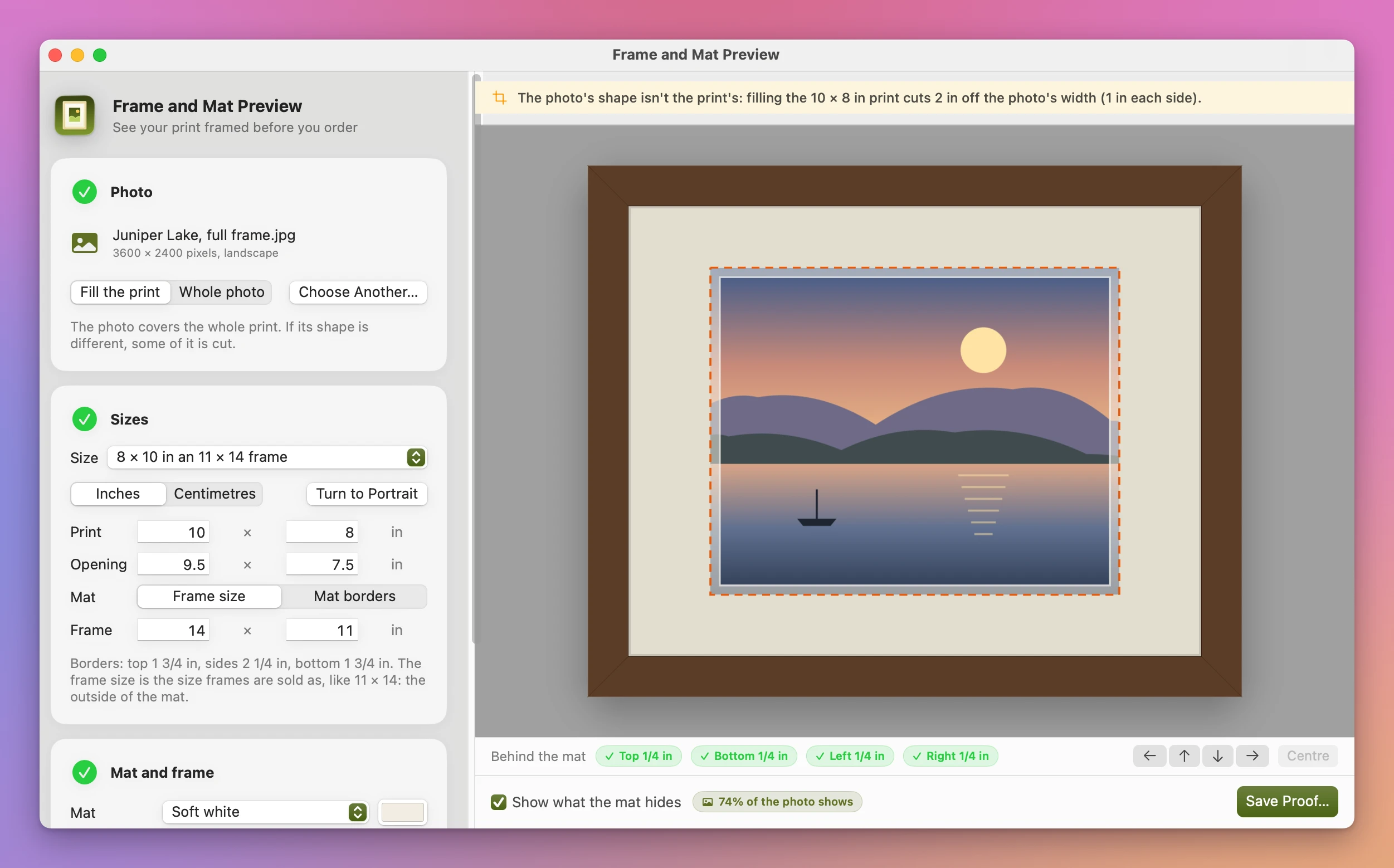
When the photo’s shape isn’t the print’s, the line at the top says how much the print cuts off, in inches or centimetres. Pick Whole photo instead of Fill the print to see it printed whole, with white paper at the sides.
Warnings before you order
- An opening larger than the print. A gap shows between the print and the mat wherever the print sits.
- A print slid too far. A gap opens on one side.
- A thin edge. Less than 3 mm behind the mat.
- A print larger than the frame. It would have to be trimmed.
- A photo in the other orientation, and the crop.
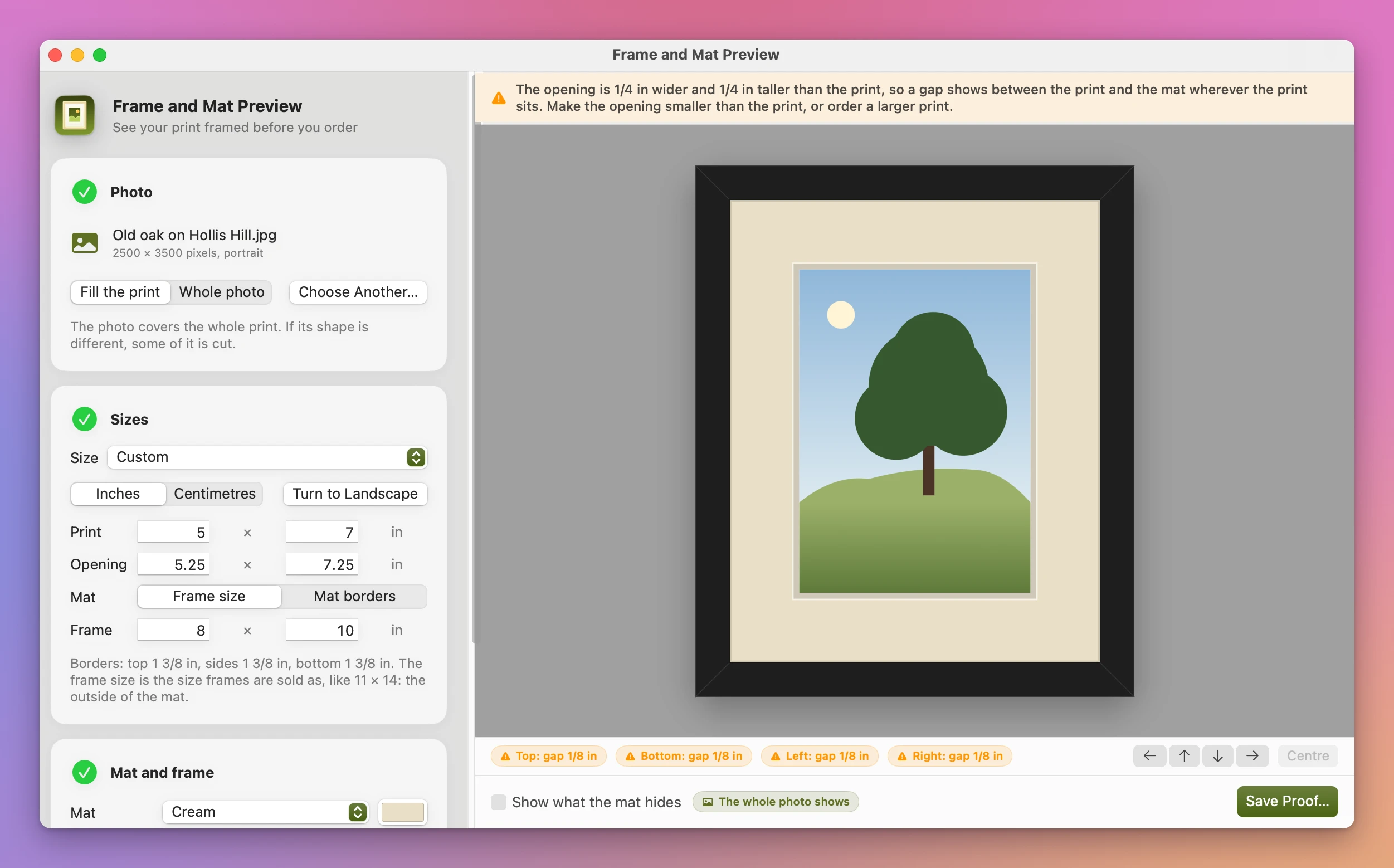
Sizes in inches or centimetres
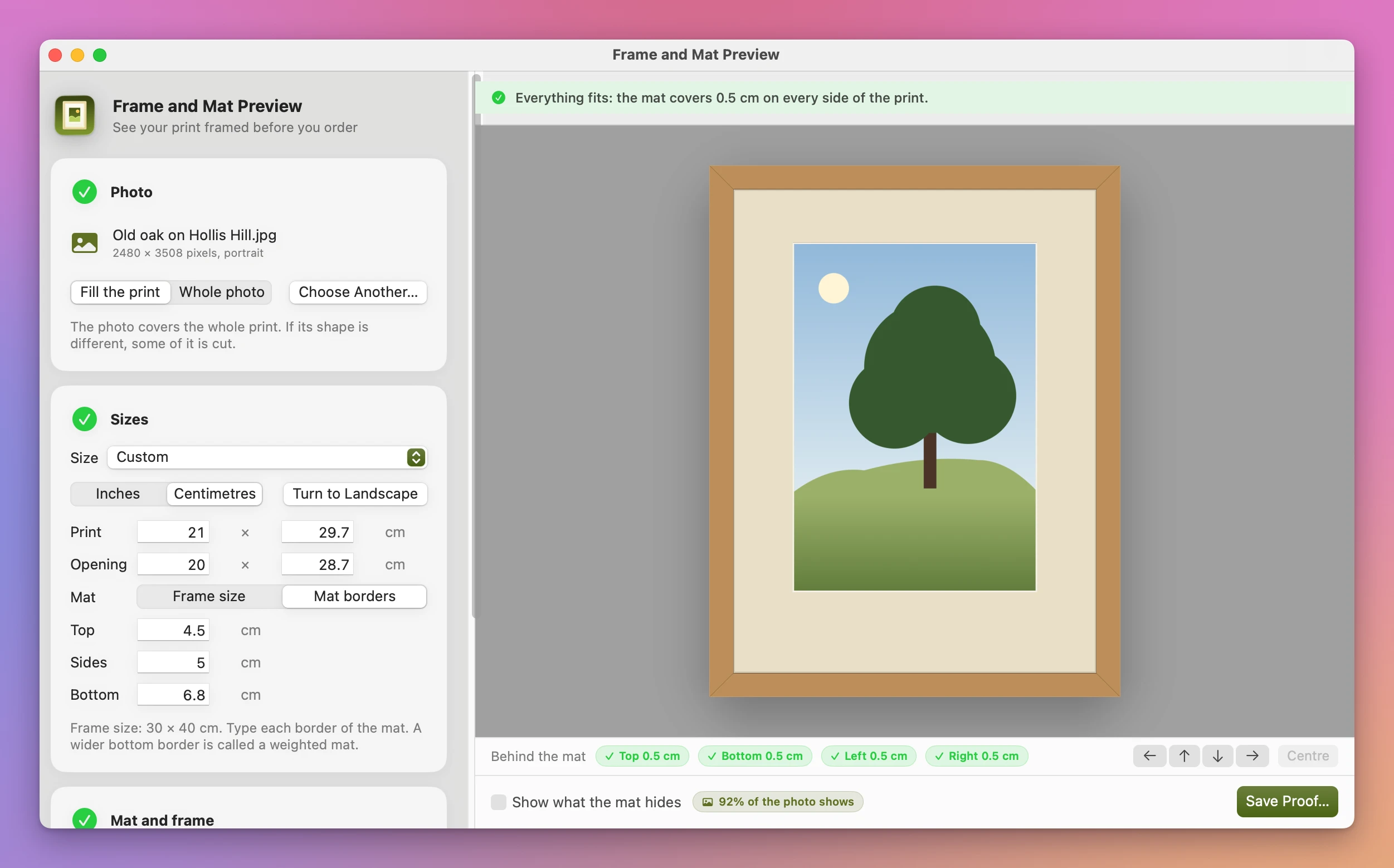
Twelve sizes are ready: 4 × 6 in a 5 × 7, 5 × 7 in an 8 × 10, 8 × 10 in an 11 × 14, 8 × 12 in a 12 × 16, 11 × 14 in a 16 × 20, 12 × 18 in an 18 × 24, A5 in an A4 frame, A4 in an A3 frame, A4 in a 30 × 40 cm frame, A3 in a 40 × 50 cm frame, 20 × 30 cm in a 30 × 40 cm and 30 × 45 cm in a 50 × 70 cm. Each has an opening a quarter inch (or 5 mm) smaller than the print on every side.
Anything else, you type. Sizes take fractions like 7 1/2 or 7½, and decimals with a point or a comma. Choose Mat borders to type the top, side and bottom borders instead of the frame size, for a mat with a wider bottom border.
A proof for the framer or the client
Save Proof… saves a one-page PDF and a JPEG with the same name: the title, the date, the framed print drawn to scale, and the measurements. Print, opening, frame size, each border, the mat and frame colours, the frame’s outside size, how much sits behind the mat on each side, where the print sits, the photo and what shows of it, then what to check before ordering and your note. US Letter when you work in inches, A4 in centimetres. The JPEG is 200 pixels per inch, easy to send in a message.
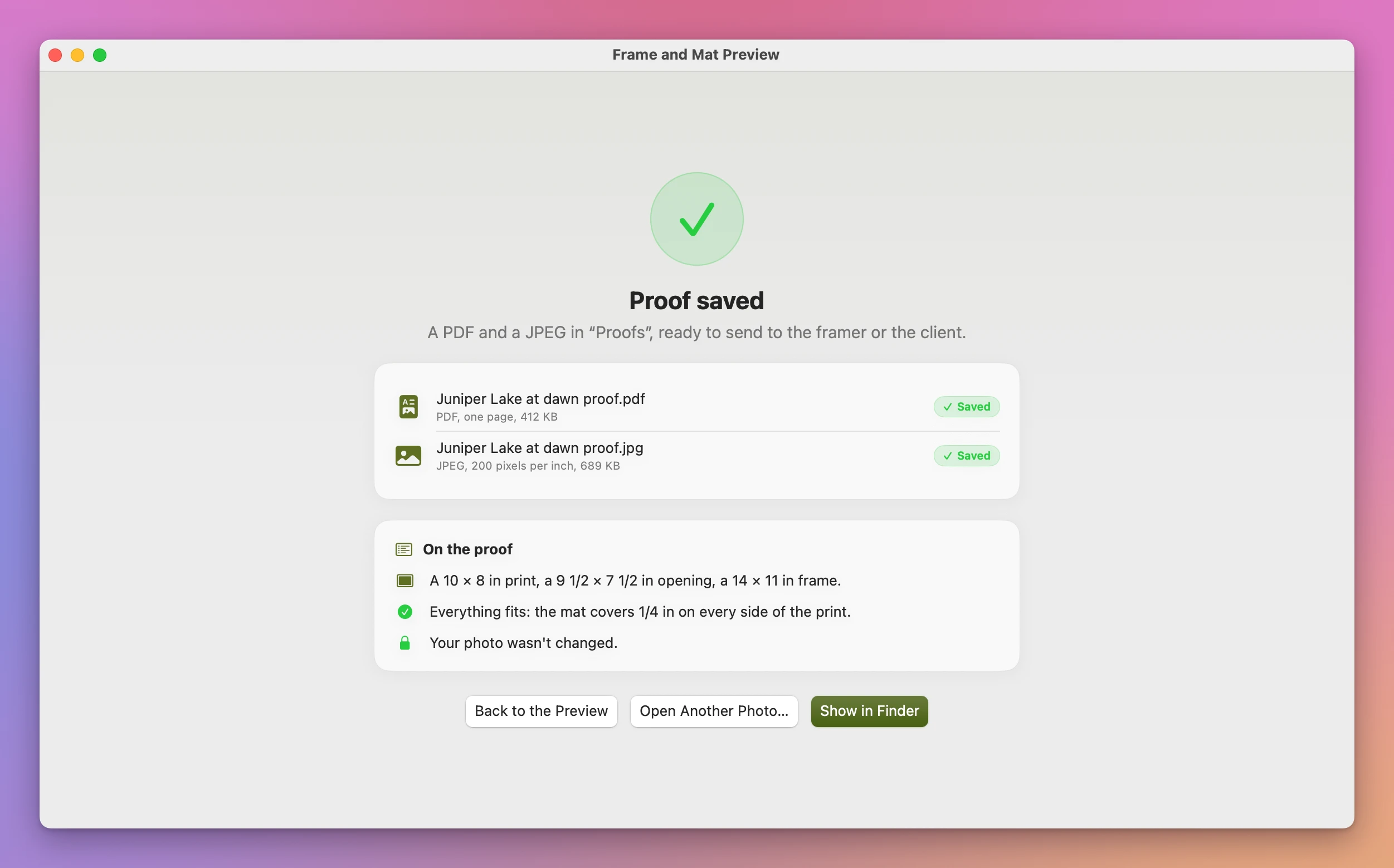
Why not do it by hand
| By hand | Frame and Mat Preview | |
|---|---|---|
| What the mat covers | Opening minus print, divided by two, for each side | Four numbers under the preview, updated as you type |
| What the photo loses | The pixel size from Preview, then more arithmetic | Drawn to scale, with the crop in inches or centimetres |
| A slid print or a gap | Found at the framer’s | A warning before you order |
| Mat and frame colours | A mock-up in an image editor | Six mat colours, any colour you pick, five frame colours |
| Something to send | A photo of your sketch | A PDF and a JPEG with every measurement |
Paper and a calculator give you the borders, and they’re right. Preview on your computer shows a photo’s size in pixels under Tools › Adjust Size…, so you can work out the crop too, and an image editor can mock up a frame if you draw it. What neither does is put your photo, your print size and your mat together, to scale, and tell you what each edge loses.
What it doesn’t do
- One opening, one photo. No mats with several openings, no double mats or V-grooves, no oval or arched openings.
- Flat colours. The mat and the frame are drawn as flat colours, not textures or real mouldings. Ask your framer for samples.
- No wall view. It doesn’t show the frame on a wall or in a room.
- No ordering. It doesn’t sell prints, mats or frames, and knows no shop’s prices.
- It doesn’t change the photo. No cropping, no resizing, no printing. It only reads the photo.
- Frame lip not drawn. A frame’s lip usually covers a few millimetres of the mat’s outer edge. The preview shows the full mat.
Questions
Which size is “the frame size”?
The size frames are sold as, like 11 × 14: the outside of the mat, the size of the glass. The proof also gives the frame’s outside size with its moulding.
Does it change my photo?
No. It only reads the photo, and it refuses to save a proof over it.
Does anything get uploaded?
Nothing. The preview and the proof are made on your Mac. The app connects to the internet only to check for updates.
What it needs
macOS 14 Sonoma or later, on Apple silicon and Intel Macs.
Frame and Mat Preview isn’t made by, affiliated with or endorsed by any framer, frame shop, or mat or frame maker, or by Apple.
Buy Frame and Mat Preview
$19 plus tax where it applies, paid once.
Download the app from the order page or your Creem receipt, unzip it and move it to Applications. I sign the app with my Apple Developer ID, and Apple notarizes the download.
The app checks for updates once a day. When a new version is ready, click Install and Relaunch. The first time, it asks for the license key from your Creem receipt, and remembers it. To check anytime, choose Frame and Mat Preview → Check for Updates….