
An app by Flavio
Invoice Filename Assistant
Check the supplier, invoice date and number of each PDF invoice, then save copies with names like Acme Studio - 2026-11-17 - A-102.pdf.
Buy Invoice Filename Assistant · $20One-time purchase. Plus tax where it applies.
macOS 14 or later · Apple silicon and Intel
Latest version 1.2.2, released November 20, 2026
It’s tax season, and your invoices folder has invoice.pdf, Invoice (2).pdf, INV-0042.pdf, download.pdf and Invoice-014.pdf. Your accountant asks for the October invoice from the print shop. You open eight files to find it.
The fix is a naming habit: supplier, date, number, in the same order every time. Doing it by hand means opening each PDF, finding three details, and typing them without a slip. Somewhere around invoice forty, a date comes out as 2026-1-17 or the supplier is spelled two ways.
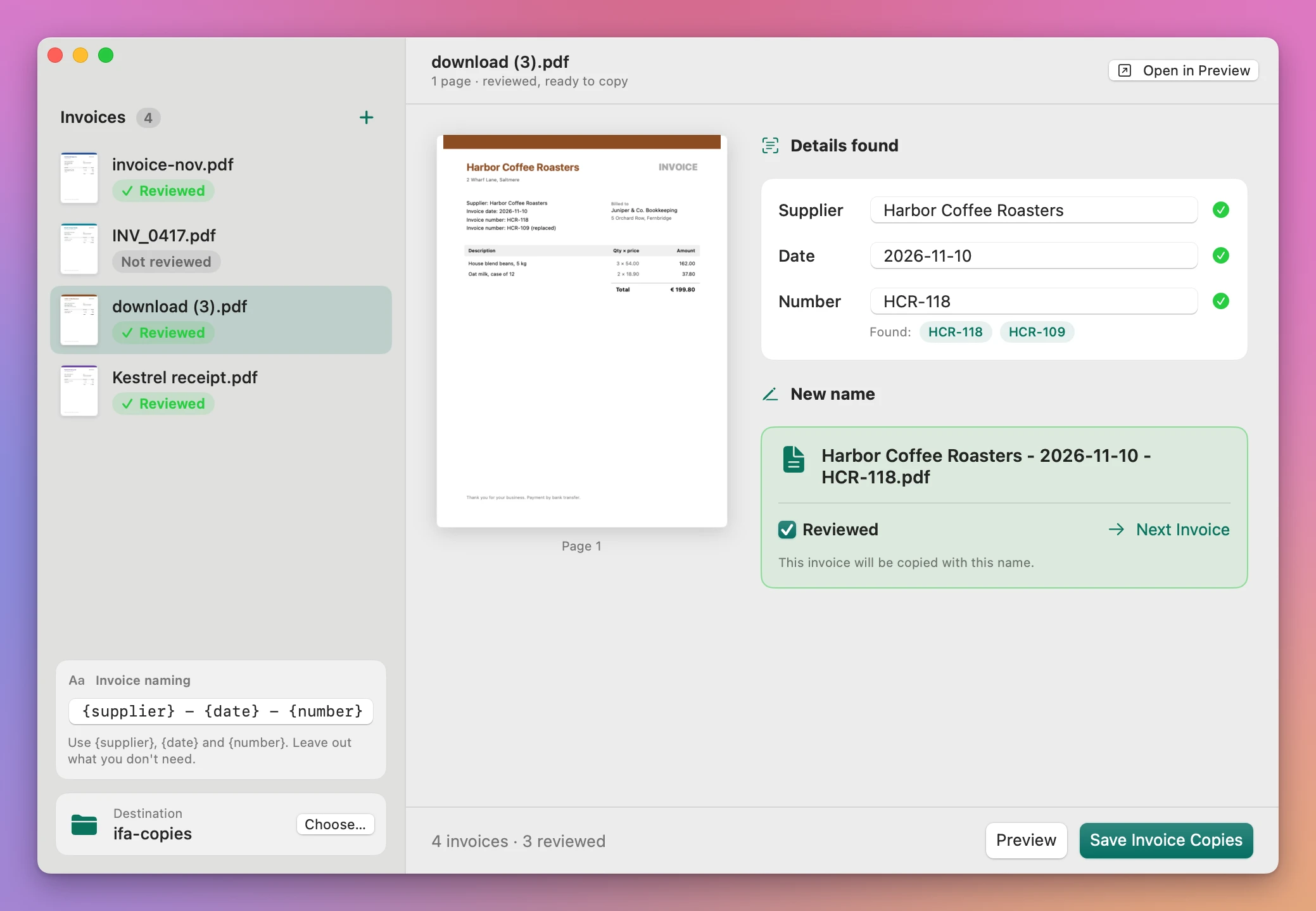
Invoice Filename Assistant does the typing. Add your PDFs and click Preview. The app reads each invoice and fills in the supplier, the date and the invoice number where it finds them. You check each invoice next to its first page, fix what’s wrong, tick Reviewed, and click Save Invoice Copies. You get copies named Acme Studio - 2026-11-17 - A-102.pdf, and the originals stay as they were.
Who it’s for
- Freelancers and small business owners. You download invoices from a dozen suppliers all year, and every portal names them its own way. Before you send the folder to your accountant, give all of them names like
Print Shop - 2026-10-03 - 5521.pdf, so the folder sorts by supplier and anyone can find one without opening it. - Bookkeepers. A client sends a zip of 80 PDFs at the end of the quarter, half of them called
scan.pdf. Name them consistently before they go into the books, and keep the client’s originals untouched. - Office managers. The shared invoices folder has three naming styles from three people. Agree on one pattern, and everyone who saves an invoice gets the same format.
- Anyone claiming expenses. Your employer wants each receipt or invoice matched to a line on the card statement. Names that start with the supplier and the date make that match a glance.
- Landlords. The plumber, the electrician and the insurer each send PDFs with names like
Document.pdf. Named by supplier and date, the repairs for one property are easy to total at the end of the year.
Your first batch
Say you have a folder of 30 supplier invoices from the last quarter.
- Drag the PDFs onto the window, or click + next to Invoices and select them.
- Under Invoice naming, at the bottom of the sidebar, check the pattern. The default is
{supplier} - {date} - {number}. Set it before you start reviewing, because changing it clears your review. - In the Destination card at the bottom of the sidebar, click Choose… and pick the folder for the copies.
- Click Preview. Click an invoice in the sidebar to see its first page next to its own Supplier, Date and Number fields, and the name it would get underneath. A label under each invoice in the sidebar says where it stands, like Missing details or Reviewed.
- Go through the invoices. Where a field is right, leave it. Where it’s empty or wrong, type the value, checking it on the page next to the fields, or click Open in Preview for a closer look. When the new name looks right, tick Reviewed, and click Next Invoice.
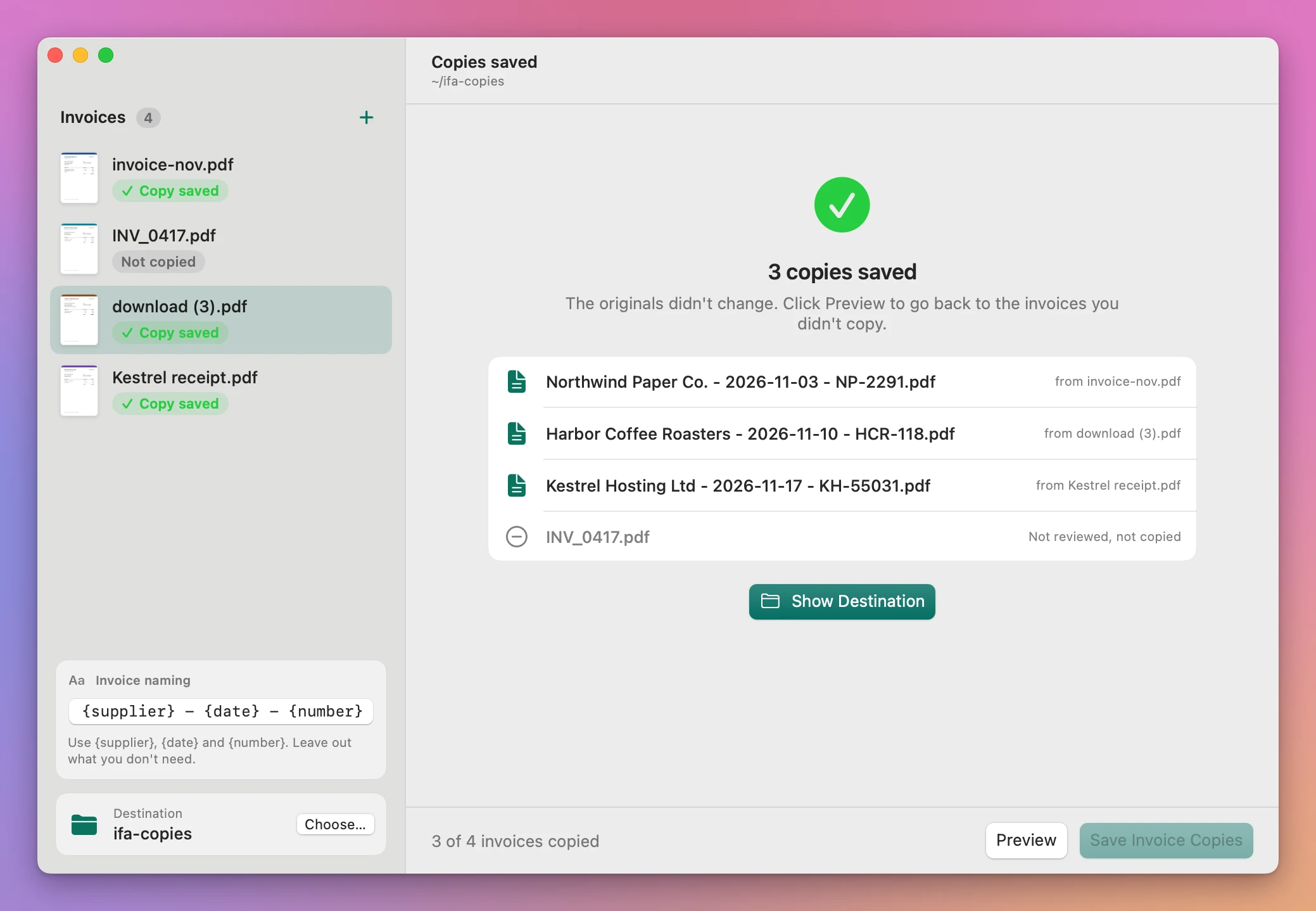
- Click Save Invoice Copies. Only the invoices you ticked are copied. The window lists the name each copy got and the invoices that weren’t copied, and Show Destination opens the folder in Finder.
The pattern stays the same the next time you open the app, so next quarter starts at step 1.
What it reads, and what you check
The app reads the text on the first three pages of each PDF. When a page has no text, like a scanned paper invoice, it recognizes the text on your Mac first.
Then it looks for labeled lines:
- Supplier from a line that starts with
Supplier:,Vendor:orIssued by:. - Date from
Invoice date:orDate:followed by a date written as2026-11-17. - Number from
Invoice number,Invoice no.orInvoice #.
That’s a narrow search. Invoices put these details in many different places, and the app fills a field only when a label says what it is. Otherwise the field stays empty for you. When it finds two different values, like two invoice numbers, the field stays empty and the candidates show below it, as in Found: A-102, A-103. Click the right one to fill the field.
Plenty of invoices write the date as 17 Nov 2026, or put the supplier’s name in a logo. For those you’ll type a field or two. The gain is that the format is right every time: the app builds the name, checks the date is real and written as year, month, day, and won’t let you tick Reviewed until every field in the pattern is filled.
If you edit a field after ticking Reviewed, the tick clears. You look at the new name before it’s saved.
Choose the name
The pattern is plain text with up to three fields: {supplier}, {date} and {number}. Some patterns that work:
| Pattern | Name it gives |
|---|---|
{supplier} - {date} - {number} | Acme Studio - 2026-11-17 - A-102.pdf |
{date} {supplier} | 2026-11-17 Acme Studio.pdf |
Expenses - {date} - {supplier} | Expenses - 2026-11-17 - Acme Studio.pdf |
{supplier} {number} | Acme Studio A-102.pdf |
Starting with the date sorts the folder by date. Starting with the supplier groups each supplier’s invoices together. Leave out a field you don’t use, and the app won’t ask for it.
What happens to your files
- The originals aren’t touched. Each copy has exactly the same content as its original PDF. Only the name is new.
- Nothing is replaced. If a file with that name is already in the destination, the copy becomes
Acme Studio - 2026-11-17 - A-102 (2).pdf. - Unsafe characters are swapped. A slash or colon in a supplier name becomes a dash, so
A/B Studiodoesn’t break the name. - Problems stay with their invoice. A damaged or password-protected PDF is marked Can’t read with a message, and the other invoices carry on.
- You can stop. Stop ends a long batch, and the copies already saved stay in the destination.
Why not rename them by hand
Finder can rename files, and you can rename one PDF in a few seconds once you know what to type. Finder can also rename a batch, by replacing text, adding text or numbering the files. It can’t read the supplier off the page.
Knowing what to type is the slow part. Each invoice is open, scroll, find the supplier, find the date, convert it to year-month-day, find the number, close, rename, type. Call it a minute per invoice. With 200 invoices a year, that’s over three hours of it, by estimate, and the typos are the kind you only notice when a file sorts in the wrong place.
With the app you still look at every invoice, and you should. What goes away is typing three details per file, and the risk of five slightly different formats.
| By hand | Invoice Filename Assistant | |
|---|---|---|
| 200 invoices | About a minute each, over three hours by estimate | Fields filled where labeled, you check and tick |
| Date format | Whatever you typed that day | Always 2026-11-17, and a date that doesn’t exist is refused |
| Same pattern on every file | Depends on you | The pattern you set, applied to every copy |
| Originals | Renamed in place | Left alone, you get copies |
| Name already taken | Finder stops you, and you pick another | The copy gets (2) |
| Scanned invoices | You read them | Text recognized on your Mac |
What it doesn’t do
- It’s not an accounting app. It doesn’t read totals, VAT or line items, and it doesn’t export to a spreadsheet.
- It reads labeled lines only. It doesn’t understand layouts or logos, and it won’t guess. Expect to type some fields.
- It only reads the first three pages. Details printed further down a long PDF aren’t found.
- It handles PDFs only. Invoices sent as images or Word files need to be PDFs first.
- It doesn’t sort into folders. Every copy goes into the destination you choose.
- It doesn’t rename by spreadsheet. If you already have a list of new names in a CSV, CSV File Renamer does that.
If your invoices arrive by email, Mail Attachment Filer saves them from Apple Mail into sender and date folders first.
Questions
Does anything get uploaded?
No. The PDFs are read, recognized and copied on your Mac. The app uses the internet only to check for updates.
Does it work with scanned invoices?
Yes, when the scan is a PDF. Pages without text go through text recognition on your Mac. Clear scans work best, and you check the fields like any other invoice.
Can I use a different date format in the name?
No. The date is always written as year, month, day, like 2026-11-17. That’s the format that sorts correctly in Finder.
What about invoices I didn’t tick?
They aren’t copied. Run Preview again later for those.
Will it run on my Mac?
Invoice Filename Assistant runs on macOS 14 Sonoma or later, on Apple silicon and Intel. Processing happens on your Mac. The documentation covers each step.
Buy Invoice Filename Assistant
$20 plus tax where it applies, paid once.
Download the ZIP after checkout, unzip it and drag the app to Applications. The download is signed and notarized.
The app checks for updates once a day. When a new version is ready, click Install and Relaunch. To check anytime, choose Invoice Filename Assistant → Check for Updates….