
An app by Flavio
Mailbox to PDF
A Mac app that turns emails into PDFs: the ones selected in Mail, a whole mailbox, or an .mbox or .eml file. One PDF per email, per conversation, or one for everything, with the attachments in a folder next to each PDF.
Buy Mailbox to PDF · $20One-time purchase. Tax included.
macOS 14 or later · Apple silicon and Intel
Your accountant wants every invoice email from last year. A lawyer asks for the whole thread with the builder. Or you’re closing an old email account and want to keep what’s in it, in a form you can still open in twenty years.
Mail can print one email at a time to a PDF. For a hundred emails that’s an afternoon of File › Print, naming files by hand, and saving the attachments one by one.
$20 including tax, paid once.
Mailbox to PDF is a Mac app that does it in one go. Pick the emails, choose how to cut them, click Save. Each email becomes pages that start with who sent it, who it went to, the date, the subject and the names of its attachments, then the email as Mail shows it. The attachments land in a folder next to the PDF.
Three ways to bring emails in
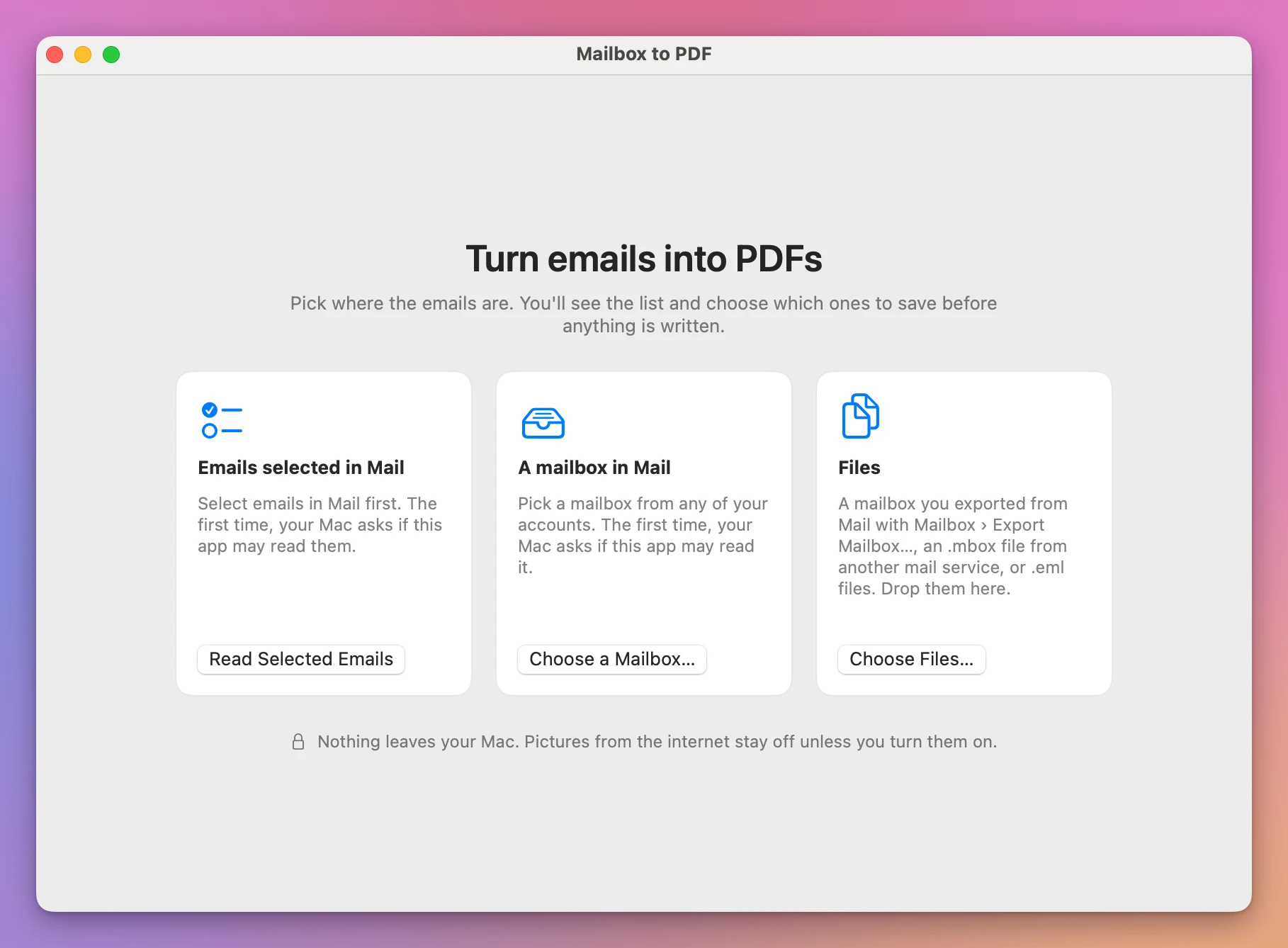
- Emails selected in Mail. Select them in Mail, then click Read Selected Emails.
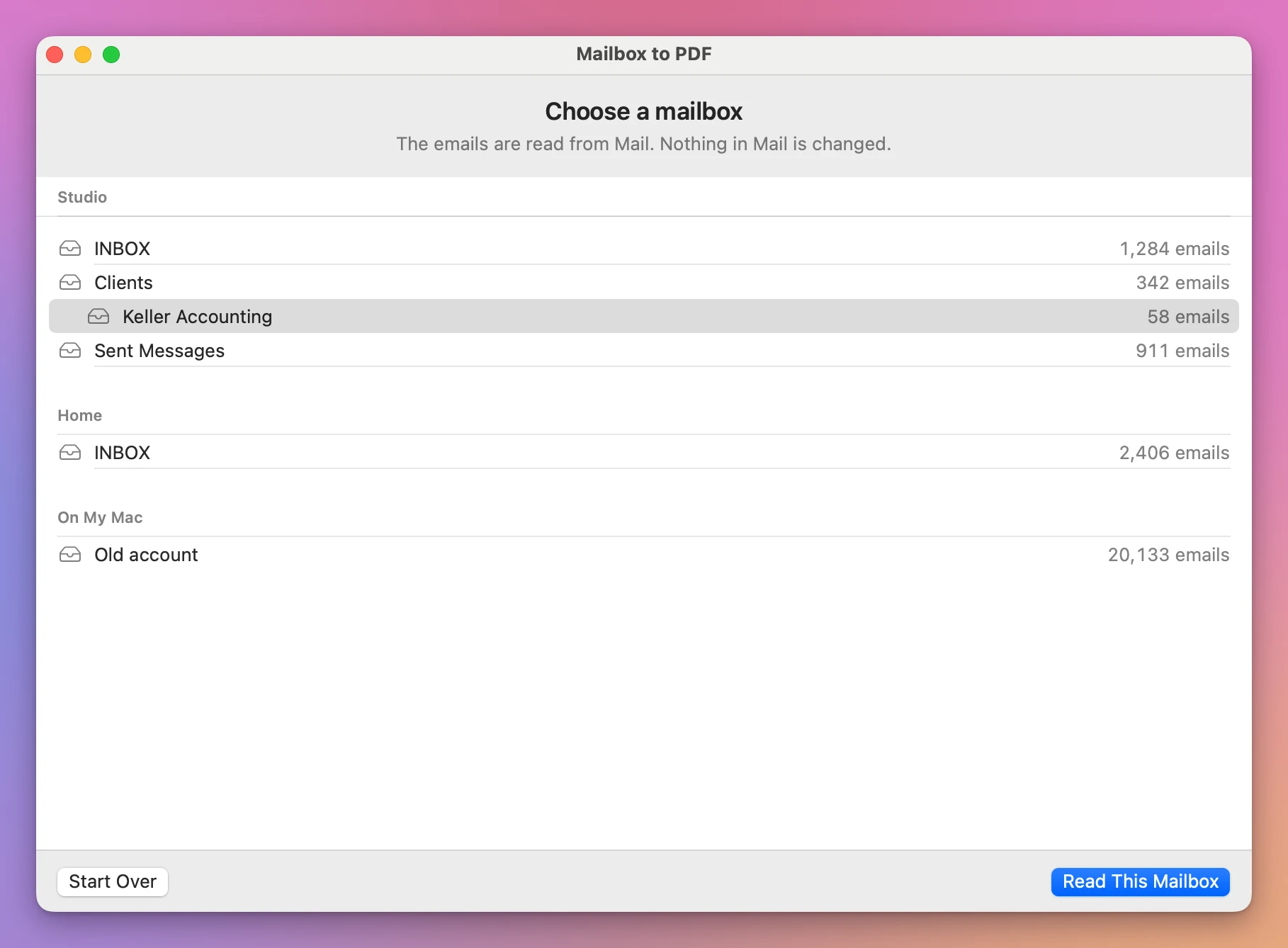
- A mailbox in Mail. Click Choose a Mailbox… and pick one from any of your accounts.
- Files. A mailbox you exported from Mail with Mailbox › Export Mailbox…, an
.mboxfile you downloaded from another mail service,.emlfiles, or a folder of them. Drop them on the window.
The first time you use one of the two ways through Mail, your Mac asks whether Mailbox to PDF can control Mail. That’s how it reads the emails you picked. It never changes, moves or deletes anything in Mail, and files need no permission at all.
Pick what to save
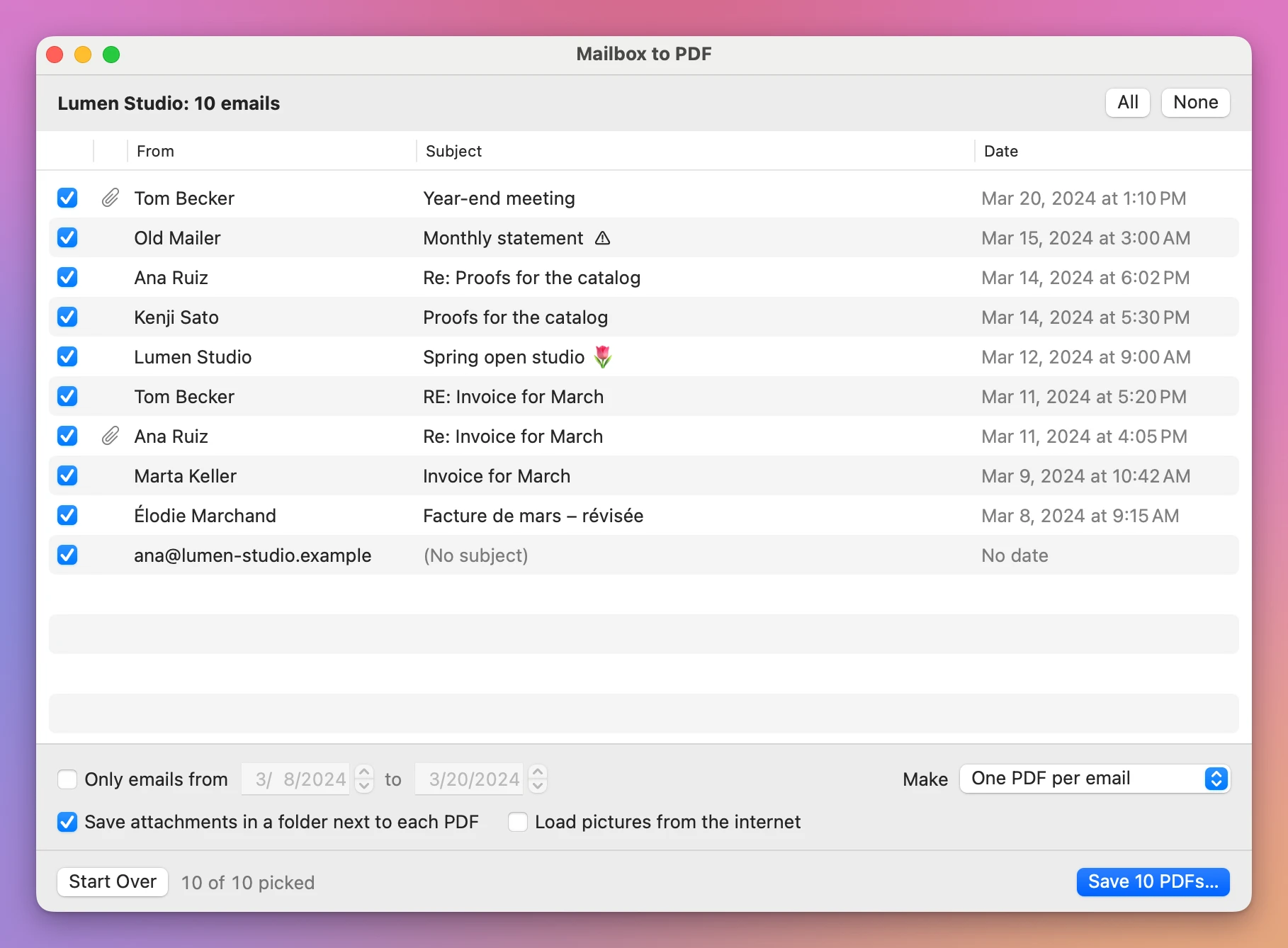
All the emails are ticked to start. Untick the ones you don’t want, or use All and None. Tick Only emails from and pick two dates to keep part of them, like the tax year.
Then choose what to make:
| Choice | What you get |
|---|---|
| One PDF per email | 2024-03-09 Invoice for March.pdf, one file for each email |
| One PDF per conversation | A file for each conversation, the replies in order, each starting on a new page |
| One PDF for everything | One file named after the mailbox and its dates, like Clients 2024-01-03 to 2024-12-19.pdf, up to 2,000 emails |
Conversations are found the way mail apps find them, from the headers that say which email answers which. A conversation that branches, with two people answering the same email, stays one conversation.
What a page looks like
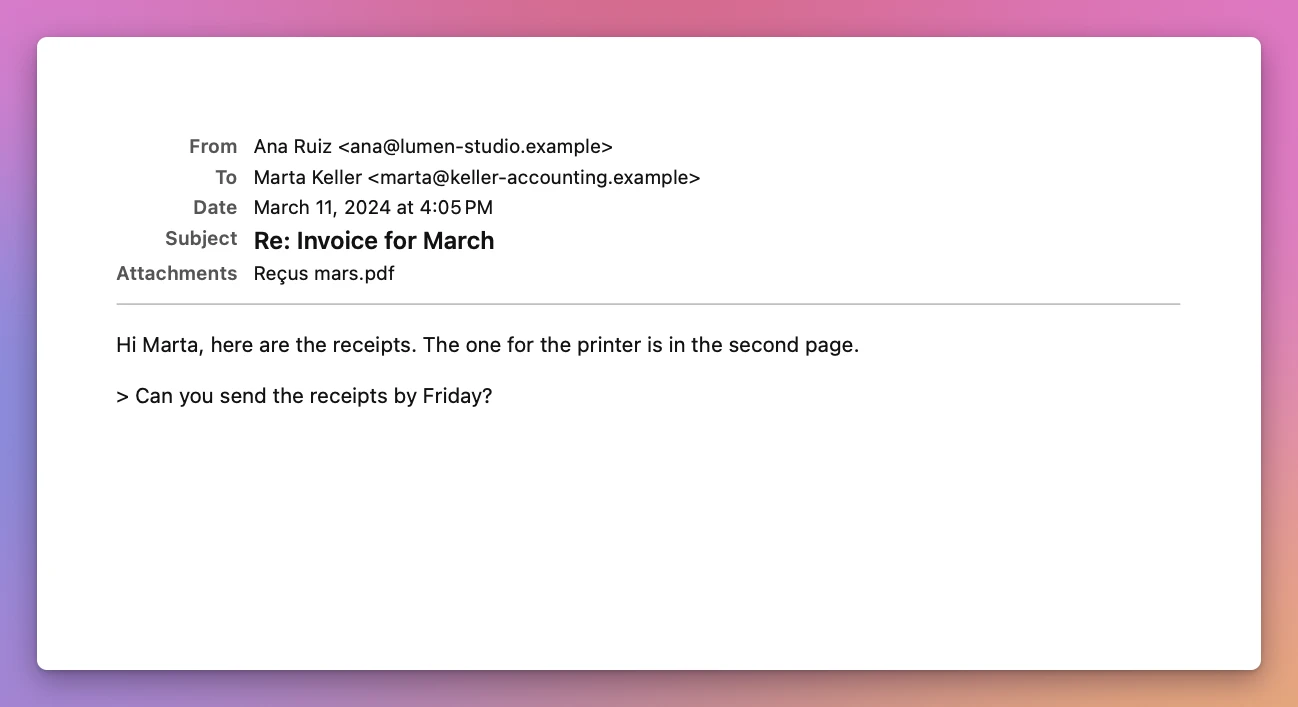
Pictures sent inside an email show where they were sent. Accents, emoji and other alphabets print right. Long emails run over as many pages as they need, and a newsletter wider than the paper is shrunk to fit, so no column gets cut off.
Every PDF and every attachment is dated like its email, so the Finder sorts them by when they were sent. Names work on a USB stick and on Windows too. A file that’s already in the folder is never replaced: the new one gets a number, like 2024-03-09 Invoice for March 2.pdf.
Pictures from the internet stay off
Many emails show pictures stored on the sender’s server. Loading them tells the sender you opened the email, and when. Mailbox to PDF doesn’t load them unless you tick Load pictures from the internet. Nothing else in an email can reach the network either.
It tells you what it did
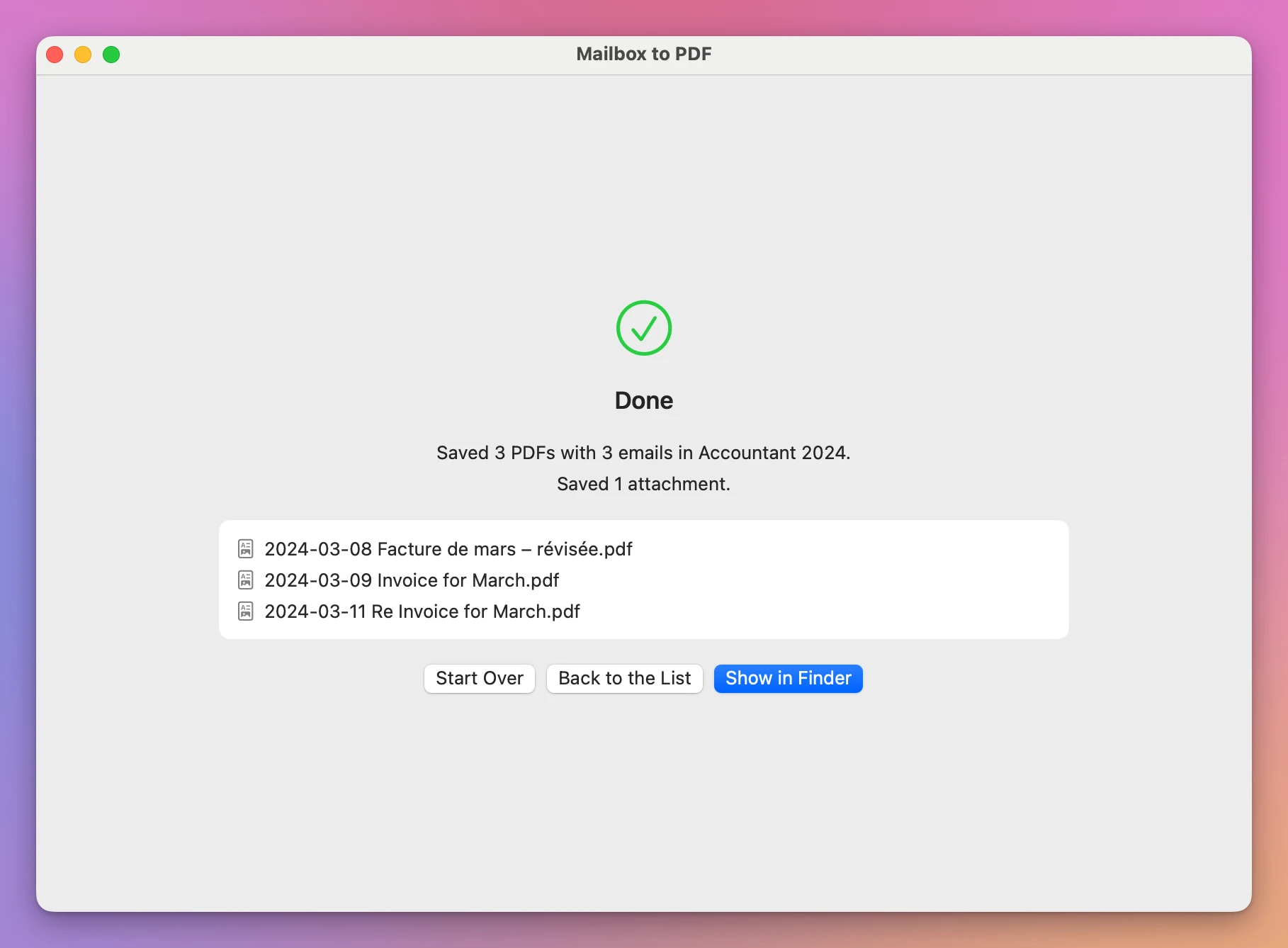
At the end, the window lists what was saved and what wasn’t, and why. An email that can’t be read as a whole (it happens with old or broken mail) still gets its PDF, showing the text it was received as, and the list names it. A PDF counts as saved only once it’s on disk and opens.
By hand, or with Mailbox to PDF
| Mail’s File › Print | Mailbox to PDF | |
|---|---|---|
| A hundred emails | A hundred print dialogs | One click |
| File names | Typed by hand | Date and subject, numbered when two match |
| Attachments | Saved one by one | In a folder next to each PDF |
| A whole conversation in one file | Not possible | One PDF per conversation |
| Pictures from the internet | Loaded if Mail loads them | Off unless you turn them on |
An .mbox from another service | Import it into Mail first | Open it directly |
Good to know
Mailbox to PDF is my own app. It’s not made by, affiliated with or endorsed by Apple.
Everything stays on your Mac. The app reads only the emails you pick and writes the PDFs where you choose. Emails selected in Mail are copied to a temporary folder while you work, and that copy is deleted when you quit.
One PDF for everything takes up to 2,000 emails, because joining thousands of pages into one file takes a lot of memory. For a bigger mailbox, make one PDF per email or per conversation: those have no limit, and 20,000 made-up emails went through one PDF per email at about 45 a second in testing.
An email forwarded as an attachment is saved as an .eml file in the attachments folder, not printed inside the PDF. When you read a mailbox from Mail, the paper clip in the list is a guess from the email’s headers, because the app reads each email in full only when it saves it.
A PDF made by the app is a faithful copy of the email, not a certified one. If a court needs something more, ask your lawyer what they accept.
Buy Mailbox to PDF and get started
Mailbox to PDF costs $20 including tax, paid once. There’s no subscription.
After buying, your receipt has the app and a license key. Unzip the app and drag Mailbox to PDF to your Applications folder. It runs on macOS 14 Sonoma or later, on Apple silicon and Intel Macs. It’s signed with my Apple Developer ID and checked by Apple, so it opens like any other app you download.
Enter the license key in Mailbox to PDF → License… to get updates automatically. A key works on 3 Macs. Once a day, the app checks for a new version, shows what’s new, and installs it with Install and Relaunch. Your receipt always has the latest version, too.