
How to use PDF Bookmark Splitter
PDF Bookmark Splitter
Choose PDF bookmarks, preview chapter files, and save separate PDFs while preserving the originals.
Free to read. You can explore the guide before buying the app.
On this page
Install
PDF Bookmark Splitter needs macOS 14 Sonoma or later, on Apple silicon or Intel. Download the ZIP from the purchase page or your Creem receipt, unzip it, and move the app to Applications.
The app is signed and notarized. The app checks for updates once a day. When a new version is ready, click Install and Relaunch. To check anytime, choose PDF Bookmark Splitter → Check for Updates….
If your copy still asks for a key, download the latest version from your purchase page and replace the old app in Applications.
Add PDFs
Click Add… and select one or more PDFs, or drop files into Sources. The cross beside a filename removes it from the batch.
The originals are never renamed or overwritten. Choose an output folder with Destination → Choose….
Choose a bookmark level
Enter a number from 1 to 32 in Bookmark level. Level 1 means the top-level bookmarks. Level 2 means their children, and so on.
The app uses bookmarks that point to pages inside the PDF. Links to websites or other files do not define split points.
Preview
Click Preview to see the filenames and page ranges. No files are written during this step.
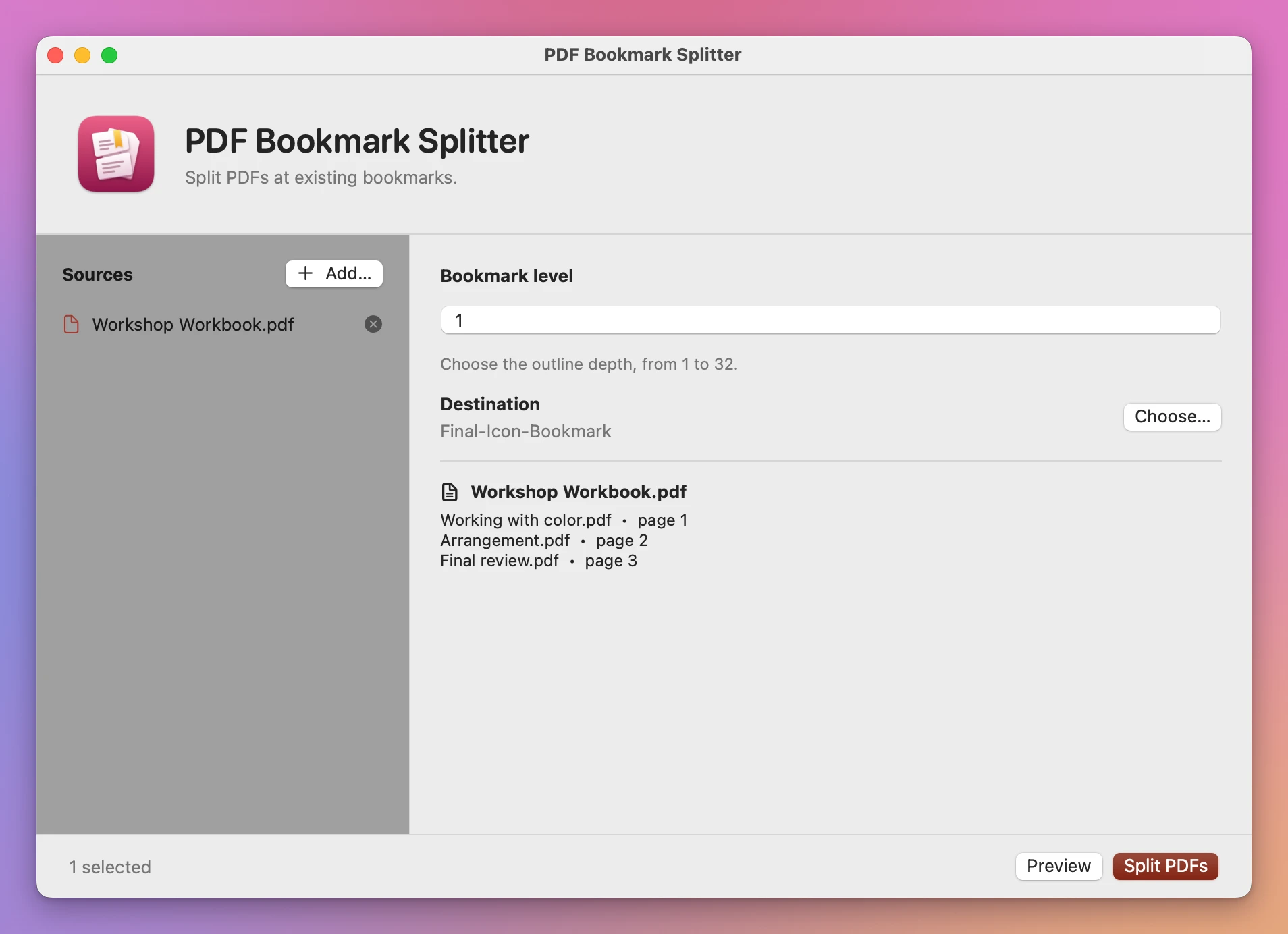
Each selected bookmark starts a new file. Its last page is the page before the next bookmark, or the end of the document. Pages before the first bookmark become Opening pages.pdf. Multiple bookmarks on one page produce one split point, using the first bookmark’s title.
Filename characters that cannot be used safely are replaced. Duplicate output names receive a numbered suffix. If another program creates a file in the destination after the preview, the app still preserves it.
Changing the bookmark level, source list or destination requires another preview.
Split and inspect
Click Split PDFs. When the batch finishes, Show Destination opens the output folder. The results list names the saved files beneath their source PDF.
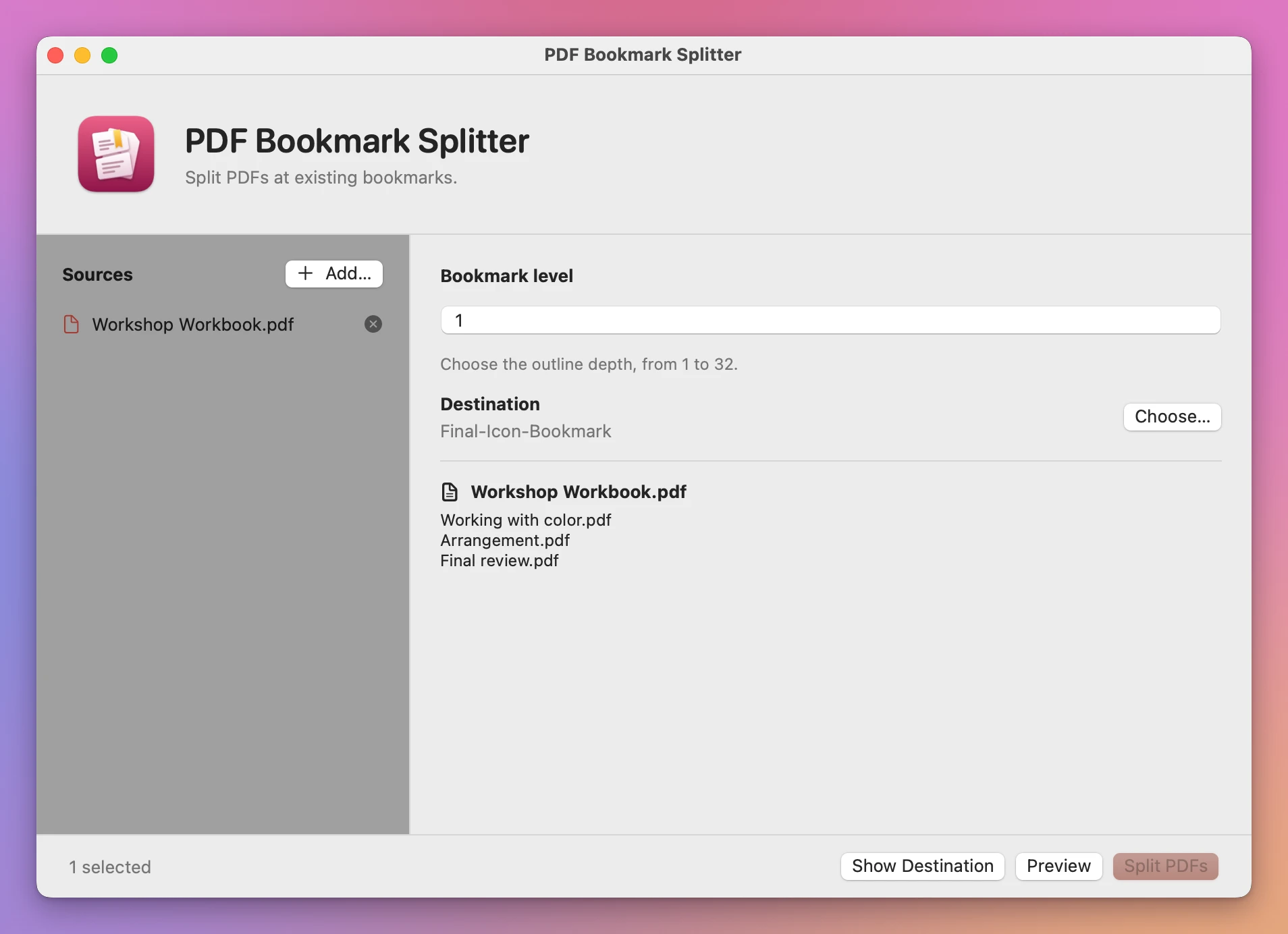
Open the output files and check the page boundaries before sending them. Links that refer to pages in another chapter may need attention after splitting.
Stop cancels the remaining work. Files already completed remain in the destination.
If a PDF cannot be split
| Message or result | What to check |
|---|---|
| No bookmarks | Open the PDF’s bookmark list in your PDF reader. Page thumbnails are not bookmarks. |
| No bookmarks at the chosen level | Try level 1, then check whether the document has nested bookmarks. |
| Cannot read pages | Check that the PDF is valid and unlocked. |
| The output folder cannot be written | Choose a folder you can write to, or reconnect its disk. |
| Two chapters start on one page | The app splits whole pages, so those bookmarks share a split point. |
Document processing stays on your Mac. The app uses the internet to check for and download updates.
See PDF Bookmark Splitter → · $20 including tax.