
Mac & Windows app by Flavio
Product Redirect Planner
Compare your old store's product export with your new store's, match every old product URL to its new page by address, SKU and name, pick a destination for the ones that fit more than one product or nothing at all, and export a 301 redirect CSV for Shopify, WooCommerce or any platform, checked for loops, duplicates and chains.
Buy Product Redirect Planner for Mac · $19Buy Product Redirect Planner for Windows · $19Buy once, use forever. Up to 3 computers you own (license). Plus tax where it applies. Mac and Windows versions are sold separately.
macOS 14 or later (Apple silicon and Intel) · Windows 10 and Windows 11 (x64 and ARM64)
Latest Mac version 1.0.0, released November 28, 2026
You’re moving your shop from WooCommerce to Shopify. On the old store a mug lived at /product/speckled-mug/. On the new one it’s /products/speckled-stoneware-mug, because you renamed it on the way. Google still sends people to the old address, and so does the link in last spring’s newsletter. Without a redirect, they land on “page not found”.
So you need a list: every old product address, and the new address it should go to. With 30 products you can do it by eye. With 300 you put both exports in a spreadsheet and start matching. Some handles changed, the linen apron is now two products (natural and charcoal), the holiday ornament from last year is gone, and one row has a trailing slash so it doesn’t match anything.
Product Redirect Planner reads both exports and matches every old address for you: the same address first, then the same SKU, then the closest name. It shows the ones that fit more than one product and the ones with no match, lets you pick where each goes, checks the result for redirects that would loop or chain, and saves a CSV you can import into Shopify or the WooCommerce Redirection plugin.
Watch a 30-second demo of Product Redirect Planner:
Who it’s for
- Sellers moving from WooCommerce, Squarespace or BigCommerce to Shopify. Every product address changes shape (
/product/mug/becomes/products/mug), and some products get new handles on the way. You want every old link to keep working on launch day. - Shopify sellers cleaning up their handles. You renamed 80 handles from
mug-2-copyto something a person would type. Shopify offers a redirect when you change a handle on a product’s page, one product at a time, and you changed most of them in a spreadsheet. - Sellers who split or merged products during the move. The apron that came in two colors is now two products, three sizes of planter became one. You need to decide where each old page goes, and you want to see which ones need that decision.
- Shop owners who hired someone for the migration. The freelancer sent a redirect file. Before it goes in, you want to know if any old product was left out, and whether any line points at itself.
- Anyone whose Search Console filled up with 404s after launch. The old export is still on your computer. You want the missing redirects today, not after checking 200 rows by hand.
How it works
- Export the products of both stores as CSV.
- Click Choose the Two Exports… and pick the old store’s file, then the new store’s. Or drag both onto the window.
- Look at the matches. Click an address marked Pick One or Needs Destination, and click Use This next to a new product, type a page like
/collections/kitchenwareand click Use Address, or click Leave as 404. - Click Confirm 3 Suggested Matches when the name matches look right.
- Pick the format and click Export 18 Redirects….
What you get
Every old address, matched in a clear order
The app tries three things, in this order, and tells you which one worked:
- No Redirect Needed: the new store has a product at the same address. It stays out of the redirect file, so it can’t loop.
/products/ceramic-mug/and/products/ceramic-mugcount as the same address. - Exact SKU: one new product has the old product’s SKU, so the renamed mug goes to its new page. SKUs keep their leading zeros:
00412and412are different. - Suggested Match: no SKU matched, but one new product has a clearly closer name or handle. “Spoon Rest” finds “Ceramic Spoon Rest”. You confirm these, one at a time or all at once.
Filters across the top show each group with its count: All, Needs Review, Ready to Export, Ambiguous, No Match and Same Path.
The ones that need you, with the choices ready
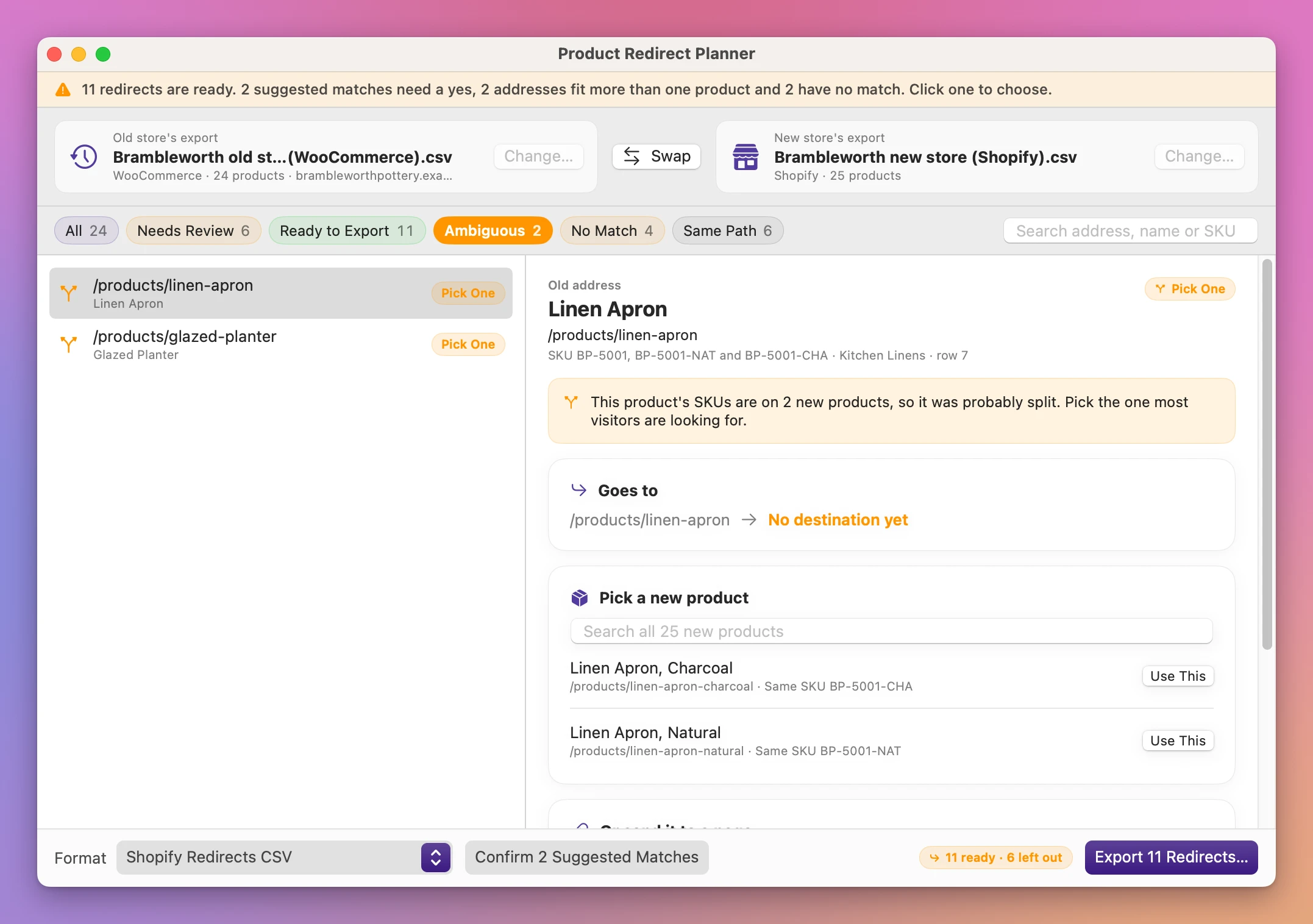
When an old product’s SKUs are on two new products, the app says it was probably split and shows both. When two names are equally close, it shows both. Click Use This on the right one.
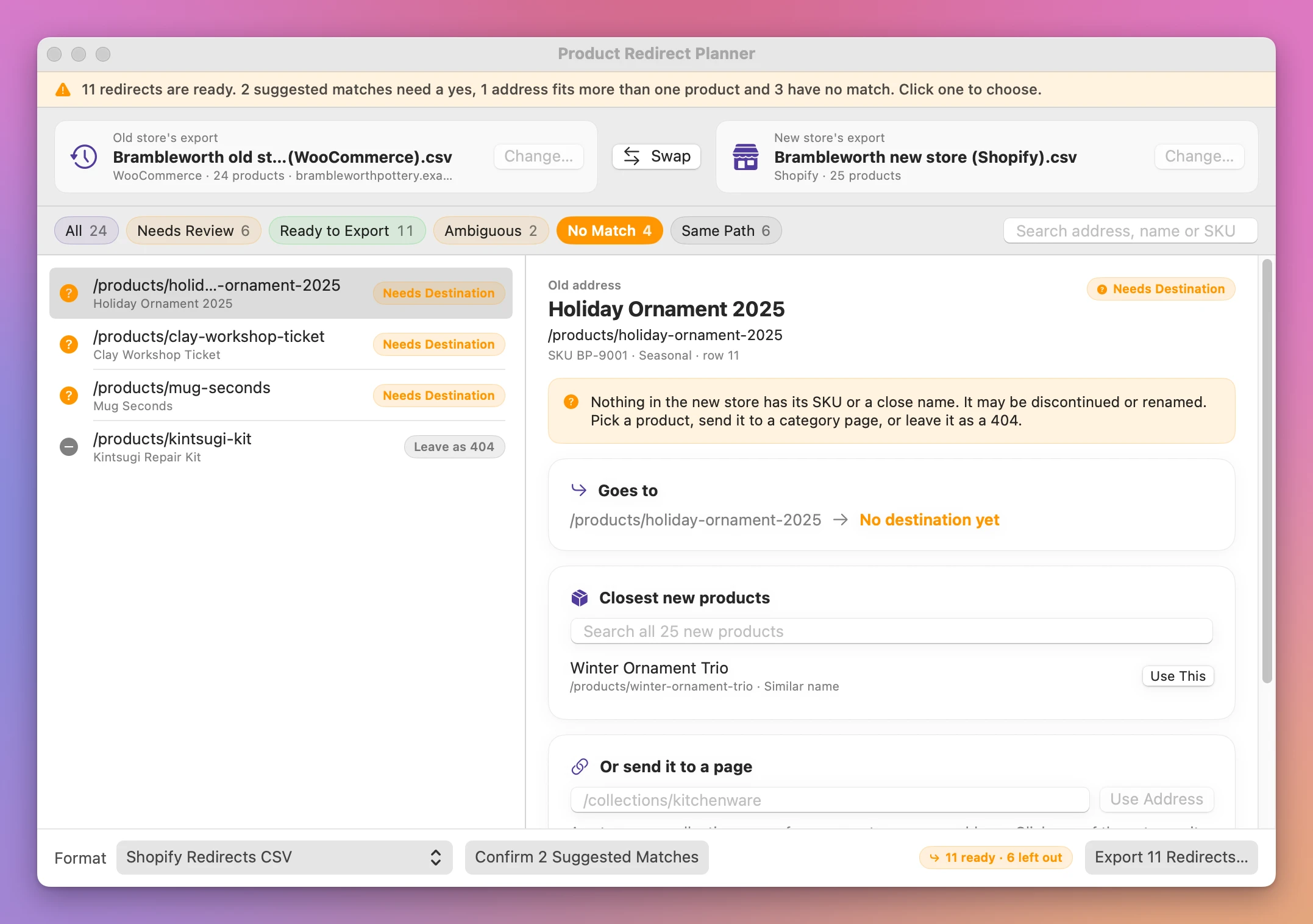
When nothing fits, you get the closest products anyway, a search across every product in the new store, and the collection pages of the new store that match the old product’s category. A discontinued holiday ornament can go to /collections/seasonal with one click, or stay a 404 if nobody looks for it.
Safety checks before anything is saved
A redirect file can go wrong in ways that are hard to see in a spreadsheet. The app checks for:
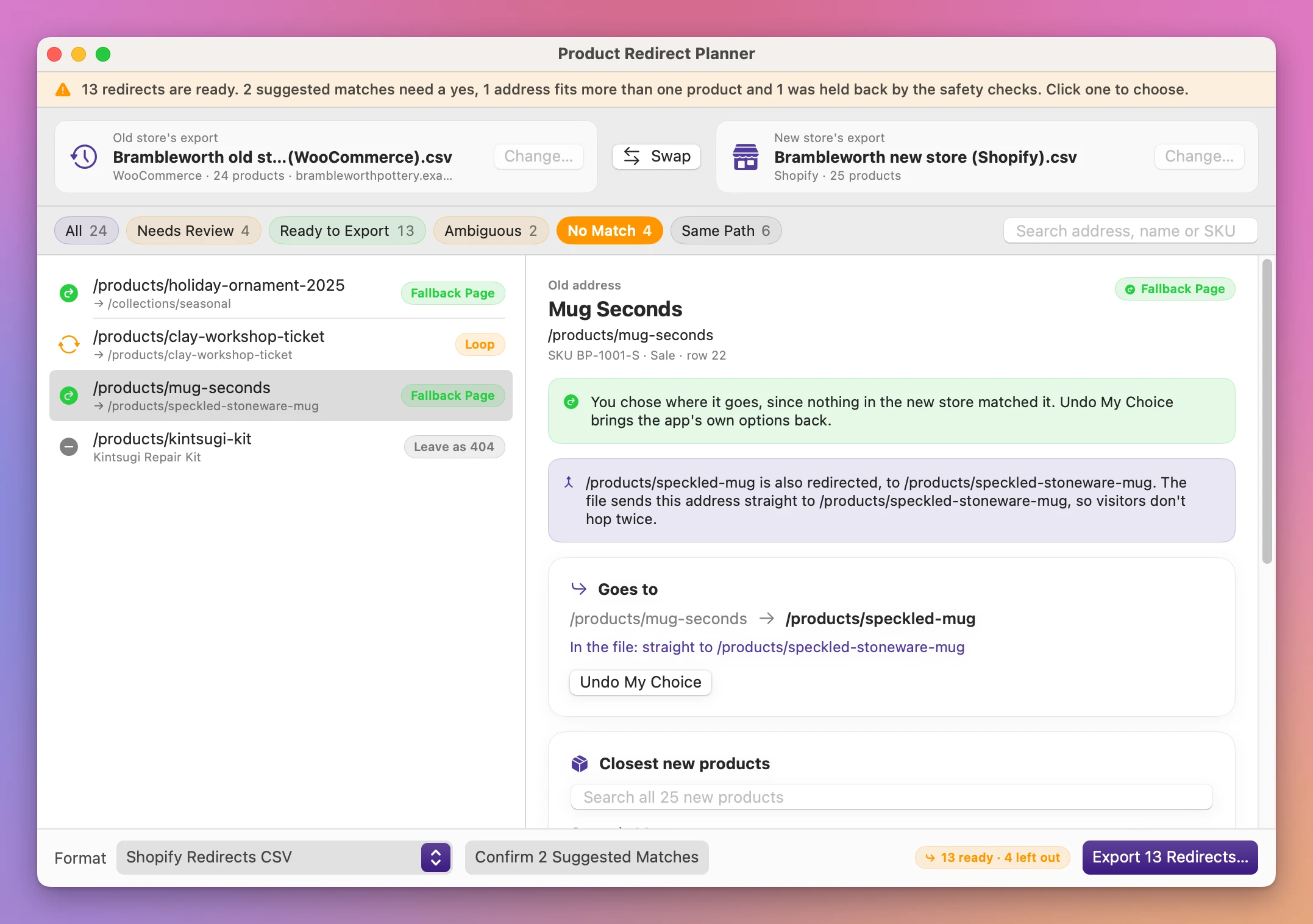
- Loops: an address sent to itself. Browsers give up on those. It stays out of the file until you pick another destination.
- Duplicates: the same old address listed twice. If both go to the same place, the file has it once. If they go to different places, both wait until you choose.
- Chains: an address sent to another old address that is itself redirected. The file sends it straight to the end, so visitors don’t hop twice.
- Address formatting: full addresses from the old domain become paths,
collections/salegets its missing slash, and a destination on another domain gets a warning.
A file you can import, and an audit you can keep
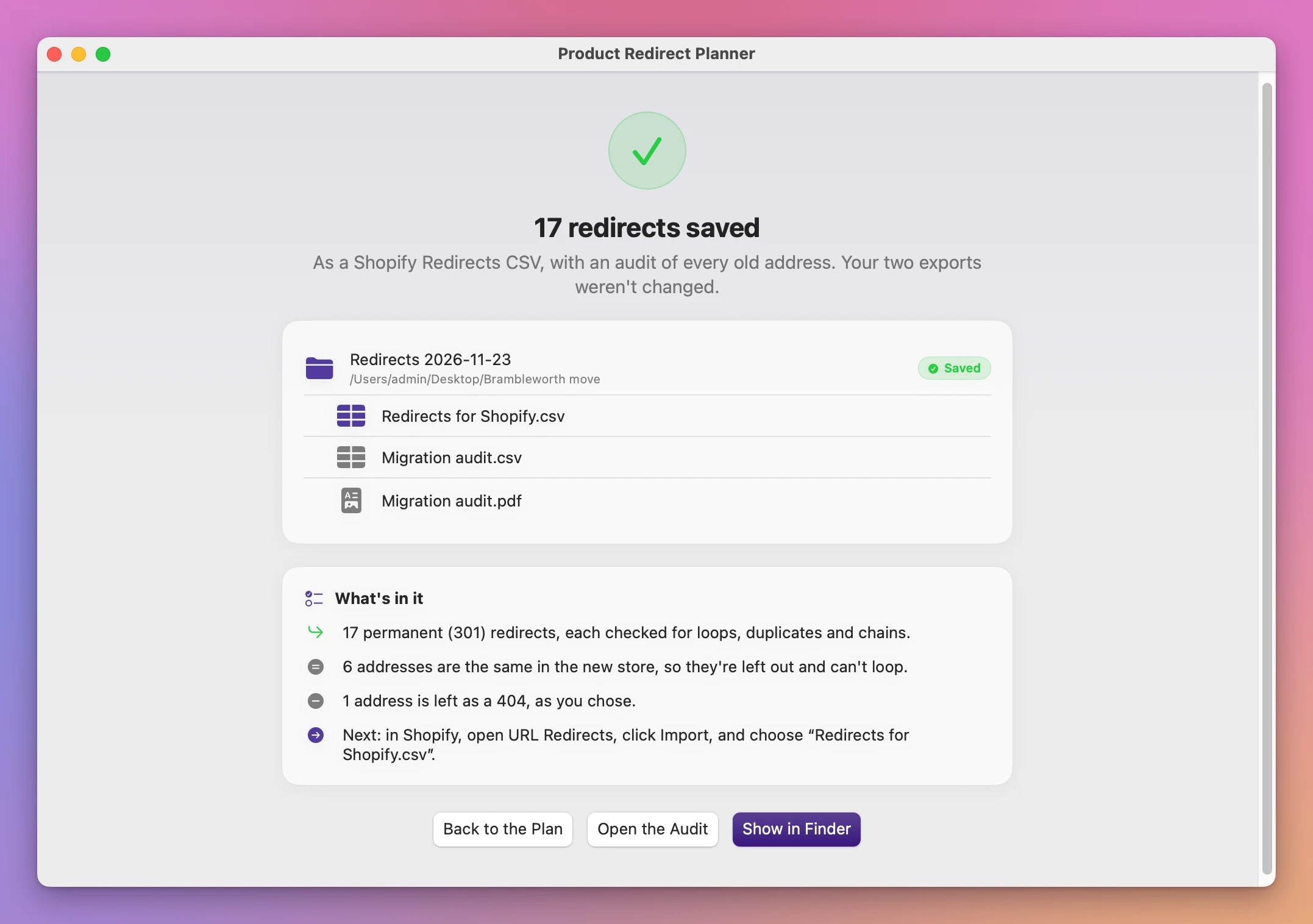
Export Redirects… makes a new folder with three files:
- The redirect file, in the format you pick: Shopify Redirects CSV (
Redirect from,Redirect to), WooCommerce Redirection Plugin CSV, or Standard 301 CSV (Old Path,New Path,Status,Match Reason) for any other platform or for the person who sets them up. Migration audit.csv, one row per old address with what happened to it and why.Migration audit.pdf, the same as a printable report.
Only redirects that are ready go in the file. Addresses still waiting for a decision are listed in the audit, so nothing gets lost.
Your choices are saved as you go. Close the window, open the same two files tomorrow, and they’re back.
Why not do it by hand
| A spreadsheet | Product Redirect Planner | |
|---|---|---|
| Same address written two ways | /mug/ and /mug don’t match | Same address |
| Renamed products | Look each one up | Matched by SKU |
| No SKU | Guess from the name | Closest name suggested, you confirm |
| Split products | Easy to miss | Marked Pick One, both shown |
| Discontinued products | Find them by elimination | Marked Needs Destination, with collection pages to send them to |
| Loops, duplicates, chains | Not checked | Checked before saving |
| Import file | Build the columns yourself | Shopify, Redirection plugin or standard CSV |
Shopify’s URL Redirects page imports a CSV, and it’s the right place for the file. It takes the file as it is: it doesn’t tell you which old products are missing from it. Migration apps move your products and may create some redirects; they don’t show you the ones they skipped. A VLOOKUP on handles works when no handle changed, which is the one case where you didn’t need it.
What it doesn’t do
- It doesn’t visit your site. It reads the two exports. It doesn’t check that the old or new pages answer.
- It doesn’t import anything. You upload the file in Shopify or WordPress yourself.
- It works with product pages. Collections, blog posts and other pages aren’t in a product export. You can still send an old product to any page by typing its address.
- It doesn’t make pattern redirects (wildcards or regular expressions). One line per old address.
- It doesn’t change your exports. Both files are only read.
- It can’t read an export with no addresses or handles. If yours has none, add a column called URL with each product’s address.
Questions
Which exports does it read?
Shopify’s product export, WooCommerce’s (with a Permalink or Slug column), Squarespace’s, BigCommerce’s, a sitemap saved as CSV, or any spreadsheet with a column of addresses, paths or handles. It finds the SKU, name and category columns by their names, and joins variant rows to their product.
Can I try it without my own files?
Click Try Example Stores on the first screen. It opens a made-up pottery shop moving from WooCommerce to Shopify, with every kind of match in it.
Does anything get uploaded?
Nothing. Your exports stay on your Mac. The app connects to the internet only to check for updates.
What it needs
macOS 14 Sonoma or later, on Apple silicon and Intel Macs. It asks macOS for no permission: it reads the files you choose or drag onto its window.
Product Redirect Planner isn’t made by, affiliated with or endorsed by Shopify, WooCommerce, Squarespace, BigCommerce, Wix or Apple. Their names are trademarks of their owners. The shop and products in the screenshots are made up.
Buy Product Redirect Planner
$19 plus tax where it applies, paid once.
Download the app from the order page or your Creem receipt, unzip it and move it to Applications. I sign the app with my Apple Developer ID, and Apple notarizes the download.
The app checks for updates once a day. When a new version is ready, click Install and Relaunch. The first time, it asks for the license key from your Creem receipt, and remembers it. To check anytime, choose Product Redirect Planner → Check for Updates….