
Mac & Windows app by Flavio
Sale Price Rollback
Save your prices and compare-at prices before Black Friday or a flash sale. When it ends, compare them with a fresh export and get a clean restore CSV for Shopify, WooCommerce or any store, with the products you edited during the sale left alone.
Buy Sale Price Rollback for Mac · $19Buy Sale Price Rollback for Windows · $19Buy once, use forever. Up to 3 computers you own (license). Plus tax where it applies. Mac and Windows versions are sold separately.
macOS 14 or later (Apple silicon and Intel) · Windows 10 and Windows 11 (x64 and ARM64)
Latest Mac version 1.0.0, released November 27, 2026
Black Friday is on Friday. You mark down 20 products in your Shopify store, 20% off, with the old price as the compare-at price so people see it crossed out. That part is fun.
Then comes Tuesday. The sale is over and 20 prices need to go back. You could re-import the export you made before the sale, but that also puts back every title, tag, stock count and status from a week ago. During the sale you raised the price of the copper kettle for a new batch, archived a teapot you won’t restock, and deleted a tea you discontinued. An old export would undo all of it, and bring the tea back.
Sale Price Rollback saves your prices and compare-at prices before the sale. When the sale ends, you give it a fresh export, and it sorts every product into Ready to Restore, Edited Mid-Sale, Already Restored and Removed from Store. Only the ready ones are ticked. It saves a restore CSV with just the price columns, so the import can’t touch anything else.
Watch a 30-second demo of Sale Price Rollback:
Who it’s for
- Shopify shop owners who run Black Friday through Cyber Monday. You mark down 80 variants with a bulk edit or an import, and on Tuesday you need them back exactly, without undoing the price you raised on a product that sold out halfway through the weekend.
- WooCommerce sellers who set sale prices by CSV. No sale end dates, just a Sale price column you filled in. You need to clear it on the right products and leave the regular prices you changed alone.
- Assistants and virtual assistants asked to “end the sale”. The audit PDF shows the owner which products went back, which were left alone and why, product by product.
- Shops that run a flash sale every month. One tag, one weekend. Each sale gets its own snapshot with a name, so the before-prices are there when you need them, even three weeks later.
- Anyone whose last rollback went wrong. A re-import of the old export brought back a product you’d deleted, or put an old title on a product you’d renamed.
How it works
- Before the sale, export your products from your store as CSV.
- Open the app and click Choose Pre-Sale Export…, or drag the file onto the window.
- Name the sale, pick the products (all of them, a tag or category, a list of SKUs, or the ones you tick), and if you like, the planned discount.
- Click Save Snapshot of 20 Prices.
- When the sale ends, export your products again, select the snapshot and click Choose Current Store Export….
- Check the products marked Check Before Restoring, then click Save Restore File for 13 Products….
- Import
Restore prices.csvin your store.
What you get
A snapshot of your prices, before the sale
The app reads exports from Shopify (both the older and the newer column names), WooCommerce, and other stores: any CSV with a price column and a SKU, handle or ID column. It saves each product’s price and compare-at price (or WooCommerce’s regular and sale price) exactly as your export wrote them, so “24.00” goes back as “24.00”.
Pick what goes in the snapshot: every product, one tag or category like black-friday, a list of SKUs pasted from anywhere, or the products you tick. The list shows each price and, with a planned discount, the sale price it will get.
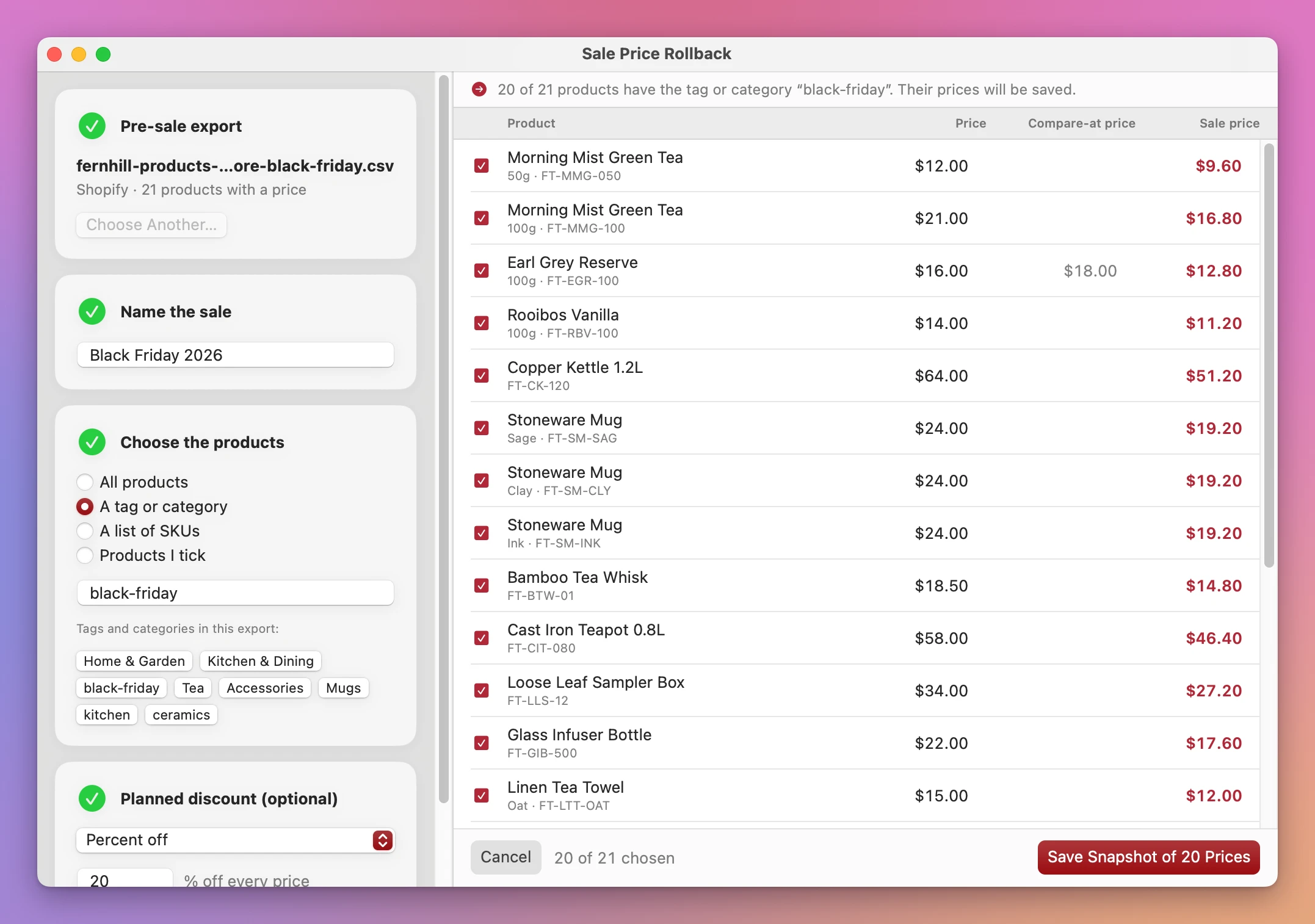
Snapshots stay in the Sale Snapshots list, named and dated, with a copy of the export they came from.
A sale launch file, if you want one
With a planned discount (a percent off, an amount off, or one sale price for everything), Save Sale Launch CSV… saves a file that starts the sale. For Shopify, the current price moves to compare-at and the sale price becomes the price. For WooCommerce, the regular price stays and the sale price is set. A product the discount would bring to zero is left out and counted.
Four states after the sale
When you give it the export from after the sale, every product of the snapshot gets one of four states:
- Ready to Restore: still at its sale price, with the old price as compare-at (or no compare-at), and nothing else changed. Ticked.
- Check Before Restoring: something changed that the sale doesn’t explain. The price went up, the compare-at price is a new number, the title changed, or the product was archived or set to draft. Unticked, so you don’t undo a change you meant to keep.
- Already Restored: the prices already match the snapshot. Nothing to write.
- Missing in Store: it isn’t in the export any more. Left out, so the import doesn’t create it again.
Products you added during the sale aren’t in the snapshot, and the app leaves them alone.
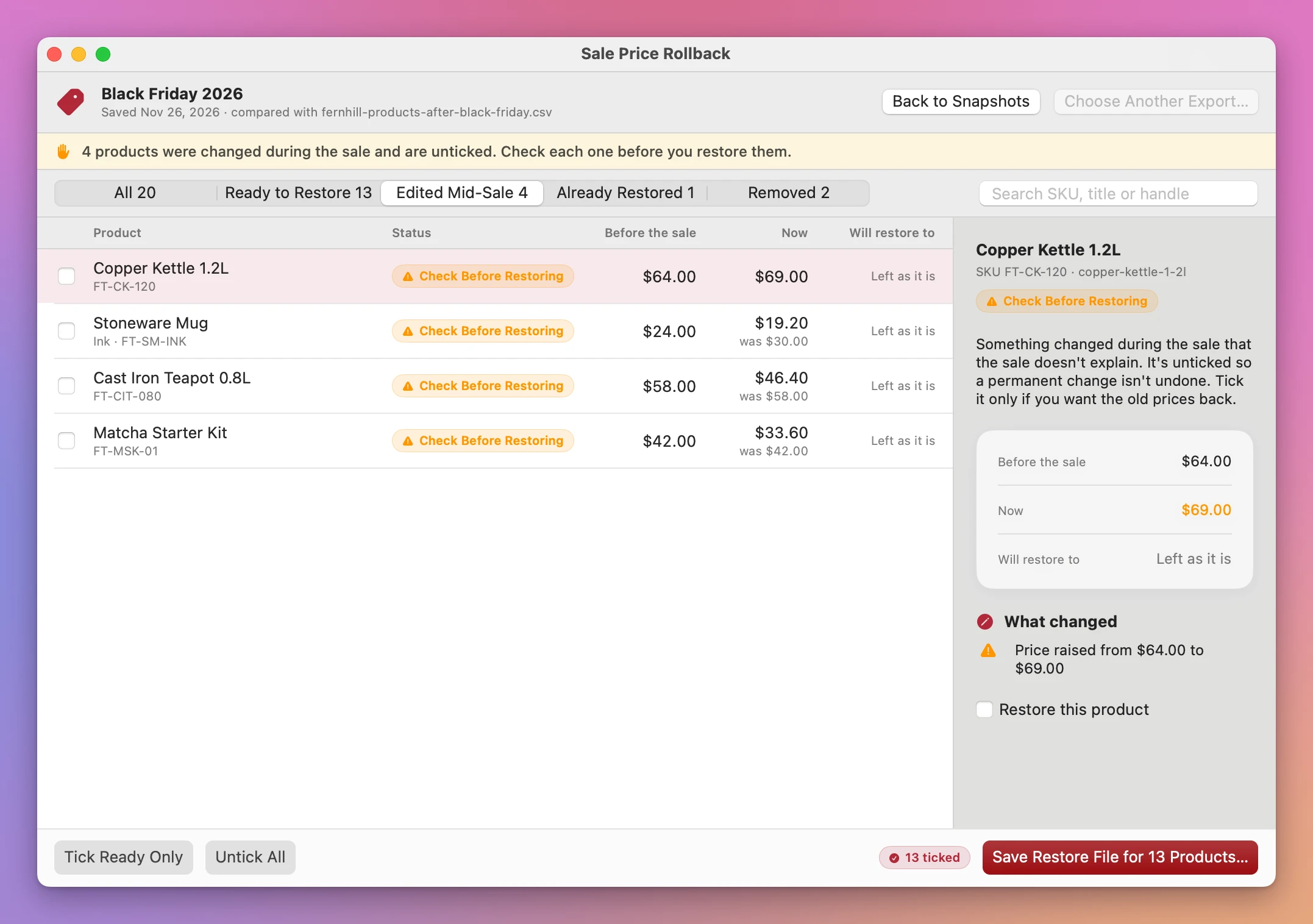
Click any product to see its prices before the sale, now, and after the restore, side by side. Filter by state, search by SKU, title or handle, and tick or untick any product. Prices are compared as numbers, so “23.2” and “23.20” are the same price.
A restore file with only the price columns
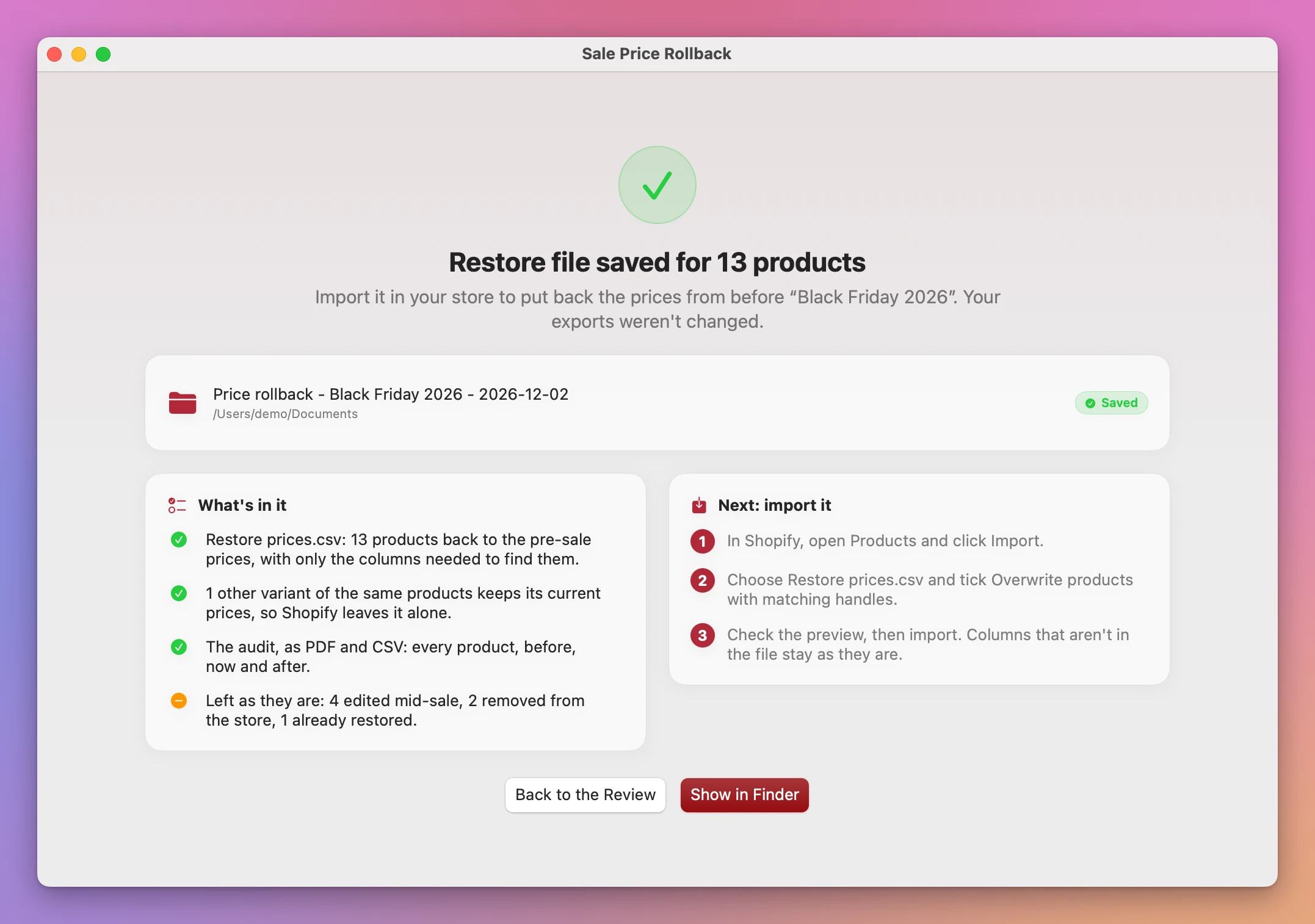
Save Restore File for 13 Products… makes a new folder with three files:
Restore prices.csv: the products you ticked, with their exact pre-sale prices, and only the columns your store needs to find them. For Shopify that’s the handle, the option names and values, the SKU, the price and the compare-at price. For WooCommerce, the ID, the SKU, the regular price and the sale price. No descriptions, tags, images or stock.Rollback audit.pdf: every product of the snapshot, what it was, what it is now and what it goes back to, with the reason for each one left out.Rollback audit.csv: the same, to sort in a spreadsheet.
Shopify’s overwrite import treats a product’s rows as its full list of variants. So when one variant of a product goes back, its other variants go in the file too, at their current prices, and stay as they are.
Two exports, no snapshot
Forgot to take a snapshot, but you have last week’s export? Drag both exports onto the window. The older one counts as the one from before the sale, and every product in it is compared.
Why not do it by hand
| By hand | Sale Price Rollback | |
|---|---|---|
| Keeping the old prices | An export in your Downloads folder, if you remembered | A named snapshot per sale, with the export it came from |
| Putting prices back | Re-import the old export, or edit each product | A CSV with only the price columns |
| Prices you raised during the sale | Undone by the old export | Flagged and left alone |
| Products you deleted | Created again by the old export | Left out |
| Archived or renamed products | Put back as they were | Flagged and left alone |
| A record of what you did | None | An audit as PDF and CSV |
Shopify’s automatic discounts and discount codes change the price at checkout, not the product’s price, so there’s nothing to roll back. Many shops still change prices for a sale, because a crossed-out compare-at price on the product page sells better. WooCommerce can end a sale on its own when you set the sale dates, but not when you filled in sale prices with an import.
In a spreadsheet, you can put the two exports side by side and match products with a lookup on the handle or SKU. That works for one sale and a few dozen products. With variants spread over several rows, extra image rows, and a price raised here and there, it’s slow, and nothing tells you which differences came from the sale and which from you.
What it doesn’t do
- It doesn’t connect to your store. It never signs in, imports or changes anything. You import the file yourself, and your store’s preview shows it first.
- It doesn’t change your exports. They’re only read. Everything it saves goes in a new folder.
- It only restores prices. The price and the compare-at (or sale) price. Not stock, descriptions, tags, images or status.
- It doesn’t schedule anything. No timers, no automatic end of the sale.
- It doesn’t read WooCommerce’s sale dates, or Shopify markets and price lists. Only the prices in the product export.
- It reads CSV files. Not Numbers or Excel files: save as CSV first.
Questions
Which stores does it work with?
Shopify and WooCommerce, recognised by their export’s columns, and any other store whose product export is a CSV with a price column and a SKU, handle or ID column.
Does anything get uploaded?
Nothing. Your exports and snapshots stay on your Mac, in the app’s own folder. The app connects to the internet only to check for updates.
Can I try it without my own exports?
Click Try Example Store on the first screen. It opens the export of a made-up tea shop from before Black Friday, ready to save as a snapshot. Then click Use Example After-Sale Export to see the comparison in this page.
What it needs
macOS 14 Sonoma or later, on Apple silicon and Intel Macs. It asks macOS for no permission: it reads the files you choose or drag onto its window.
Sale Price Rollback isn’t made by, affiliated with or endorsed by Shopify, WooCommerce, BigCommerce, Etsy, eBay or Apple. Their names are used only to say which exports it reads. The shop and products in the screenshots are made up.
Buy Sale Price Rollback
$19 plus tax where it applies, paid once.
Download the app from the order page or your Creem receipt, unzip it and move it to Applications. I sign the app with my Apple Developer ID, and Apple notarizes the download.
The app checks for updates once a day. When a new version is ready, click Install and Relaunch. The first time, it asks for the license key from your Creem receipt, and remembers it. To check anytime, choose Sale Price Rollback → Check for Updates….