
How to use Project Folder Kits
Project Folder Kits
Create a project on Mac from a reusable folder template, with client and job values in file and folder names.
Free to read. You can explore the guide before buying the app.
On this page
Install
Download the ZIP from the purchase page or your Creem receipt. Unzip it and move Project Folder Kits to Applications. The app is signed and notarized, and runs on macOS 14 Sonoma or later on Apple silicon and Intel.
The workflow works as soon as the app opens. For automatic updates, enter your key under Project Folder Kits → License…. A key works on three Macs. Deactivate This Mac frees an activation.
Make a template
Create an ordinary folder in Finder. This kit makes three project folders and copies a brief and checklist.
{client}/{job}/01 Brief/Starter.md
{client}/{job}/02 Production/Checklist.md
{client}/{job}/03 Delivery/
You can use as many token names as you need. Start a token with a letter and use letters, numbers, hyphens or underscores. The braces in the template tell the app where to put the value.
Fill the fields
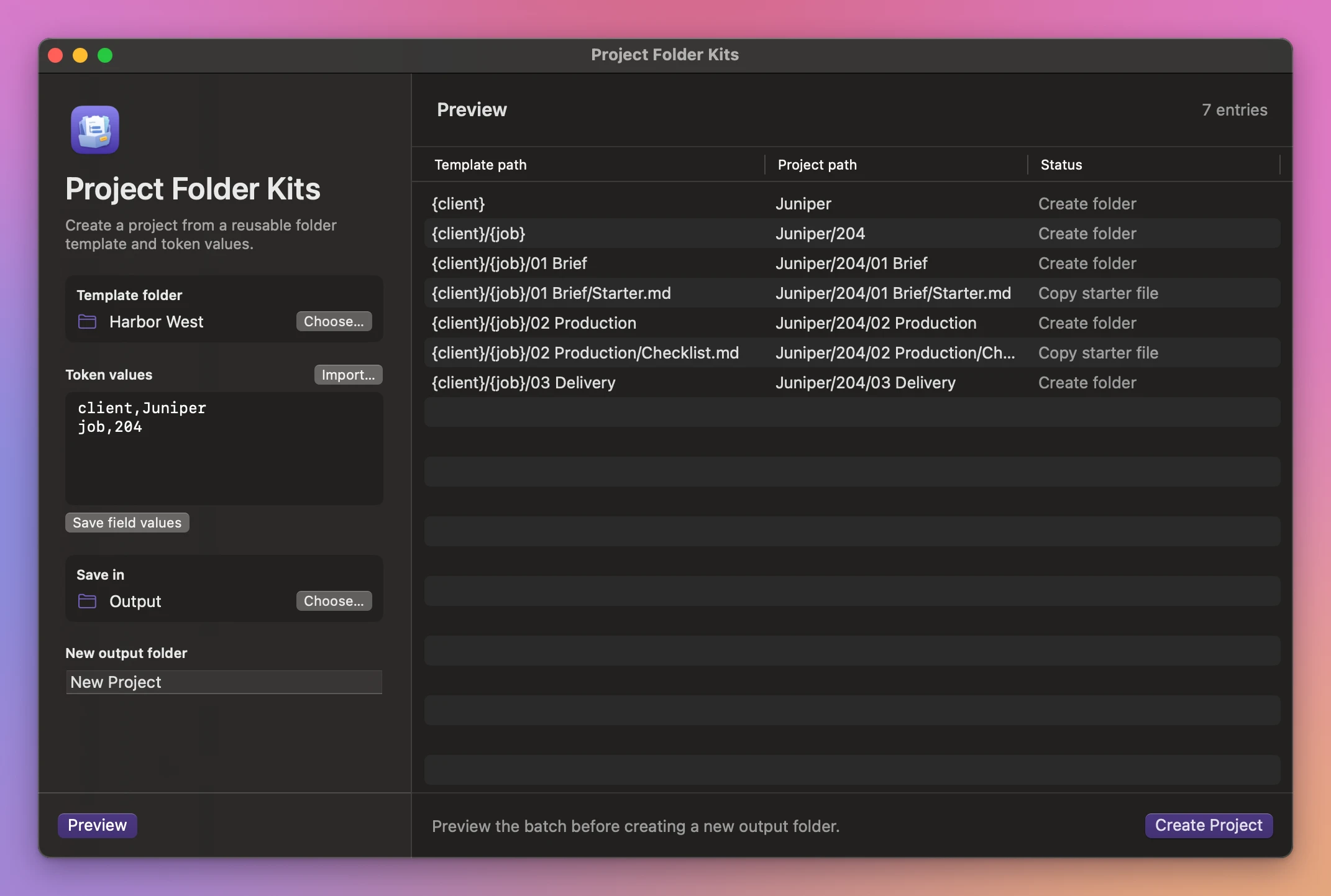
Select the folder under Template folder. Enter a token and value per line in Token values, separated by a comma.
client,Juniper
job,204
Import the same format from a text file with Import…. Save field values remembers the entries on this Mac.
Create the project
Choose Save in and enter a New output folder name. Preview shows the filled-in paths, including empty folders. Add a value for each requested token and fix any conflicting names before continuing.
Choose Create Project. The example contains Juniper/204/01 Brief/Starter.md inside the new output folder. The text inside Starter.md comes straight from the template.
If an output folder already exists, choose a different name or location and preview again. Changes to the inputs also require a new preview. Cancel stops the work before delivery.
See Project Folder Kits → · $20 including tax.