
An app by Flavio
Safe Folder Flattener
Copy every file from a tree of subfolders into one flat folder. See each name before copying, never overwrite a duplicate, and keep a map back to the originals.
Buy Safe Folder Flattener · $20One-time purchase. Plus tax where it applies.
macOS 14 or later · Apple silicon and Intel
You need every file from a folder into one place. The trouble is that the files sit in 50 subfolders, some of them three levels deep. And many share a name: every shoot folder has a Cover.txt, every camera folder has a C0001.MP4.
Opening each subfolder and dragging its files out is slow. Then Finder stops you on each duplicate name and asks what to do. Answer wrong once and a file is gone.
Safe Folder Flattener copies all the files into one new folder. Before it copies anything, it shows you the name each file will get. Two files with the same name both arrive, one with a number. A CSV in the new folder tells you where each file came from.
Who it’s for
- Photographers with card dumps. Your camera split a shoot into
100CANON,101CANONand102CANON, and the numbering restarted, so there are twoIMG_0001.JPG. You want all of them in one folder for your editor, without losing either. - Video editors. Three cameras, each with its own folder, each starting at
C0001.MP4. Your editing app or a transcription service wants one folder of clips, with none replacing another. - Office workers sending files to a portal. The shared drive has a folder per month and per client. The upload form only accepts files, not folders, so you need them all in one place before you select them.
- Students and researchers. A course download or a dataset arrives nested five levels deep, with a
README.pdfordata.csvin every folder. You want them side by side, still telling you which folder each came from. - Anyone with a printer or a tool that reads one folder. A photo kiosk, a batch converter or a print shop’s upload wants a flat folder. Yours has 30 subfolders.
From a nested tree to one folder
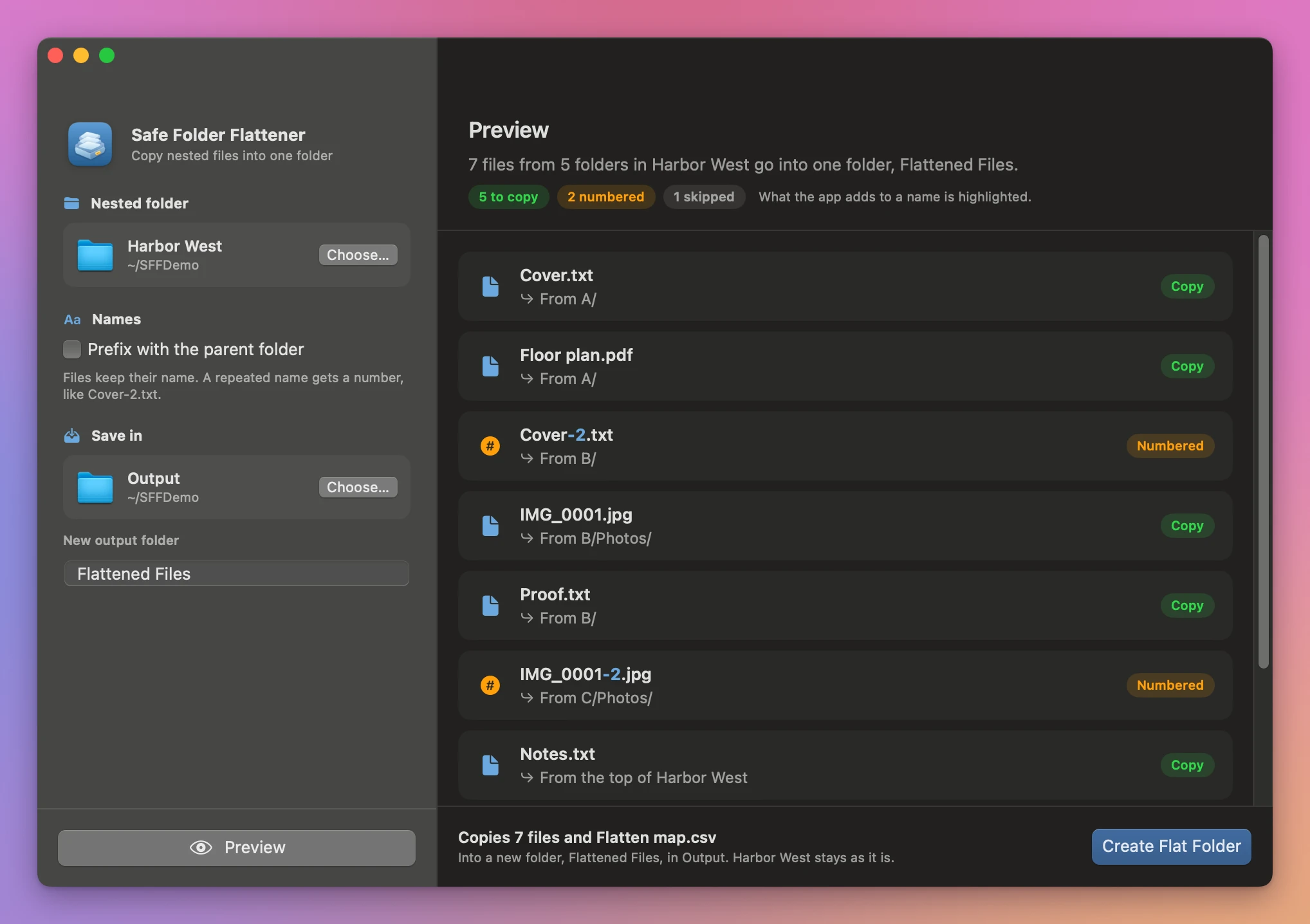
Say you have a folder called Harbor West with a subfolder per day of a job, and you need every file in one folder for the client’s upload page.
- Pick the folder. Click Choose… next to Nested folder, or drop the folder on it. Every subfolder inside it is included.
- Decide how names carry over. Leave Prefix with the parent folder off to keep the filenames as they are. Turn it on to put the name of each file’s folder in front, like
Day 2 - Cover.txt. - Pick where the new folder goes. Choose a Save in location outside
Harbor West, and type a name under New output folder. The default isFlattened Files. - Click Preview. Each file appears under its new name, with the folder it comes from below it. Most have a green Copy pill. A file that got a number has an orange Numbered pill, and the part the app added, like
-2, is highlighted. - Click Create Flat Folder. The app makes the new folder with all the copies and the map. The done screen lists what’s in it, and Show in Finder takes you there.
By hand, 50 subfolders means 50 rounds of open, select all, drag, go back. Every duplicate name adds a dialog. As an estimate, that’s half an hour of careful clicking for one folder tree, and nothing records which file came from where.
What it does
Shows every name before it copies
The preview lists every file the app found, with the name it will have in the new folder. Nothing is written until you click Create Flat Folder. If you change the folder, the checkbox or the output name, you preview again.
Never overwrites a file
When two files would get the same name, the first one keeps it and the next gets a number before the extension: Cover.txt, then Cover-2.txt, then Cover-3.txt. Names that differ only in capitalization, like cover.txt and Cover.txt, count as the same name. Most Mac and Windows drives treat them that way, and one would replace the other.
Prefixes with the folder name when it matters
Sometimes the folder name is the only thing that tells two files apart. With Prefix with the parent folder on, A/Cover.txt becomes A - Cover.txt and B/Cover.txt becomes B - Cover.txt. The prefix is the folder the file sits in directly, not the whole path. Files at the top of the folder you picked keep their name. If two names still collide, the second still gets a number.
Keeps a map back to the originals
The new folder has a file called Flatten map.csv. Each row has the original path, the output filename and the status. A week later, when the client asks about Cover-2.txt, you open the map and see it came from B/Cover.txt.
Leaves your originals alone
The app copies. The nested folder stays as it was, every file in its place.
The new folder appears only when every copy has finished. If something fails or you click Cancel, you don’t get a half-filled folder. If a file changes between the preview and the copy, the app stops and asks you to preview again, so what you get is what you checked.
Skips what it can’t copy safely
Links, macOS packages (like a .photoslibrary or an app bundle) and other special files aren’t copied. They show up in the preview and in the map as Skipped link, package, or special file, so you know they were there.
Why not drag them out in Finder
Finder can do this one folder at a time. Open a subfolder, select all, drag the files out, go back, repeat. On a duplicate name, Finder asks whether to replace the file, skip it or keep both. That’s fine for three folders, and slow and risky for fifty.
You can also search the folder in Finder and select all the results. That flattens the view, not the files, and you still face the duplicate dialogs when you drag them out. Either way, nothing records where each file came from.
| Dragging in Finder | Safe Folder Flattener | |
|---|---|---|
| 50 subfolders | 50 rounds of open, select, drag | One preview, one click |
| Duplicate names | A dialog per file, one wrong answer replaces it | Numbered, shown before copying |
| Telling duplicates apart | Rename them yourself | Optional parent-folder prefix |
| Where a file came from | Lost once it’s moved | In Flatten map.csv |
| The original folder | Emptied if you moved files | Untouched, the flat folder is a copy |
| Missed files | Easy to skip a subfolder | Every file is in the preview |
What it doesn’t do
- It doesn’t filter by type. It copies every file it finds, hidden ones like
.DS_Storeincluded, so they show up in the map too. - It doesn’t remove duplicate files. Two identical photos both get copied, one with a number.
- It doesn’t rename beyond the number and the optional prefix.
- It doesn’t move files or delete the original tree.
- It doesn’t fix names a Windows PC would refuse. For that, run the flat folder through Filename Compatibility Fixer.
Questions
Are my original files changed or moved?
No. The app only reads them and makes copies in a new folder.
Does anything get uploaded?
No. File processing happens on your Mac. The app goes online only to check for updates.
What if the output folder already exists?
The app won’t write into an existing folder. Choose a different name or location and preview again. The output also has to be outside the folder you’re flattening.
Which file keeps the original name when two collide?
The app goes through the folders in alphabetical order, and the first file it meets keeps the name. The preview shows you which one that is before anything is copied.
Does it work on external drives?
Yes. Pick a folder on any drive your Mac can read, and save the flat folder wherever you like, as long as it’s outside the source.
The documentation walks through the same Harbor West example as the screenshot.
Buy Safe Folder Flattener
$20 plus tax where it applies, paid once. Download the app from the purchase page or your Creem receipt.
Unzip the download and drag the app to Applications. It runs on macOS 14 Sonoma or later on Apple silicon and Intel Macs. File processing happens on your Mac.
The app checks for updates once a day. When a new version is ready, click Install and Relaunch. To check anytime, choose Safe Folder Flattener → Check for Updates….