
An app by Flavio
Sideways Video Fixer
A Mac app for the video that plays on its side or upside down. Turn it, flip it, trim it, and save a new copy next to the original, without learning a video editor.
Buy Sideways Video Fixer · $20One-time purchase. Tax included.
macOS 14 or later · Apple silicon and Intel
You filmed the birthday cake with the phone held sideways, and now the video plays on its side. On the Mac, on the TV, in every chat you send it to. Or the camera on the bike was mounted the other way and the whole ride is upside down.
You could learn iMovie to fix it. Or you could drop it on a window and click Rotate Left.
$20 including tax, paid once.
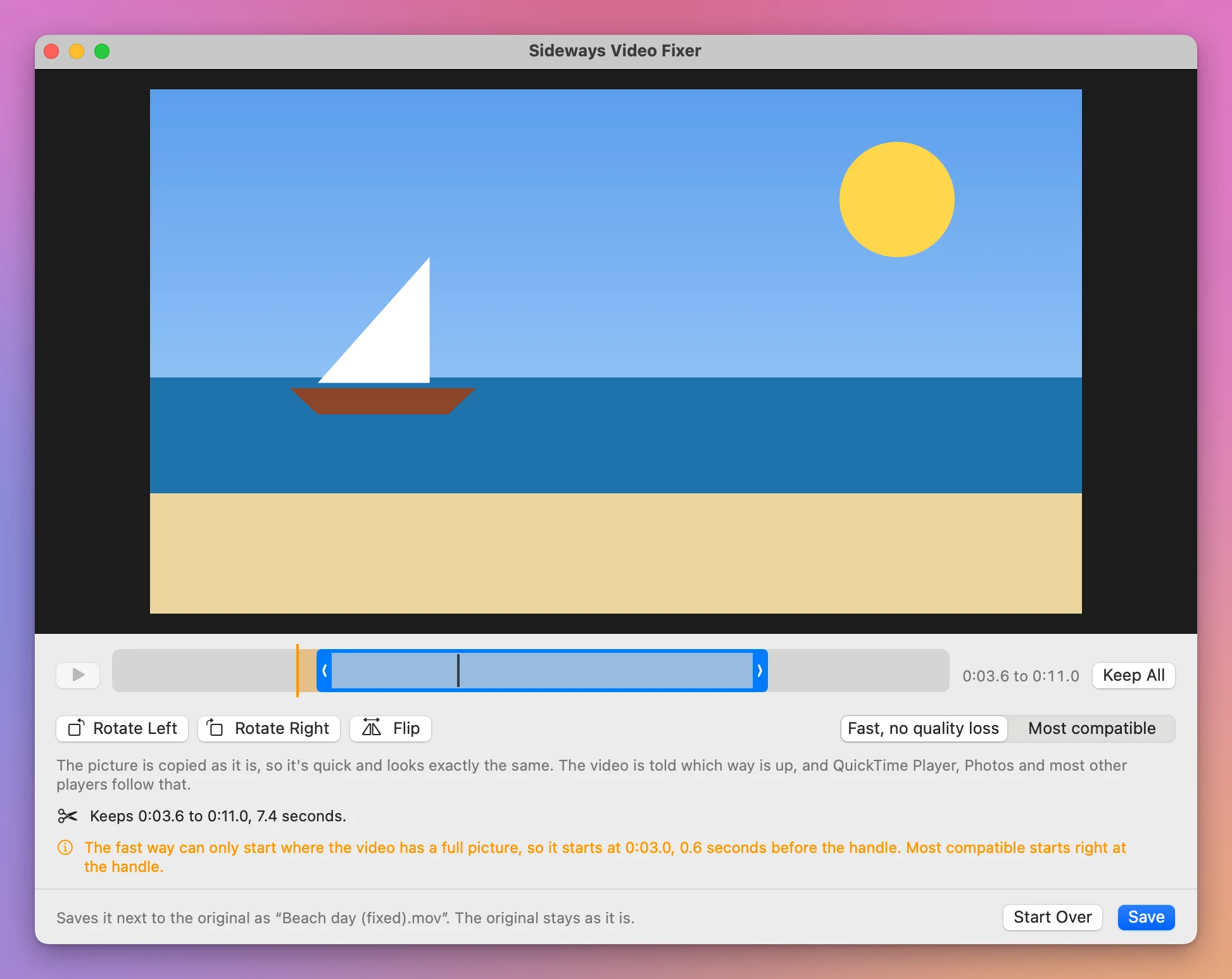
Sideways Video Fixer is a Mac app that turns a video the right way up. Drop it on the window, click Rotate Left or Rotate Right until the picture is upright, and click Save. The new video goes next to the original, named like it with “(fixed)” after it. The original stays as it is.
How it works
- Drop a video on the window, or click Choose Videos…. It works with
.mov,.mp4and.m4vvideos from phones and cameras. - Click Rotate Left or Rotate Right. The picture in the window turns right away, so you see what you’ll get. Flip mirrors it left to right, for a selfie video that came out mirrored.
- To keep only part of it, drag the two handles under the video. Play plays the part you keep.
- Pick how to save it and click Save.
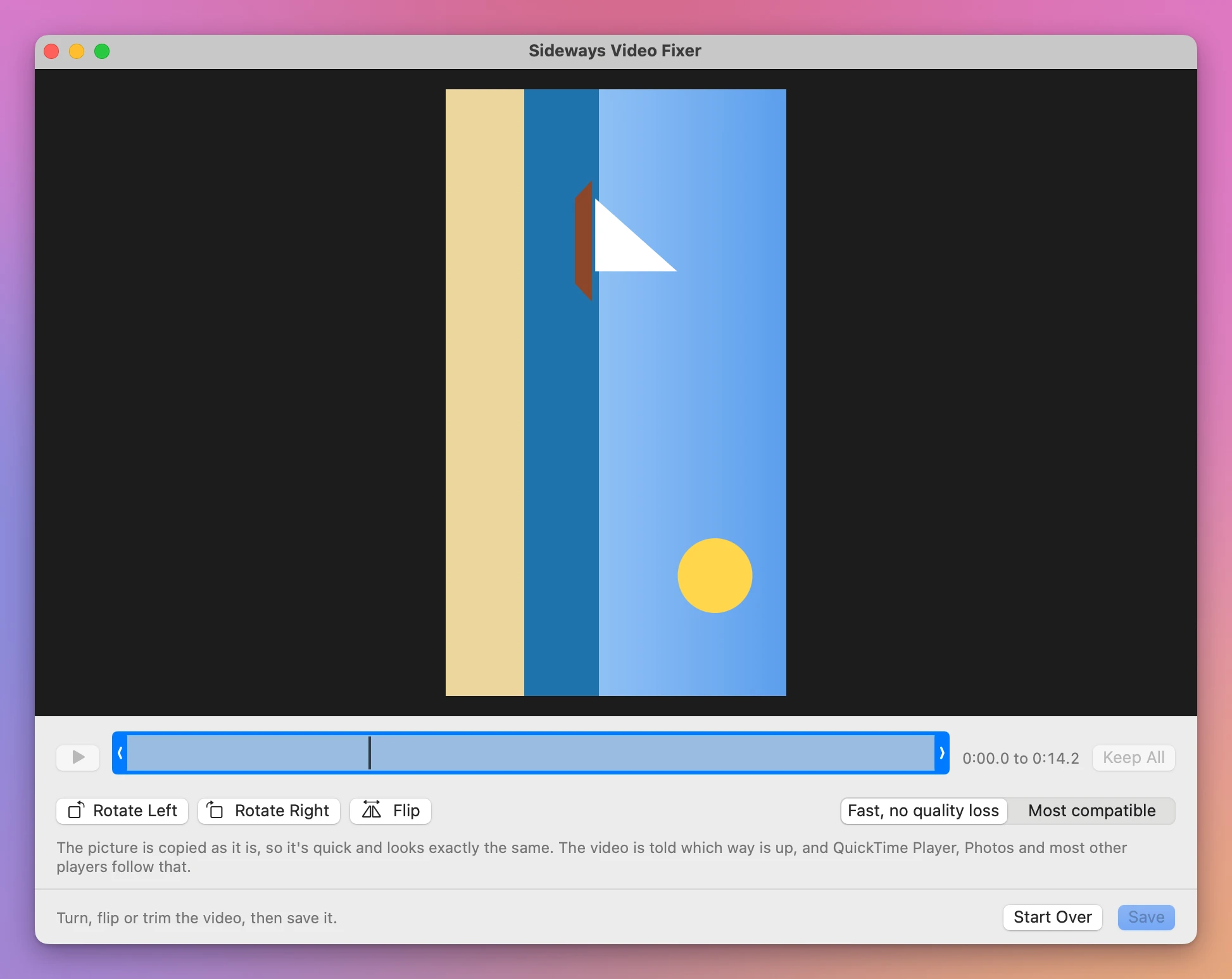
Beach day.mov becomes Beach day (fixed).mov. If that name is taken, it’s Beach day (fixed 2).mov. A file that’s already there is never replaced.
Two ways to save
The two ways do different things, and the window says which one you’re on.
Fast, no quality loss is the one picked when you start. The picture isn’t saved again: it’s copied as it is, and the video is told which way is up. So it’s quick, and the picture looks exactly as before. QuickTime Player, Photos and most other players follow that. A few players and TVs ignore it and still show the video on its side.
A trim the fast way can only start where the video has a full picture, which in most phone videos happens about once a second. If you put the start handle between two of those, the new video starts at the one just before it. An orange mark under the video shows where, and the window says it: “it starts at 0:03.0, 0.6 seconds before the handle”. The end is where you put it.
Most compatible saves the picture again, upright, so it plays the right way on every TV and player, even those that ignore which way is up. It starts and ends exactly at the handles. It takes longer, and the picture is encoded again at high quality, so it isn’t a bit-for-bit copy.
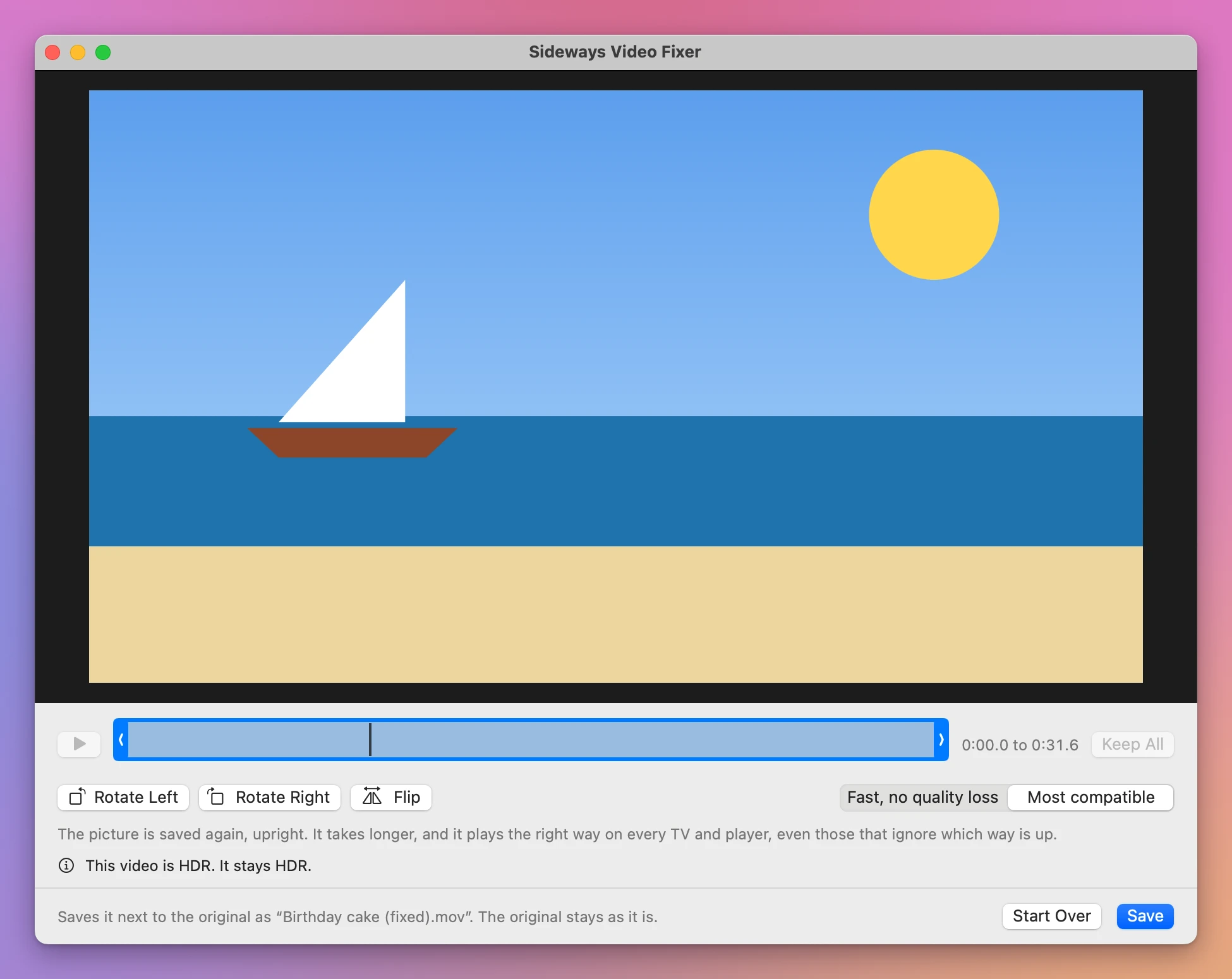
A flip is best saved with Most compatible. Some players show a flipped video upside down instead of mirrored when it’s saved the fast way, and the window tells you so when you flip.
| Fast, no quality loss | Most compatible | |
|---|---|---|
| The picture | Copied, exactly the same | Saved again, upright |
| Speed | Quick | Takes longer |
| Plays upright in | QuickTime Player, Photos and most players | Every TV and player |
| A trim starts | At the nearest earlier point the video can be cut at | Exactly at the handle |
| A flip | Some players show it upside down | Right everywhere |
Several videos at once
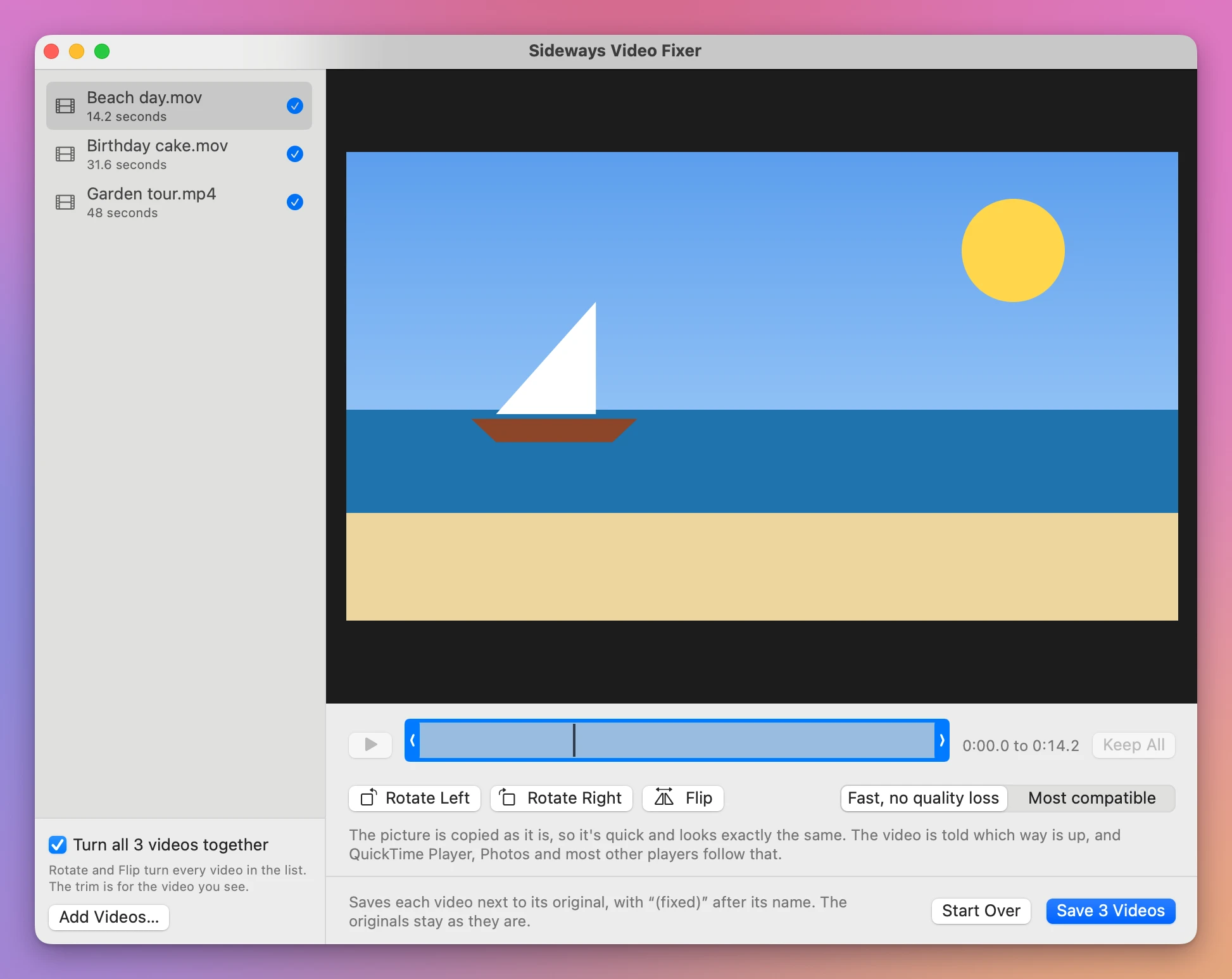
Drop a few videos together and they show in a list. Rotate Left, Rotate Right and Flip turn all of them at once, which is what you want after a holiday shot with the phone held the same wrong way. Untick Turn all 3 videos together to turn them one at a time. Save 3 Videos saves every video you changed.
Every new video is checked
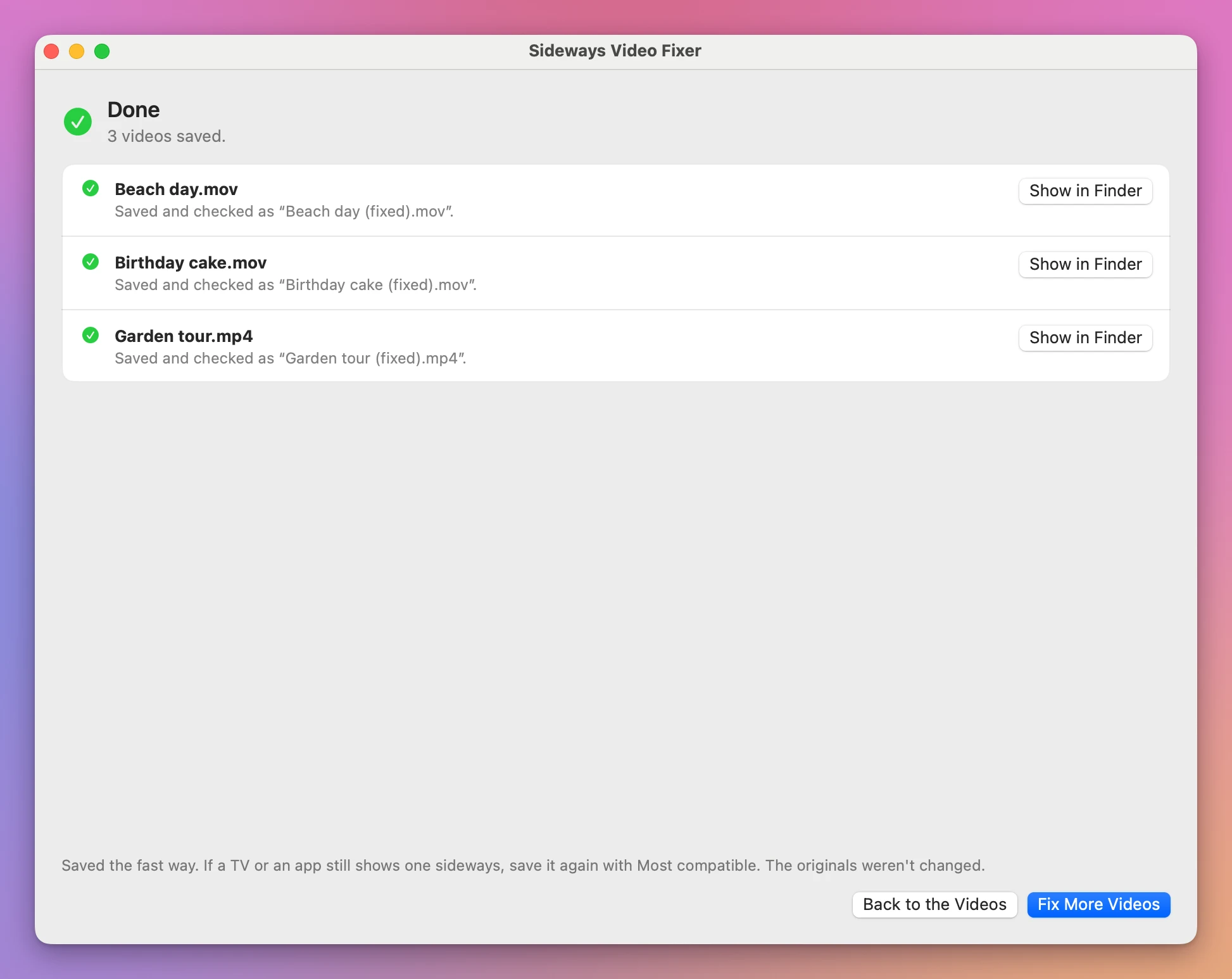
Before a new video gets its name, the app opens it again and checks it: it plays, it’s as long as the part you kept, it has its sound, and a frame of its picture matches the original’s frame turned the way you asked. A video that doesn’t pass is removed, and the window says why.
When it’s done, the window lists every video: saved, not saved and why, or nothing to change. Show in Finder shows the new file.
What stays the same
- The date the video was shot and the place, when the phone or camera saved them.
- The sound, every track of it.
- HDR. An HDR video from an iPhone stays HDR, both ways.
- The format: a
.movstays a.movand an.mp4stays an.mp4. - The dates of the file in the Finder are the original’s.
Good to know
Only the picture and the sound tracks are kept. Some phones and cameras add extra data tracks to a video, like a timecode, and those aren’t copied. The window says so when a video has them. Most compatible keeps a newer iPhone video in its own format, called HEVC, and saves anything else as H.264, the format every player opens.
I tested Sideways Video Fixer on videos made for the purpose: sideways, upside down, mirrored, trimmed, with no sound and with two sound tracks, in .mov and .mp4, in H.264 and HEVC, and in HDR with Dolby Vision like an iPhone records it. Each one was saved both ways, and its picture was read back to check which way is up. It wasn’t tested yet on the files of every phone and camera out there, so keep your original until you’ve watched the new one.
The first time you save a video that’s on your Desktop, in Documents, in Downloads, or on a card or drive, macOS can ask whether the app may use that folder. Click Allow: the new video goes next to the original. If the folder can’t be written to, the app says so and saves nothing.
Everything stays on your Mac. The app reads only the videos you choose, and writes only the new videos next to them.
Sideways Video Fixer is my own app. It’s not made by, affiliated with or endorsed by Apple or Dolby.
Buy Sideways Video Fixer and get started
Sideways Video Fixer costs $20 including tax, paid once. There’s no subscription.
After buying, your receipt has the app and a license key. Unzip the app and drag Sideways Video Fixer to your Applications folder. It runs on macOS 14 Sonoma or later, on Apple silicon and Intel Macs. It’s signed with my Apple Developer ID and checked by Apple, so it opens like any other app you download.
Enter the license key in Sideways Video Fixer → License… to get updates automatically. A key works on 3 Macs. Once a day, the app checks for a new version, shows what’s new, and installs it with Install and Relaunch. Your receipt always has the latest version, too.