
An app by Flavio
Trips for Dashcam
Your dashcam's card holds hundreds of short files, one for every minute or so. Trips for Dashcam turns them into trips you can watch from start to end, with the rear camera in a corner and the route on a map.
Buy Trips for Dashcam · $20One-time purchase. Tax included.
macOS 14 or later · Apple silicon and Intel
You took the card out of the dashcam after a long drive, or after something happened on the road, and put it in your Mac. The Finder shows hundreds of files called things like 2026_0612_143022_0012F.MP4, one for every minute or every few minutes, from the front camera and from the rear one. Somewhere in there is the moment you need.
$20 including tax, paid once.
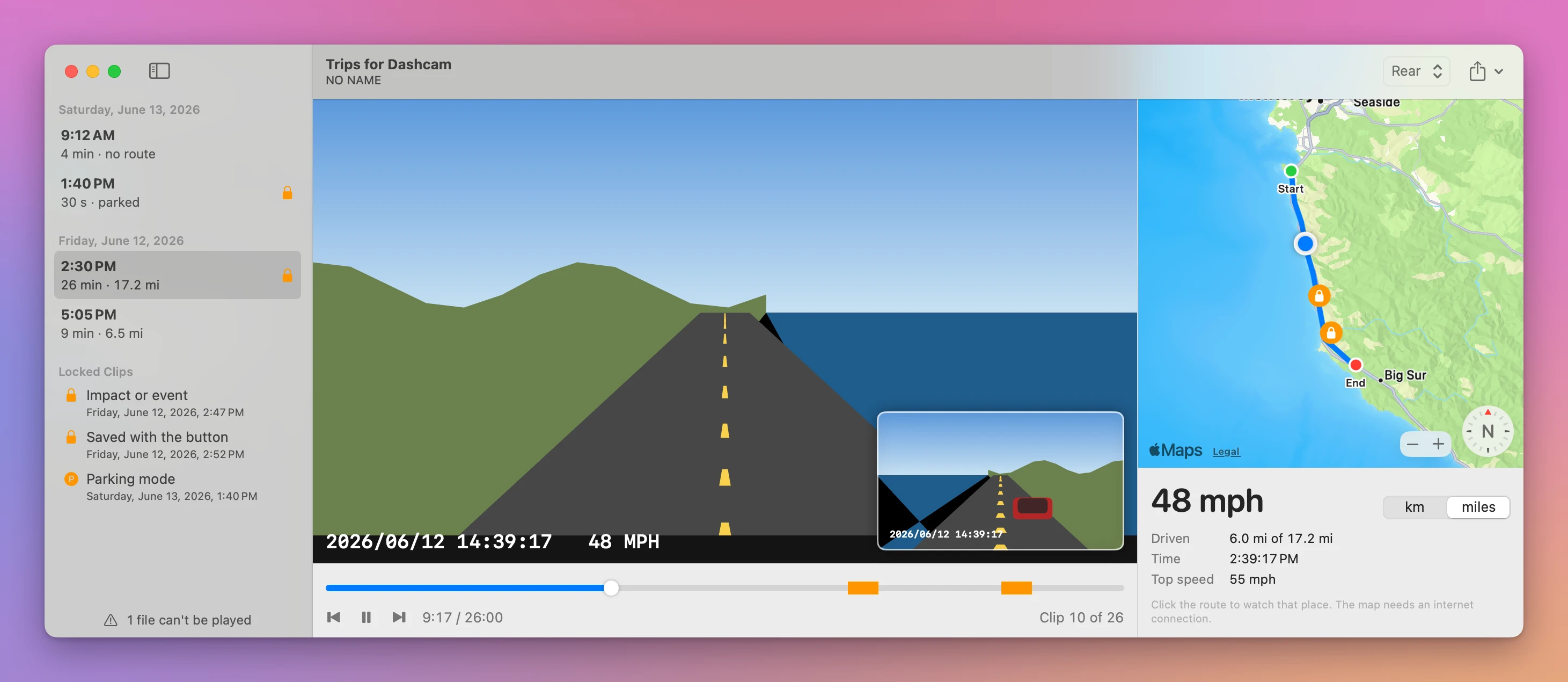
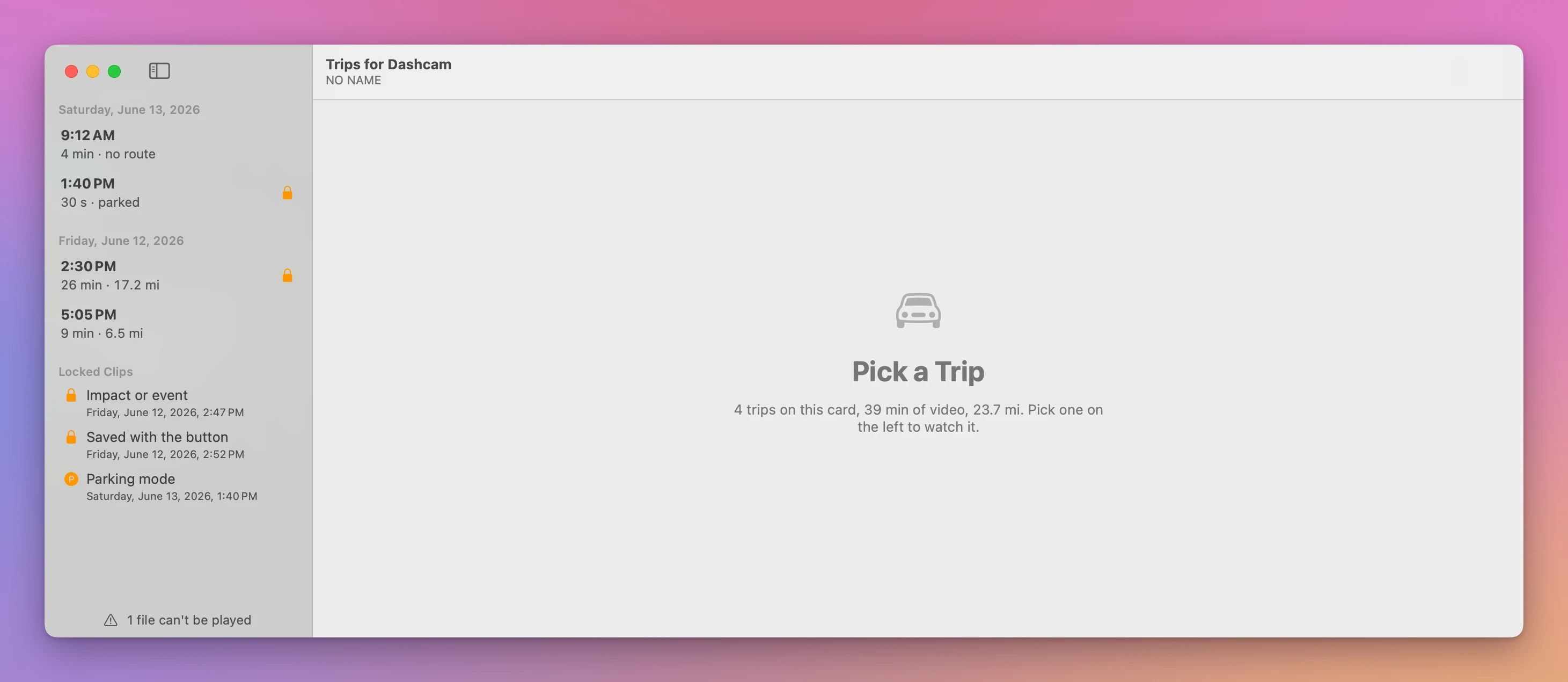
Trips for Dashcam is a Mac app that turns those files into trips. Open the card and the clips that follow each other become one trip, listed by day with its start time, its length and the distance. Click a trip and it opens on its first picture, ready to play from start to end as one video, with the rear camera in a corner and the route on a map.
Trips, not files
A dashcam starts a new file every minute or every few minutes, and a second one for the rear camera. The app reads the time of each clip, pairs the front and the rear clips of the same moment, and puts the clips that follow each other into one trip. When the car stopped for more than 5 minutes, a new trip starts.
| In the Finder | Trips for Dashcam | |
|---|---|---|
| A 26-minute drive | 52 files: 26 front and 26 rear | 1 trip: 2:30 PM, 26 min, 17.2 mi |
| The whole card | 76 files, plus one the camera didn’t finish | 4 trips over 2 days, 39 min of video |
| Watching it | One file at a time, front and rear apart | From start to end, rear camera in the corner |
| Where you were | Nowhere to see it | The route on a map, with the speed |
| The clips the camera locked | In another folder, by file name | Marked on the trip, and listed on their own |
| A file the camera didn’t finish | Won’t open | ”1 file can’t be played”, with the reason |
One video per trip
A trip plays with no gaps between the clips. The rear camera, or the one inside the car, plays in a corner at the same moment, and the menu at the top switches it. It lists only the cameras the trip has: with a rear camera it’s Rear or None, and with both a rear and an inside camera it’s Rear, Inside or None. The left and right arrow keys jump to the previous or the next clip, and the line under the video says where you are, like “Clip 10 of 26”.
The route on a map
When the camera saved GPS with its videos, the map shows the trip’s route with a dot that moves with the video. Under the map you see the speed at that moment, how far you’ve driven and the top speed of the trip, in kilometers or miles.
Click anywhere on the route and the video jumps to that place. That’s the quickest way to find a moment when you know where it happened and not when.
The map comes from Apple Maps, so it needs an internet connection. The videos play without one.
The clips the camera locked
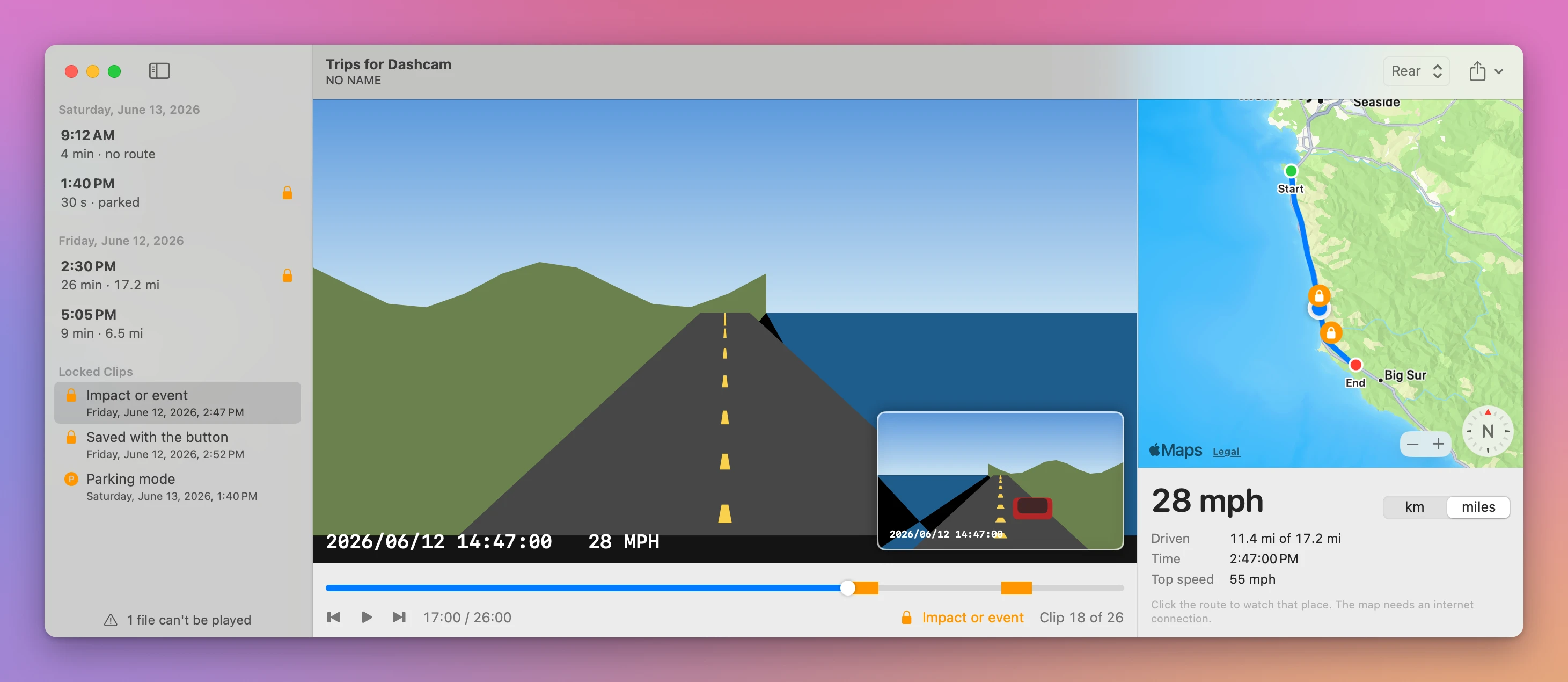
A dashcam keeps some clips apart so they aren’t recorded over: after a bump, when you press its button, or when something happens while the car is parked. Trips for Dashcam marks them in orange on the trip’s timeline and on the map, and lists them on their own under Locked Clips, as “Impact or event”, “Saved with the button” or “Parking mode”. Click one to watch it.
Save what you need
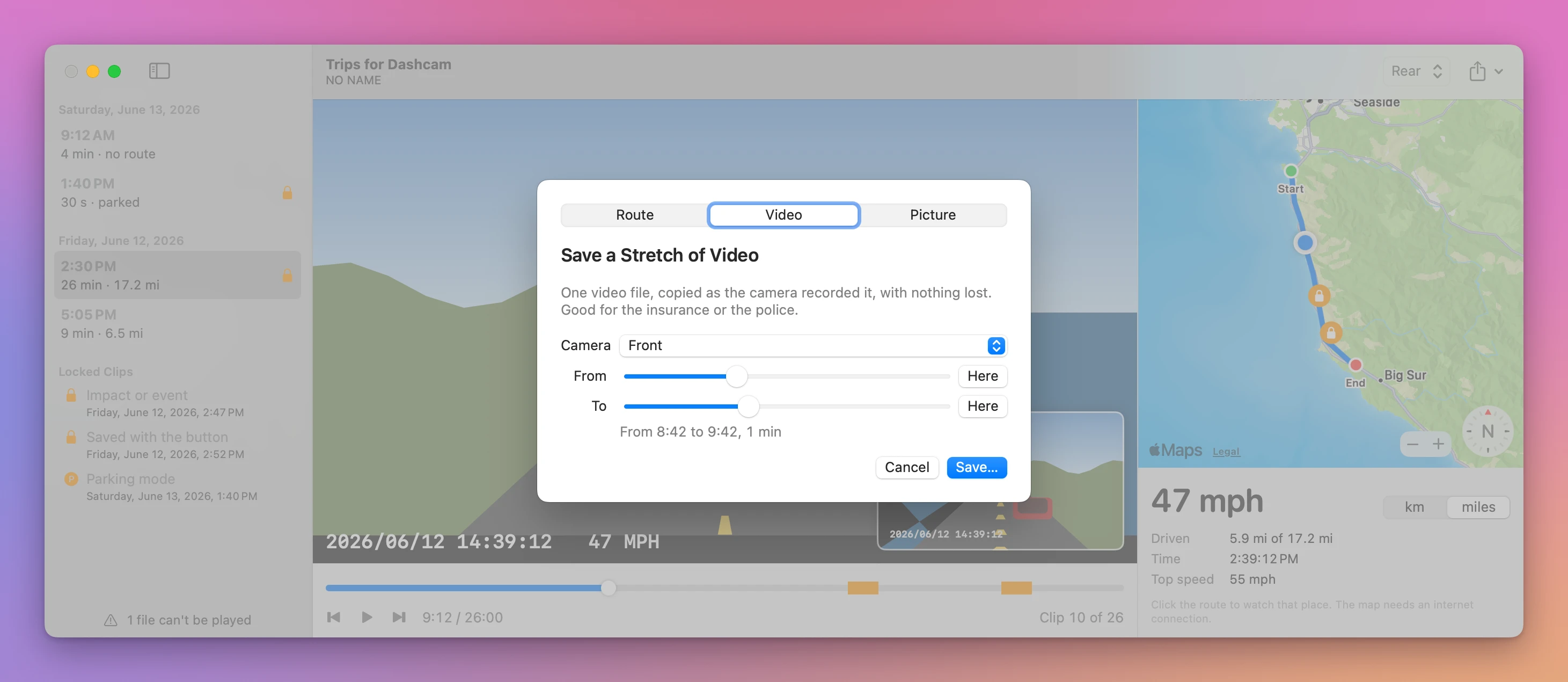
The share button at the top saves three things, each to a folder you pick:
- A stretch of video, as one file. Pick the camera and where it starts and ends, like “From 8:42 to 9:42, 1 min”. The video is copied as the camera recorded it, with nothing lost, so it’s the same footage you’d hand to the insurance or the police.
- The route, as a GPX file for a map website, a KML file for Google Earth, or a CSV file for a spreadsheet.
- A picture of the moment on screen, from the front or the rear camera.
Nothing on the card changes
Trips for Dashcam only reads the card. It never renames, moves or removes a file there, so the card stays as the camera left it.
What you save goes to the folder you pick, and a save never replaces a file. If a file with that name is already there, the app says “A file named … is already there, so nothing was saved. Pick another name.”
Where the GPS comes from
Dashcams save their GPS in many different ways. Trips for Dashcam reads it from three places:
- a GPS file next to the video, with the same name (ending in
.nmea,.gps,.txtor.gpx) - the video’s subtitle track, when the camera writes the positions there
- inside the video file, in the way some cameras keep it
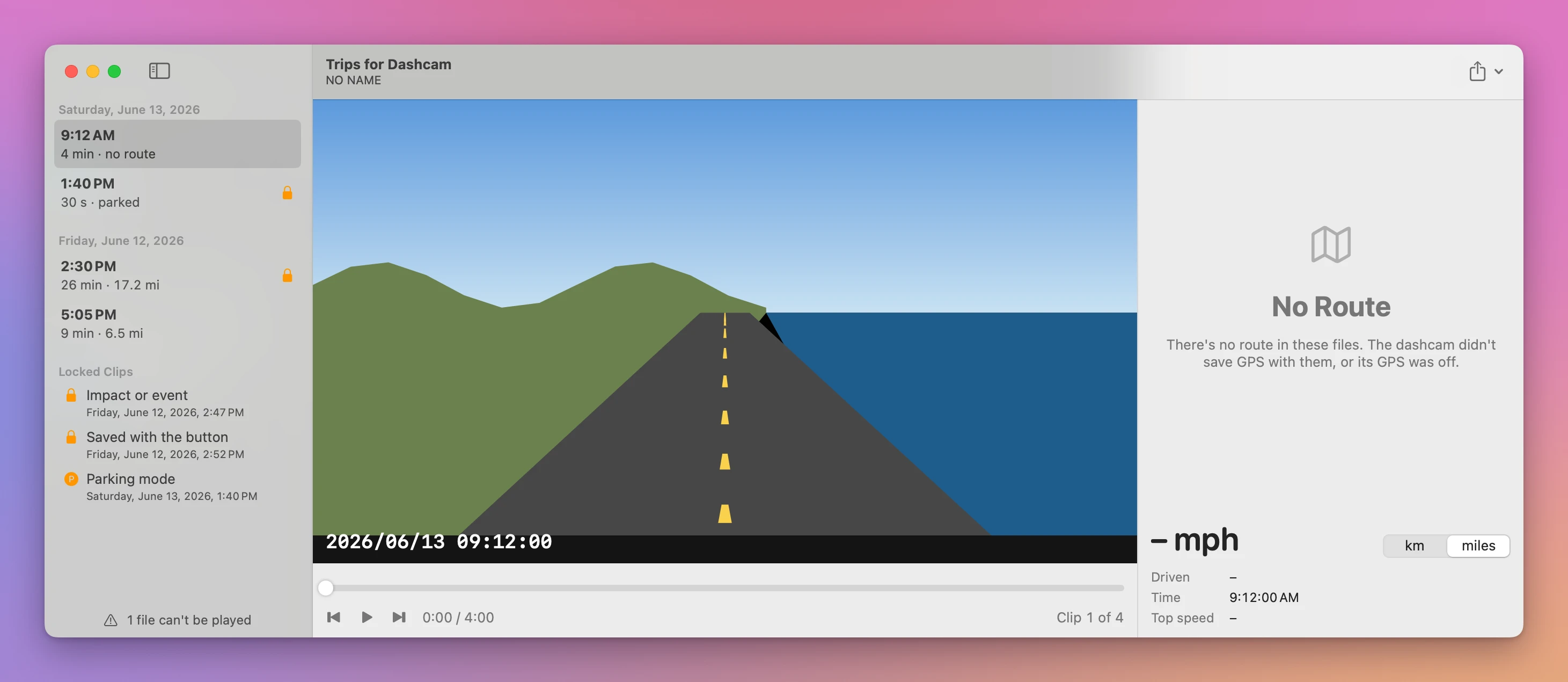
If your camera keeps it another way, or its GPS was off, the trip has no route. The map says “No Route” and why, like “There’s no route in these files. The dashcam didn’t save GPS with them, or its GPS was off.” Everything else still works: the trips, playing them, the rear camera, the locked clips, and saving a stretch or a picture.
Good to know
Trips for Dashcam is my own app. It’s not made by, affiliated with or endorsed by any dashcam maker.
Dashcams don’t agree on how to save GPS, so I can’t promise yours shows up on the map. The app tells you when it can’t read it, and the videos play either way.
It plays MP4 and MOV videos. Videos in other formats, like .TS or .AVI, are left alone and don’t show up in the list. When a folder has only those, the app says “No Dashcam Videos Here” and counts them, like “There are no MP4 or MOV videos in this folder. 12 videos are of a type this app doesn’t play.”
The time of a clip comes from its name when the name has the date and time in it, often with a letter at the end for the front or the rear camera. It also knows the folders cameras use for locked clips, like RO, Event, Locked or Parking. When a name has no time in it, the app uses the time the file was made.
A clip the camera didn’t finish, usually because the power went off while it recorded, can’t be played. It’s listed under “1 file can’t be played” with the reason.
The map needs an internet connection. The first time you open a card, your Mac asks whether the app may read it.
Buy Trips for Dashcam and get started
Trips for Dashcam costs $20 including tax, paid once. There’s no subscription.
After buying, your receipt has the app and a license key. Unzip the app and drag Trips for Dashcam to your Applications folder. It runs on macOS 14 Sonoma or later, on Apple silicon and Intel Macs. It’s signed with my Apple Developer ID and checked by Apple, so it opens like any other app you download.
Enter the license key in Trips for Dashcam → License… to get updates automatically. A key works on 3 Macs. Once a day, Trips for Dashcam checks for a new version, shows what’s new, and installs it with Install and Relaunch. Your receipt always has the latest version, too.