Why a black box on a PDF doesn't hide the text under it
By Flavio
A black rectangle drawn over text in a PDF sits on top of the page. The text is still in the file, and anyone can search for it, copy it or drag the rectangle away. Here's how to see it on a Mac, and two ways to hide it for good.
You drew a black box over a passport number in a PDF and saved it. It looks hidden. Can the person who gets the file see what’s under it?
Yes. The box is a shape added on top of the page, and the number is still in the file under it. Anyone can search for it, copy it, or drag the box out of the way.
To hide it for good, the number has to be removed from the file. Preview’s Tools › Redact does that, and so does PDF Blackout, a Mac app I made.
Can people see under a black box in a PDF?
Try it on your own file. The screenshots are from a test Mac with macOS 15 Sequoia, and the rental agreement in them is made up.
The box here was drawn in Preview, the app that opens PDFs on every Mac: Tools › Annotate › Rectangle, then Fill Color in the Markup toolbar and the black square. Preview itself warned at that point: “The content behind this annotation will not be deleted.” The rectangle went over the passport number, and the file was saved, closed and opened again.
Then three things, all in Preview:
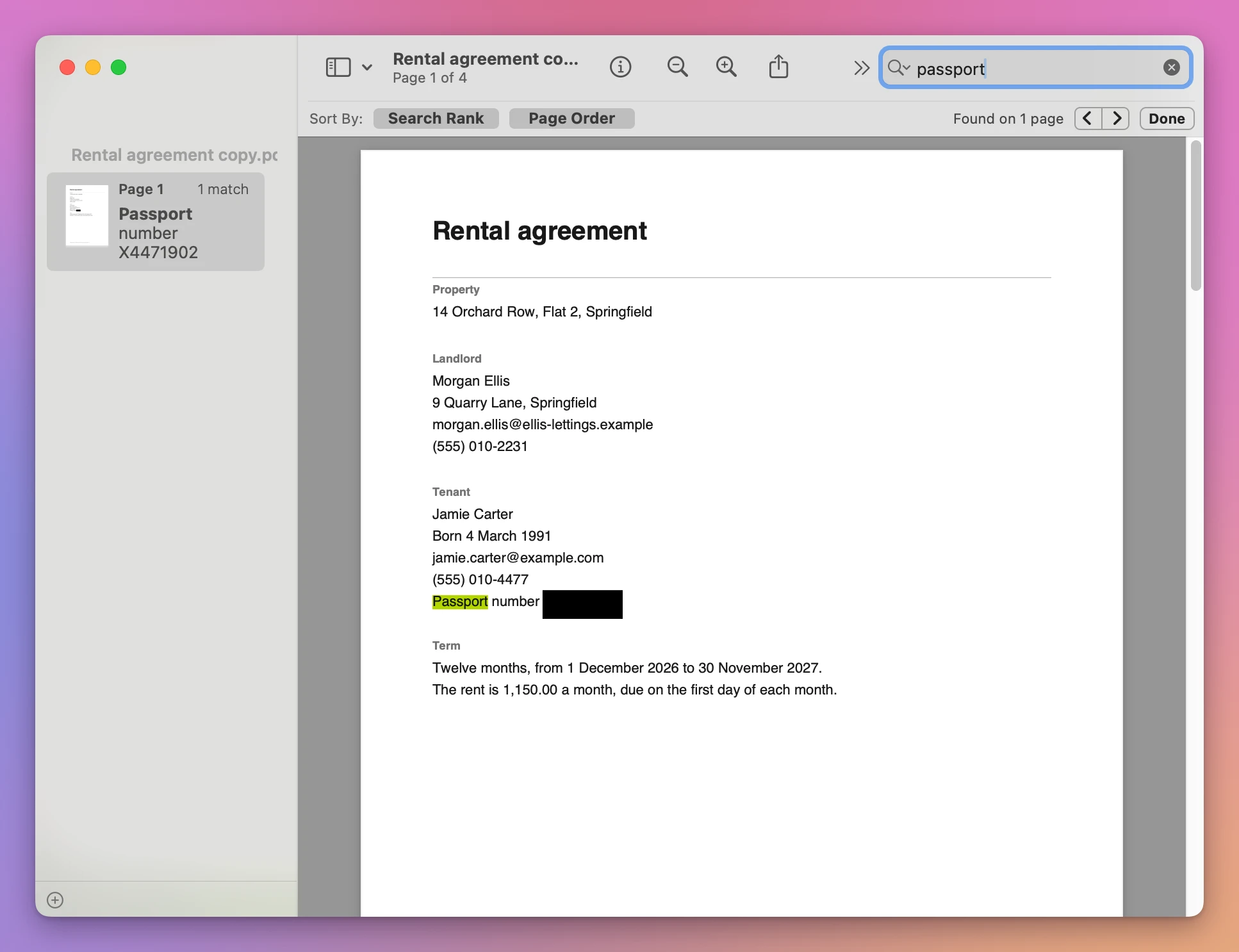
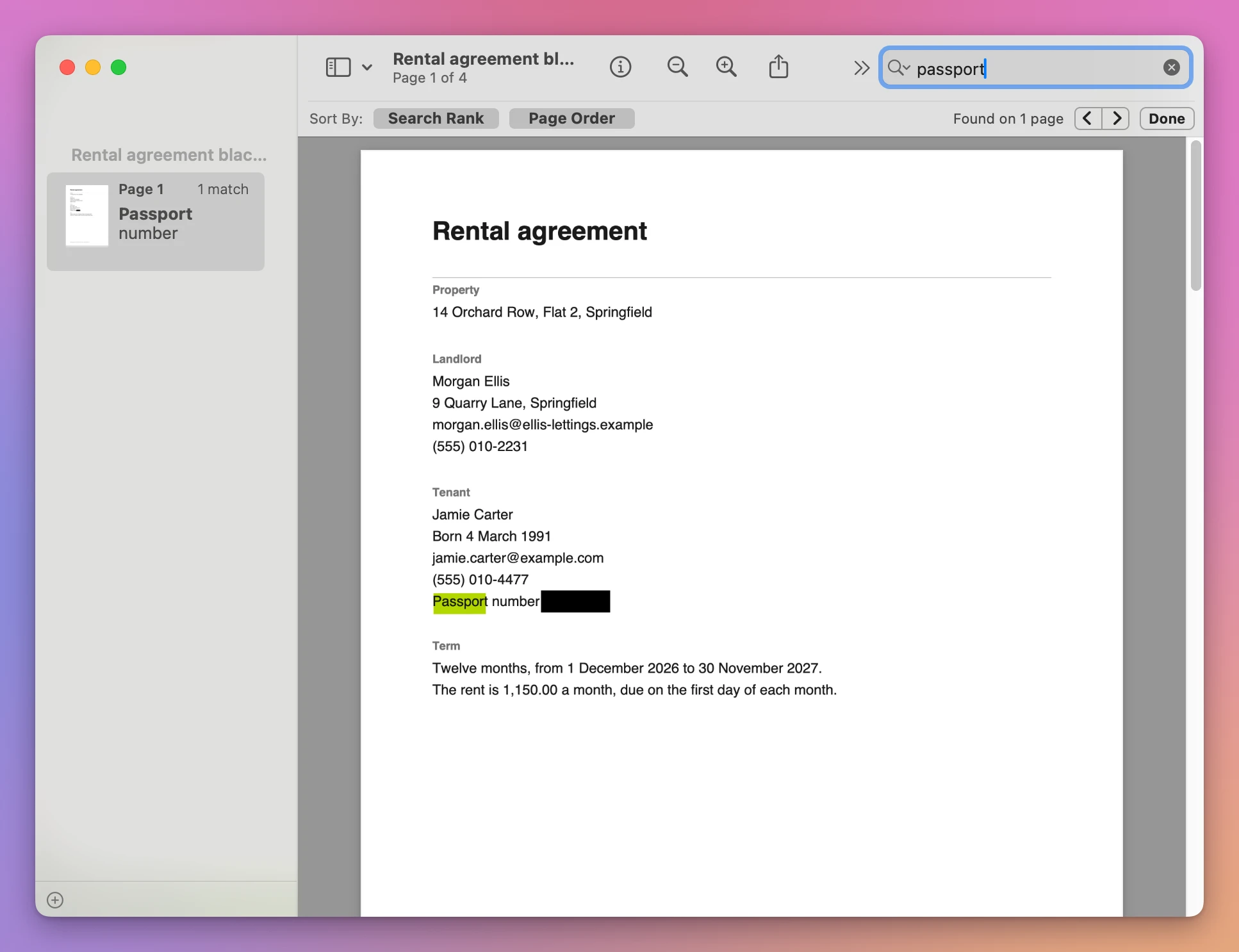
- Search for a word next to the box. Choose Edit › Find › Find… and type a word that’s still visible on that line, like “passport”. The sidebar listed Page 1 with “1 match”, and the row read “Passport number X4471902”.
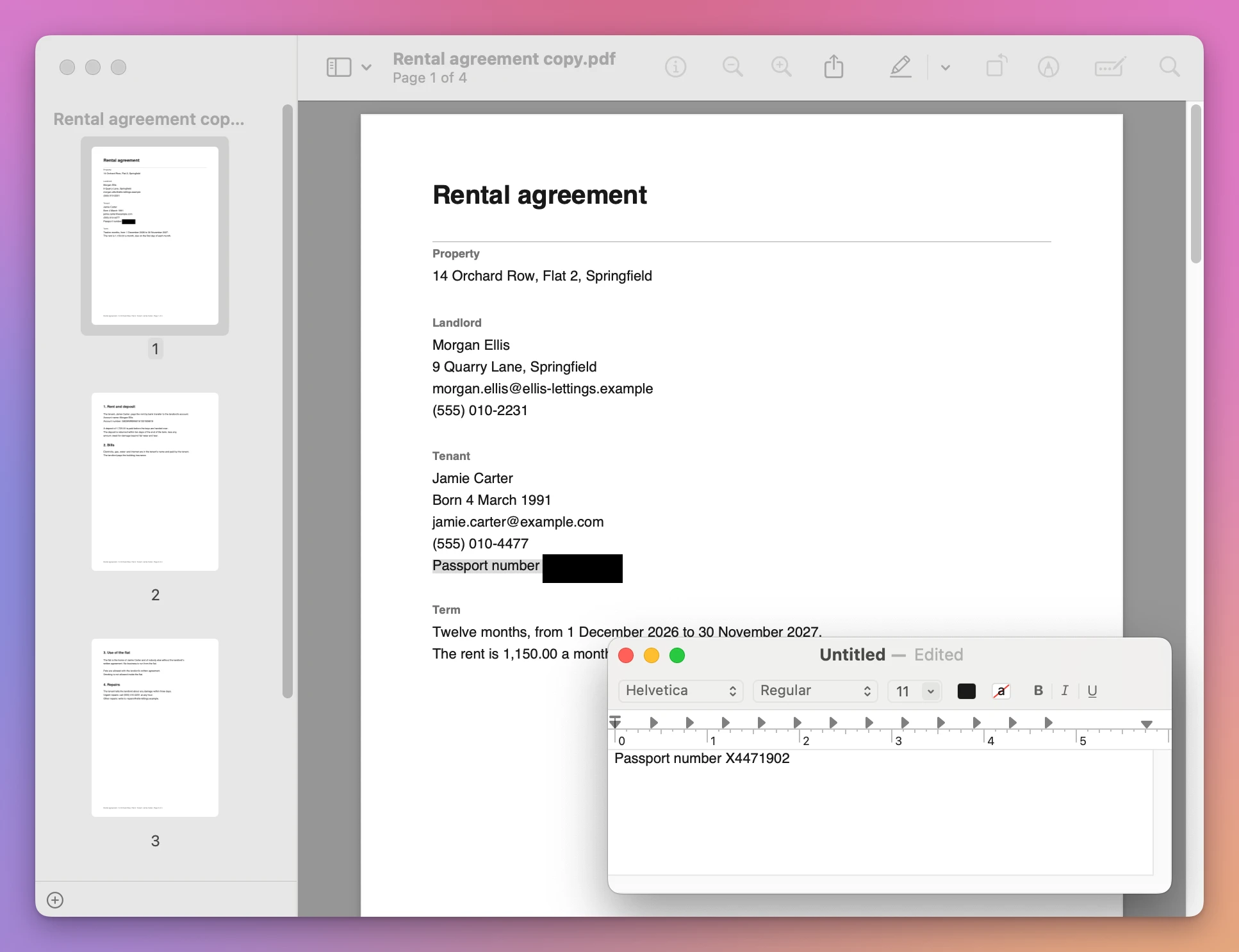
- Copy the line. Drag across the line, starting on the words before the box and ending after it. Choose Edit › Copy and paste into TextEdit. What came out was “Passport number X4471902”. Edit › Select All and Copy gave the whole agreement, with the number in it.
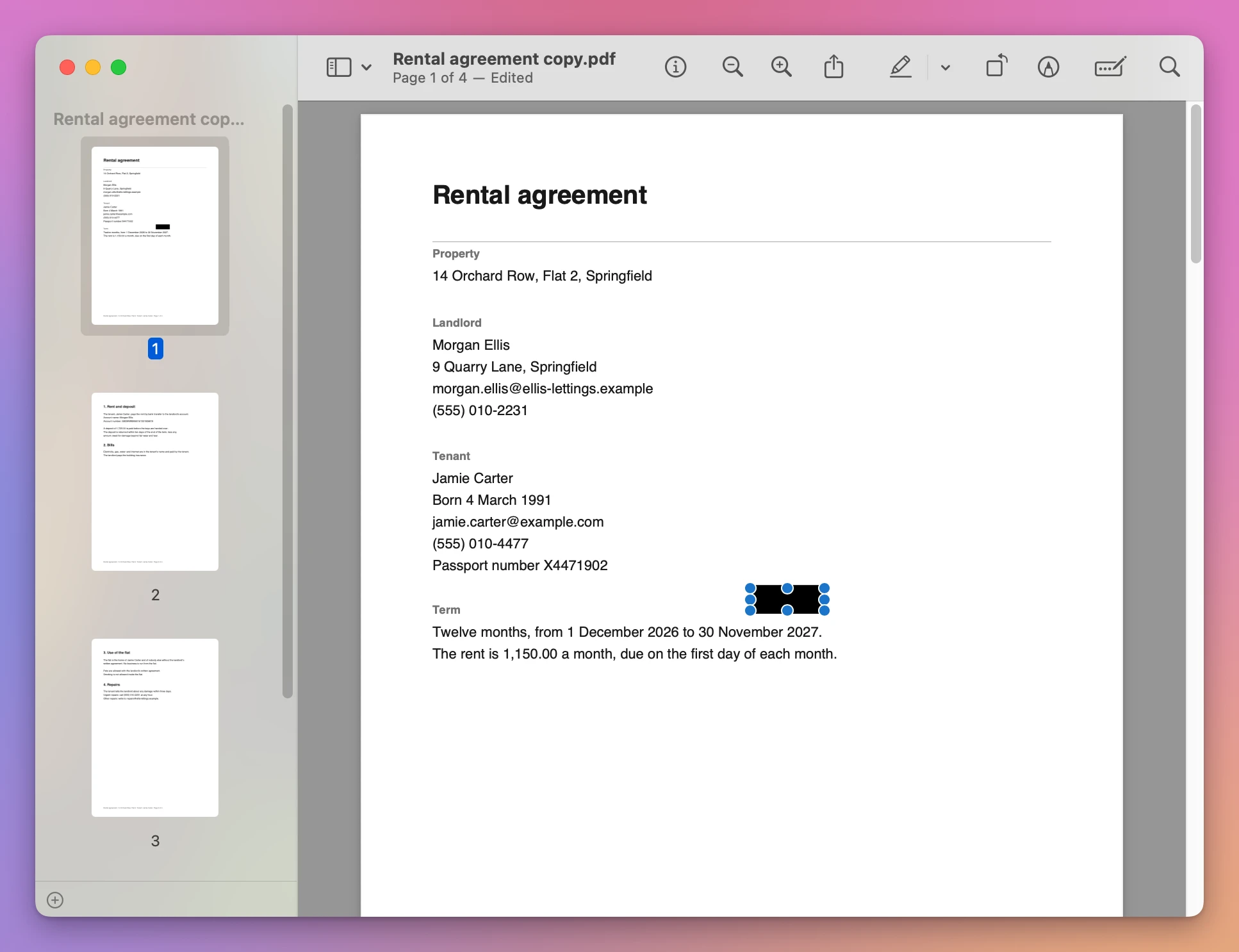
- Move the box. Click it and blue handles appear around it. Drag it aside, and the number is there. The Delete key removes the rectangle.
Why is the text still there?
A PDF page keeps its words as text, which is why you can search and copy them. A rectangle from the Markup toolbar is a separate shape, stored next to the page and drawn over it when the file is opened. The saved file here had both: the page’s text, unchanged, and one rectangle.
Black is the shape’s color. On screen the number is covered, and it’s still in the file you send.
How do I hide it for good in Preview?
Use Redact. In the file with the rectangle, click the rectangle and press Delete. Choose Tools › Redact, click OK in the warning, drag a box over the number and close the window. How to redact a PDF on a Mac has every step.
Work on a duplicate (File › Duplicate in the Finder), because Preview changes the file you opened.
The same three things on the redacted file, after opening it again:
- The search for “passport” found the line, and the row stopped at “Passport number”. A search for the number itself said “No Results Found”.
- Select All and Copy gave the agreement with “Passport number” and nothing after it.
- A click on the box selected nothing. A drag that started on the box selected the words around it, and the box stayed where it was.
The shorter way, with PDF Blackout
PDF Blackout blacks out parts of a PDF and saves a copy where those parts are gone. It costs $19, paid once. It isn’t made by, affiliated with or endorsed by Adobe or Apple.
- Open PDF Blackout and click Choose a PDF…. Pick the original agreement. It won’t be changed, so there’s nothing to duplicate.
- Drag over the number. The box is see-through while you work, and the bottom bar says “1 box on 1 page”.
- Click Save Blacked-Out PDF…, then Save. The copy is
Rental agreement blacked out.pdf, in the same folder as the original.
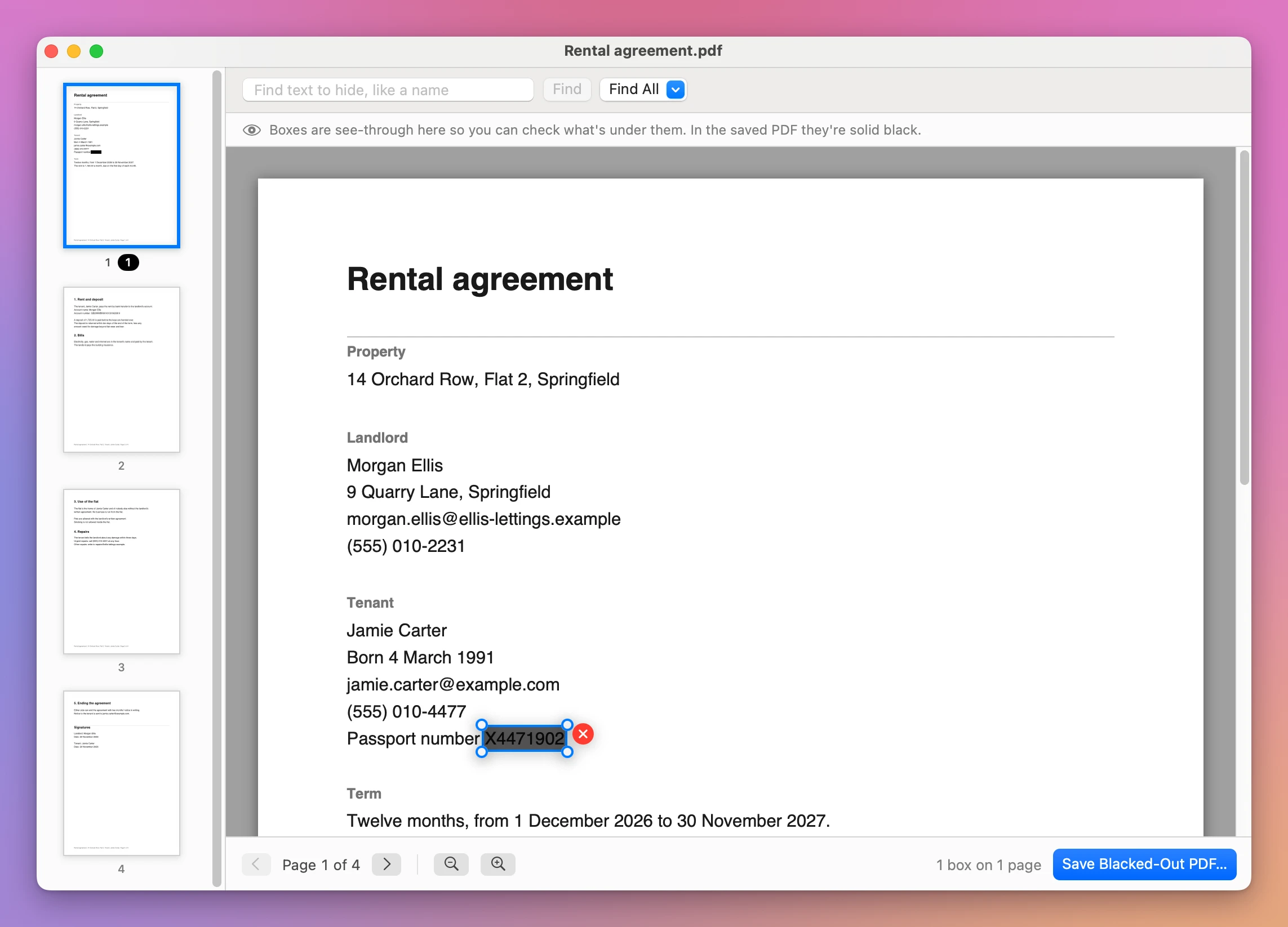
The window then said “1 part blacked out on 1 page.”, and that the app had opened the saved file and checked it.
The page with the box is now a picture of itself, with the box painted on in solid black. PDF Blackout reads the words you can still see back from the picture, so they can be searched, and it copies the other three pages as they are.
In Preview, the copy gave the same answers as the redacted file. The row for “passport” stopped at “Passport number”, the number wasn’t found, and Select All and Copy had no number. Clicking the box selected nothing, and it couldn’t be dragged.
A rectangle, Preview’s Redact or PDF Blackout?
| A black rectangle on top | Preview’s Redact | PDF Blackout | |
|---|---|---|---|
| What’s under the box | The number, still in the file | Nothing. The number is deleted from the page | Nothing. The page is a picture with the box painted on |
| Searching for “passport” | The row shows the number | The row stops at “Passport number” | The row stops at “Passport number” |
| Select All, then Copy | The number is in what you paste | No number | No number |
| Clicking the box | Selects it, and you can drag it away or delete it | Selects nothing | Selects nothing |
| The file you opened | Changed | Changed, so duplicate it first | Not changed. The copy is a new file |
| Size here, from a 6 KB original | 40 KB | 30 KB | 243 KB |
A box hides one place. Both good copies of this agreement still show the tenant’s date of birth and phone number, and the name is on all four pages. Look at every page before you send the file.
Get PDF Blackout
Black out a name, an address or an account number in a PDF and save a copy where it is gone from the file, not hidden under a black box. Drag over what to hide, or find a word, every email address or every phone number and black them all out. The app checks the copy, and your original PDF is never changed.
See PDF Blackout → · Read the docs · $19. See the app page for tax details.
Want me to talk about your product? You can sponsor this site.