How to redact a PDF on a Mac
By Flavio
Preview can redact a PDF on a Mac: choose Tools › Redact, drag a box over the text and close the document. It changes the file you opened, so duplicate it first. Here are the steps, and a way that leaves the original alone.
You have to send someone an invoice, a lease or a statement as a PDF, and there’s a name on it they shouldn’t see.
Preview, the app that opens PDFs on every Mac, can do it. Choose Tools › Redact, drag a box over the name and close the document. What’s under the box is deleted from the file. Duplicate the PDF first, because Preview changes the file you opened.
PDF Blackout is a Mac app I made that does the same job on a copy, and checks the copy for you.
How do I redact a PDF in Preview?
The screenshots are from a test Mac with macOS 15 Sequoia. The invoice in them is made up.
- In the Finder, click the PDF and choose File › Duplicate. A file named
Dental invoice copy.pdfappears next to it. - Open the copy in Preview.
- Choose Tools › Redact. Preview warns you that the content you mark is deleted for good when the document is closed. Click OK.
- Drag a box around the name. The box turns black, with a thin X across it.
- Do the same in every other place the name is printed.
- Close the window. Preview saves without asking.
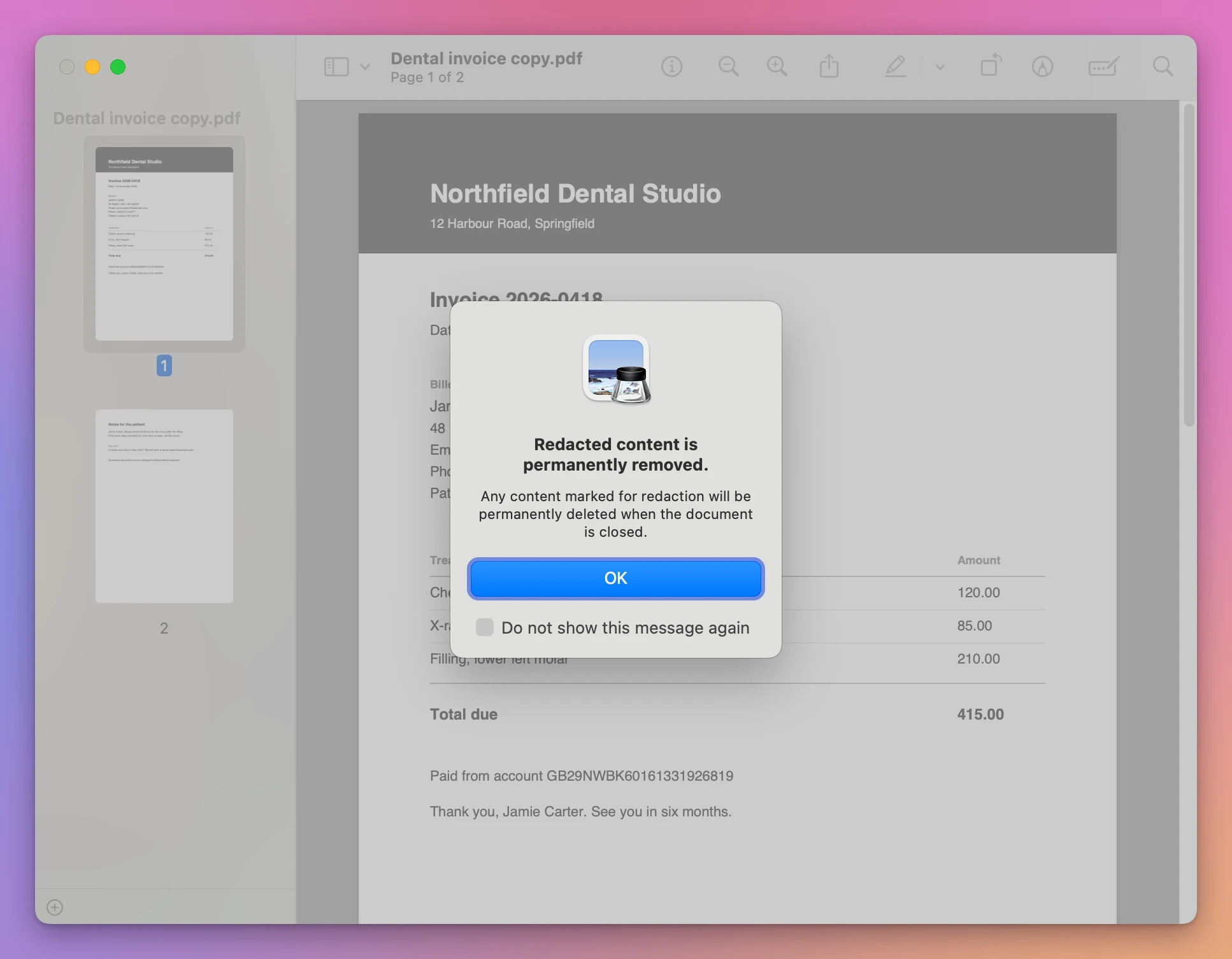
This invoice prints the customer’s name three times: under “Billed to”, in the thank-you line, and in the notes on page two. To find them, choose Edit › Find › Find… and type the name. The sidebar listed Page 1 with “2 matches” and Page 2 with “1 match”. Preview gives no total, so you add up the pages.
While the document is open, that search keeps finding the name under the boxes. It stops once you close the document and open it again.
Is the name really gone?
On the test Mac, yes. After reopening the copy, the search for the name said “No Results Found”. Select All and Copy gave the invoice’s text without the name. Clicking a black box didn’t select it, and the Delete key did nothing.
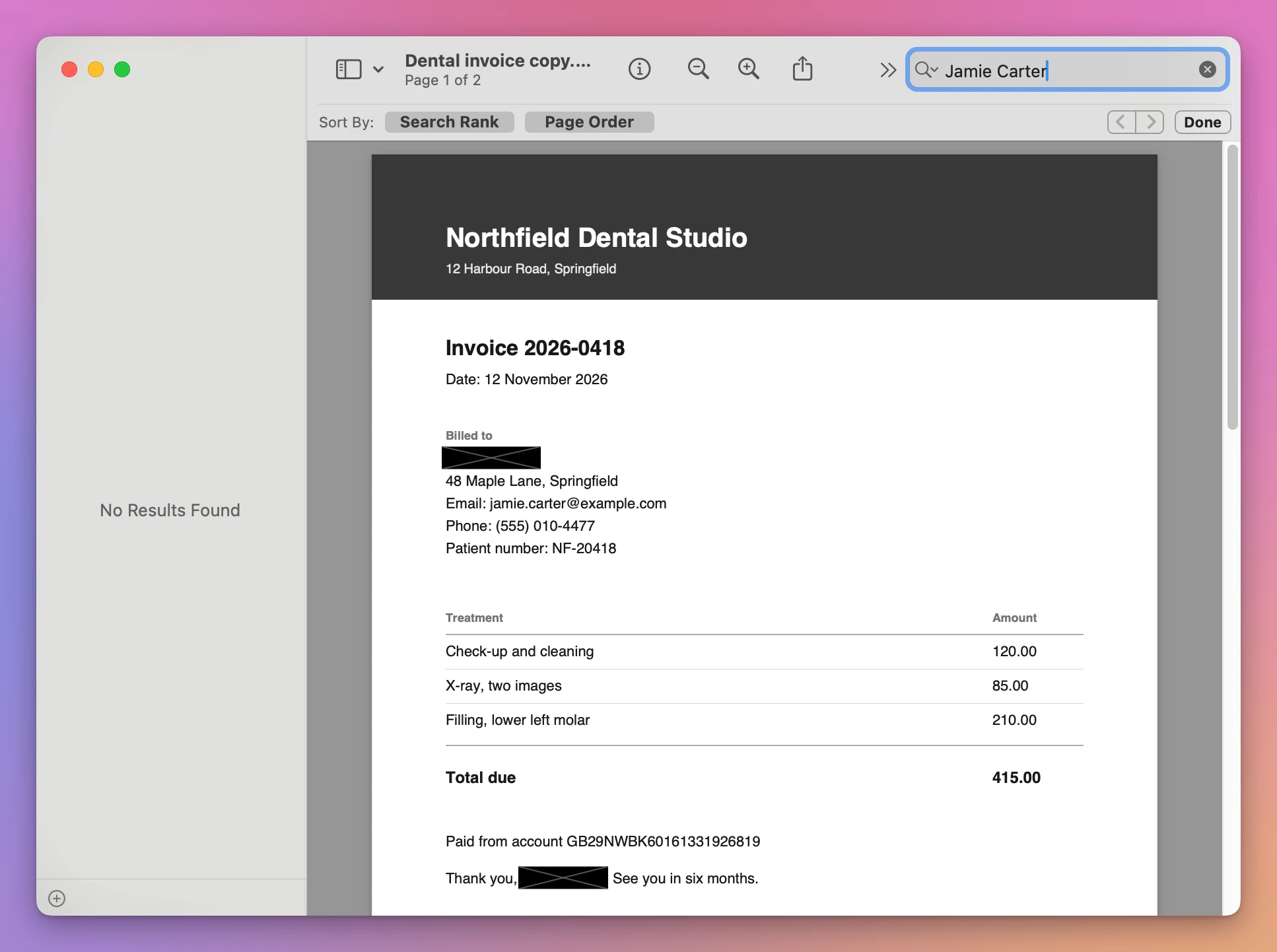
Be careful with the original. On a first try without a duplicate, Preview saved the redaction into the invoice itself within a minute, with no Save and no question.
A PDF also has a title you don’t see on the page. Choose Tools › Show Inspector to read it. On the redacted copy it still said “Invoice 2026-0418 for Jamie Carter”.
Don’t use a black rectangle from the Markup toolbar for this. When you fill one with black, Preview itself warns: “The content behind this annotation will not be deleted.” After saving and reopening, the search still found the name under it, and the rectangle could be dragged away.
For one or two places, Preview’s Redact on a duplicate is all you need.
The shorter way, with PDF Blackout
PDF Blackout blacks out parts of a PDF and saves a copy where those parts are gone. It costs $20, paid once. It isn’t made by, affiliated with or endorsed by Adobe or Apple.
- Open PDF Blackout and click Choose a PDF…. Pick the invoice itself, there’s nothing to duplicate.
- Drag over the name. A box appears. It’s see-through while you work, so you can check what’s under it.
- Do the same in the other places. The arrows next to “Page 1 of 2” change page, and the bottom bar counts: “3 boxes on 2 pages”.
- Click Save Blacked-Out PDF…, then Save. The suggested name is
Dental invoice blacked out.pdf, in the same folder as the original.
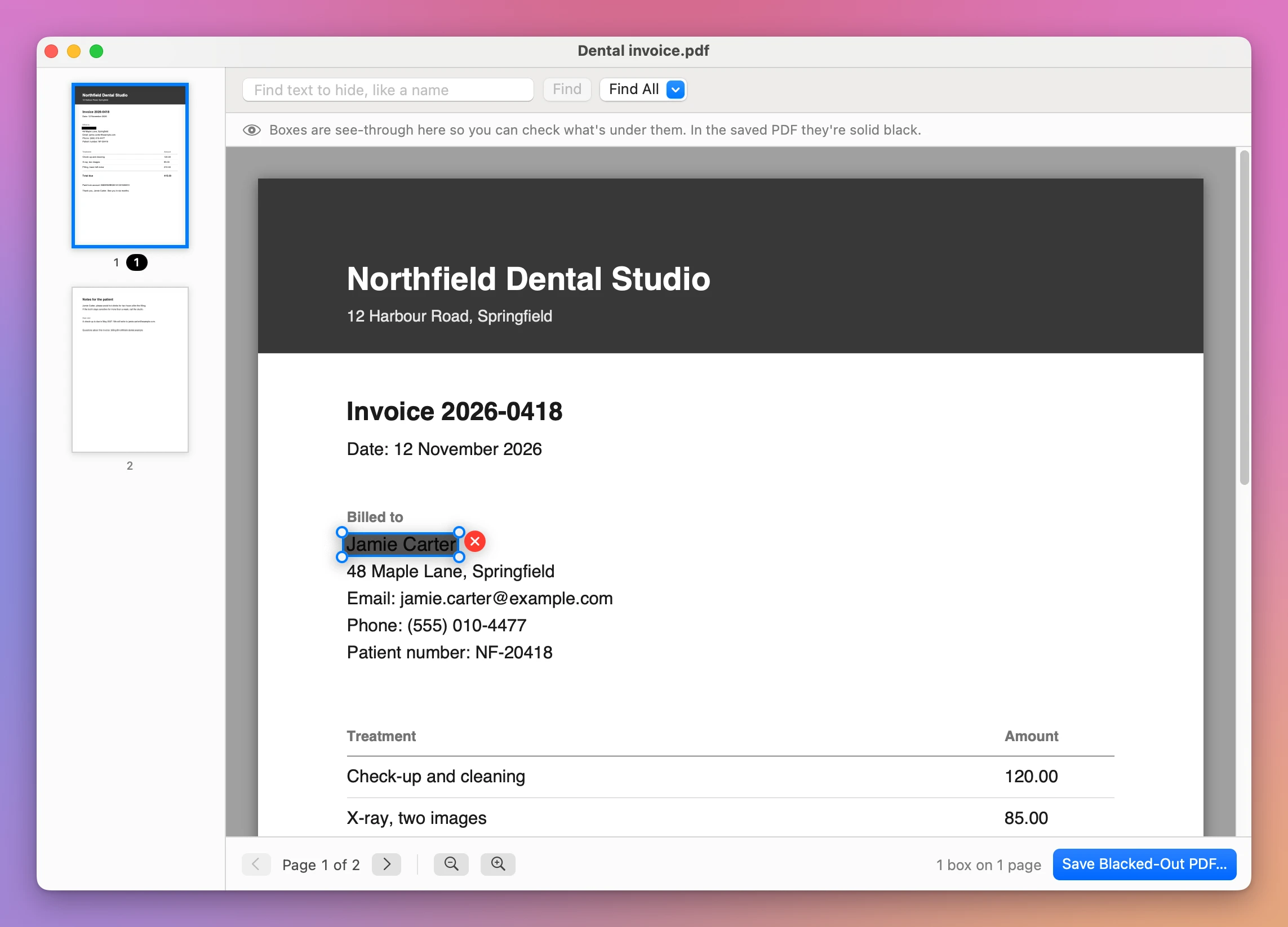
When a name is in many places, skip the dragging. Type it in the search field and click Find. Here the window said “Found 3 times on 2 pages, marked in yellow.”, and Black Out All 3 put a box on each one.
After saving, the app opens the copy and checks it. The window says what it found:
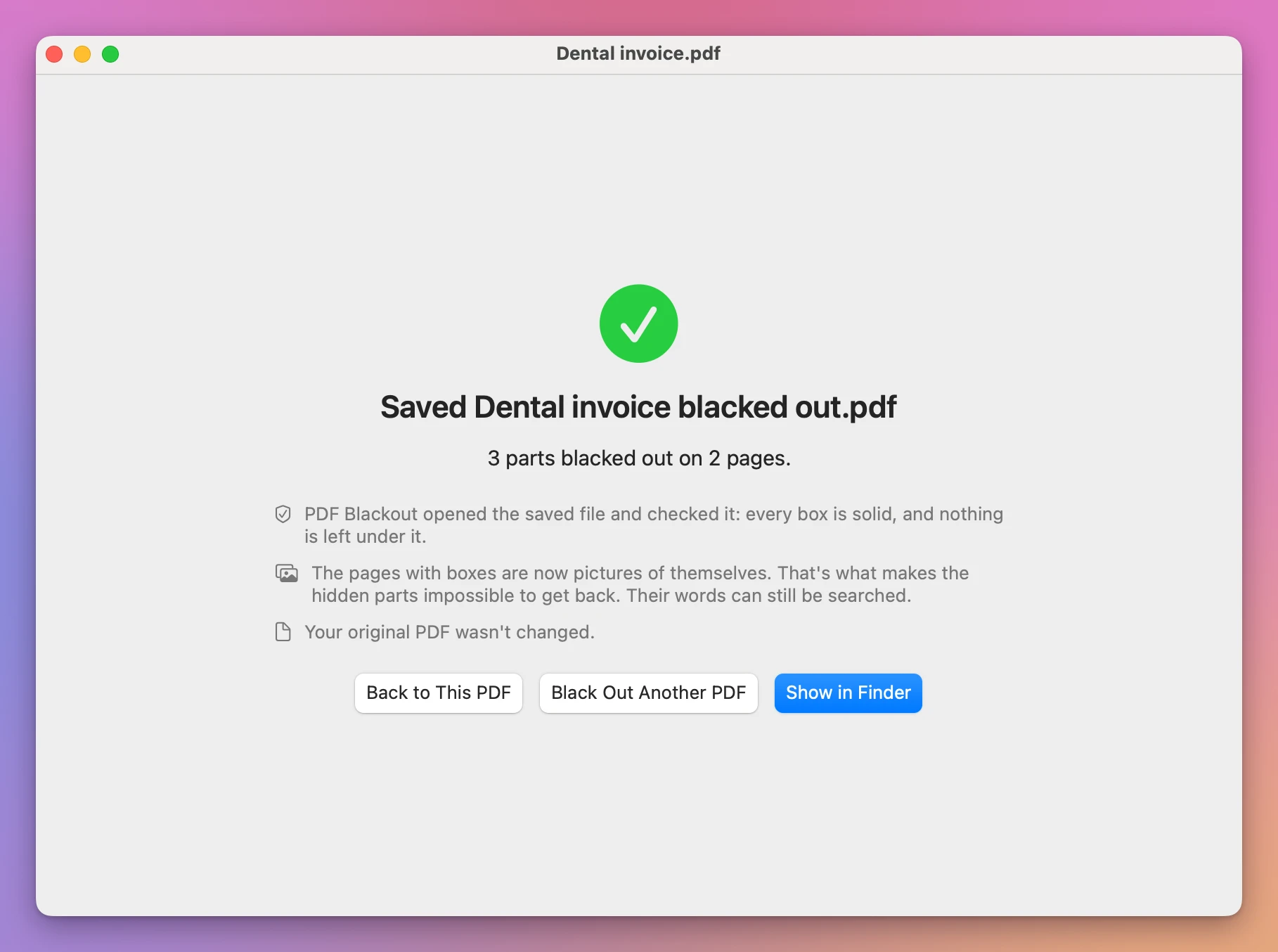
Each page with a box becomes a picture of itself, with the boxes painted on. There’s no text left under a box to select or search. The words that are still visible are read back from the picture, so in Preview a search for “Invoice” found both pages of the copy, and a search for the name found nothing. The copy’s title was empty in the Inspector.
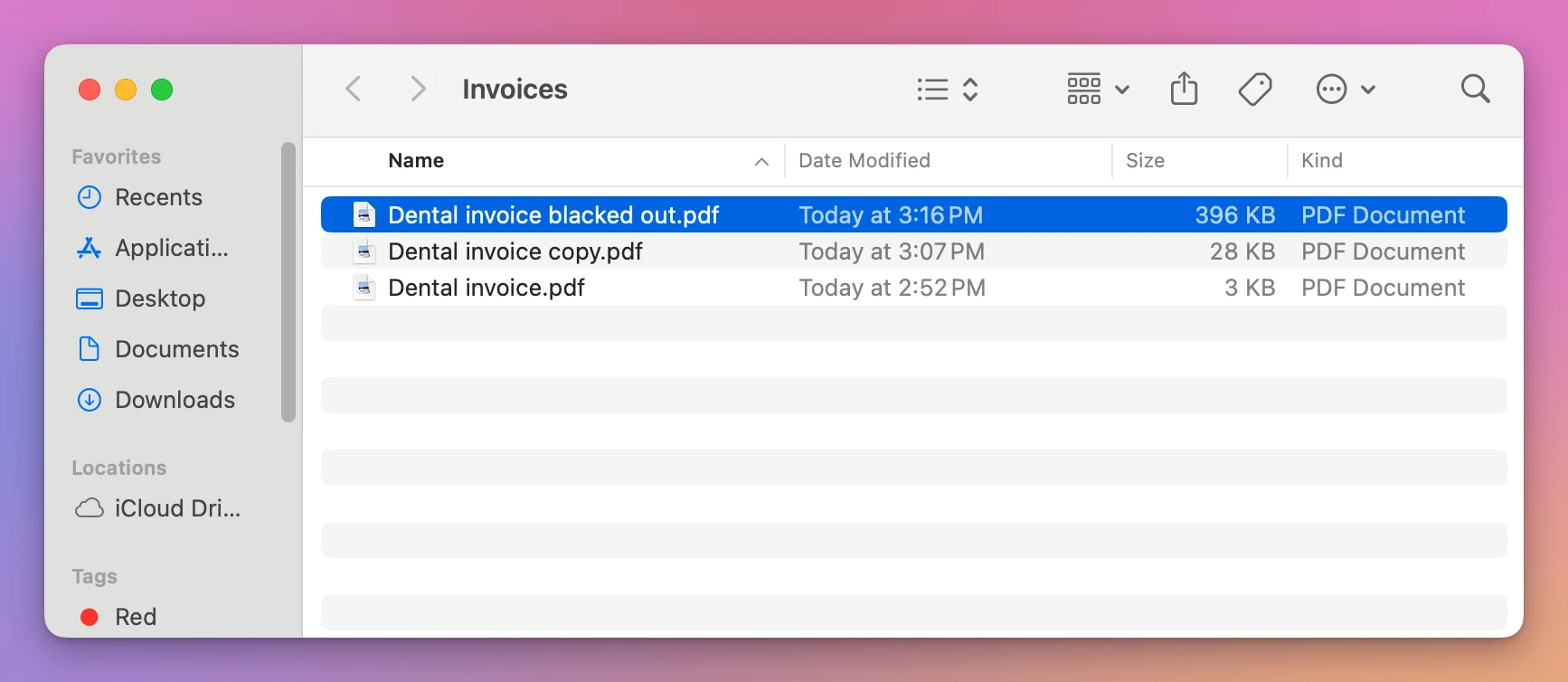
Show in Finder opens the folder with the copy selected. The original is still 3 KB, untouched. Preview’s redacted duplicate is 28 KB. PDF Blackout’s copy is 396 KB, because its two pages are pictures now.
Preview or PDF Blackout?
| Preview’s Redact | PDF Blackout | |
|---|---|---|
| How you mark | Tools › Redact, a warning, then drag a box | Drag a box, or search for a word |
| A name in many places | One box per place. The search lists the pages | Find, then Black Out All |
| The original | Changed, unless you duplicate it first | Not changed. The copy is a new file |
| The pages you marked | Stay text you can select | Become pictures, a little less sharp when you zoom in a lot |
| The PDF’s hidden title | Kept. Here it had the name in it | Not copied |
| What checks the result | You reopen it and search | The app opens the copy and checks it |
Both copies of this invoice still show the email address, and the name is inside it. A search for “Jamie Carter” doesn’t match [email protected]. Look at every page yourself, and put a box on the address too before you send the file.
Get PDF Blackout
Black out a name, an address or an account number in a PDF and save a copy where it is gone from the file, not hidden under a black box. Drag over what to hide, or find a word, every email address or every phone number and black them all out. The app checks the copy, and your original PDF is never changed.
See PDF Blackout → · Read the docs · $20. See the app page for tax details.
Want me to talk about your product? You can sponsor this site.