Get Blackmagic Camera clips from your iPhone into DaVinci Resolve on a Mac
By Flavio
Updated
Move the original Blackmagic Camera clips from your iPhone into a DaVinci Resolve project on your Mac, by cable or through Blackmagic Cloud, and keep them safe.
You shot on an iPhone with Blackmagic Camera and you want the original files in a DaVinci Resolve project on your Mac. The clips aren’t in Photos, so a photo import won’t find them. They sit in Blackmagic Camera’s own storage, in the Media folder the Files app shows under On My iPhone → Blackmagic Camera.
The files have to reach a folder on the Mac first, then Resolve has to see that folder.
I do the first half with Footage Ferry, the Mac app I built for it. I shoot with Blackmagic Camera on an iPhone 16 Pro, and its option to save each clip to the photo library never worked for me. When I finally had a way out, there were 69 clips and 15 GB waiting in the app.
What are my options?
| Blackmagic Cloud sync | USB cable with Footage Ferry | Finder, Files tab | |
|---|---|---|---|
| Blackmagic Cloud account | Yes | No | No |
| Network connection | Yes | No, USB cable | No, USB cable |
| What reaches the Mac | HD proxies, plus the originals if the Resolve project syncs them | The originals | The originals |
| Each copy checked against the iPhone’s file | Blackmagic doesn’t say | Yes, SHA-1 on both sides | No |
Blackmagic Cloud is Blackmagic’s own route. Blackmagic Camera records an HD proxy next to each original, and you can sync media into a DaVinci Resolve project through Blackmagic Cloud, even while you’re recording. A cloud project in Resolve can sync proxies only, or proxies and originals, and the originals can take a lot of cloud storage. This is the one to pick if other people edit the same project from somewhere else.
The Finder works without extra software. Plug in the iPhone, select it in the Finder sidebar, click Files, and click the arrow next to Blackmagic Camera. Drag Media to a folder on the Mac and the Finder copies the clips in it. You can also delete files there with the Delete key. What you get is a copy, with nothing comparing it to the file on the phone.
Footage Ferry copies the originals over the cable and checks each one, and it’s what the rest of this page uses for the copy.
Copy the clips over the cable
The full walkthrough is in Transfer Blackmagic Camera footage from your iPhone to your Mac over USB. These are the steps that matter for a Resolve project.
Connect the iPhone with a cable and unlock it. The first time, tap Trust on the phone. Footage Ferry needs macOS 14 Sonoma or later.
Pick the import folder before anything else. It’s the folder button in the toolbar, Blackmagic Camera at first, which is a folder with that name inside Movies. Click it, choose Choose Folder…, and pick the place where this project’s media will live, like a folder on the drive you edit from. That way you don’t have to move the files later.
Then click Import All (⇧⌘I). Each clip is copied, and then the app checks the copy on the Mac against the file on the iPhone, with a fingerprint worked out from each one (a hash). Only a match counts as Imported. A clip that doesn’t match is thrown away and shows Failed. The app never overwrites a file that’s already in the folder.
The copies keep the clip names Blackmagic Camera gave them, and their recording dates. Here’s the import folder after a demo run with 14 made-up clips:
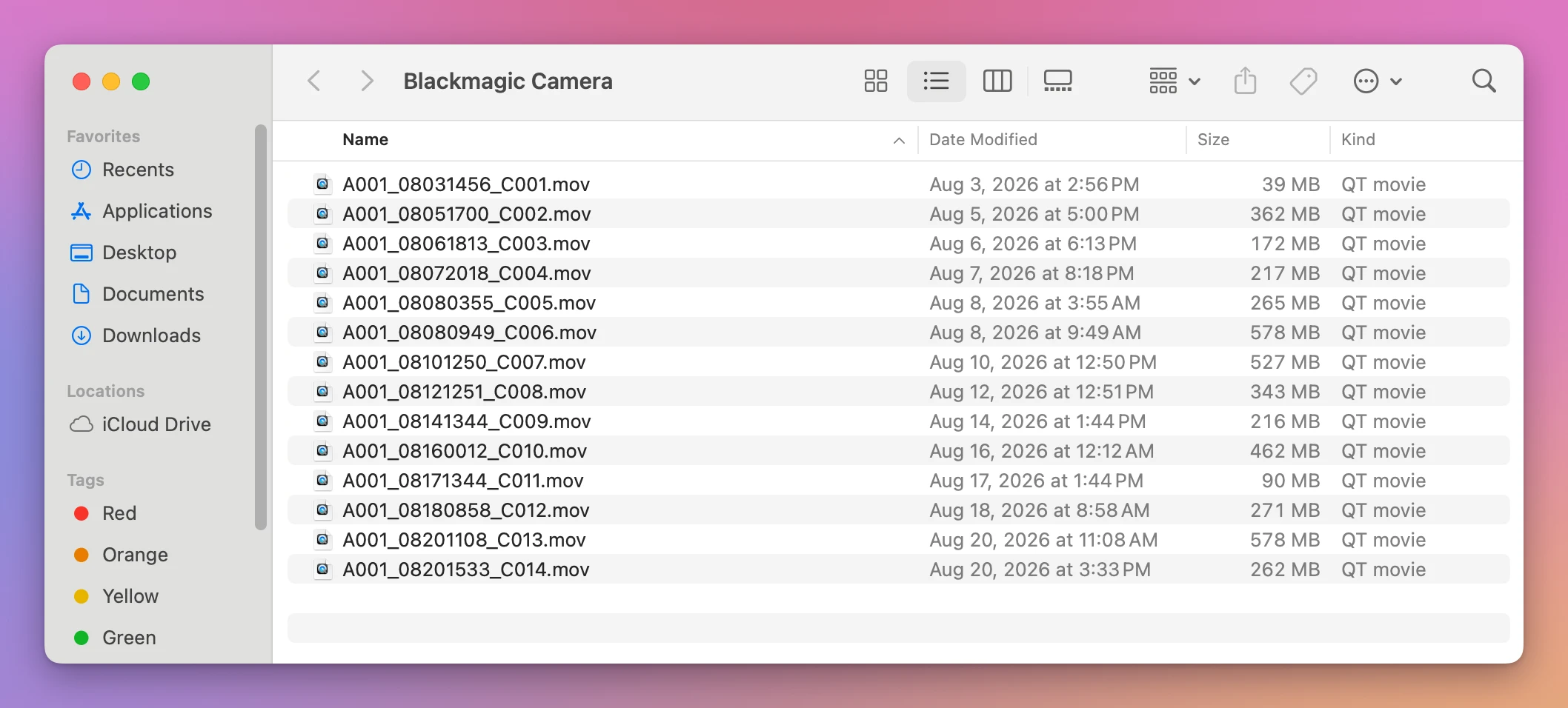
The Date Modified column shows the same dates the app lists under Recorded, so sorting by date in the Finder gives you the shooting order.
Bring the folder into Resolve
In DaVinci Resolve, open your project and go to the Media page. The top of that page shows the drives connected to the Mac, and the bottom shows the project’s media pool. Find the import folder in the drives at the top and drag it, or the clips inside it, down into the media pool.
When to delete the clips from the iPhone
After an import, Footage Ferry asks whether to delete those clips from the phone. Keep on iPhone is the default button. Click it for now.
Wait until two things are true: the Resolve project opens with every clip playing, and the import folder is in your backup. Then select the clips and choose Delete Selected from iPhone… (⌘⌫). Right before deleting each one, the app checks the copy again: still in the folder, same size, same SHA-1. A clip that fails stays on the iPhone. There’s no undo on the phone.
Don’t delete the Blackmagic Camera app to free space either. Its clips live inside it, so they go with it.
Footage Ferry is my own project. It isn’t made by, affiliated with, or endorsed by Blackmagic Design.
Get Footage Ferry
Import Blackmagic Camera clips from your iPhone over USB. Preview videos, verify every copy and choose when to delete the originals.
See Footage Ferry → · Read the docs · $20. See the app page for tax details, with full source code.
Want me to talk about your product? You can sponsor this site.