Blackmagic Camera not saving to Photos? Find your clips and copy them to your Mac
By Flavio
Blackmagic Camera clips missing from Photos on your iPhone? They're in the app's own storage. Here's how to find them and copy them to your Mac safely.
You recorded clips with Blackmagic Camera on your iPhone, opened Photos, and they aren’t there. Or you tried saving them to Photos and it never seems to finish.
Your clips are most likely still on the phone. Blackmagic Camera keeps them in its own storage, not in the photo library, and you can get them out from there.
Did I lose my clips?
Probably not. Open the Files app, tap On My iPhone, then Blackmagic Camera. The clips are in the Media folder, with names like A001_08080949_C006.mov.
A Photos import or Image Capture on the Mac never sees this folder, so the clips look missing even when they’re fine.
Be careful with one thing: deleting the Blackmagic Camera app from the iPhone deletes the clips stored inside it. Don’t uninstall and reinstall the app to “fix” the Photos problem until the clips are copied somewhere else.
Why aren’t they in Photos?
Blackmagic Camera decides where clips go in its Settings, under the Media tab, in Save Clips To. The choices are the app’s own storage, In-App & Photo Library, or Files, which is how you record to an external SSD.
If it’s set to in-app storage, nothing reaches Photos, by design.
I shoot with Blackmagic Camera on an iPhone 16 Pro, and the option to save each clip to the photo library never worked for me, for reasons I never figured out, so the clips stayed in the app’s storage.
Saving them to Photos by hand from the app was worse. Nothing told me when the export had finished, the phone locked itself in the middle, and I couldn’t tell whether a clip had made it. These clips matter to me, and I wasn’t going to delete them from the phone on a guess. When I finally had a way out, there were 69 clips and 15 GB waiting.
How do I get them onto my Mac safely?
You have a few ways out:
| Way out | Needs a network or an account | Where the copies end up | What tells you a clip made it |
|---|---|---|---|
| Save to Photos by hand from the app | No | The photo library on the iPhone, still to be moved to the Mac | In my case, nothing |
| Drag the folder out in the Finder | No, a USB cable | A folder on the Mac you drag it to | The files show up in the folder |
| Blackmagic Cloud | Yes, both | Blackmagic Cloud, synced into a DaVinci Resolve project (proxies first, originals after) | The upload status in the app’s media tab |
| Footage Ferry over USB | No, a USB cable | A folder on the Mac, ~/Movies/Blackmagic Camera by default | Imported, once the copy matches the iPhone’s file |
The Finder way is free and works today. Plug in the iPhone, select it in the Finder sidebar, click Files, and click the arrow next to Blackmagic Camera. Drag Media to a folder on your Mac, and the Finder copies the clips in it.
From the same place you can also delete files from the iPhone. Don’t do that until you’ve played the copies on the Mac and they’re in your backup.
Doing it with Footage Ferry
I built Footage Ferry for this. It’s a Mac app that reads Blackmagic Camera’s storage over a USB cable and shows every clip with its status. Clips that never reached Photos show Only on iPhone.
The clips in these screenshots are made up for the demo. Here are 14 of them, 4.38 GB, with nothing copied yet:
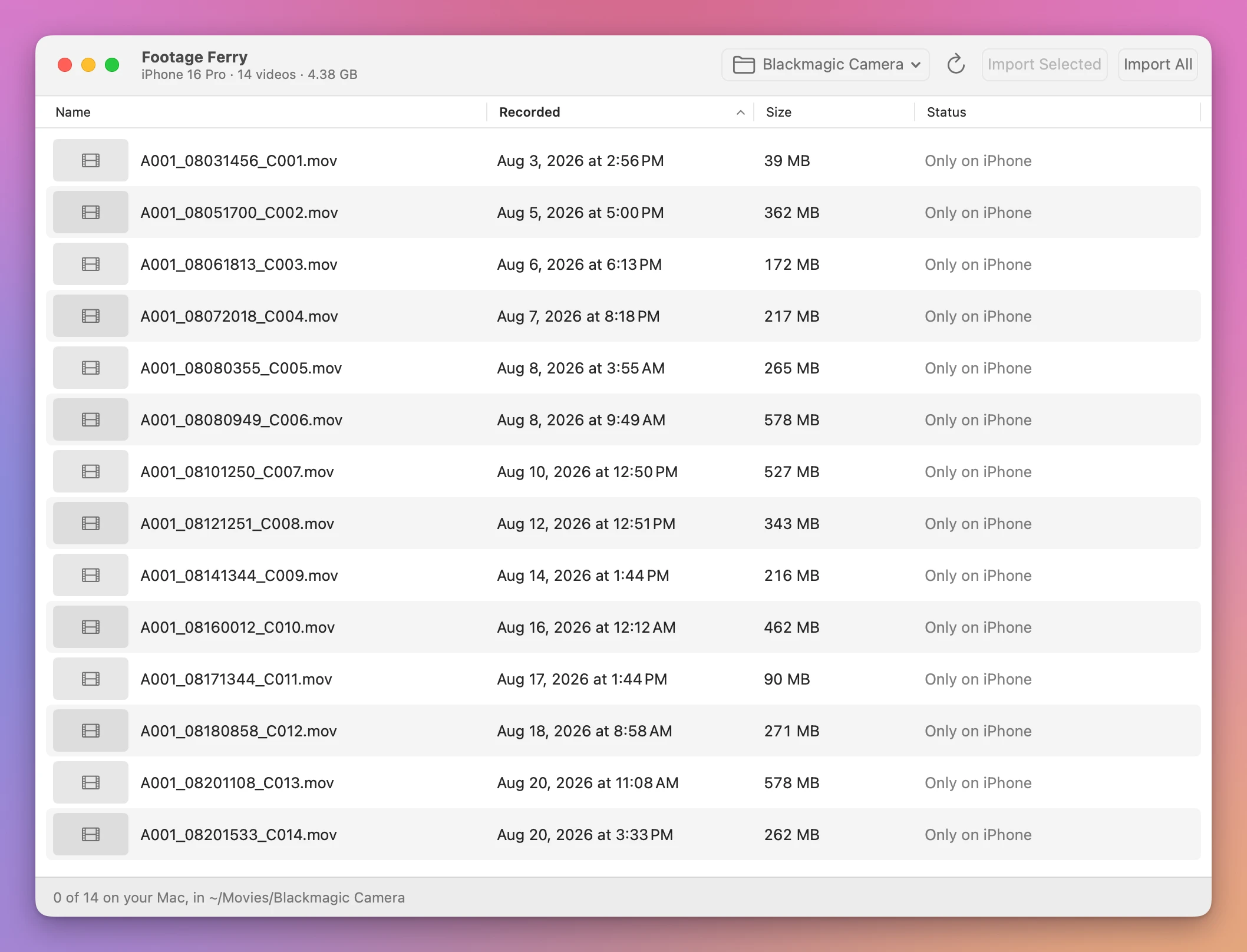
Click Import All (⇧⌘I), or select a few and use Import Selected (⌘I). Each copy is checked: the Mac reads it back from disk and computes its SHA-1, the iPhone computes the SHA-1 of its own file, and only a match turns the status into Imported. The copy keeps the clip’s name and recording date, and the app never overwrites a file in the folder.
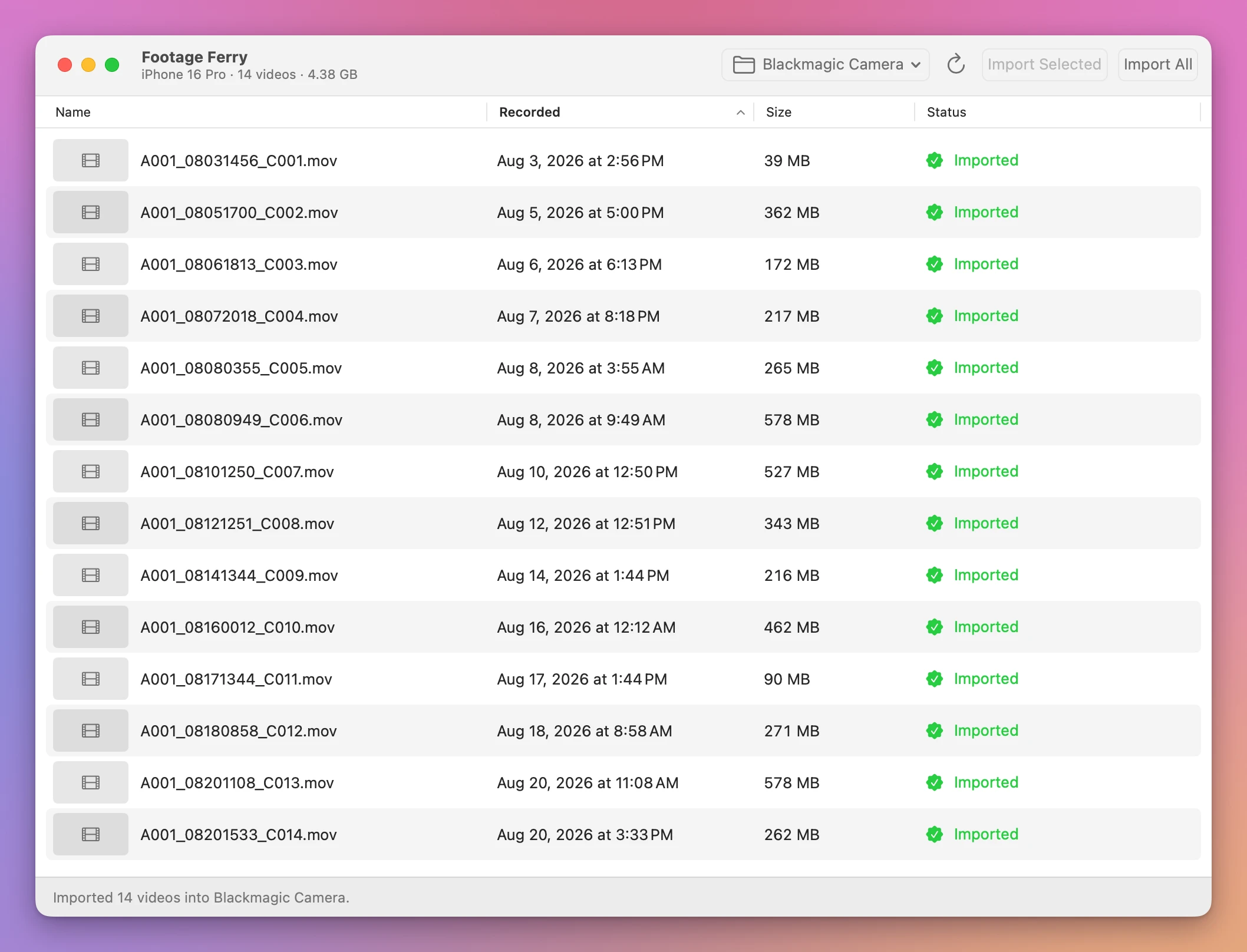
After the import it asks whether to delete those clips from the iPhone, and Keep on iPhone is the default button. With a USB 2 cable my imports run at about 40 MB/s.
The full Footage Ferry tutorial covers previews, the Status column, cable speed and deleting the originals.
The window says No Videos
Footage Ferry only reads Blackmagic Camera’s own storage. If the window says No Videos, there’s nothing in that storage. When you know you recorded clips, it means Blackmagic Camera saved them to Photos or to an external drive, which is what the message under the title tells you too.
That’s good news if you were looking for them. Check the Photos app, or the SSD you recorded to, and import from there the usual way.
Footage Ferry is my own project. It isn’t made by, affiliated with, or endorsed by Blackmagic Design.
Get Footage Ferry
Import Blackmagic Camera clips from your iPhone over USB. Preview videos, verify every copy and choose when to delete the originals.
See Footage Ferry → · Read the docs · $20. See the app page for tax details, with full source code.
Want me to talk about your product? You can sponsor this site.