How to check if a video loop is seamless on a Mac
By Flavio
A background video or a short looping clip jumps every time it starts again? Here's how to check the join between the last and first frames in QuickTime Player, and how Video Loop Checker scores the seam and finds a better place to cut.
You made a short clip that’s meant to loop: a background for a website, a clip that plays behind a song, a “starting soon” screen for a stream. When it plays round and round, there’s a little jump each time it starts again. You want to know if the jump is in the clip, and where to cut it so it goes away.
The short answer: compare the clip’s last frame with its first frame. In a seamless loop, the last frame leads into the first one like any other frame leads into the next. You can check that by hand in QuickTime Player, or open the clip in Video Loop Checker, which scores the join and suggests the frame to cut at.
Why a loop jumps
A loop plays the last frame, then goes straight back to the first. If the picture at the end isn’t one small step away from the picture at the start, you see a jump.
The most common cause is a clip that’s a few frames too long. Say the motion in the clip comes back to where it started after exactly 8 seconds, 240 frames at 30 frames a second. If you export 8.2 seconds, the clip runs 6 frames past that point, and every loop jumps back 6 frames’ worth of motion.
The opposite mistake is just as common: the export includes the first frame again at the end. That picture is then on screen twice in a row, and the loop stutters.
The examples here use a made-up clip of warm lights drifting over a wave, made for this tutorial: its motion comes back to the start after 240 frames, and the file has 246, 6 too many.
Can QuickTime Player loop a clip?
Yes. Open the clip in QuickTime Player and choose View › Loop (Option-Command-L). It plays the clip over and over.
The catch is that QuickTime Player isn’t made for gapless looping, so a hitch you see when it starts again may be the player, not the clip. To know for sure, look at the frames.
How to compare the last and first frames by hand
- Open the clip in QuickTime Player and pause it.
- Drag the playhead to the end, then press the Left Arrow key to step back one frame at a time until you’re on the last frame. Apple’s QuickTime Player guide lists the arrow keys for moving one frame at a time.
- Take a screenshot of the window.
- Drag the playhead to the start, so the first frame is on screen, and take another screenshot.
- Open both screenshots in Preview and flip between them.
If the two pictures are very different, the clip jumps. To fix it, step back frame by frame from the end and look for the frame just before the one that matches the first frame. Then choose Edit › Trim…, drag the end of the yellow bar to that frame, and save.
This works for a big jump. For a jump of two or three frames, the two screenshots look almost the same, and it’s hard to tell which frame to cut at by eye. The sound is another check: a wave that doesn’t line up at the join makes a click every loop, and you can only hear it.
How Video Loop Checker does it
Video Loop Checker is a Mac app I made for this check. It costs $19, paid once.
Click Choose a Video Clip… and pick the clip, or drag it onto the window. The app reads every frame and opens the clip at its own end.
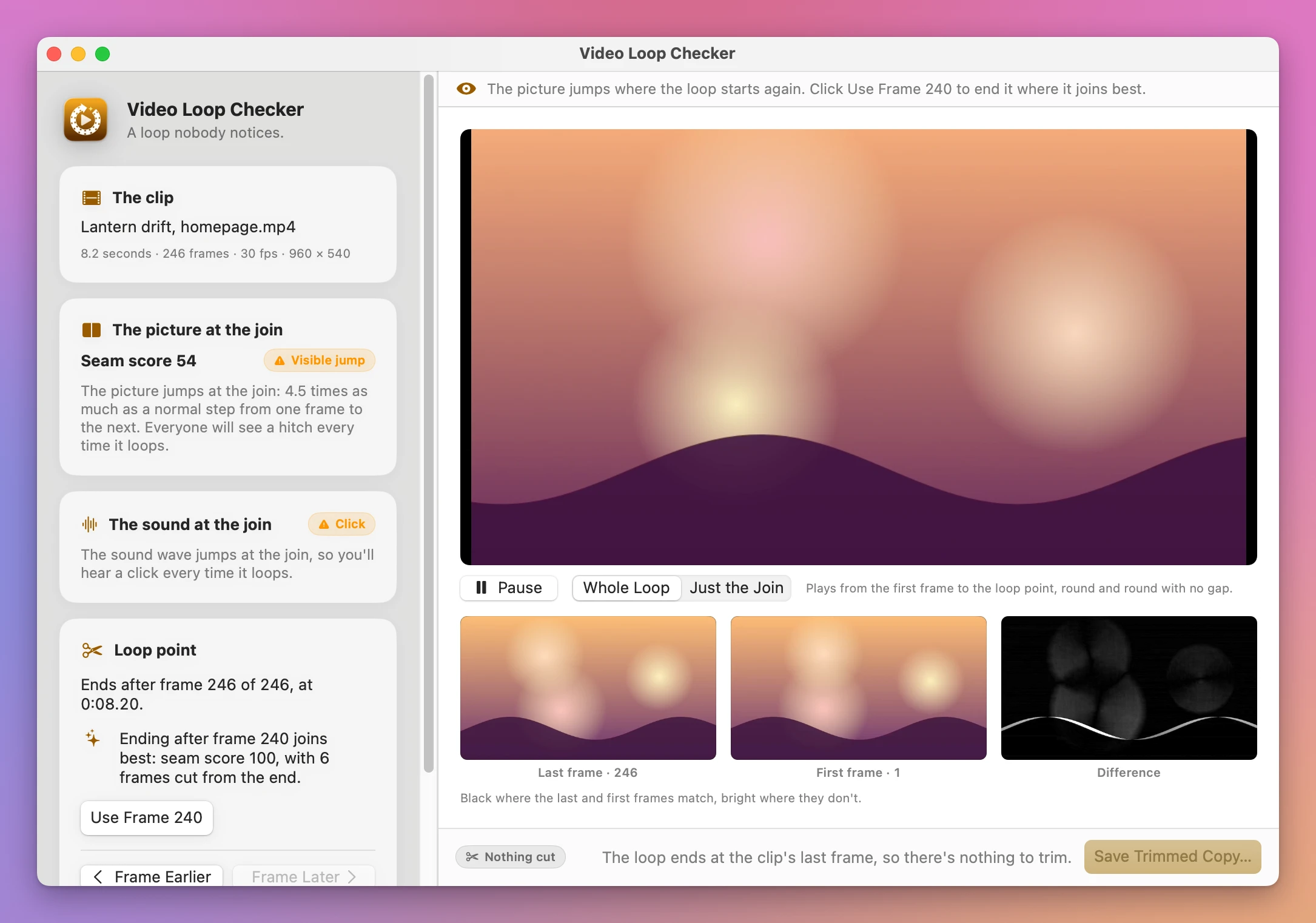
The preview plays the clip round and round with no gap. Under it, the last frame and the first frame sit side by side with a third picture of their difference: black where they match, bright where they don’t.
On the left, The picture at the join gives a seam score out of 100 and says how big the jump is compared with a normal step from one frame to the next. The sound at the join says whether the sound clicks.
For the test clip, opened at frame 246 of 246, the app said Visible jump, seam score 54, and a click in the sound. Its suggestion was frame 240, where the motion comes back to the start. A second test clip with 10 extra frames scored 8.
Click Use Frame 240, or move the end yourself with Frame Earlier and Frame Later and watch the score change. Here, frame 240 scored 100, frame 239 scored 89 (a small jump), and frame 241 showed the first frame twice.
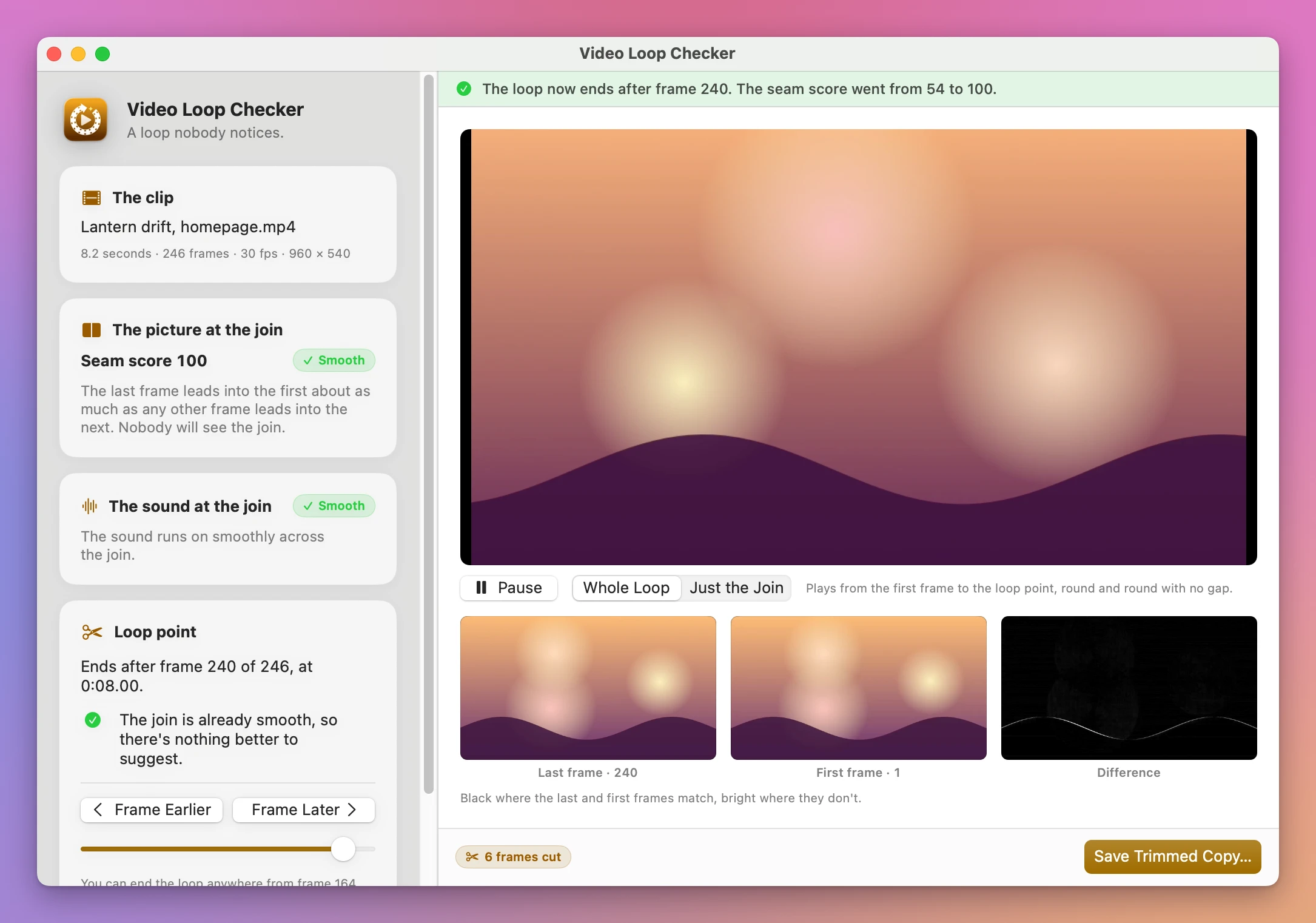
Just the Join plays only the second and a half before the join and the one after it, so you can watch and listen to the seam again and again.
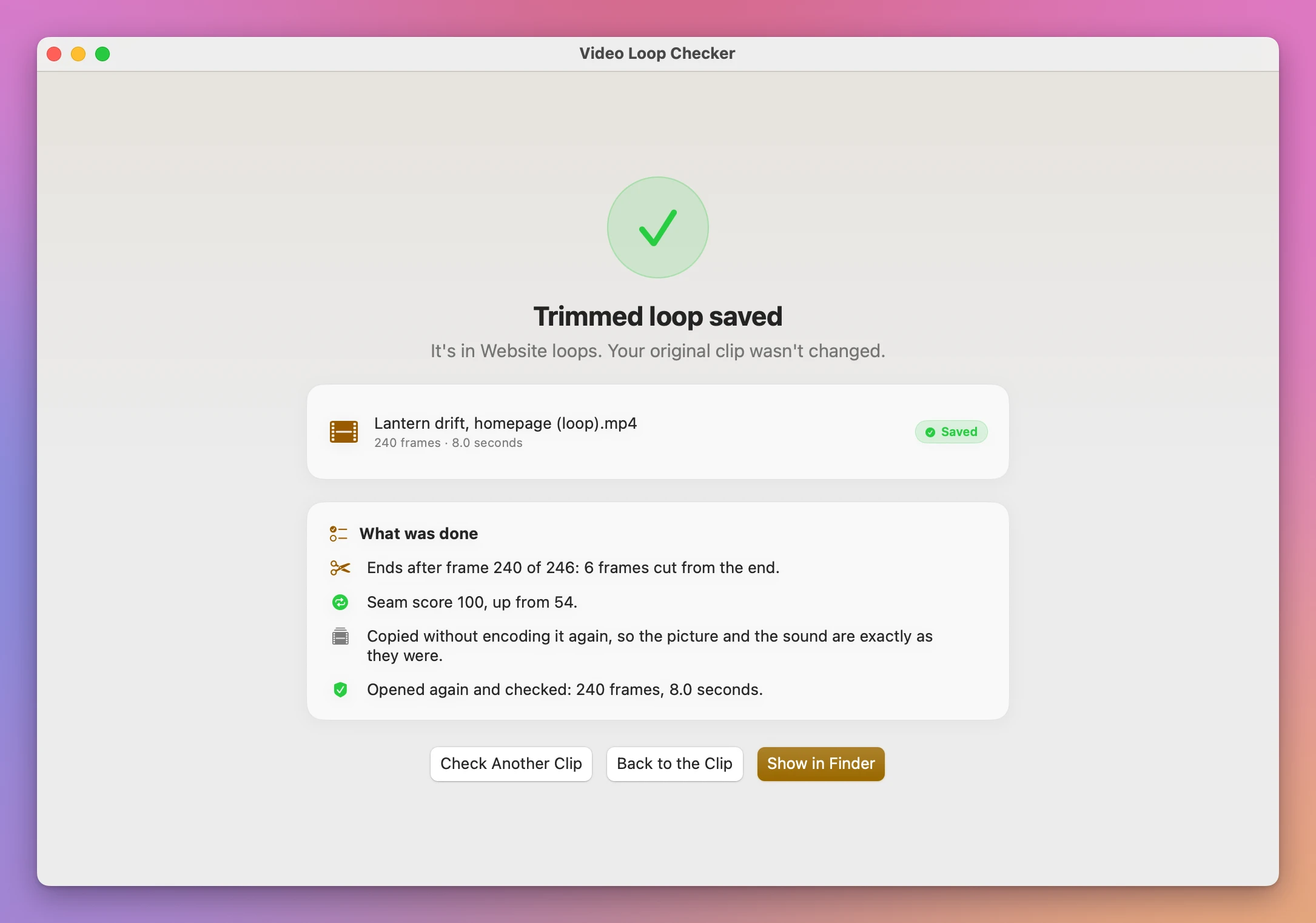
Then click Save Trimmed Copy… and pick where to save it. The app writes a new file that ends at your frame, opens it again and counts its frames. For the test clips, it said the copy was made without encoding it again and had 240 frames. Your original clip isn’t changed.
QuickTime Player or Video Loop Checker?
| QuickTime Player | Video Loop Checker | |
|---|---|---|
| Cost | Comes with the Mac | $19 once |
| Plays the loop | View › Loop, not made to be gapless | Round and round with no gap |
| Last and first frames | Two screenshots, flipped in Preview | Side by side, with their difference |
| How big the jump is | By eye | A score and “4.5 times a normal step” |
| A click in the sound | By ear | Checked at the join |
| Which frame to cut at | Step back and compare | Suggested, with its score |
| Trimming | Edit › Trim…, by eye | Save Trimmed Copy…, checked frame by frame |
If your clip has a big, obvious jump and you only check one, QuickTime Player and two screenshots are enough. If you deliver loops often, or the jump is a few frames and you can’t see which, Video Loop Checker gives you the number and the frame.
Get Video Loop Checker
Play a short clip round and round with no gap, see its last and first frames side by side with a seam score, hear whether the sound clicks at the join, and use the suggested loop point. Save a trimmed copy, never over the original.
See Video Loop Checker → · Read the docs · $19. See the app page for tax details.
Want me to talk about your product? You can sponsor this site.