How to turn a client's timestamped notes into markers in Premiere Pro, Resolve or Final Cut Pro
By Flavio
Your client emailed notes like 0:42, 1:15-1:20 and around the 2 minute mark. Here's how to put them on your timeline as markers by hand, and how Client Notes to Markers does it from one paste.
The client watched the cut and replied with an email. Some lines start with a time, like “0:08 title comes in too early” or “1:10 to 1:14 the cup shot is soft”. One says “somewhere around 2:45”. One has no time at all.
You want each of those notes on your timeline as a marker, so you can work through them without the email open. You can add them one by one in your editing app, or paste the whole email into Client Notes to Markers and import the markers in one go.
The free way: one marker at a time
All three big editing apps add a marker at the playhead with the M key. Premiere Pro, DaVinci Resolve and Final Cut Pro each describe it in their own help: move the playhead, press M, then open the marker to type its name or note.
For each line of the email, that’s:
- Read the time in the email and work out what it means. “1m20s” is 1:20, “around the 2 minute mark” is 2:00, give or take.
- Move the playhead there. Type the timecode, or scrub until the timecode display matches.
- Press M to add the marker.
- Open the marker (double-click it, or press M again in Premiere Pro and Resolve, Option-M in Final Cut Pro) and paste the note.
- Go back to the email for the next line.
For a range like “1:10 to 1:14”, you also drag the marker’s end out to 1:14. For a line with no time, you skip it and hope you remember it later.
It works, and for three notes it’s the fastest way. For twenty, it’s twenty trips between the email and the timeline, and a typo in step 2 puts a note on the wrong shot. If you cut in more than one app, you do it again in each.
The shorter way: paste the email
Client Notes to Markers reads the email the way the client wrote it. Here, the notes were a made-up email from a client called Juniper about a three-minute promo:
Notes from Juniper on the promo:
- 0:08 title comes in too early
- 1:10 to 1:14 the cup shot is soft
- at 2m05s colour on the buildings is too orange
- somewhere around 2:45 the flowers flicker
- the music should fade out sooner
Cheers, Juniper
Copy the email, open the app and click Paste the Client’s Notes. Then click Choose Video… and pick the export the client watched, so you can see the frame each note points at.
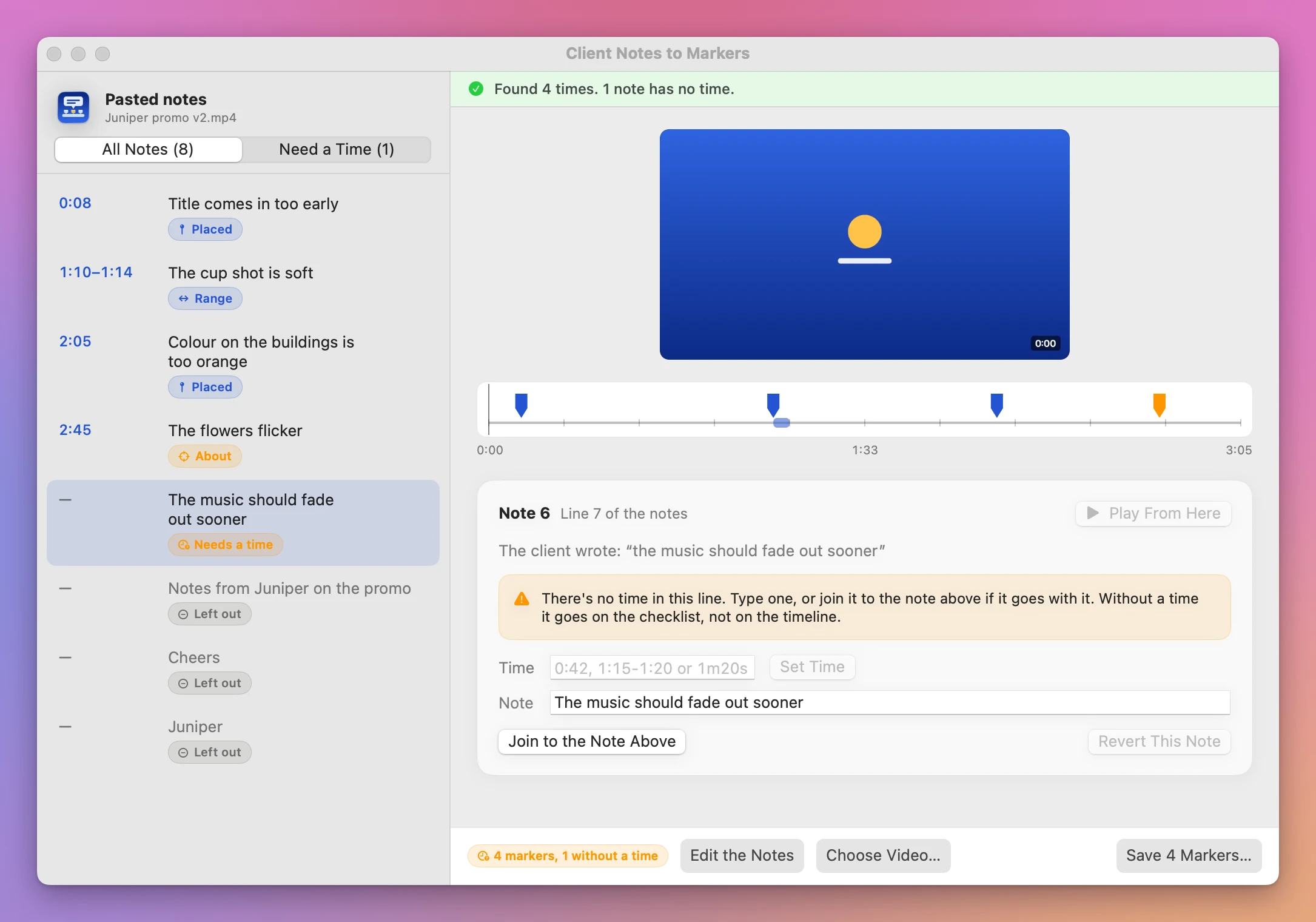
The hint line says what it found: 4 times, and 1 note with no time. Each note has a pill:
- 0:08 is Placed.
- 1:10 to 1:14 is a Range, a marker four seconds long.
- at 2m05s became 2:05.
- somewhere around 2:45 is About: the marker is at 2:45, in orange on the strip, so you know to check it.
- the music should fade out sooner Needs a time.
- The intro line, “Cheers,” and the name are Left out.
The data in these screenshots is made up.
Click a note and the video jumps to its frame. For the note with no time, type one in the Time field and press Return, or click Join to the Note Above if it belongs with the line before. A note you leave without a time still goes on the checklist.
Save the markers for your editing app
Click Save 4 Markers… and tick the files you want. The frame rate was read from the video, 25 fps here.
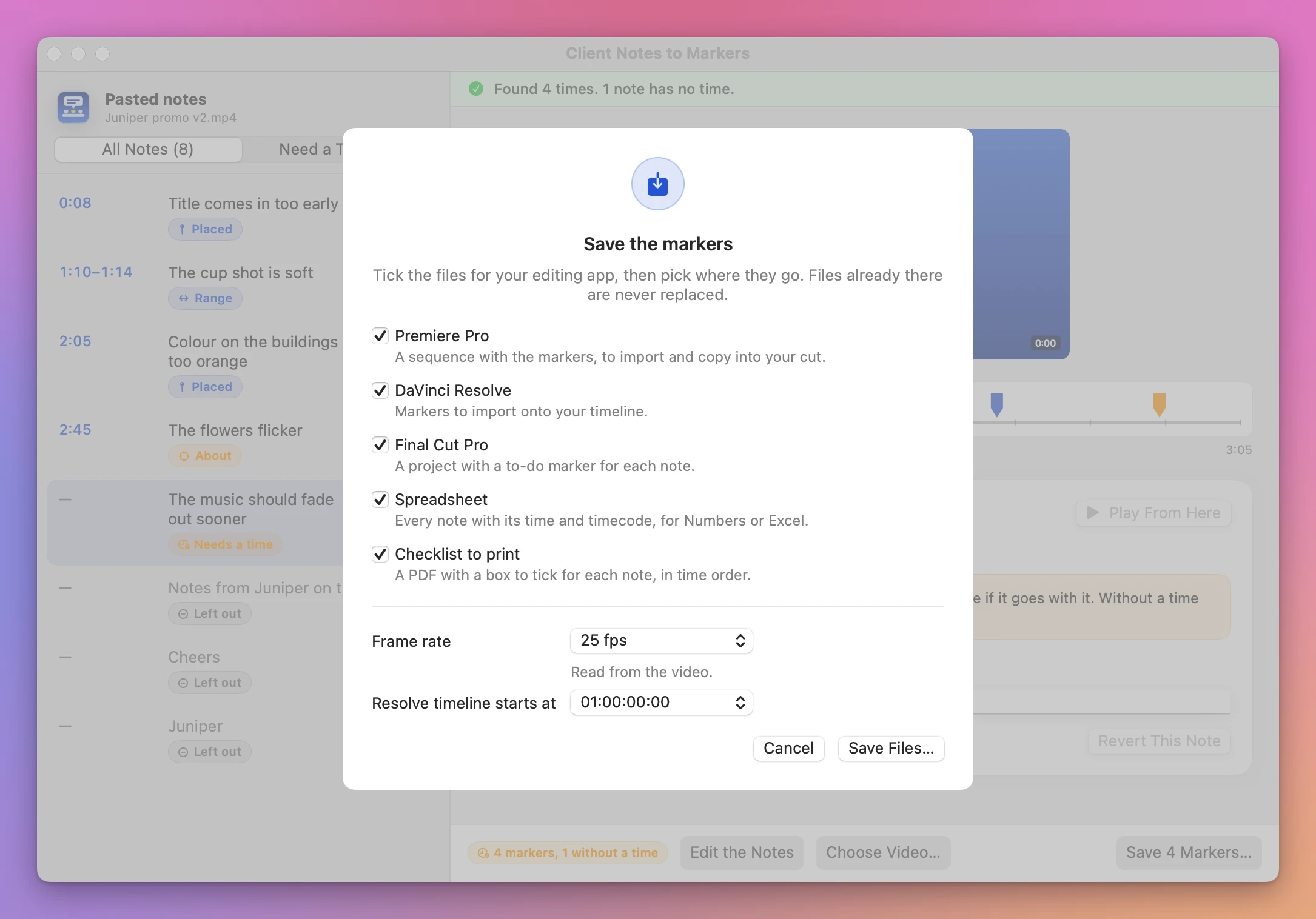
Click Save Files…. The save panel suggests a name for the files, the video’s name with “notes”, and the video’s folder. Click Save.
Five files came out in the folder next to the video: one for each editing app, a spreadsheet and a checklist PDF.
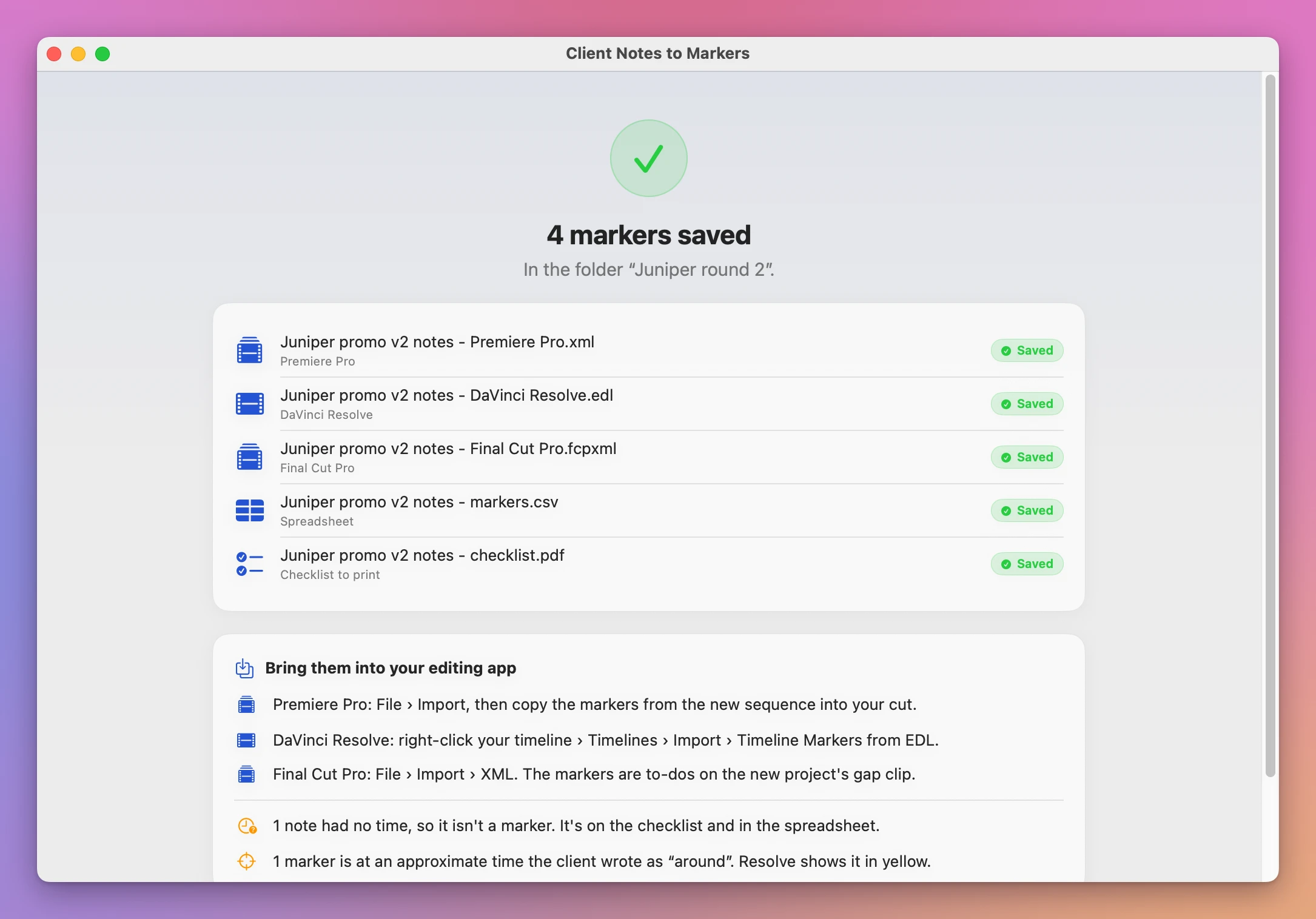
The done screen says how to bring them in:
- DaVinci Resolve: right-click your timeline in the Media Pool, then Timelines › Import › Timeline Markers from EDL. The approximate note comes in yellow, the others blue.
- Premiere Pro: File › Import the .xml. It adds a sequence with the markers, which you copy into your cut from the Markers panel.
- Final Cut Pro: File › Import › XML. The notes are to-do markers on a gap clip in a new project.
Which way to pick
| By hand with M | Client Notes to Markers | |
|---|---|---|
| Cost | Free | $19, paid once |
| Times like “1m20s” or “around 2:45” | You work them out | Read as written, approximate ones marked |
| Lines with no time | You have to notice them | Listed under Need a Time |
| See the frame first | Scrub to it | Click the note |
| More than one editing app | Repeat in each | One paste, a file for each |
| A checklist to print | Make one yourself | Saved with the markers |
For a couple of notes, press M. For a full round of feedback, paste it into Client Notes to Markers and spend the time on the edits.
Get Client Notes to Markers
Paste a client's notes and every time in them, written as 0:42, 1:15-1:20, 1m20s or "around the 2 minute mark", becomes a marker. See each note on the cut and on the video, give a time to the lines without one, and save markers for Premiere Pro, DaVinci Resolve and Final Cut Pro, plus a spreadsheet and a checklist.
See Client Notes to Markers → · Read the docs · $19. See the app page for tax details.
Want me to talk about your product? You can sponsor this site.