What are the .LRF files on a DJI card, and can I delete them?
By Flavio
Every video on a DJI card comes with an .LRF file. Here's what DJI says they are, how to play one on a Mac, how much space they take next to the videos, and when you can delete them.
On a DJI card, next to DJI_20261018101530_0007_D.MP4 there’s a DJI_20261018101530_0007_D.LRF. The Finder calls it “Document”, and QuickTime Player won’t open it.
It’s a small, low-quality copy of the video. DJI’s support page about them, written for its Osmo cameras, says the .LRF files are compressed copies used for preview and playback, and for the trimmed download of the DJI Mimo app. Drones write the same kind of file next to every video, and pilots report that the DJI Fly app uses it to play the video on the phone. Your video is the .MP4, and it doesn’t need the .LRF to play.
Can I delete them?
Yes, once the videos are where you want them. DJI’s page says what changes on its cameras: when an .LRF file is gone, the camera can’t play back that video anymore. The video file itself stays fine, and plays on the Mac like before.
| Situation | Delete the .LRF? |
|---|---|
| The videos are copied to your Mac, or joined, and you’re clearing the card | Yes, they go with the videos |
| You’re deleting a video from the card | Yes, delete its .LRF with it, or it stays behind |
| The videos stay on the card and you watch them from DJI’s app | Keep them |
You lost the .MP4 but the .LRF is still there | Keep it, it’s a low-quality copy of that video |
The last one is DJI’s own tip: if the .MP4 is gone but the .LRF is still there, renaming the .LRF to .MP4 gives you a low-definition version of the video.
How much space do they take?
I tried this on a stand-in card: a disk image formatted like a drone’s card, named NO NAME, with made-up clips named the way a DJI drone names them and an .LRF and .SRT file next to each video. My .LRF files are 1280 × 720 copies I made myself, so their size is a guess at a real drone’s. The parts are also cut at 2 minutes instead of 4 GB.
| Files on the stand-in card | Count | Size |
|---|---|---|
Videos (.MP4) | 7 | 660.9 MB |
Low-quality copies (.LRF) | 7 | 46.2 MB |
Flight data (.SRT) | 7 | 4.7 MB |
The .LRF of each part sits right next to it when you sort by name, between the .MP4 and the .SRT. On a real card, look at the Size column of yours: the steps are the same.
Play one on a Mac
Opening DJI_20261018101530_0007_D.LRF with QuickTime Player was refused:
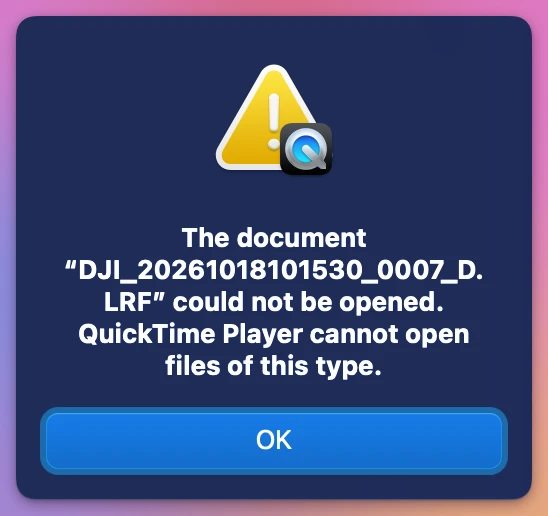
That’s about the extension only. Following DJI’s tip, I gave a copy the .MP4 extension:
- Drag the
.LRFfile from the card to a folder on your Mac. That copies it. - Click the copy, press Return, and change
.LRFto.MP4. Press Return. - The Finder asks “Are you sure you want to change the extension from ”.LRF” to ”.MP4”?”. Click Use .MP4.
Do it on a copy, never on the card. Renamed, it played in QuickTime Player, and Window > Show Movie Inspector shows the difference from its video:
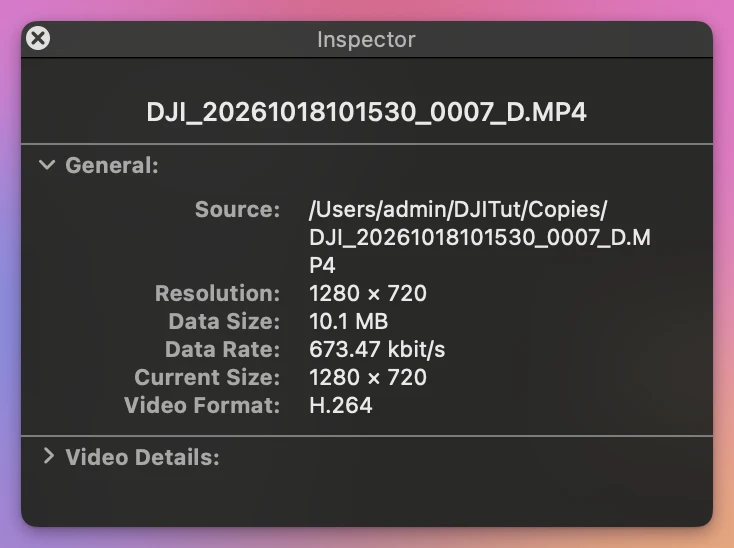
The video (.MP4) | Its copy (.LRF, renamed) | |
|---|---|---|
| Resolution | 1920 × 1080 | 1280 × 720 |
| Size | 149.4 MB | 10.1 MB |
| Data rate | 9.95 Mbit/s | 673.47 kbit/s |
| Length | 2 min | 2 min |
Same 2 minutes, a fraction of the picture. It’s no backup of the video.
The catch when you delete videos in the Finder
When you delete a video in the Finder, its .LRF stays on the card unless you select it too. With dozens of flights, the leftovers add up, and nothing uses them anymore.
And anything you delete from a card on a Mac goes to a Trash on the card itself, where it keeps its space until you empty the Trash. The tutorial about a card that’s still full after deleting shows how to get it back.
Remove them with the videos, in one click
Joiner for DJI is a Mac app I made that joins the parts of a drone’s flight into one video, straight from the card. It’s not made by, affiliated with or endorsed by DJI. It costs $20, paid once.
After a join, Move Originals to Trash… takes the parts away from the card. I joined the two split flights of the stand-in card and clicked it. The confirmation had a box, ticked for me, for their .LRF files:
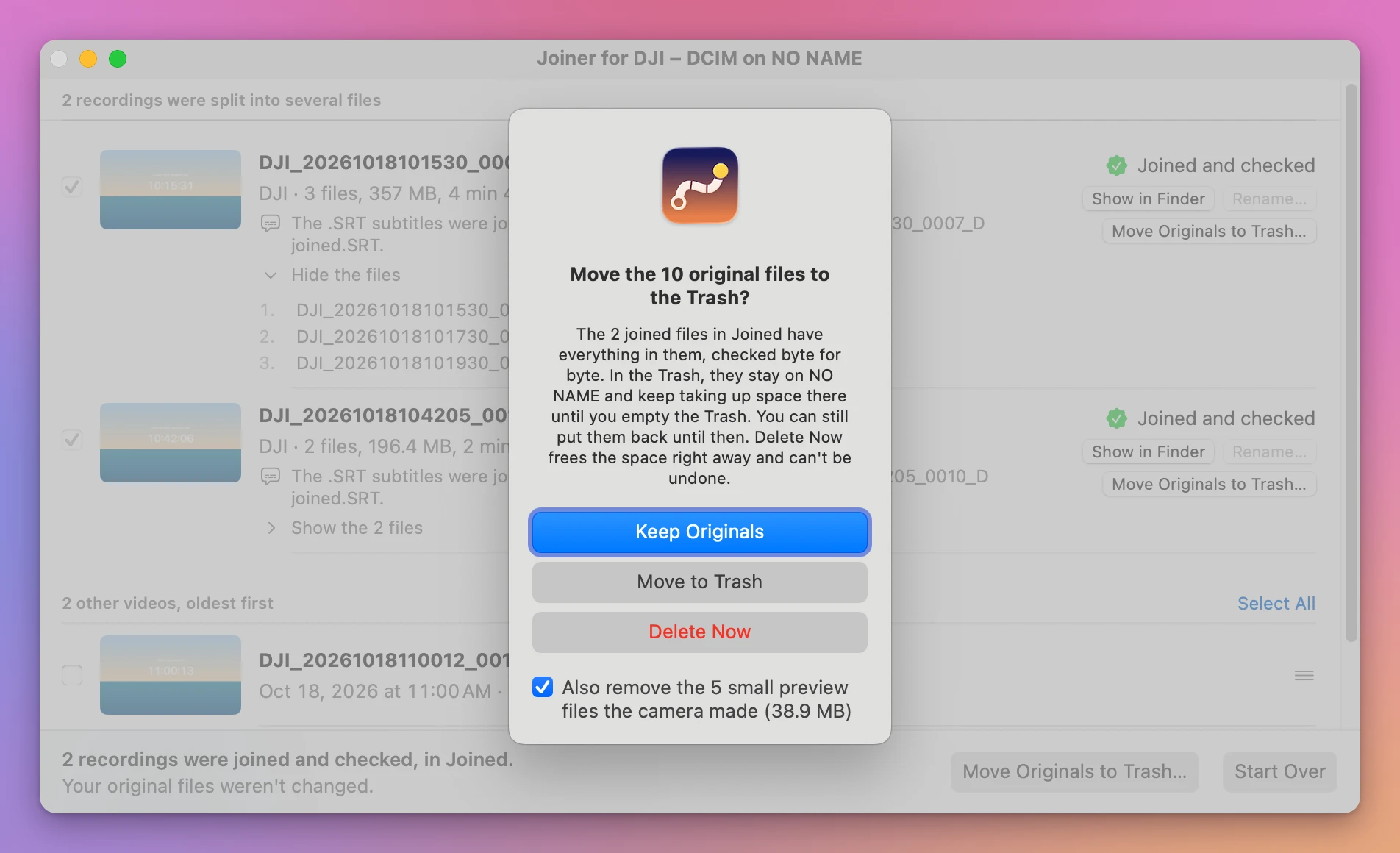
The 10 original files are the 5 parts and their 5 .SRT files, which are now in the joined .SRT, and the 5 small files are the parts’ .LRF files, matched by name. Nothing of the two short clips on the card was touched. Keep Originals is the default button, so pressing Return removes nothing. Untick the box to keep the .LRF files.
I clicked Move to Trash:
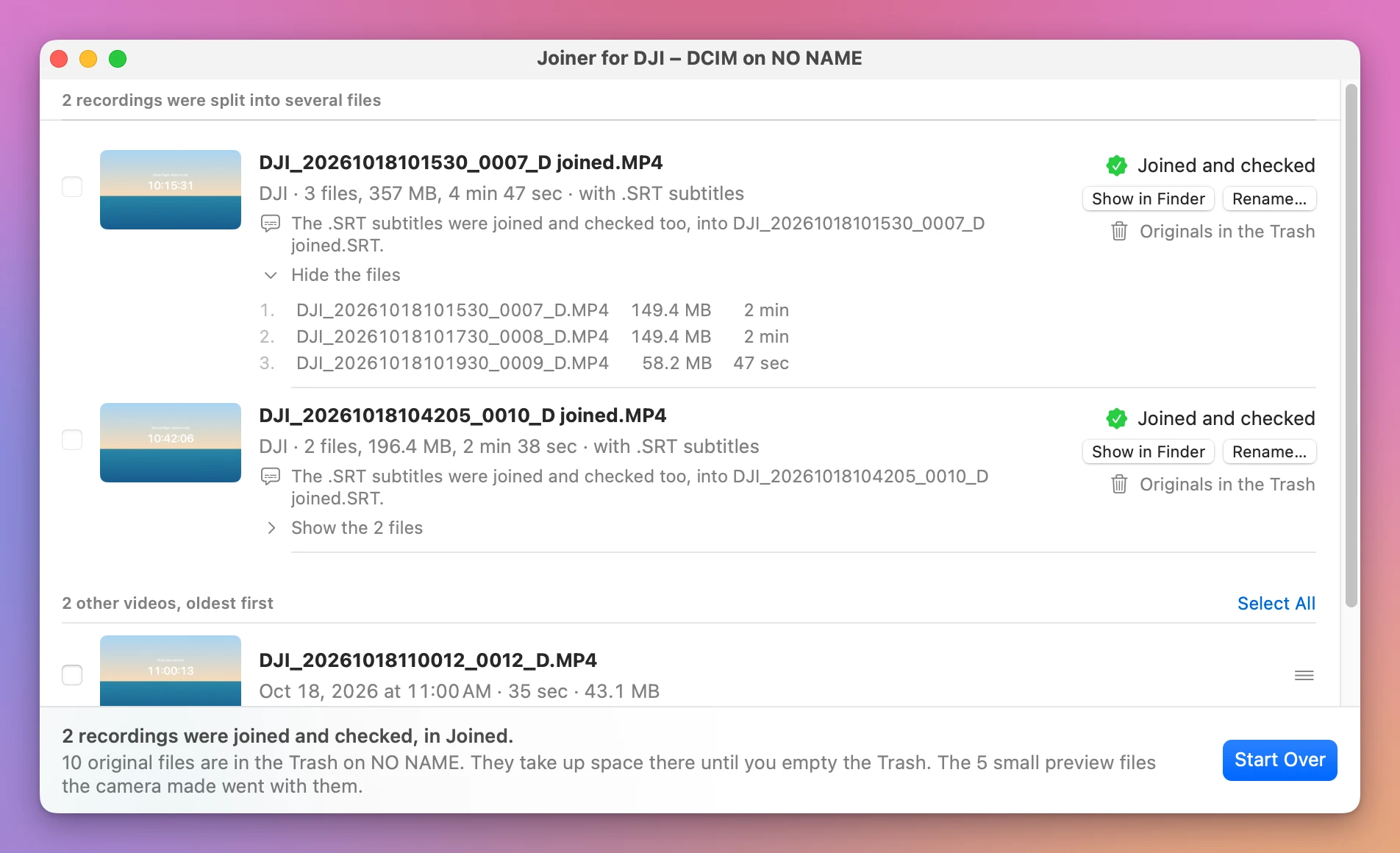
Delete Now in the same confirmation deletes them from the card right away instead, which frees the space and can’t be undone.
Get Joiner for DJI
Put the parts your DJI drone split a flight into back together, into one video on your Mac, straight from the card, with the .SRT flight data merged to match. Nothing loses quality, and the small .LRF files can go with the originals.
See Joiner for DJI → · Read the docs · $20. See the app page for tax details.
Want me to talk about your product? You can sponsor this site.