How to empty the Trash of one external drive on a Mac
By Flavio
Files you delete from a USB stick stay on it until the Trash is emptied, and the Trash mixes them with your Mac's own files. Here's how to tell which ones are on the stick and empty only those.
You deleted photos from a USB stick and the stick has the same free space as before. They’re in the stick’s own Trash, a hidden .Trashes folder on the stick, until the Trash is emptied. The tutorial about a card that’s still full after deleting explains that part, and how Delete Immediately removes chosen files from the Trash without emptying it all.
The tricky part is choosing. The Trash window lists the stick’s files together with your Mac’s, and nothing in the list says which is which. Here’s how to tell, and a way that only touches one stick.
The space doesn’t come back
I tried it on a stand-in stick: a disk image formatted exFAT like a big USB stick, named TV PHOTOS, with a Lake holiday folder of eight made-up photos, on macOS Sequoia. On the Mac it behaves like a real stick, except that plugging it in and taking it out is opening and closing a file.
I selected three photos, IMG_2046.JPG to IMG_2048.JPG, and chose File > Move to Trash. Then I selected the stick in the Finder’s sidebar and chose File > Get Info:
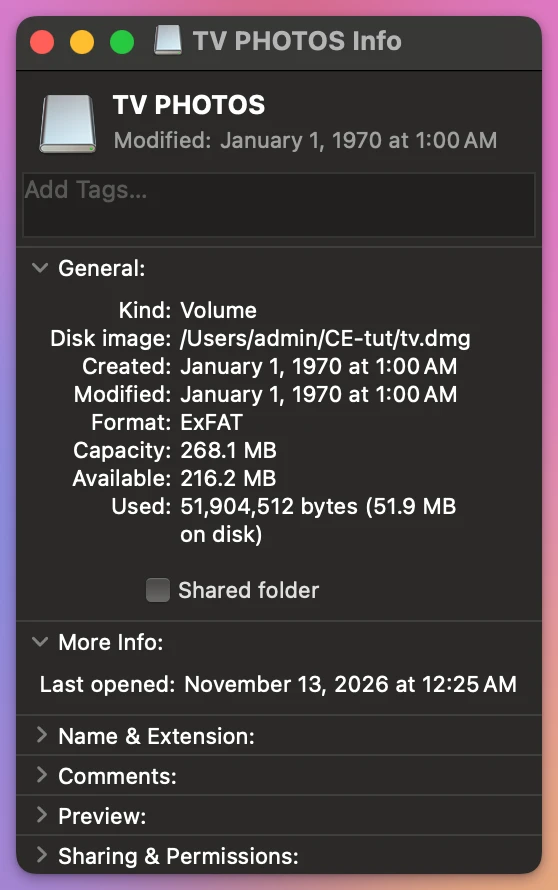
216.2 MB available, with the three photos gone from the folder. Their space was still taken, by the copies in the stick’s Trash.
Which files in the Trash are on the stick?
Open the Trash from the Dock. The stick’s files are in the same list as everything else. To check one, select it and choose File > Get Info (Command-I). The Where line says where it is.
This is a song I’d moved to the Trash from another stand-in stick, CAR USB:
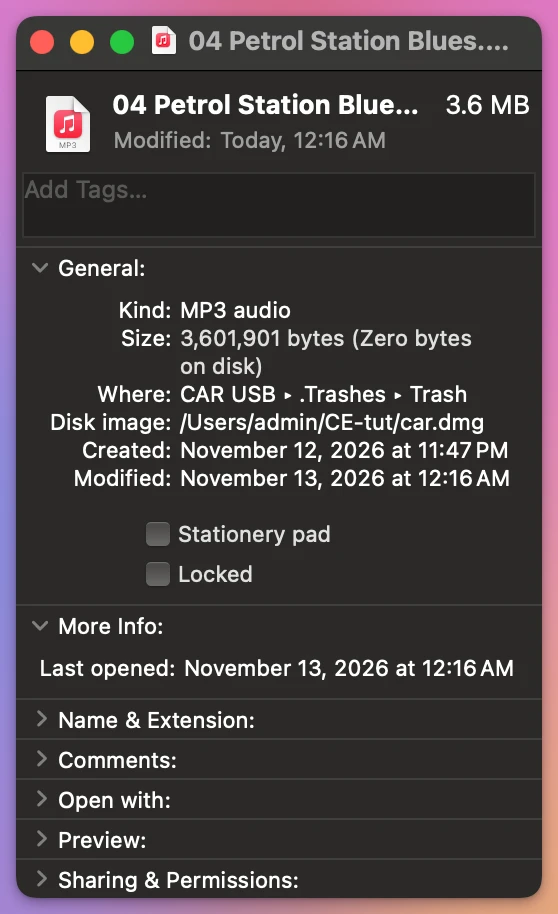
“CAR USB ▸ .Trashes ▸ Trash” means it’s in the Trash of CAR USB, on the stick.
So by hand it’s: open the Trash, Get Info on each file you’re not sure of, select the stick’s files, and Delete Immediately. With a few files that’s fine. With a few hundred photos from a camera card, you’re checking them one by one, and Empty would take your Mac’s files with them.
| Get Info, then Delete Immediately | Empty Trash | Clean Eject | |
|---|---|---|---|
| Which files go | The ones you pick | All of them, the Mac’s too | Only that stick’s Trash |
| Tells you how much | One file at a time | No | Files and size, before you click |
| Can be undone | No | No | No |
Empty one stick’s Trash with Clean Eject
Clean Eject is a Mac app I made for cards and USB sticks. It costs $20, paid once. When a stick’s Trash has something in it, Clean & Eject shows a box that says how much, unticked. I ticked it:
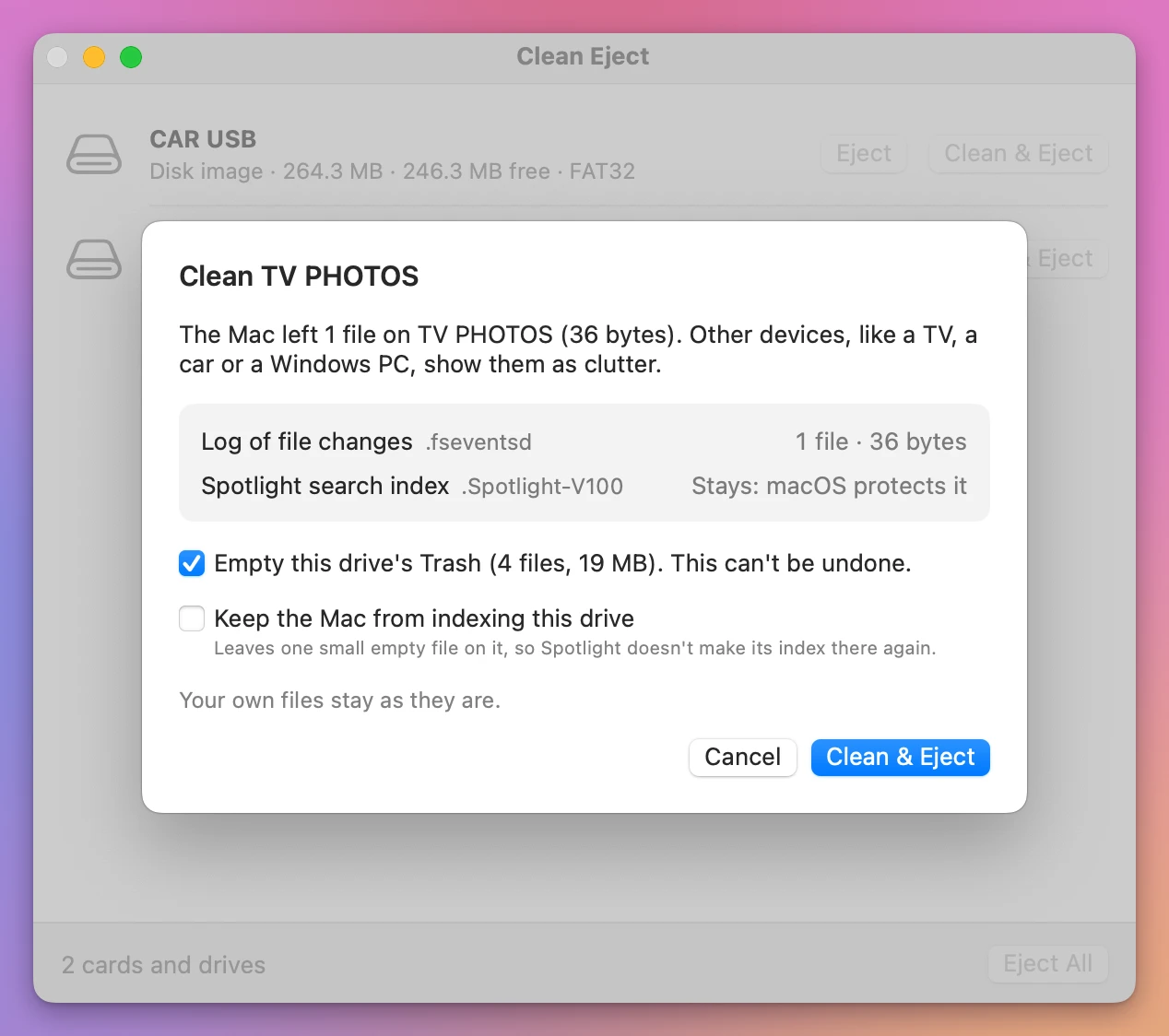
4 files, 19 MB: the three photos, and a 4 KB file the Mac had put in the Trash with them. The box empties the Trash on that stick and nothing else. I clicked Clean & Eject:
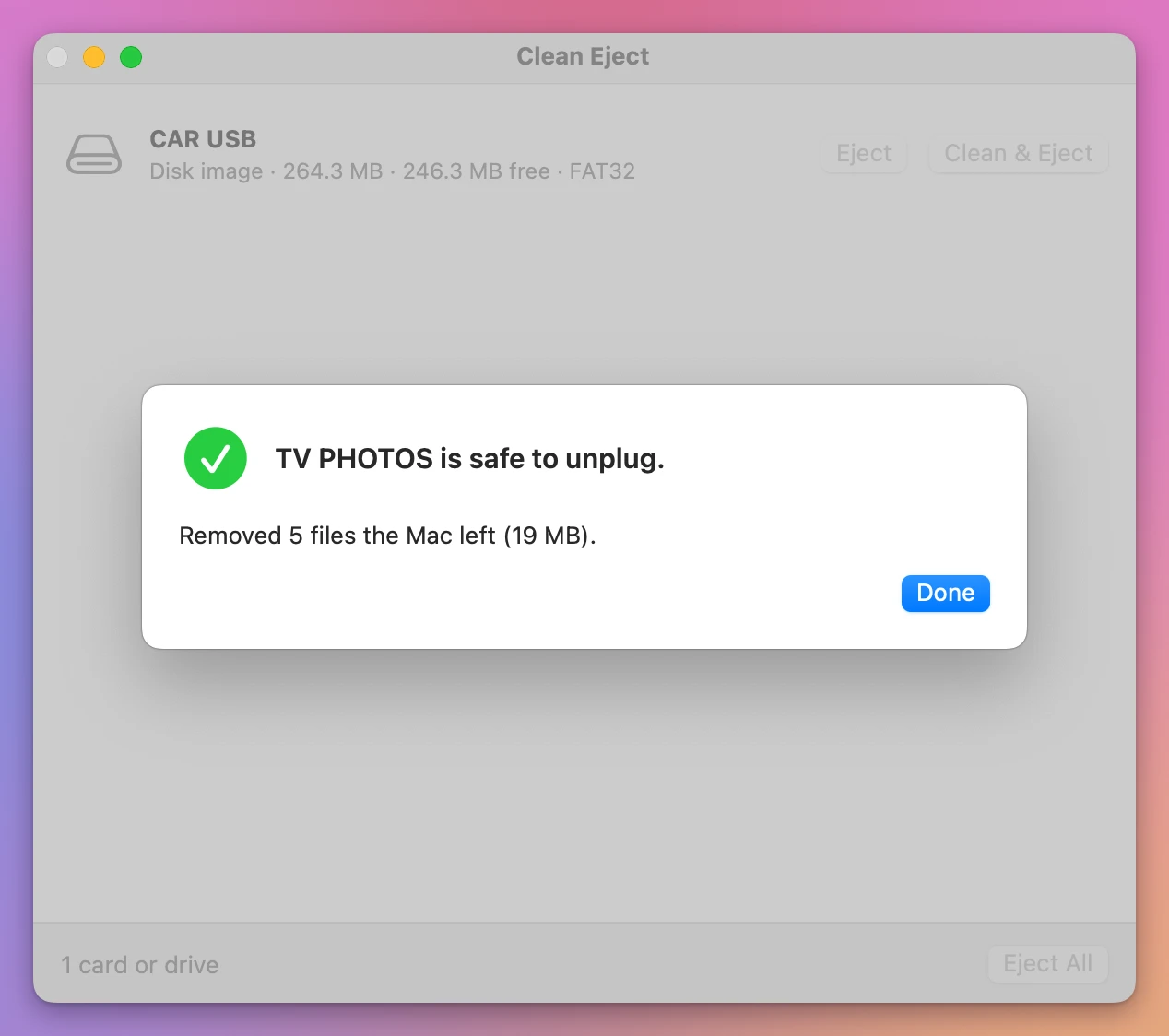
The 5 files are the 4 from the Trash and the 36-byte log. I plugged the stand-in in again and looked at Get Info:
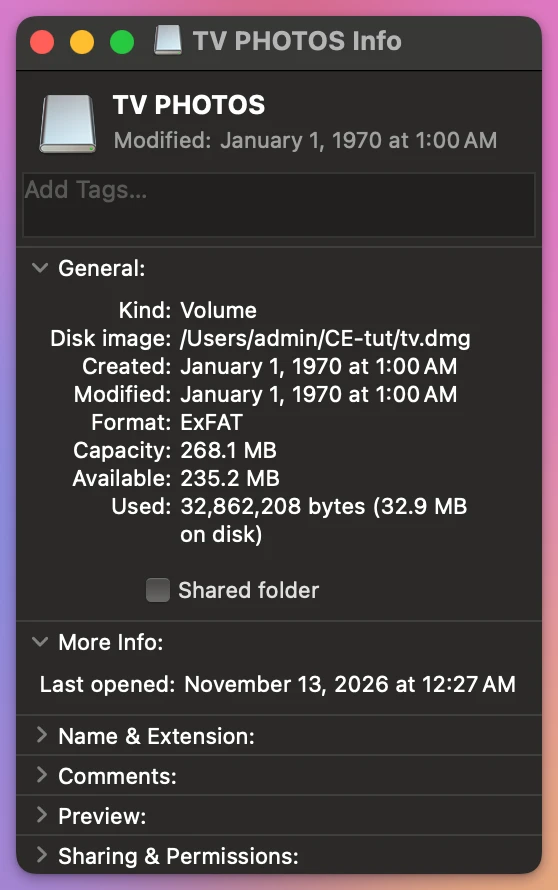
| Available on TV PHOTOS | |
|---|---|
| Photos in the stick’s Trash | 216.2 MB |
| After Clean & Eject with the Trash box ticked | 235.2 MB |
19 MB back, the size of the three photos. When you leave the box unticked, the window that says the stick is safe to unplug reminds you how much is still in its Trash.
Get Clean Eject
Remove the hidden files your Mac leaves on memory cards and USB drives, the ._ and .DS_Store files a TV, a car or a Windows PC shows, then eject. When a drive won't eject, see which apps are using it and quit them.
See Clean Eject → · Read the docs · $20. See the app page for tax details.
Want me to talk about your product? You can sponsor this site.