How to find and replace text in multiple Word documents at once on a Mac
By Flavio
Word's Find and Replace works on one open document at a time. Here's the free way to update a folder of .docx files, and a faster one that previews every match and leaves the originals alone.
A company name changed, or an address, and it’s in dozens of Word documents: contracts, letters, templates, price lists. You want to change it everywhere at once.
Word can’t do that on its own. Its Find and Replace works on the document you have open, so the free way is to open each file and replace the text one document at a time. To do the whole folder in one go, you need a tool that reads many .docx files, like Word Batch Text Replacer.
Can Word replace text in several documents at once?
Not with its menus. Find and Replace in Word, and Find & Replace in Pages and TextEdit (Command-F), all work on one open document.
So for each document you open it, run Replace All for each piece of text, look at what changed, save and close. That’s fine for three documents. For 40 contracts and two pieces of text, it’s 80 rounds of Replace All, and you only get a count of how many replacements were made, not the sentences that changed.
Be careful with two things while you do it:
- Tracked changes. If Track Changes is on, every replacement is recorded as a change for the next person to accept. If the document already has changes nobody accepted, the old name may sit inside one of them.
- Fields. Mail-merge fields, cross-references and links have text that Word produces from the field. A change there can be lost the next time the field updates.
Word macros can loop over a folder, but that means writing code and trusting it with your files. Pages and TextEdit aren’t a shortcut either: Pages converts the document to its own format, and TextEdit has no headers, footers or footnotes.
What does the app do differently?
It takes a list of pairs (find this, replace with that) and applies all of them to every document you add. Before it writes anything, it shows every match in every document with the sentence around it. Then it saves edited copies in a new folder, and your originals stay as they were.
Matches inside tracked changes, fields and form fields are left alone, and listed in a report with what to do about each one.
How do I replace text in many Word documents with the app?
The example here is a made-up client rename. There are five files in a folder: Contract.docx, Welcome Letter.docx, Price List.docx, No Matches.docx and an old Old Format.doc. The client went from “Acme Corporation” to “Globex Ltd”, moved from 12 Harbor Road to 40 Mill Lane, Springfield, and a partner company was renamed too.
When you open the app, the bottom bar tells you the next step: Add Documents….
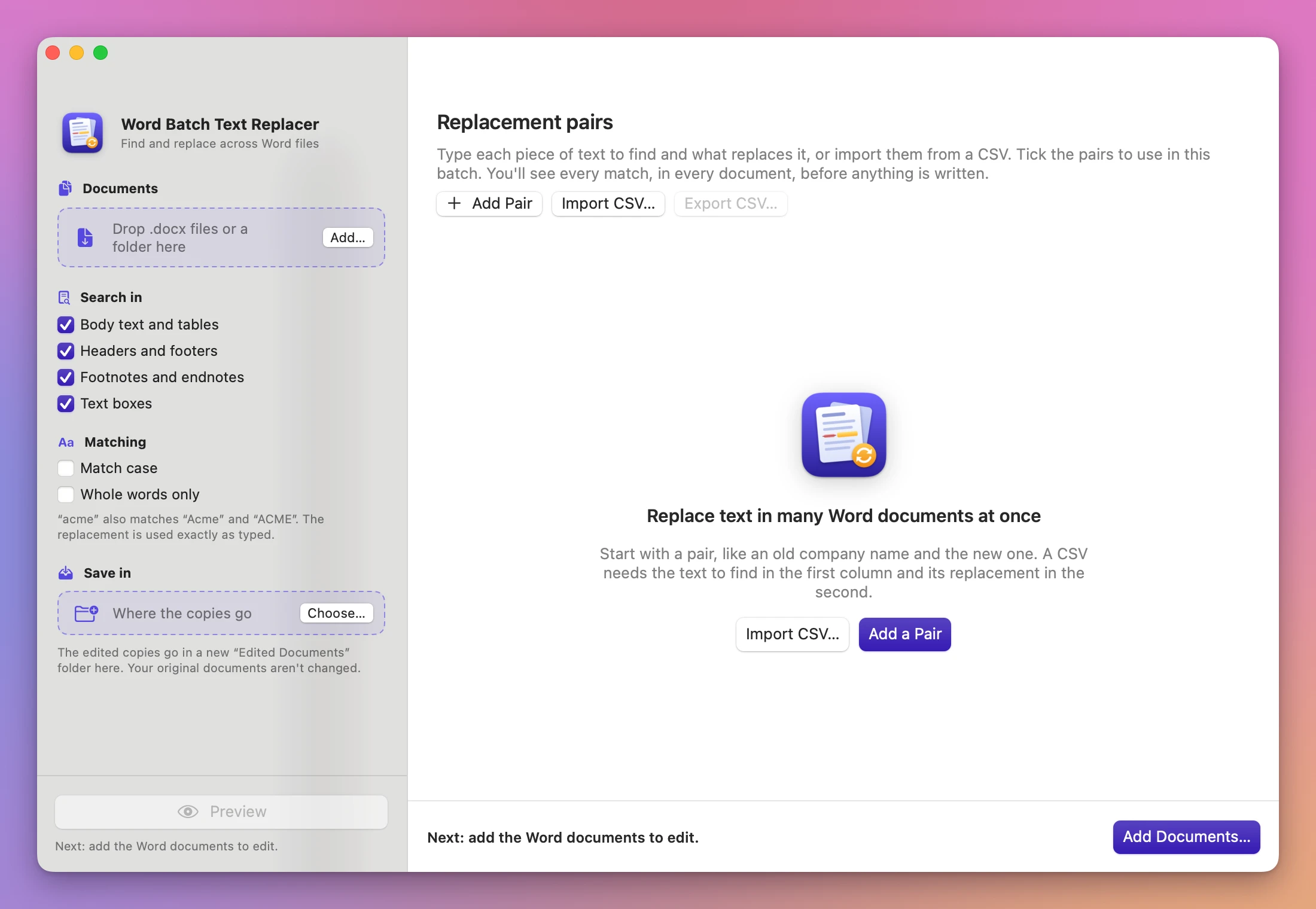
- Drag the folder onto the Documents box, or click Add…. The old
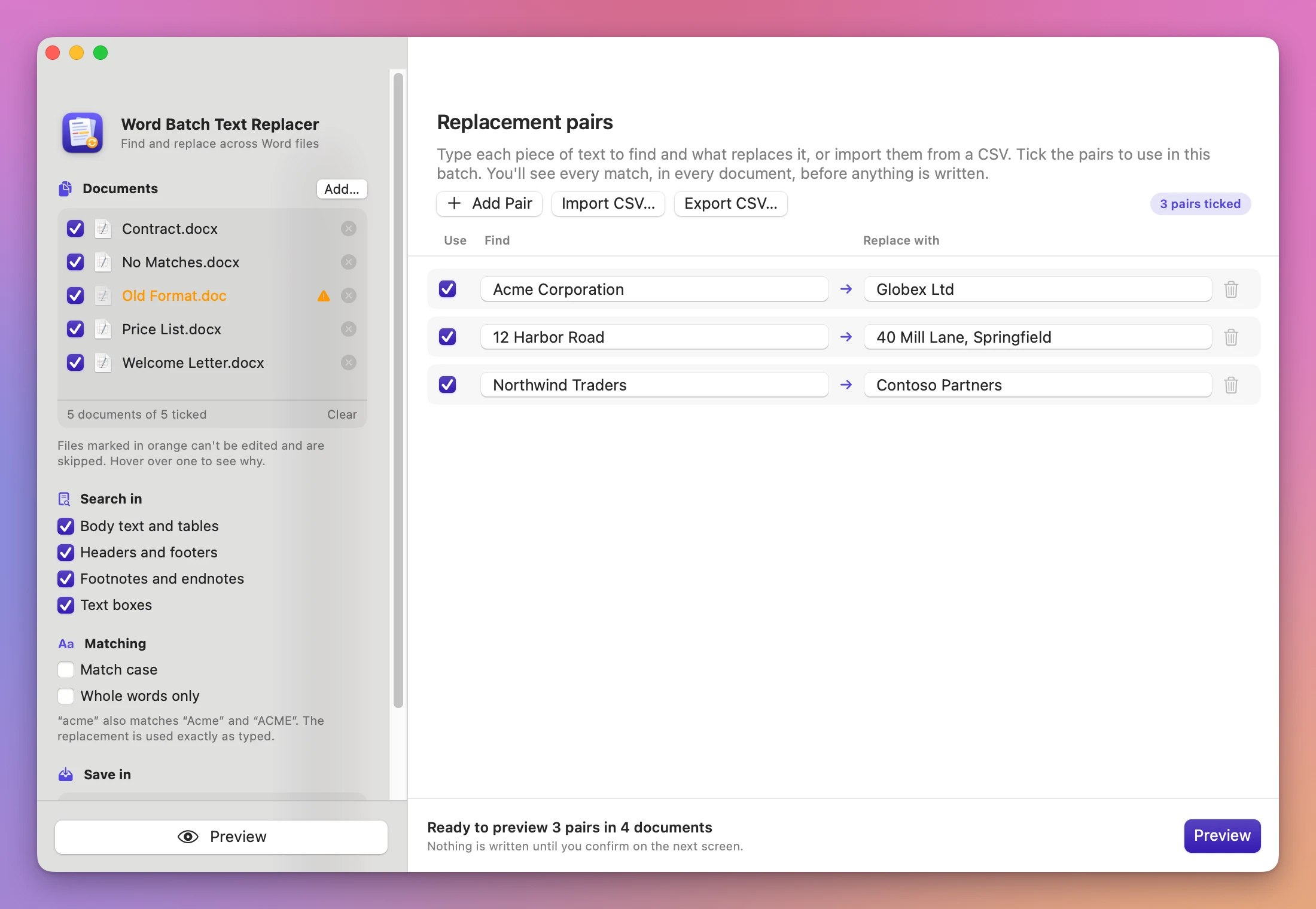
.docshows in orange: the app edits.docxfiles only. - Click Add Pair and type “Acme Corporation” in Find and “Globex Ltd” in Replace with. Add the other two pairs the same way. If your list is in a spreadsheet, save it as CSV with the text to find in the first column and click Import CSV….
- Under Search in, leave the body, headers and footers, footnotes and text boxes ticked.
- Under Save in, click Choose… and pick a folder for the copies.
- Click Preview.
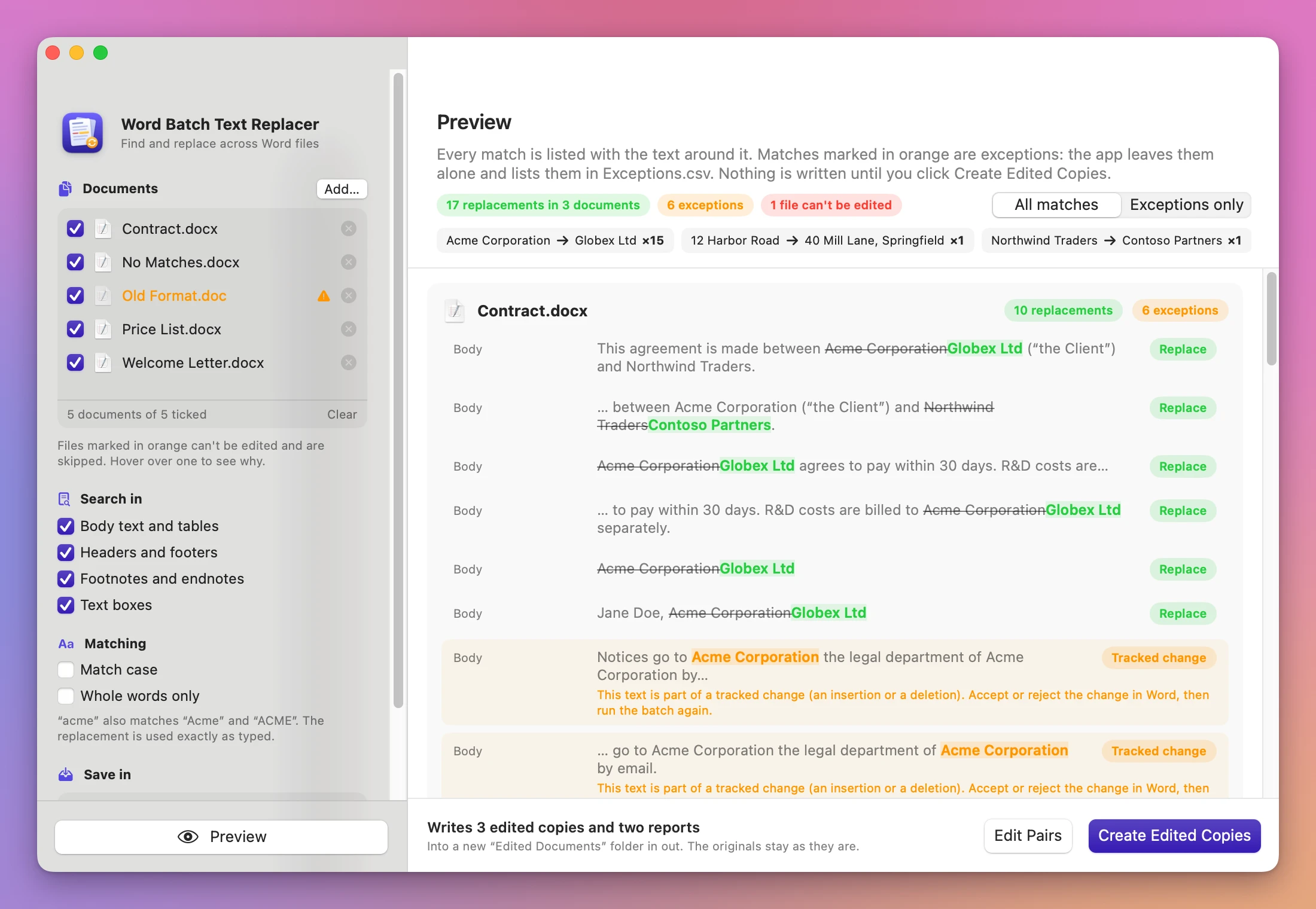
What does the preview show?
Here it found 17 replacements in 3 documents, 6 exceptions, and 1 file it can’t edit. “Acme Corporation” is replaced 15 times, the address and the partner’s name once each.
Each match shows where it is and the text around it, with the old text struck through and the new text in green. In Contract.docx that includes the header, the footer, a footnote and a text box. In Welcome Letter.docx the header says “ACME CORPORATION” in capitals: with Match case off, it’s found too, and becomes “Globex Ltd” exactly as typed.
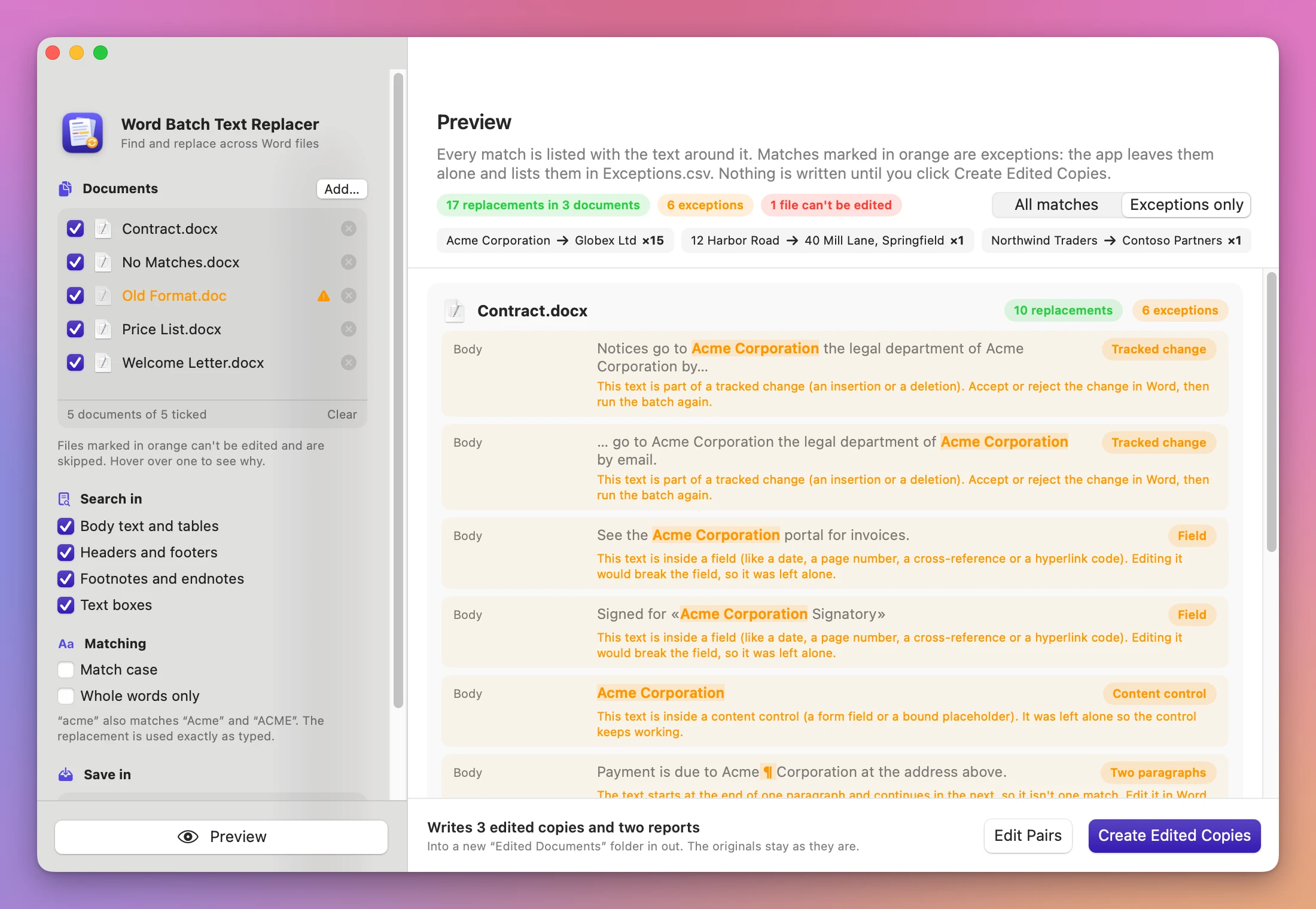
Click Exceptions only to see the six matches the app won’t touch. Two sit in tracked changes, two in fields (a link and a mail-merge field), one in a content control (a form field), and one starts at the end of a paragraph and finishes in the next. Each says what to do, like “Accept or reject the change in Word, then run the batch again.”
What do I get at the end?
Click Create Edited Copies. The app makes a new Edited Documents folder with three edited copies (Contract with 10 replacements, Price List with 3, Welcome Letter with 4), Replacements.csv with every change and the text around it, and Exceptions.csv with the six exceptions and the skipped .doc. No Matches.docx had nothing to replace, so it isn’t copied.
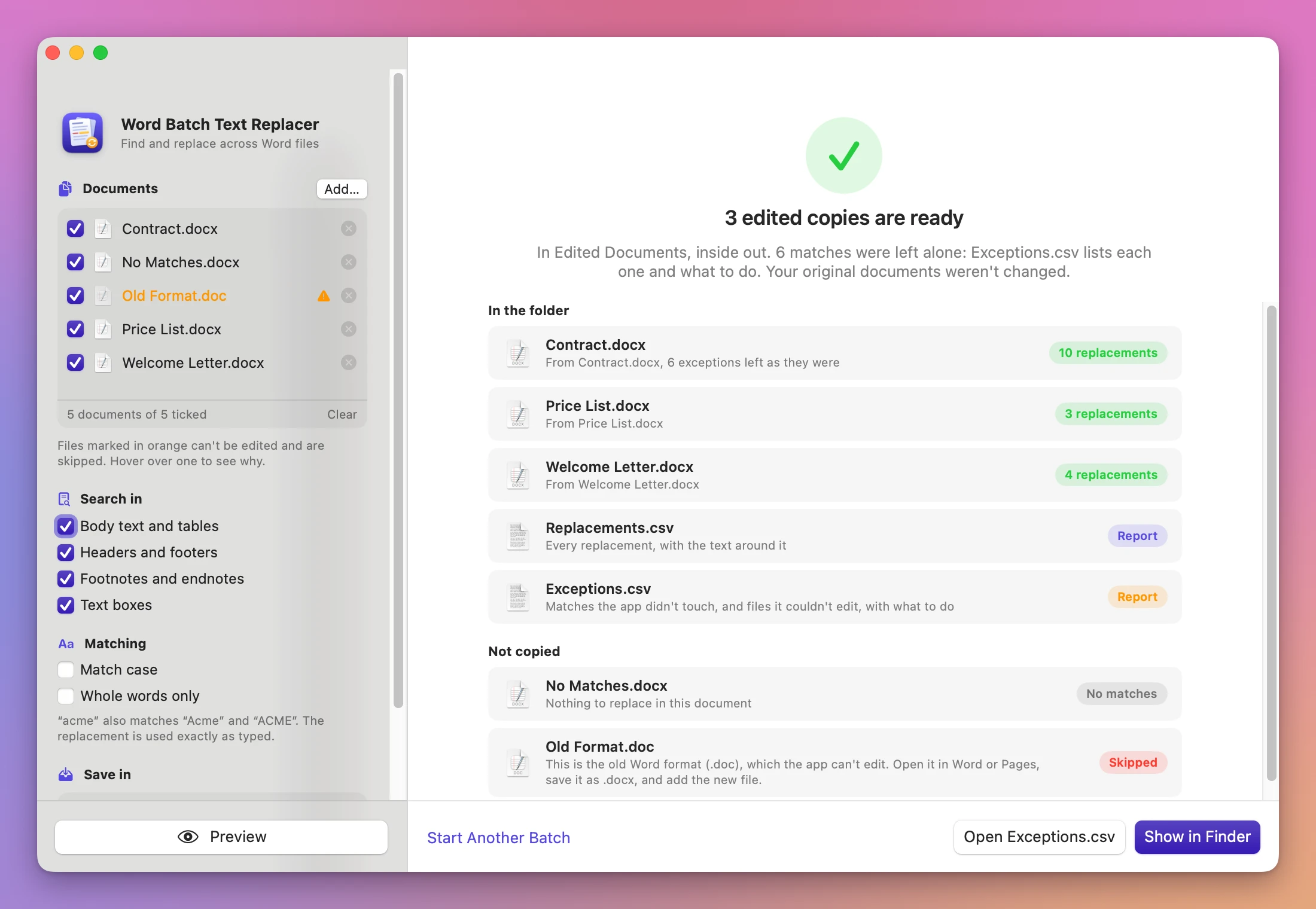
After the run, the original files were byte for byte the same as before. The app writes standard .docx files and rewrites only the text it changes, so styles, images and everything else in each document are copied as they were. The edited copies were checked in LibreOffice and with macOS’s own text tools, not in Word or Pages.
| Word, one document at a time | Word Batch Text Replacer | |
|---|---|---|
| 40 documents, 2 pairs | 80 rounds of Replace All, 40 saves | One preview, one click |
| See what changes | A count | Every match with the text around it |
| Tracked changes and fields | You have to spot them | Left alone and listed with what to do |
| Original files | Saved over | Unchanged, edits go on copies |
| A record of the changes | None | Replacements.csv and Exceptions.csv |
Old .doc files | Yes | No, save them as .docx first |
The app doesn’t search comments, link addresses or the document’s title and author, and it doesn’t copy the capitals of the text it replaces. Word Batch Text Replacer costs $19, paid once.
Get Word Batch Text Replacer
Replace the same text in many Word documents at once. Preview every match with the text around it, skip tracked changes and fields, and save edited copies with a report.
See Word Batch Text Replacer → · Read the docs · $19. See the app page for tax details.
Want me to talk about your product? You can sponsor this site.