How to loop a Keynote presentation on a shop or reception screen on a Mac
By Flavio
Keynote can loop a deck by itself with its Self-Playing mode. Here's how to set it up, what it doesn't cover on a screen nobody watches, and how to add opening hours and automatic restarts.
You have a TV in the shop window or a screen at reception, a Mac plugged into it, and a Keynote deck you want to play on repeat all day.
The short answer: Keynote can do it by itself. Open the Document panel, set Presentation Type to Self-Playing, tick Loop slideshow, and play the deck. That works as long as nobody touches the Mac. For a screen that runs on its own during opening hours, you need something that starts the show again when it stops, and stops it at closing time. That’s what Keynote Kiosk Runner does.
How do I make a Keynote deck play by itself?
Keynote calls it a self-playing presentation.
- Open the deck in Keynote.
- Click Document in the toolbar, and stay on its Document tab.
- Set Presentation Type to Self-Playing. Two delays show up: how long before each transition, and how long before each build.
- Tick Loop slideshow, so the deck starts again after the last slide.
- Click Play.
There’s also a Restart show if idle option, which goes back to the first slide after a while with no activity.
So the screen doesn’t go dark during the day, open System Settings › Lock Screen and set the display to never turn off when inactive. Do the same for the screen saver.
That’s the free way, and for a screen you look after yourself, it’s enough.
What goes wrong on a screen nobody watches?
A self-playing deck plays until something stops it, and then it stays stopped:
- Someone presses Esc, or clicks out of the show. The slideshow ends and Keynote’s editor sits on the screen, with your slides in the sidebar, until someone notices.
- Another document comes to the front, or a dialog opens. Same result.
- Keynote quits, or the Mac restarts after a power cut. Nothing opens the deck again.
- There are no opening hours. Someone starts the show every morning, stops it every evening, and the display either stays on all night or turns off at times you didn’t pick.
There’s one more catch. A deck made for presenting moves on when you click. To make it self-playing, Keynote uses the transition delay, and slides that wait for a click still wait. You may end up changing the transitions slide by slide in your original file.
How do I make it start again by itself?
Keynote Kiosk Runner is a Mac app I built for this. It costs $19, paid once, and it plays the deck with Keynote, so you keep the slides you already have.
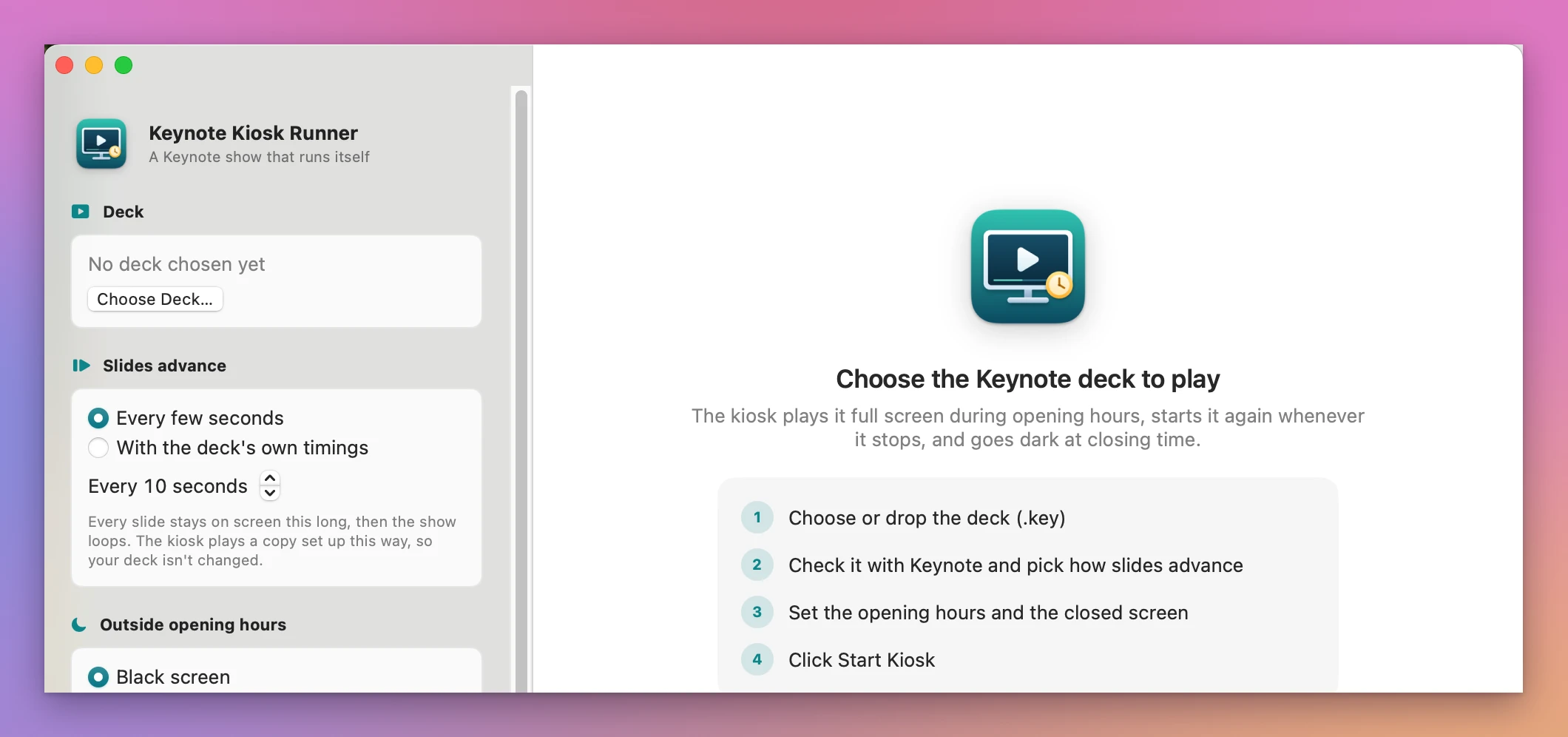
The screenshots in this guide are from a test Mac, with made-up decks and hours.
- Click Choose Deck… and pick the
.keyfile, or drop it on the window. - Click Check with Keynote. Keynote opens the deck for a moment and the app tells you how many slides it has, how many are skipped, and whether it Plays by itself or is Not self-playing.
- Under Slides advance, pick Every few seconds for a deck made for clicking, and set the seconds per slide. Pick With the deck’s own timings for a deck that’s already self-playing.
- Set the opening hours. Tick the open days and set the times, or click a preset like Mon–Sat 9:00–19:00. Always on plays day and night.
- Under Outside opening hours, pick Black screen, A “closed” picture, or Let the display sleep.
- Click Start Kiosk.
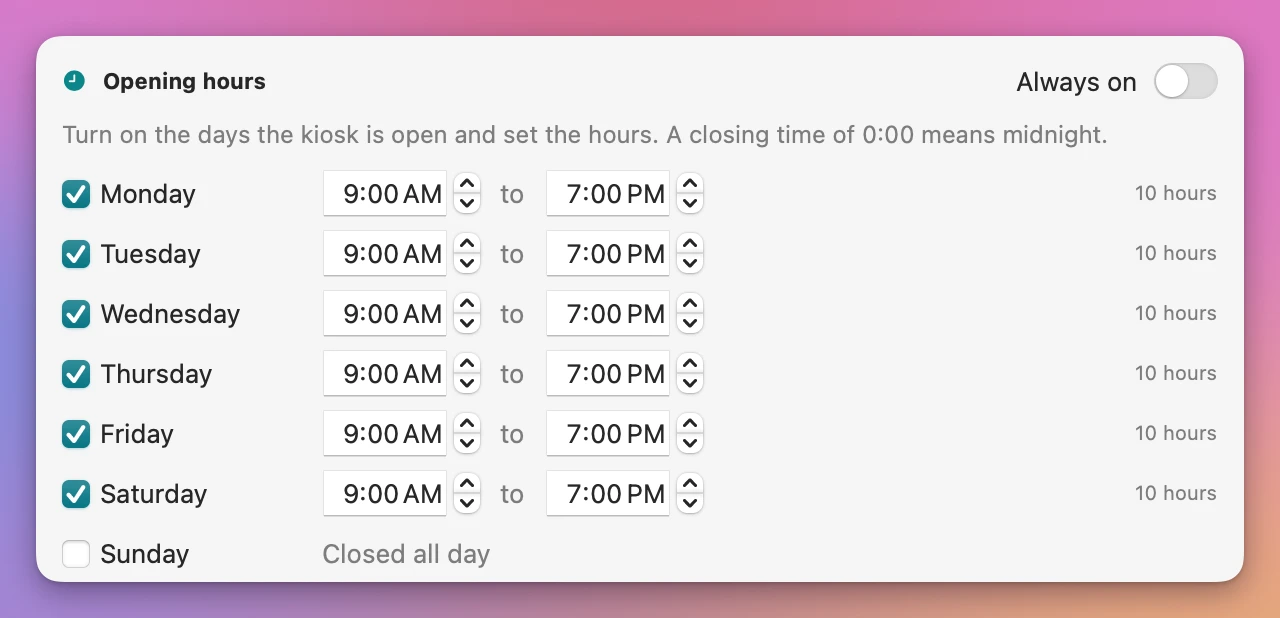
With Every few seconds, the app doesn’t touch your file. It plays a copy of the deck, with every slide set to move on after that many seconds and looping turned on. If you edit and save the original, the kiosk makes a new copy at the next check and starts again.
What happens when someone presses Esc?
Every 15 seconds by default, the app asks Keynote whether it’s running, whether a slideshow is playing, and whether the kiosk’s deck is the one in front. If not, it opens the deck again and plays it from the first slide.
Here’s a real run with a sample deck, “Shop Window”, four slides made for clicking, set to 3 seconds per slide, with checks every 5 seconds:
| What happened | When | What the kiosk did |
|---|---|---|
| Kiosk started | 20:46:24 | Played Shop Window from the first slide |
| The show was stopped, the way Esc stops it | 20:46:34 | Started it again at 20:46:40 |
| Another deck was opened and played in front | 20:46:47 | Started Shop Window again at 20:46:53 |
Each restart went in the log with its reason, like “The slideshow had stopped (someone pressed Esc or clicked out of it)”.
A second run used “Lobby Loop”, five slides that move on by themselves every 3 seconds, one of them skipped, with With the deck’s own timings and a closing time of 20:48. At 20:48:00 the show stopped. At 20:48:13 the show was started again by hand, and at 20:48:18 the kiosk stopped it, because the shop was closed.
What does the screen show when we’re closed?
At closing time the show stops and the closed screen goes up on the display you pick: black, a picture of your own that fills the screen, or the display asleep. At opening time the show starts again.
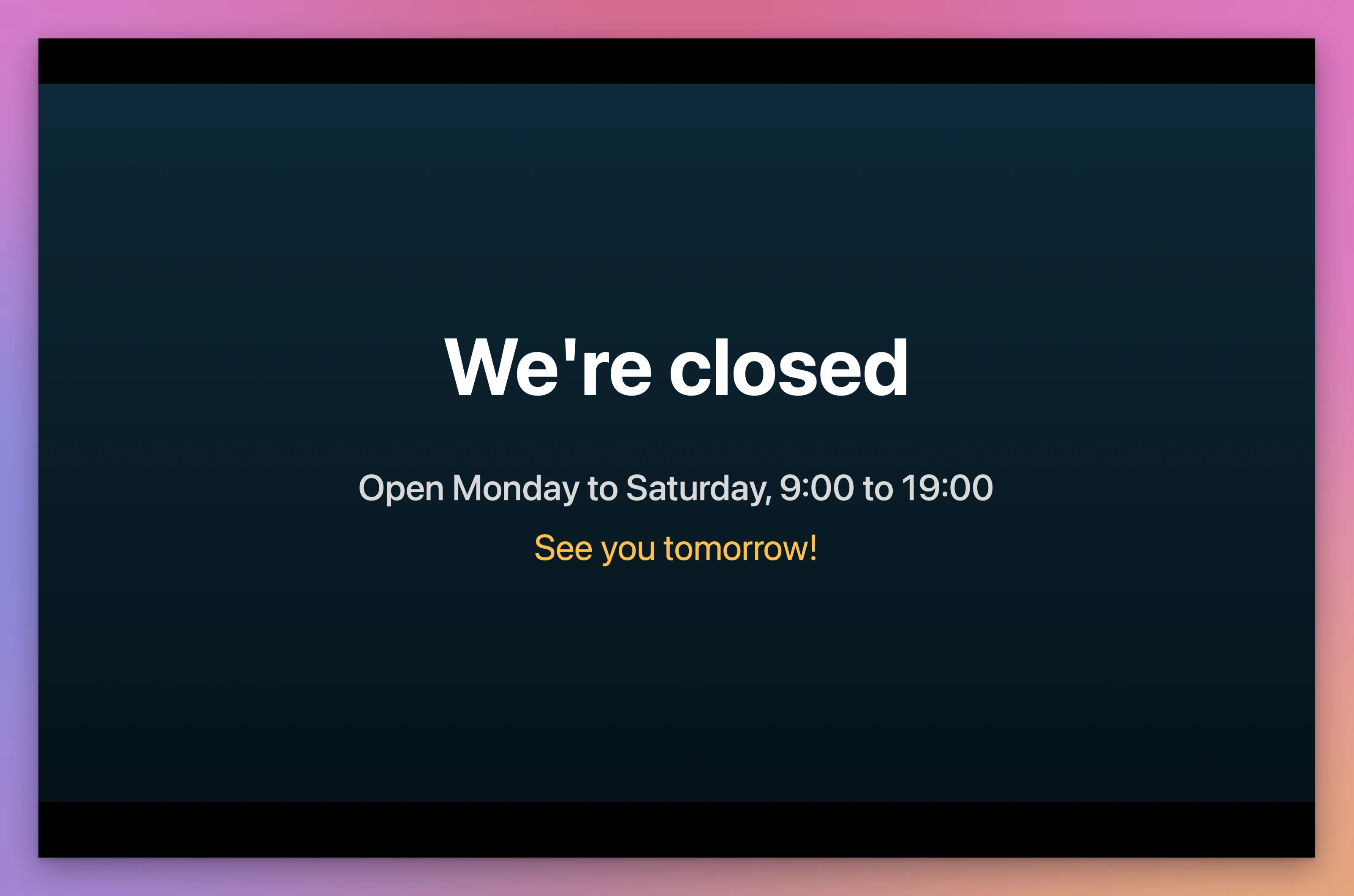
During opening hours the app keeps the display awake, so you don’t need to change the Lock Screen settings for the whole day and night.
To use the Mac for a moment, click the kiosk’s item in the menu bar and choose Pause for 15 Minutes. The show comes back by itself after the pause. Control-Option-Command-K stops the kiosk from anywhere.
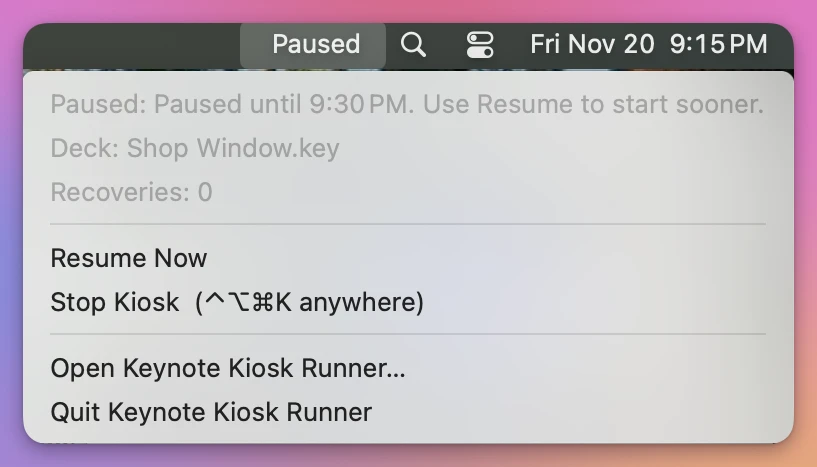
For a Mac that should come back after a power cut, turn on Open at login and Resume the kiosk when the app opens in the sidebar, and turn on automatic login in System Settings.
Self-Playing or Keynote Kiosk Runner?
| Keynote’s Self-Playing mode | Keynote Kiosk Runner | |
|---|---|---|
| Loops the deck | Yes, with Loop slideshow | Yes |
| Deck made for clicking | Change the transitions in your file | Seconds per slide, on a copy |
| Opening hours | No, start and stop it by hand | Hours for each day, or always on |
| After closing | Keeps playing until stopped | Black, a “closed” picture, or display asleep |
| Esc or another document in front | Stays stopped | Started again at the next check |
| Keynote quits, Mac restarts | Nothing plays | Opens the deck again, open at login |
| Cost | Free | $19, paid once |
Keynote still decides which display the slideshow plays on. Pick it in Keynote › Settings › Slideshow before you start.
Get Keynote Kiosk Runner
Play a Keynote deck unattended on a shop, reception or trade-show screen during opening hours, start it again when it stops, and show a closed screen after hours.
See Keynote Kiosk Runner → · Read the docs · $19. See the app page for tax details.
Want me to talk about your product? You can sponsor this site.