How to mark mistakes while recording a podcast on a Mac
By Flavio
Write down the time of every flub and pickup while you record, so you don't have to find them by ear later. The free way with a stopwatch, and a faster way with one key.
You’re recording an episode and you get a date wrong. You stop, say “let me go again”, and repeat the line. Twenty minutes later it happens again. When you sit down to edit, you have to find both places in a 50-minute file.
The fix is to note the time of each mistake while you record. You can do it for free with a stopwatch and a notepad. Or you press one key and let the Mac write the time for you, lined up with the recording.
Why mark mistakes during the recording?
Finding a restart afterwards means listening, or scrubbing the file and listening in bits. In QuickTime Player, a recording opens in a small window with a play button and a timeline, and the times show in whole seconds. There’s no waveform to spot the pauses in, and no markers.
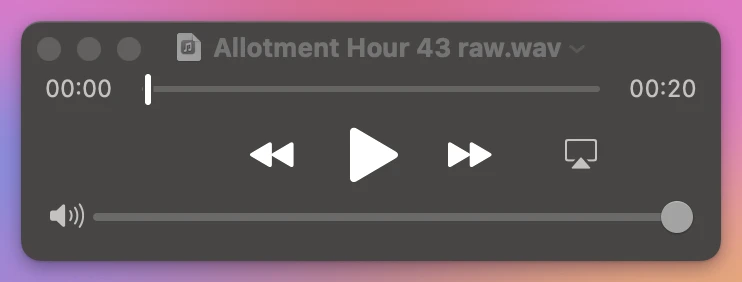
The recording in these screenshots is a 20-second test file made for this tutorial, with a deliberate mistake and a pickup in it. The episode names are made up.
If you write down “11:42, wrong frost date” while you record, you skip straight there in the editor.
The free way: a stopwatch and a notepad
- Put a stopwatch where you can see it: your phone, or the Stopwatch tab of the Clock app on the Mac.
- Click Start in Clock at the same moment you click Record in your recorder.
- When something goes wrong, glance at the stopwatch and write the time and a word or two on paper or in Notes: “11:42 frost date, again”.
- When you edit, jump to each time in your editor and listen around it.
It works, and it costs nothing. Two things get in the way. You have to look away from your notes or your guest to read the stopwatch and write, which is hard in the middle of a sentence. And the stopwatch and the recorder almost never start at the same moment. If you started the stopwatch two seconds late, every time on your list is two seconds early, and you won’t know until you check one.
Some recording apps have markers of their own. If yours does, use them. They only help while that app is the one recording, so they’re no use when you record a call or record in another app.
The faster way: one key per marker
Podcast Markers is a Mac app I built for this. It costs $19, paid once. Its window sits next to your recorder, and three keys mark the moments while the recorder stays in front:
- Control-Option-1 marks a topic.
- Control-Option-2 marks a correction: a flub, a pickup, a cough.
- Control-Option-3 marks a clip worth sharing.
Click Start a Session when you click Record. The window gets small and stays on top. Each key press adds a marker with its time in the session, and saves it right away.
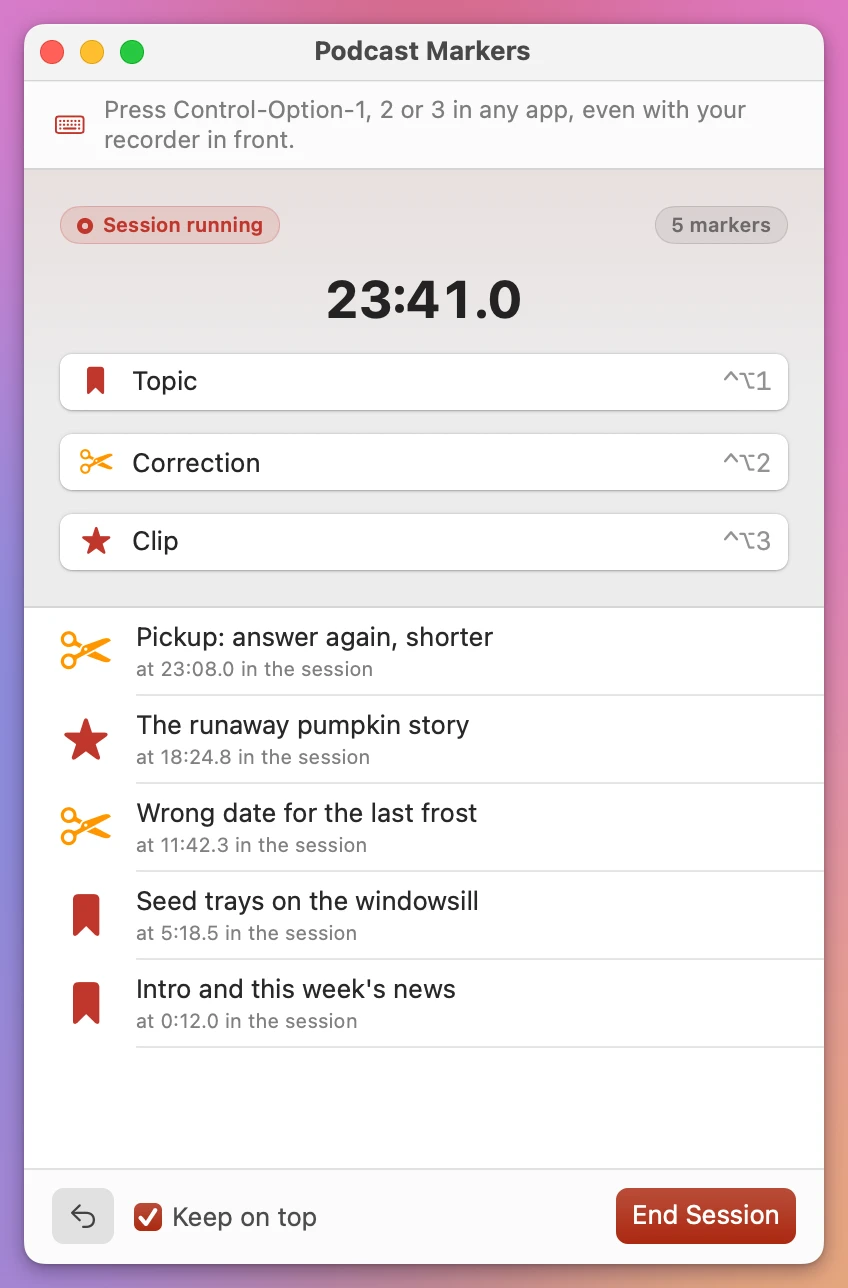
In the test run for this tutorial, the keys worked with the Finder and TextEdit in front, and each press added one marker. A press by mistake comes off with the arrow at the bottom left of the window. Click End Session when you stop recording.
Line the markers up with the recording
This is the step the stopwatch skips. Click Open the Recording… and pick the file. Each marker gets a time in the recording: its time in the session plus the start point, which is how far apart you clicked Record and Start a Session.
Click ▶ next to a marker to hear the recording from two seconds before it. If the moment comes early or late, type a new start point or click the −1 s, −0.1 s, +0.1 s and +1 s buttons. When it sounds right, click Confirm Start Point. Export stays off until you do.
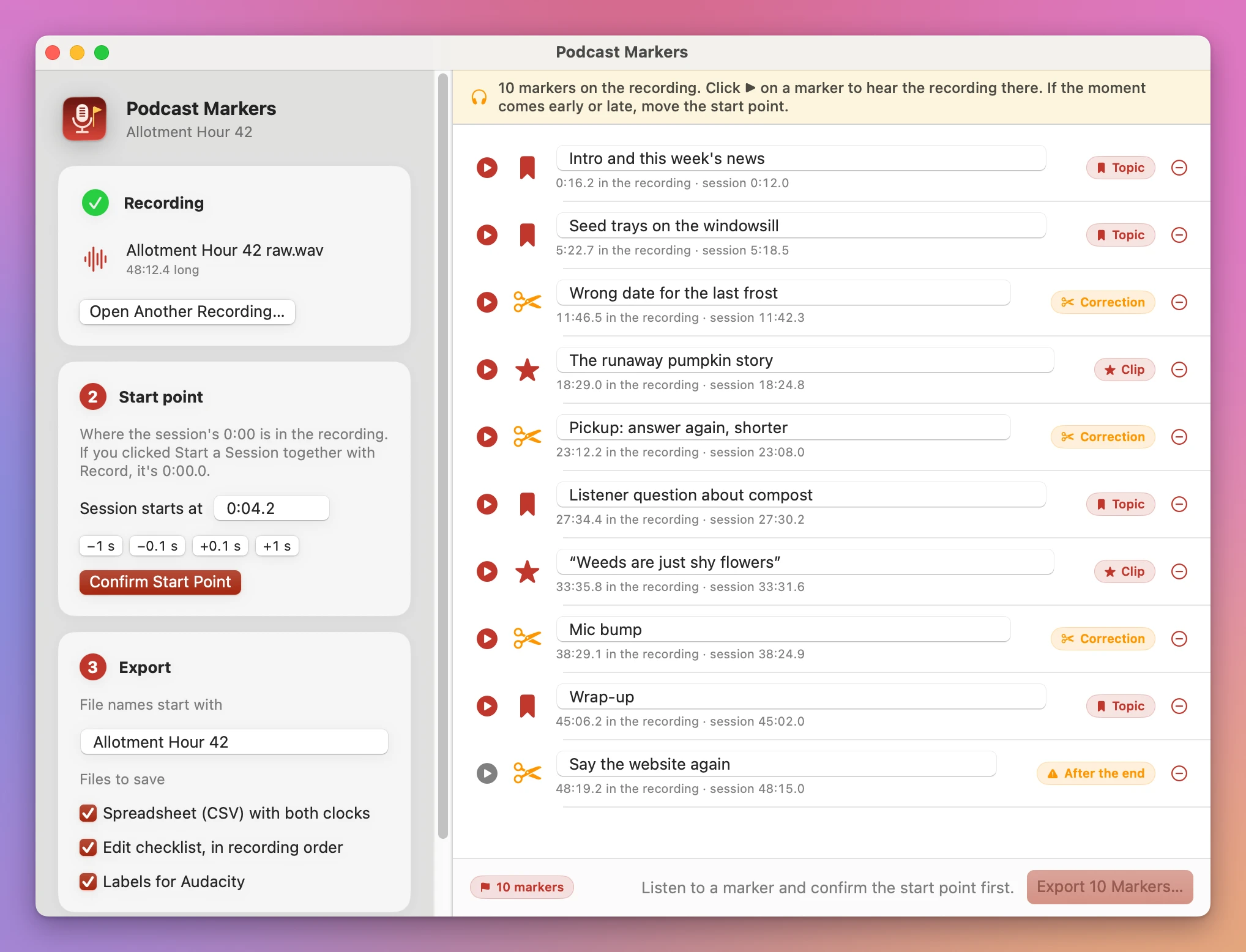
In the test, the session was started 17 seconds before the recorder, so the start point was -0:17. Typing it moved all four markers inside the 20-second recording. A marker pressed after the recorder stopped gets an orange After the end pill instead of being placed somewhere wrong.
What you get to edit from
Click Export Markers… and pick a folder. The edit checklist lists every marker in recording order, with a box to tick as you fix each one:
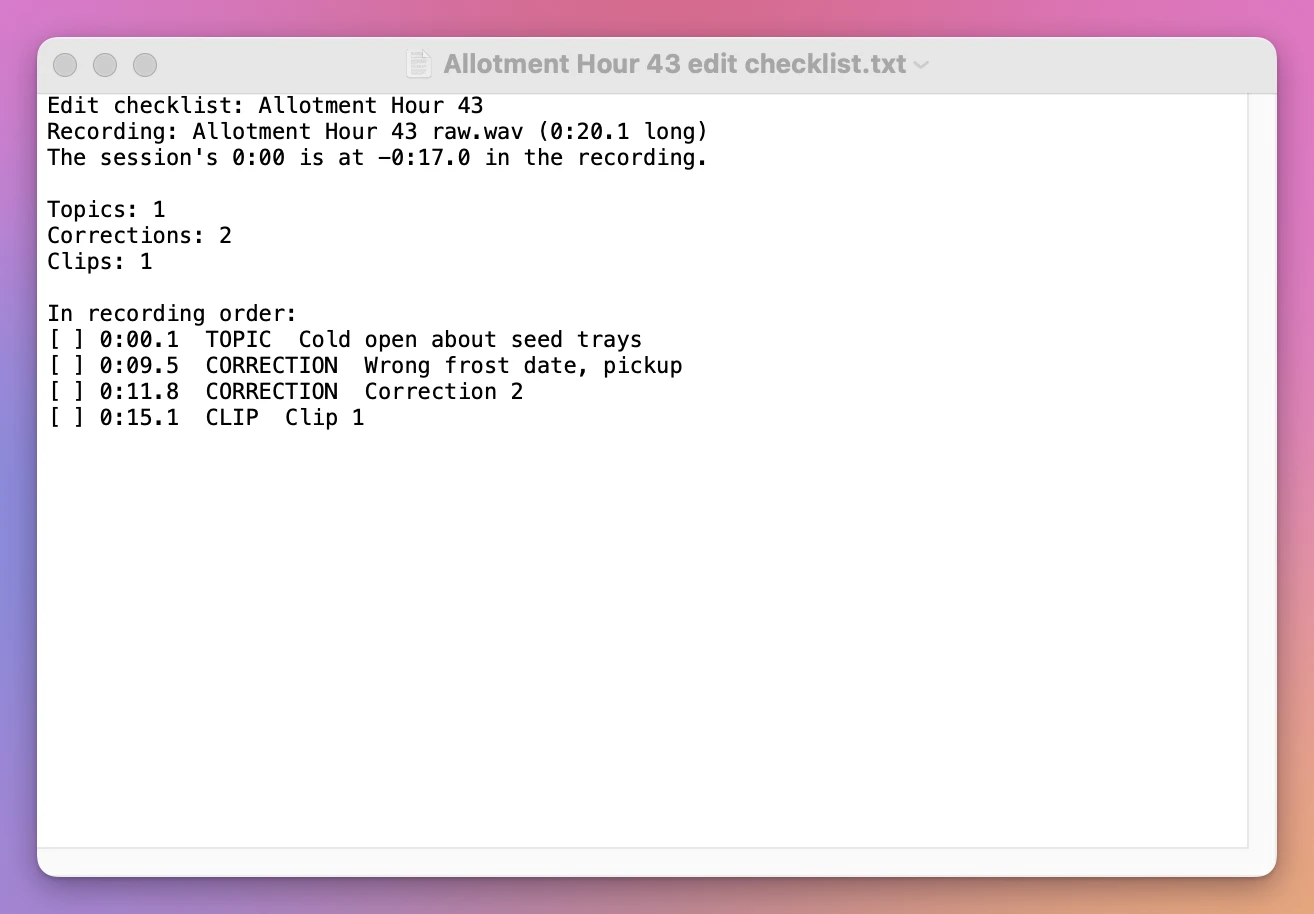
The same export writes a spreadsheet with each marker’s time in the recording and in the session, and a label file for Audacity. The recording itself is only read: its checksum was the same before and after the test.
Which way should you use?
| Stopwatch and notepad | Markers in your recording app | Podcast Markers | |
|---|---|---|---|
| Cost | Free | Comes with the app | $19 once |
| Works with any recorder | Yes | Only that app | Yes |
| Marking a moment | Read the time, write it down | A key, in that app | A key, from any app |
| Lines up with the recording | Off by your start gap | Yes | After you confirm by ear |
| Edit list | You type it | Depends on the app | Checklist, spreadsheet, Audacity labels |
If you record in an app with its own markers, use them. If you record a call or use a different recorder, the stopwatch works for a few marks per episode. When it’s a dozen pickups in an hour, Podcast Markers saves the writing and the guessing about the start.
Get Podcast Markers
Press Control-Option-1, 2 or 3 while you record a podcast to mark a topic, a correction or a clip, even with your recorder in front. Afterwards the markers line up with the recording, and you export a spreadsheet, an edit checklist and Audacity labels.
See Podcast Markers → · Read the docs · $19. See the app page for tax details.
Want me to talk about your product? You can sponsor this site.