How to merge bookmarks from Safari, Chrome and Firefox on a Mac without duplicates
By Flavio
Importing each browser's bookmarks gives you one folder per import and every shared site several times. Here's how the free way works, and how to merge the exports into one clean file first.
You have bookmarks in Safari, in Chrome and in Firefox, and you want them all in one browser. Without three copies of your bookmarks bar, and without GitHub saved five times.
The short answer: export the bookmarks from each browser as a file, merge the files into one, then import that one file. Browsers can import each other’s files, but they don’t merge them. To merge them with the duplicates removed, you need a tool like Bookmark Merge Desk.
Can a browser merge bookmarks from other browsers?
Each browser can import a bookmarks file exported by another one. That’s the free way, and it goes like this:
- In each browser you’re leaving, export the bookmarks to a file.
- Safari 18: File › Export Browsing Data to File… saves a zip. Double-click it in the Finder to get the bookmarks file inside.
- Chrome, Brave and Edge: open the bookmarks manager, click the ⋮ menu (in Edge, …), choose Export bookmarks.
- Firefox: Bookmarks › Manage Bookmarks, then Import and Backup › Export Bookmarks to HTML.
- In the browser you’re keeping, import each file. In Safari 18 it’s File › Import Browsing Data from File or Folder….
The import works. The problem is the result. Each import goes into a folder of its own, so the bookmarks from three browsers sit in three separate places. You get three copies of your bookmarks bar, a “Work” folder from Chrome and another from Firefox, and every site you saved in more than one browser two or three times.
The copies often have slightly different addresses, so the same page can be saved as https://github.com, https://github.com/, http://github.com/ and https://www.github.com/. Or as an article address with ?utm_source=newsletter at the end. You have to spot those by eye.
After the imports, you tidy up by hand: drag the folders together, open each one, delete the copies. With a few hundred bookmarks, that’s an evening.
What does merging the files first change?
Instead of importing three files and cleaning up inside the browser, you merge the three files into one, decide what happens to every folder and duplicate, and import a single clean file.
The app never touches your browsers’ bookmarks. It reads the exported files and writes a new one.
How do I merge the exports with the app?
The example here uses five made-up exports written in each browser’s format: Brave (6 bookmarks), Chrome (12), Edge (5), Firefox (12) and Safari (9). That’s 44 bookmarks, with GitHub saved in all five.
Export your bookmarks from each browser as above, then:
- Click Add Bookmark Exports… and pick the files, or drop them on the sidebar. Each one shows the browser it came from and how many bookmarks and folders it has. Chrome and Brave exports look the same, so both show as “Chrome or Brave”.
- Click Preview Merge. Nothing is saved yet.
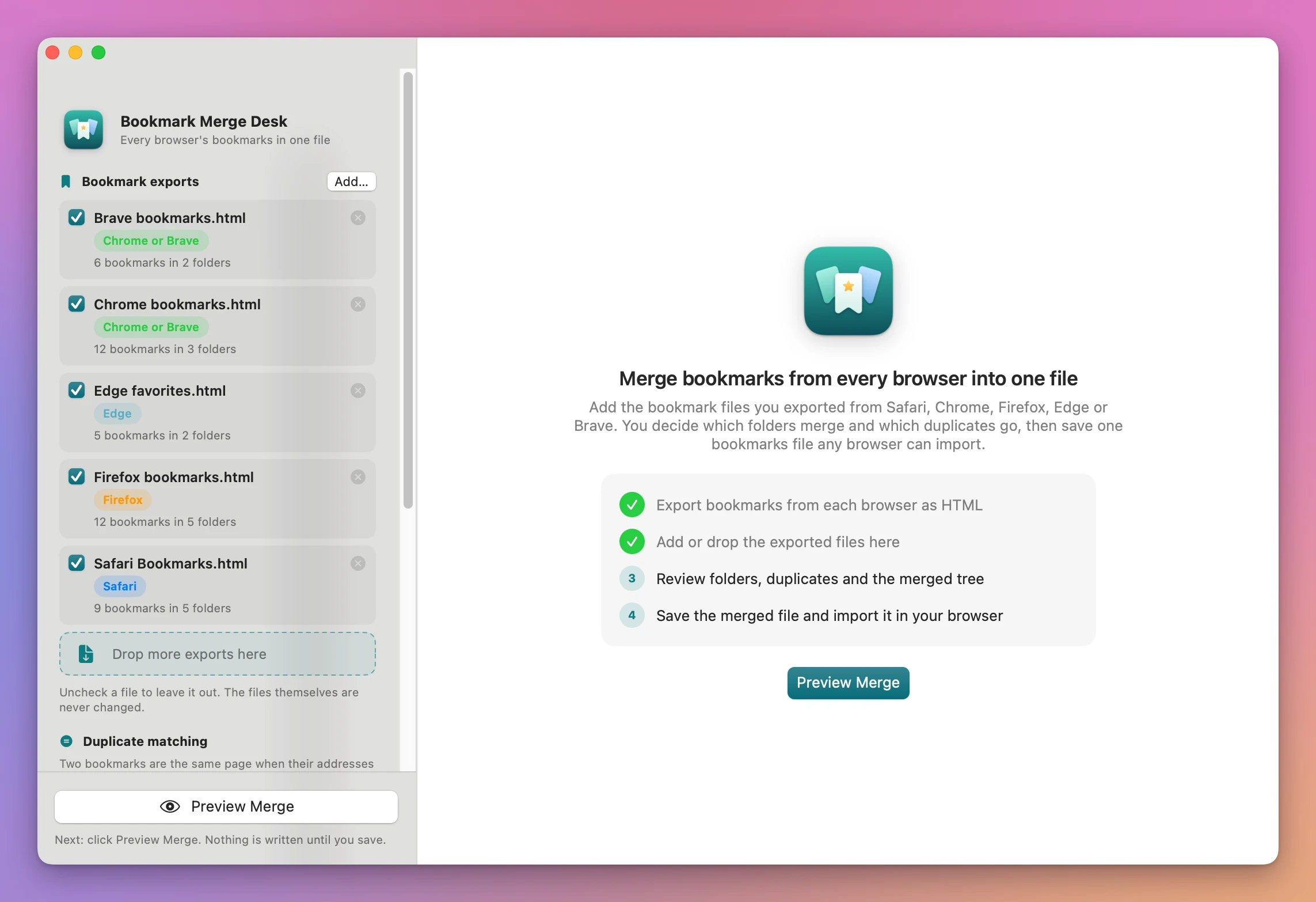
If you add Safari’s zip without unzipping it, the app says so in red and tells you to double-click it in the Finder first.
Which folders get merged?
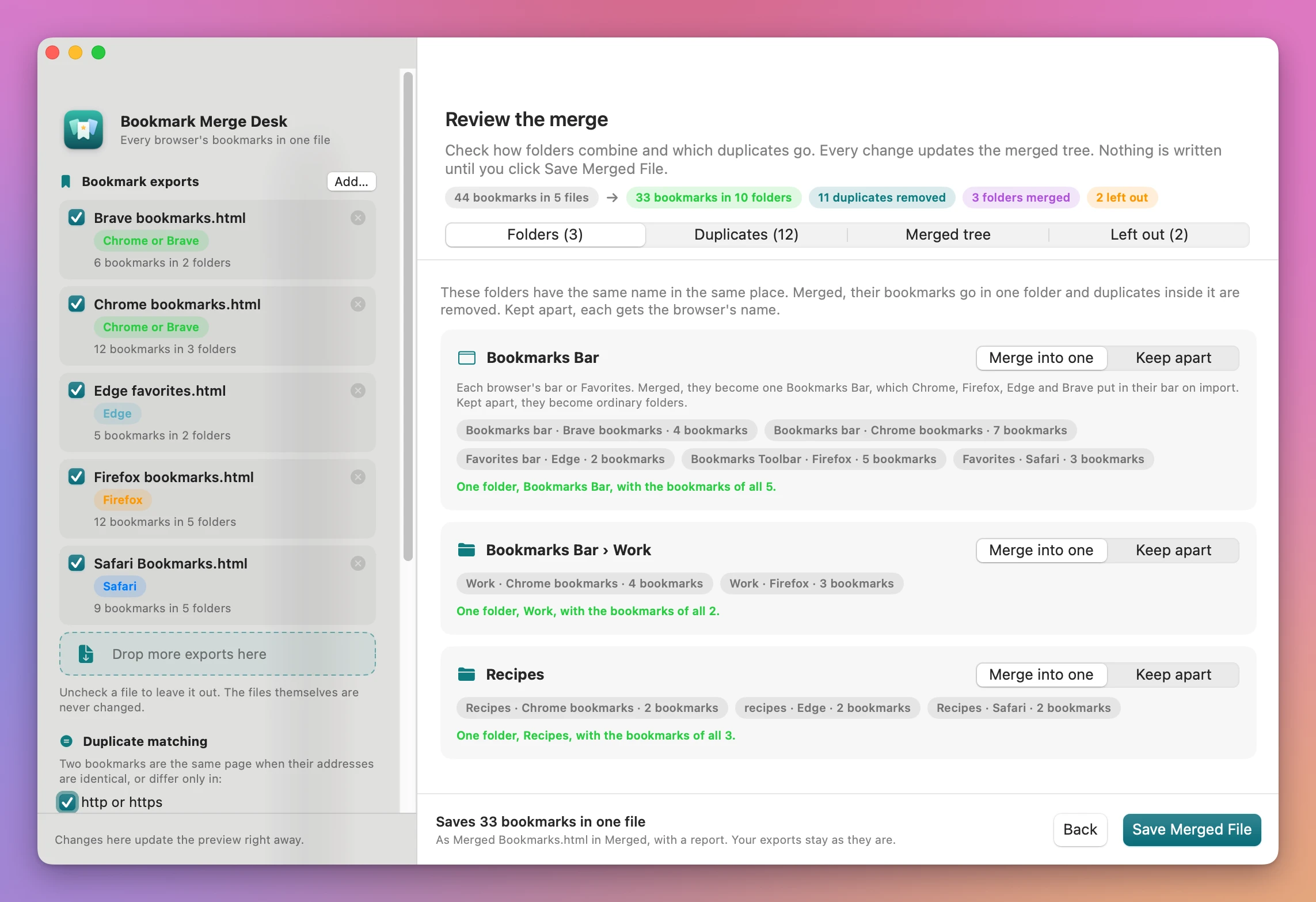
The Folders tab lists every folder name that appears in more than one export at the same place. Here there were three:
- Bookmarks Bar: Chrome and Brave call it “Bookmarks bar”, Edge “Favorites bar”, Firefox “Bookmarks Toolbar”, Safari “Favorites”. All five become one Bookmarks Bar.
- Bookmarks Bar › Work: from Chrome and from Firefox.
- Recipes: from Chrome, Safari, and “recipes” in lowercase from Edge.
Each one has a Merge into one / Keep apart switch. Kept apart, the folders stay separate with the source’s name added, like “Work (Firefox)”.
How are the duplicates found?
The Duplicates tab shows each group of copies side by side. Two bookmarks count as the same page when the addresses are identical, or differ only by http or https, www., a slash at the end, utm_ tracking tags, or a # part at the end. Each of those is a checkbox in the sidebar, all on by default.
The five GitHub copies are one group. The app kept https://github.com/ from Chrome, and marked the others with what differs: www. on Edge’s copy, http / https on Firefox’s.
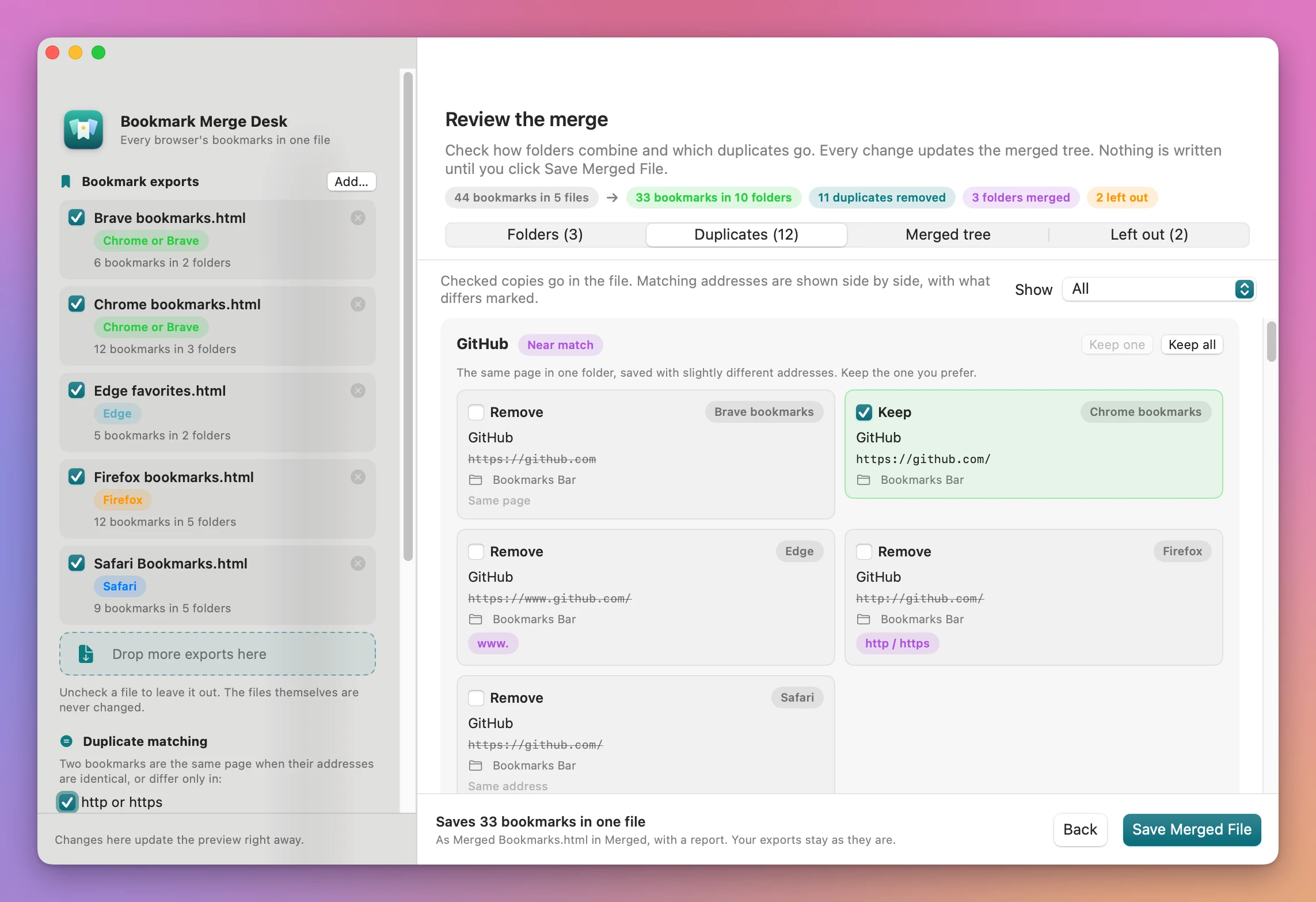
Tick Keep on a different copy if you prefer it. A page saved in two different folders stays in both by default, because you probably filed it there on purpose.
The Merged tree tab shows exactly what the file will contain, and Left out lists what won’t be in it. Here that was a Firefox smart folder (a saved search that only works in Firefox) and one separator line.
What do I get at the end?
Click Save Merged File. The 44 bookmarks became 33 in 10 folders: 11 duplicates removed, 3 folders merged, 4 pages kept in more than one folder.
You get two files: Merged Bookmarks.html, the file to import, and Merged Bookmarks report.txt, which lists every folder merged, every copy removed with the one kept, and everything left out. The export files weren’t changed.
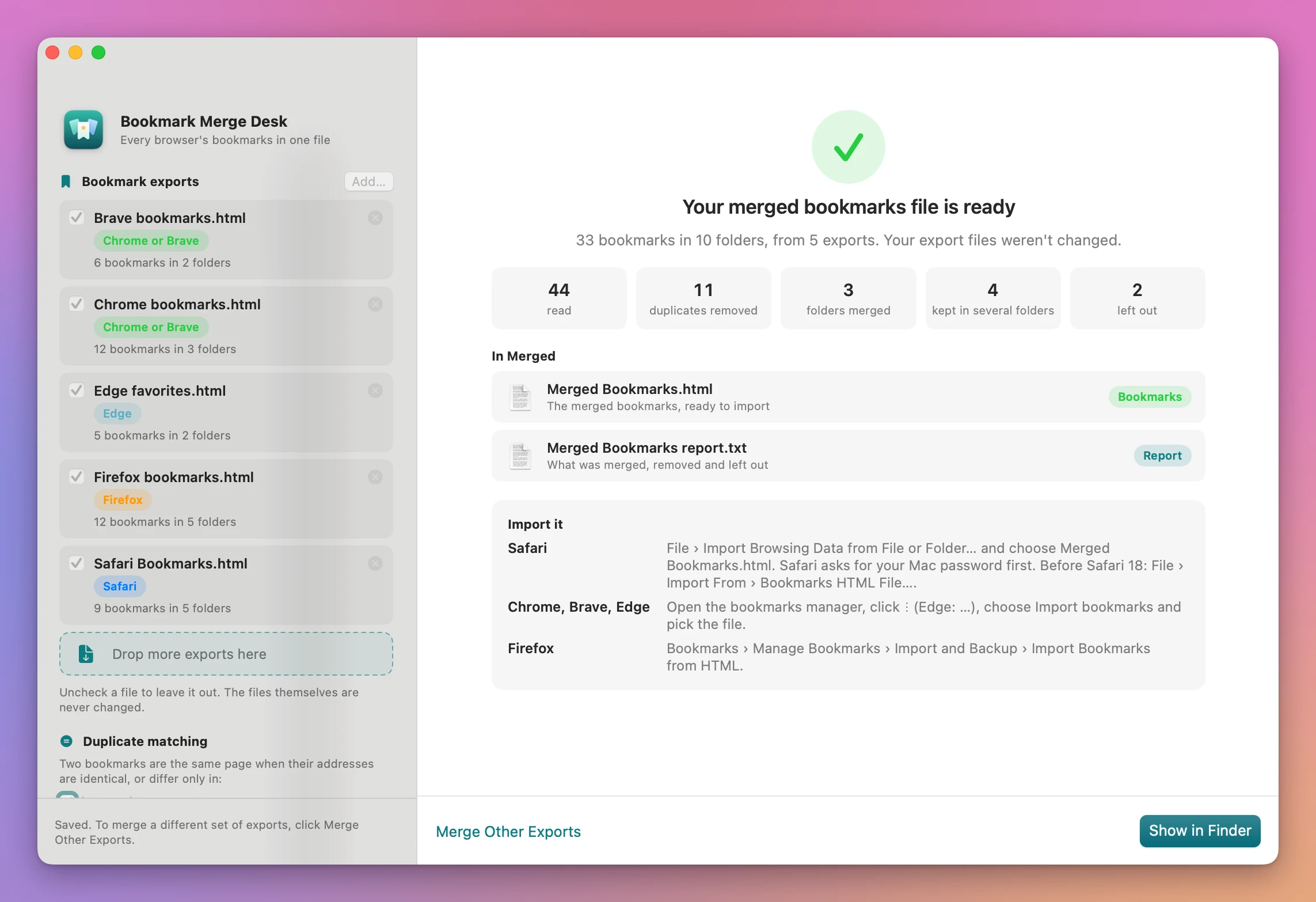
Then import Merged Bookmarks.html once, in the browser you’re keeping, with the import command from the first section. The done screen repeats the steps for each browser. Safari 18 asks for your Mac password before it imports. The import itself wasn’t part of this example run, so check your bookmarks in the browser afterwards.
| Importing each browser’s file | Merging the files first | |
|---|---|---|
| Bookmarks bars | One per import | One Bookmarks Bar, or kept apart |
| ”Work” in two browsers | Two folders | One folder, if you choose |
github.com vs https://www.github.com/ | Both kept | One kept, you pick which |
| Seeing the result before | No | The Merged tree tab |
| Your browsers’ bookmarks | Changed with each import | Changed once, by one clean import |
| A record of what was removed | None | A report file |
The app doesn’t read your browsers directly or import the file for you, and folders with different names, like “Recipes” and “Cooking”, stay separate. Bookmark Merge Desk costs $19, paid once.
Get Bookmark Merge Desk
Merge bookmark exports from Safari, Chrome, Firefox, Edge and Brave into one bookmarks file, with folder merges and duplicates reviewed first.
See Bookmark Merge Desk → · Read the docs · $19. See the app page for tax details.
Want me to talk about your product? You can sponsor this site.