How to move several Calendar events at once on a Mac
By Flavio
Calendar on the Mac moves events one at a time and doesn't skip weekends or holidays. Here's how to reschedule a group by hand, and how to move a whole course or project by a number of days or working days, with a preview, clash warnings and an undo.
Your course starts a week late, or the project kickoff slips three days, and every event after it has to move.
The short answer: Calendar on the Mac moves events one at a time, by dragging them or changing their date. There’s no command to move a group by a number of days. For a few events, do it by hand. For a whole term or project plan, an app like Calendar Batch Rescheduler moves them all at once, skips the days off, and shows every new date before anything changes.
How do I move events in Calendar by hand?
In the week or month view, drag an event to its new day. It keeps its time and its length. To move it further, double-click it and change the date in the event’s details.
That’s fine for three or four events. It gets slow when:
- There are many. A course with two lectures and a lab a week, plus office hours, is 17 events over four weeks. That’s 17 drags, each one in the right week.
- Some land on a day off. Calendar doesn’t know your holidays. You check each new date against the school calendar, and move the ones that land on a holiday again.
- An event repeats. Change one date of a weekly event and Calendar asks whether you mean only this event or all future events. Moving four dates of the office hours is four questions.
- You change your mind. Edit › Undo takes back your last changes while Calendar is open. Next week, the old dates are only in your head.
Importing a corrected .ics file adds the events a second time instead of moving the ones you have.
How do I move a whole group of events at once?
The example here is made up: a Biology 101 calendar stored On My Mac, with lectures, labs, a weekly office hour and a three-day field trip. The course starts a week late, so everything from November 20 on moves 7 days later. December 8 is a holiday, and the school is closed from December 21 to January 6.
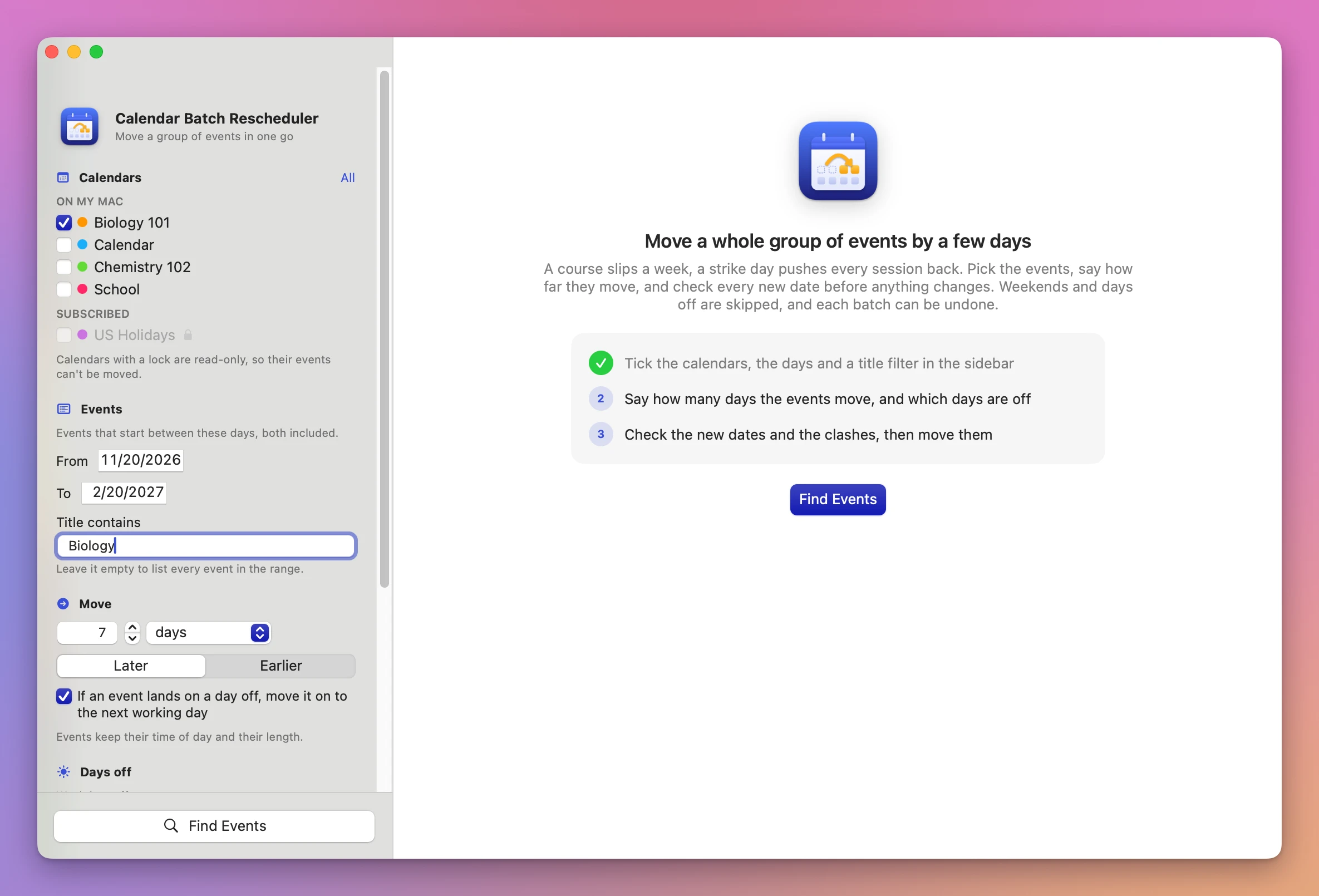
The first time, click Allow Calendar Access and choose Allow Full Access. Then, in the sidebar:
- Tick Biology 101 under Calendars.
- Set From and To. The app takes the events that start between those days, both included.
- Type
Biologyin Title contains, so only the course’s events move. - Under Move, type 7, pick days and Later. Leave If an event lands on a day off, move it on to the next working day ticked.
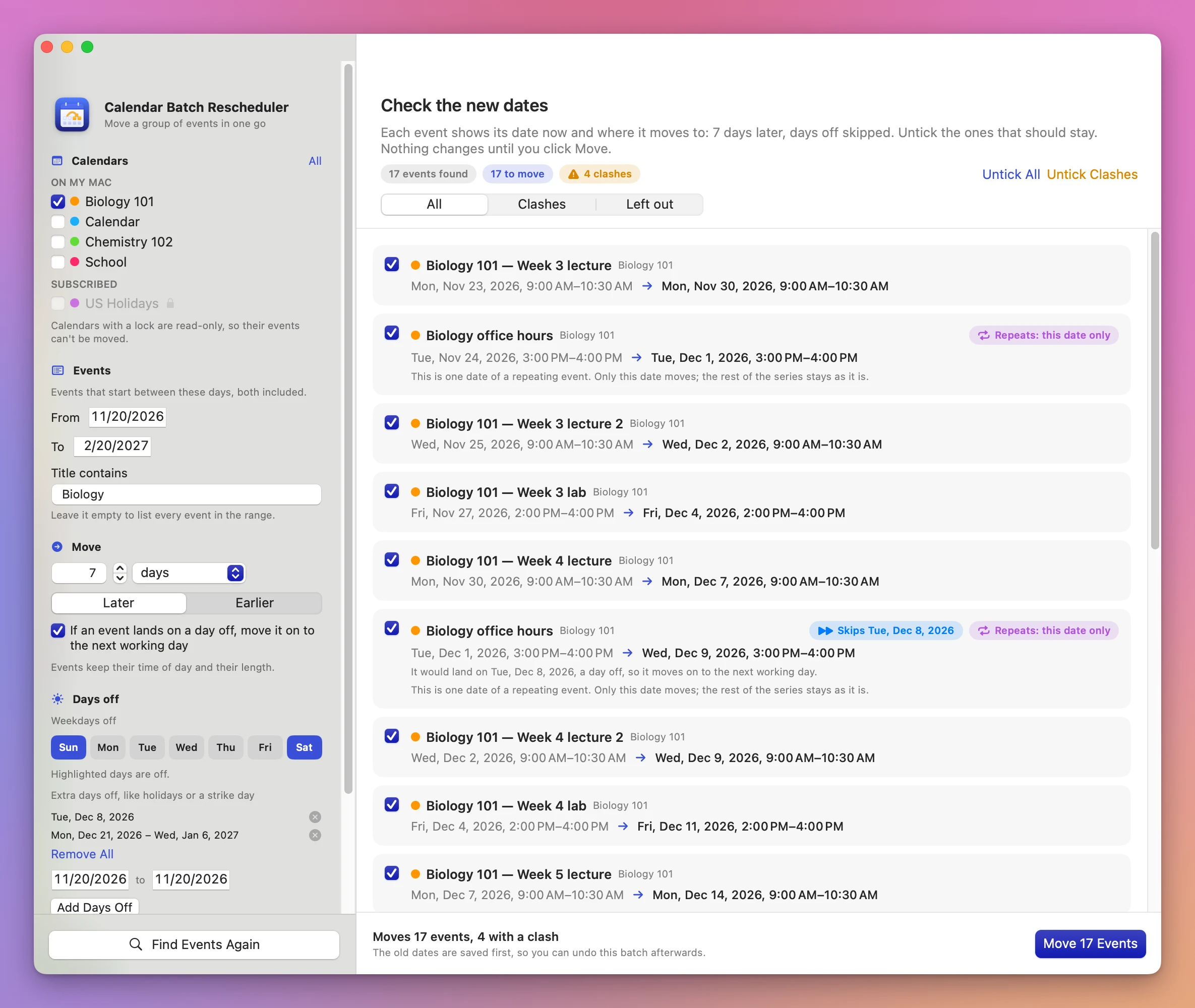
Under Days off, Saturday and Sunday are already highlighted. The holidays go in the field below them: typing 2026-12-08, 2026-12-21..2027-01-06 and clicking Add added both to the list. A date that doesn’t exist, like 2026-13-01, stayed in the field with a “Couldn’t read” line in orange.
Click Find Events. Check the new dates listed 17 events, each with its date now and its new date. The Tuesday office hours of December 1 would land on the December 8 holiday, so it moves to Wednesday, December 9, with a Skips Tue, Dec 8, 2026 pill. The office hours show Repeats: this date only: only the dates in the range move, and the series stays as it is.
What about clashes?
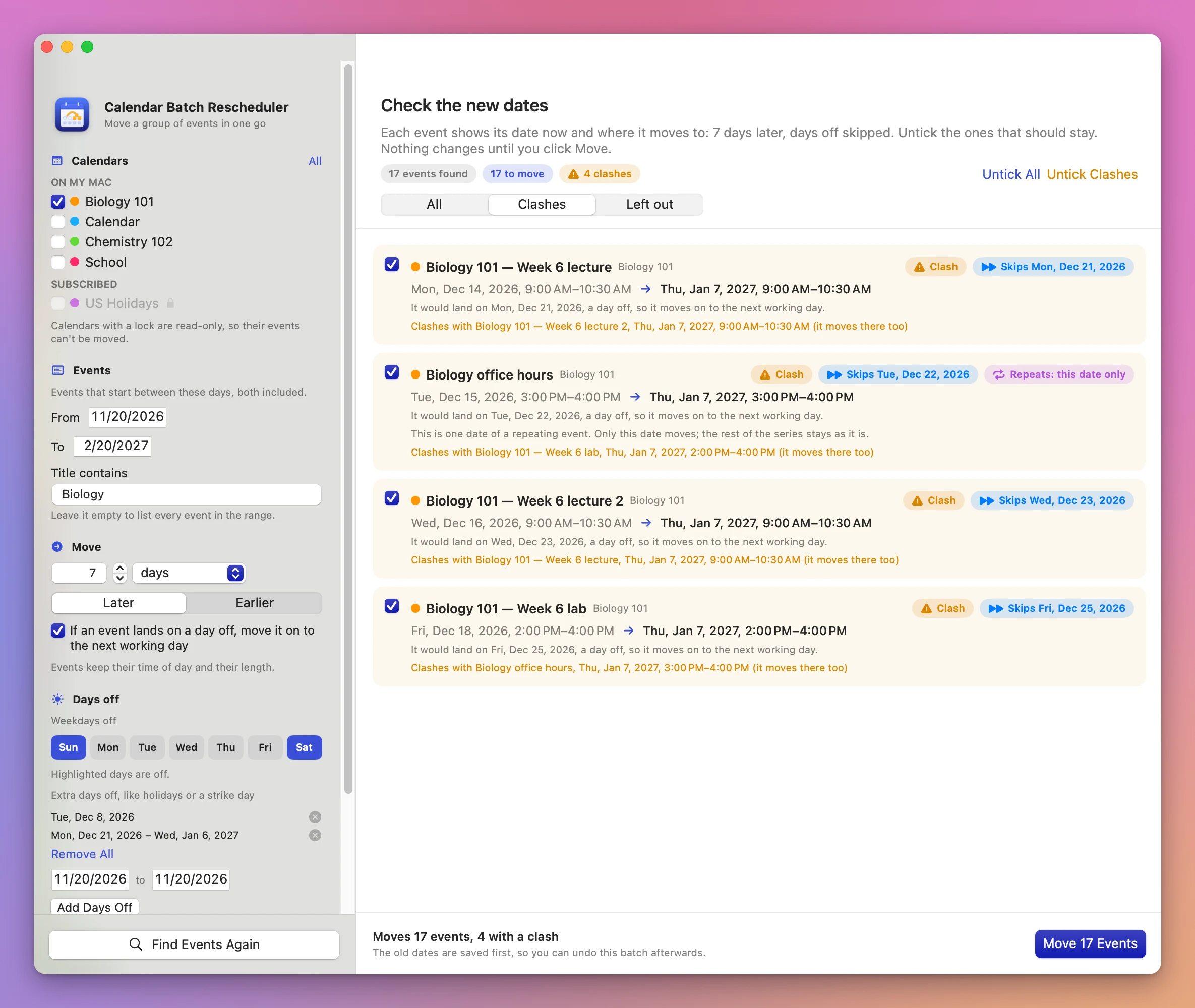
The amber pill said 4 clashes. The Clashes filter showed why: the whole week 6, moved 7 days later, landed in the winter break, so all four events moved on to Thursday, January 7, the first working day after it.
Ticking the School calendar too brought its staff meeting into the check, and a fifth clash showed up: the week 3 lecture, moved to Monday, November 30, landed on it. The staff meeting itself didn’t join the move, because its title doesn’t contain “Biology”.
Untick Clashes left those five where they were, and 12 events were left to move. An unticked event stays put, so the app checked again and found 4 new clashes: moved events landing on week 6 events that now stay. Here the 12 moved anyway: click Move 12 Events, and the confirmation says how many events land on a time that’s already taken.
Can I undo it?
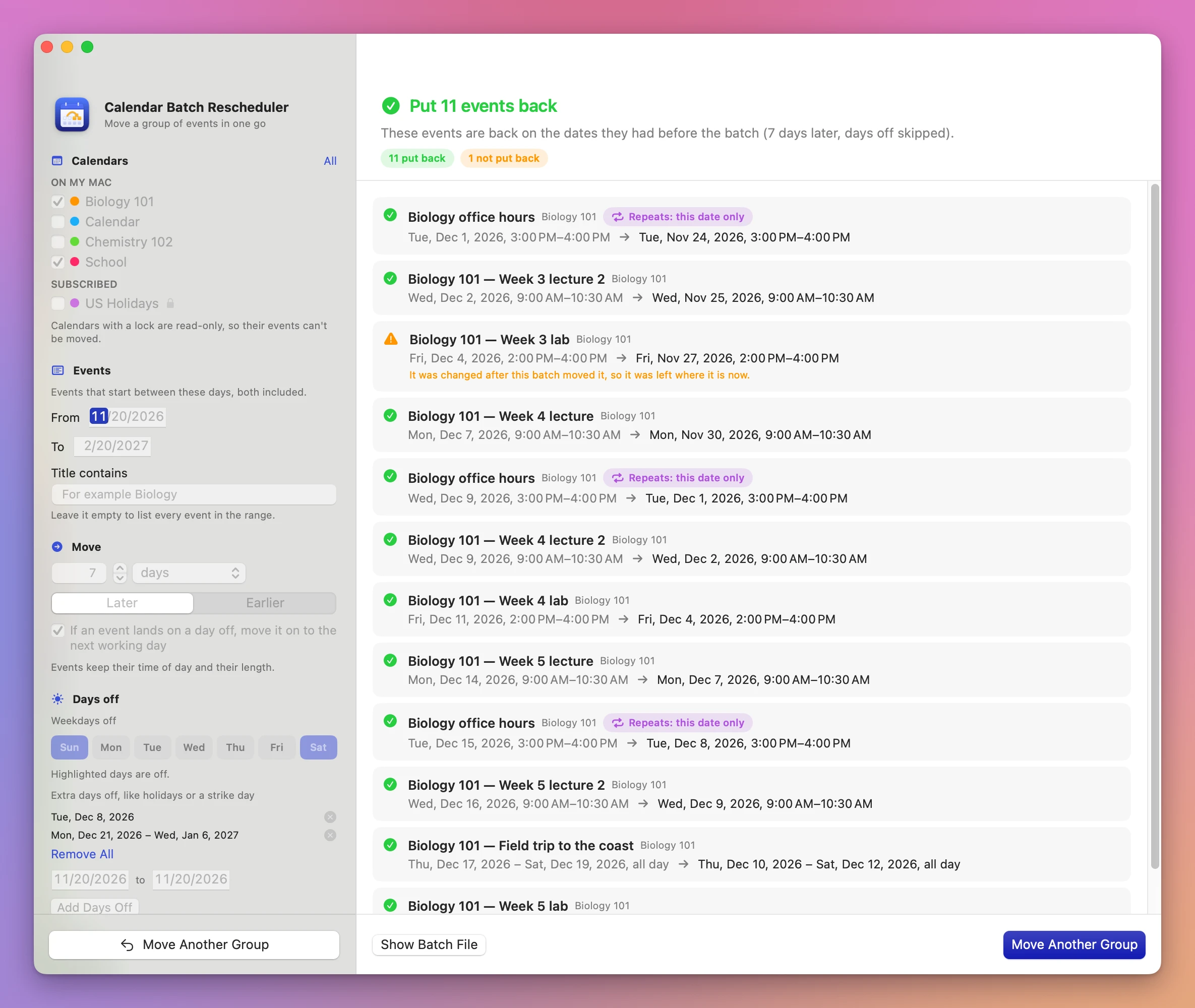
Yes, even days later. The app saved the batch to a file before changing Calendar, and the start screen lists it under Earlier batches with an Undo… button, also after you quit the app.
Here, one moved lab was edited by hand in Calendar before the undo. Undo… put the other 11 events back on their old dates and left that one where it was, with the line “It was changed after this batch moved it, so it was left where it is now.”
Which way should I use?
| Drag in Calendar | Calendar Batch Rescheduler | |
|---|---|---|
| Good for | A few events | A term, a season, a project plan |
| Holidays and breaks | You check each date | Skipped, with the day it skipped |
| Working days | You count them | working days |
| Repeating events | A question per date | Only the dates in range, one by one |
| Clashes | You spot them in the week view | Listed before anything moves |
| Undo | Edit › Undo while Calendar is open | Any saved batch, later |
The app leaves events with invitees alone, so the people you invited get the change from Calendar when you move those yourself. It was tested on calendars stored On My Mac, not on iCloud, Google or Exchange calendars.
If the new dates come from a spreadsheet instead, Import a CSV file into Calendar on a Mac shows how to bring a schedule in. Calendar Batch Rescheduler costs $19, paid once.
Get Calendar Batch Rescheduler
Move a group of Calendar events by a number of days or working days, skipping weekends and days off, with a preview of every new date, clash warnings and an undo for the batch.
See Calendar Batch Rescheduler → · Read the docs · $19. See the app page for tax details.
Want me to talk about your product? You can sponsor this site.