Get a presenter view in Notion presentation mode and see the next slide
By Flavio
Updated
Open a floating presenter panel for Notion presentation mode in Chrome, see the next slide and where you are, and keep that panel off the audience's screen.
Notion’s presentation mode turns a page into slides. Put a divider between sections, press ⌘⌥P (Ctrl+Alt+P on Windows and Linux), and each section becomes a slide, with the page title as the first one. What it doesn’t have is a presenter view: you see exactly what the audience sees, so you find out what comes next when you click.
Slide Lookout is a Chrome extension that adds a small floating window with the next slide and your position, like “Slide 2 of 6”. It stays on top of the slides, and it isn’t part of the Notion tab, so a tab share leaves it out.
What you need
- Chrome 116 or later. The panel is a Document Picture-in-Picture window, which arrived in that version.
- Notion in Chrome, on
notion.so,notion.comornotion.site. The Notion desktop app isn’t Chrome, so the extension can’t run there. - A Notion plan that includes presentation mode: Plus, Business or Enterprise.
Download the extension zip from your Polar receipt, unzip it, and move the folder somewhere it can stay, like Documents. Then open chrome://extensions, turn on Developer mode, click Load unpacked, pick the folder, and pin Slide Lookout from the puzzle menu.
Chrome warns that the extension can read and change your data on the Notion sites, because it shows an Open presenter view button on the page while you present. The activeTab and scripting permissions let the toolbar button and the shortcut open the panel. Slide Lookout makes no network requests and doesn’t edit your pages.
Open the panel before you present
Open the Notion page. Press Option+Shift+P on a Mac, Alt+Shift+P on Windows and Linux, or click the Slide Lookout button. On any page that isn’t Notion, the button does nothing.
The panel opens at 520×380 pixels with Waiting for the presentation, a Start presenting button, and a reminder to press ⌘⌥P in Notion. Drag it where only you can see it, and resize it if you want a bigger preview.
Then click the Notion page and press ⌘⌥P. The panel switches to the preview:
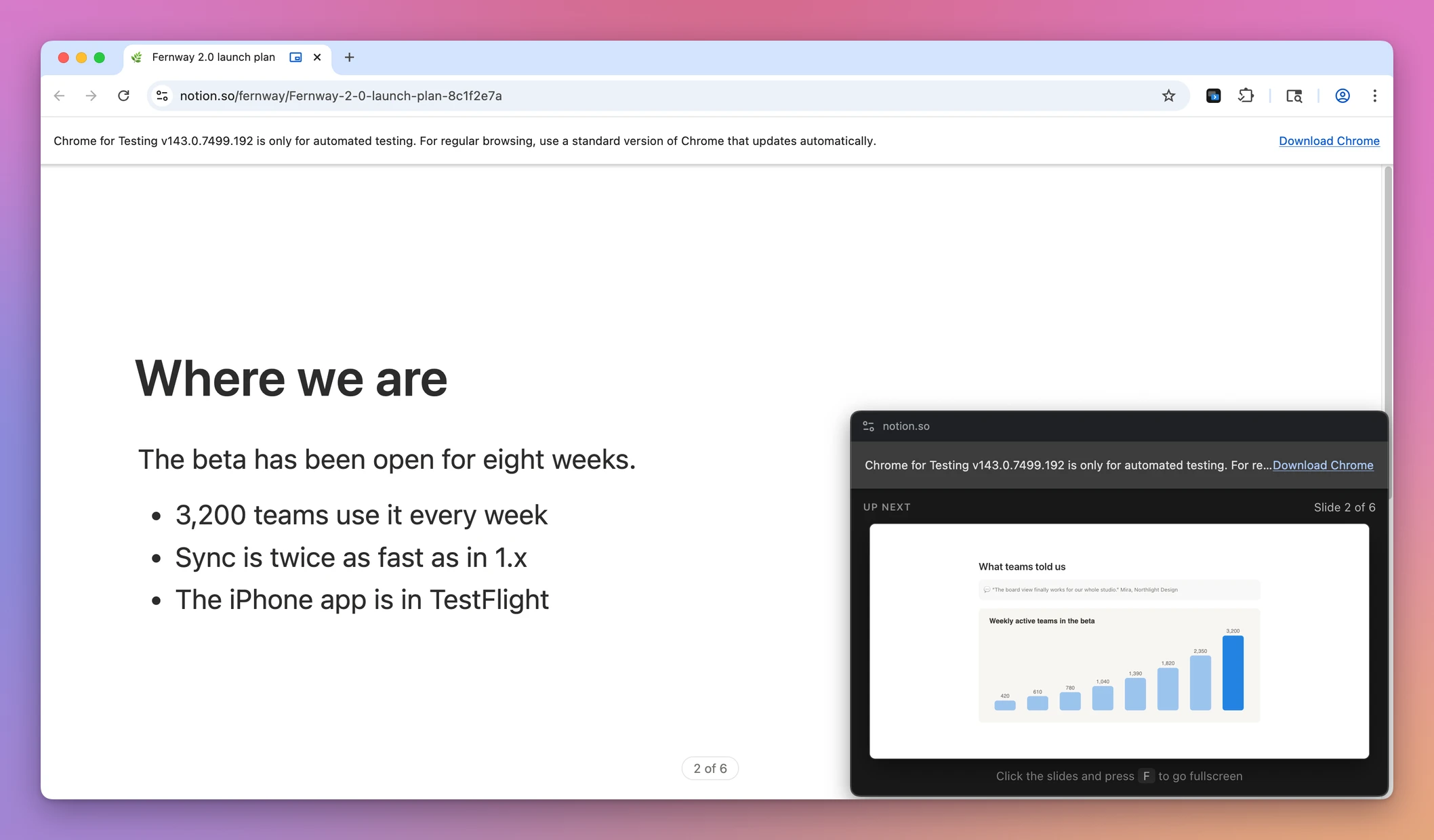
“Slide 2 of 6” is where you are, the same number Notion shows at the bottom, and the preview below it is slide 3. The deck in these screenshots is made up for the app’s page.
Here’s what the panel shows in each situation:
| Situation | The panel shows |
|---|---|
| Not presenting yet | Waiting for the presentation and a Start presenting button |
| Presenting | Up next, Slide 2 of 6, and the next slide |
| Presenting, but the slides aren’t fullscreen | The same, plus “Click the slides and press F to go fullscreen” |
| On the last slide | End of presentation, “This is the last slide.” |
| The next slide has an embed, like a YouTube video or a Figma file | A gray box that says Embed where the embed goes |
| Notion’s counter can’t be read | Slide 2, without the total |
The preview is a copy of the slide Notion already drew. Notion keeps three slides in the page, the previous, the current and the next one, and only shows the current one. Slide Lookout clones the next one into the panel, with Notion’s stylesheets and theme colors, so it looks right in light and dark mode. Embeds become that gray box so a video doesn’t load twice.
Change slides as usual
The arrow keys, Space and a clicker work the way they do without the panel, and the panel follows each change. Go back one slide and the preview goes back too.
If you click the panel by mistake, keep going. While it has the focus, it sends these keys on to Notion: Left and Right arrows, Page Up, Page Down, Space, Escape and R. Most clickers send Page Up and Page Down or the arrows, so they keep working. Up and Down arrows aren’t forwarded, so click the slides before you use those.
Get fullscreen back
When a page opens a floating window, Chrome takes it out of fullscreen, and an extension can’t put it back. That’s why the order matters: panel first, then ⌘⌥P.
If the slides drop out of fullscreen anyway, click them and press F. Slide Lookout catches that key and asks Chrome for fullscreen. A click in the panel doesn’t count, because Chrome only allows fullscreen from a key press or click in the page itself. The Start presenting button in the panel has the same limit: it starts Notion’s presentation, then you click the slides and press F.
If you started without the panel
Move the mouse while presenting. An Open presenter view button appears in the bottom right corner, and fades out 2 seconds after the mouse stops, like Notion’s own controls. It also shows for 3 seconds when a presentation starts. Click it, then press F on the slides.
The panel belongs to the Notion tab. Switch to another tab, window or app, and it closes after a second and a half. Come back and open it again with the shortcut or that corner button.
Keep the panel off the audience’s screen
The panel is its own window, so what people see depends on what you share:
| What you share | The audience sees the panel? |
|---|---|
| The Notion tab | No |
| The Chrome window with the slides | No, but the panel is a window too, titled “Presenter view”, so check which one you pick |
| The whole screen | Yes |
| A projector set up as an extended display | No, if the panel stays on your laptop |
| A projector mirroring your display | Yes |
Before the real talk, join the call from another device, or ask someone, and look at your share once.
If something doesn’t work
If the shortcut does nothing but the toolbar button opens the panel, Chrome left the shortcut empty because another extension uses Alt+Shift+P. Open chrome://extensions/shortcuts and set one for Slide Lookout’s Open or close the presenter view. Option+Shift+P and Notion’s ⌘⌥P are different shortcuts: one opens the panel, the other starts the presentation.
If a dialog says “Slide Lookout needs Chrome 116 or later.”, update Chrome.
If the panel stays on Waiting for the presentation while you’re presenting, or stops following the slides, Notion probably changed its page markup. The extension depends on it. Download the latest version from your Polar receipt, copy its files over the old ones in the same folder, click the reload arrow on the Slide Lookout card in chrome://extensions, and reload the Notion page.
Get Slide Lookout
See your next Notion slide in a floating presenter window while your audience watches the presentation. A Chrome extension.
See Slide Lookout → · Read the docs · $20. See the app page for tax details.
Want me to talk about your product? You can sponsor this site.